Auto-Create Records lets you automatically create task records each time a new brief is published. It saves users from adding the same tasks by hand, and is especially useful when the same set of tasks need to be completed for every brief.
When databases have been linked together, for example when a briefs database (the parent) has a Lookup Grid that looks down to a tasks database (the child), you can configure records in the tasks database to be auto-created whenever a new brief/parent record is published.
Table of Contents
Configuring Auto-Created Records
In the Form Builder, open the Lookup Grid field. Once a supported Lookup Grid Source Field has been selected, a new field called Auto-Created Records appears. Depending on the custom name of the linked database, it may show as something like Auto-Created Tasks.
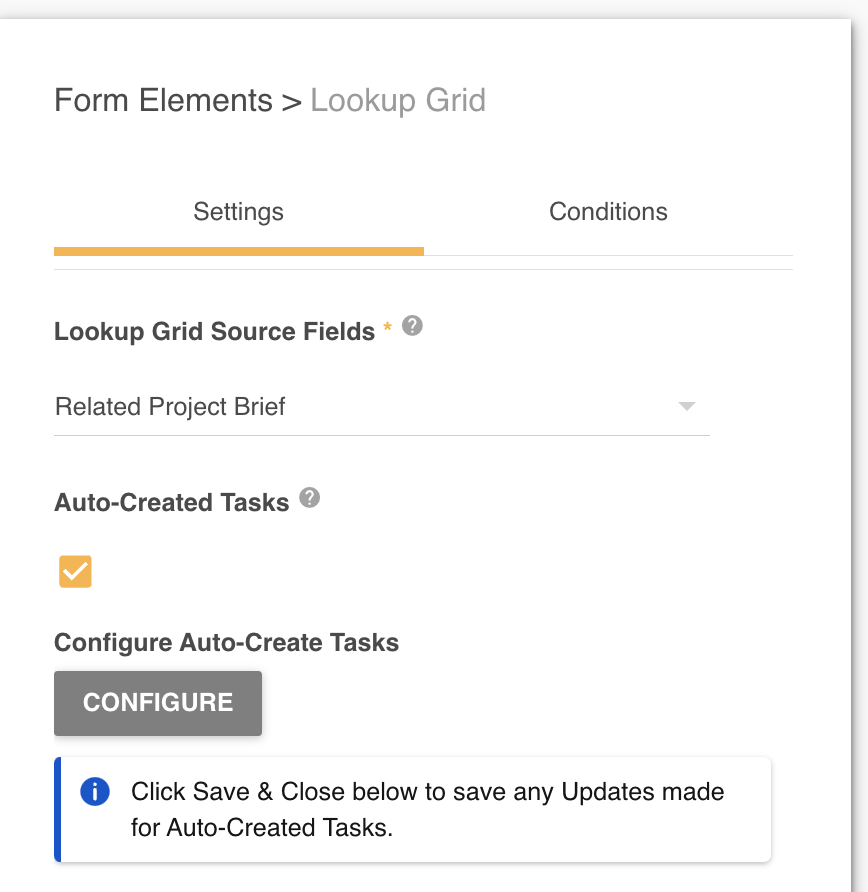
If the field does not appear after selecting a Lookup Grid Source Field, it is for one of these reasons:
- It has already been enabled on another Lookup Grid field in the same database.
- The database selected in the Lookup Grid Source Field does not use a Text field as its title field. This is a prerequisite for the feature.
Enabling the Auto-Created Records setting displays a Configure button, which opens the options below.
Configure Custom Prompt
Set up a custom info banner (pictured below) that tells users what is expected of them when auto-creating records.
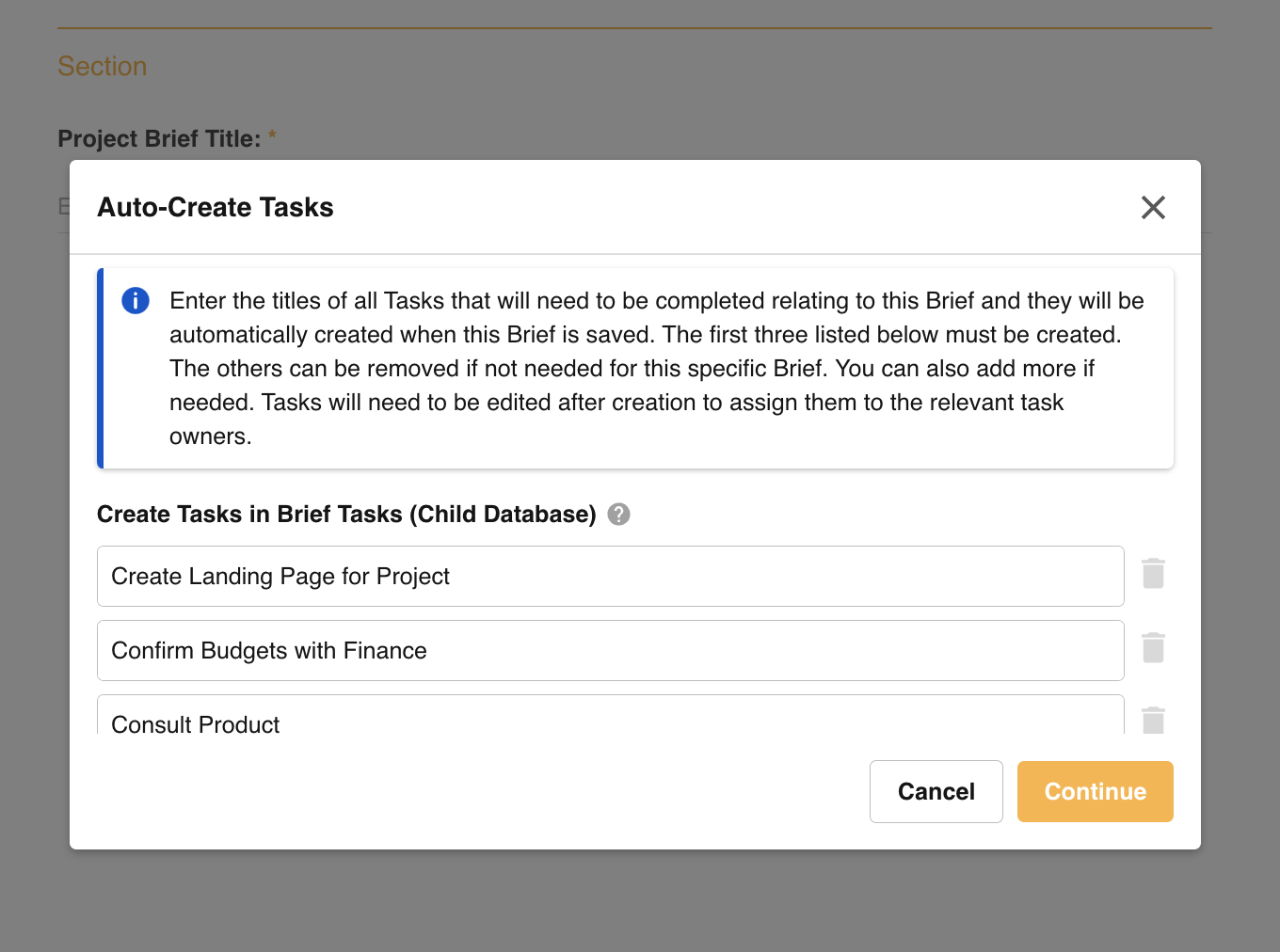
- The text limit for this field is 1,000 characters.
- If no custom text is added, a default message displays instead.
Add Default Task Record Titles
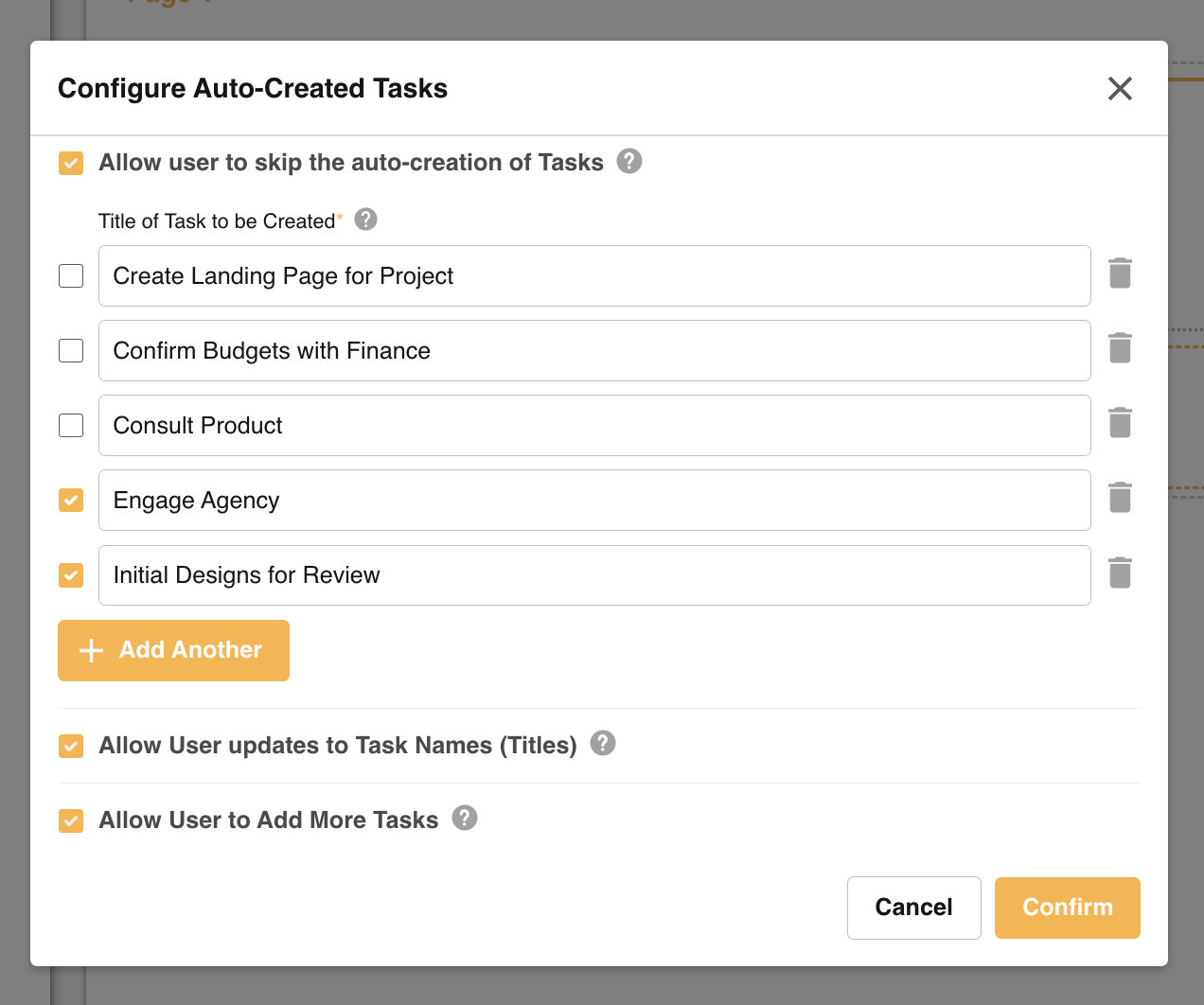
Under Title of Task to be Created, one field appears by default. Add a name for the task that will be created, even if it is just a placeholder that users can update.
Click Add Another to add up to 30 tasks that can be auto-created.
Allow Users to Change Task Titles
To let users change the default names, or add their own, select Allow User updates to Record Names (Titles). With this option selected, the title fields above can be left empty.
Allow Users to Skip Creation of Some or All Tasks
You can let users skip some or all of the task records. Select the checkbox to the left of any title field, or select Allow User to skip the auto-creation of Records to enable it for all of them. Users can then remove any of the selected records.
If a task must be created every time a brief/parent record is created (a mandatory task), leave its checkbox unselected. Users will not be able to remove it.
Allow Users to Add More Tasks
To let users add more tasks as needed, enable Allow User to Add More Tasks. Users can add up to 30 tasks in total, including any default and mandatory tasks.
Mandatory Creation of All Records When the Project/Parent Is Published
If none of the options above are enabled (users can't skip records, update titles or add more), no pop-up appears to users. Task records are auto-created exactly as configured in Form Builder > Lookup Grid.
User Options During Brief Creation
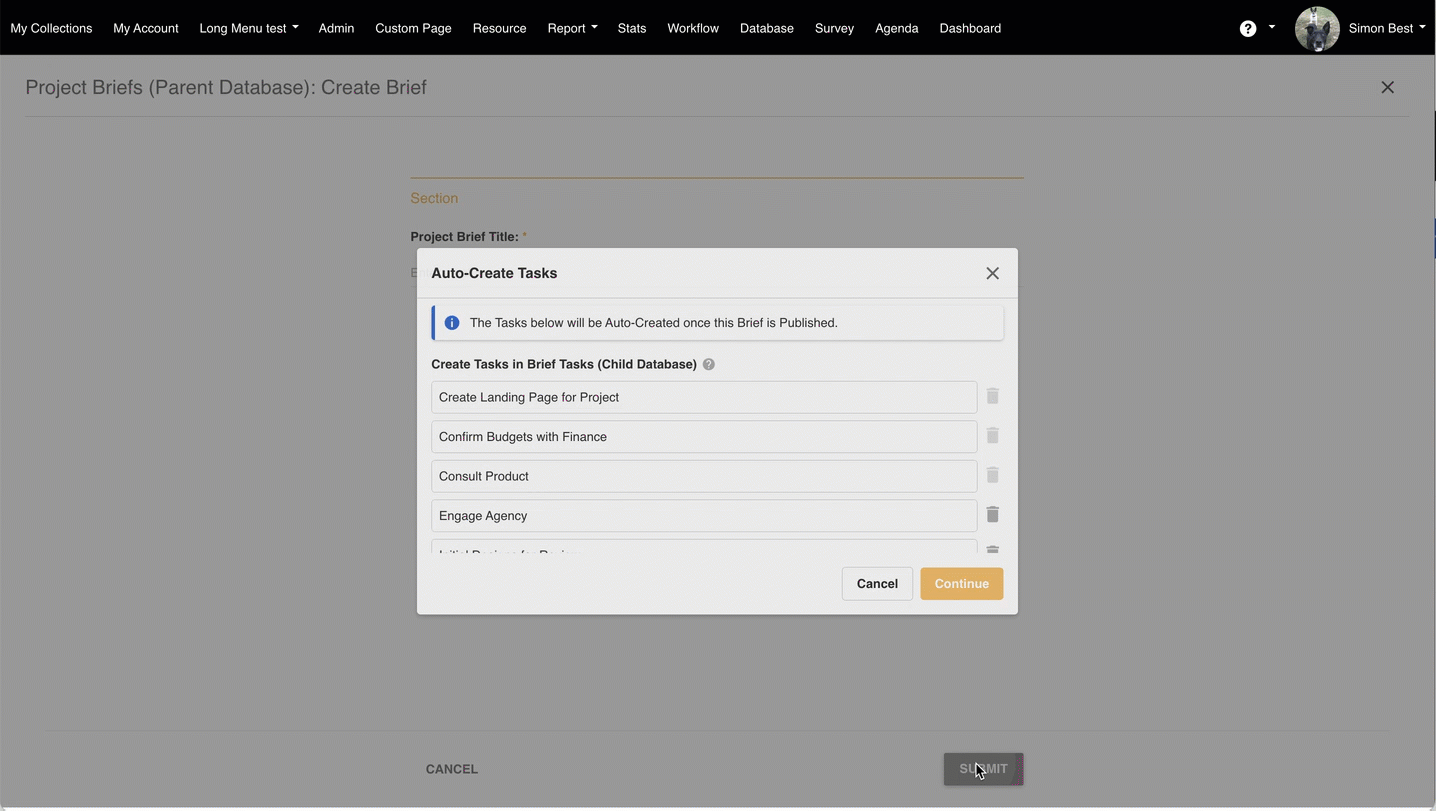
When any of the user settings above are configured, users see the options below before tasks are auto-created. This happens when a user submits a record in the parent database, for example the brief that all tasks are linked to.
Update Task Titles
When Allow User updates to Record Names (Titles) is enabled, users can change the default title fields, or add their own if they were left empty.
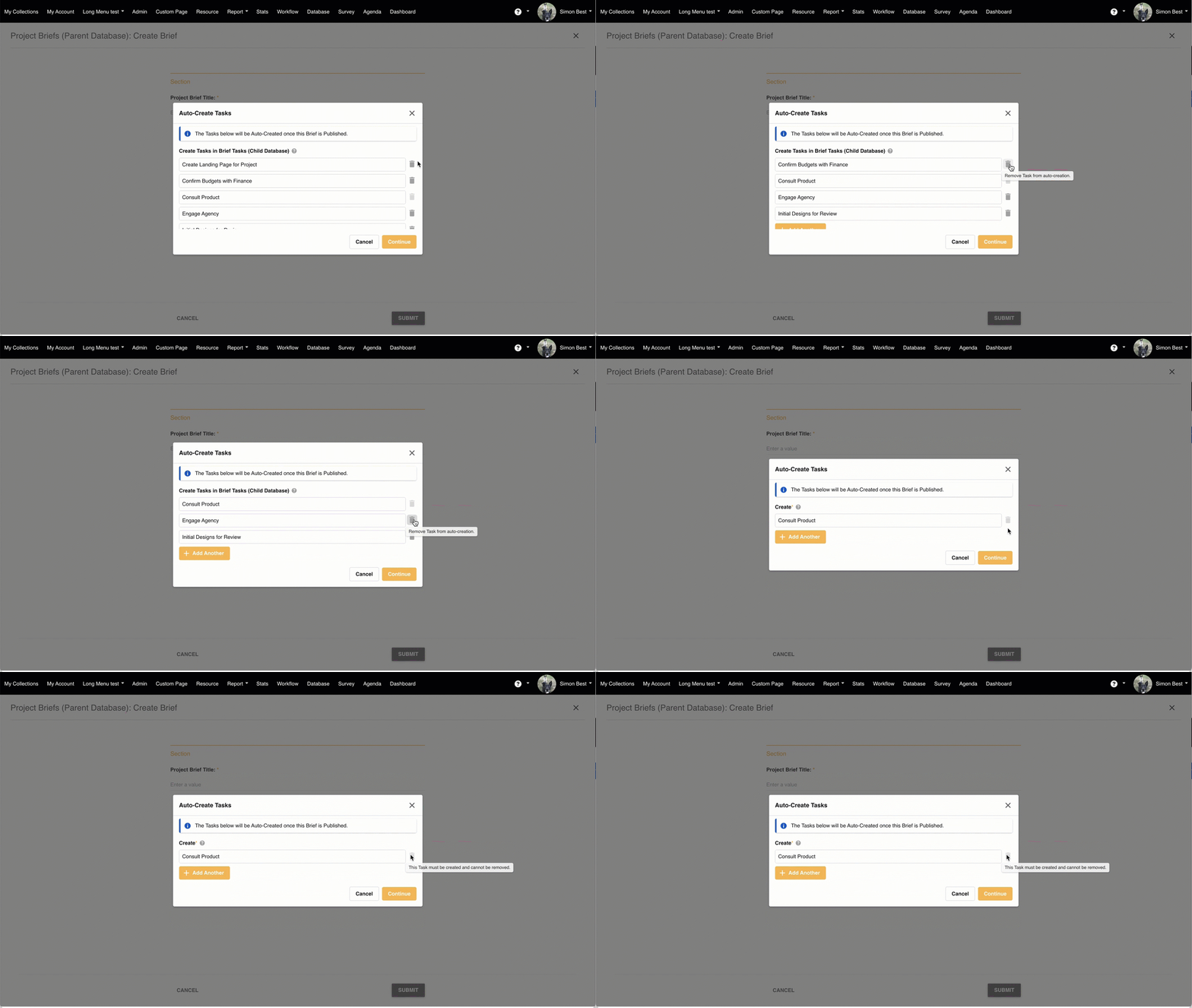
Remove Non-Mandatory Tasks
If Allow User to skip the auto-creation of Records is enabled for some task records, users can remove those tasks when they aren't needed.
Any task that has not been enabled to be skipped cannot be removed, and will be created when the brief/parent record is published.
Add More Tasks
If Allow User to Add More Tasks is enabled, users can click Add Another to add up to 30 tasks in total. They must add a title for every new task before they can save.
Auto-Create Task Process and Corner Cases
These are the most common scenarios during the task creation process.
| Scenario | What Happens |
|---|---|
| No Approval Request on the Project/Parent record | Task records are auto-created immediately after the brief/parent is successfully published. Tasks may take a minute to appear. |
| Approval Request enforced or selected on the Project/Parent record | Tasks are only created once the request has been approved. For Staged Databases, this only applies to Approvals on Stage 1, as Auto-Create is only supported when the first stage is published. |
| Approval Declined or Cancelled | The brief/parent record can be edited and resubmitted. If it is eventually approved, the task records are auto-created at that time. |
| Tasks successfully created | Tasks are listed in the Lookup Grid of the brief/parent record that triggered them. If that Grid field sits on a later stage of a staged database, it displays once the record reaches that stage. |
| Task database has its own Approval or mandatory fields | Only the title field and the lookup field back to the brief/parent are populated, so:
|
Restrictions and Limitations
- The task/child database must have a Text title field.
- Only one Lookup Grid per brief/parent database can be enabled for this feature. A task/child database can have multiple parents, though, so new tasks can be created from more than one linked database.
- If a task/child database has its own Lookup Grid enabled for this feature, auto-created tasks do not trigger further auto-created records in that other linked database.
- The feature only applies when the user creating the brief/parent record also has permission to create task/child records.
- Only the task title field and the lookup field are auto-populated. Other task fields, such as date and assignee fields, need to be updated when the task is next edited.
- Conditional tasks (ie: certain tasks get created depending on a specific type of brief/parent) are not supported with this feature. The full list of tasks will get auto-created every time a new brief/parent gets published.
Need Help?
If you have any further questions about Auto-Create Records, please contact your Customer Success Manager.
Related: learn how to link databases before setting up Auto-Create Records.
Linking Databases Together with Lookup FieldsWas this article helpful?
That’s Great!
Thank you for your feedback
Sorry! We couldn't be helpful
Thank you for your feedback
Feedback sent
We appreciate your effort and will try to fix the article