If you need to create a new database that's similar to one you already have in the platform, you can clone an existing database's form template and load it into the new database, instead of building the form from scratch.
This is particularly helpful if, for example, you create a new brief database at the start of every year for that year's briefs. Rather than re-creating all the fields manually, you can copy the database from the previous year and just make whatever adjustments you may need from there.
How to Clone a Form Template
| 1Create the Database | Create a new database and click Save and Create Form to open the Form Builder. |
| 2Open Templates | On the left of the page, select the Templates tab. |
| 3Choose a form | In Load Existing Form, select the database whose form you want to copy.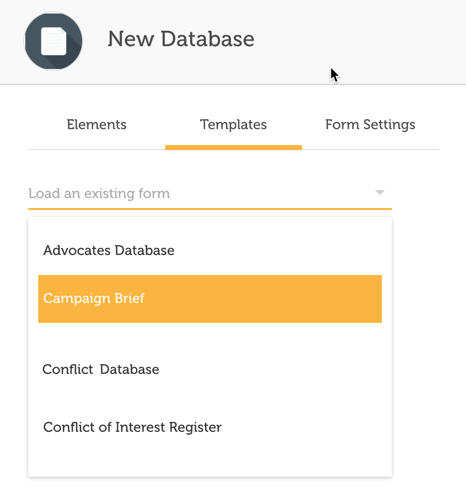 |
| 4Replace or Append | Choose whether to Replace or Append (see below). |
| 5Load the form | Click Load Form. Every field is added to your new form, including its settings, conditional logic and field information. |
Replace or Append
| Option | What Happens |
|---|---|
| Replace | Removes any fields already in the new database and replaces them with the copied form. |
| Append | Adds the copied form after any fields you've already created. |

Warning: Replace removes any fields you've already added to the new database. Choose Append if you want to keep them.
Note: The term 'Database' is customisable, so it may appear differently in your platform. See the related terminology.
Was this article helpful?
That’s Great!
Thank you for your feedback
Sorry! We couldn't be helpful
Thank you for your feedback
Feedback sent
We appreciate your effort and will try to fix the article