The IntelligenceBank Assets Connector for Canva lets designers search, browse and insert approved image, video and audio assets from IntelligenceBank into their designs - and publish finished designs back to IntelligenceBank - all from inside the Canva editor.
Installation
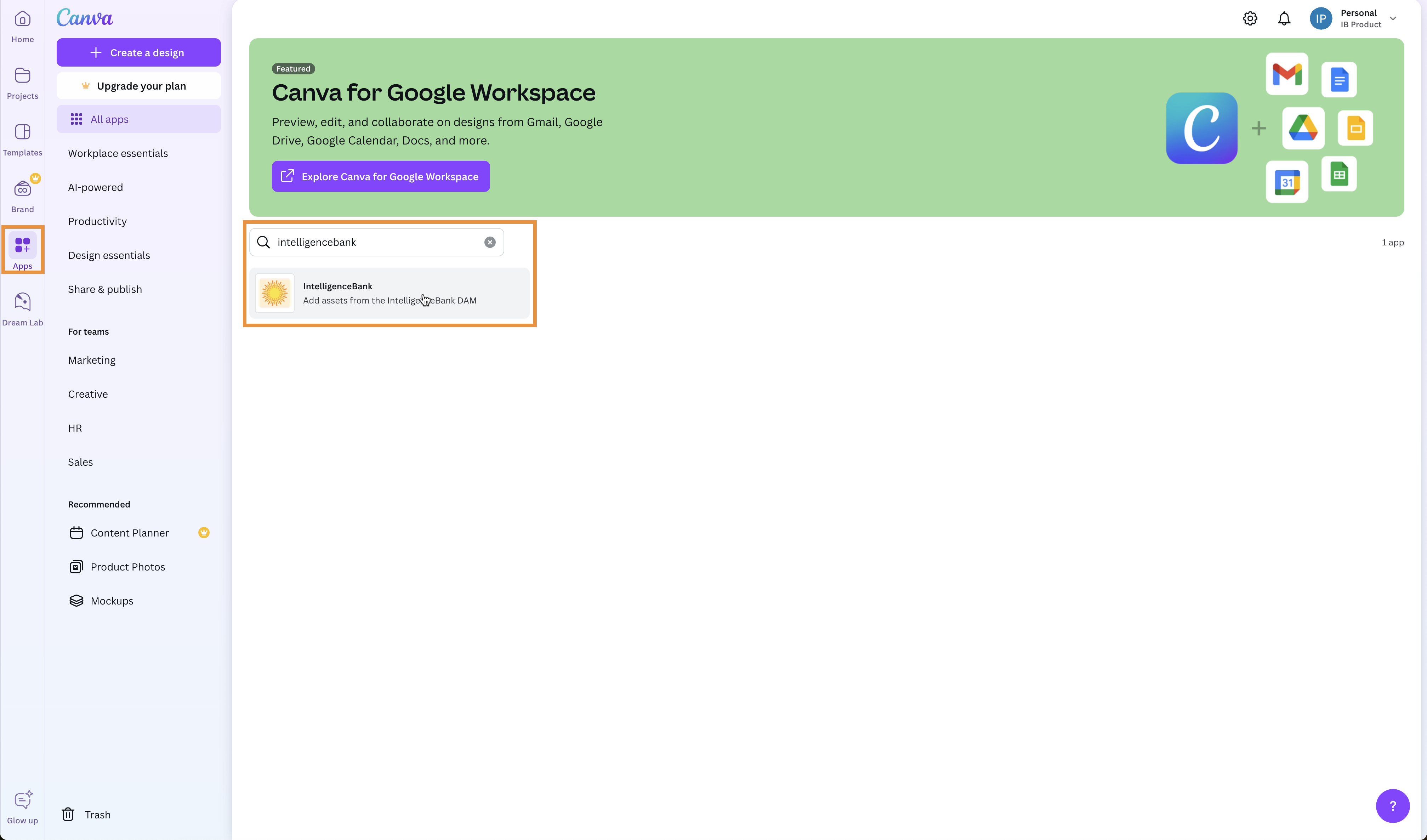
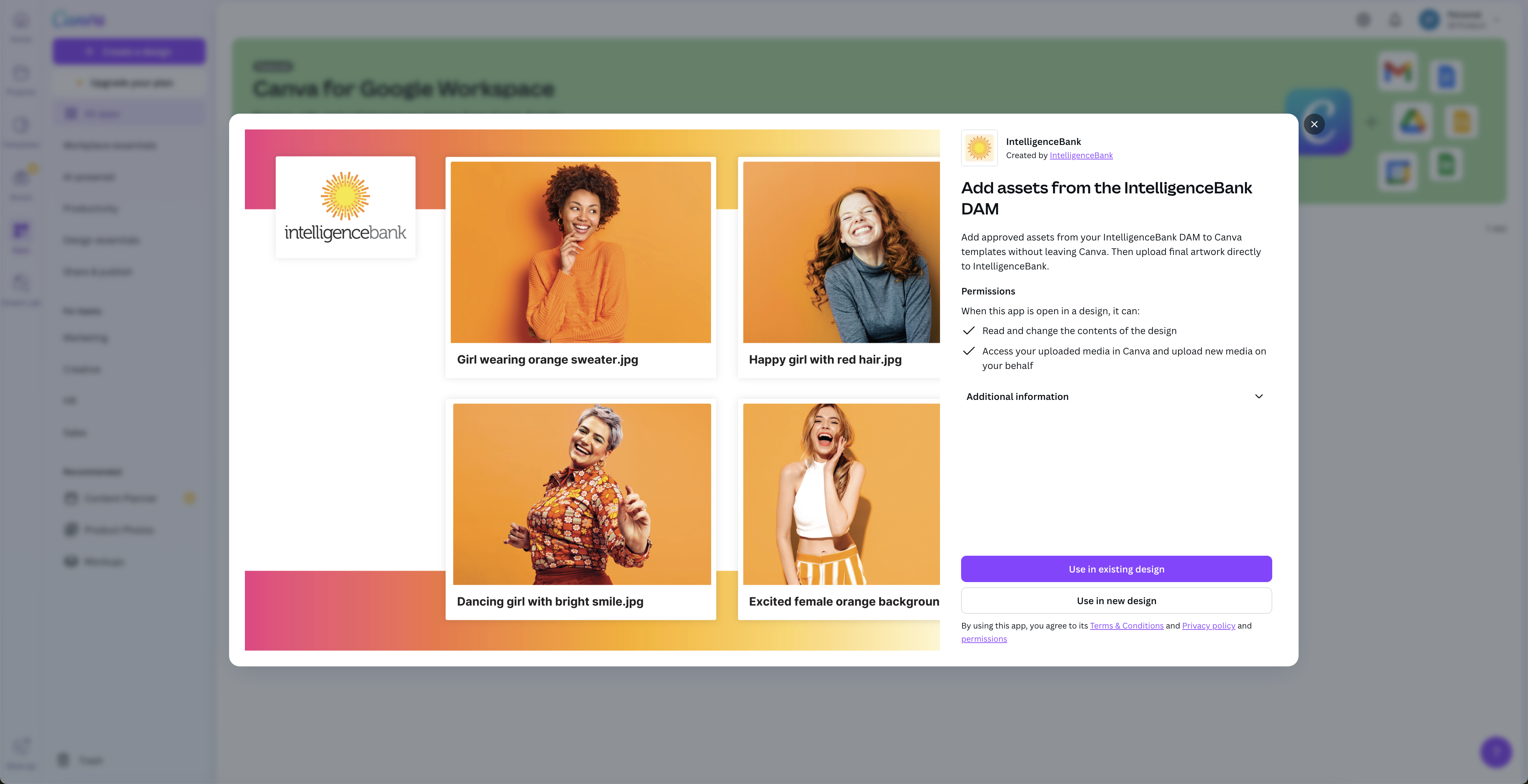
Under Apps, search for "intelligencebank" and click on the IntelligenceBank app in the results to install it.
From the general Apps area
From within a specific design's Apps area
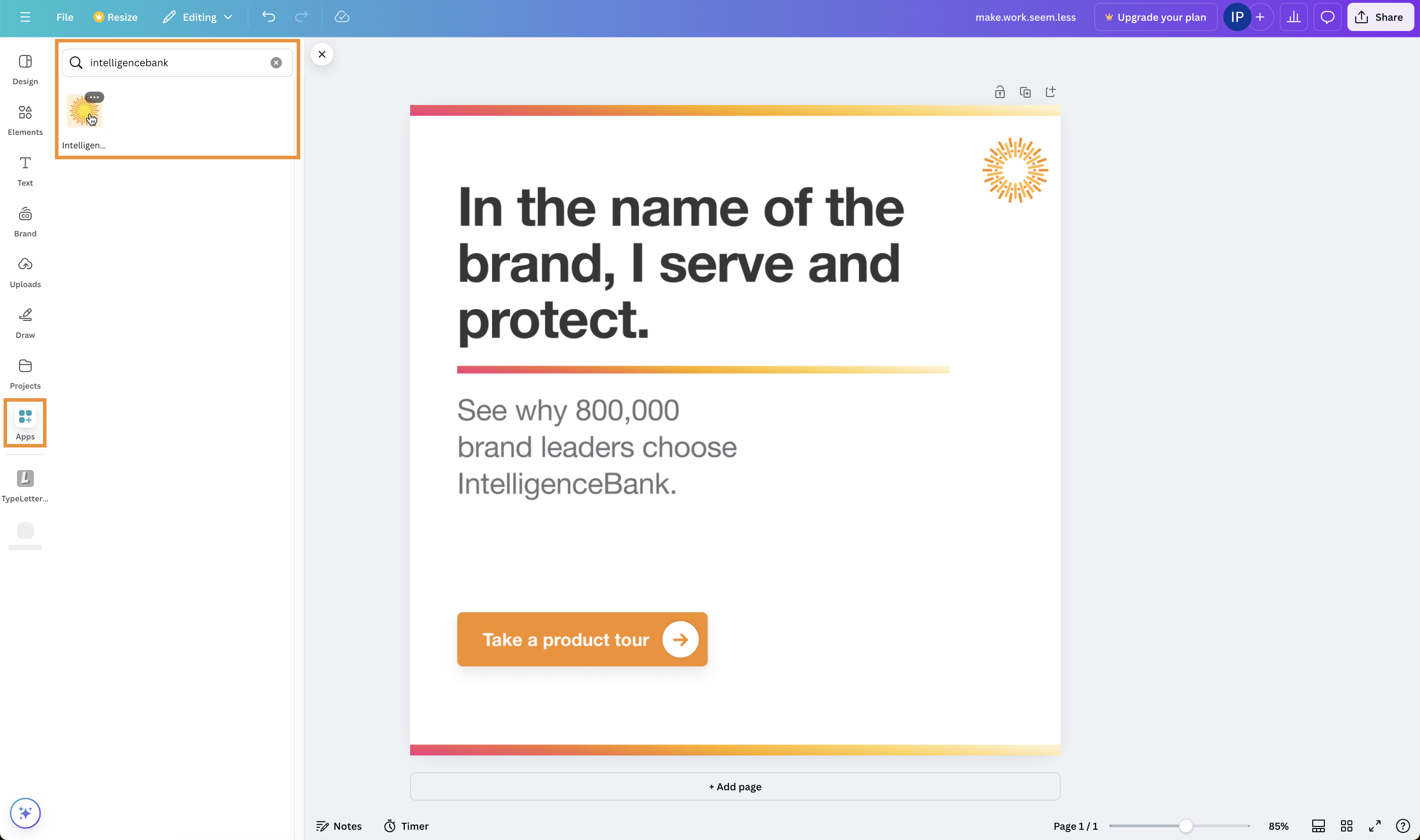
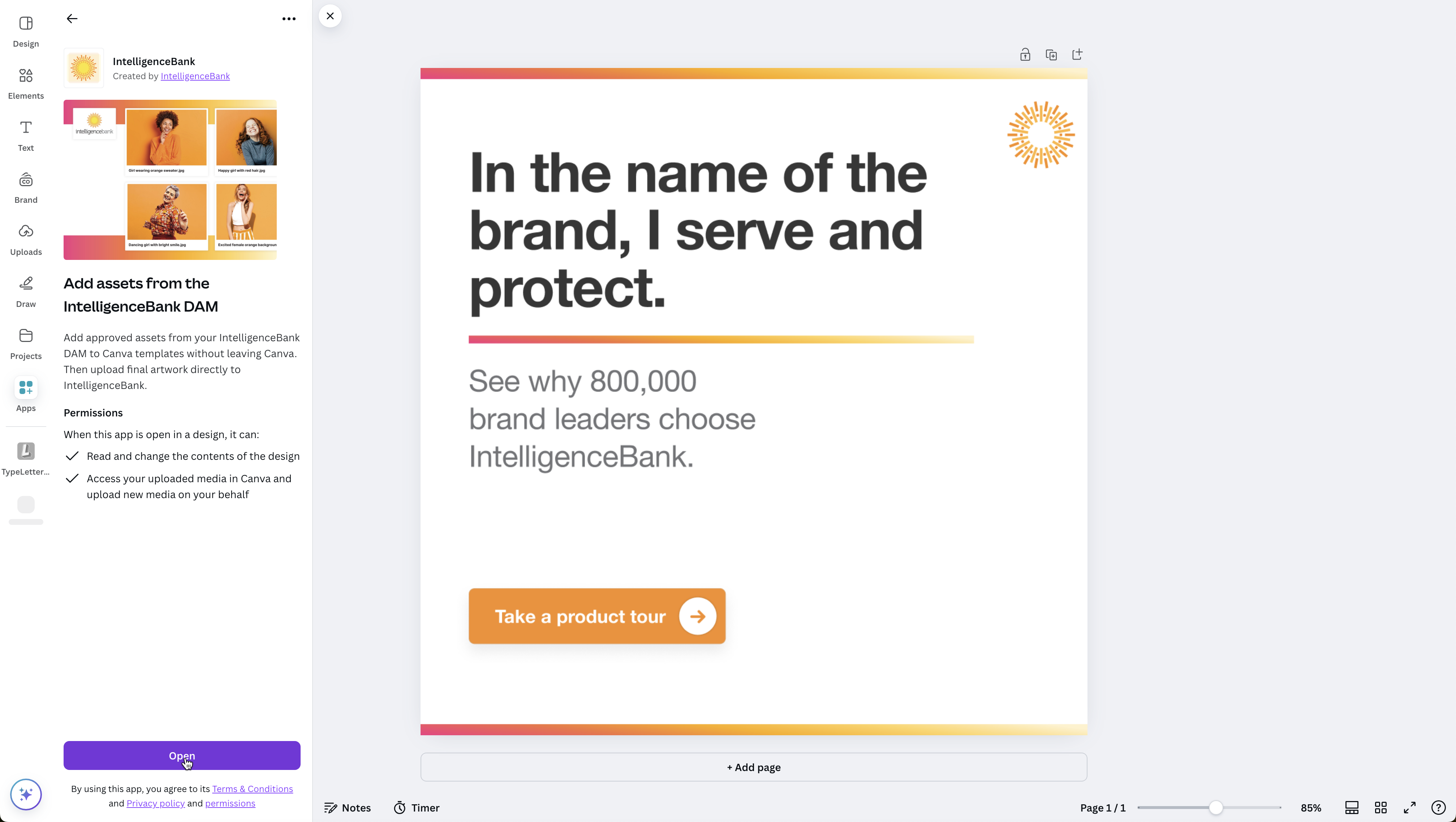
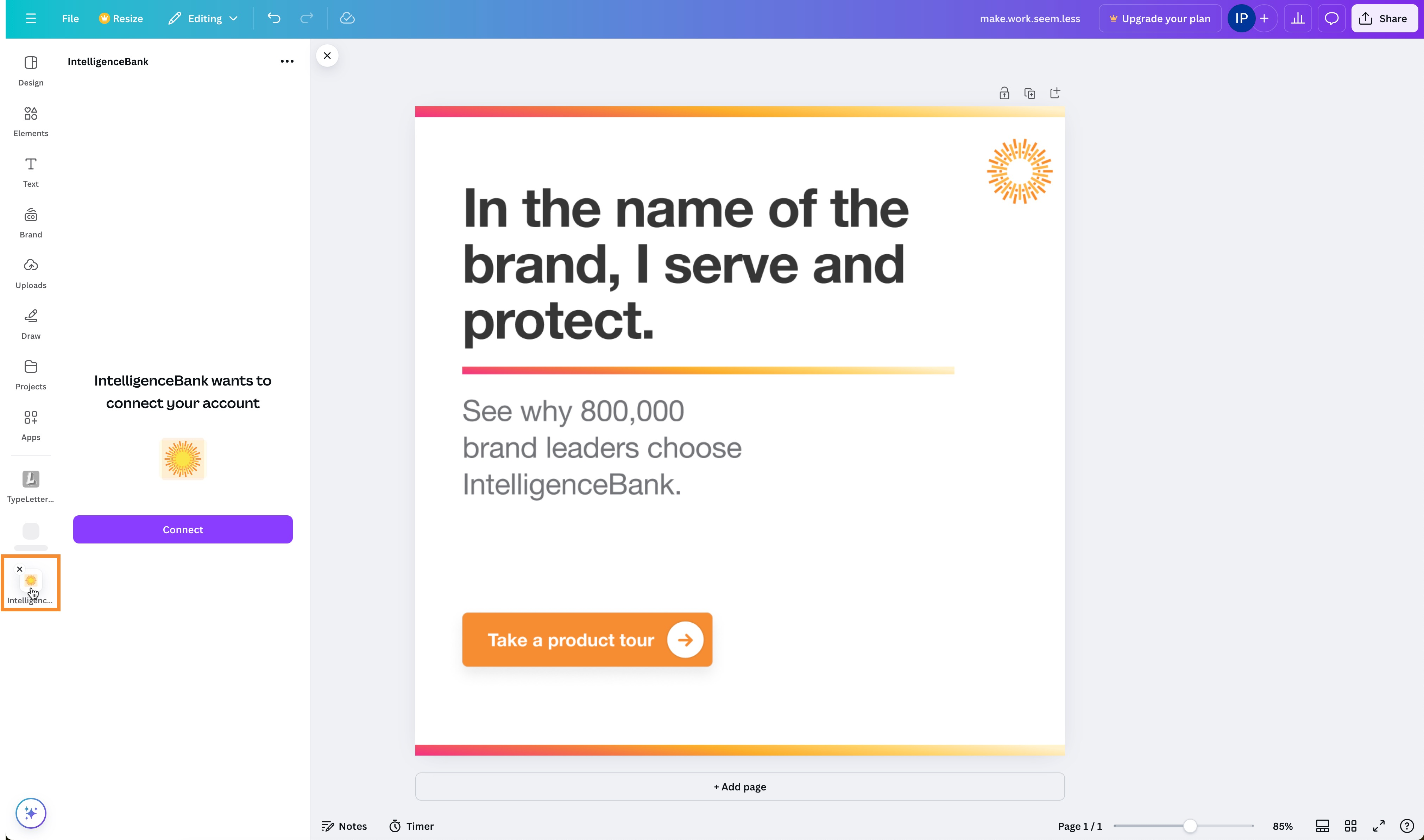
The app then displays as a new option in the left side panel of your design.
Logging In
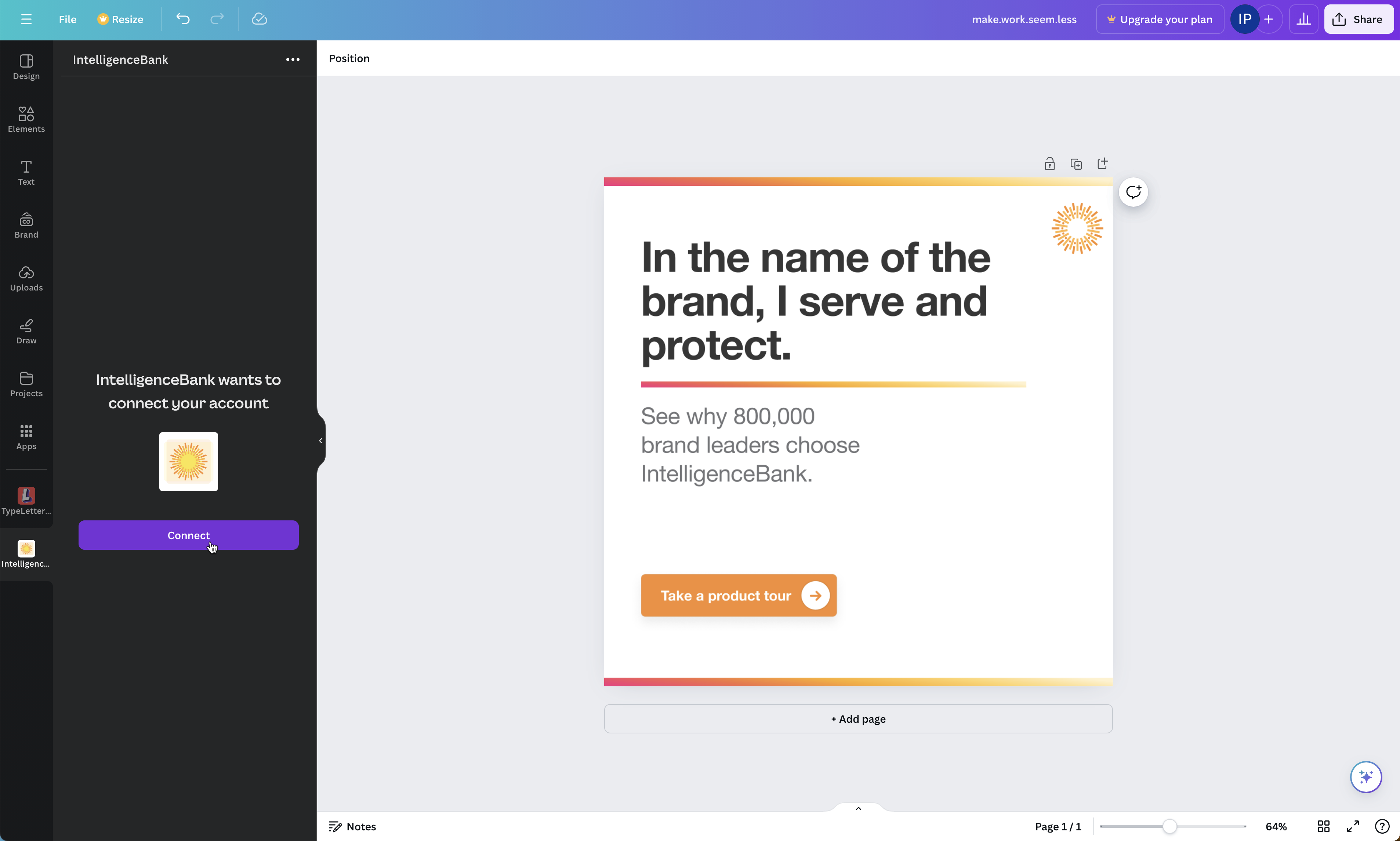
| 1Click Connect | This starts the IntelligenceBank login process.
|
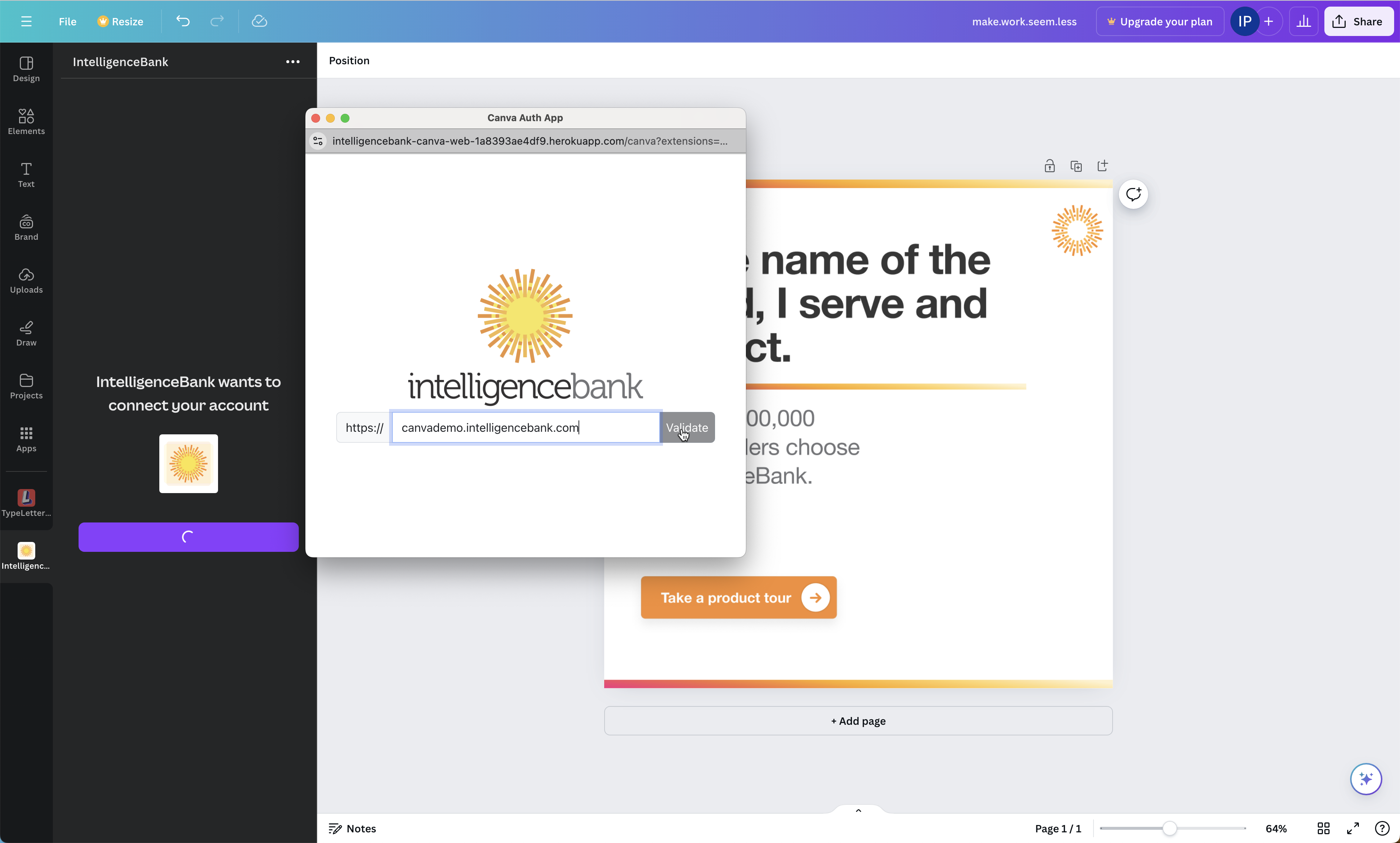
| 2Enter your platform URL | Enter your IntelligenceBank platform URL without the https:// prefix. If your custom URL starts with www., include it.
|
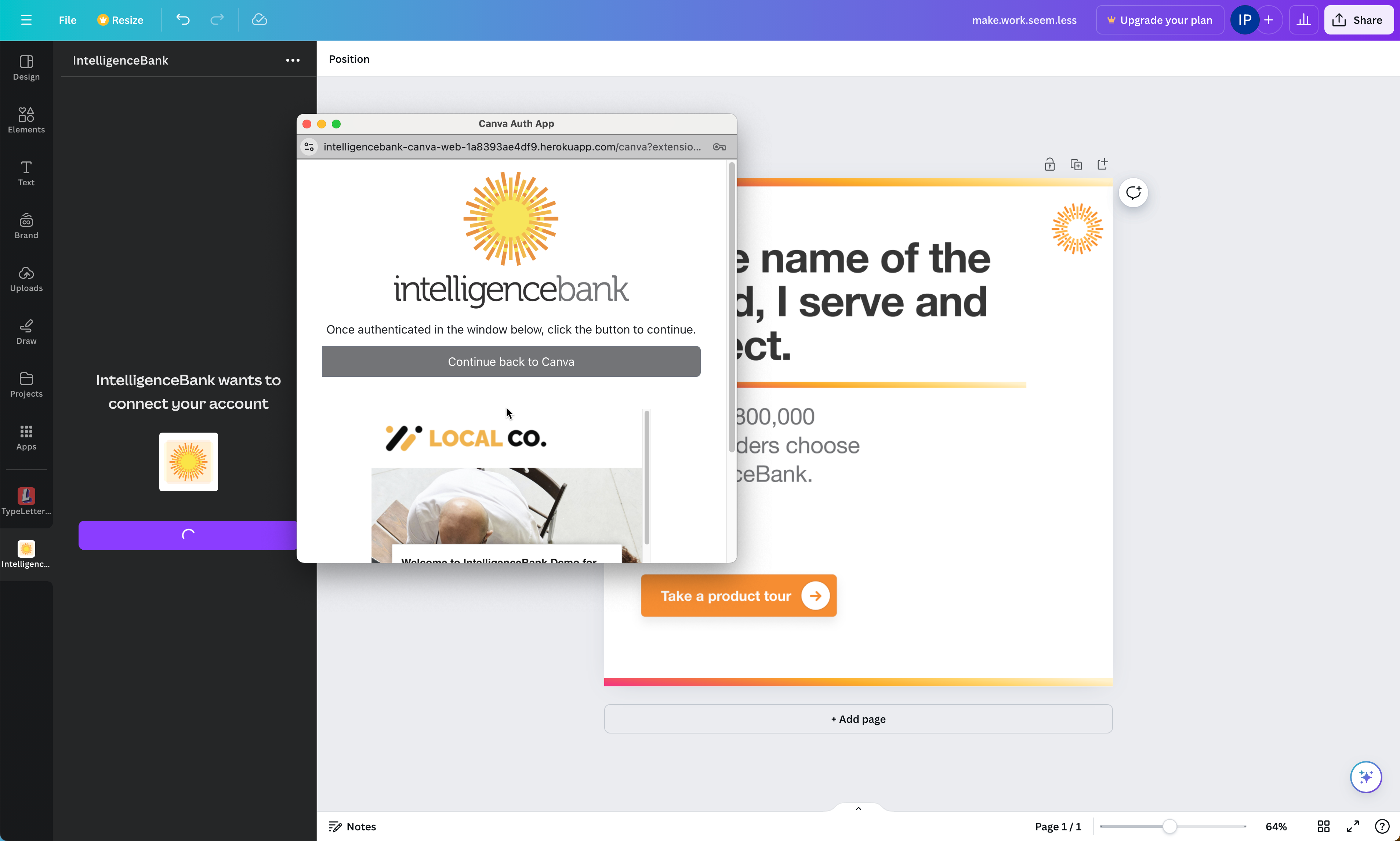
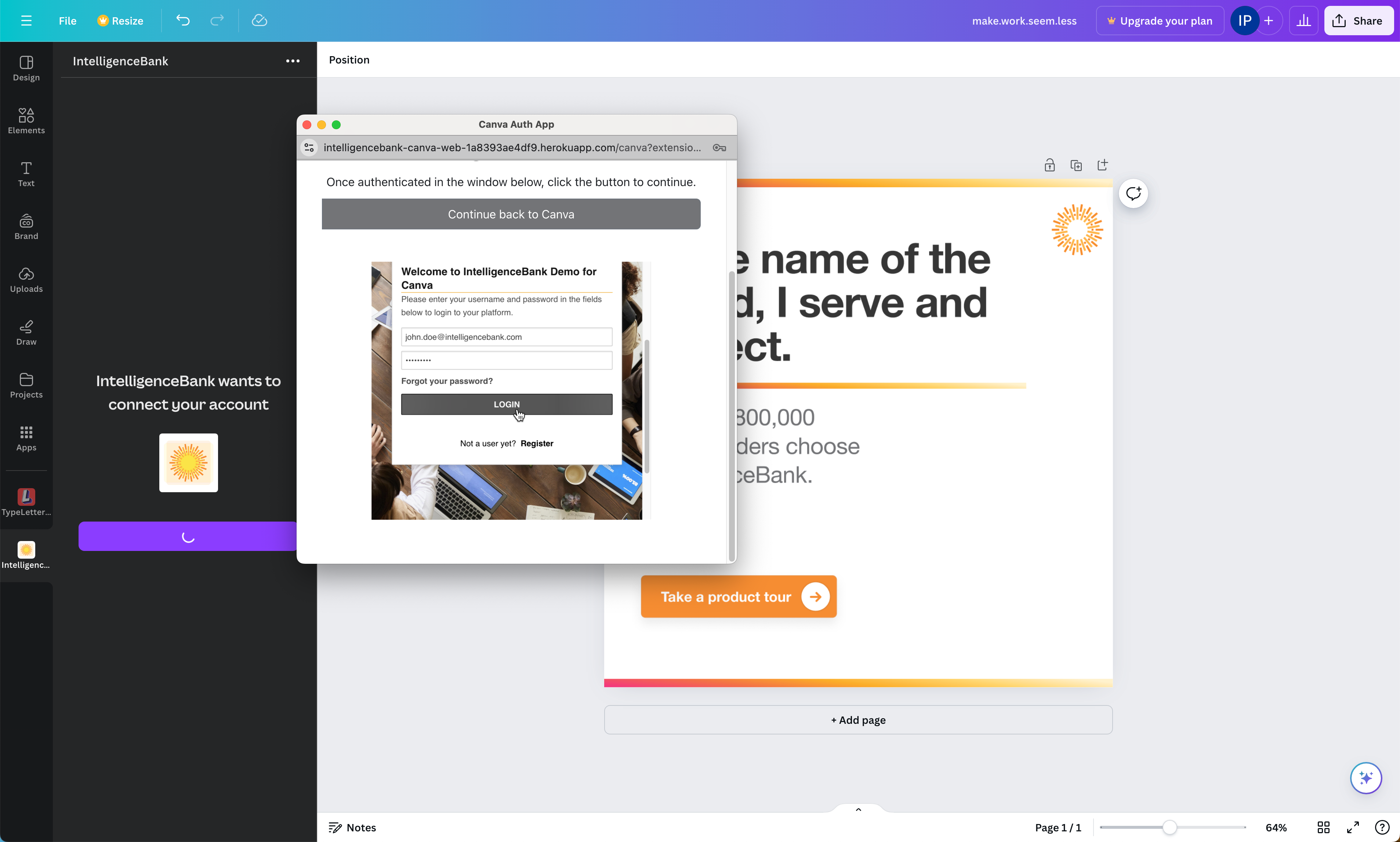
| 3Sign in | If the URL is valid, your platform login page loads in the popup. If you are already authenticated to IntelligenceBank in the browser, you will see the success message immediately and can skip to step 4.
|
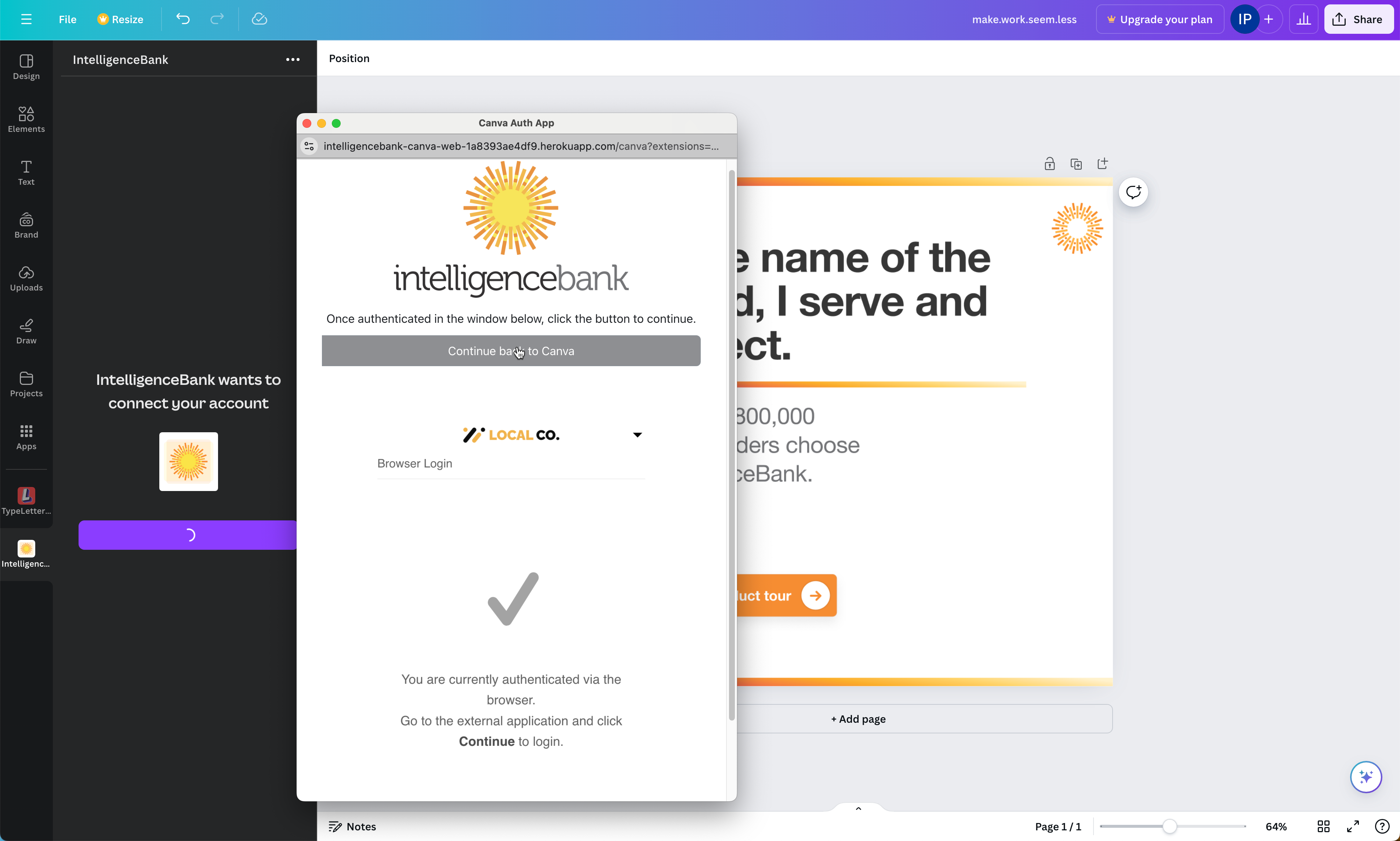
| 4Confirm and return to Canva | Confirm the External App Authentication prompt. Once you see the success message, click Continue back to Canva to complete the process.
|
Browsing Folders
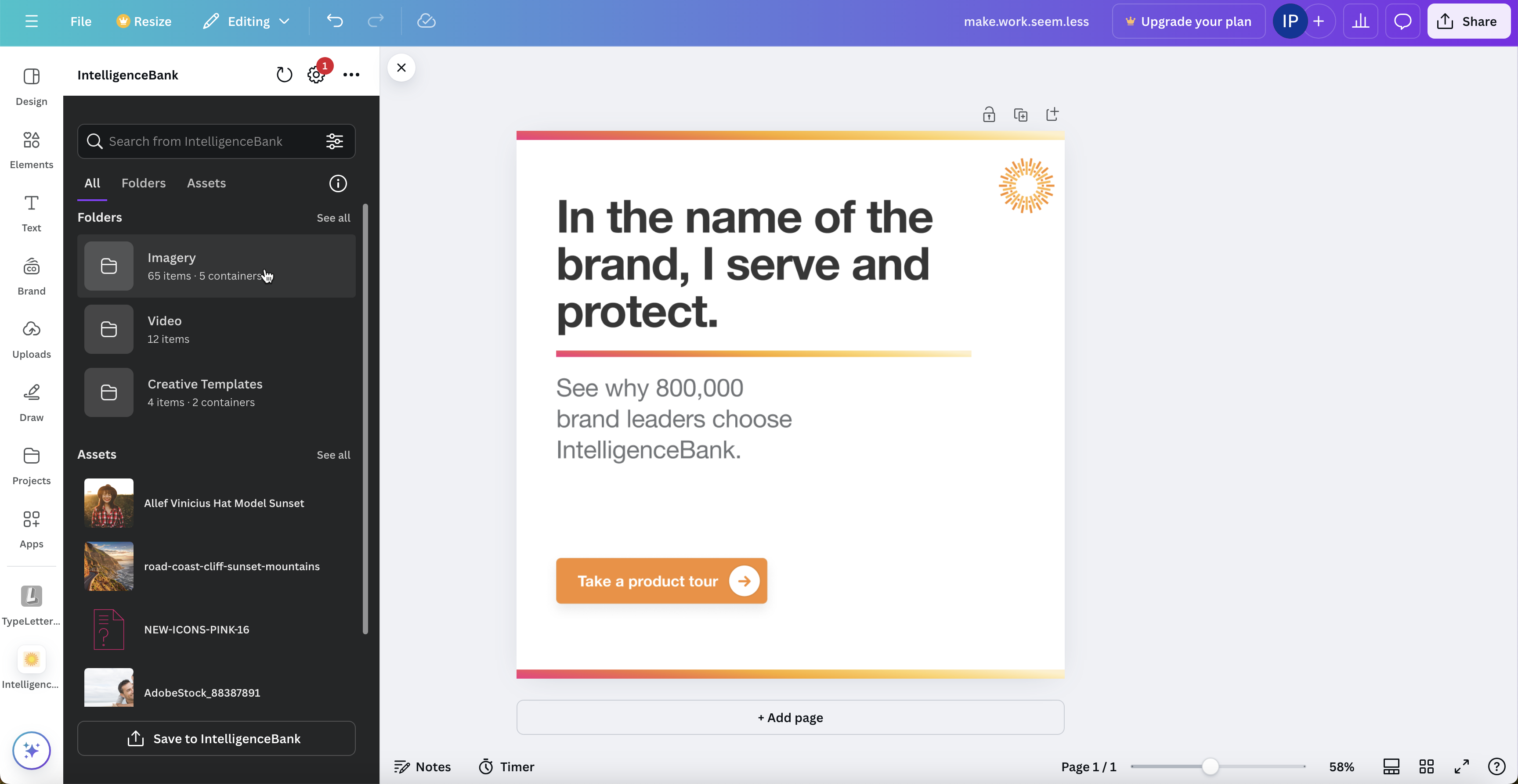
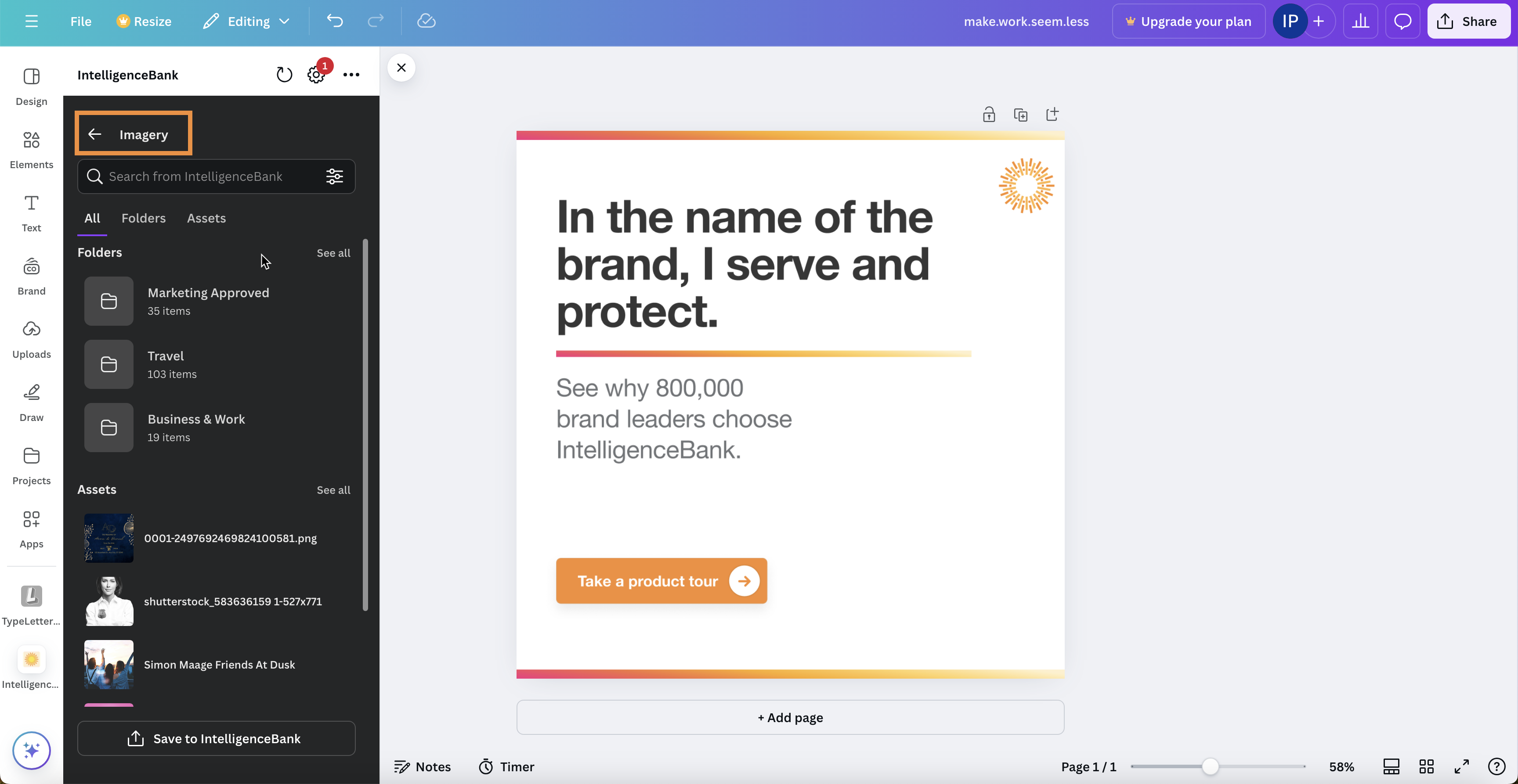
- Folders for which you have at least Access permission appear exactly as they do when you log in to IntelligenceBank directly. Click a folder to view its contents.
- Click ... to navigate back to the parent folder.
Searching for Assets
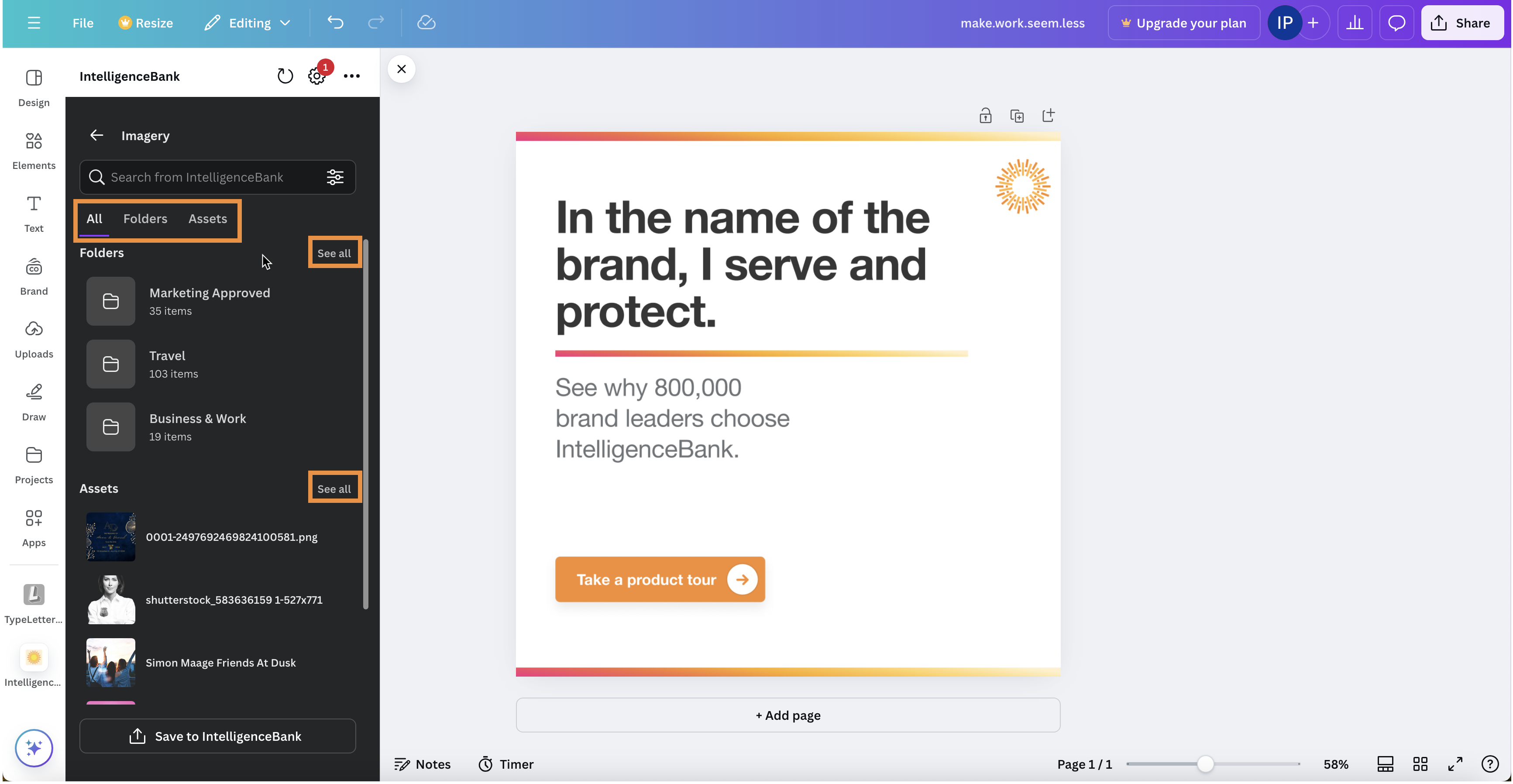
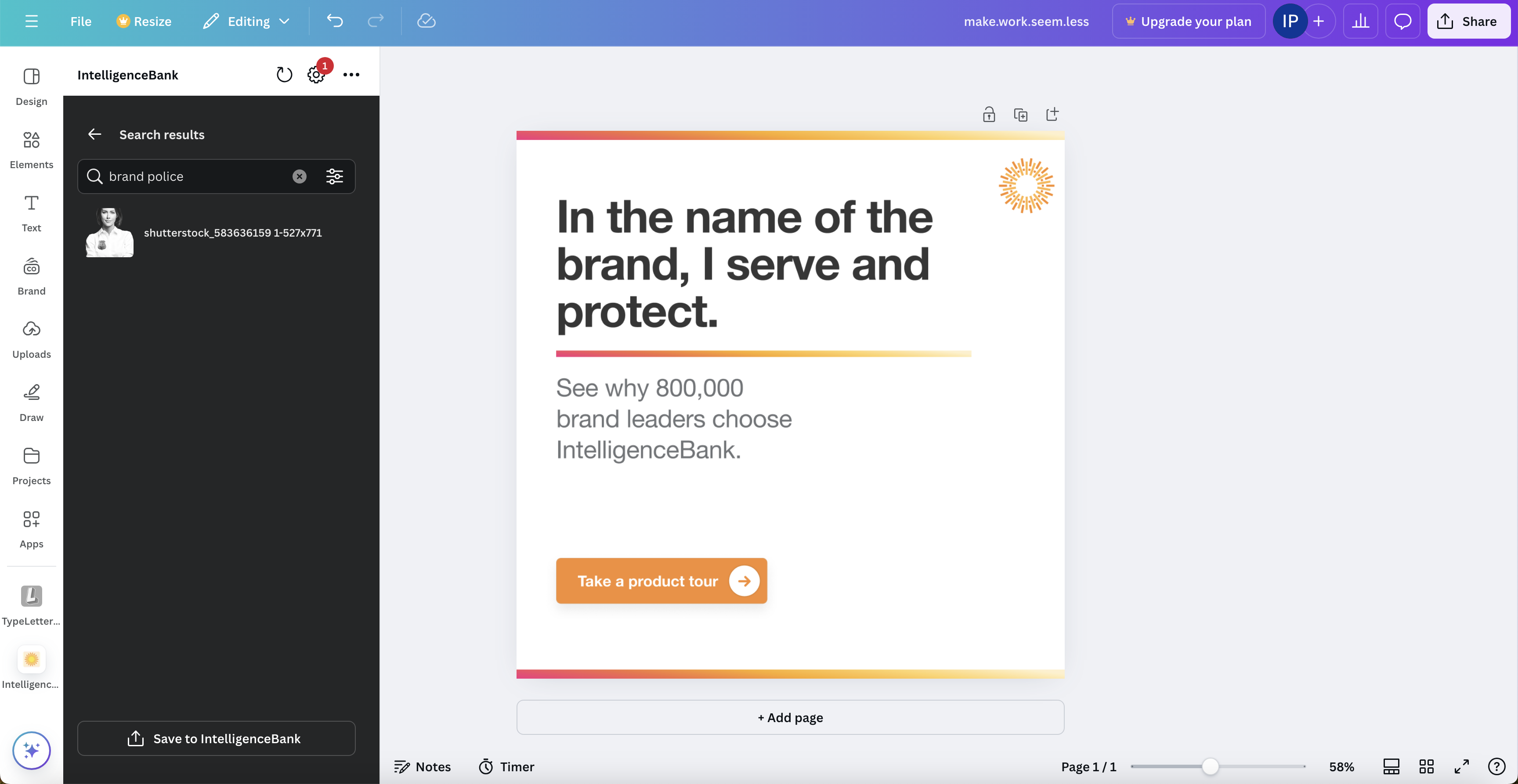
Search by keyword to match against asset Title, Description, Keyword Tags, AI Tags and embedded Metadata - identical to the platform's own search behaviour. Select Fields and Filters are not currently supported for keyword matches.
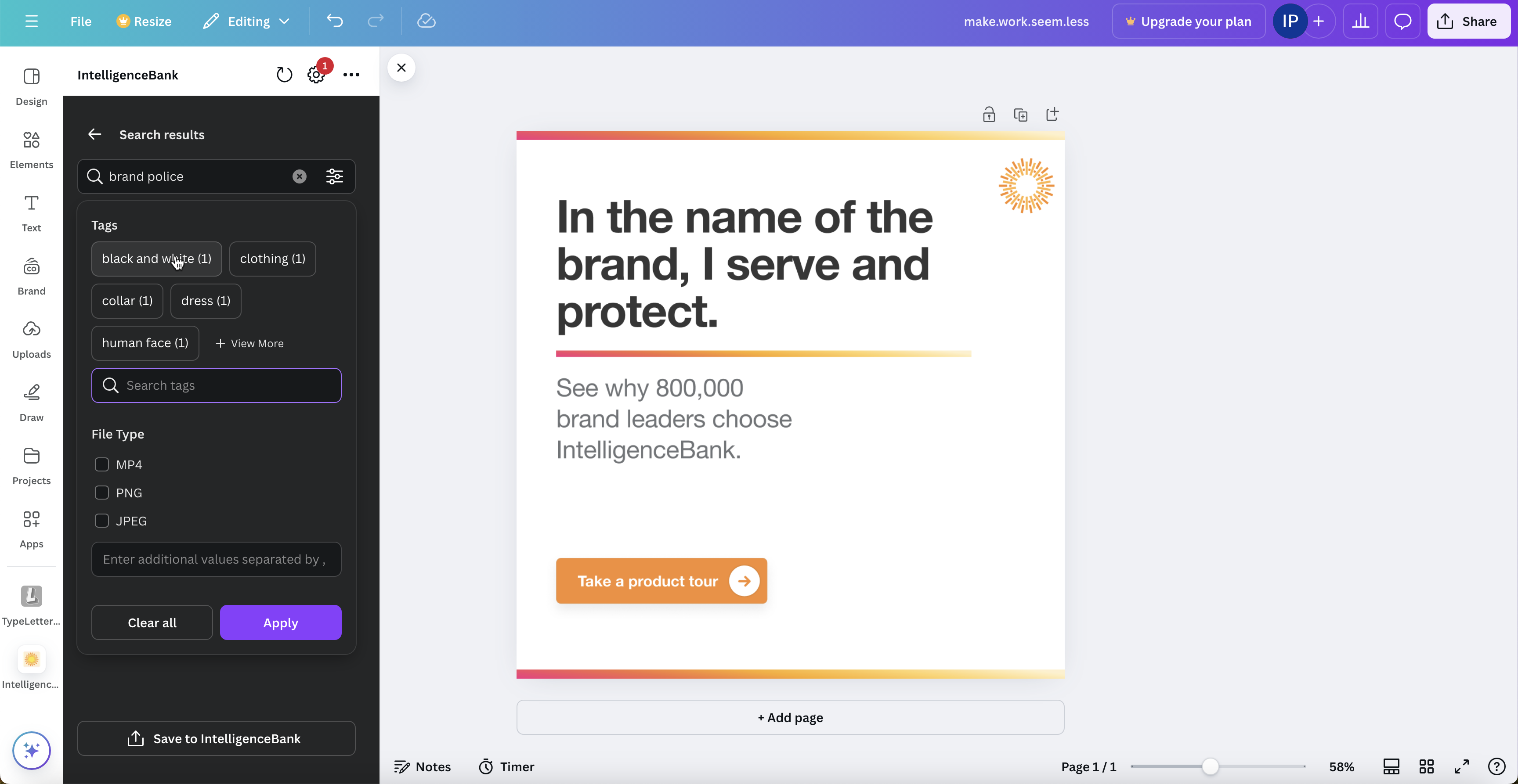
You can also filter results by Tags or File Type.
Inserting Assets
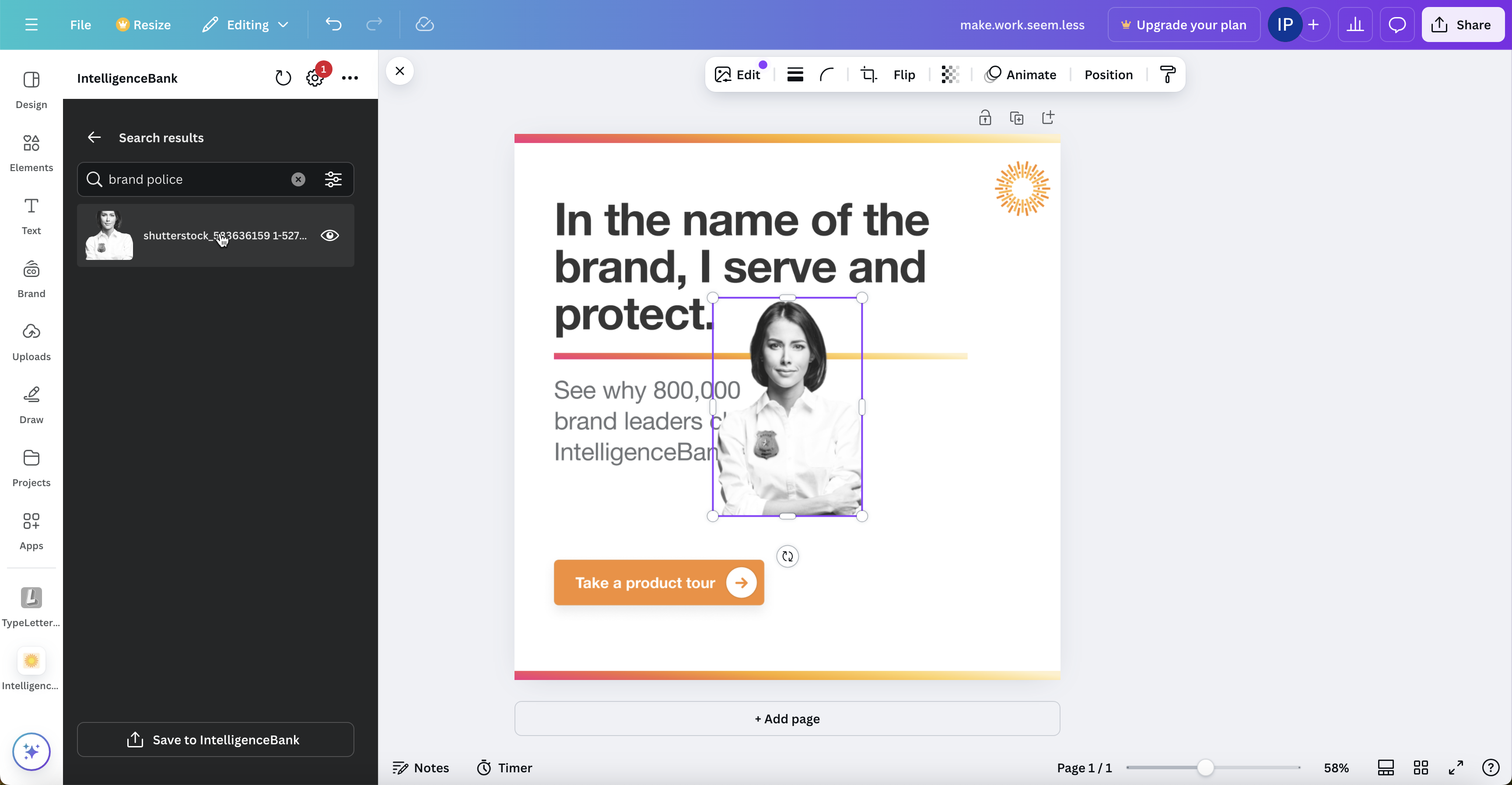
To insert an asset into your design, simply click on it.
Supported file formats
Only assets in the formats below can be inserted into a Canva design or uploaded to your Canva library. Assets in any other format are filtered out of the asset grid automatically.
| Asset Type | Supported Extensions |
|---|---|
| Images | HEIC, JPG, JPEG, PNG, SVG, TIF, TIFF, WEBP |
| Video | AVI, GIF, M4V, MKV, MOV, MP4, MPEG, MPG, WEBM |
| Audio | M4A, MP1, MP2, MP3, OGA, OGG, WAV |
Uploading Designs to IntelligenceBank
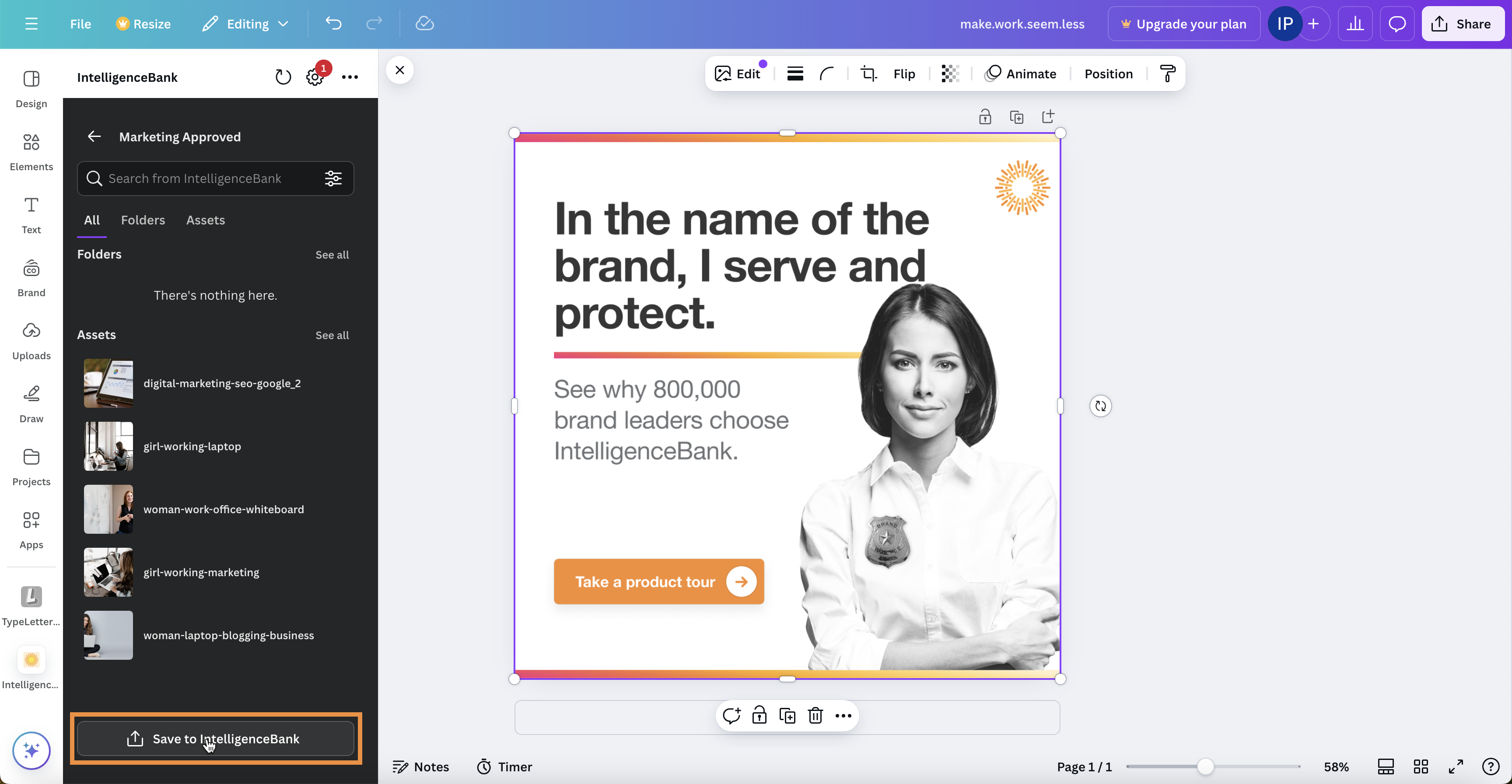
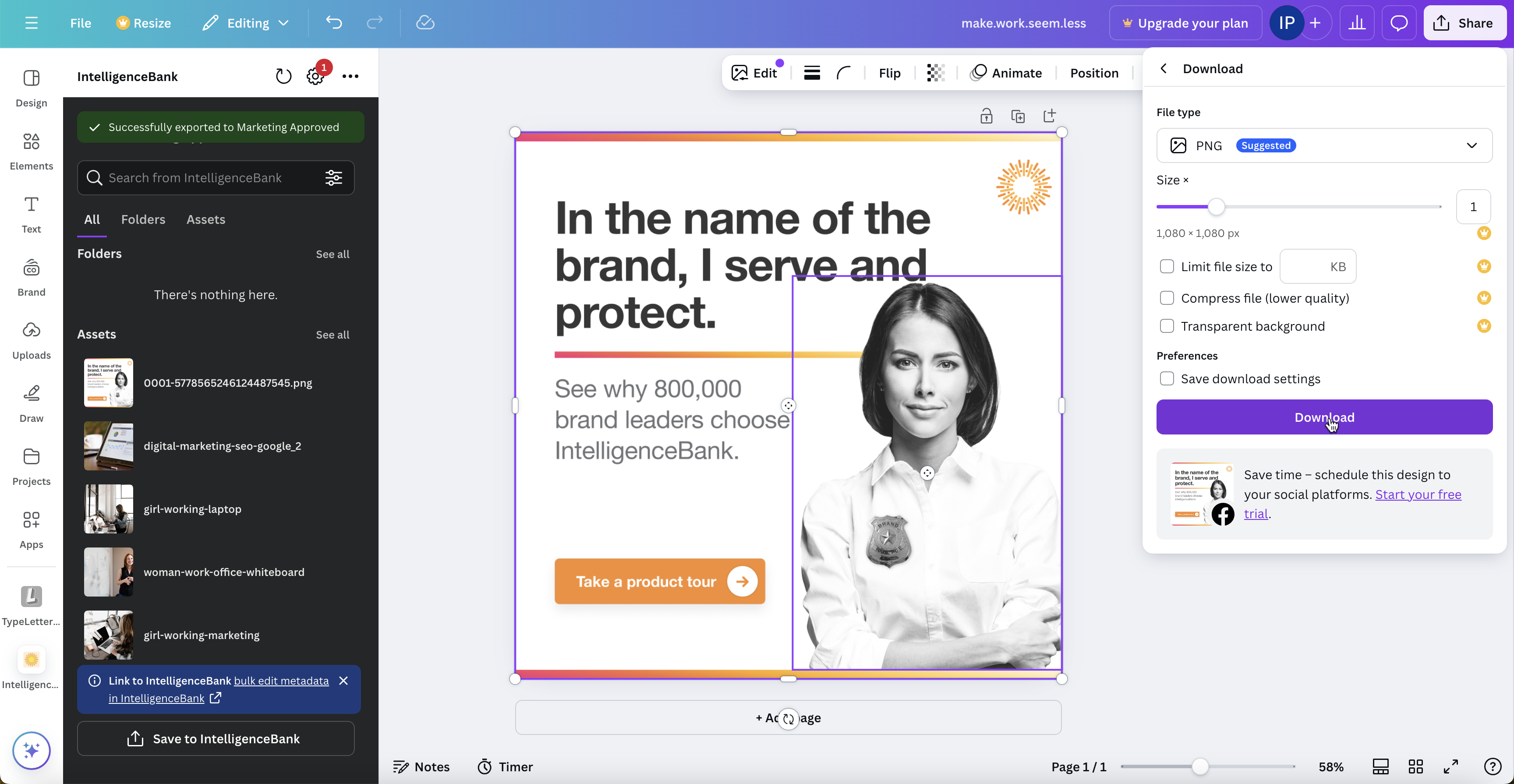
To save a finished design to IntelligenceBank, click the Save to IntelligenceBank button at the bottom of the panel. The button is enabled only when the currently-selected destination folder grants you at least Publish permission.
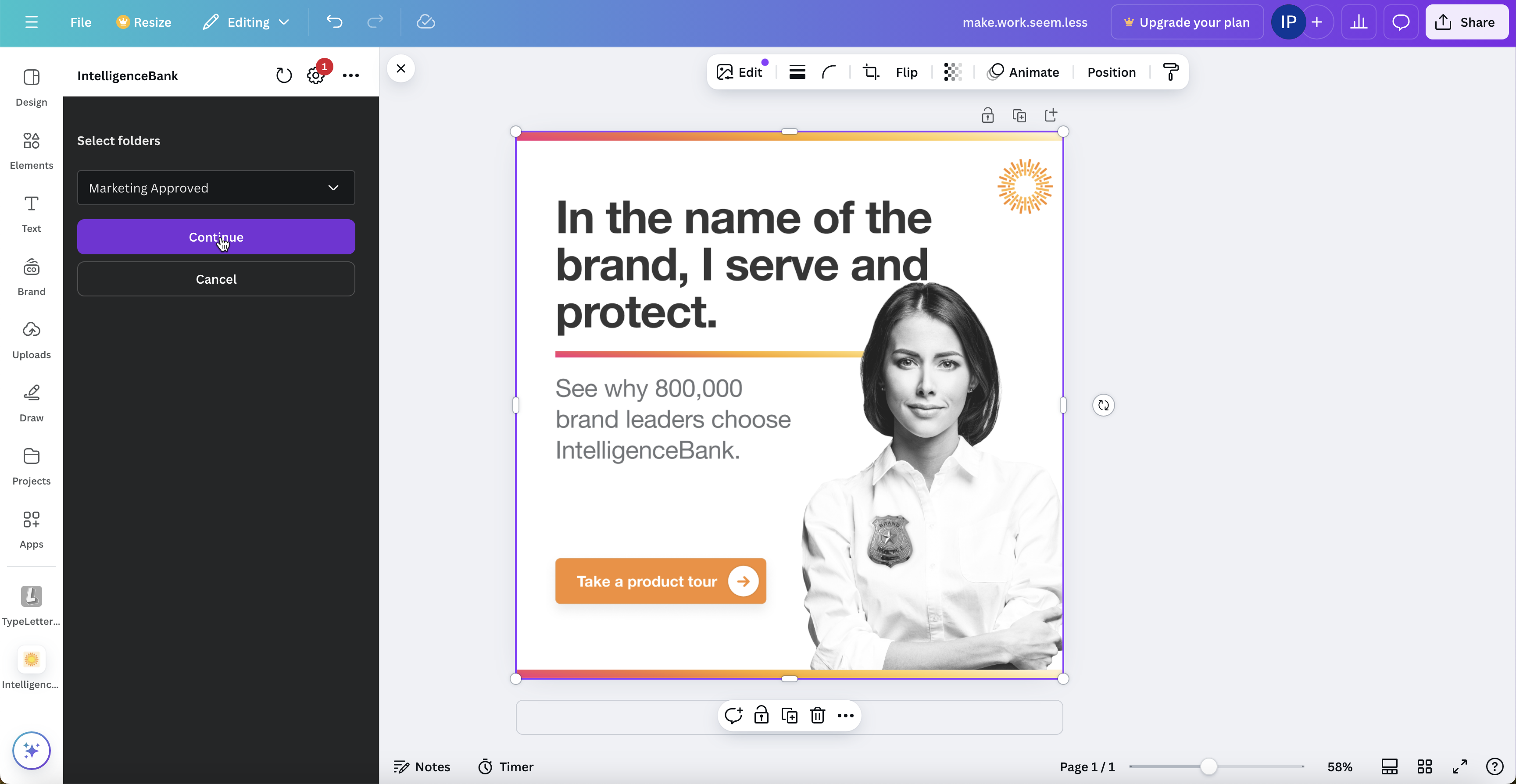
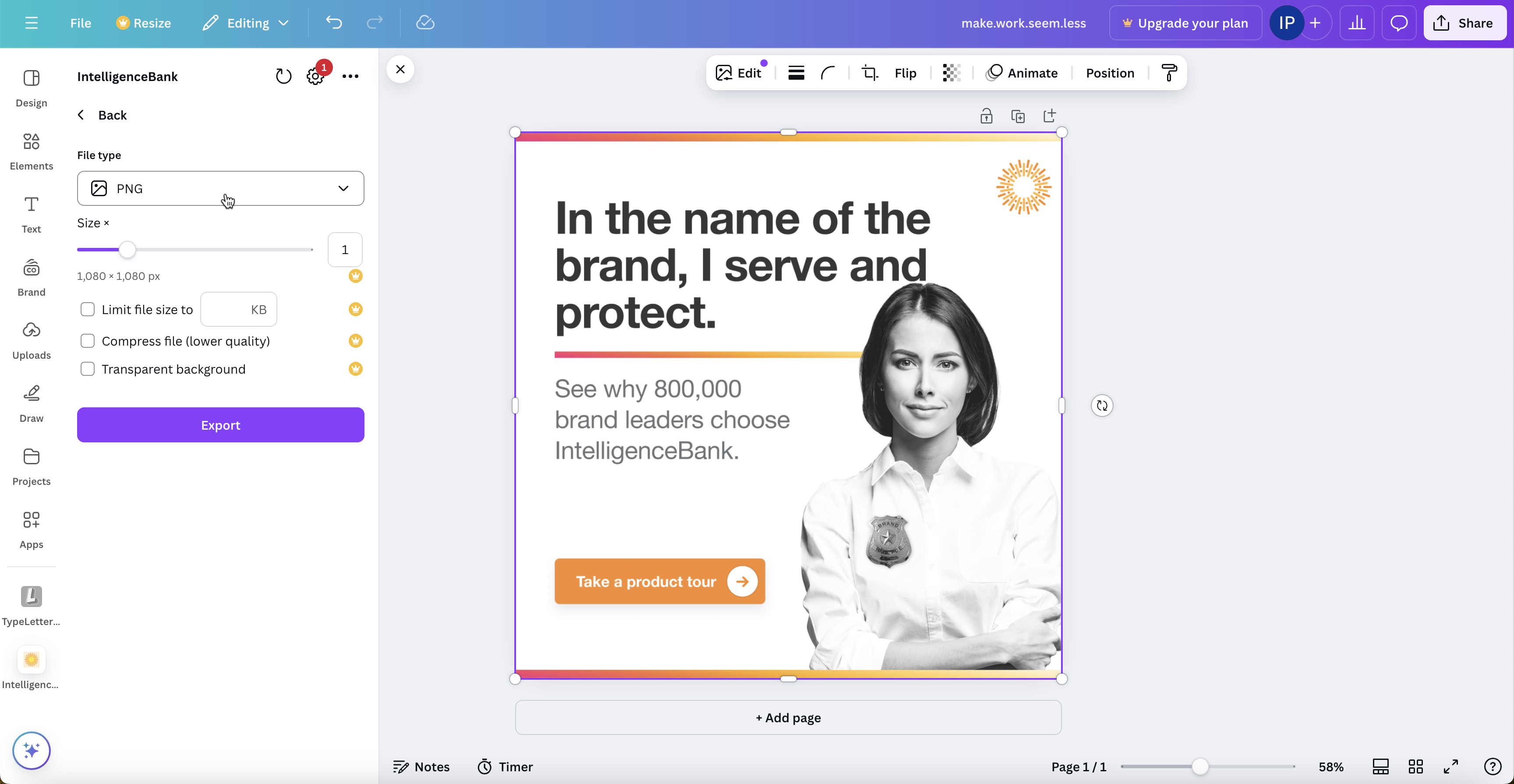
Canva's standard export options will appear. Choose your preferred format and quality, then click Export to start the upload.
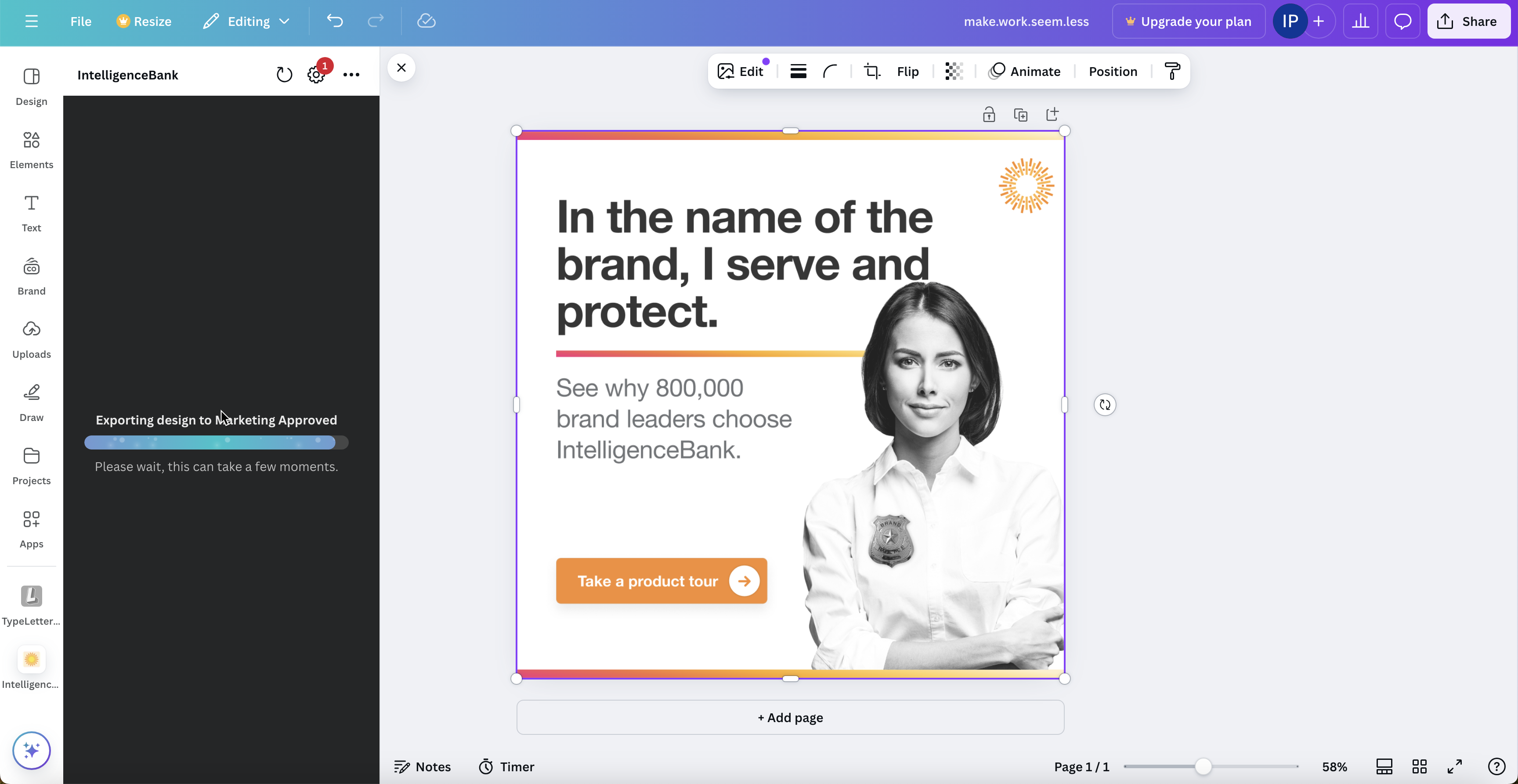
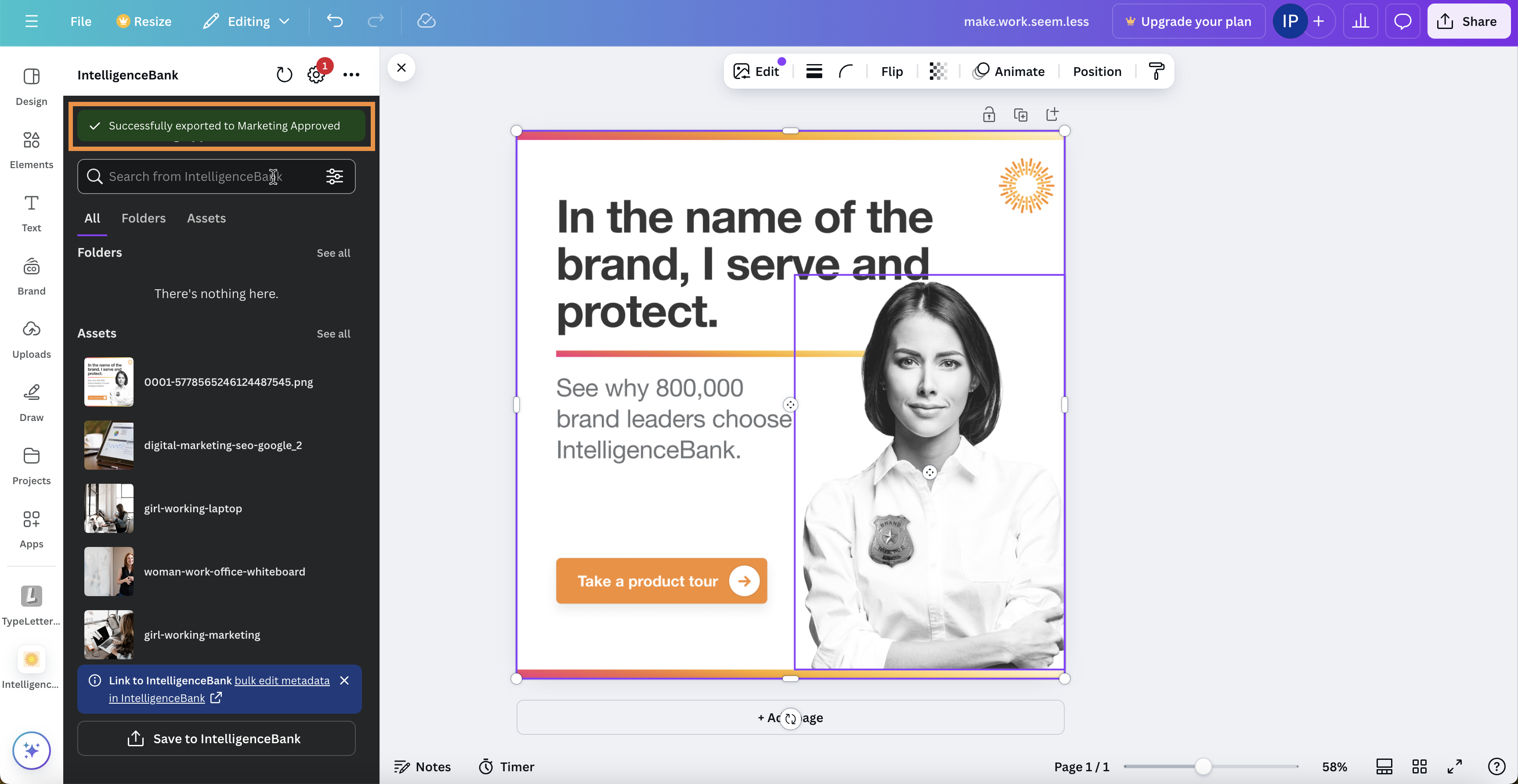
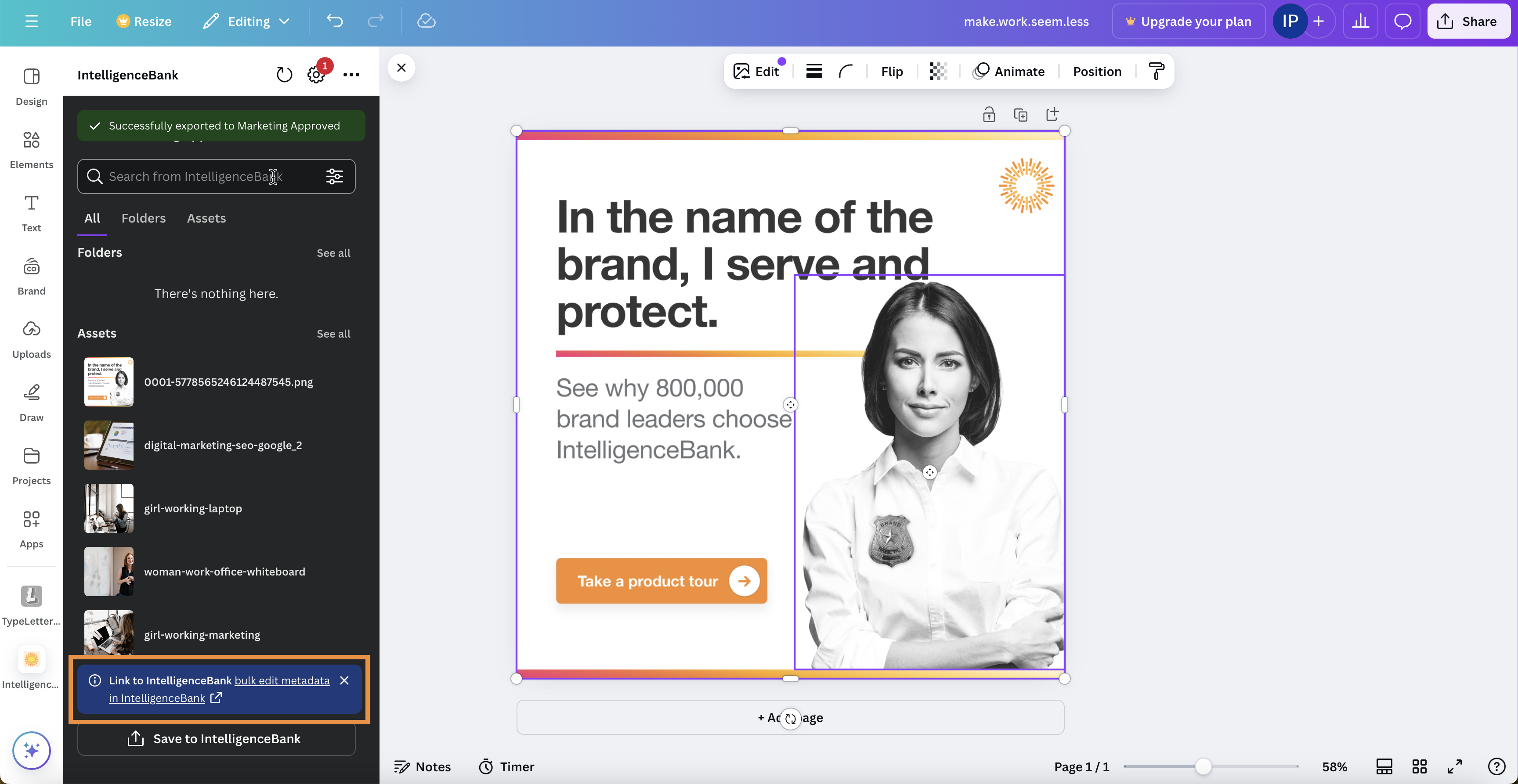
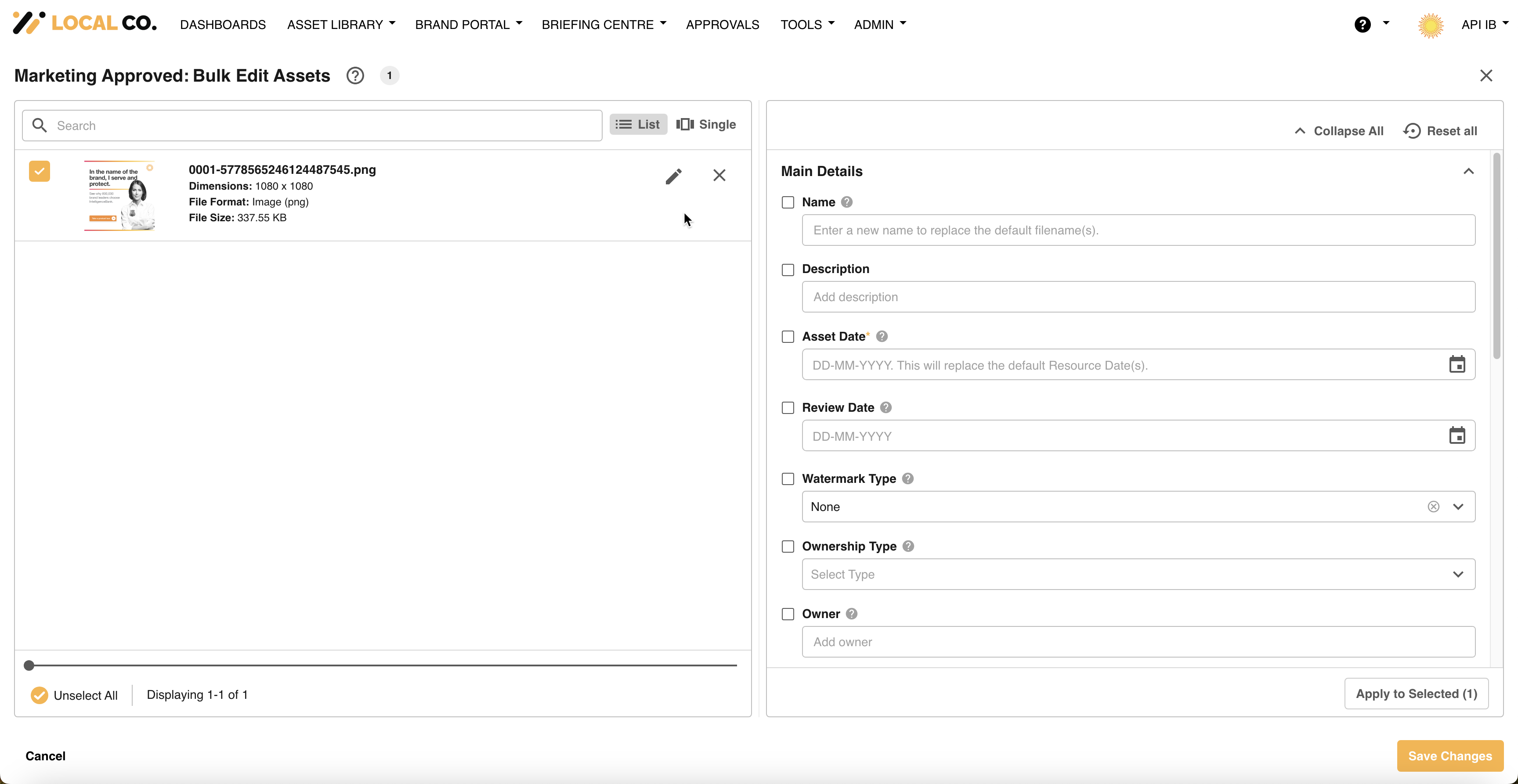
Once the upload completes, a shortcut appears in the panel that takes you straight to the new resource in IntelligenceBank for editing.
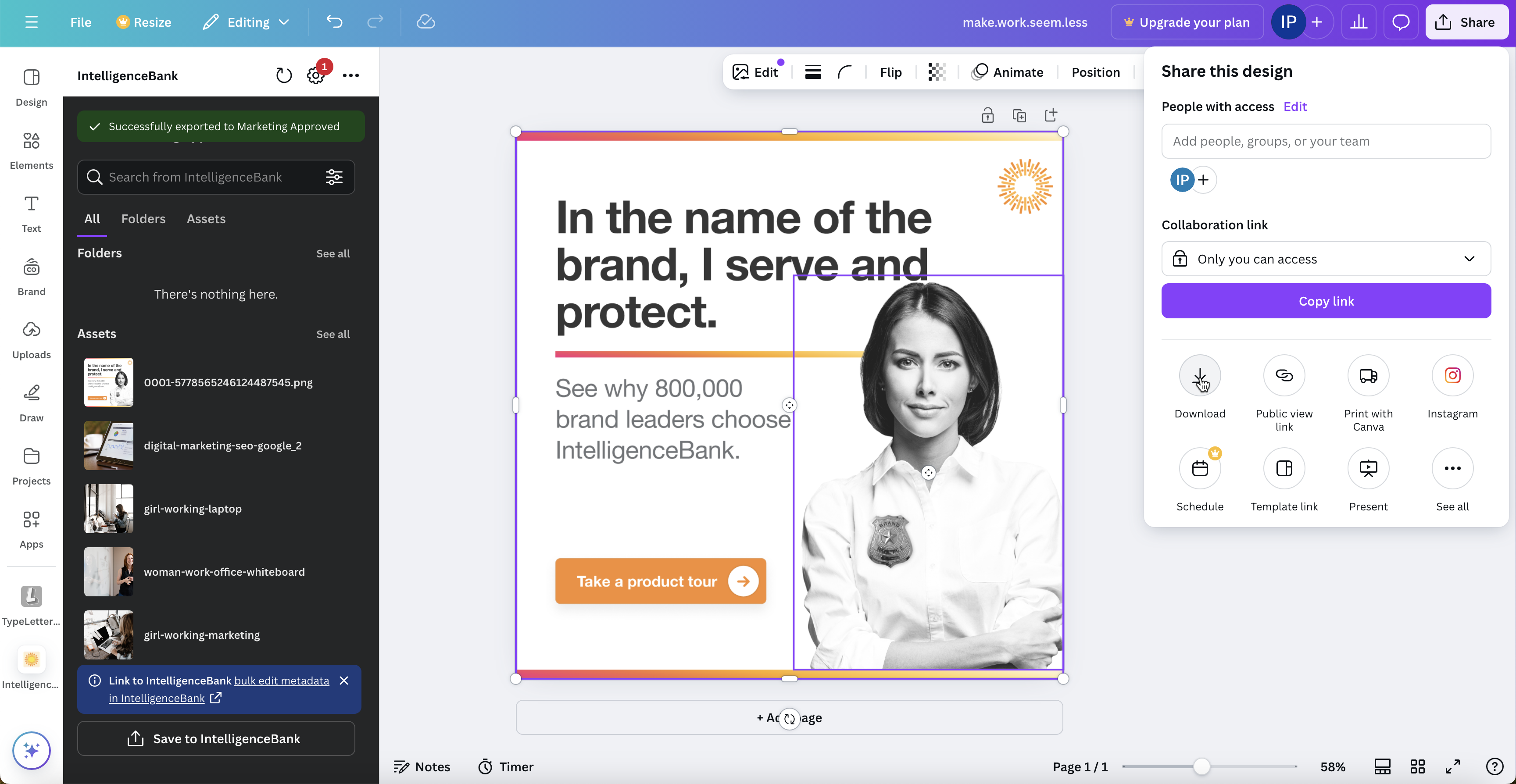
Sharing & Downloading (Native Canva Options)
All of Canva's native Share and Download options remain fully available alongside the connector. Use them as you would for any other Canva design.
Was this article helpful?
That’s Great!
Thank you for your feedback
Sorry! We couldn't be helpful
Thank you for your feedback
Feedback sent
We appreciate your effort and will try to fix the article