A Page Category provides a way to Group multiple Drag & Drop Pages or groups of Pages together. Within a Page Category you can set a custom order and only assigned Pages and Sub-pages will be displayed.
To manage your Pages using Page Categories:
- In the Page Builder, open the Pages tab.
- Next to the All Pages switch, open the More menu and select Add Page Category.
- In the popup, enter a Category Name that helps users identify it, and select Add.
- Go to a Page and use its More menu to assign it to a Page Category. Any sub-pages are added automatically.
- Use the All Pages dropdown at the top of your page list to switch to the Category. There you can view its Pages and re-order them.
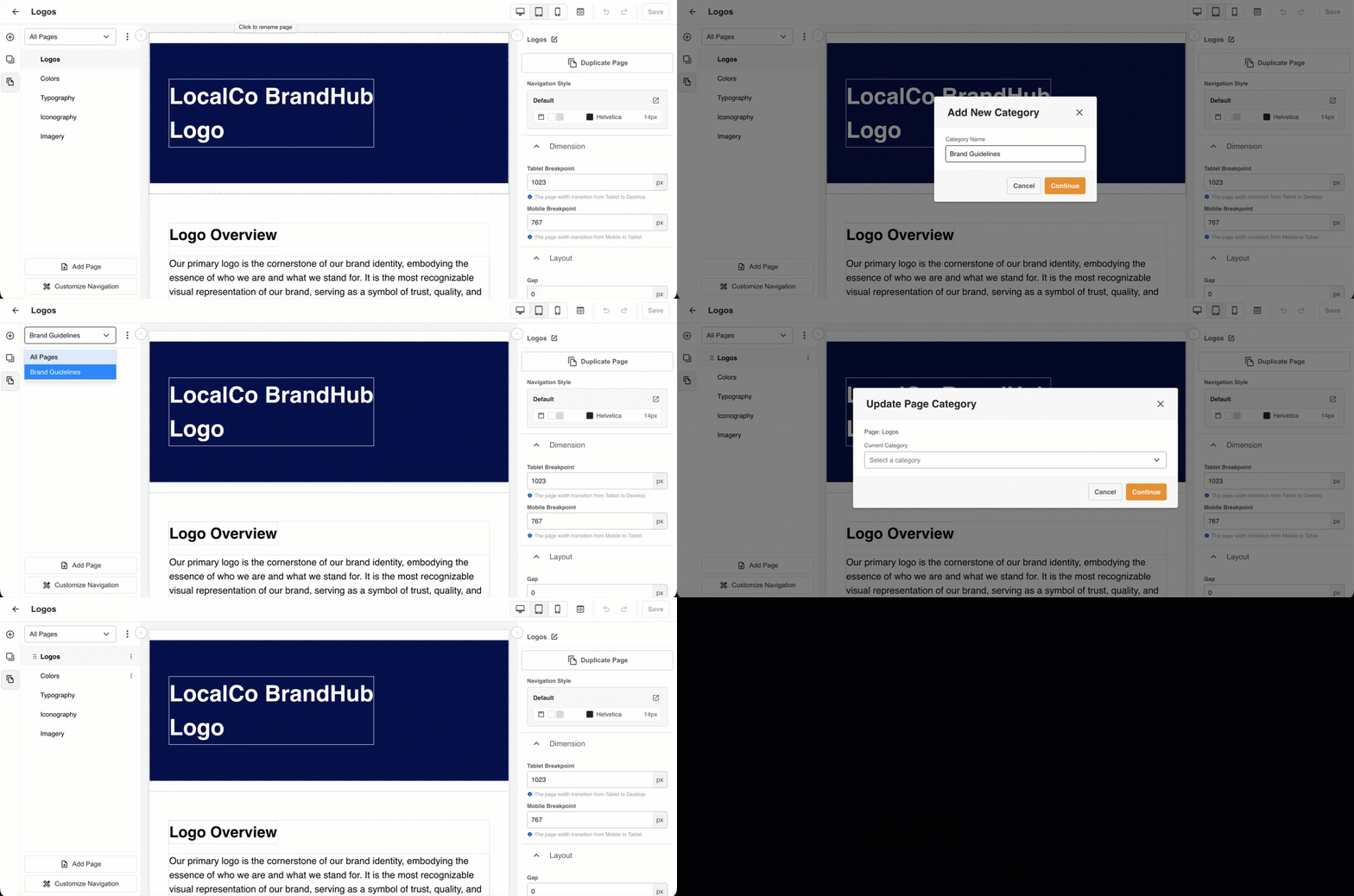
You can also edit and delete Categories. If you delete a Category, its pages become standalone pages.
Hide Category Dropdown
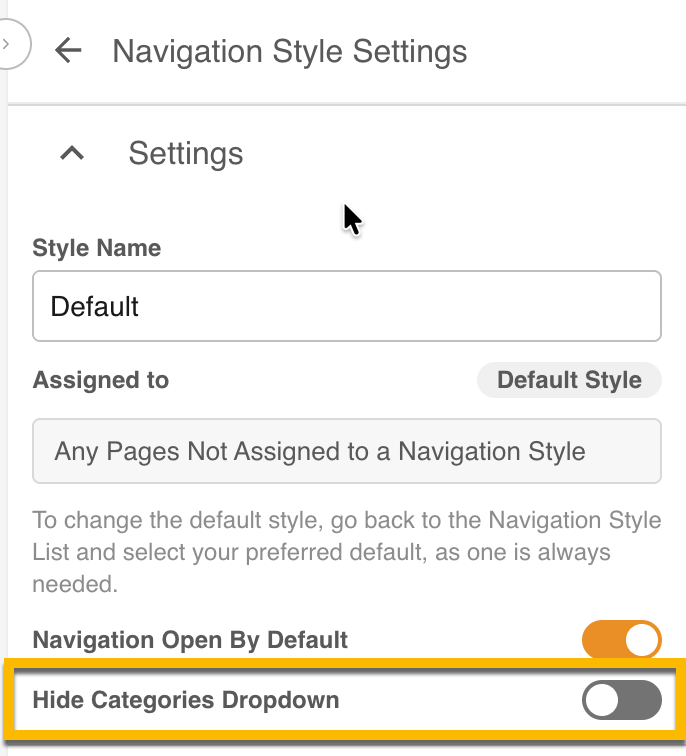
You can hide the Category dropdown from people viewing your pages. The pages stay grouped by Category; so only the dropdown is hidden. This allows you to ensure your Users remain within that Category when needed, filtering out other options.
This setting sits with Navigation Styles, enhancing your ability to customise the look and feel of that Category of Pages.
- The setting is on the Navigation Styles page
- It is off by default. It is turned on automatically when horizontal navigation is used.
- It only affects the view for end users. It does not change the dropdown inside the builder
- All Pages and Sub-Pages appear in the All Pages list, which is the default view in the builder.
- You can add standalone pages and parent pages to a Category. A page can only be in one Category.
- Sub-Pages take the Category of their parent Page and cannot be assigned separately.
- The All Pages list and each Category have their own custom order, including Sub-Pages.
- A Category with no pages in it doesn't appear in the dropdown when Viewing Pages. This includes Categories where the viewer has no permission to see any of its pages.
- Categories appear as a dropdown at the top of the Pages list, both in the builder and when users view pages.
You can view the full list of related pages here or view suggested articles below.
Was this article helpful?
That’s Great!
Thank you for your feedback
Sorry! We couldn't be helpful
Thank you for your feedback
Feedback sent
We appreciate your effort and will try to fix the article