Overview
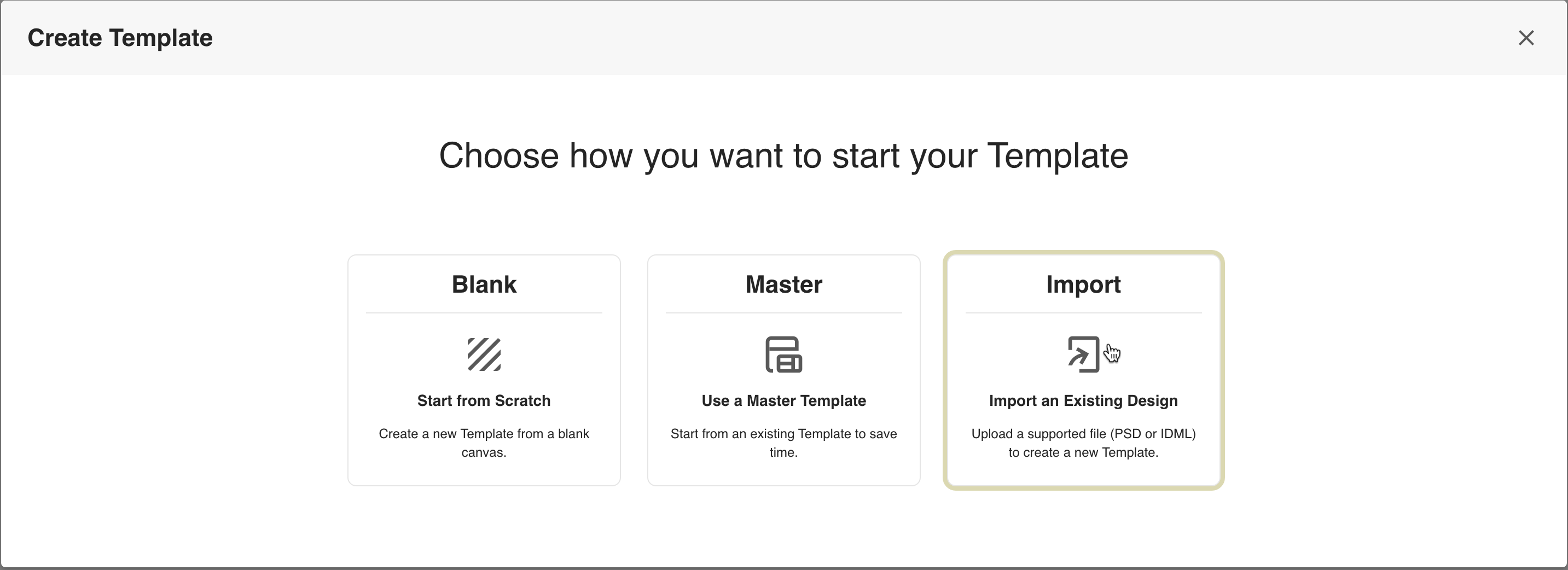
The InDesign Importer for Embedded Creative Templates enables users to seamlessly load InDesign files into the editor during Template creation, serving as a starting point while retaining essential design attributes. Please note that Embedded Creative Templates are most suitable for digital designs, rather than print or document designs.
Here's an overview of the main features:
- File Format Translation: The importer converts IDML files from Adobe InDesign into the Embedded Creative Templates editor and format.
- Bulk Importing: The codebase is adaptable for bulk importing, streamlining large-scale projects.
- Color Translation: CMYK colors from InDesign are converted into HEX values.
The import will preserve the following InDesign design elements:
- Element grouping: grouped elements will be preserved and treated as a single unit.
- Positioning and Rotation: Elements' positioning and rotation are accurately transferred.
- Image Elements: Embedded images are supported as long as they are in a format supported by the editor, while preserving image masking/cropping is not yet supported.
- Text Elements: Font family continuity is maintained, as long as the font files exist in the DAM. Only bold and italic styles are currently supported. Advanced text styling, like custom line spacing, letter spacing, etc, will not be preserved.
- Shapes: Rect, Oval, Polygon, and Line shapes are supported, along with custom shapes that might experience minor distortion.
- Colors and Strokes: Gradient and solid colors, stroke weight, color, and alignment are faithfully reproduced.
- Transparency: Transparency is preserved for seamless integration.
This InDesign Importer bridges the gap between InDesign files and embedded creative templates, enabling efficient transitions while retaining crucial design details.
Limitations and Unsupported Features
The IDML importer has some limitations and unsupported features that you should be aware of:
- One page only – Multi-page imports aren't currently supported.
- Linked or embedded layers in the IDML file in any of those formats will be replaced with placeholder images. This is because the embedded creative templates editor does not support this type of content. You can, however, use the IDML optimization script option outlined below to easily and automatically convert all your linked layers in preparation for the import.
IDML Import Optimization Script
The InDesign Optimization Script for Embedded Creative Templates helps prepare your InDesign files by automatically converting linked layers to supported formats, and creating an optimized IDML file with those new formats embedded, which is ready for import. Over time, other optimization capabilities may be added to the script.
How to Install
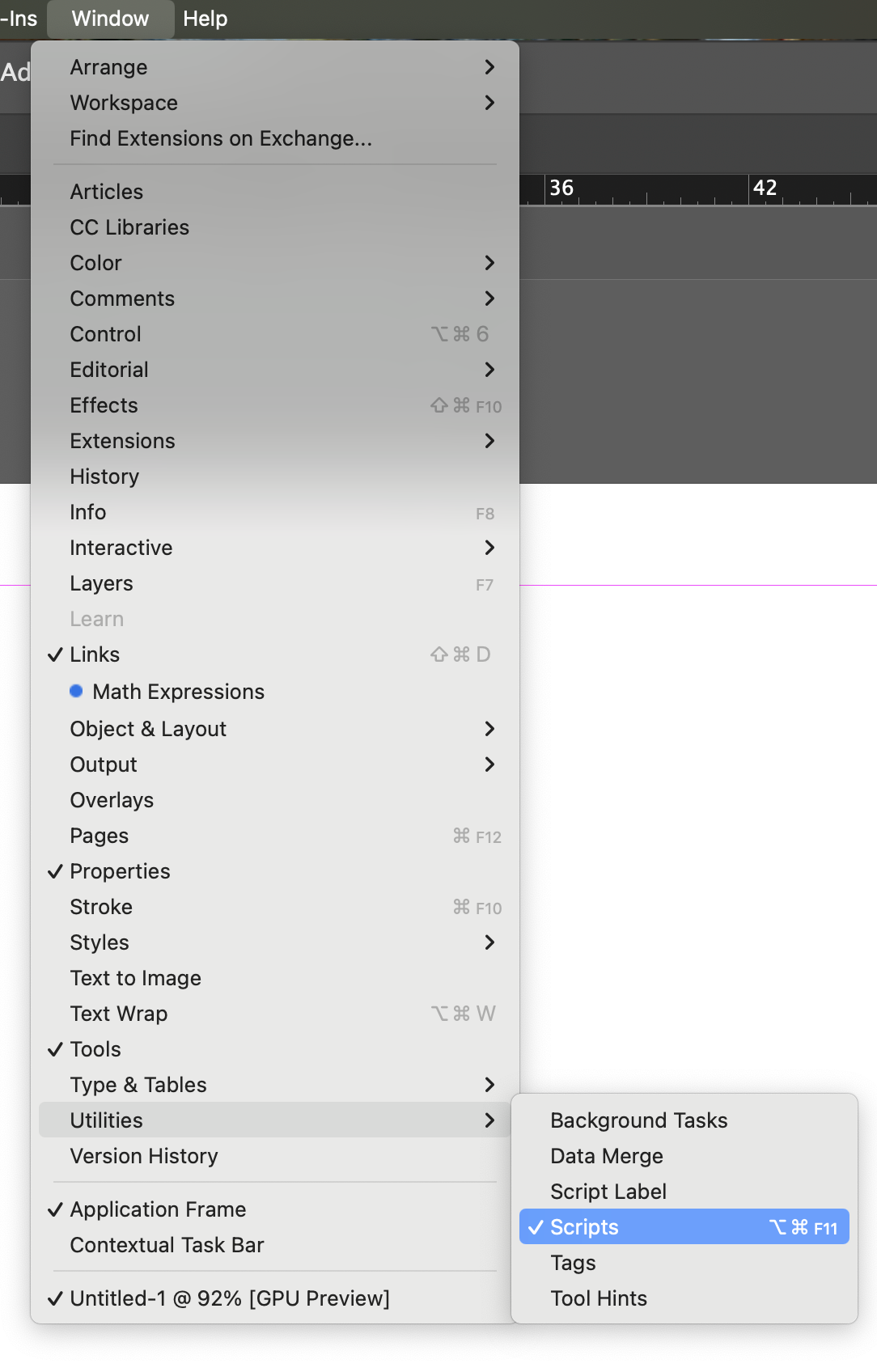
- Open InDesign, and go to Windows > Utilities > Script
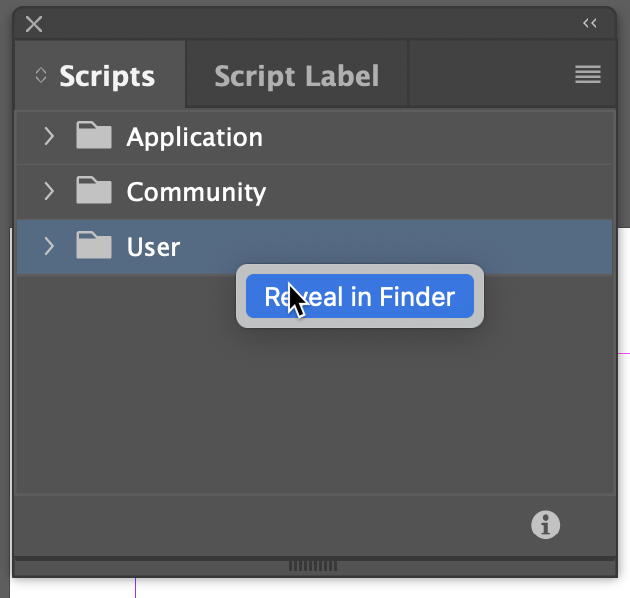
- In the Scripts panel, right click on the User folder, and click Reveal in Finder
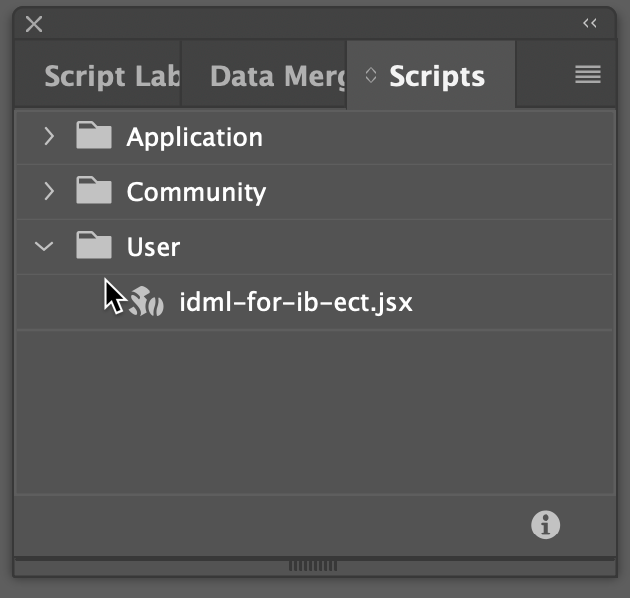
- Download this file (current version is 1.1), and upload it in that Finder location. You can rename it as you see fit.
- The Script should now appear in the panel.
How To Use
- Open the InDesign file that you would like to import.
- Open the Links panel, and check if you have any linked layers that are not in a format natively supported by the editor (
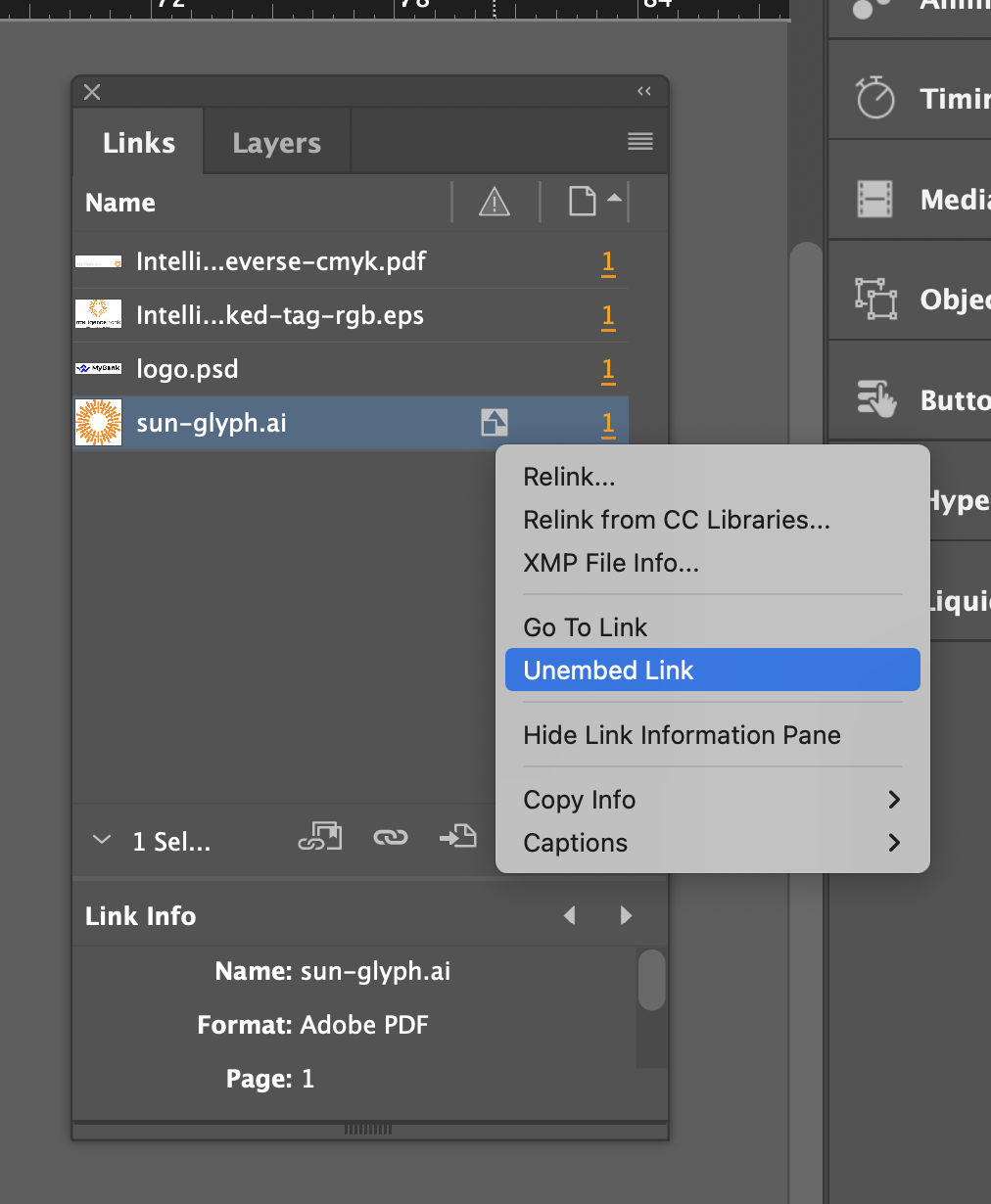
.png,.jpeg,.jpg,.gif,.webp,.svg,.bmp), and is in a format supported for conversion by Photoshop and Illustrator. See the full list of conversions supported below. - Those layers must not be embedded. Right-click and select 'Unembed Link' as needed, then select a location on your drive where the linked layer will be saved.
- Open Photoshop and Illustrator. Those software applications are required to run the conversion.
- Click on the script in the Scripts panel, and select a destination Folder.
.ai,.eps,.wmf,.emf,.cgm,.dwg,.dxf→ SVG.psd,.pdf,.tiff,.tif,.tga,.iff,.sct,.raw,.crw,.nef,.raf,.orf,.mrw,.dcr,.mos,.arw,.dng,.x3f,.cr2,.erf,.sr2,.pef,.srw,.rw2,.dcs,.dcs2,.pcx,.pict,.pct,.pic→ PNG
- Import that file in IntelligenceBank
You can also learn more about IDML ingestion via our FAQ.
Was this article helpful?
That’s Great!
Thank you for your feedback
Sorry! We couldn't be helpful
Thank you for your feedback
Feedback sent
We appreciate your effort and will try to fix the article