You can arrange assets in any order that makes sense for your workflow by using the custom sort feature. Follow these steps to set up your preferred asset sequence.
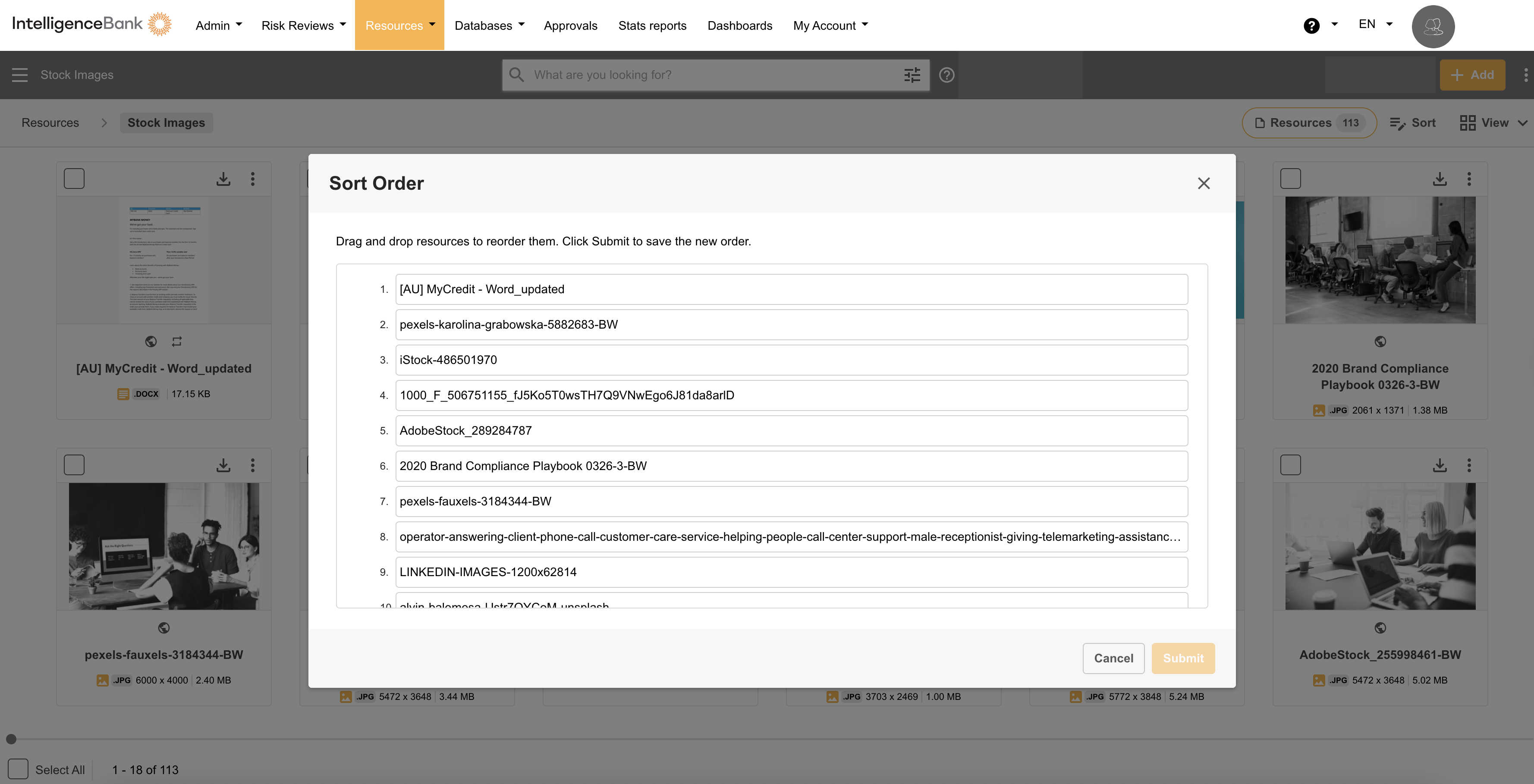
Pre-requisite: In order to sort assets in a custom order, the folders' Default Order setting must have Custom Order selected.
| 1Verify Your Permissions | Please check that you have the appropriate permission level to reorder assets in your target folder.
|
| 2Navigate to Your Folder | If you have the correct permission level, locate and open the folder you want to sort assets in.
|
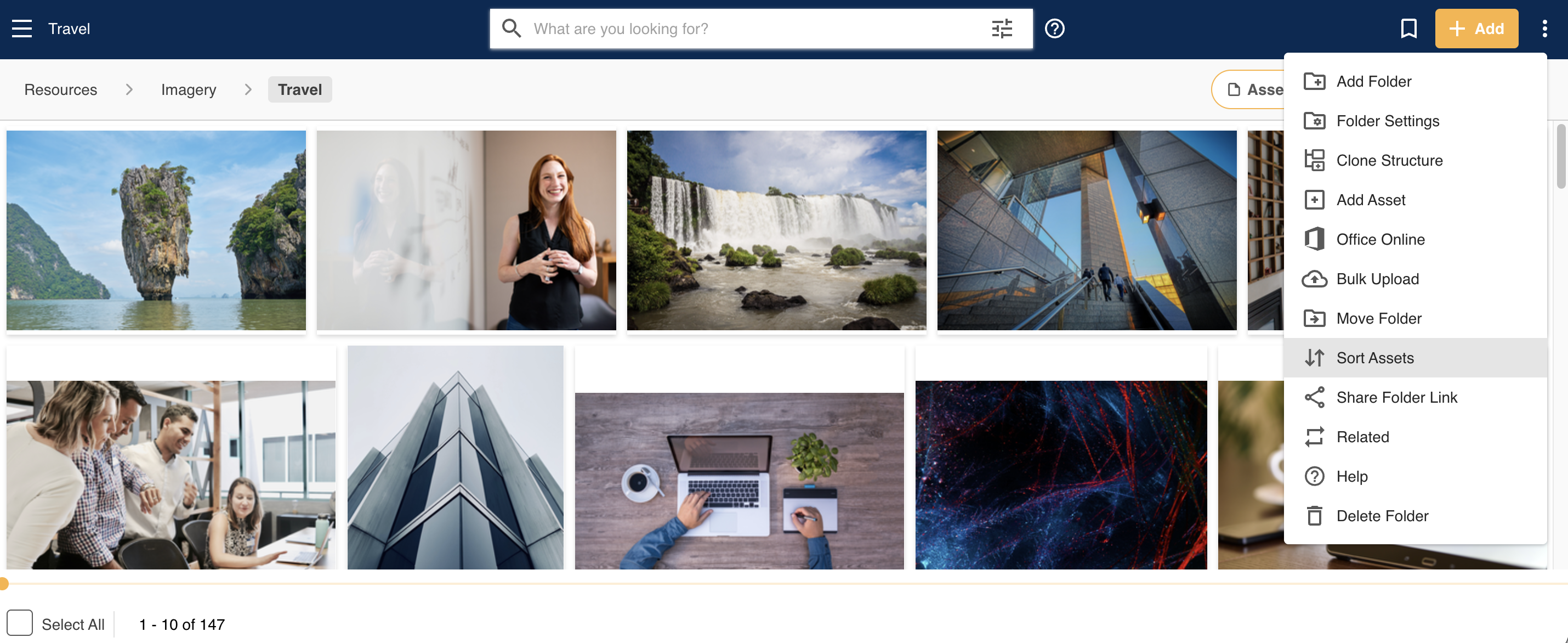
Note: Custom Sort Order is only available for folders containing a maximum of 150 assets.
| 3Drag and Drop to Reorder | With drag handles visible, you can now arrange assets in your preferred sequence.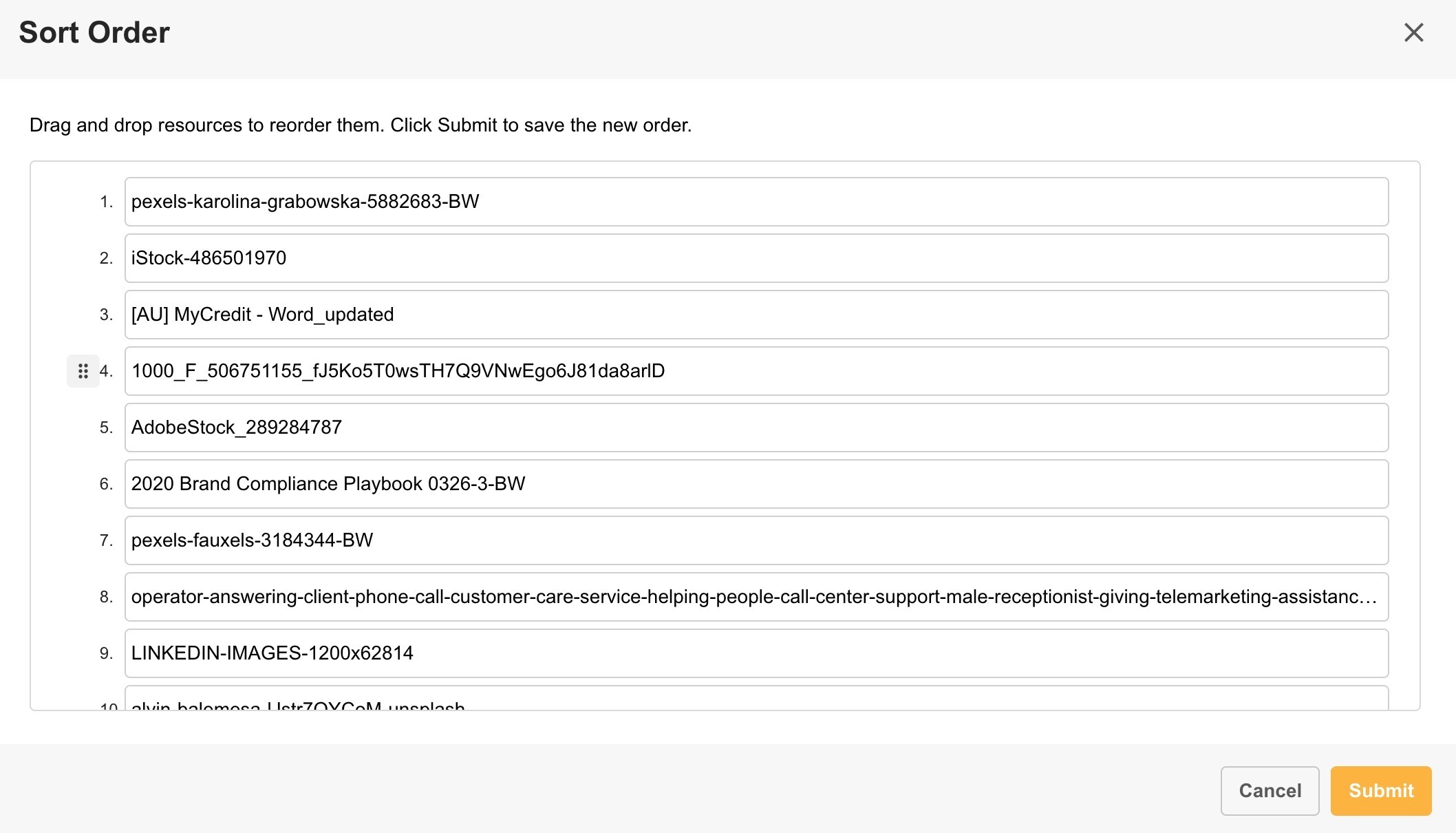
|
Was this article helpful?
That’s Great!
Thank you for your feedback
Sorry! We couldn't be helpful
Thank you for your feedback
Feedback sent
We appreciate your effort and will try to fix the article