In addition to searching for assets by search terms, IntelligenceBank also offers the ability to filter assets by an array of criteria. IntelligenceBank offers a number of out of the box filters, as well as the ability to create custom filters, if there are particular categories more bespoke to your organisation that users would find helpful to filter by.
To learn more about how Main Admins can create custom filters, please reference this article here.
Table of Contents
Key Benefits to Using Filters
Filters allow users to narrow down their search results by particular criteria, helping them hone their findings/relevant assets more quickly. This reduces the time it takes for users to find the assets they need.
Some of the more common filtering scenarios/examples include:
- By file format (ie: images, videos, documents)
- By file extension (ie: JPGs or GIFs)
- By created date (ie: assets uploaded within the last 7 days)
- Any particular/custom category an organisation may want to build (le: by Year, Event Type, Department, Region, etc)
How to Use Filters and Filter Options
You can apply a filter from your main/parent folder Asset Library view, within a specific folder, or off of a search. Once you apply a filter, the relevant assets will display immediately.
To use filters, open up your Filters Panel.
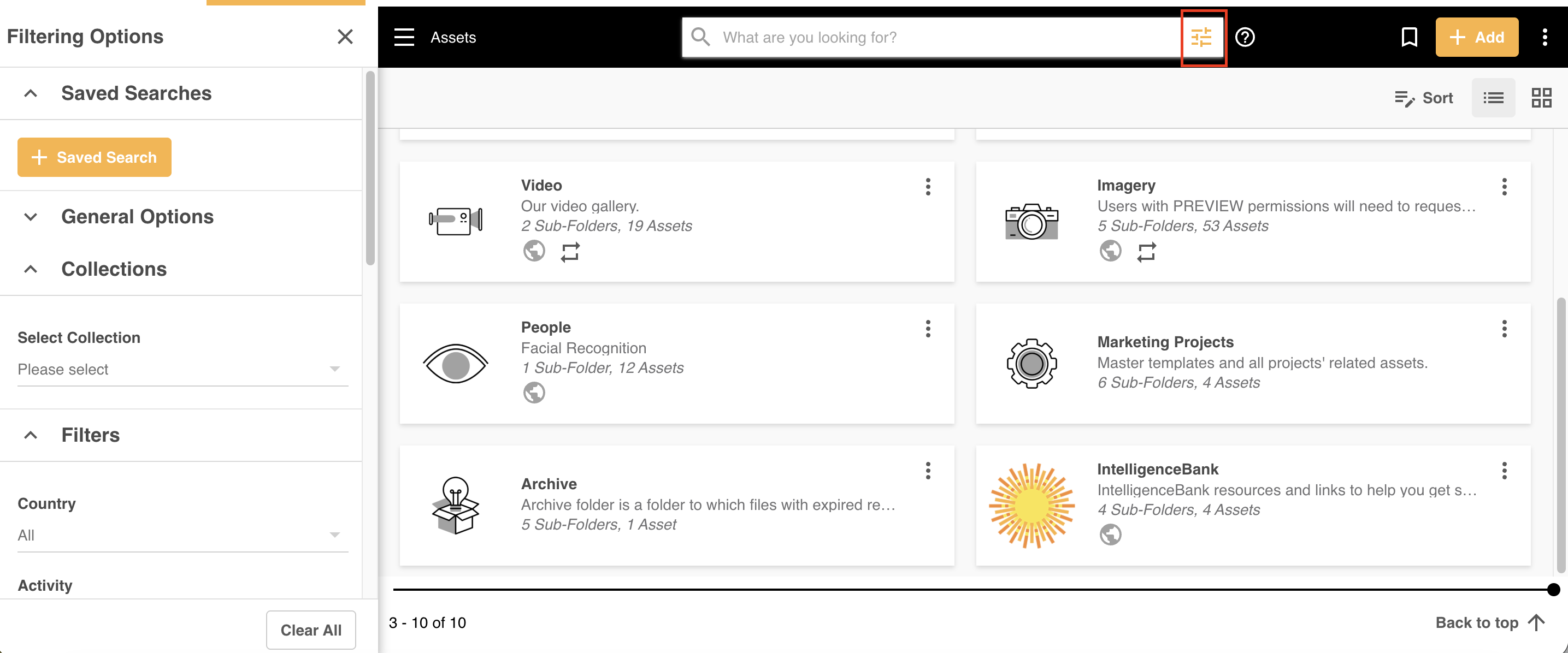
You will see a number of different filters options within this filters panel, which are outlined below.
Saved Searches
Saved Searches allow you to filter your assets based on a previously saved search parameter. To learn more about Saved Searches, please reference this article here.
General Options
This section contains some out of the box filtering options, such as:
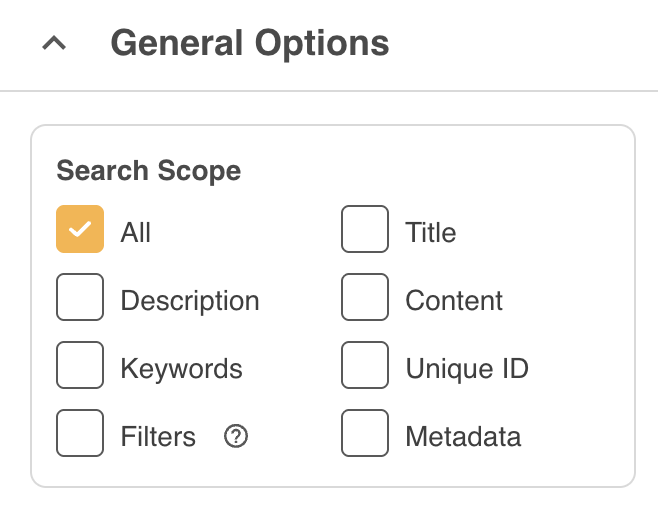
Search Scope
You can select from the options below to narrow down your search scope. This means the search criteria will only look through the scope identified and return search results with assets containing the search terms in that specific scope (ie: if you narrow the search scope by Title, the assets that return will only be those with your search terms in their Title, as opposed to within keywords or the description, etc).
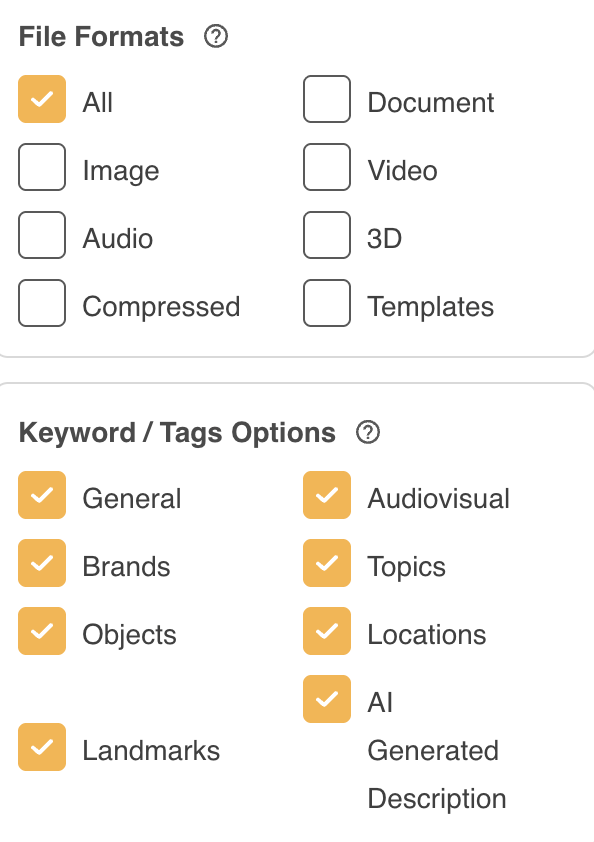
Keywords Search Scope Additional Filter Option
When Keywords has been selected in Search Scope, an additional filtering field called Keyword/Tags Options will appear. Here you can refine which specific keyword field your search term should appear in.
You can also filter by File Format which will further refine the Keyword / Tags Option section to the relevant fields.
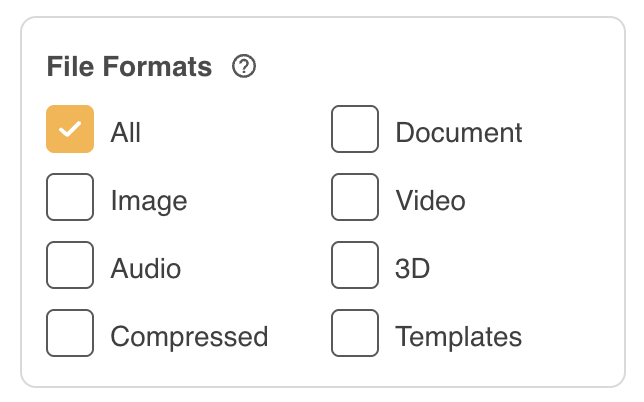
File Formats
You can select from the options below to filter by file format. Choose this option if only particular file formats (ie: Videos) are relevant to your search query.
If Image is selected, there are additional filtering options available for you to leverage. To learn more about these, please read the article here.
File Extensions
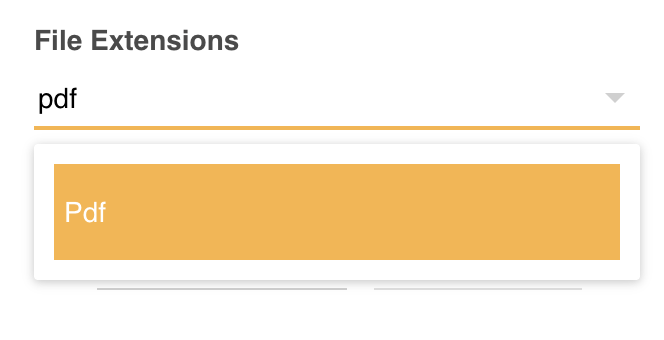
You can also filter by a number of different file extensions within the platform. Select the dropdown menu to search within or select the desired file format(s). Consider filtering by file extension if this is helpful in narrowing down your search (ie: I only need to display/focus on PDFs).
File Size
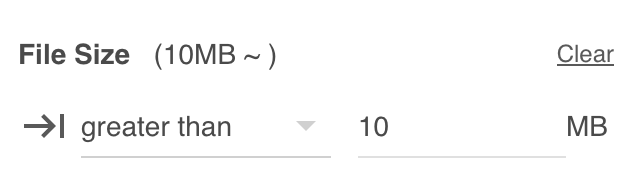
You can filter assets by file size in this section. Select the range type and then enter the value (numeric) that you wish the Filter to work from. For example, if you wished to see all assets over 10MB, you would select Greater Than from the dropdown and enter 10 as the value (as you can see below).
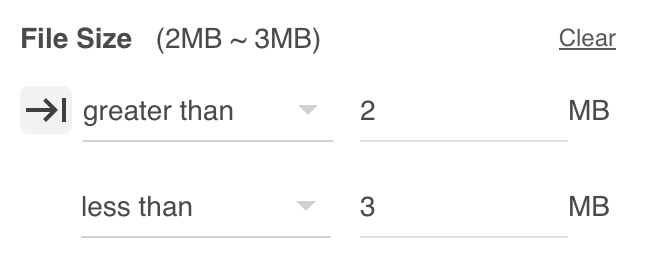
If you wish to see a specific range, for example all assets that are between 2 and 3 MB, you can easily select both options after clicking the arrow to the left of the select dropdown.
Collections
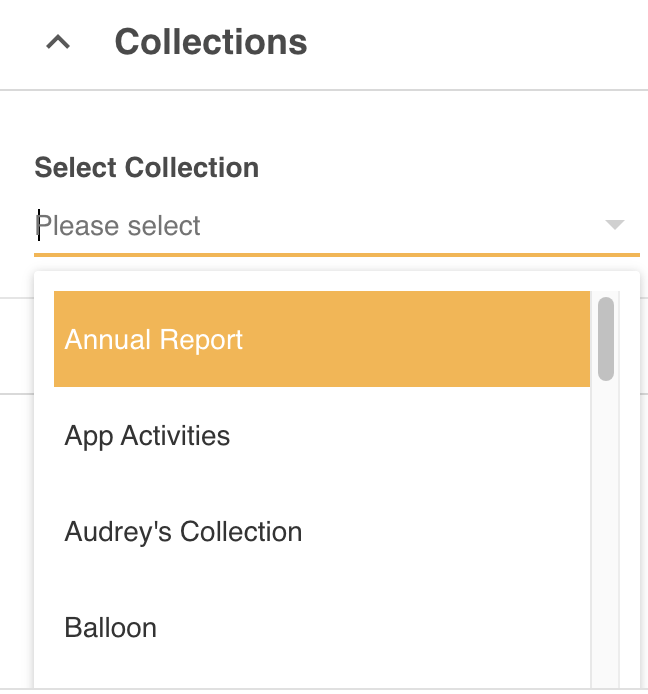
You can also filter by Collection, which lets you select from a dropdown of Collections that either you own or have been shared with you.
Filters
General Keywords
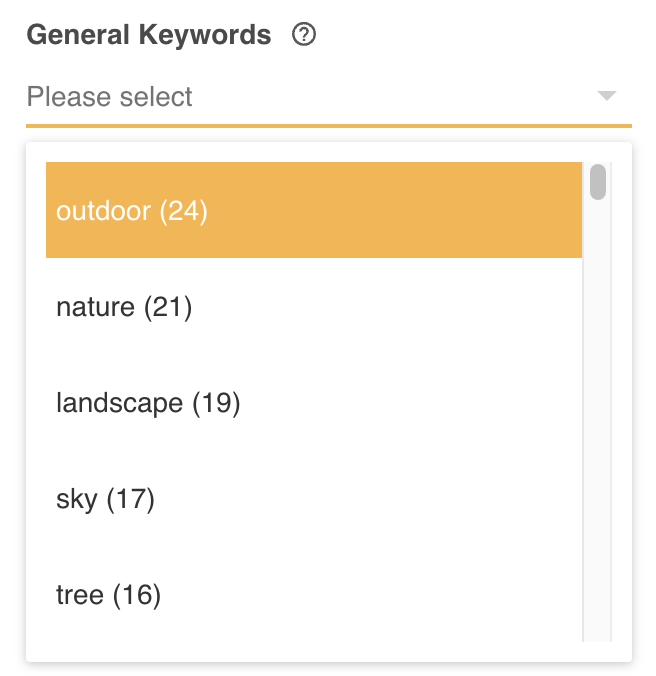
Sometimes, a General Keywords filter dropdown will appear in this section, which will display a list of general keywords applied to the assets shown or accessible in a particular folder you're in. There is a count in parentheses, which notes the number of assets that contain that particular keyword. You can click on a particular keyword, which will filter to display just those assets.
The General Keywords dropdown will display if you:
- Have already applied a search/filter
- Are in a particular folder/subfolder with assets saved/displayed directly in that folder
If you have any custom filters or custom upload single/multi select fields set up in your platform, they will also display in this Filters section. Select the dropdown menus on any filter category and choose the relevant value(s) you'd like to filter assets by.
You can filter across multiple filter categories as well.
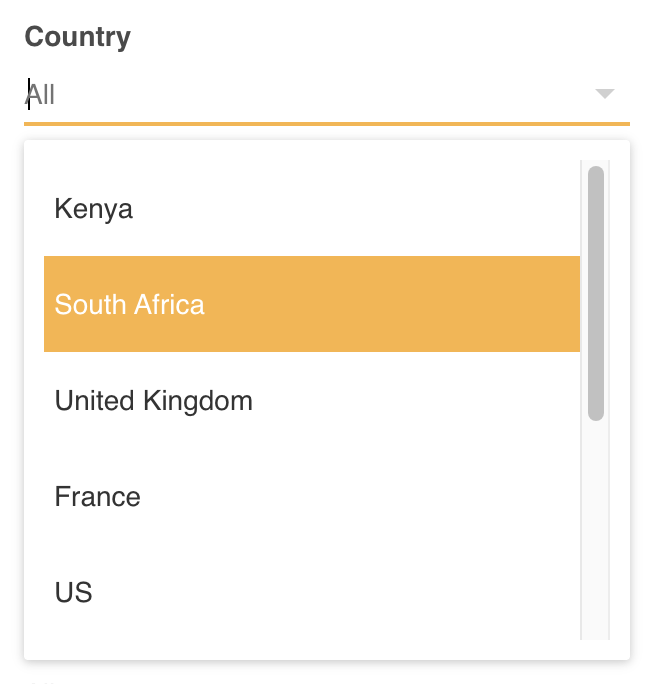
Note, the custom filters that display in this list may depend on whether certain filters have been enabled on just specific folders. You will see all filter options in this list (including any restricted filters) if you are on your parent folder view, or doing a global search (ie: you search across all folders). Otherwise, you will only see filters that are restricted on select folders if you are in those folders.
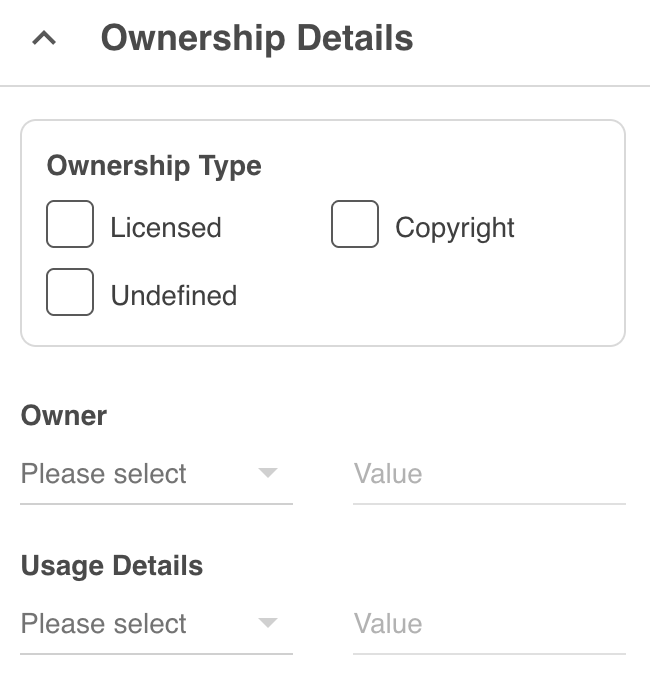
Ownership Details
This section lets you filter by particular Ownership Type, Owner, or Usage Details.
Dates
Within this section, you can filter by the following date fields:
- Asset/Resource Date - this is the assigned date to assets when they are uploaded or edited within the platform. While this date often auto populates to the date assets are uploaded, this date field can be adjusted by users, or may be pulling a different date based on metadata mapping.
- Created Date - this is the hardcoded created/uploaded date of assets
- Last Updated Date - this is the date assets were last updated, which include edits or new versions
- Review Date - this is the Review Date assigned against assets when uploaded or edited
- Any additional custom upload date fields, if configured on your platform
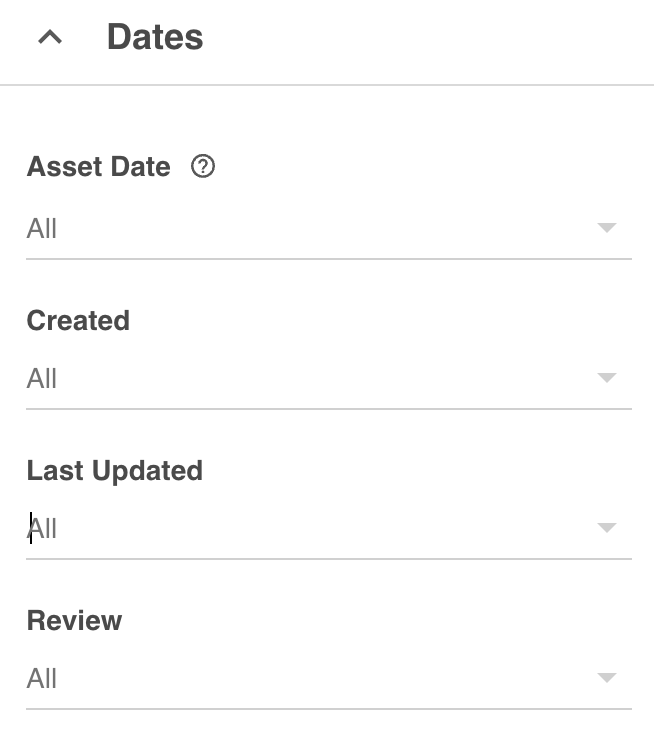
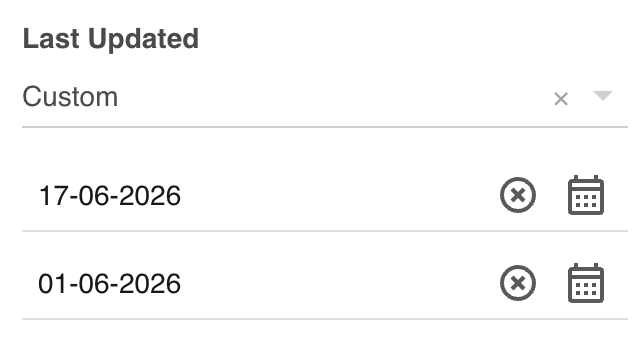
To filter by date fields, select the dropdown on one of the above and select from one of the date range options available:
- Today
- Yesterday
- Last 7 Days
- Last Week
- Last 30 Days
- Last Month
- Last 60 Days
- Last 90 Days
- Last Year
- This Year (Elasped)
- Custom
For Custom, you can select the specific date range you'd like to filter assets by.
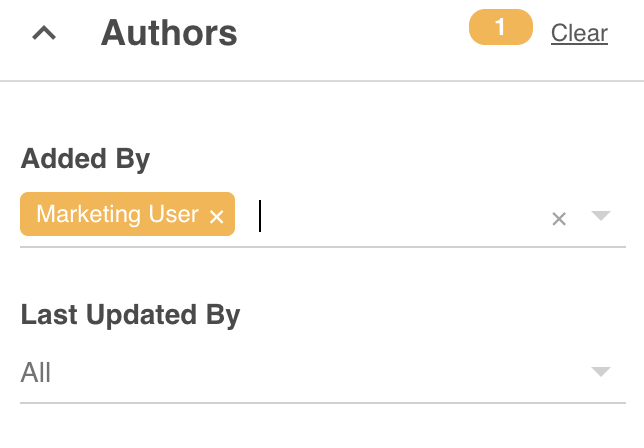
Authors
Within this section, you can filter by which user(s) either added/uploaded or last updated assets. Select within the dropdown menu, which will display a list of active users in your platform.
Custom Rules
The Custom Rules section lets you build filters based on the following:
- Description
- Keywords
- Name
- Public Status (can filter to display assets that are currently publicly active or inactive via the Share/Embed feature
- Type (File, Web URL, InDesign Template, Remote File, Alias)
- UUID
- Web URL
Some of the most common scenarios Custom Rules are used for are as follows:
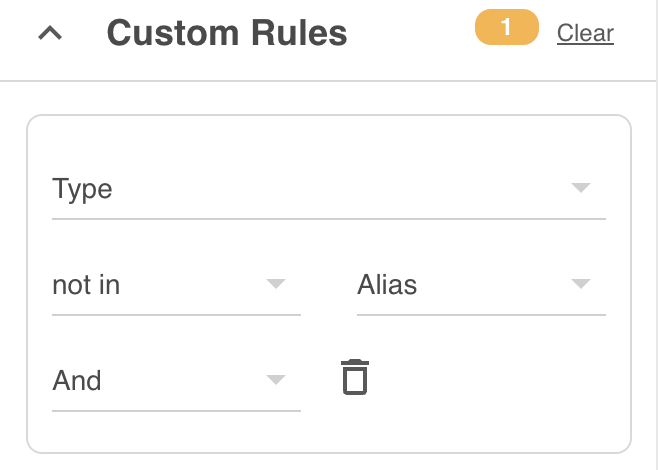
Filter to either include or exclude Alias assets:
If you wish to search only your Aliases, or exclude Alias files from your search, select Type, then choose the related rule, In or Not In, followed by Alias. As with all filters, your results will automatically filter on your assets view on the right.
Filter to show just Web2Print templates:
If you utilise Web2Print templates, you can filter to display any templates saved within your platform using Custom Rules filters. Select Type, then choose the related rule, In or Not In, followed by InDesign Template. Your results will automatically filter on your assets view on the right.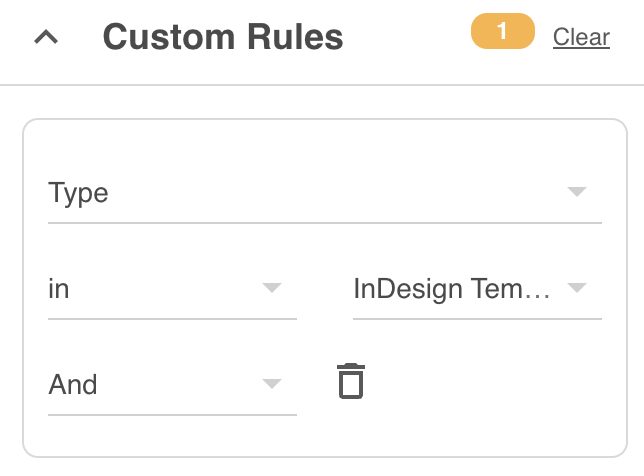
Applying Multiple Filters or Values
Note, searching by multiple values within one filter (ie: if Region is a filter, and you select multiple regions, such as Australia and the US) operates as an OR search. You will return results of assets that contain either Australia or the US.
Filtering across multiple filters (ie: if you have a Region filter and a Year filter and you apply values from both filters) operates as an AND search. You will only return results of assets that contain both. This also applies when applying filters across multiple filter sections (ie: filtering by a particular date and file format).
Clearing Filters
To clear your filters, uncheck or remove the options individually, or click the Clear All button on the bottom of the filter side panel.
You can close the filter panel and continue browsing your assets. If you can still see a count of filters in your search bar, then you still have active filters and this will be reflected in your display.
Once you navigate to another folder, your filters will automatically be cleared.
Was this article helpful?
That’s Great!
Thank you for your feedback
Sorry! We couldn't be helpful
Thank you for your feedback
Feedback sent
We appreciate your effort and will try to fix the article