Saved Searches allow you to save your search parameters in the platform, making repetitive searches effortless. Save time and find what you need quickly by saving any search term and filtering criteria.
Table of Contents
How to Create a New Saved Search
To create a saved search, apply your search terms and/or filters to get your desired search parameters. Then, follow the steps below to save your search:
| 1 | Click on the Filter Panel icon within the search bar.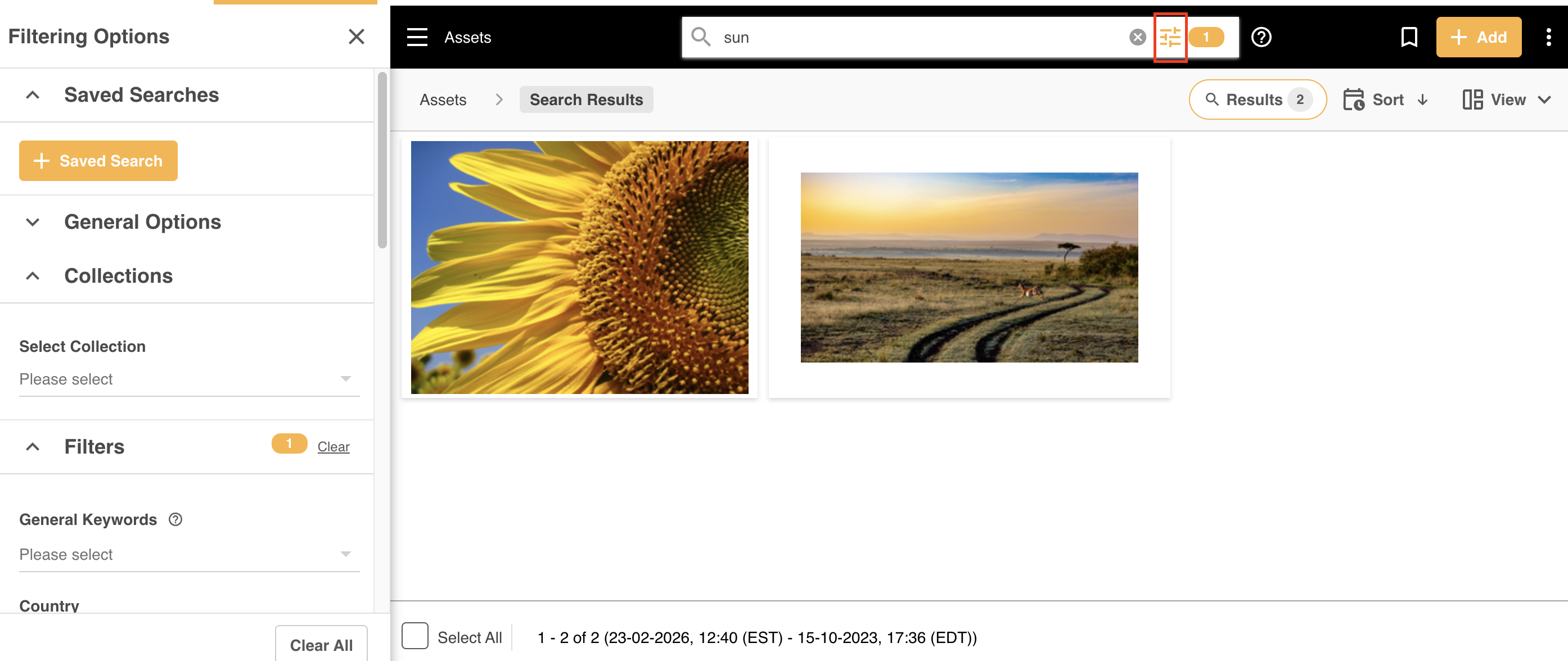 |
| 2 | Click on the + Saved Search button at the top of the Filter Panel.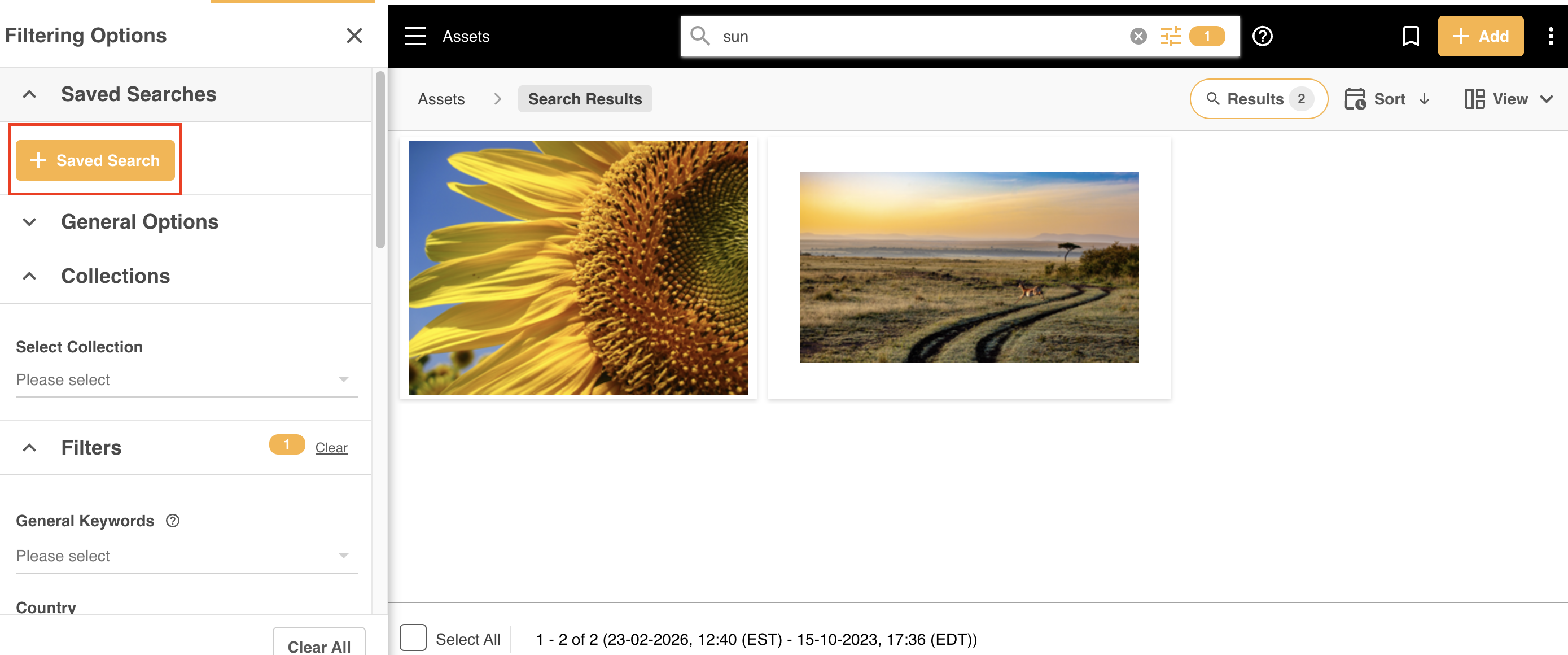 |
| 3 | Add a name for your Saved Search. While the Saved Search area is open, you can continue to add any additional filtering criteria from the left.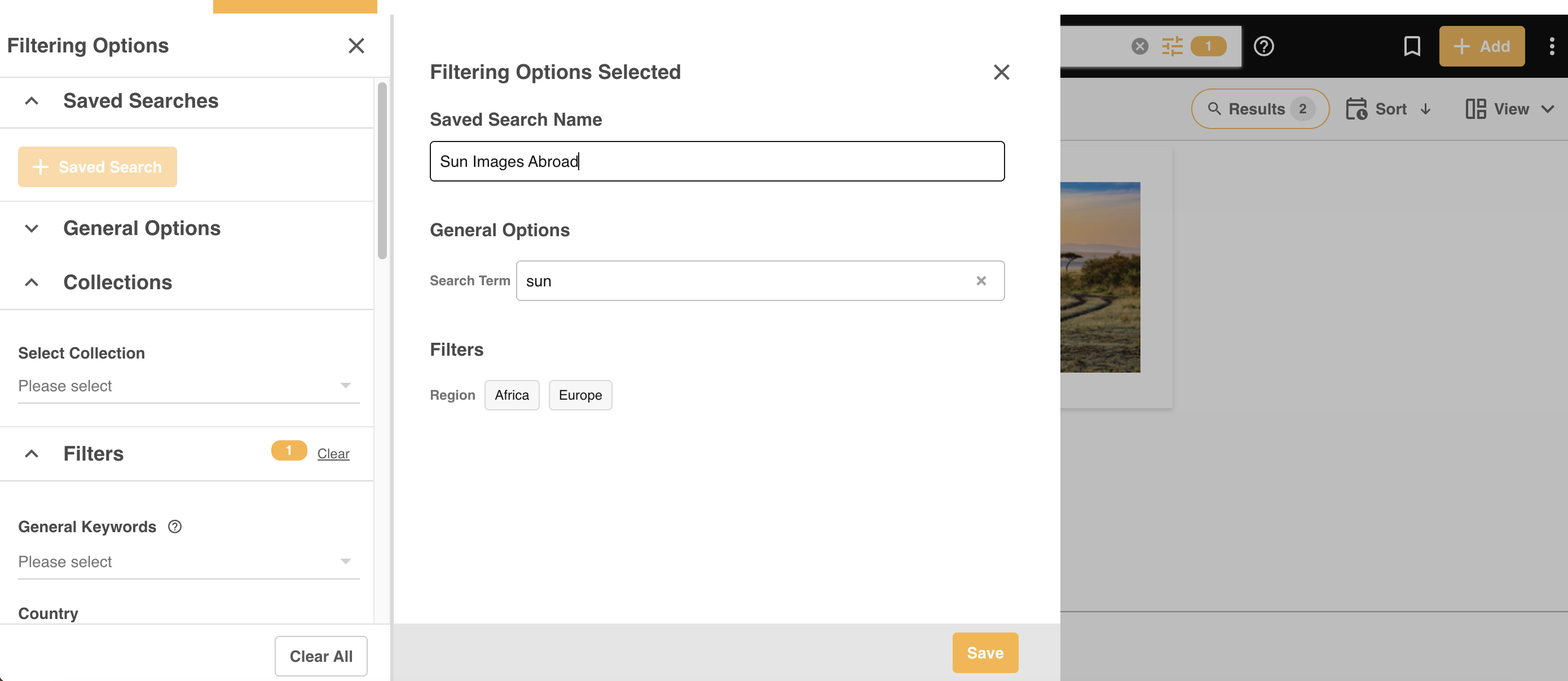 |
| 4 | Once you're ready to save your search, click Save. |
Using a Saved Search
Once you've created your Saved Search, you can access and apply it at any time by following the steps below:
| 1 | Open your Filters Panel. |
| 2 | In the Saved Searches section, click on the name of the Saved Search.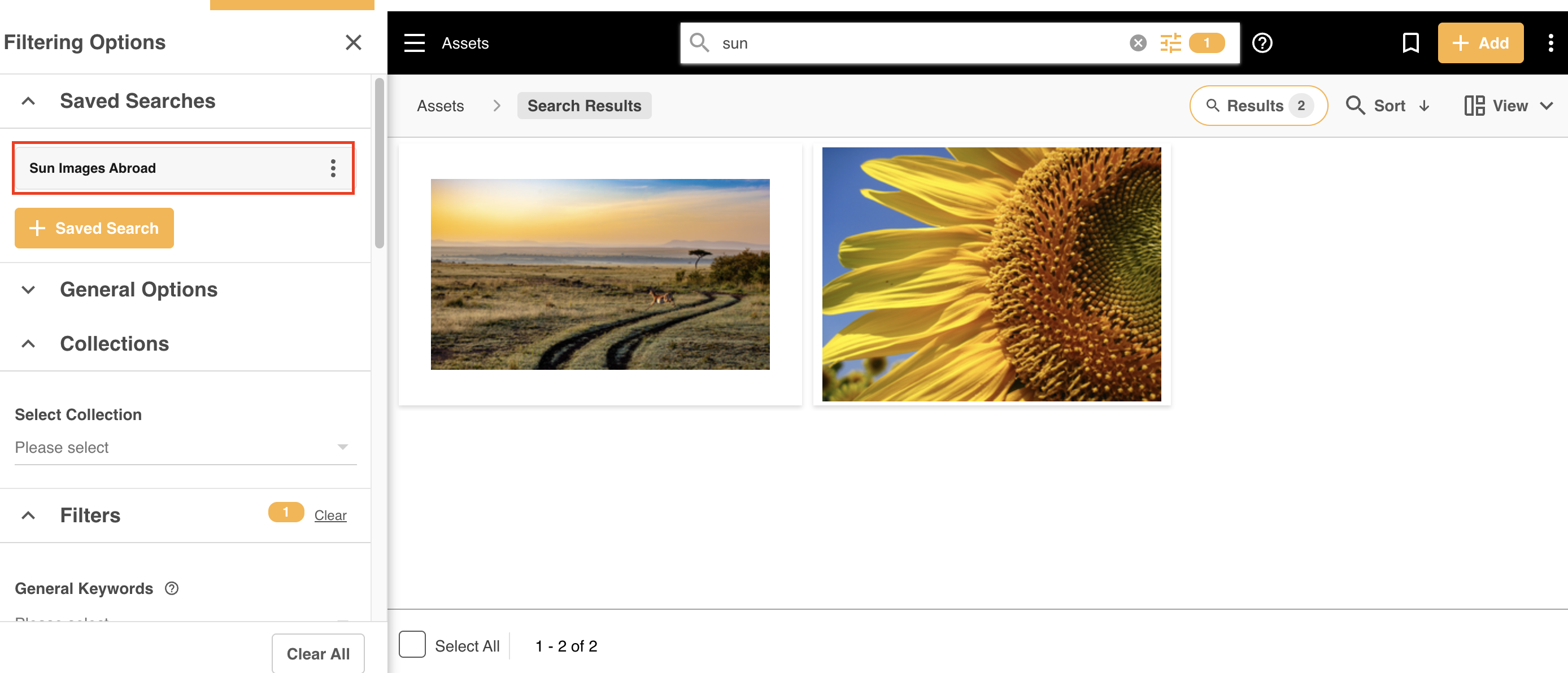 |
| 3 | The platform will apply the relevant search parameters in your Asset Library, and the corresponding search results based on the criteria in your Saved Search will appear. |
Editing a Saved Search
If you ever need to edit your Saved Search:
| 1 | Open your Filters Panel. |
| 2 | From the Saved Searches section, click on the menu against the Saved Search you want to edit and select Edit.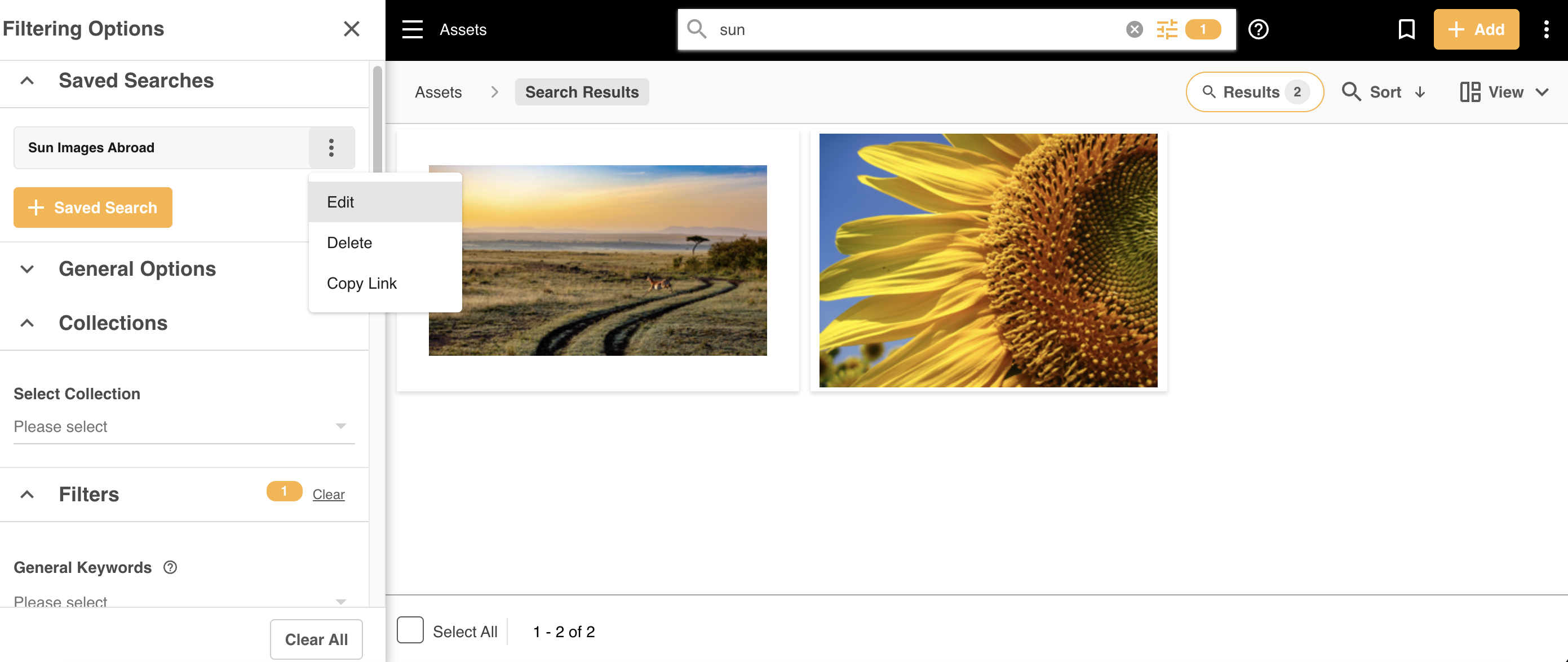 |
| 3 | From here, you can:
|
| 4 | Once you're done making your changes, click Save to update your Saved Search. |
Deleting a Saved Search
To delete a Saved Search:
| 1 | Open your Filters Panel. |
| 2 | From the Saved Searches section, click on the menu against the Saved Search you want to delete and select Delete.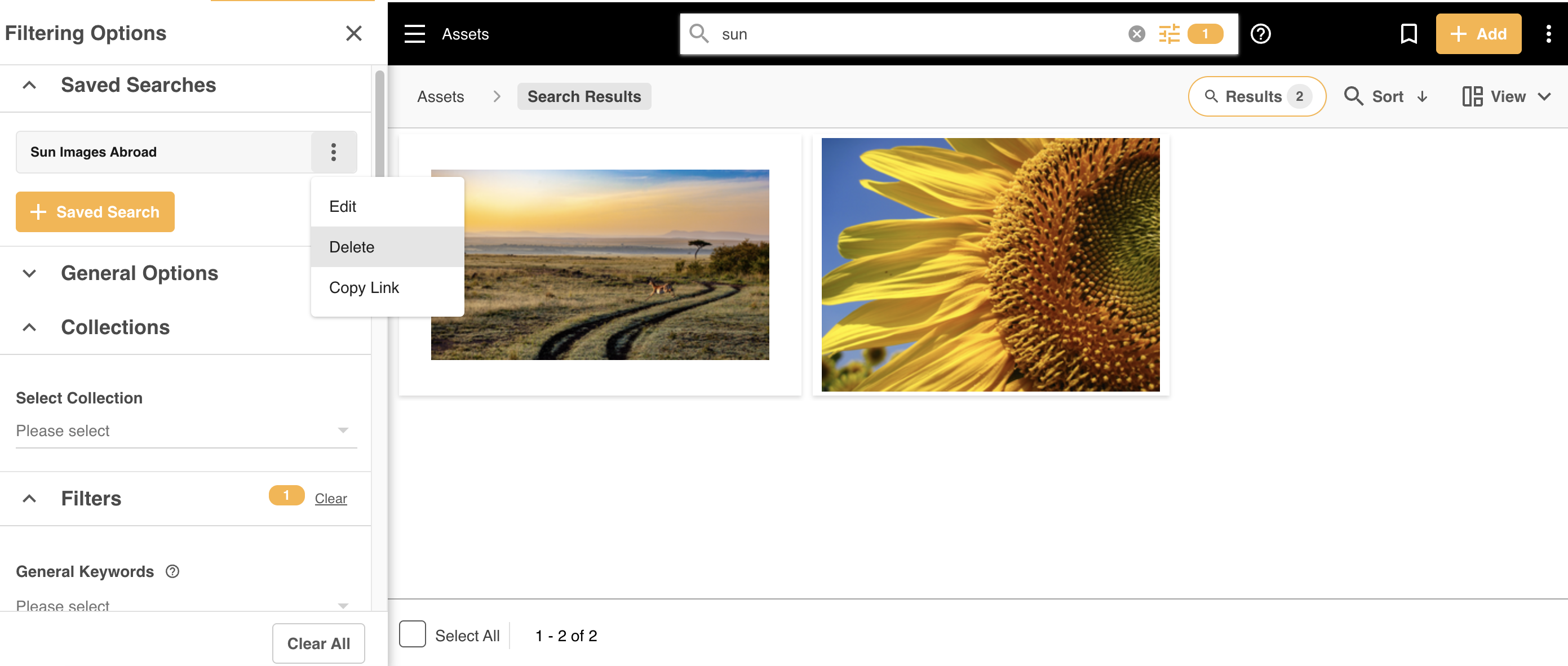 |
| 3 | If you deleted the Saved Search accidentally, you can select Undo on the message that appears briefly at the bottom of your screen, which will restore the Saved Search.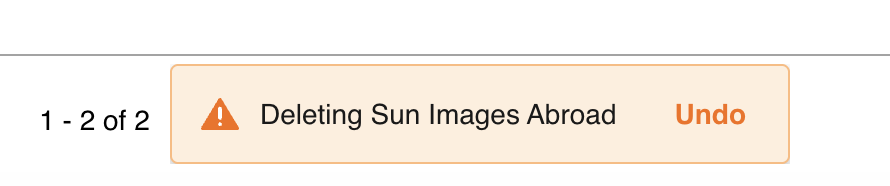 |
Copy a Link to a Saved Search
You can copy and send a link to a Saved Search to another user of the platform. This is useful if you want to share search parameters with someone who needs to locate the same assets, saving them time from having to manually apply the same criteria.
To copy a link to a Saved Search:
| 1 | Open your Filters Panel. |
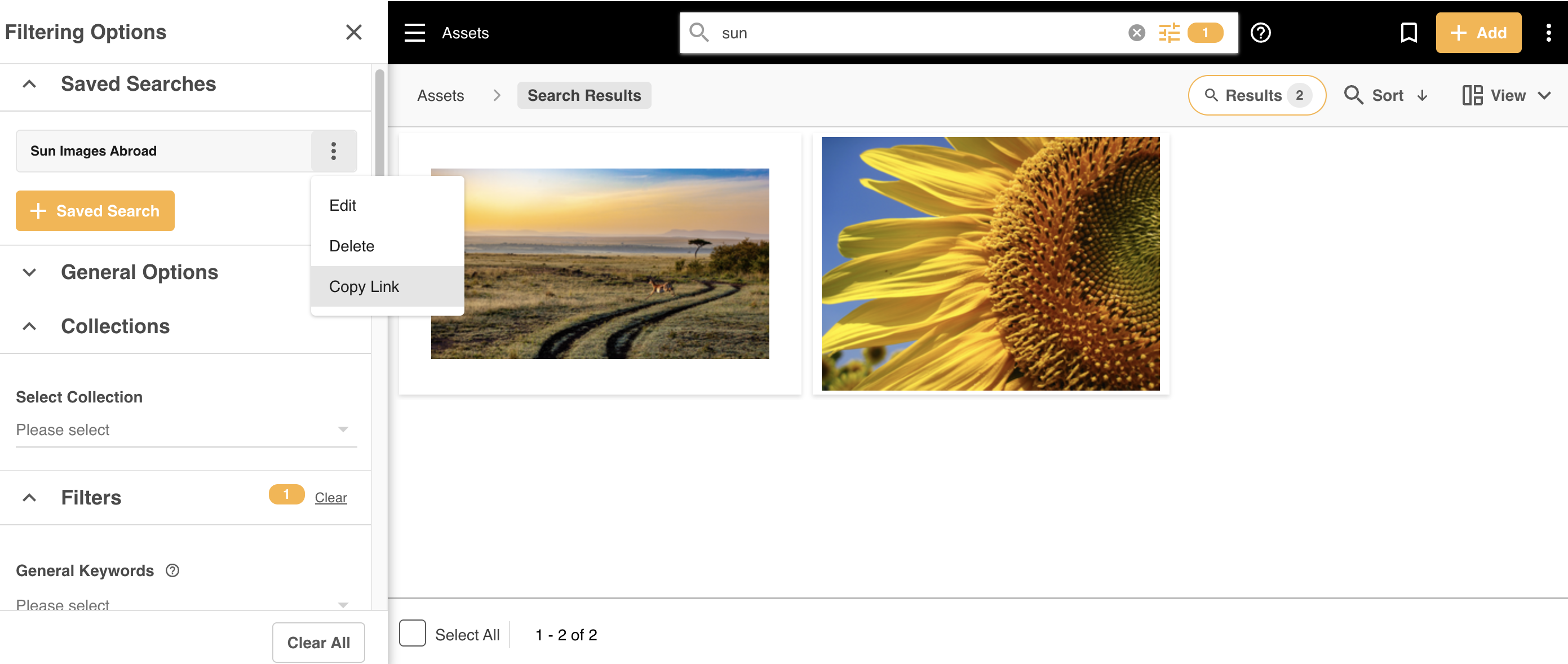
| 2 | From the Saved Searches section, click on the menu against the Saved Search you want to share and select Copy Link.
|
Important Considerations for Saved Searches
- You can have up to 5 Saved Searches maximum.
- Saved Searches are private to each user.
- Results of a copied link to a Saved Search may differ between users, as permissions to the underlying assets may vary.
- If a Saved Search is deleted, any previously shared or copied links associated with that Saved Search will no longer function.
Was this article helpful?
That’s Great!
Thank you for your feedback
Sorry! We couldn't be helpful
Thank you for your feedback
Feedback sent
We appreciate your effort and will try to fix the article