The Approvals Centre list has been redesigned so you can see what needs you next, filter it down to exactly what you're after, and get through your queue faster. This article walks through everything that's changed: the list itself, quick filters, the full filter panel, saved filters, and sort.
Table of Contents
Getting to the Approvals Centre
Select Approvals in the top navigation to open the Approvals Centre. What you see there depends on your role, requesters see what they've submitted, reviewers see what's assigned to them, and collaborators see what they've been added to. Main Admins and Approval Admins see everything.
Two views sit side by side above the list: Single Requests, covered by everything in this article, and Grouped Requests, for approvals submitted together in bulk. Grouped Requests has its own separate list and isn't part of this redesign.
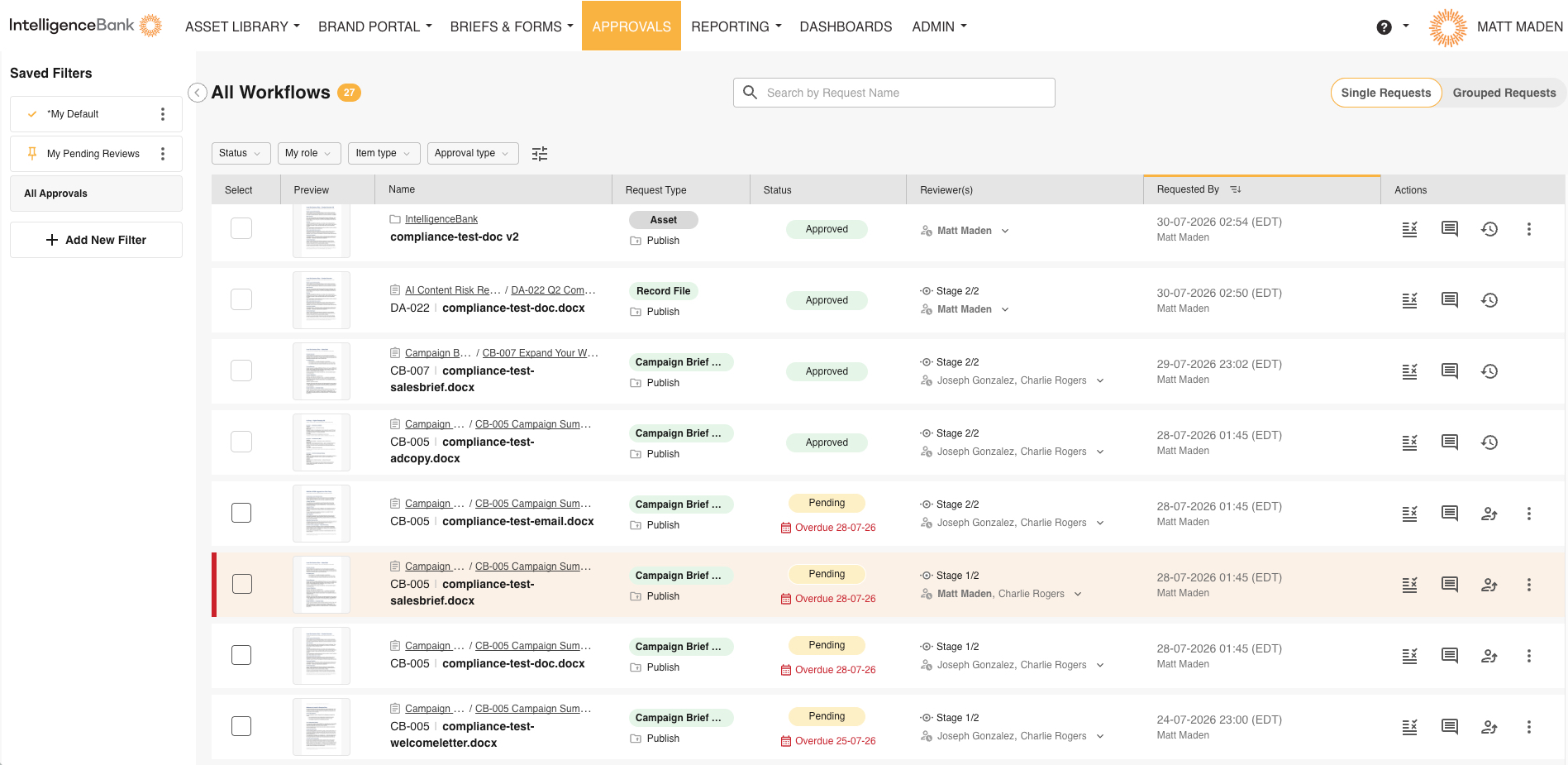
A List Built Around What Needs You
Rows waiting on you now stand out without opening a single request. A colour bar marks anything pending on you, and it turns red the moment it's overdue. Everything else stays quiet, so the items that actually need you are the ones you see first.
The name column now shows exactly where an item lives, its folder, database, or record, right under the name. You'll only see locations you have permission to view.
Every record file's sequence ID is now shown in the item name and fully searchable. Chasing a specific job or campaign number no longer means cross-checking a spreadsheet, just search for it directly.
The columns themselves are also tidier. Item type and request type now show together as a single badge, and "Request details" is renamed "Requested by" to say plainly what it shows.
Quick Filters
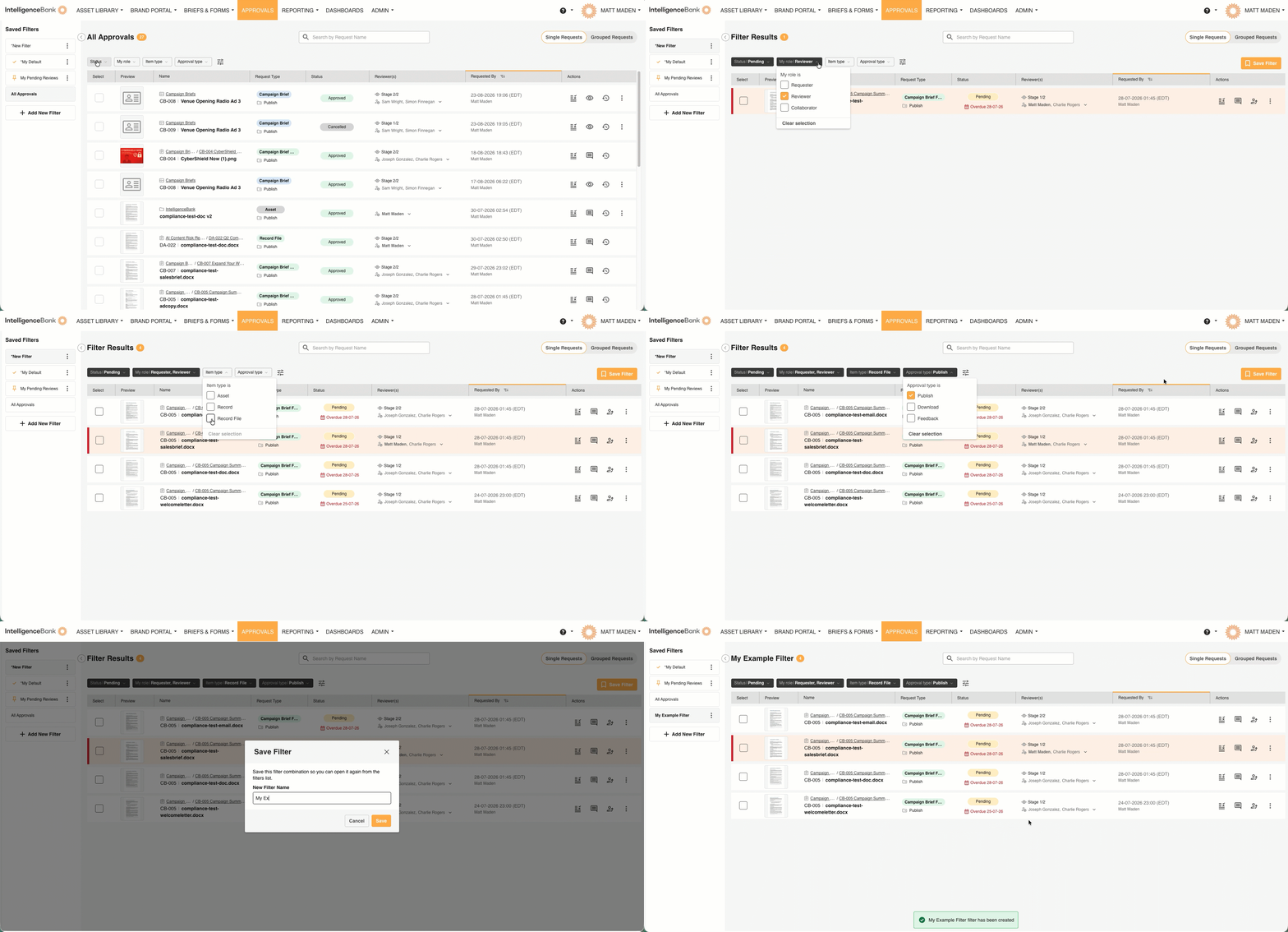
Most of the time, you only need one of a few filters to find what you're after. Four are now sitting right above the list, no panel to open:
| Filter | Narrows the list by |
|---|---|
| Status | Pending, approved, declined, cancelled, reviewed, or completed. |
| Approval type | Publish, download, or feedback. |
| Item type | Asset, record, or record file. |
| My role | Requester, reviewer, or collaborator, matched to you specifically. |
Select "Save filter" next to the chips at any time to save your current combination for next time.
The Full Filter Panel
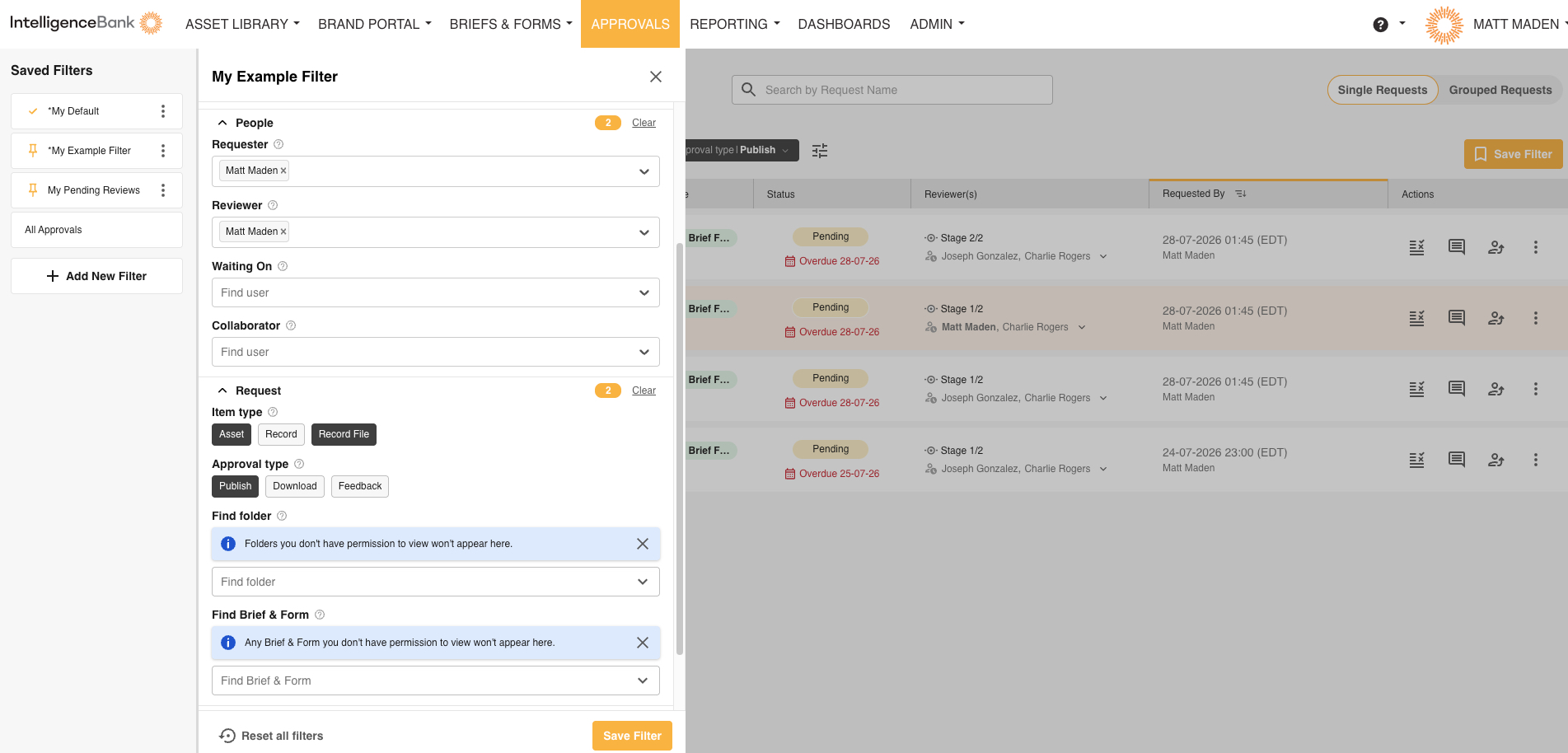
When the quick filters aren't specific enough, select the filter icon to open the full panel. It's organised into four sections, ordered from what you'll use every day down to the most granular:
| Section | What you can filter by |
|---|---|
| People | Requester, reviewer, collaborator, or who it's currently waiting on. Search for anyone with "Find user". |
| Request | Item type, approval type, a specific folder ("Find folder"), or a specific database entry, shown using your platform's own name for that module. |
| Date | Request time, required by, needed until, or approved until. |
| Workflow | A specific approval workflow. |
Saved Filters
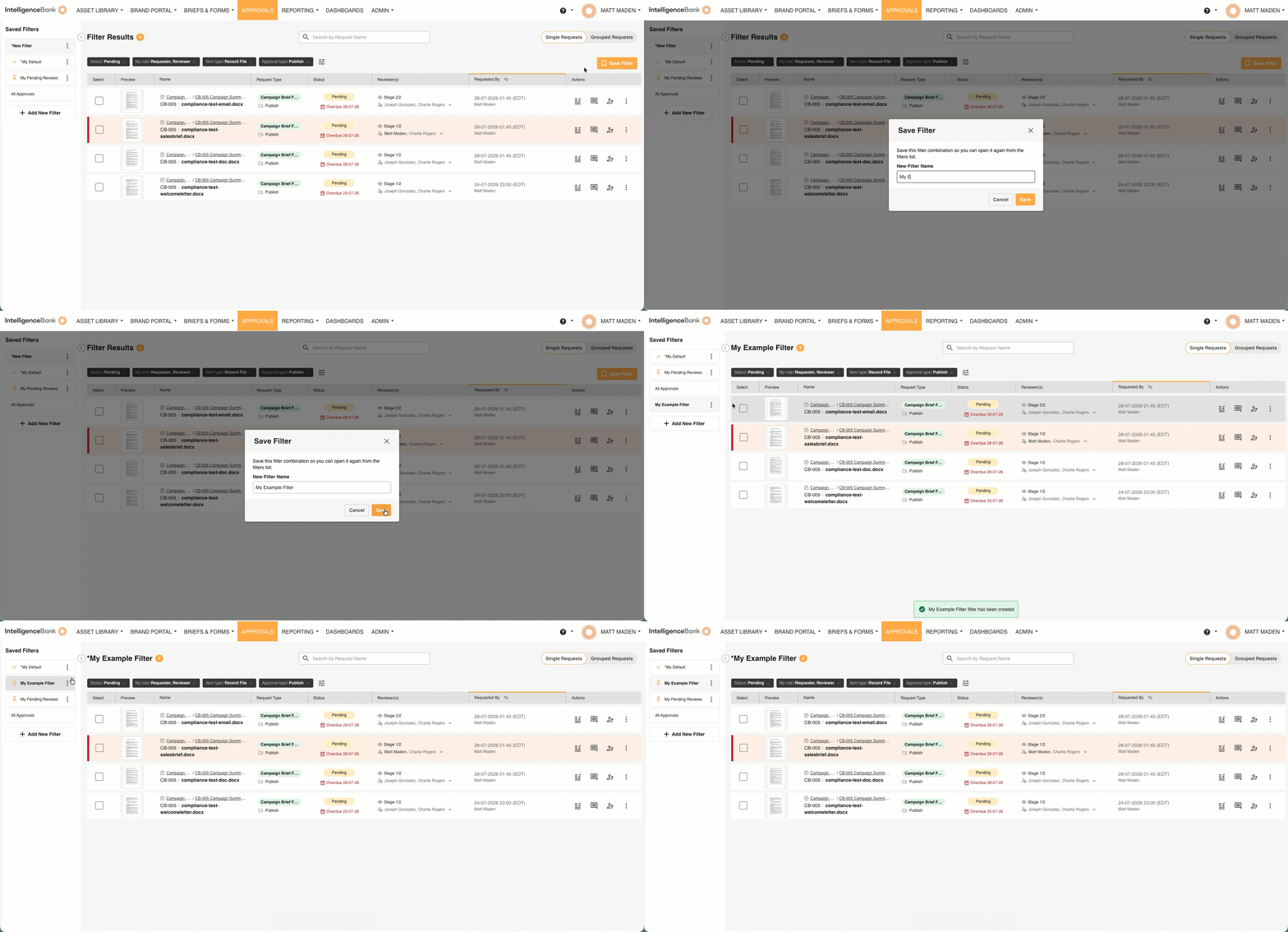
Set a filter combination up once and it's there whenever you need it. The list of saved filters on the left of the Approvals Centre is where you manage them all:
- Save: from either the quick filter bar or the full panel, name your filter and select "Save".
- Pin: select "Pin to top" on any saved filter to keep it above "All approvals". You can pin as many as you like.
- Set as default: choose one filter to open automatically every time you visit the Approvals Centre.
- Edit or delete: update a saved filter's conditions, rename it, or remove it, any time, from its menu.
Sort Your List
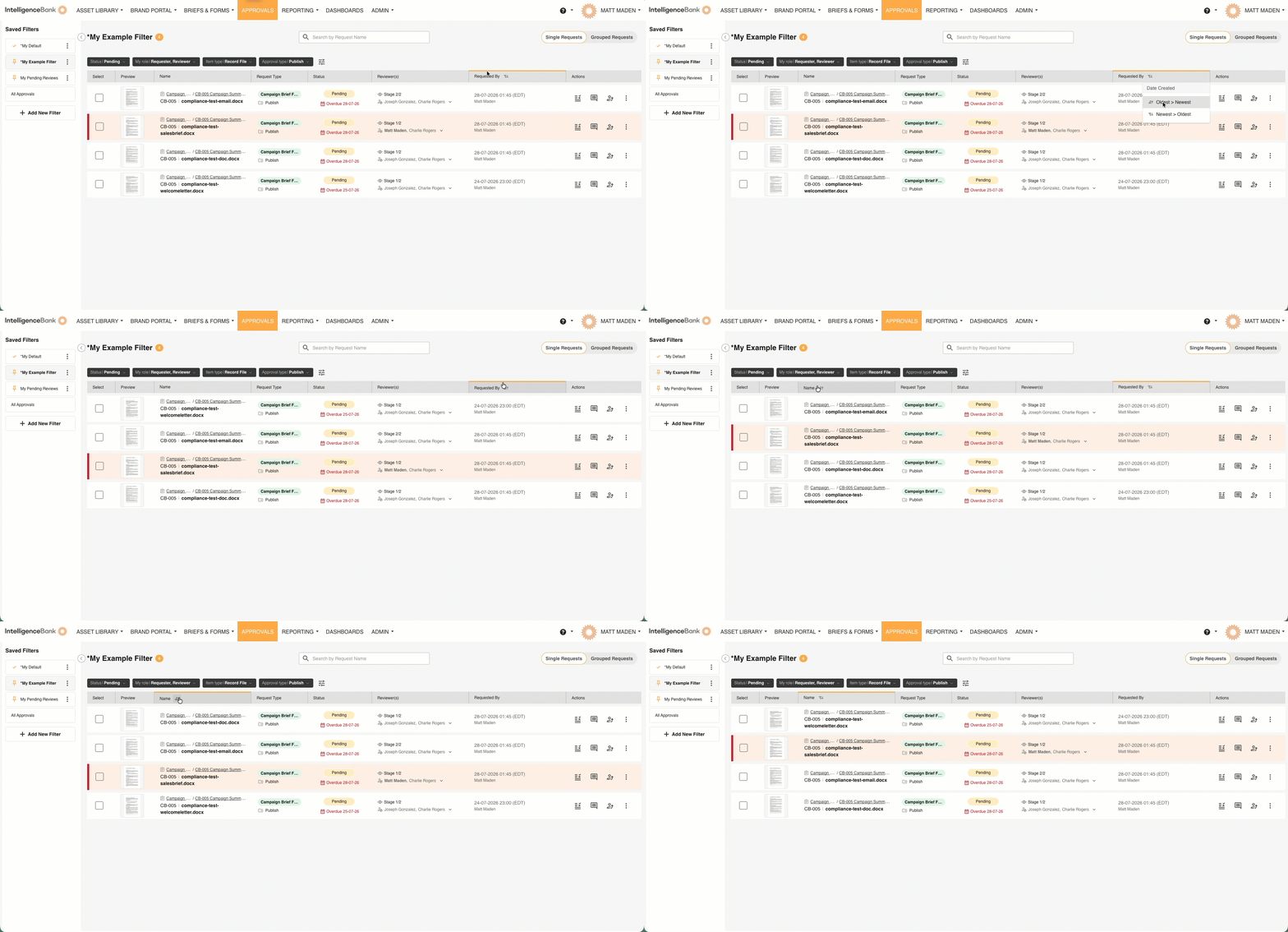
Select a column header to sort the list. You can sort by name (A to Z) or by submission date (oldest to newest), whichever order matters more for how you work.
* Please note that some of the terms used above, such as Workflows & Approvals, are customisable and may appear differently on your platform.
Frequently Asked Questions
How many saved filters can I have?
Up to 20 per user. If you're at the limit, delete or update an existing filter before saving a new one.
Can other users see my saved filters?
No. Saved filters, including pins and your default, are personal to your account.
Why can't I sort by status or due date?
Sort is currently available by name and by submission date. Filtering by status, due date, and everything else is available through the quick filters and filter panel above.
Why isn't a folder or database name showing as a link in the breadcrumb?
Either you don't have permission to view that location, or it's since been deleted.
Does this redesign apply to Grouped Requests too?
Not yet. Grouped Requests keeps its existing list and filtering for now.
Related Articles
Was this article helpful?
That’s Great!
Thank you for your feedback
Sorry! We couldn't be helpful
Thank you for your feedback
Feedback sent
We appreciate your effort and will try to fix the article