This article provides an overview of how a user can respond to an approval request, and the information included within the Review Request page.
Table of Contents
How to Access Approval Requests
Approval requests are accessible within the Approvals List area of the platform. Depending on the filter options selected, a user will see all approval requests they have permission to view. The actions available for each request will depend on whether the user is a reviewer, requester, or a Main/Approval Admin.
Users will often locate a specific request directly via the email alert they received about the request. In this case, only that file will appear in the list by default.
Once a reviewer has located the approval request they'd like to review in their Approvals List, they can click the Review Request icon (as shown below).

Review Request
Once the Review Request action is selected, the user can view details about the request submitted for approval. The sections below describe the information available in each area.
Asset/Record Preview
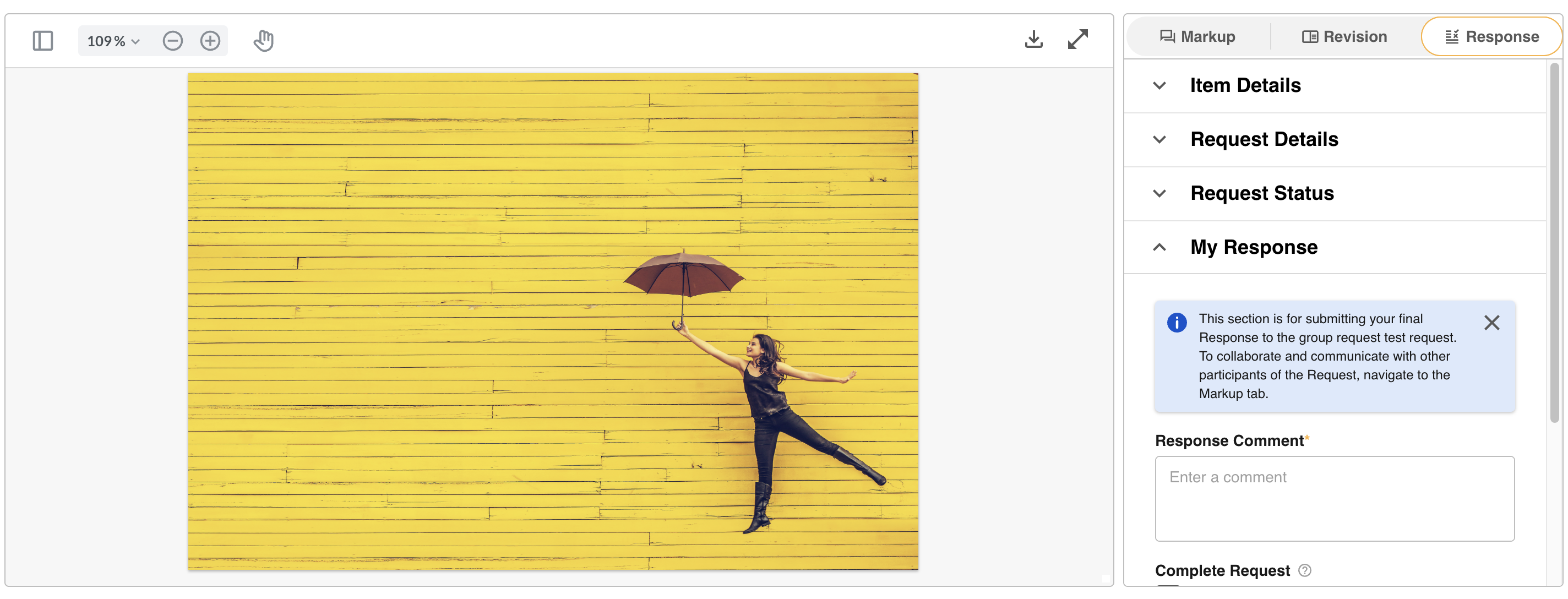
A preview of the asset or record will be visible on the left of the Review Request page, as shown below. This allows you to easily view what you're reviewing.
Item Details
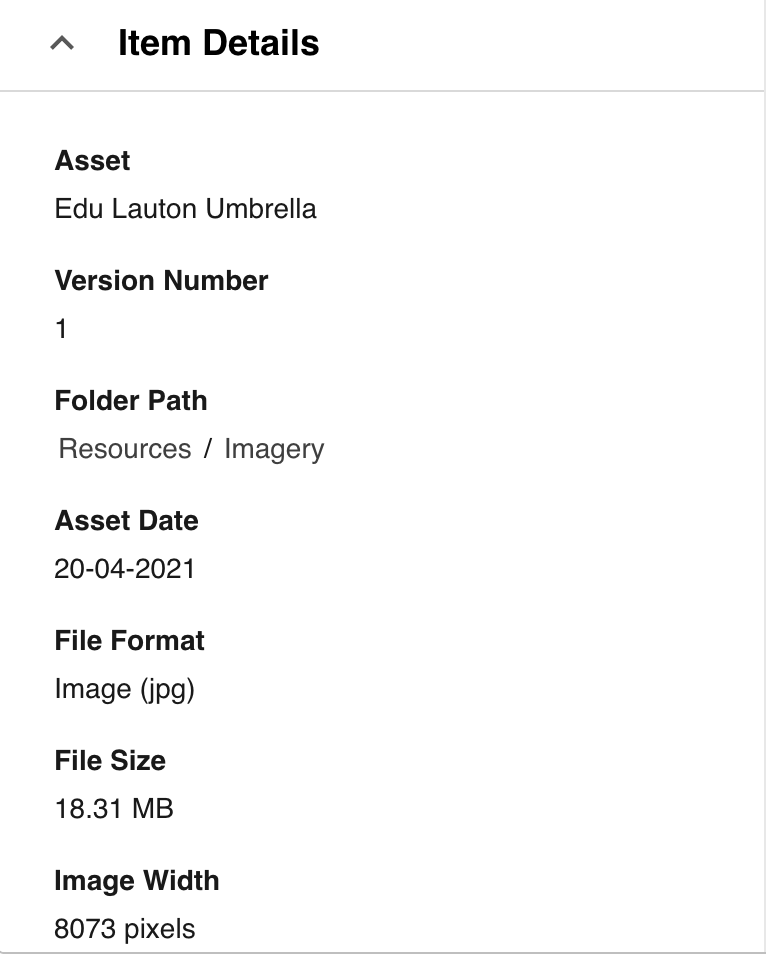
The Item Details section displays basic information about the request item. All content here is automatically generated based on the asset or record. Information includes:
- Asset/Record Name
- Version Number and Comment, if applicable
- Folder the asset is located in (or will be located in), or the Database the record is in (or will be located in)
- Key Metadata, such as Asset Date, Asset Format/Size, and relevant filters or keywords applied
Request Details
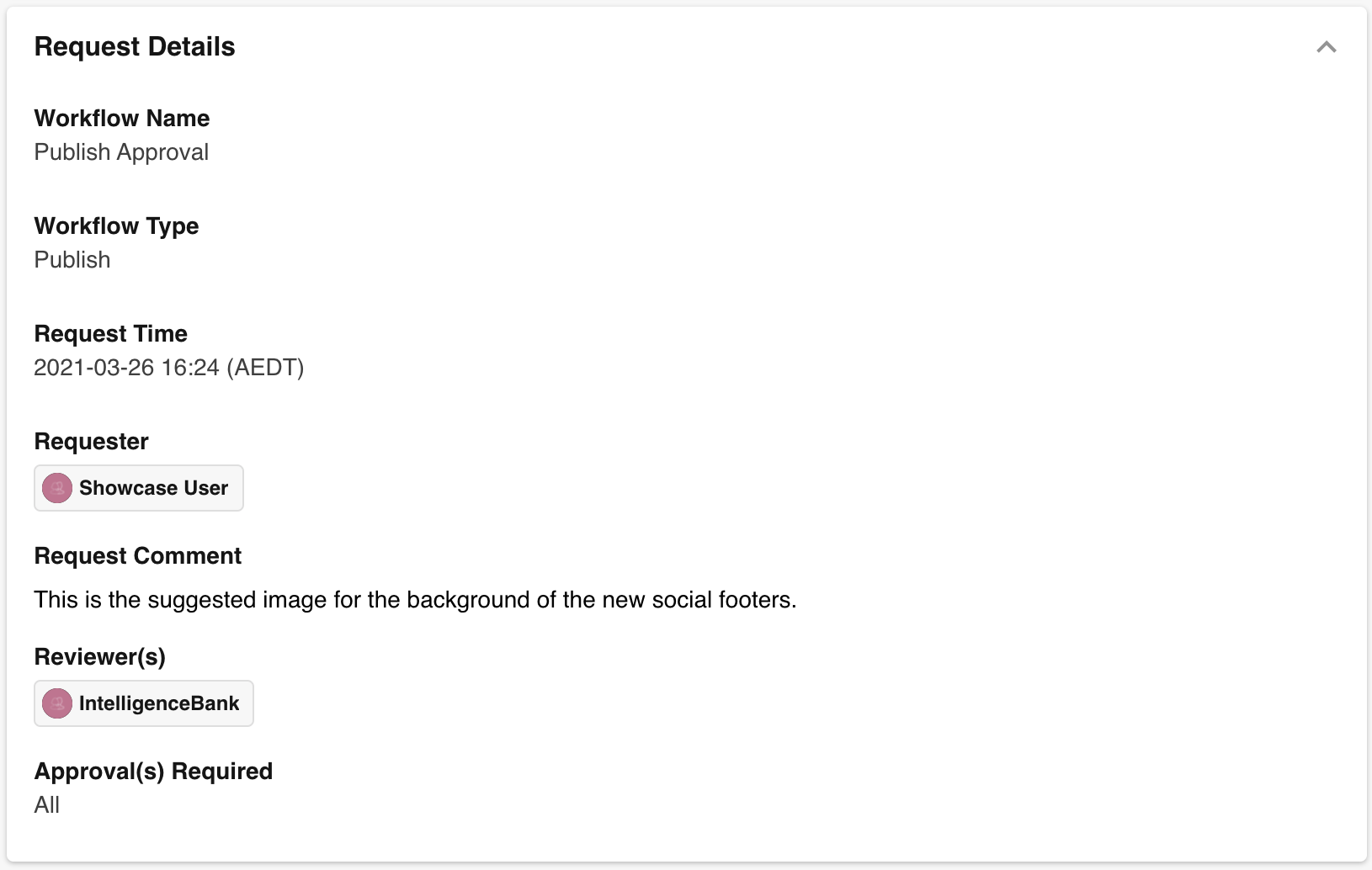
The Request Details section displays key information about the approval request. The information available includes:
- Approval Name and Type
- Request Time - when the requester submitted the approval request
- Requester - the user who submitted the approval request
- Grouped Request - if applicable, displays the name of the grouped request
- Request Comment - what the requester added to the comment field when they submitted the request
- Reviewer(s) - includes all reviewers that need to review the request. The display of this field will depend on the number of users selected and whether the request is staged or single. Note that only 20 reviewers will be displayed at a time by default.
- Approvals / Feedbacks Required - indicates the number of approvals required before the request can be completed
- Response Required By - if applicable, displays the date by which the reviewer's response is required, as selected by the requester when the request was submitted
- Asset Needed Until (Download Approvals only) - if applicable, displays the date selected by the requester when the download request was submitted
- Asset Needed For (Download Approvals only) - if applicable, displays the value selected by the requester when the download request was submitted
- Custom Form Fields (Download Approvals only) - if any custom form fields exist for download approvals, these will appear here and may be broken into separate sections
Request Status
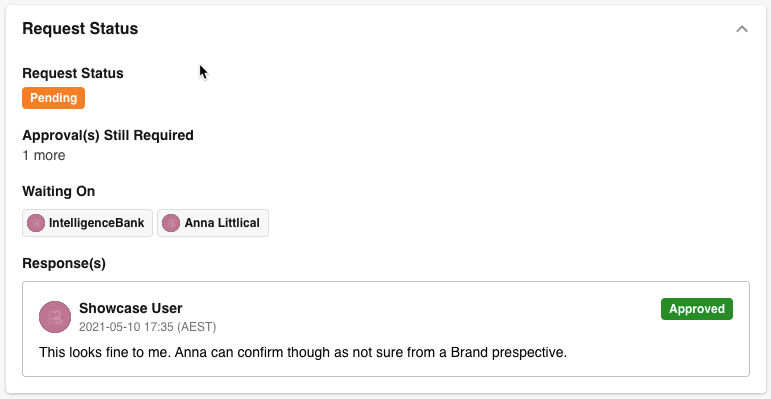
The Request Status section provides additional information about the current status of the approval request. This is available for all requests and includes:
- Request Status - whether the request is Pending, Approved, Declined, Cancelled, or Reviewed
- Request Stage - if applicable, displays the current stage
- Approvals / Feedbacks Still Required - if the request is pending, displays the number of approvals still needed for the request to be completed as approved
- Waiting On - a list of reviewer(s) who have not yet reviewed the request
- Completed / Cancelled Time - if the request is completed or cancelled, these fields show when that occurred
- Responses - when reviewers have responded to a request, their responses will be listed from oldest to newest, including their response and any associated comments
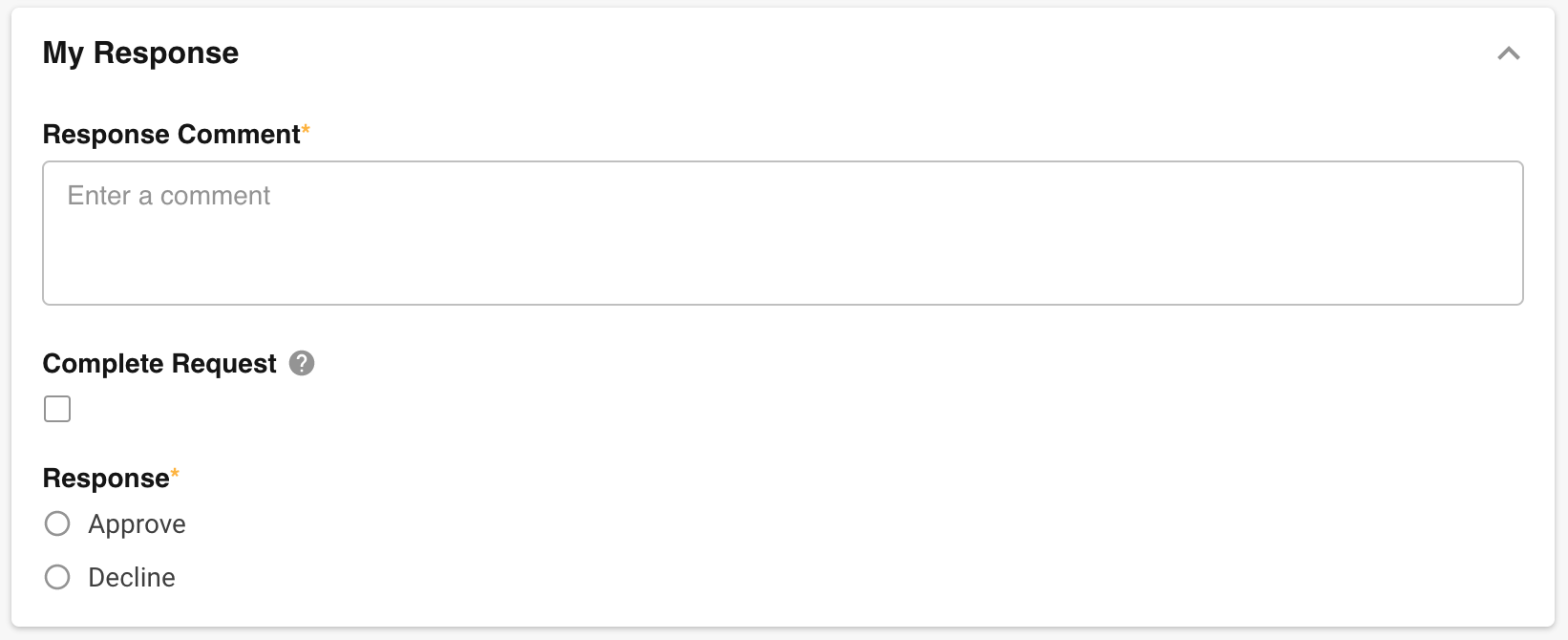
My Response
The My Response section is dedicated to submitting a user's response. It is only visible to reviewers while the request is pending and is automatically open. In this section, users can update the following:
- Response Comment - this may be a Rich Text Editor field or a plain text field, depending on the approval workflow's settings. It may also be mandatory.
- Complete Request / Complete Stage - this option only appears for Main or Approval Admins. It allows that user to complete the request, overriding any other response requirements. This can be useful when an Admin needs to force-complete a request - for example, if multiple reviewers are unavailable and the Admin needs to move the request along on their behalf.
- Response - the options available will depend on the approval workflow's settings. The potential options include:
- Approve - approves the request for this reviewer
- Approve with Comments - approves the request for this reviewer, but flags that the approval was given with comments attached
- Decline - declines the request for this reviewer
- Approved Until (Download Approvals only) - allows the reviewer to select a date and time their approval is valid for, after which the file will not be able to be downloaded. Note that subsequent reviewers can also update this date and time.
- While a request is still pending (waiting on other reviewers), users who have already reviewed the request can still update their response.
- For staged approvals, updating a response is only possible if the request is still pending on the stage the user responded to. For example, if a user reviewed a request at Stage 1 and the request has since moved to Stage 2 (even if still pending), that Stage 1 reviewer cannot update their earlier response.
Submitting a Response
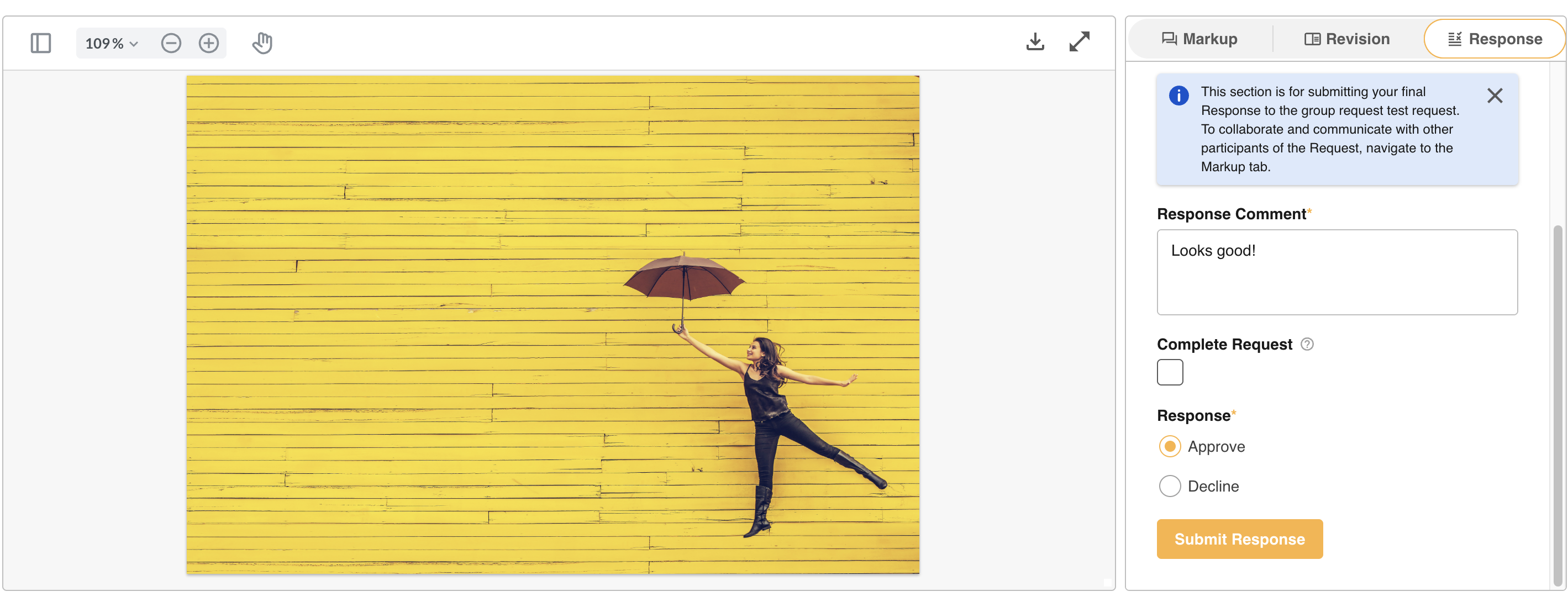
To submit the response, click the Submit Response button at the bottom right of the page (as shown below). Once submitted, the approval request will be updated and any required alerts will automatically be sent to relevant users.
Was this article helpful?
That’s Great!
Thank you for your feedback
Sorry! We couldn't be helpful
Thank you for your feedback
Feedback sent
We appreciate your effort and will try to fix the article