This guide explains how to send content for approval after completing the risk review process in Marketing Compliance.
Table of Contents
Key Benefits
Sending content for approval ensures that there is a more formal, official sign-off on its use. Approved content is also auditable and reportable within the platform, so if regulators ever request to see your content's approval history, it is easily accessible.
Having an official approval process also helps bring peace of mind to compliance officers that the content generated has been reviewed and approved by the appropriate people within your organisation, and that it's all taking place within one platform.
When to Request Approval
You should request approval for your content after:
- All critical compliance risks have been addressed. Please read the article on Working with Identified Risks to learn more about how to review any risks that are flagged in your content
- Revisions have been completed and reviewed
- You have notes about any exceptional cases or specific decisions made during the review process
- The content is ready for final sign-off before distribution
Requesting Approval
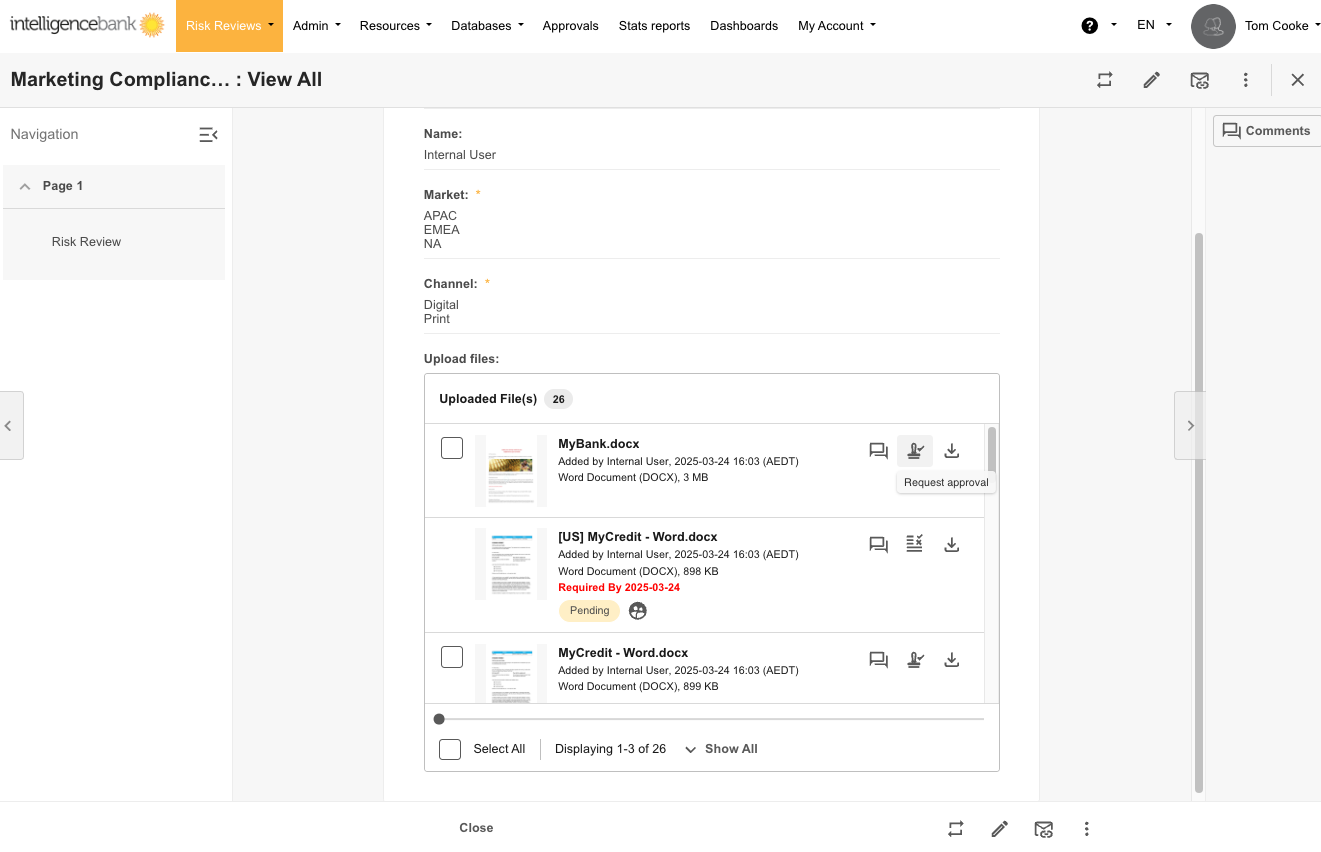
- Navigate to the record/form/task/brief where your content has been uploaded
- Click the Request Approval button on the file
- Select appropriate approvers based on your workflow, if applicable. Note that the approvers may be automatically populated and not selectable. This all depends on how your organisation's specific approval workflow has been set up.
- Add any additional comments explaining:
- Changes made to address risks
- Any risks that were dismissed and why
- Special considerations for this content
- Submit the approval request
Understanding Approval Status
After requesting approval, the file will appear in your and the approvers' Approvals List. You'll see status indicators on the file:
| Pending | The approval request has been sent but not yet completed |
| Approved | All approvers have signed off on the content |
| Declined | The approvers have declined to approve the content |
| Canceled | The approval request was canceled |
Working in the Approvals Area
When content is sent for approval:
- The approval request will be accessible in the Approvals area for both requestor and approvers
- Generally, the approvers will get notified via an email alert that a new request requires their review. If the approval process has been set up as a Staged process, only the first stage of approvers will receive this alert when the approval request is initially submitted
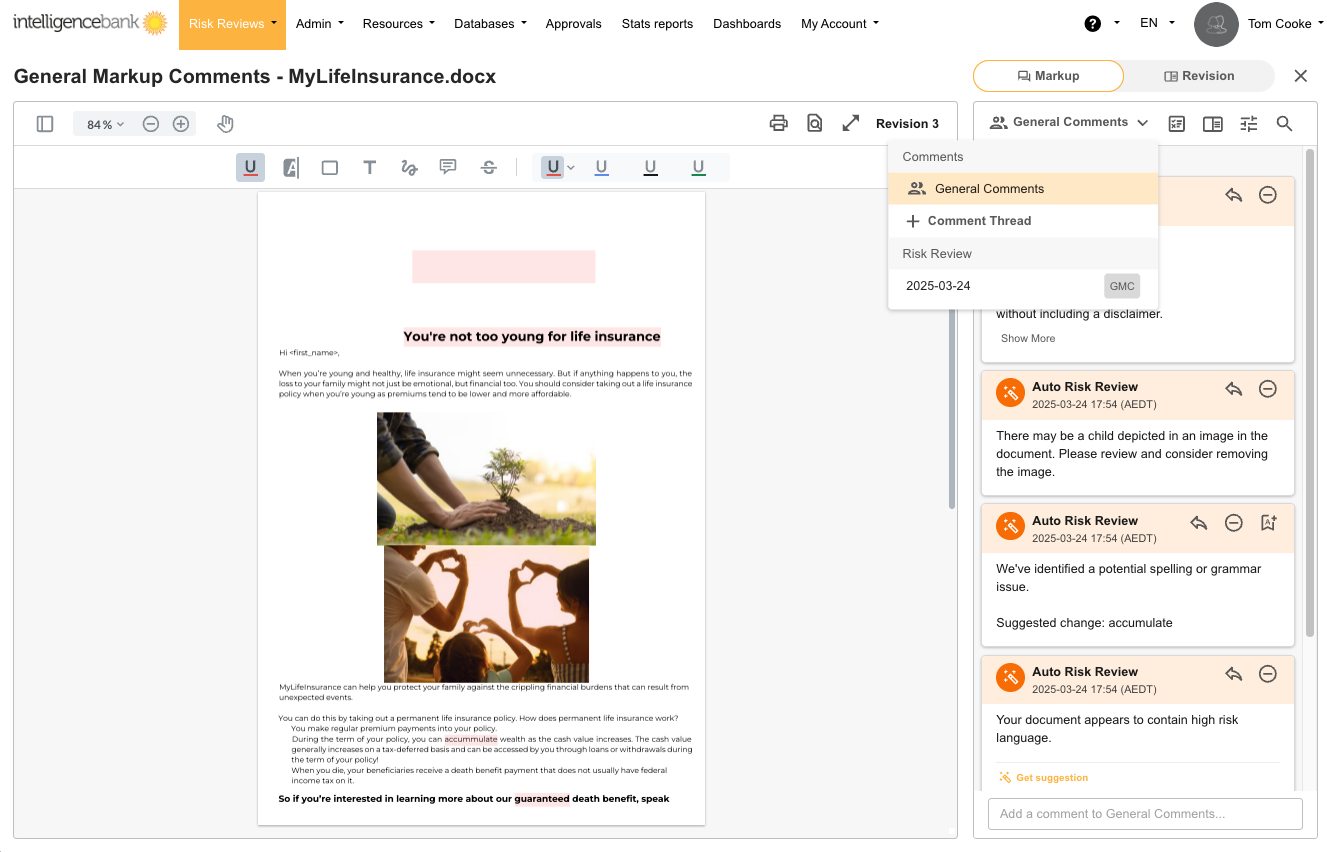
- Previous Risk Review comments are visible to all parties in the Approvals area by accessing the markup comments tab of the approval request
- Requestors and approvers can continue to add comments, @mentions, and revisions in the markup comments tab of the approval request
- You can perform the same feedback loop as in the initial review, although likely with fewer risks to review and fix
- Important: New Risk Reviews and comments made in the Approvals area are not visible and do not sync back to the General Markup Comments area on the file
- Within the Comment Thread dropdown, you will see comments for Risk Reviews triggered in the General Markup Comments area before approval was requested, and approval comments for any revisions or new Risk Reviews while in approvals.
- You can use the Compare feature to review two Revisions side by side and compare risks and changes
Responding to Approval Feedback
While content is in the approval process and is still pending:
- Approvers can provide feedback through comments and @mentions
- You can add revisions directly in the Approvals area
- Depending on your platform's Risk Review Trigger Mode setting, these revisions will either trigger new Risk Reviews to run automatically, or there will be a button to manually push a new risk review to run. If you have any questions about how this is set up in your platform, please reach out to your site administrator
- All parties can continue to discuss and refine the content
- Once all concerns are addressed, approvers can approve the content in the Response tab of the approval request
- If the approval process has been set up as a Staged process, once the first stage has approved the content, the second stage's approvers will be notified that it is now their turn to review the content. The second stage (and any subsequent stages) will be able to repeat the process outlined above until the content is fully approved
If your document is declined during the approval process*:
- Review the comments provided by the approver
- Make the requested changes to your document
- You'll need to upload the new content in the record/form/task/brief again as a separate file in the upload field. This is because you cannot add a revision to a declined file
- Submit a new approval request with notes about how you've addressed the feedback. This will be tracked as a separate approval request from the original one
*Important: Depending on how your platform's approval process is set up, you may not see Decline as an Approval Response option. The decision to hide the Decline option is typically made by site administrators and is done to avoid the need to re-upload a new file and submit a new/separate approval request.
It is a good option to leverage for organisations that want to streamline their approval process and ensure that there is one approval request for each of their files, and who aren't required to report on declined files.
If you have any questions about declining approval requests, or whether or not this has been enabled for your workflow, please reach out to your site administrator.
After Approval
Once your content is fully approved:
- The approval requestor will generally receive an email notification informing them that their content has been approved
- The status will change to "Approved" in the Record File List View
- If enabled, you can choose to push your content either to a dedicated folder or to a folder of your choice within the Asset Library, using IntelligenceBank's Publish to a Folder feature.
Was this article helpful?
That’s Great!
Thank you for your feedback
Sorry! We couldn't be helpful
Thank you for your feedback
Feedback sent
We appreciate your effort and will try to fix the article