This guide explains how to collaborate on, respond to, and manage risks identified by Marketing Compliance.
Table of Contents
- Key Benefits
- How to Collaborate with Risk Comments
- Limitations
- Links in Risk Review Comments
- Using RiskGPT Suggestions
- Managing Spelling & Grammar Risks
- Dismissing Risks
- Adding Revisions Based on Identified Risks
- Viewing Revision History
- Working with Grouped Risks
- Best Practices for Risk Management
- Sending for Approval
Key Benefits
After risks have been identified in your content, you can collaborate with team members to address them directly within IntelligenceBank. Collaborating can play an important part in your workflow, if, for example, you're unsure whether the identified risk really applies, or if you need clarification from other team members on how to proceed before revising your content.
Another key benefit is the ability to add revisions of your content. This feature allows you to upload updated versions of your content (once you have addressed the identified risks) to the platform. You can then re-run your revision for risk review to ensure all risks have been addressed and no further ones are detected. This feature is designed to work iteratively until your content no longer has any detected risks.
How to Collaborate with Risk Comments
Follow the steps below to collaborate or work with identified risks in your content:
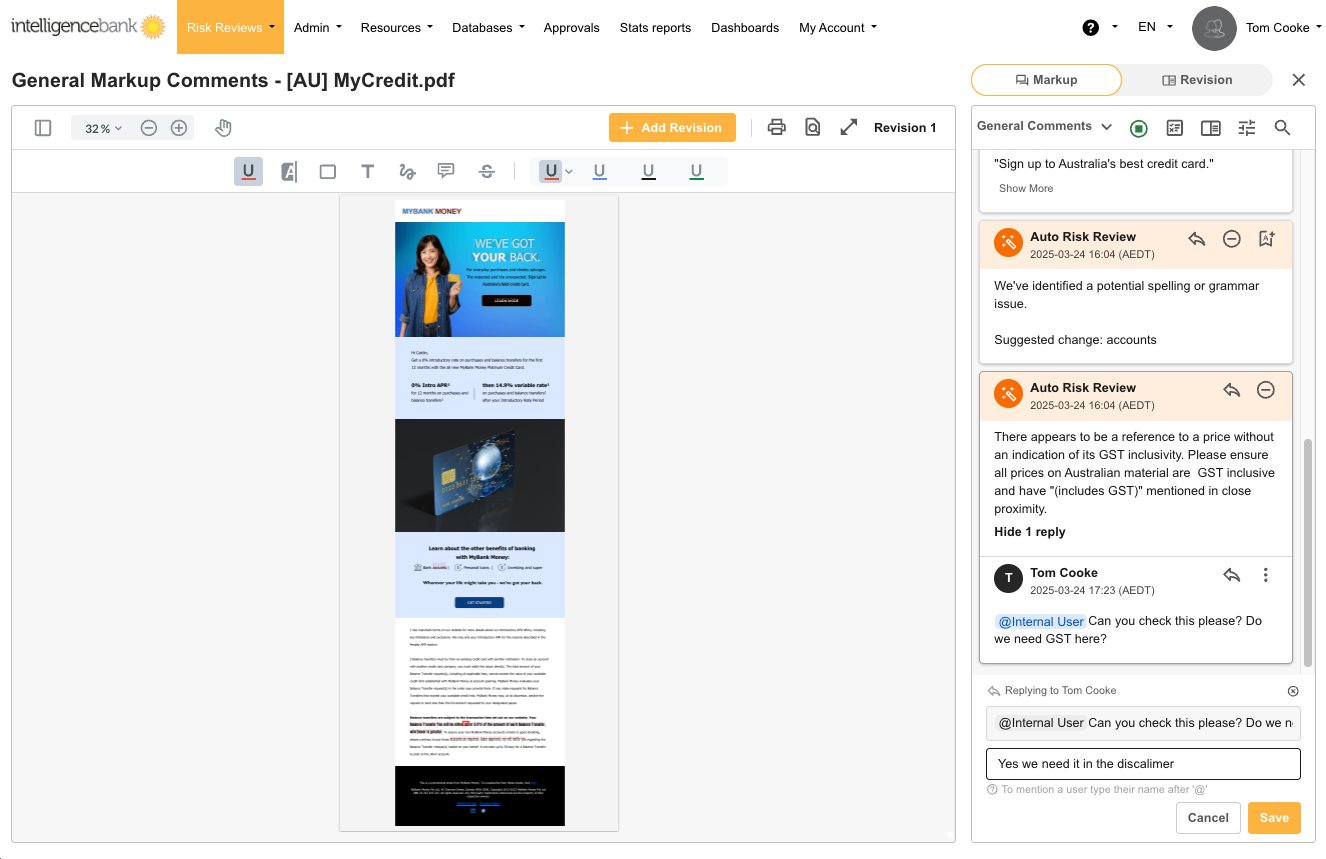
- Click on a risk comment in the markup panel
- Click Reply to add your response and Save
- Use @mentions to tag team members for input, as needed. Whoever you @mention will receive an email alert notification with a link to go directly to your comment
- Discuss the issue and determine appropriate actions
- Dismiss risks by clicking the Dismiss icon (right next to the reply icon on each risk comment) if what was flagged is not a risk in this particular scenario or content
Limitations
While all comments are preserved for audit and reference purposes, comments are currently not reportable within IntelligenceBank.
Links in Risk Review Comments
Hyperlinks in Risk Review rule feedback are clickable and open in a new tab. Custom hyperlinks can be added to feedback on the backend by the IntelligenceBank Rules team. Please contact your Main Admin if you have any you'd like to set up.
Using RiskGPT Suggestions
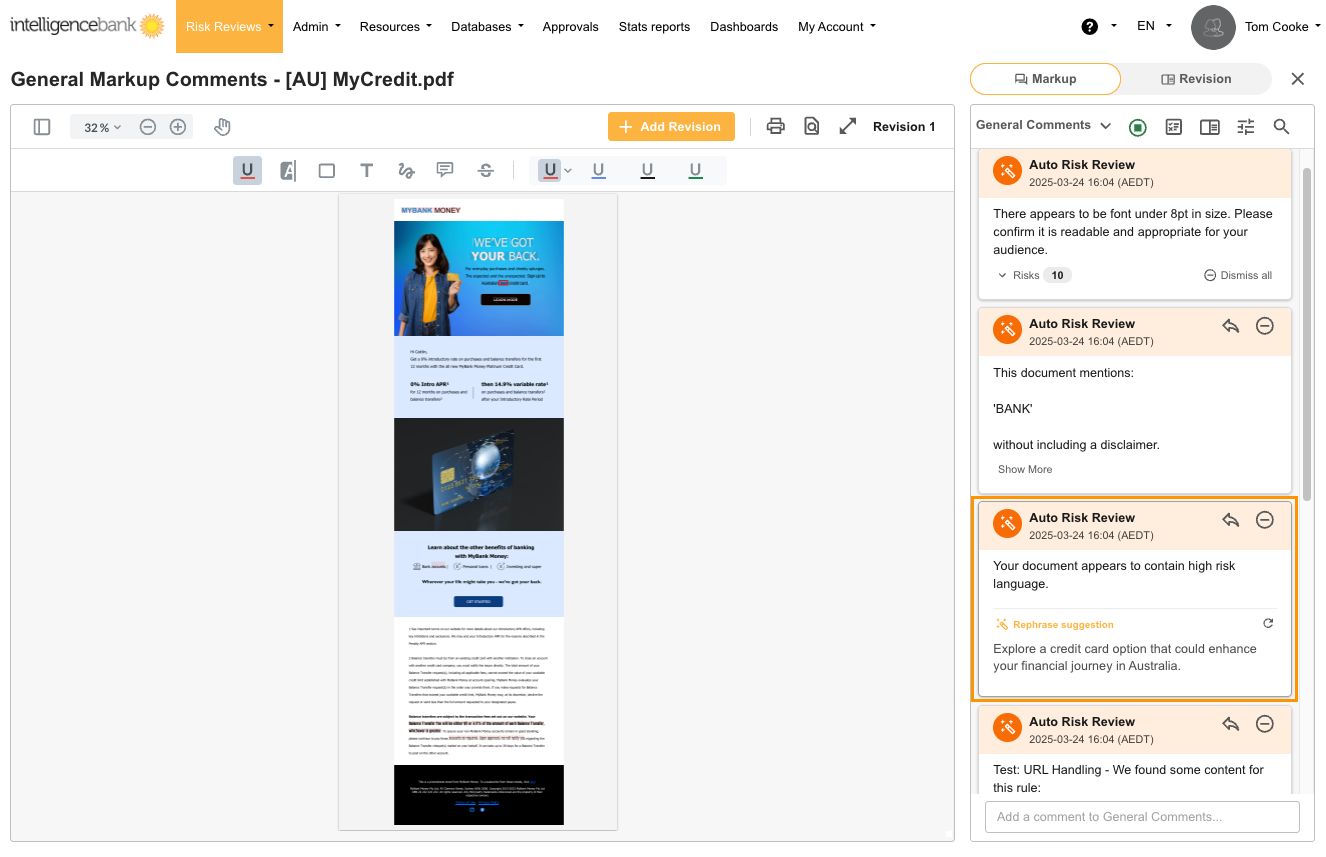
For certain risks, AI-powered suggestions may be available:
- Look for risks that have a Get Suggestion option
- Click Get Suggestion within the risk comment
- Review the alternative text provided by RiskGPT
- Copy the suggestion if you want to use it in your revision
Managing Spelling & Grammar Risks
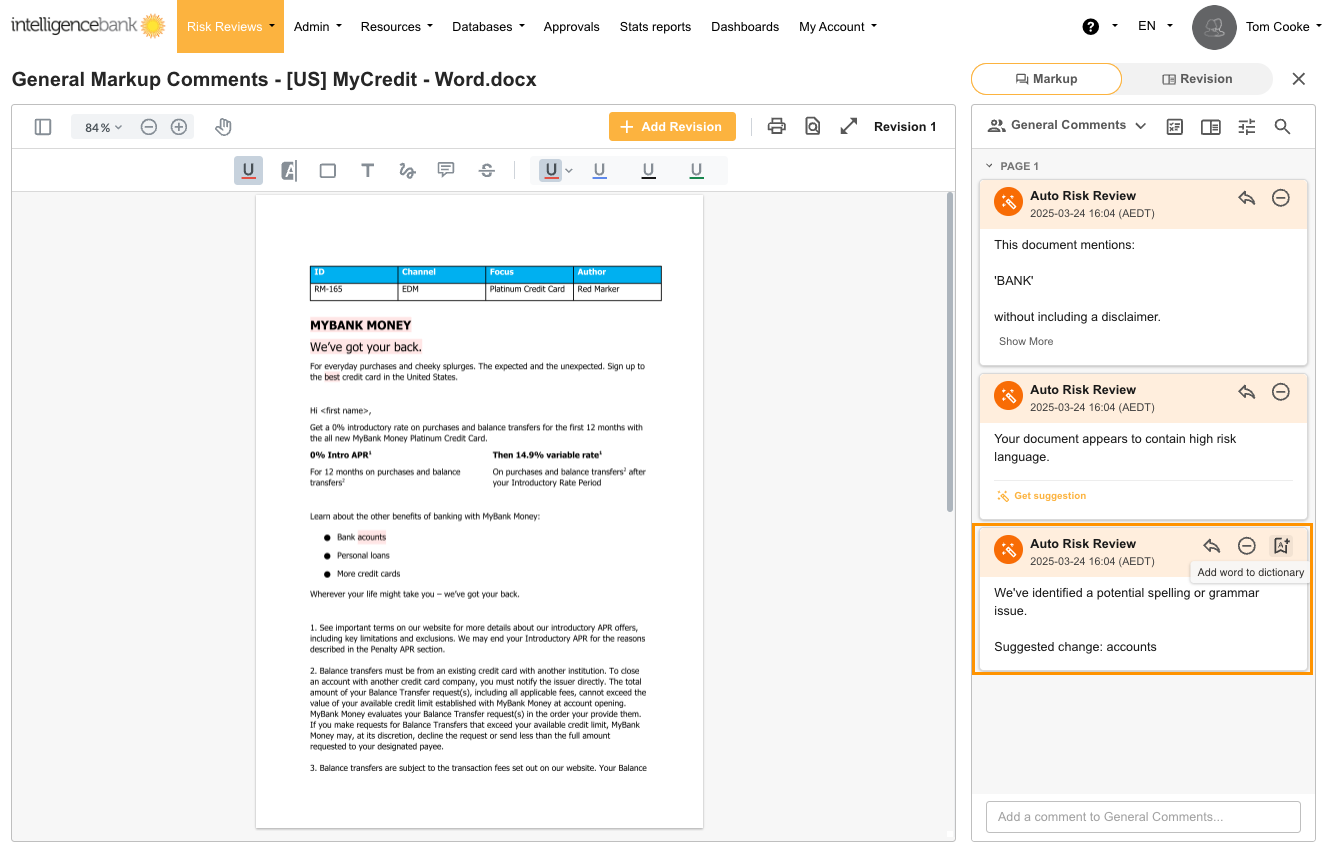
When spelling or grammar issues are identified:
- Review the highlighted text
- If it's a valid term (e.g., brand name, industry term):
- Click Add to Dictionary (indicated by a book icon)
- The term will be added to your organisation's dictionary
- Once added, the word will no longer trigger as a Spelling & Grammar error for anyone in your organisation
- To undo adding a word, click the icon again
Dismissing Risks
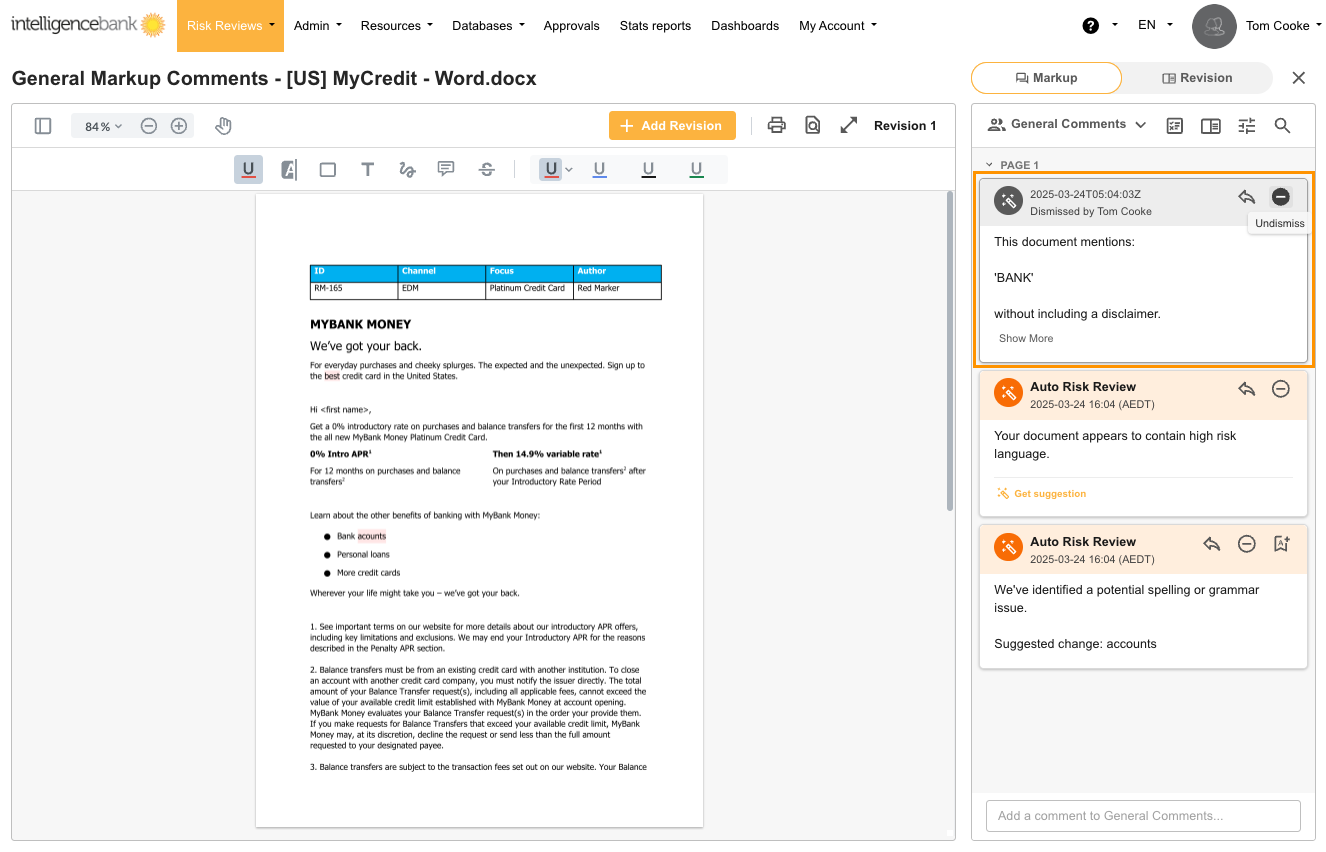
If a flagged issue is not relevant or doesn't require action:
- Review the risk and consider adding a comment explaining why it can be dismissed
- Click Dismiss on the risk comment
- The risk will be greyed out but remain visible for reference
- Dismissed risks are still tracked in backend reporting for audit purposes
Adding Revisions Based on Identified Risks
After reviewing risks, you can make the necessary adjustments to your content outside of IntelligenceBank. When you're ready to add this updated content as a revision:
- Navigate back to the markup panel
- Click Add Revision to upload an updated version
- Upload your revised file
- Click Save to submit the revision for another compliance check
- Depending on your platform's Risk Review Trigger Mode setting, the system will either automatically check your revision against the same rules, or there will be a button you can select to manually run the risk review again. Please contact your site's administrator if you have any questions about this setting in your platform.
Viewing Revision History
Viewing revision history lets you track document changes and access previous risks.
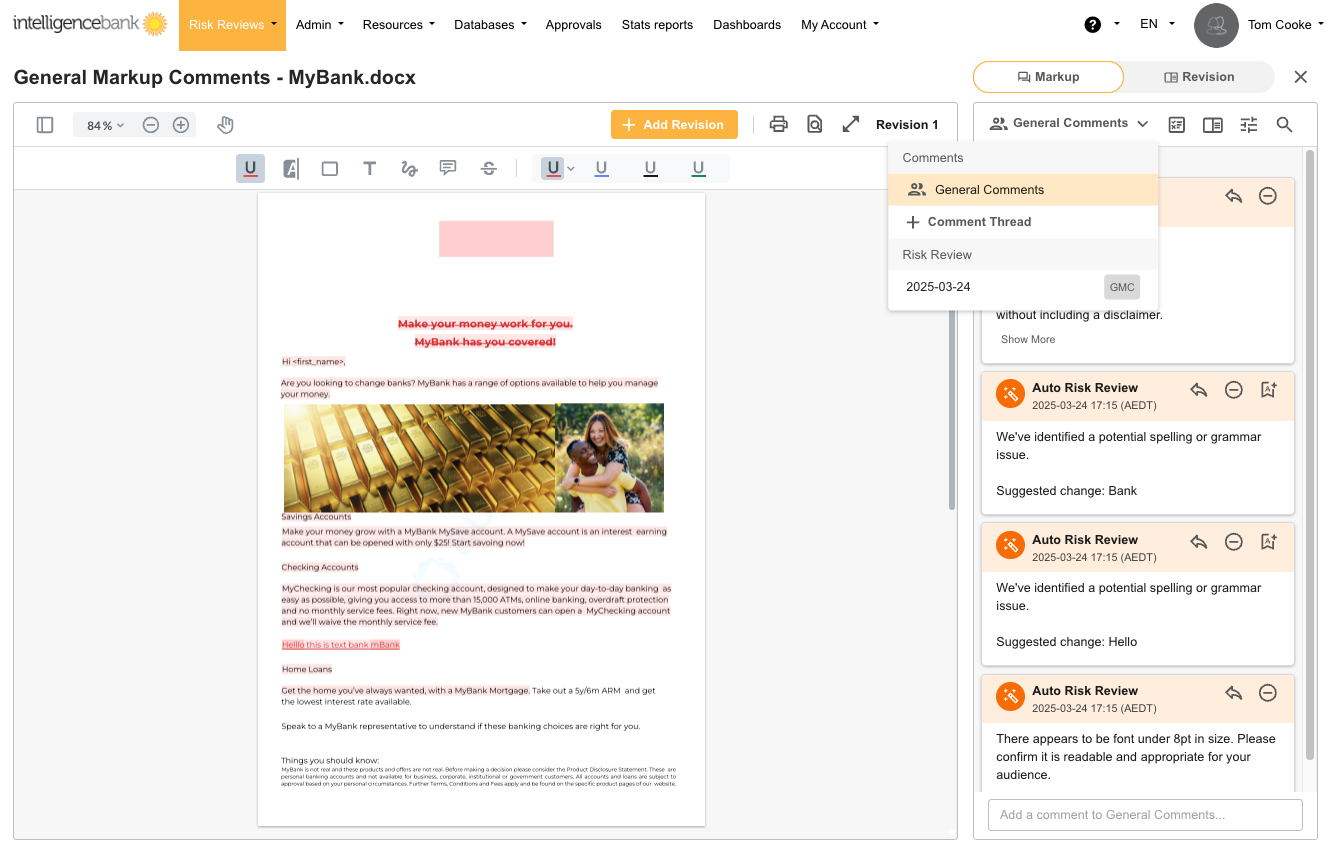
- Use the comments dropdown to view comment threads including previous risk review threads
- All risk reviews for each revision are preserved in the Review Comment Threads
- Select "Risk Review Threads" from the dropdown to see the history of reviews
- Use the comments dropdown to find all comments, including risk review threads
- Click on a Risk Review thread to switch to that document revision and associated Risk Review
- Similarly, you can use the "Revision" dropdown to view a revision and associated Risk Reviews
Working with Grouped Risks
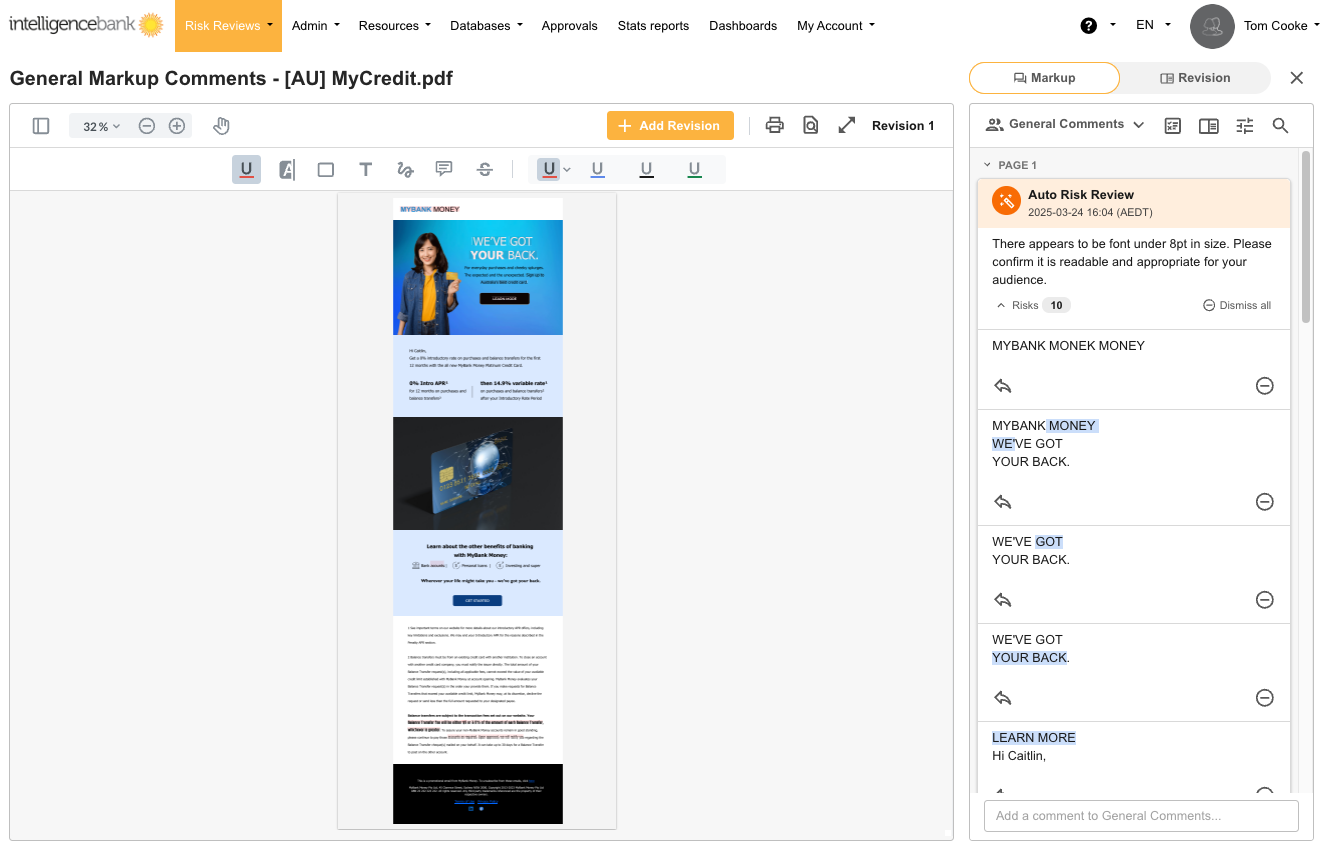
Grouped risks are an alternative way of displaying risks against your content. If grouped risks are enabled on your platform, all risks related to the same rule are grouped together in the risk panel, as opposed to individually. This lets you deal with all risks of a certain type at once, increasing consistency and reducing the chance of error. For rules with grouped risks enabled:
- All risks of the same type are grouped together in the risk panel
- Each item shows the sentence containing the risk with the trigger term highlighted
- Click on any item to navigate to that location in the content
- You can dismiss or reply to an individual risk
- Click Dismiss All to dismiss the whole group if none of the risks are relevant
Best Practices for Risk Management
| 1Document Your Decisions | When dismissing risks, add comments explaining your reasoning |
| 2Consistent Approach | Handle similar risks in the same way across documents |
| 3Prioritize Revisions | Address critical legal/compliance risks before addressing stylistic issues |
| 4Clear Communication | Use precise language when discussing risks with team members |
| 5Review All Versions | Check all revisions to ensure no new risks were introduced |
Sending for Approval*
Your organisation may be utilising IntelligenceBank's Approvals/Workflows feature for a more formal sign-off that the content is approved for use. If Approvals/Workflows is enabled, and once you've addressed all necessary risks within your content:
- Click Request Approval on the file in the record list view
- Configure approvers if applicable
- Add any additional comments explaining what changes were made
- Submit the approval request
- Approvers will have access to all risk review results and comments
- Click here for more detail on Submitting for Approval
Was this article helpful?
That’s Great!
Thank you for your feedback
Sorry! We couldn't be helpful
Thank you for your feedback
Feedback sent
We appreciate your effort and will try to fix the article