As part of IntelligeceBank's Markup Comments feature, users can add new Versions or Revisions of an asset during a pending review.
For a general overview of Markup Comments, please refer to this article.
For a detailed overview of Comments and Annotations, please refer to this article.
Table of Contents
Key Benefits
Versions/Revisions enable iterations of an asset to be added during the review process, instead of having to submit a new request for every new version and change requested and made. This lets you keep track of asset versions/revisions that might take place as part of your typical proofing workflow, so they are all part of the same approval request.
This allows everyone involved in the request to see the full progression of an asset from its first draft to when it's been completed and approved.
Alongside the Markup Comments functionality where users can give and receive feedback about the asset, the option to add versions/revisions is key in bringing the full workflow of creating or iterating an asset into the platform.
What is the difference between a Version and a Revision?
A Version is specific to Asset Feedback Requests, since the asset under review is already published and available in your asset library.
A Revision is specific to Asset Publish Approvals or Record File Approvals.
How to Add New Versions / Revisions
There are multiple ways to add a New Revision or New Version.
Option 1: Within the Markup page of an asset's pending request, click the + Add Revision / Add Version button (highlighted below). From there, you can follow the steps outlined below.

Option 2: Click the Versions / Revisions tab and the Add button that appears at the bottom of that section (highlighted below).

Once the new page is opened, follow the steps below to add a new version/revision:
- Either drag & drop or click Browse to select your new file.
- Add or adjust a Name (this is the Asset Name that users will see in the platform).
- Click Save File at the bottom of the page.

When adding a new file, users will also be able to resolve comments from previous versions/revisions. They can also do this in bulk, resolving all comments at once. Resolving comments at this point often acts as a helpful way for users to "check off" that they've actioned any changes communicated through comments.

Once a new revision is added, users can also elect to receive an email alert to notify them that this has occurred.
Converting New Files
When new files are uploaded, sometimes they may need to be converted to a format that can be supported for Markup Comments. This is more common with video and document files, though it can also occur with images.
In these scenarios there may be a delay in loading the file, which will be indicated by a loading screen. The user will need to refresh the page to see if the new version/revision has been converted.
Navigating Versions / Revisions
By default, the Markup Comments page will load the most recent version/revision. The user can also choose to view older versions or revisions by selecting the version/revision tab.
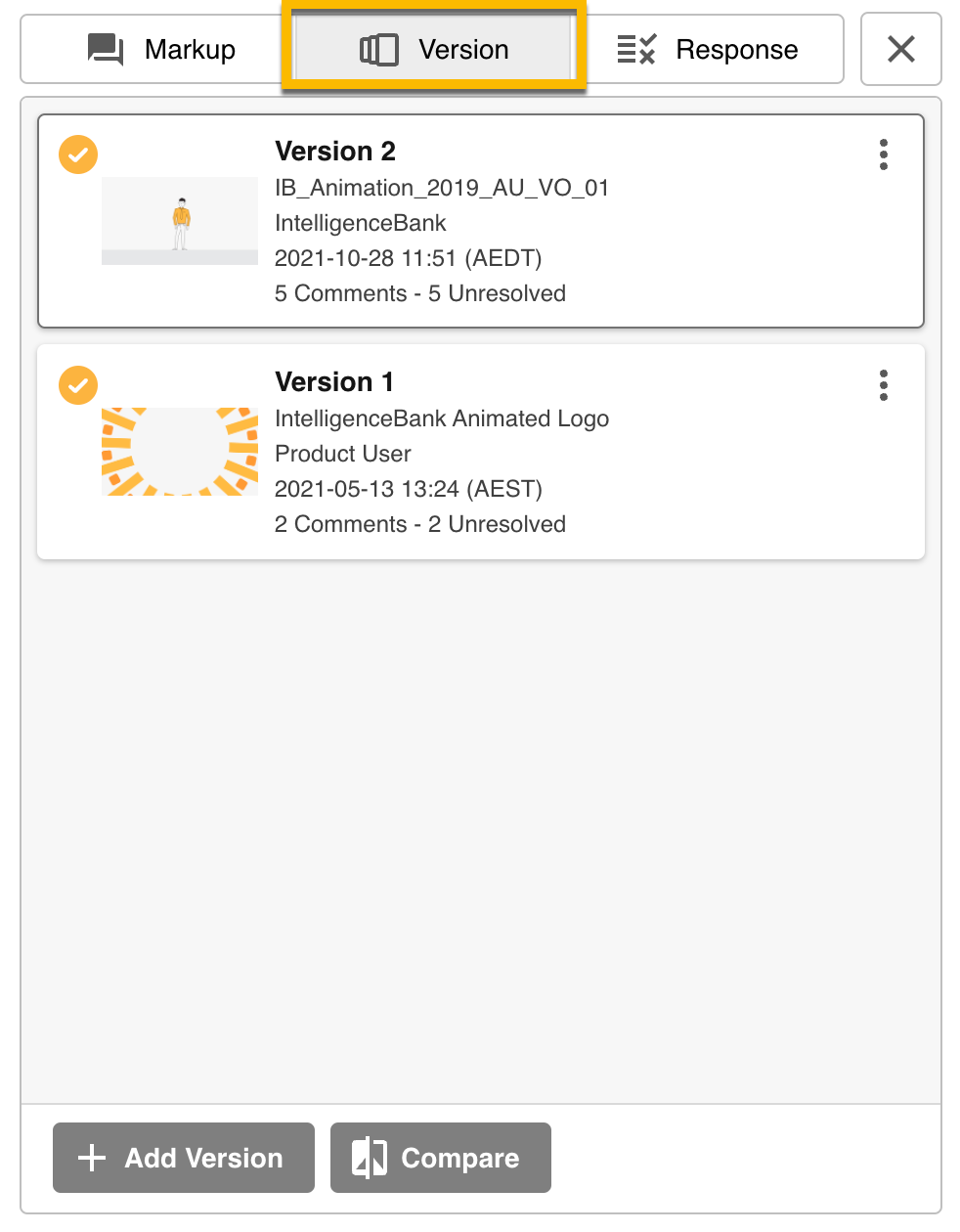
Users can click on a different version/revision to view within this tab. Whichever version/revision is selected will then display on the page, along with that version's/revision's annotations and markup comments.
Users with sufficient permission can also download the version and view information about items listed, including a count of the number of comments (including replies) that have been added.

For URLs undergoing review, previous revisions will be a snapshot of the URL at the time when the user clicked the Add Revision button. This allows users to access a historical view of the link and still see the progression of the request.
The snapshot can also be downloaded as a PDF file. For a URL's current revision, users can still access a link to open the site in a new tab, or mark up the link within the Markup tab directly.
Comparing Versions / Revisions
Users are also able to compare versions/revisions, allowing them to easily compare the differences between two versions of an asset.
Having both assets side by side makes it easy to compare Version 1 to Version 2 and see if the updates requested in the comments of Version 1 have been addressed.
Accessing the Compare Page
To access the Compare Versions / Revisions page, complete the following steps:
- Select the Version/Revision tab, located at the top of the comments panel.
- Select 2 of the files in the list.
- Click the Compare button at the bottom of the list (as demonstrated below).
- Select the relevant Compare option, if applicable.

Compare Options
There are two options available for comparing versions/revisions: Compare Side-by-Side and Highlight Text Changes.

Compare Side-by-Side is the standard option available, allowing users to see their two assets side by side. This option is available for all asset types that support a preview (i.e. it is not available for files like Zip files which cannot be previewed).

Highlight Text Differences is available for Document files (docx, xlsx, pptx, pdf) only. It automatically highlights the text differences between two files. When two eligible files are selected, this additional option will appear in the Compare button dropdown.
Once selected, the two files will appear side by side. If there are any text differences between the two files, these will automatically be highlighted. Any new text added (in comparison to the other file) is what will be highlighted. This feature helps point users' attention to the areas of the document that have changed, which is particularly valuable for longer documents.

Compare Versions / Revisions Page
The Compare Versions / Revisions page allows you to compare your versions/revisions side by side, making a comparison simple.
To go back to your Markup Comments page, simply click the back arrow, located at the top left of the compare page (highlighted below).

Hide / Show Markups: If you need to view just the asset without being distracted by the annotations and markups added previously, you can select the Hide Markups option, located at the top right of the page. When selected, this will hide all annotations/markups on both versions/revisions. To view your markups again, click Show Markups.

Hide / Show Comments: When the compare page opens, the comments panel will be open by default, allowing you to easily compare the two versions/revisions alongside the feedback requested. You can resolve comments (if on comparison you see your feedback has been addressed), reply to comments (if further changes need to be made), and add new general comments.
You can also navigate to other version/revision comments, allowing you to compare the feedback if necessary.
To hide your comments and see a larger view of your versions/revisions, click the Hide Comments action (highlighted below).

Update Versions / Revisions Compare Selection: When the compare page is open and your comments panel is showing, you can switch to compare other versions/revisions via the Versions / Revisions tab. Note that this option is not currently available when using the Highlight Text Compare option.
Important Considerations for Versions in Markup Comments
Versions in Markup Comments can only be added in an Asset Feedback Request. Unlike Publish Approval Requests where users can add revisions, new versions added will be visible to other users in the folder immediately and will always be available for them to access.
There are a few restrictions on who can add a version and where:
- Versions can be added by any of the participants of the request who have at least Publish permission on the folder.
- The request must be in pending status.
- If the folder of the asset also has a Publish Approval enabled on it, the Add Version action will not appear.
When it comes to adding versions in a Feedback Approval, there are a few additional points specific to Feedback Requests:
- When adding a new asset, by default the New Version toggle will be enabled. Unless the Mandatory Versions setting in Admin is enabled, this can be toggled off by the user. If the user chooses not to add as a new version, the new file will replace the current version.
- If the user is adding a new version, they can add a Version Comment if required.
Important Considerations for Revisions in Markup Comments
In Publish Approval or Record File requests, asset revisions can be added. This means that you can request changes (in Markup Comments) and the requester (or others) can upload a new revision that addresses those changes. This is all done within the same request and won't require your reviewers to approve or decline the request in order to see changes.
As revisions are added, you can still access previous revisions and the Markup Comments that were added to each one. Any revision except for the final one added during a request will only ever be accessible by those involved in the request.
This means that all of the draft or in-progress files that were uploaded as a revision for review will not be available to end users.
There are a few restrictions and considerations for adding revisions:
- Revisions can be added by any of the participants of the request who have at least Publish permission on the folder (for Asset Publish Approvals) or Edit permission on the record (for Record File Approvals)
- The request must be in pending status.
Once a publish approval/ request is approved, the latest revision will become the 1st version of the asset and will be accessible to end users. Any previous revisions added while the request was pending will only be available in the Request Details > Markup Comments area. Those revisions will never be accessible to users who were not part of the request.
Was this article helpful?
That’s Great!
Thank you for your feedback
Sorry! We couldn't be helpful
Thank you for your feedback
Feedback sent
We appreciate your effort and will try to fix the article