The Comment Threads feature in Markup Comments streamlines how teams manage feedback and communication among different groups of users and stakeholders within an asset's review.
For a general overview of the Markup Comments feature, please refer to this article here.
For a more detailed overview of Markup Comments & Annotations, please refer to this article here.
Table of Contents
Key Benefits
Comment Threads allow users to segment feedback, keeping discussions contained between certain groups of users without the need to alert everyone. This improves communication and makes it easier to manage feedback, resulting in a more efficient collaborative process.
How to Configure
Comment Threads can be enabled as a setting within the following features:
- Asset/Resource Publish Approvals
- Asset/Resource Feedback Approvals
- Record Publish Approvals
- Record File Approvals
- General Markup Comments (within record multi-upload fields)
Enabling Comment Threads in General Markup Comments
For General Markup Comments, Main Admins can choose to enable Comment Threads as a default setting by following these steps:
| 1Navigate | Go to Admin > Settings. |
| 2Open Configure | Locate the Configure Markup Comments field and select Configure.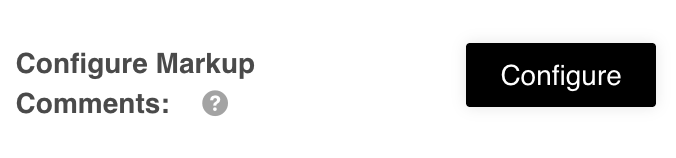 |
| 3Enable threads | In the Comment Threads section, select the checkbox in the Enable Comment Threads field. This enables Comment Threads by default for any new General Markup Comments setup going forward. Note that enabling this setting will not override the configuration on existing workflows. |
| 4Save | Select Save on the Configure General page, then Save on the Admin > Settings page. |
To enable Comment Threads on a Database that already uses General Markup Comments:
| 1Open the Database | Navigate to the Database where General Markup Comments is being used and select Edit Form Template. |
| 2Locate the field | Find the Multi-Upload field(s) General Markup Comments is enabled on. |
| 3Open Configure | Select Configure in the Configure General Markup Comments field.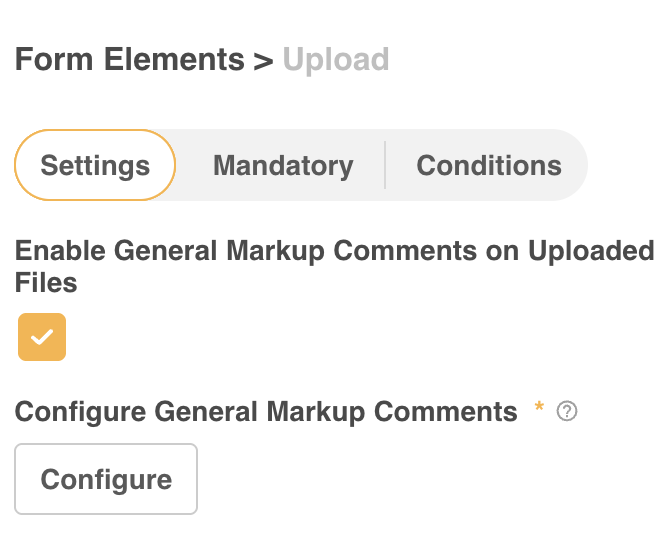 |
| 4Enable threads | Within the Comment Threads section, select the checkbox in the Enable Comment Threads field.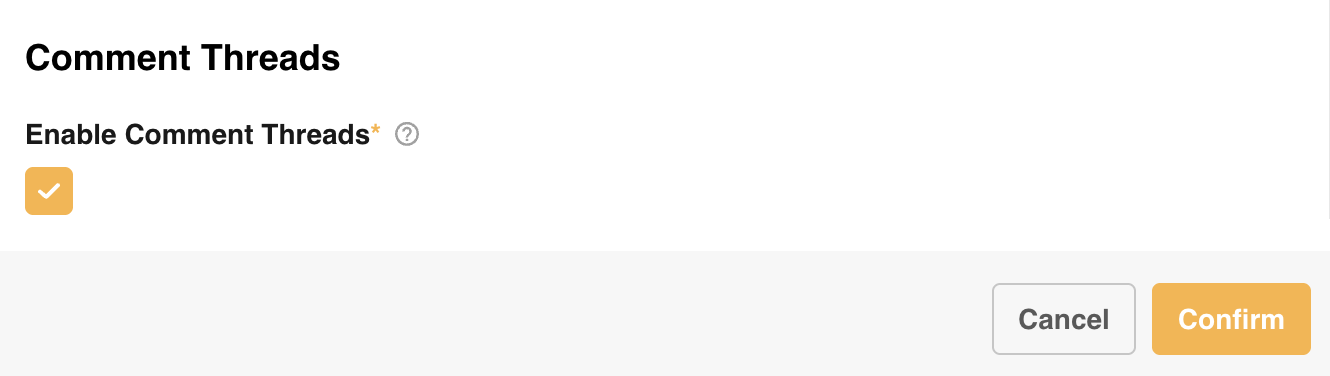 |
| 5Save | Select Confirm, then Save & Close to save your new setting on the Multi-Upload field. |
Enabling Comment Threads in Approval Markup Comments
To enable Comment Threads in any applicable approval workflow:
| 1Navigate | Go to Admin > Workflows. |
| 2Open the workflow | Select the relevant approval workflow to open its settings. |
| 3Enable threads | Select the checkbox in the Enable Markup Comments - Comment Threads field. |
| 4Save | Select Save. This setting will apply to any new processes using this approval/workflow template going forward. |
| 5Apply to existing areas | To enable Comment Threads on any existing folders, databases, or multi-upload fields that already use this workflow, navigate to the relevant settings and confirm the Comment Threads checkbox is selected. |
How to Use Comment Threads
Add a Comment Thread
When the Markup Comment page opens, a General Comments thread appears by default, allowing everyone to add comments that are visible to all users who can access the page.
You can add new Comment Threads by opening the comment thread dropdown and selecting New Comment Thread (as highlighted below).
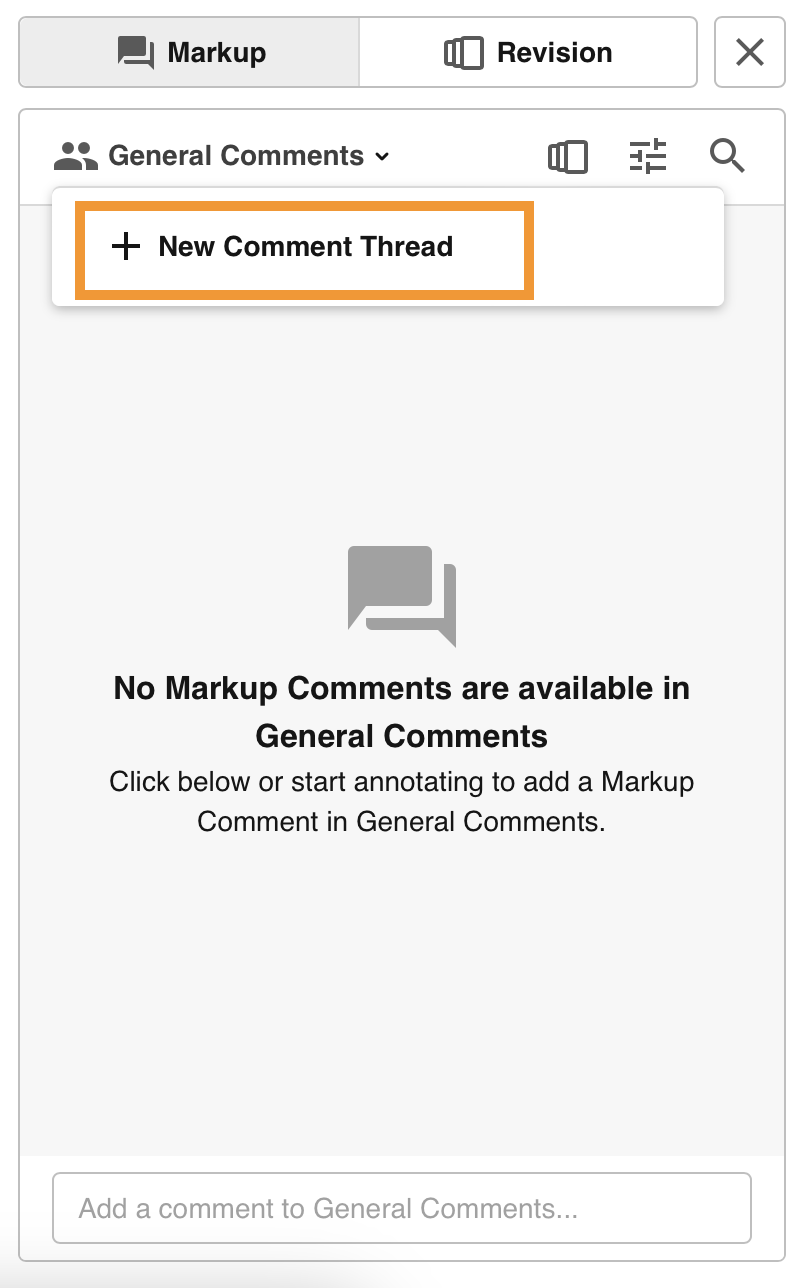
Once selected, the Create a Comment Thread popup will appear. Here you can add a Thread Name and select which users will be able to access that thread.
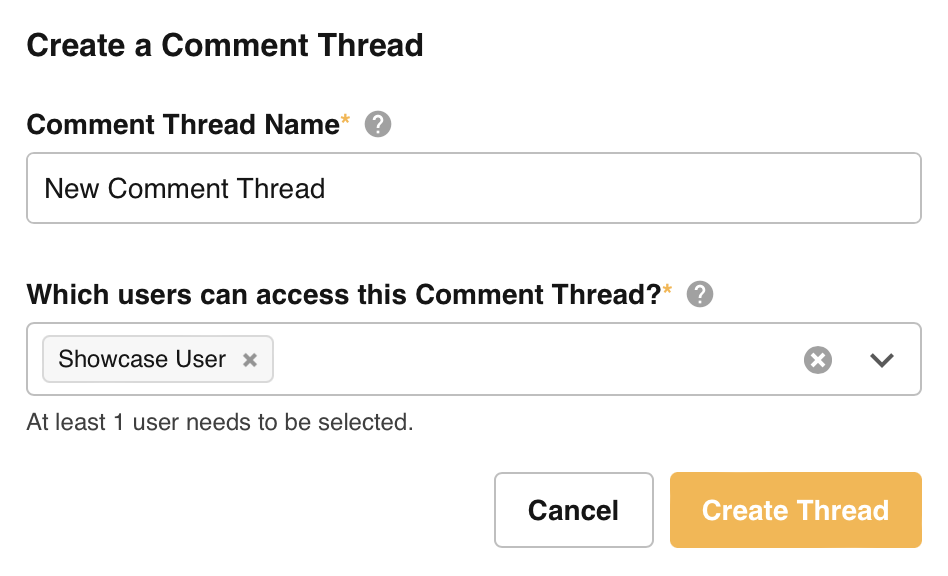
Some important points to note about users and threads:
- Only users who have the ability to add a comment on the relevant markup page can be added to a thread.
- Any comments added can only be viewed by users included within the related thread (and Main Admins).
- No notifications are sent to users when they are added to or removed from a comment thread.
- Notifications for comments saved within a thread will only be sent to users added to that thread.
- The General Comments thread is always available to all users who can view the Markup Comments page.
Manage Comment Threads
To manage Comment Threads, click the settings button (highlighted below) for the relevant thread in the dropdown.
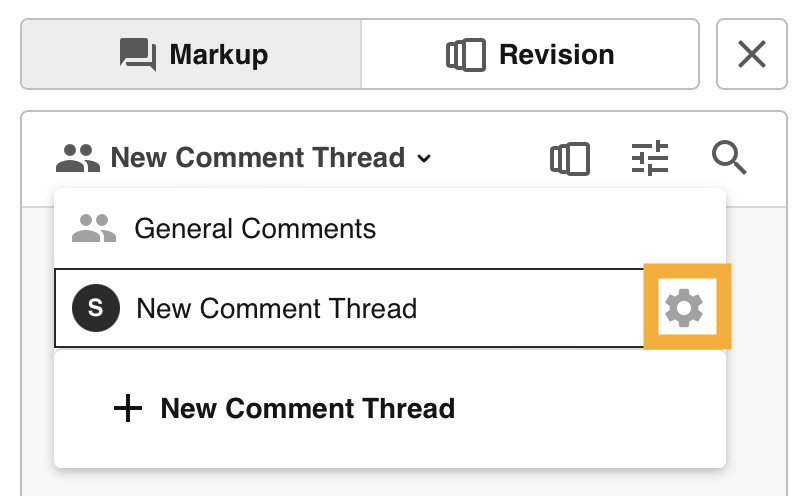
In the Manage Comment Thread popup you can:
- Update the Thread Name
- Add or remove users who have access to the thread. Note that any newly added users will be able to see all previous Markup Comments within that thread.
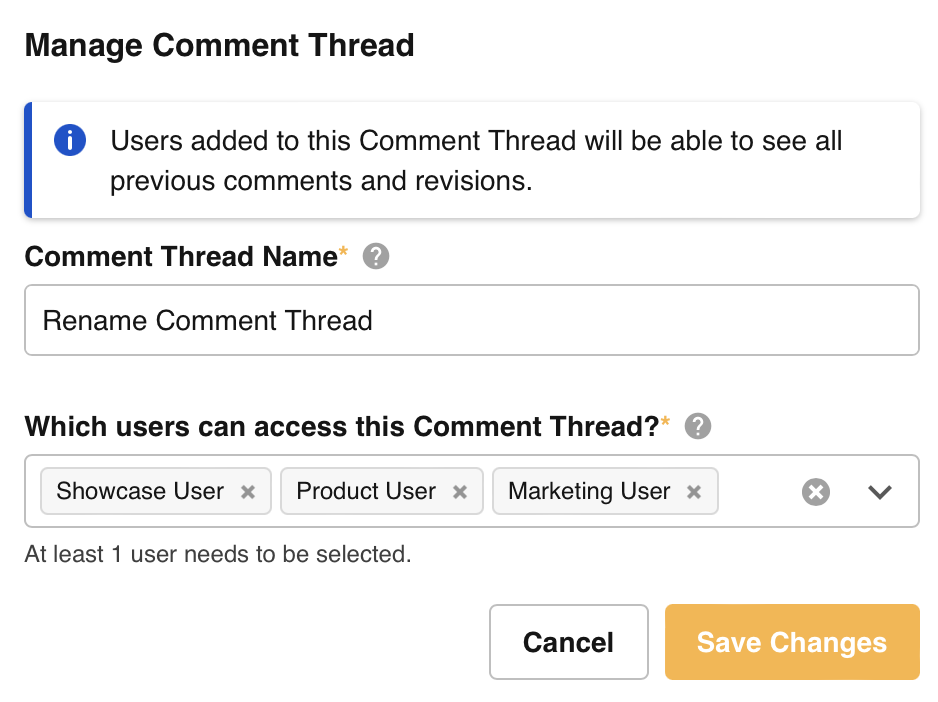
Threads while Adding Versions / Revisions
Recreate Comment Threads
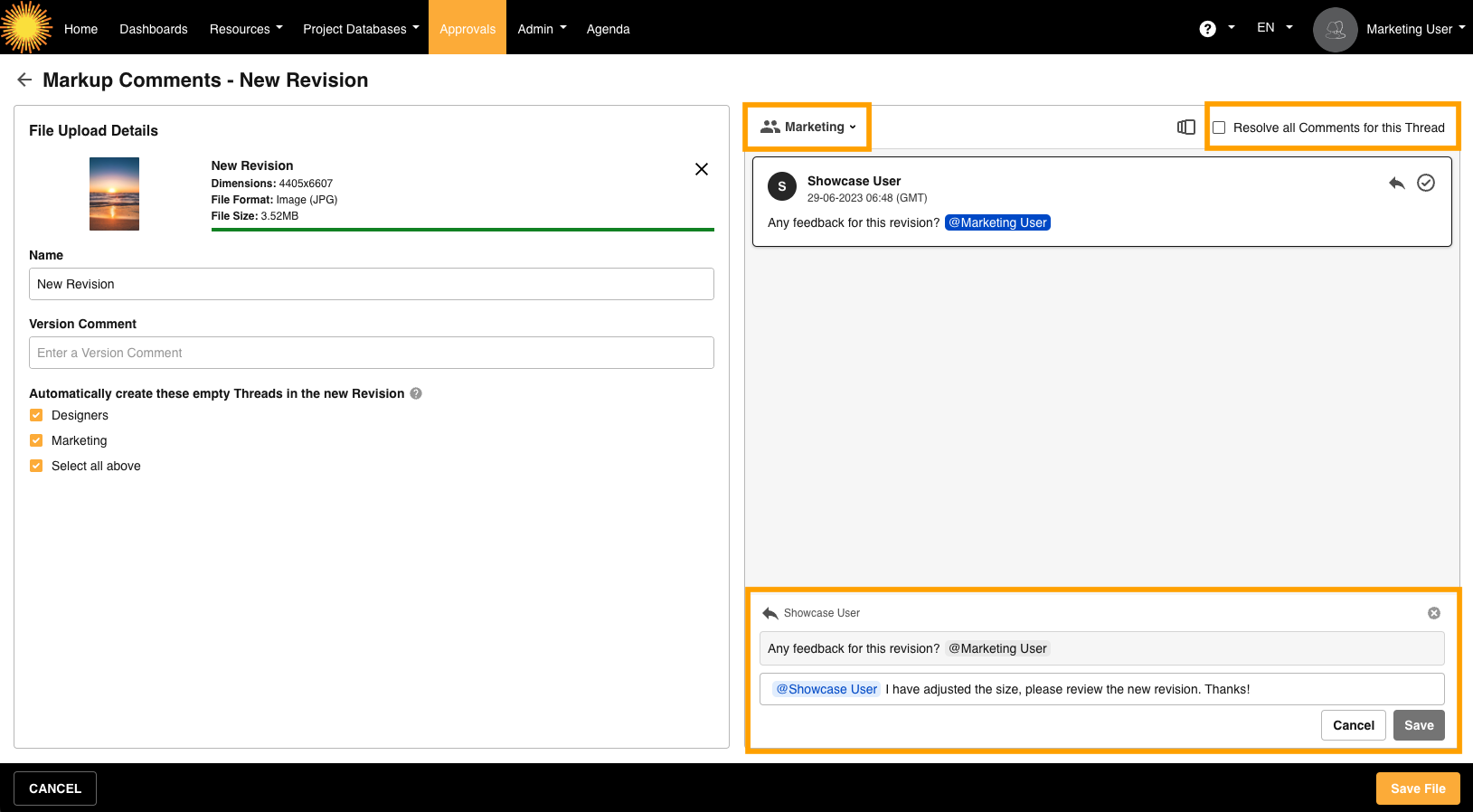
On the Add Version / Revision page, you can select from a list of threads you have access to. After adding the new file, the selected threads will be automatically created for the new version/revision, carrying over the thread name and users from the previous version/revision.
Note that comments themselves do not carry across from the previous version/revision. The threads will be blank against the new version/revision, allowing you to begin your collaboration on the new file.
You will however be able to see the previous version/revision's comments within the old thread by choosing to view the previous version/revision within the markup comments page.
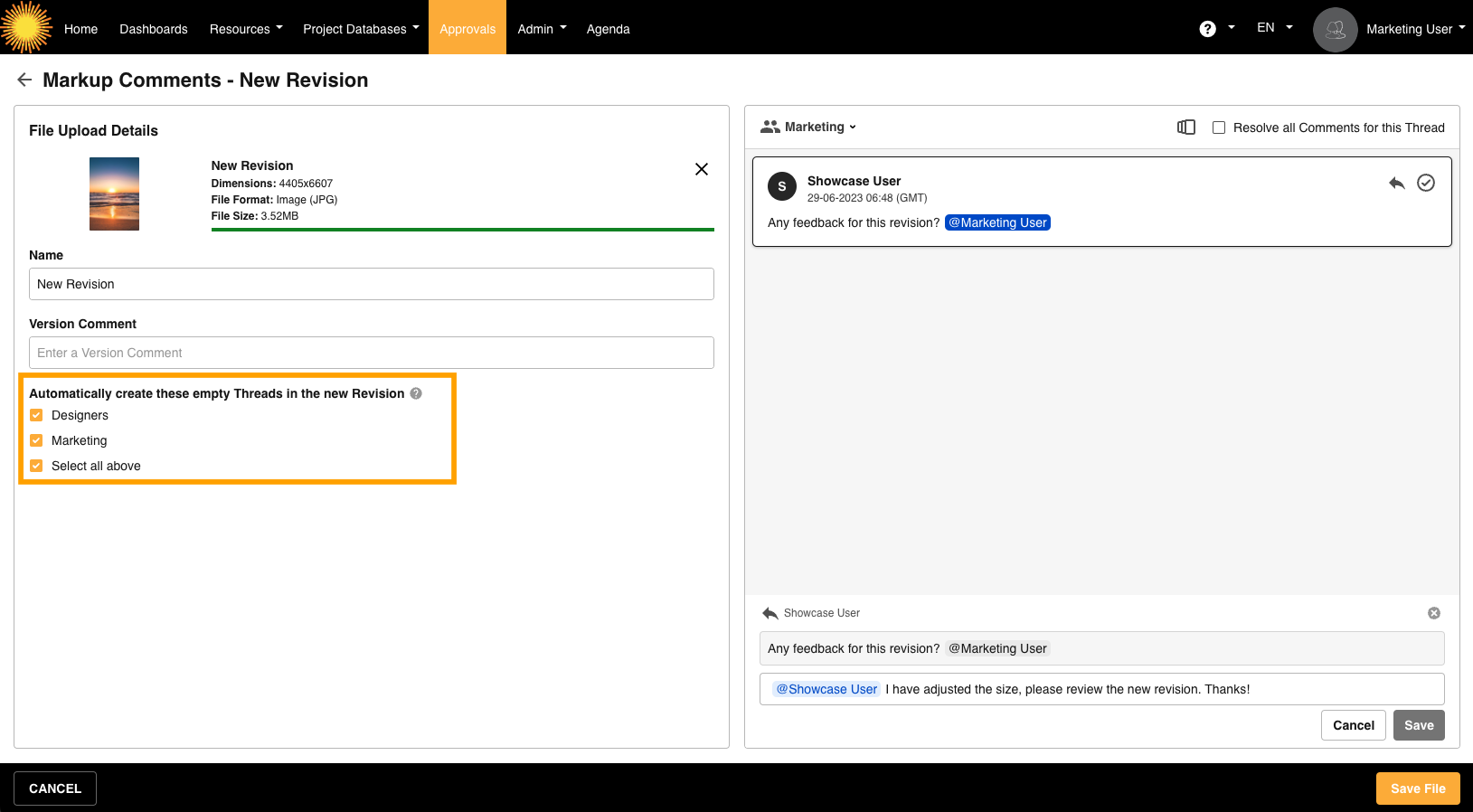
Resolve Comments for Threads
While adding a new version/revision, you can also review and resolve any thread comments via the threads dropdown before saving the new file.
If you have any further questions about Comment Threads, please contact your Customer Success Manager.
Was this article helpful?
That’s Great!
Thank you for your feedback
Sorry! We couldn't be helpful
Thank you for your feedback
Feedback sent
We appreciate your effort and will try to fix the article