Comments on Records enable you to collaborate directly by adding feedback, asking questions, and providing context during review and approval processes. This feature keeps all communication in one place and eliminates the need for scattered email threads.
What Are Comments on Approval Records?
Comments on Approval Records let you add feedback directly on an approval request without the need for the request to be reclined and requestor having to re-submit their request from the beginning.
- Text comments – Written feedback on the Record
- PDF annotations – Mark up PDF files with highlights, drawings, and notes
- Threaded discussions – Reply to comments to create conversations
- @Mentions – Notify specific users about your comments
Use Cases
For Approvers: Provide specific feedback on content, request changes or clarifications, ask questions about content, and approve with comments explaining your approval decision.
For Requestors: Respond to feedback, ask clarifying questions, provide context for content decisions, and track all feedback in one place.
Where Can You Add Markup?
You can add markup On the Approval Request
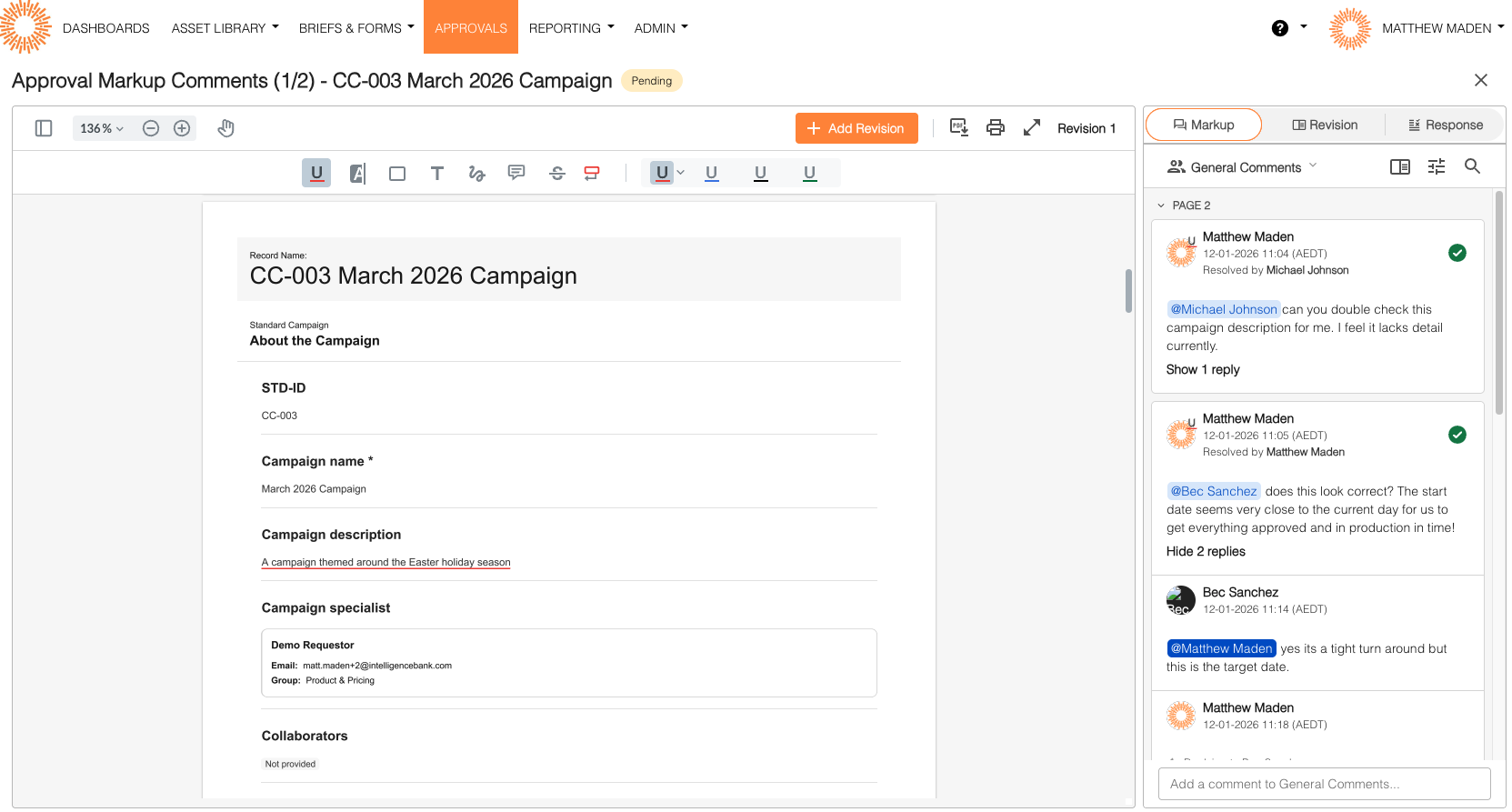
How to Add Text Comments
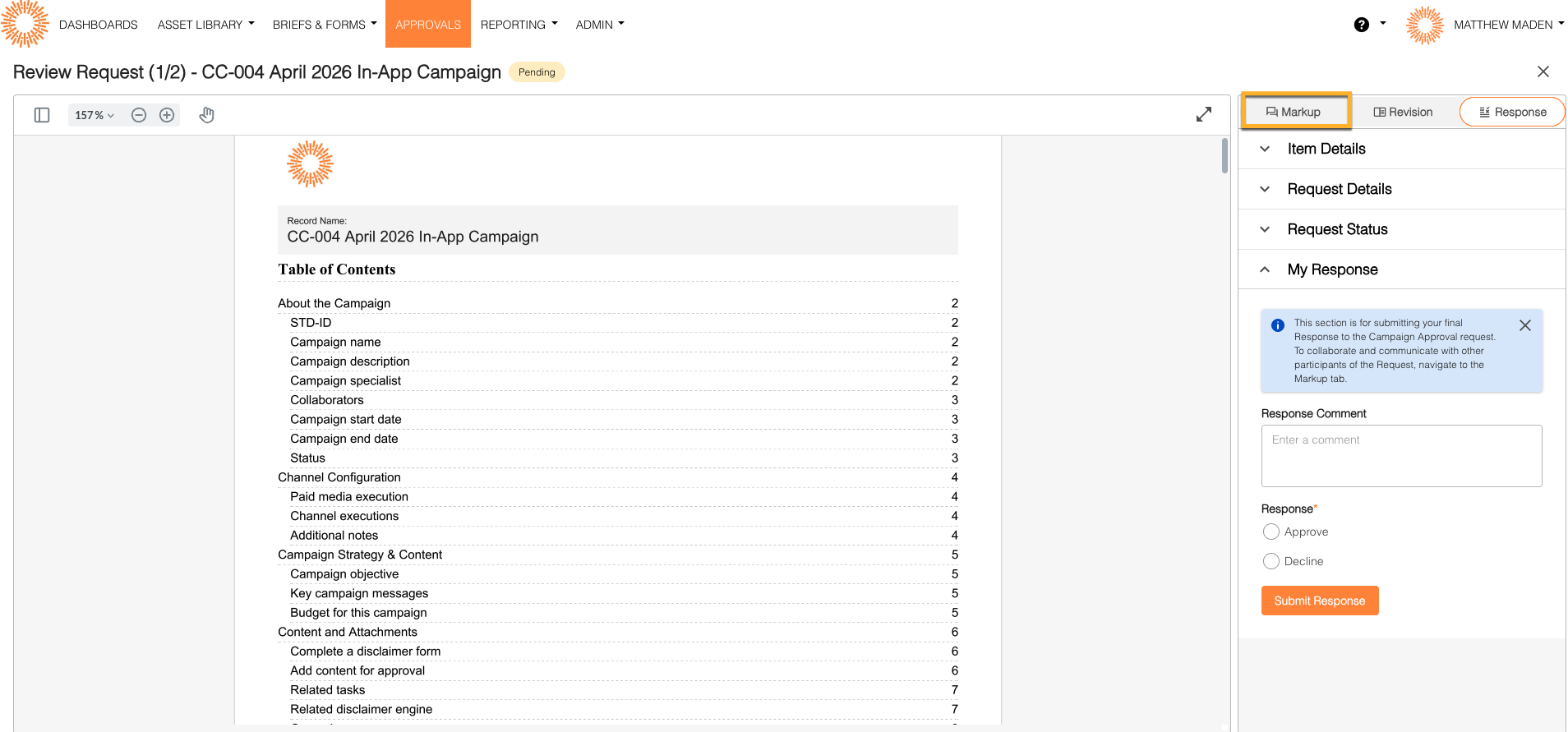
Step 1: Open Mark Up Panel
- Navigate to the Approval Request
- Find and open the Mark Up tab
- The panel opens showing existing comments
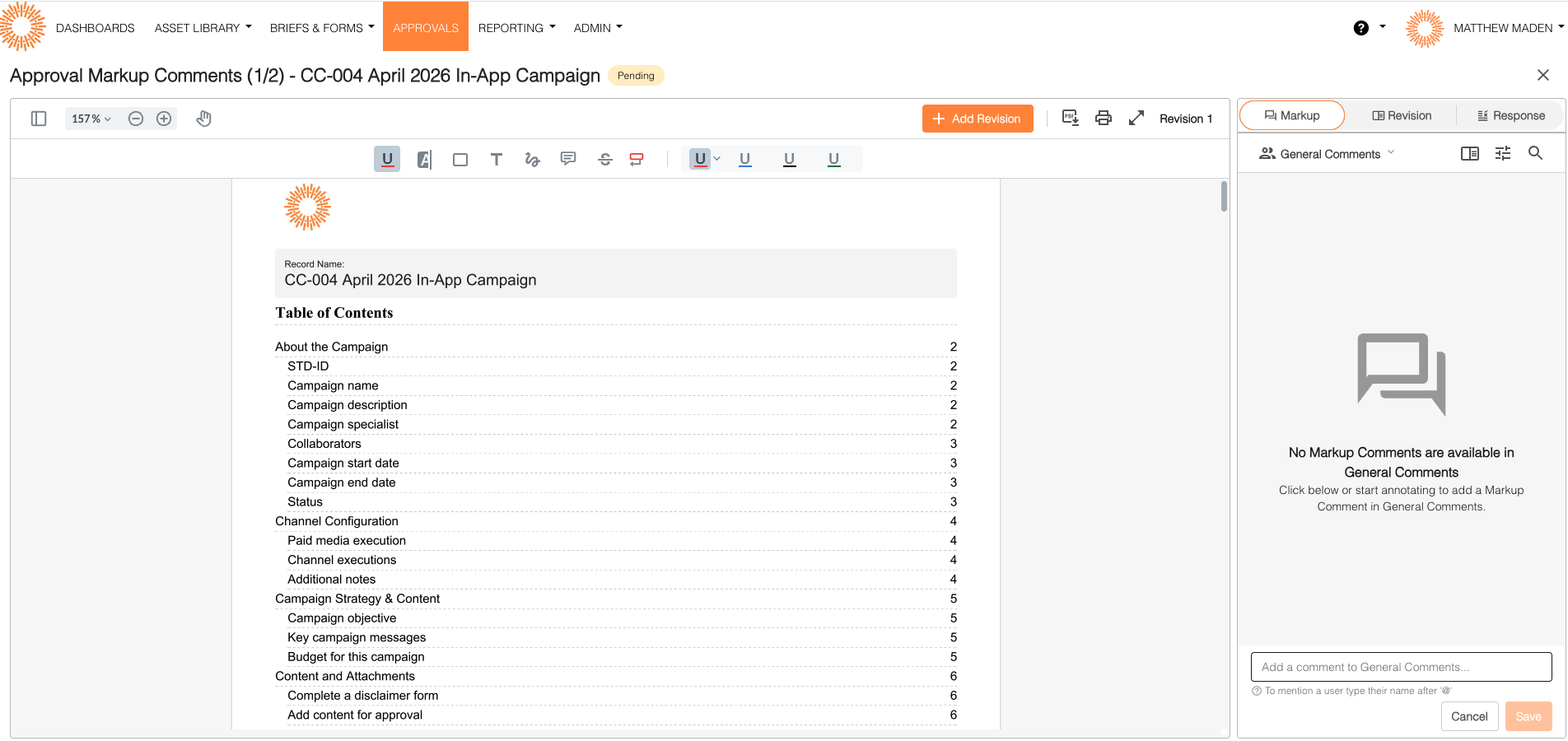
Step 2: Add Your Comment
- Click Add Comment or New Comment button
- A comment box appears
- Enter your comment text
- (Optional) Format your text using bold, italic, or other options
- (Optional) Type @username to mention someone
- Click Save
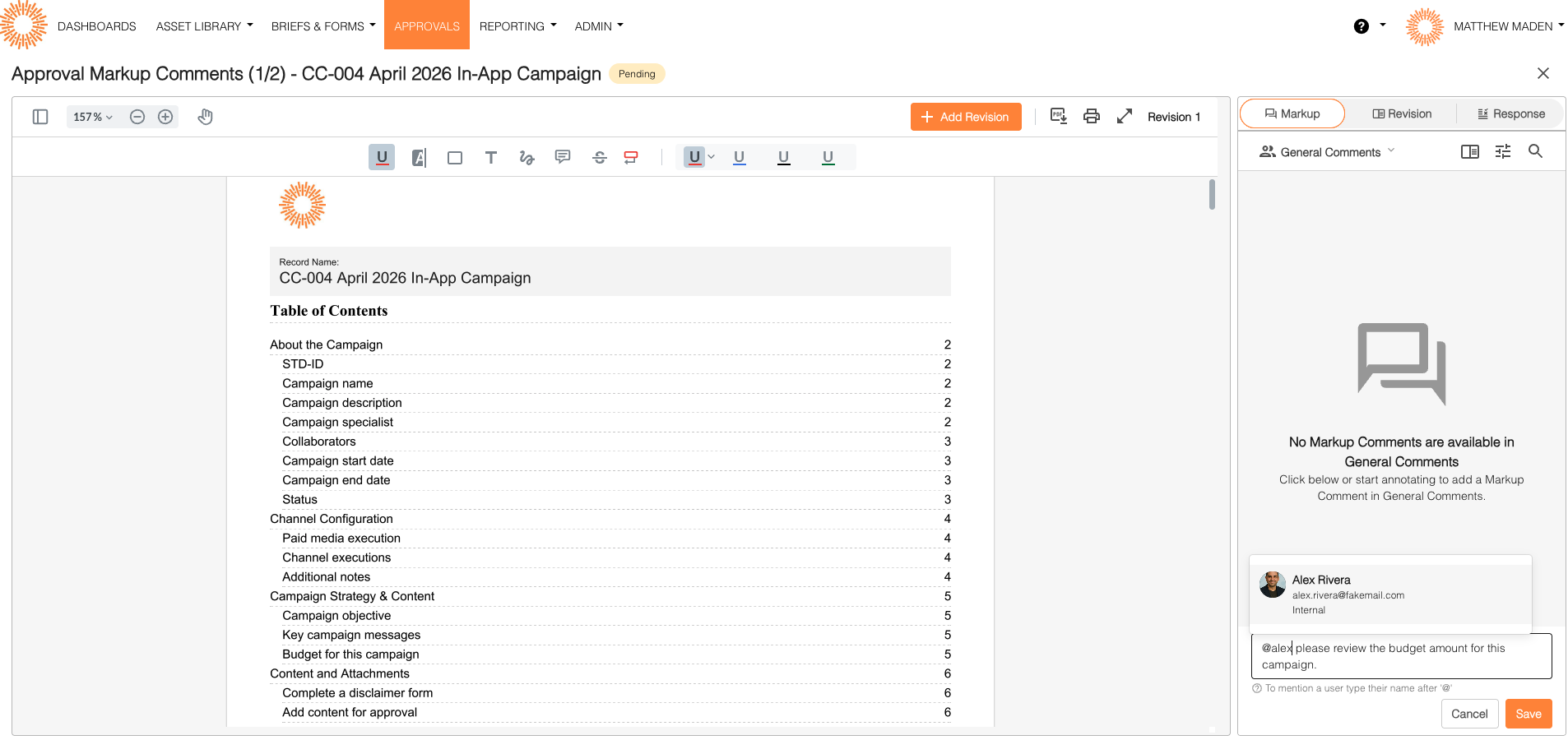
Step 3: Comment Appears
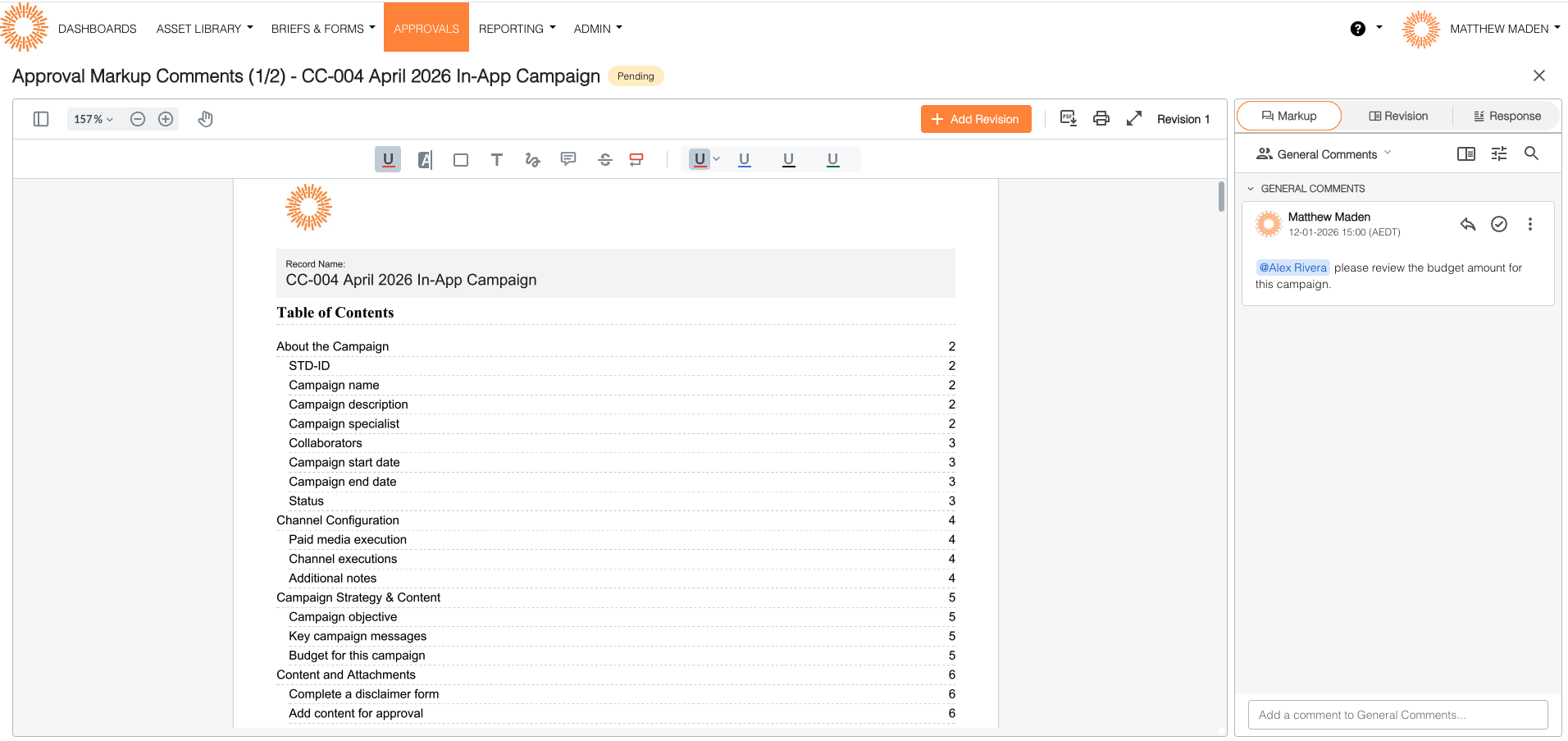
Your comment appears in the Comments panel. Other participants can see it, and mentioned users receive notifications if enabled.
How to Reply to Comments (Threading)
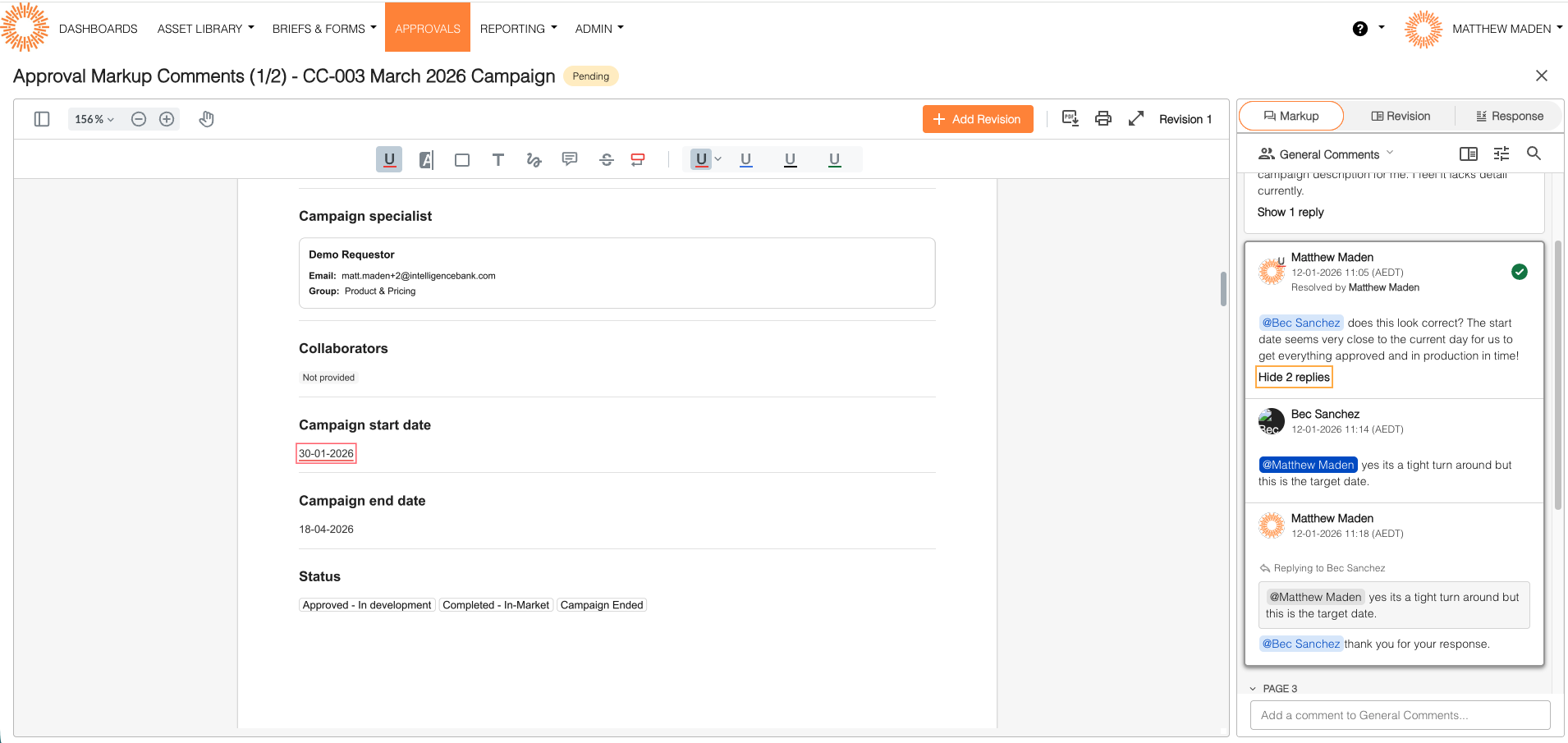
You can reply to existing comments to create threaded discussions that keep related feedback organized.
Step 1: Find the Comment
In the Comments panel, locate the comment you want to reply to and look for the Reply button or action.
Step 2: Reply
- Click Reply
- Enter your response
- Click Save
Step 3: Thread Created
Your reply appears nested under the original comment. The thread shows the conversation flow, and all participants can see the full discussion.
How to Add Annotations to a Record Approval
Step 1: Open the Approval Record
- Navigate to the Record in your Approvals list
- Open the record you are going to annotate
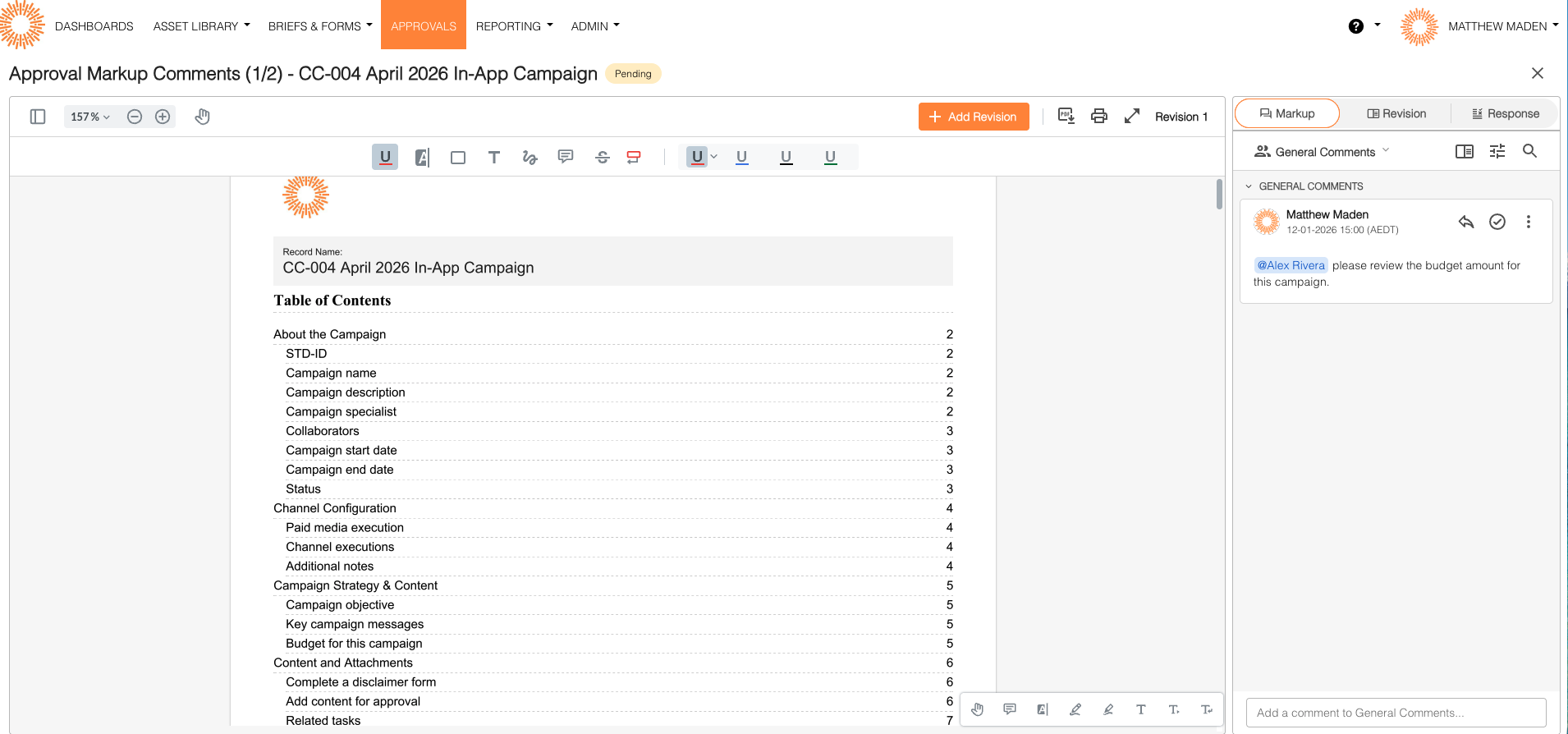
- Proceed to the Markup tab and see the mark up tools at the top of the page.
Step 2: Use Annotation Tools
Available tools may include:
- Highlight – Highlight text passages
- Draw – Draw shapes or freehand markings
- Text – Add text notes directly on the record
- Sticky notes – Add comment notes that can be expanded
- Other tools – Depending on your system configuration
Step 3: Mark Up the Record
- Select an annotation tool from the toolbar
- Click or draw on the record where you want to add markup
- Add your annotation content
- Annotations are automatically saved
Step 4: View Annotations
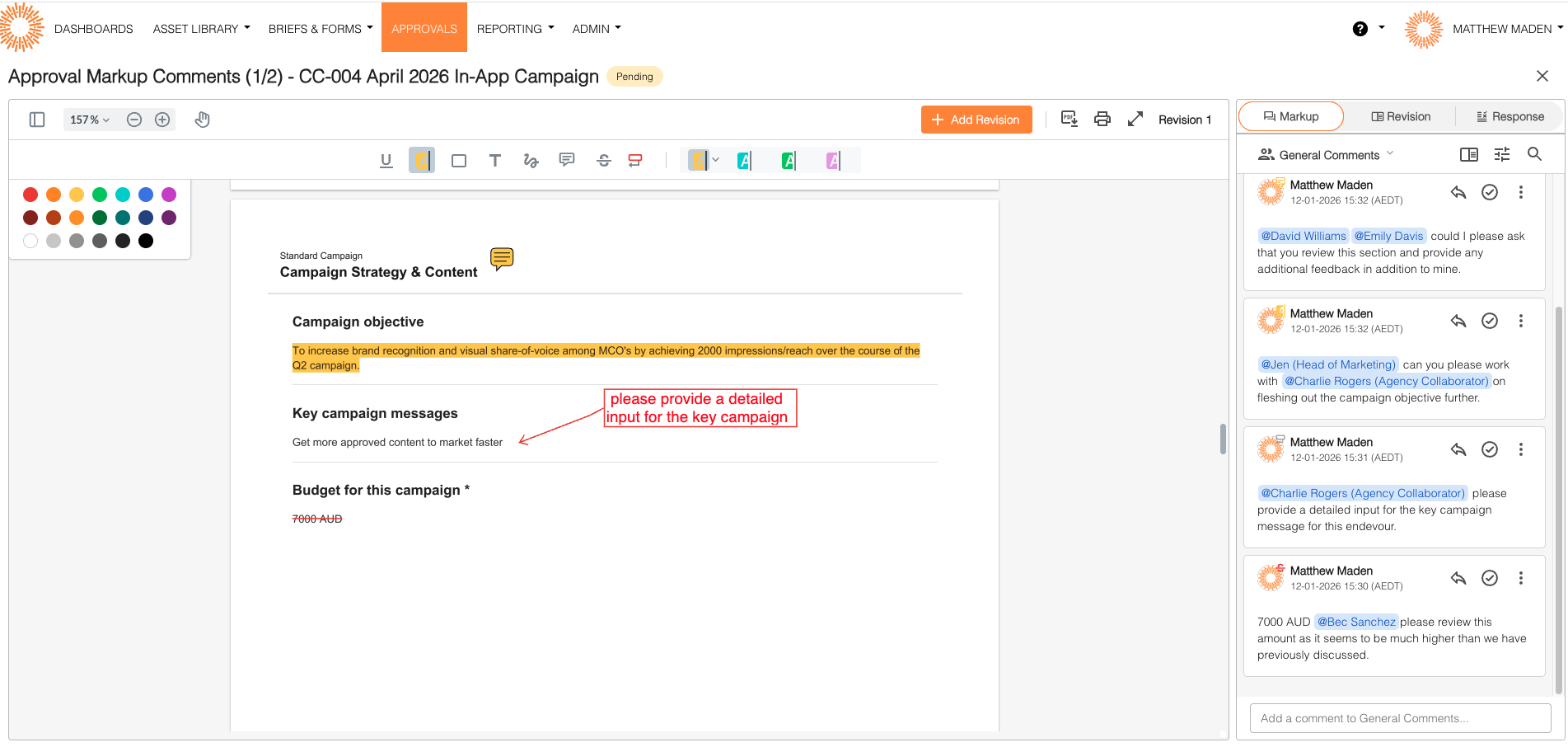
Annotations appear directly on the PDF and also display in the Comments panel. All participants with access can see the annotations.
How to Edit or Delete Comments
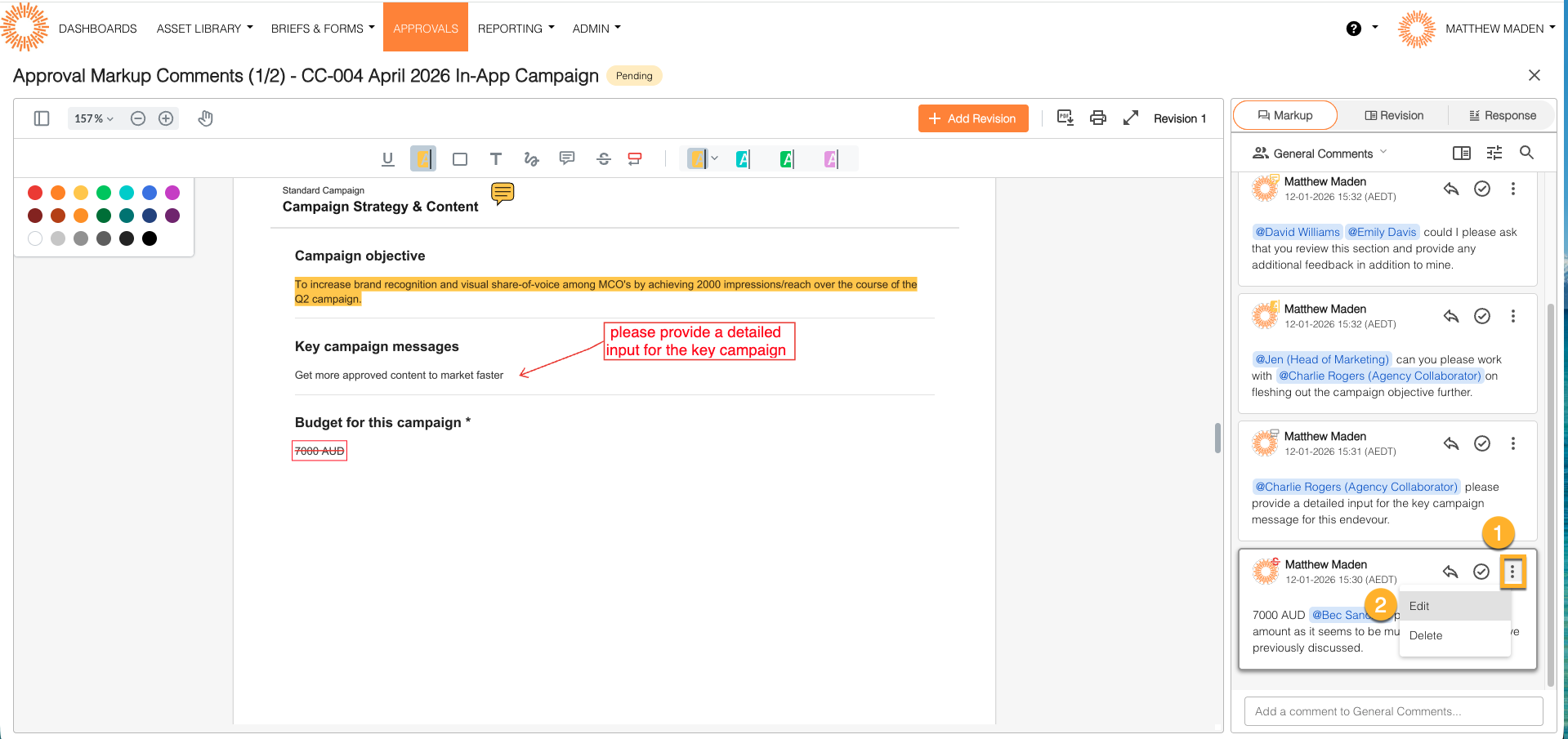
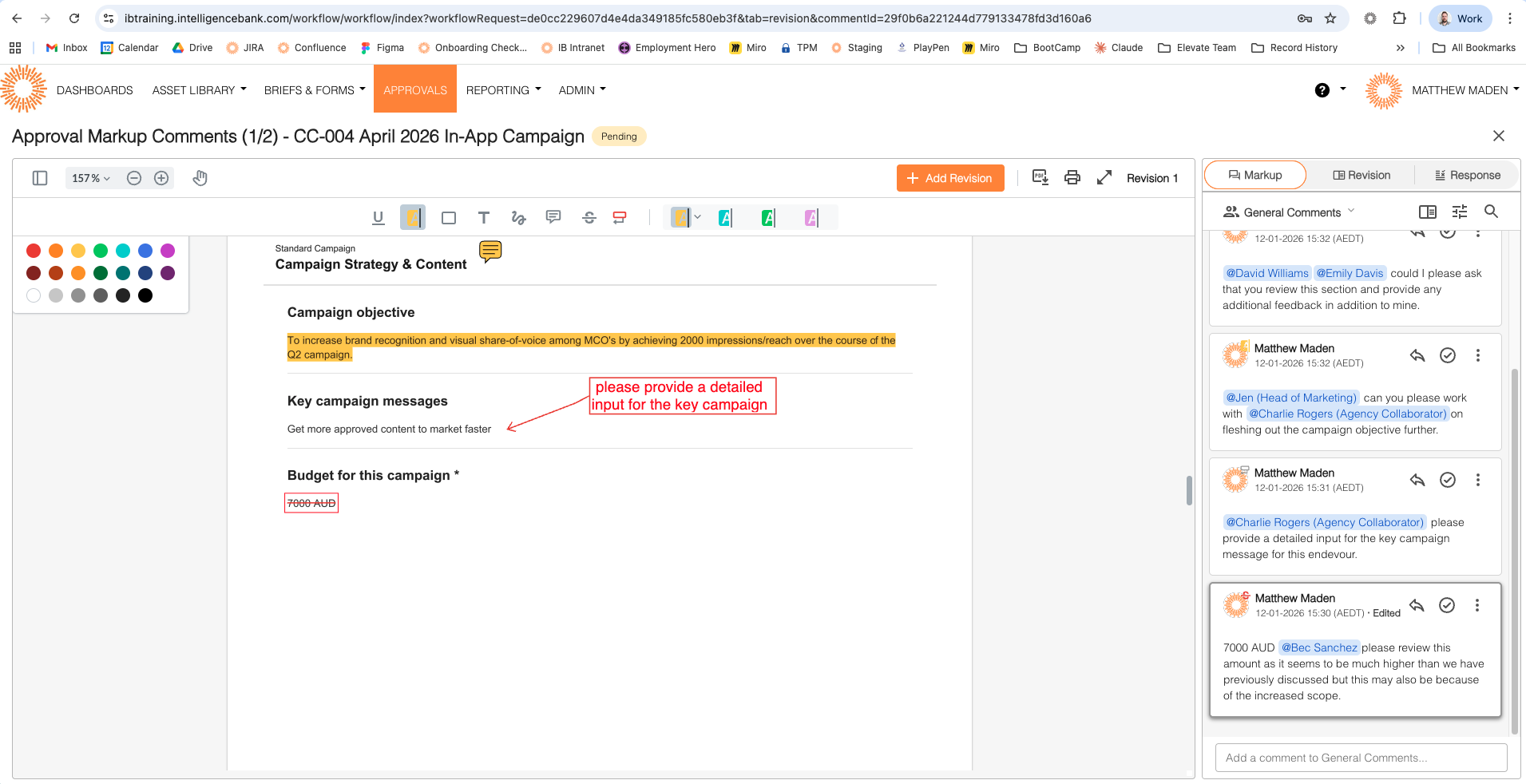
Edit Your Comment
- Find your comment in the Comments panel
- Click Edit (appears on your own comments)
- Make your changes
- Click Save
- The comment shows an "edited" indicator with timestamp
Delete Your Comment
- Find your comment in the Comments panel
- Click Delete (appears on your own comments)
- Confirm deletion when prompted
- The comment is removed from view
You can only edit or delete your own comments. Administrators can delete any comments.
Using @Mentions
You can mention specific users in comments to notify them directly.
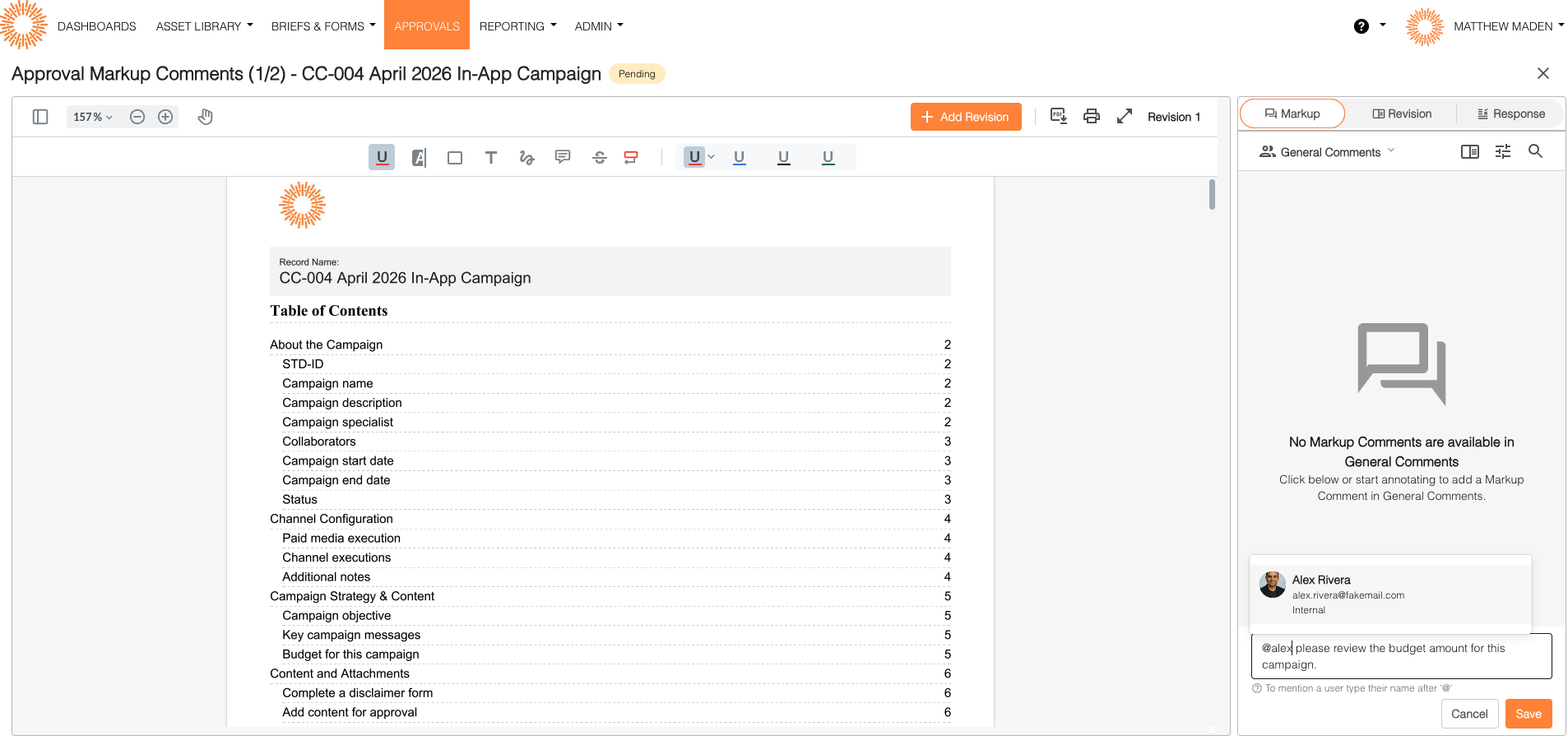
How to Mention Someone
- While typing a comment, type @ followed by the username
- A list of matching users appears
- Select the user you want to mention
- Their name appears highlighted in the comment
- They receive a notification if notifications are enabled
Expected Behavior
Comment Visibility
Comments are visible to all participants who have access to the Record. Comments appear in chronological order, typically with newest first. Threaded comments display as nested replies.
Notifications
Users may receive notifications for comments if enabled in their settings. @Mentions trigger additional notifications. Notification preferences can be customized by each user in their My Account > Alerts(Markup) section.
Comment Persistence
Comments remain visible even after approval completes. Comments are part of the permanent audit trail. Comments cannot be deleted by other users, only by the creator or an administrator.
Troubleshooting
"I Can't Add Comments"
Check these items:
- Is the Comments panel visible? If the panel does not appear, commenting may not be enabled for your organization. Contact support or your account administrator.
- Do you have access to the Record? You need view permission on the Record to add comments. Contact your administrator for access.
- Is the Add Comment button visible? If the button does not appear, you may not have commenting permission. Contact support or your account administrator.
- Try refreshing the page. Sometimes a refresh resolves display issues caused by cached content.
Still not working? Contact support with your user ID, Record ID or Approval Request ID, what you are trying to do, and any error messages.
"I Can't Add PDF Annotations"
Check these items:
- Is the file a PDF? PDF annotations only work with PDF files. For images, Word documents, or other file types, use text comments instead.
- Is the PDF viewer loading? If the viewer does not load, annotations will not work. Try refreshing the page or contact support.
- Are annotation tools visible? If tools do not appear in the PDF viewer, annotations may not be enabled. Contact support or your account administrator.
"Comments Aren't Appearing"
Check these items:
- Are you looking in the right place? Comments are in the Comments panel. Make sure the panel is open.
- Try refreshing the page. Comments may not have loaded, or cached content may be hiding new comments.
- Check filters. Some views may filter or hide certain comments. Clear filters or change view settings.
Best Practices
When to Use Comments
- Providing feedback – Give specific feedback on content
- Requesting changes – Ask for modifications with clear explanations
- Clarifying questions – Ask questions about content or decisions
- Approving content – Confirm approval with comments explaining your decision
Tips for Effective Comments
- Be specific – Reference specific fields or sections
- Use @mentions – Notify relevant users directly
- Thread replies – Keep related feedback together in threads
- Be clear – Write clear, actionable feedback
What to Avoid
- Vague comments – Be specific about what needs changing
- Too many comments – Consolidate feedback when possible
- Personal comments – Keep feedback professional and focused on the content
Related Articles
Need Help?
If you cannot add comments or annotations, contact support with:
- Your account email address
- URL of the affected record or approval request
- What you were trying to do and what happened instead
- The exact text of any error messages (screenshots and screen recordings are helpful)
You can also contact your account administrator if you believe commenting should be enabled but is not appearing.
Please note that specific terminology referenced above may appear differently in your platform as these are customizable terms.
Was this article helpful?
That’s Great!
Thank you for your feedback
Sorry! We couldn't be helpful
Thank you for your feedback
Feedback sent
We appreciate your effort and will try to fix the article