Record Proofing features provide a complete collaboration and audit trail solution for your Records and approval workflows. These features enable teams to collaborate directly on Records, make changes during approval without restarting workflows, and maintain complete version history for compliance and audit purposes.
This article provides an overview of what's available and who can use each capability
What's Included
Record Proofing & Audibility includes five integrated capabilities:
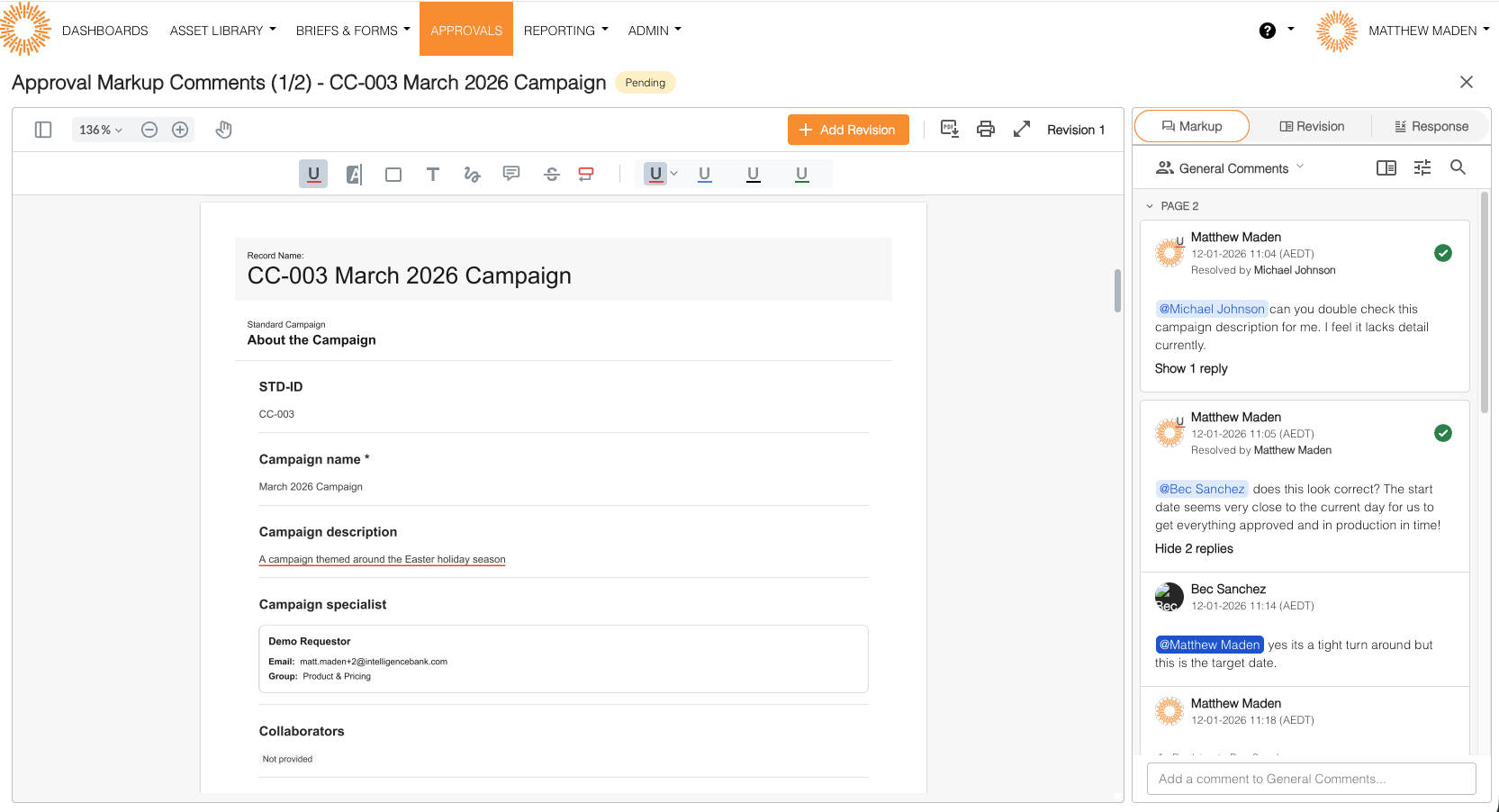
1. Comments on Records
Add feedback and collaborate directly on Records with text comments, threaded discussions, and PDF annotations.
Value: Collaborate without leaving the platform, keep all feedback in one place, and maintain clear communication during review processes.
How it works: Add comments directly on Records or Approval Requests, reply to create threaded discussions, and use @mentions to notify specific users. For PDF files, you can add annotations directly on the document.
2. Edit During Approval
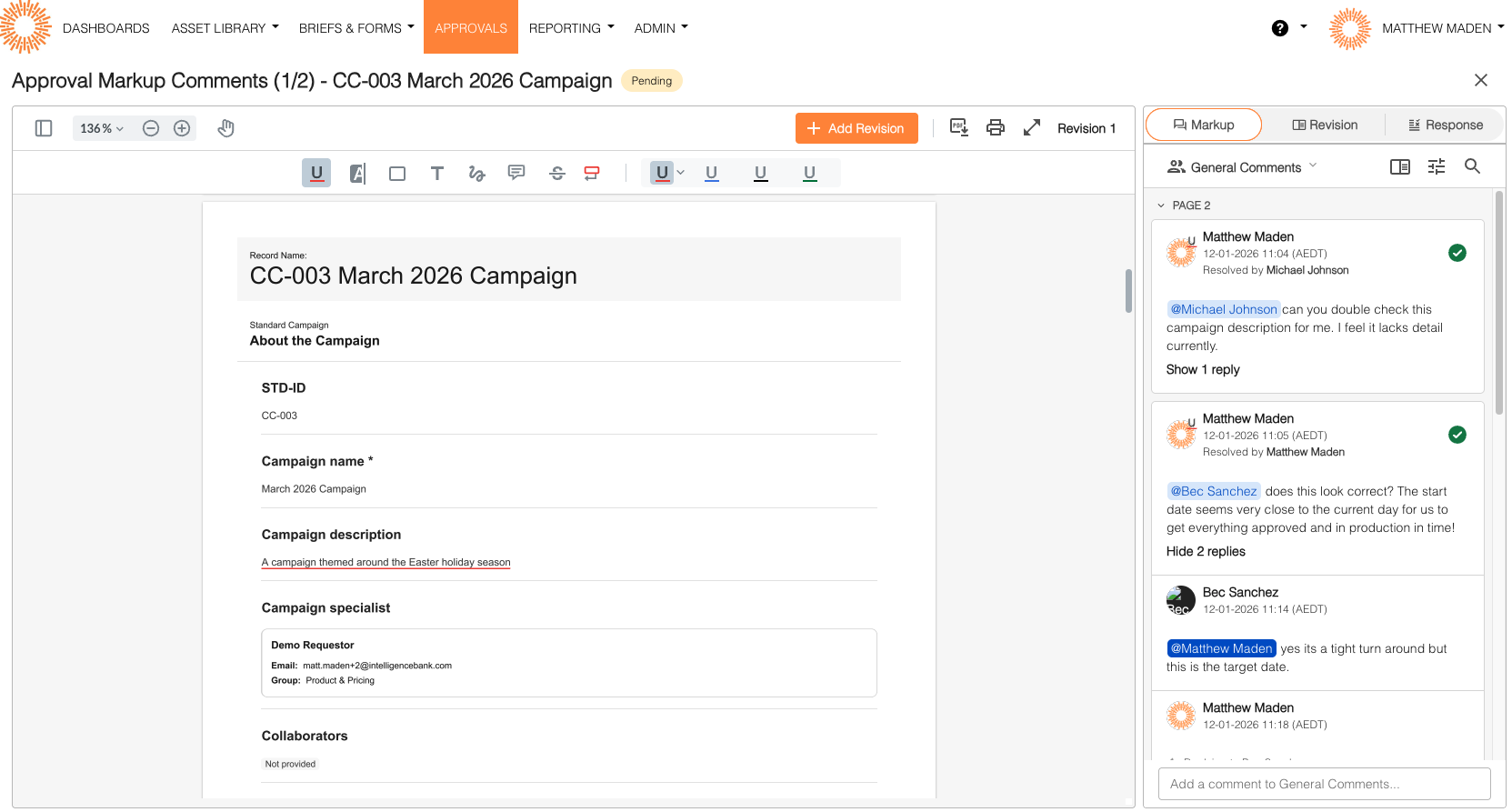
Make changes to Records during pending approvals without declining and restarting the workflow.
Value: Fix issues immediately based on feedback, address approver requests without workflow delays, and maintain approval momentum.
How it works: While an approval is pending, you can edit the Record. Each edit automatically creates a revision that all approvers can see. The approval process continues without restarting.
3. Approval Snapshots
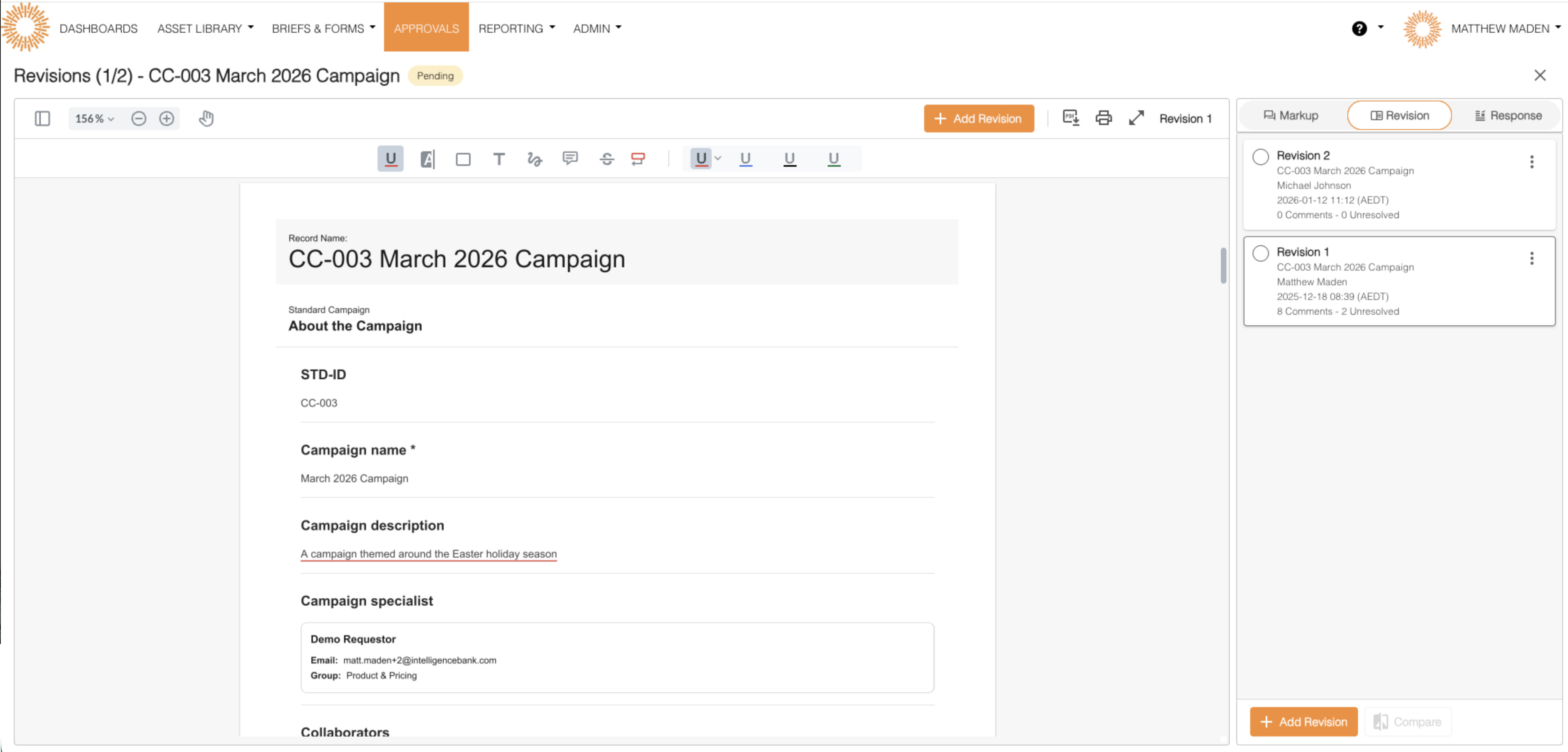
Automatic PDF snapshots are created when approvals complete, showing exactly what was approved.
Value: Complete audit trail of approved content, immutable records for compliance, and permanent documentation of approval decisions.
How it works: When an approval workflow completes, the system automatically generates a PDF snapshot of the Record at that moment. This snapshot is permanent and cannot be modified.
4. Version History
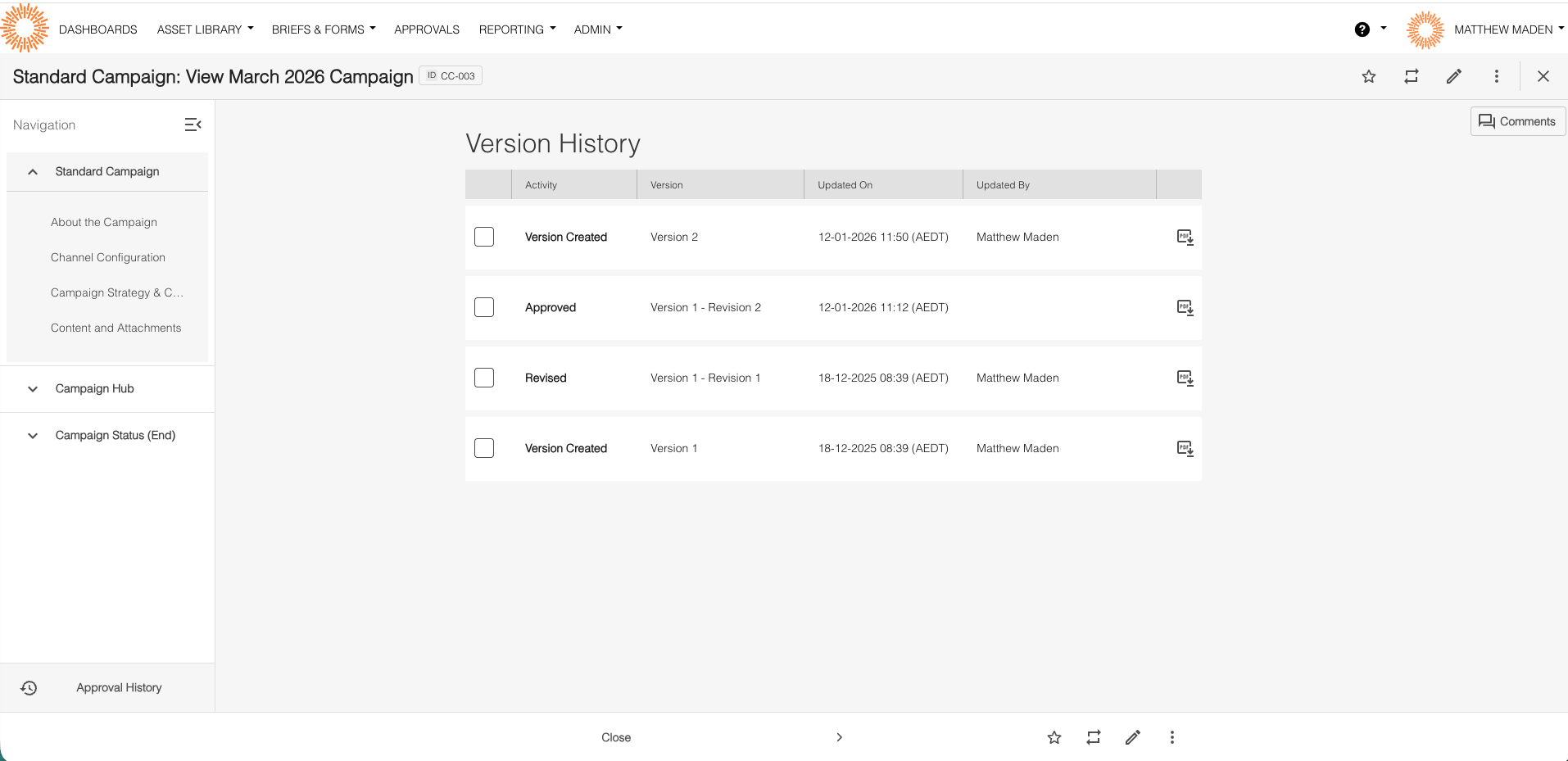
Complete history of Record changes over time, including both versions and revisions.
Value: Track how Records evolve, compare different states, recover previous content, and maintain compliance documentation.
How it works: Every time a Record is edited (outside approval), a new version is created. Revisions made during approval also appear in Version History, nested under their parent versions. You can view, download, and compare any versions or revisions.
5. Download with Comments
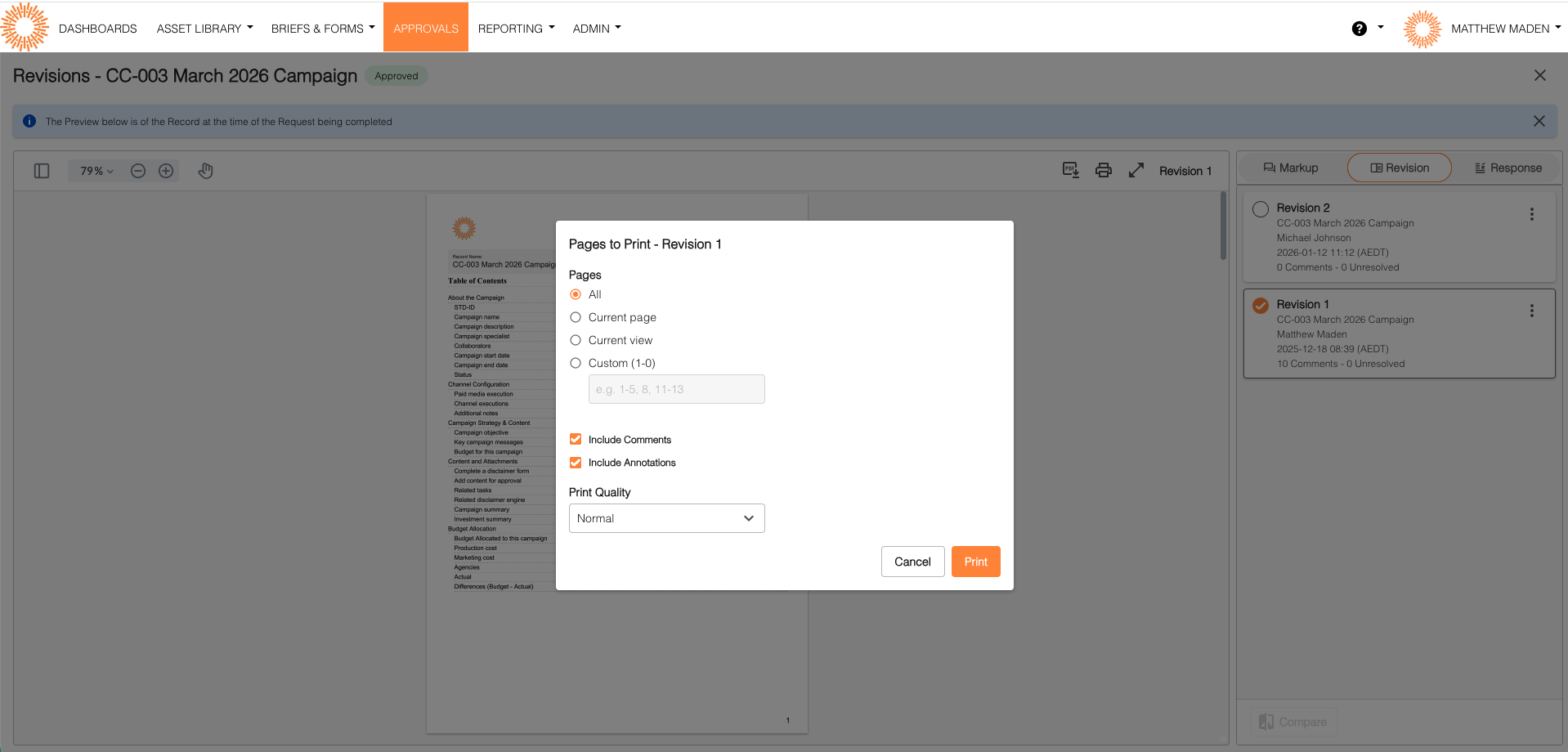
Export Records with all comments included as PDF annotations or embedded content.
Value: Share Records with external stakeholders, maintain documentation with feedback, and create compliance records with full context.
How it works: Download Records as PDFs with comments included. For PDF source files, comments appear as PDF annotations. For other file types, comments are embedded in the PDF content.
Who Can Use What
Your access to features depends on your permissions and role:
All Users with Record View Permission Can:
- View comments on Records
- View version history (if Version module is enabled)
- Download Records with comments (if feature enabled)
- View approval snapshots (if you're a workflow participant)
Requirements: Record view permission
Users Who Can Add Comments Can:
- Create new comments on Records
- Reply to existing comments to create threaded discussions
- @mention other users to notify them
- Add PDF annotations (for PDF files only)
Requirements: Record view permission + "Enable Comment on Record" setting enabled
If commenting features aren't appearing, contact your account administrator or support.
Workflow Participants Can:
- Edit Records during pending approval
- View all revisions created during approval
- Download revision snapshots
- Access automatic approval completion snapshots
Requirements:
- Workflow participant (requester, approver, collaborator, or admin)
- Publish permission on folder
- Workflow type must be "publish"
- Workflow status must be "pending"
If you can't edit during approval, check these requirements or contact support.
Administrators Can:
- Enable/disable features for the organization
- Configure automatic version creation
- Manage comment settings
- Delete any comments
Configuration settings are managed by administrators. Contact your account administrator if features aren't available.
Key Benefits
For Marketing Teams:
- Collaborate without leaving the platform – All feedback in one place
- No more scattered email feedback – Everything tracked in the system
- Faster approval cycles – Fix issues during approval without restarting
- Clear feedback on Records – Comments and annotations provide context
For Compliance Teams:
- Complete audit trail of all changes
- Immutable approval snapshots – Permanent records of what was approved
- Exportable documentation – Download Records with all comments
- Version history for tracking – See how Records evolved over time
For Content Creators:
- Receive clear, contextual feedback – Comments directly on Records
- Fix issues during approval without restarting – Maintain workflow momentum
- Access to historical versions – Recover previous content if needed
- All feedback in one place – No need to track multiple communication channels
How Features Work Together
These features are designed to work together:
- Comments provide feedback during review
- Edit During Approval lets you address feedback immediately
- Revisions track all changes made during approval
- Approval Snapshots capture the final approved state
- Version History maintains complete history over time
- Download with Comments exports everything for documentation
Example Workflow:
- Record submitted for approval
- Approver adds comments with feedback
- Requester edits Record to address feedback → Revision created
- Approver reviews revision and approves
- Approval snapshot created automatically
- All history preserved in Version History
- Team can download Record with all comments for documentation
Getting Started
Step 1: Check Your Permissions
Ensure you have the required permissions for the features you want to use (see "Who Can Use What" above).
Not sure about your permissions? Contact your account administrator.
Step 2: Verify Features Are Available
Most features are configured automatically, but check with your administrator if features aren't appearing.
If features aren't available:
- Contact your account administrator
- Or contact support with your user ID and what you're trying to do
Step 3: Explore Features
Start with the articles linked below for step-by-step instructions on each feature.
Related Articles
Feature Guides:
- Collaborating with Comments on Records – How to add, view, and reply to comments
- Editing Records During Approval Workflows – How to make changes during pending approval
- Understanding Record Version History – How to view and compare versions
- Downloading Records with Comments – How to export Records with feedback
Reference Guides:
- Understanding Versions and Revisions – The difference between versions and revisions
- Understanding Single vs Staged – How database and workflow types affect features
- Troubleshooting Guide – Common issues and solutions
- Quick Reference – At-a-glance reference guide
Need Help?
If features aren't working as expected:
- Check the Troubleshooting Guide
- Verify your permissions (see "Who Can Use What" above)
- Contact your administrator
- Or contact support with:
- Your account email address
- URL of the affected record or approval request
- What you were trying to do and what happened instead
- The exact text of any error messages (screenshots and screen recordings are helpful)
Or contact your account administrator for assistance with permissions or feature availability.
Please note that the terminology referenced above may appear differently in your platform as these are customizable terms. You can view alternative options here.
Was this article helpful?
That’s Great!
Thank you for your feedback
Sorry! We couldn't be helpful
Thank you for your feedback
Feedback sent
We appreciate your effort and will try to fix the article