This article explains the difference between Versions and Revisions in Record Proofing. Understanding this distinction is essential for using these features effectively.
In This Article:
What's the Difference?
Versions
Versions are the official published history of your record over its entire lifetime.
- Think of them like book editions: 1st Edition, 2nd Edition, 3rd Edition
- They track how your record has evolved over time
- Found on: Record detail page → Version History tab
- Visible to: Anyone with access to the record
Revisions
Revisions are draft changes made during a single approval process.
- Think of them like manuscript edits before publishing
- They track changes made while a record is being approved
- Found on: Approval Request → Revisions tab
- Visible to: Only people involved in that specific approval
Quick Comparison
| Feature | Versions | Revisions |
|---|---|---|
| When Created | When you edit a record outside of approval | When you edit a record during pending approval |
| Where Found | Record → Version History tab | Record → Version History tab (nested) OR Approval Request → Revisions tab |
| Purpose | Track record history over lifetime | Track changes during one approval |
| Numbering | Sequential forever (1, 2, 3...) | Resets each approval |
| Visibility | Anyone with record access | Only approval participants |
Where to Find Versions and Revisions
Versions are on the Record
- Go to your Record detail page
- Click the "Version History" tab
- See all versions of that record
Revisions Can Be Found in Two Places
Option 1: On the Record (Version History tab)
- Go to your Record detail page
- Click the "Version History" tab
- See the complete history including both versions and revisions
Option 2: On the Approval Request (Revisions tab)
- Go to your Approval Request (workflow request)
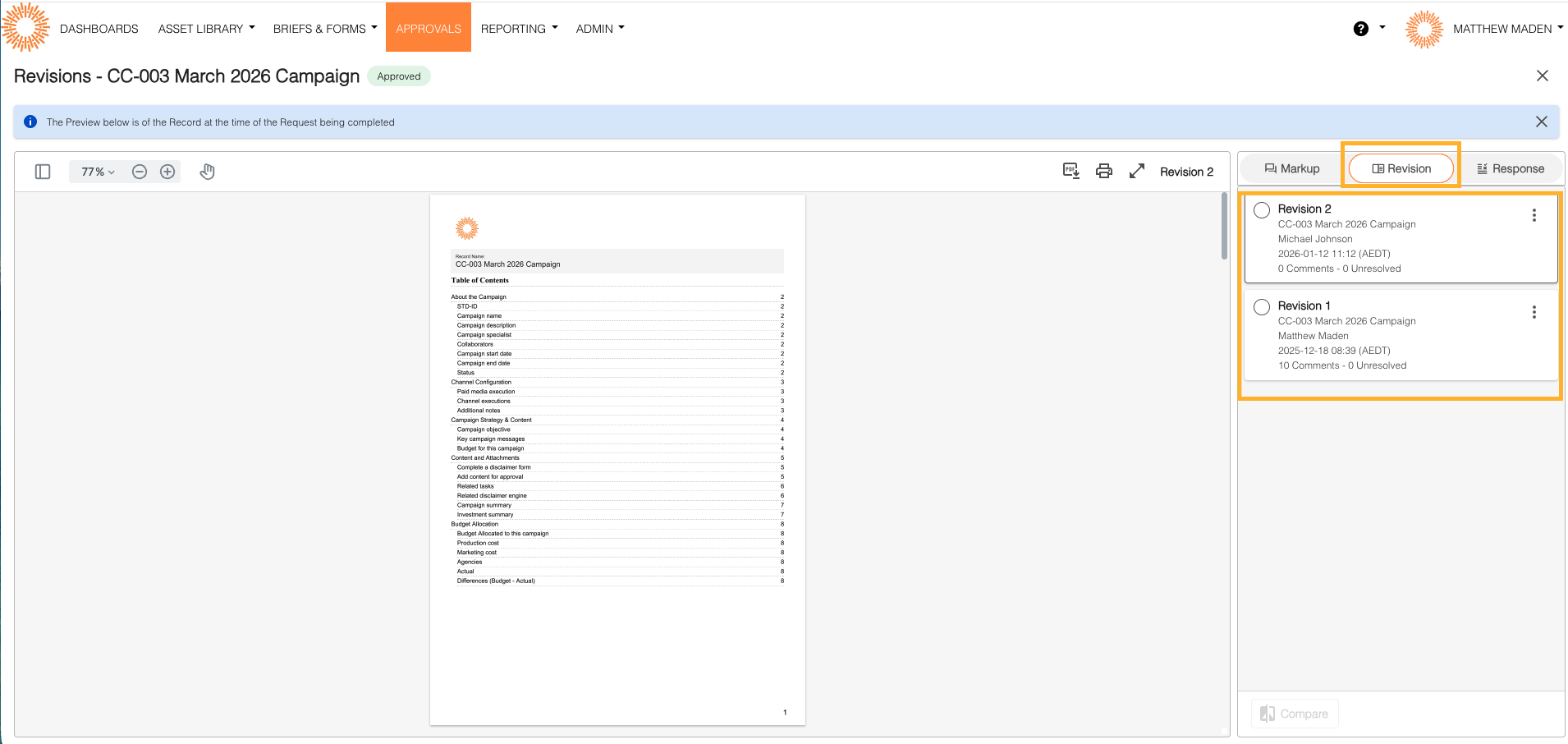
- Click the "Revisions" tab
- See all revisions for that specific approval
- Workflow-specific view of revisions
Both locations show the same revisions, just organized differently. The Version History tab shows revisions in context with versions, while the Revisions tab shows only revisions for that approval.
When Each is Created
Versions are Created When:
- You edit a record outside of an approval workflow
- The record is saved successfully
- File changes (for file-based records)
Example: You open a record on Tuesday, make changes, and save. If it's not in any approval, a new Version is created.
Revisions are Created When:
- You edit a record during a pending approval workflow
- The workflow type is "publish"
- The workflow status is "pending"
- You have permission to edit
Example: You submit a record for approval. While it's pending, you fix a typo. This creates Revision 1.
Real-World Example
The Version Story:
- January: Created marketing brochure → Version 1
- March: Updated pricing → Version 2
- October: Redesigned layout → Version 3
Result: Three Versions over the year, showing the brochure's evolution.
The Revision Story (During Version 3 Approval):
- Day 1: Submitted for approval
- Day 2: Fixed typo per feedback → Revision 1
- Day 3: Updated image → Revision 2
- Day 4: Final tweaks → Revision 3
- Day 5: Approved!
Result: Three Revisions during the approval of Version 3.
Final Result:
- Version History (on Record): Shows 3 Versions
- Approval Request (for Version 3): Shows 3 Revisions
- Both records are preserved permanently
Numbering Explained
Version Numbers
- Sequential across the entire lifetime: Version 1 → Version 2 → Version 3 → Version 4...
- Numbers never reset
- Represents the complete history
Revision Numbers
- Sequential within each approval, then reset
- Approval #1: Revision 1, Revision 2, Revision 3
- Approval #2: Revision 1, Revision 2 (starts over!)
- Each approval process starts fresh at Revision 1
- Versions track the record's entire history – a continuous sequence
- Revisions track changes within one approval process – each approval is its own story
Common Questions
"Is Revision 1 the same as Version 1?"
No, they're completely different:
- Version 1 = The first saved state of the record (ever)
- Revision 1 = The first edit during a specific approval process
A record could be on Version 15 and still have Revision 1 of its current approval.
"Do revisions show in Version History?"
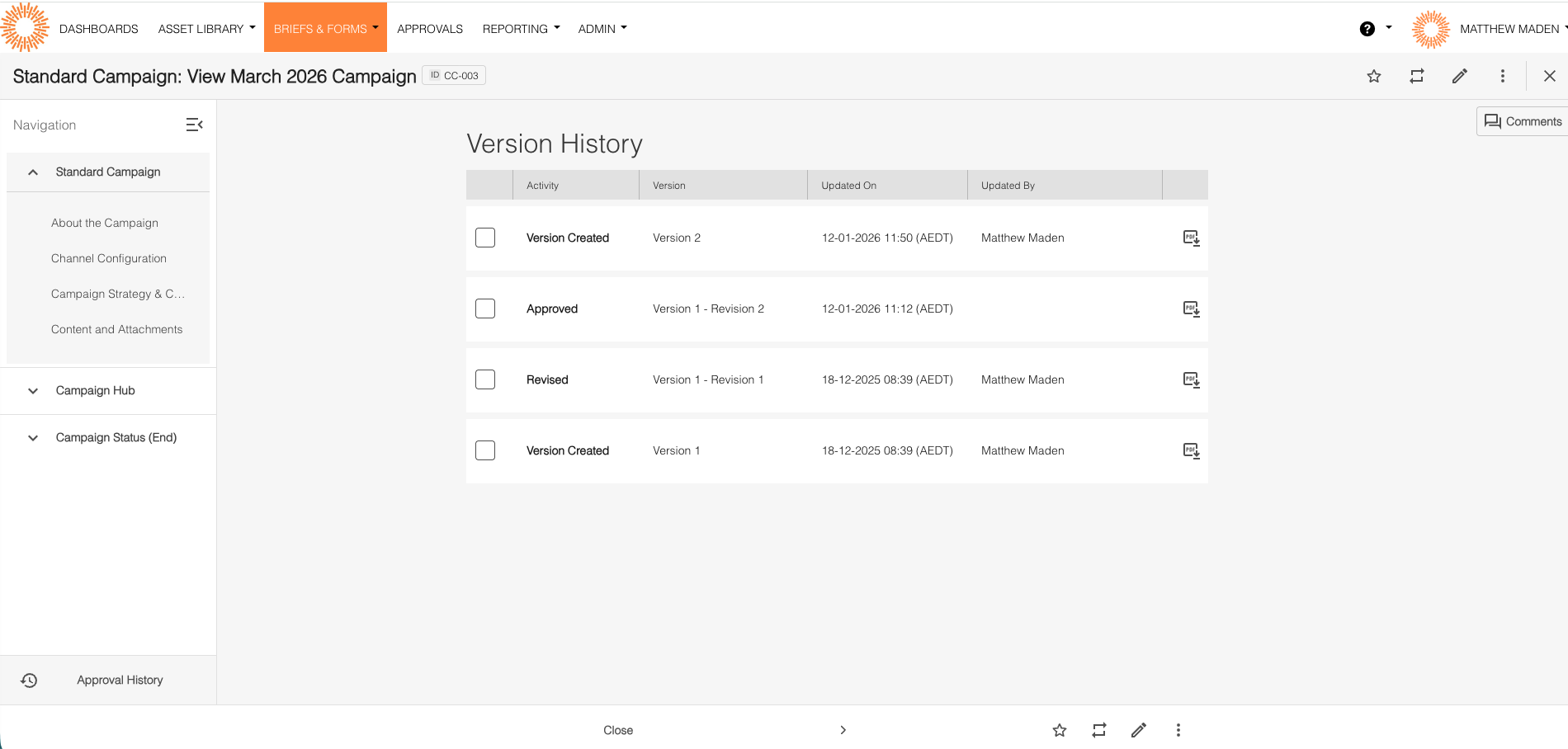
Yes! Revisions appear in Version History nested under their parent versions. You can see:
- Versions listed with their revisions underneath
- Revisions displayed as "Version X - Revision Y"
- Complete history in one place
You can also view revisions on the Approval Request → Revisions tab for a workflow-specific view.
"Can a record have Versions without Revisions?"
Yes! If approvals are never used, or if records are never edited during approval, there will be Versions but no Revisions.
Example: A record is edited directly (no approval) three times over a year. There will be 3 Versions and 0 Revisions.
Visual Guide
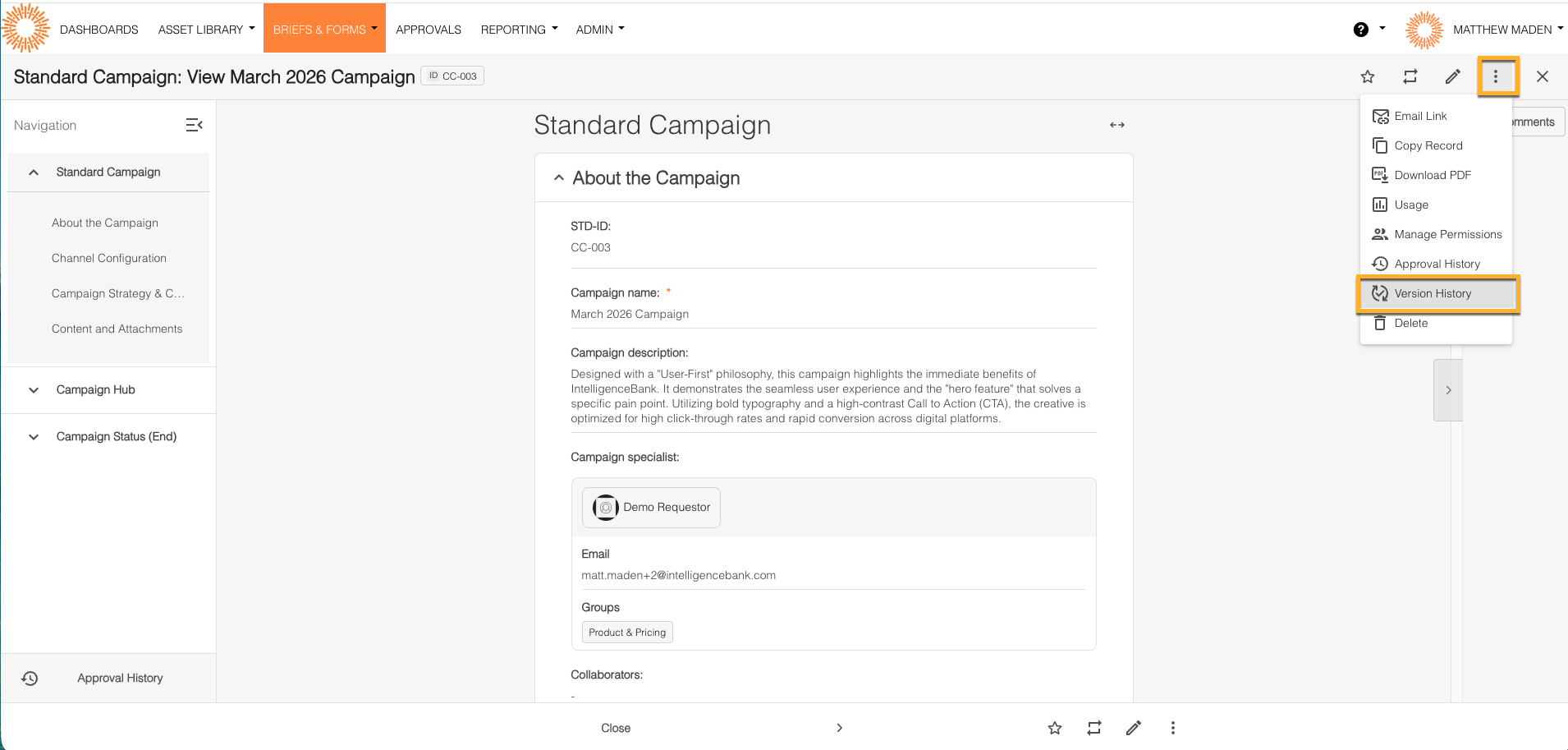
Finding Versions
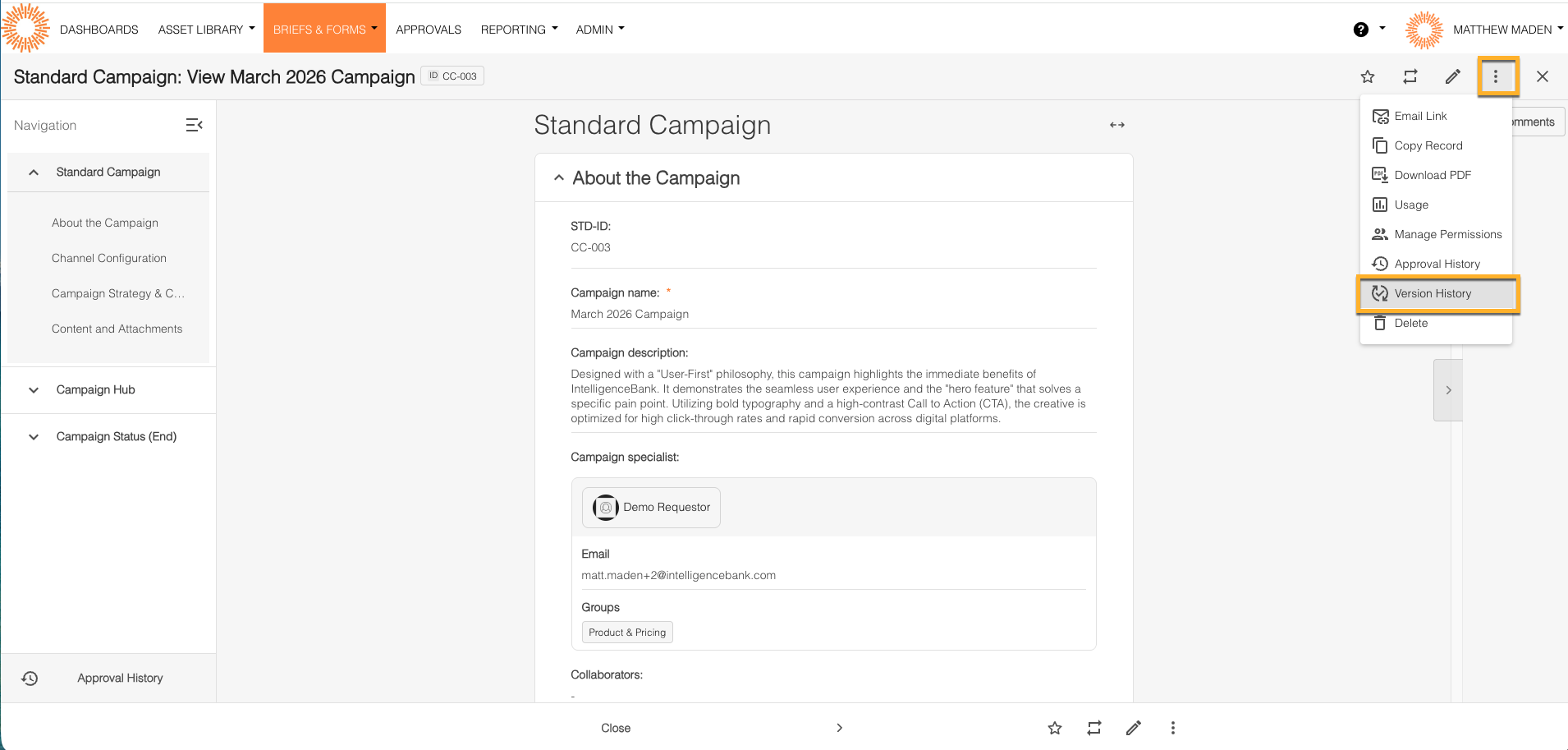
Record List → Click Record → Record Detail Page → "Version History" Tab → See All Versions
Finding Revisions
Option 1: On the Approval Request
Approval/Workflow List → Click Approval Request → Approval Request Detail Page → "Revisions" Tab → See All Revisions for This Approval
Option 2: On the Record (Version History)
Record List → Click Record → Record Detail Page → "Version History" Tab → See Versions and Revisions for the Record
Key Takeaways
- Versions = Record history → Found on Record → Version History tab
- Revisions = Approval history → Found in TWO places: Record → Version History tab (nested) OR Approval Request → Revisions tab
- Versions = Edits outside approval
- Revisions = Edits during approval
- Version numbers = Never reset (1, 2, 3...)
- Revision numbers = Reset each approval
Related Articles
- Understanding Record Version History – How to view and navigate version history
Need Help?
If features aren't working as expected:
- Check the Troubleshooting Guide
- Verify your permissions (see "Who Can Use What" above)
- Contact your administrator
- Or contact support with:
- Your account email address
- URL of the affected record or approval request
- What you were trying to do and what happened instead
- The exact text of any error messages (screenshots and screen recordings are helpful)
Or contact your account administrator for assistance with permissions or feature availability.
Please note that the terminology referenced above may appear differently in your platform as these are customizable terms.
Was this article helpful?
That’s Great!
Thank you for your feedback
Sorry! We couldn't be helpful
Thank you for your feedback
Feedback sent
We appreciate your effort and will try to fix the article