Version History provides a complete record of how your Records have changed over time. This feature enables you to track how Records evolve, compare different states, recover previous content, and maintain compliance documentation.
This article explains what Version History can do, how to access it, and how to use it effectively.
In This Article:
What is Record Version History
Version History is a complete record of how your Record has changed over time. Each time a Record is edited (outside of approval), a new version is created. Revisions made during approval also appear here, nested under their parent versions.
For Content Management:
- See how Records evolved over time
- Track changes and improvements
- Understand content development history
For Compliance:
- Maintain audit trail of all changes
- Document Record history for compliance
- Provide evidence of content evolution
How It Works
Versions are numbered sequentially (1, 2, 3...) and numbers never reset. Revisions appear related under their parent versions and are displayed as "Version X - Revision Y." Each version or revision is a complete snapshot of the Record at that point in time. You can view, download, and compare versions and revisions.
Where to Find Version History
Step 1: Navigate to Your Record
- Go to your records list or database
- Find the record you want to view
- Click to open the record
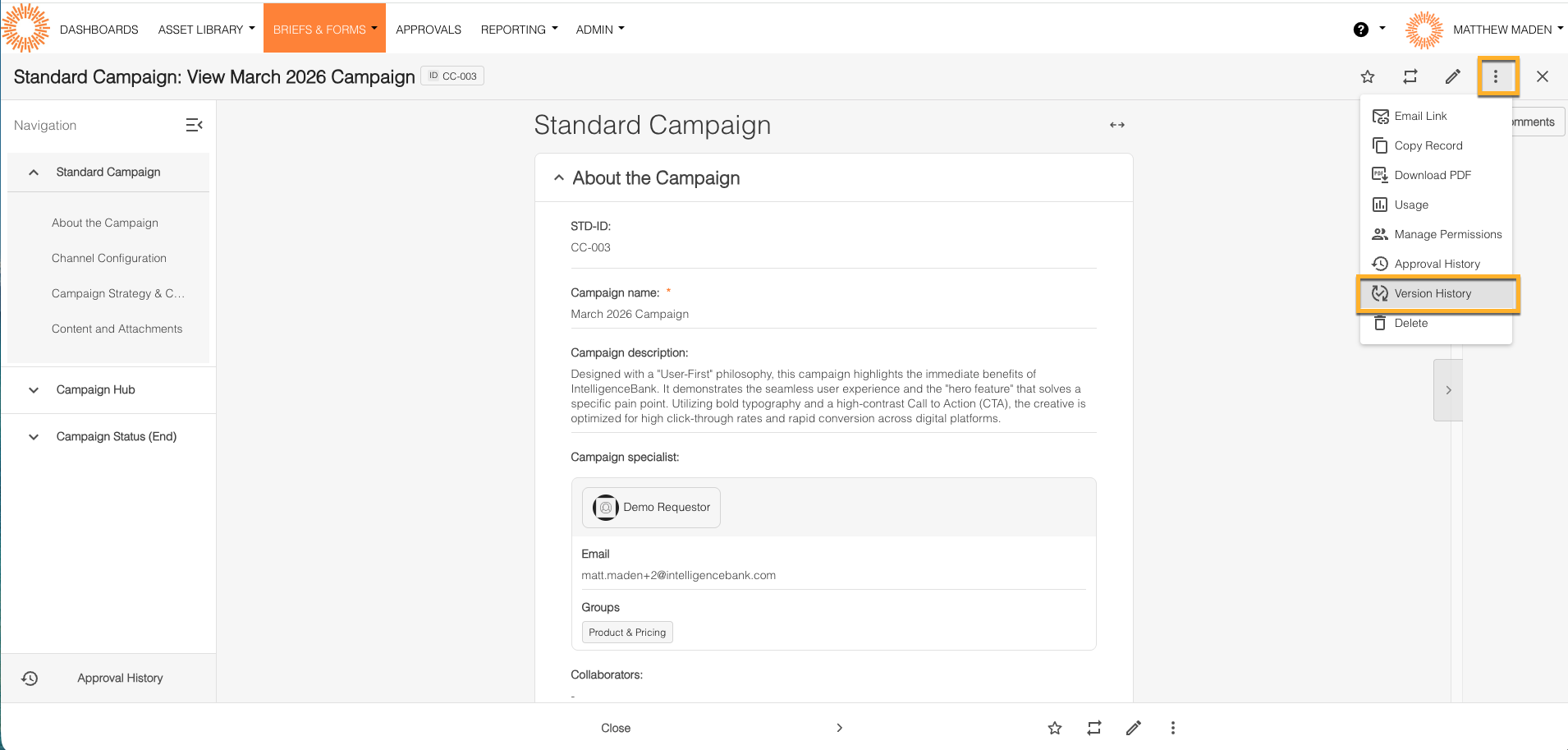
Step 2: Open Version History Tab
- On the record detail page, look for the "Version History" tab
- Click the tab to open it
- You'll see a list of all versions
What You'll See
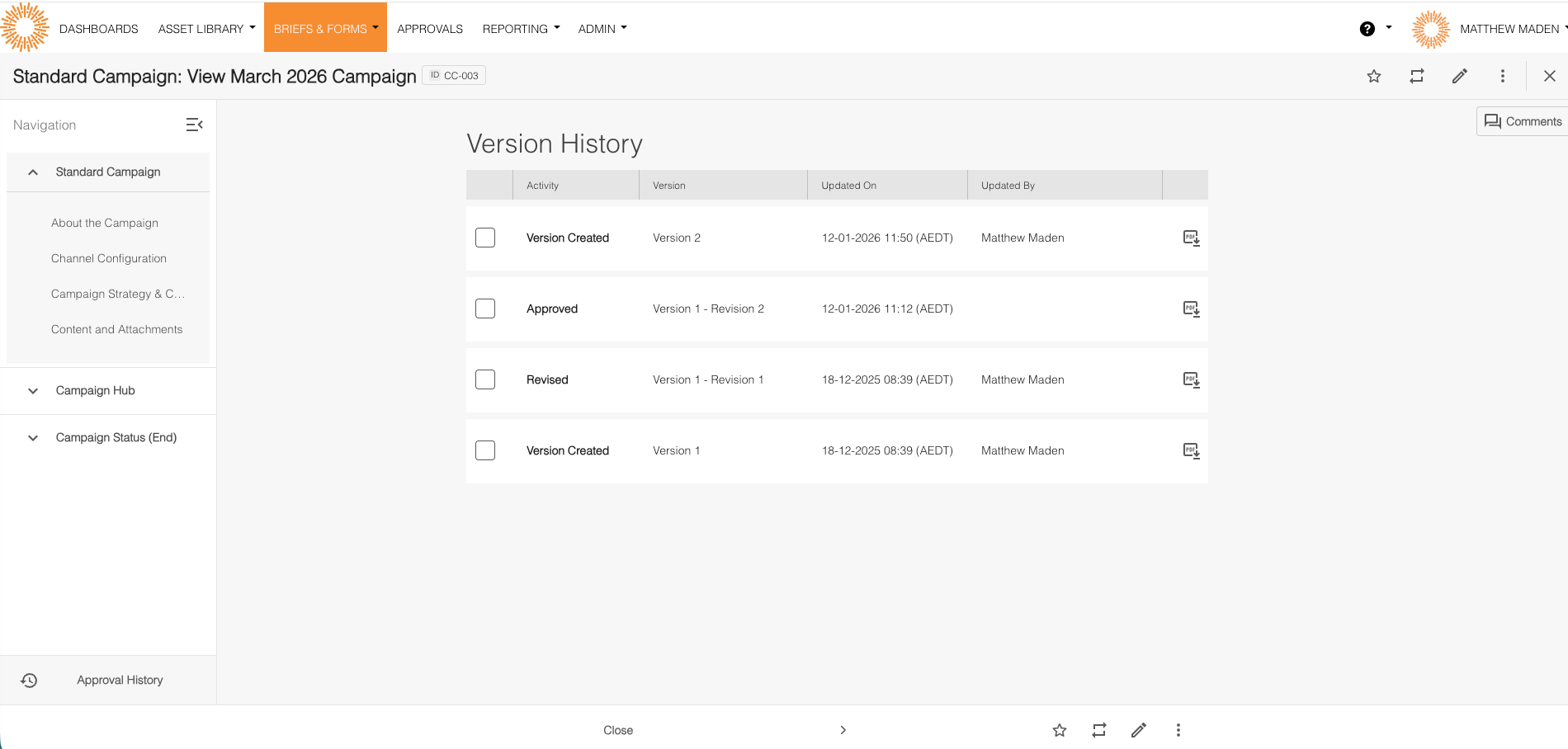
Each version in the list shows:
- Version number (1, 2, 3...)
- Creator (who made the change)
- Creation time (when it was created)
- Actions (view, download, compare)
Revisions appear nested under their parent versions, displayed as "Version X - Revision Y." They show the same information (creator, time, etc.) and can be viewed, downloaded, and compared like versions.
Viewing a Specific Version
Step 1: Select a Version
- From the Version History list, find the version you want
- Click on the version to view it
Step 2: Review the Version
The record displays in the state it was at that version. You can see all fields and content as they were, and you can download a PDF of that version if needed.
Comparing Versions
You can compare any two versions (or revisions) side-by-side to see what changed.
Step 1: Select Two Versions
- From the Version History list, select two versions
- Use the checkboxes or selection method provided
- Both versions should be selected
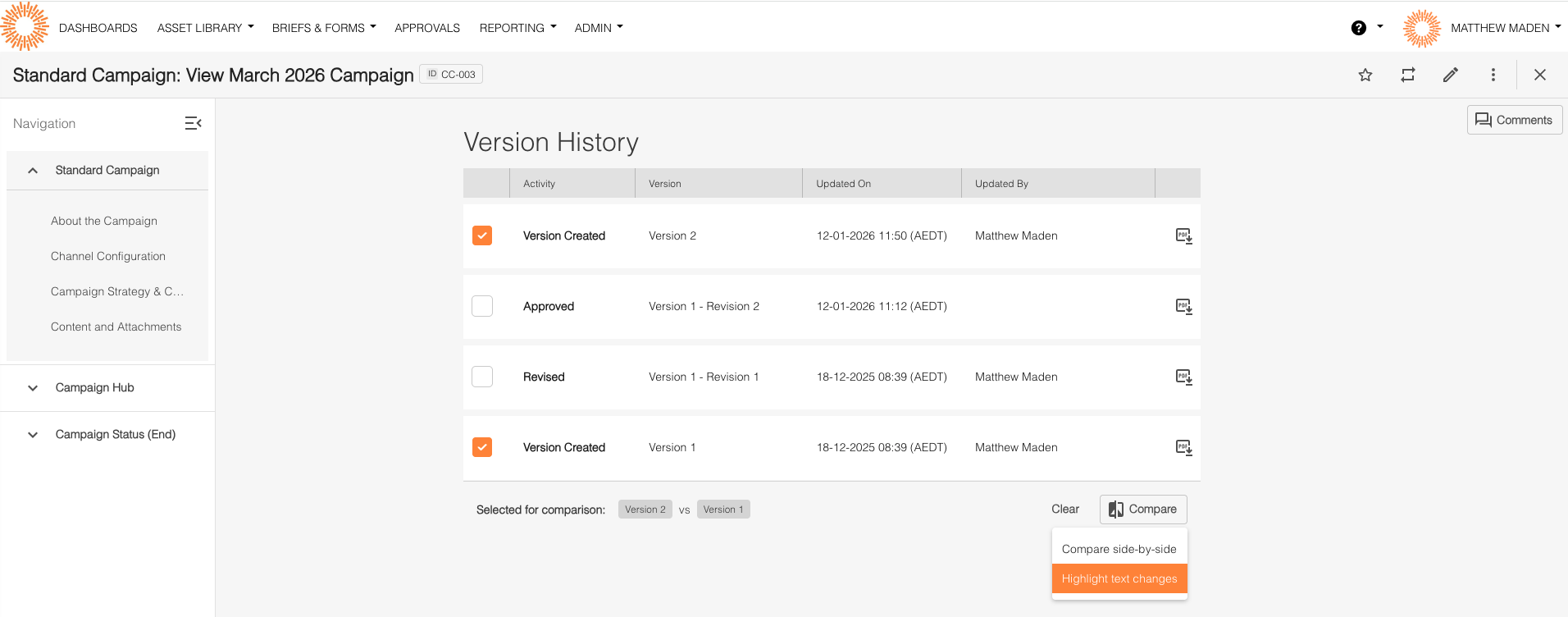
Step 2: Compare
- Click the "Highlight Changes" button
- A comparison view opens showing:
- Side-by-side view of both versions
- Field-by-field differences highlighted
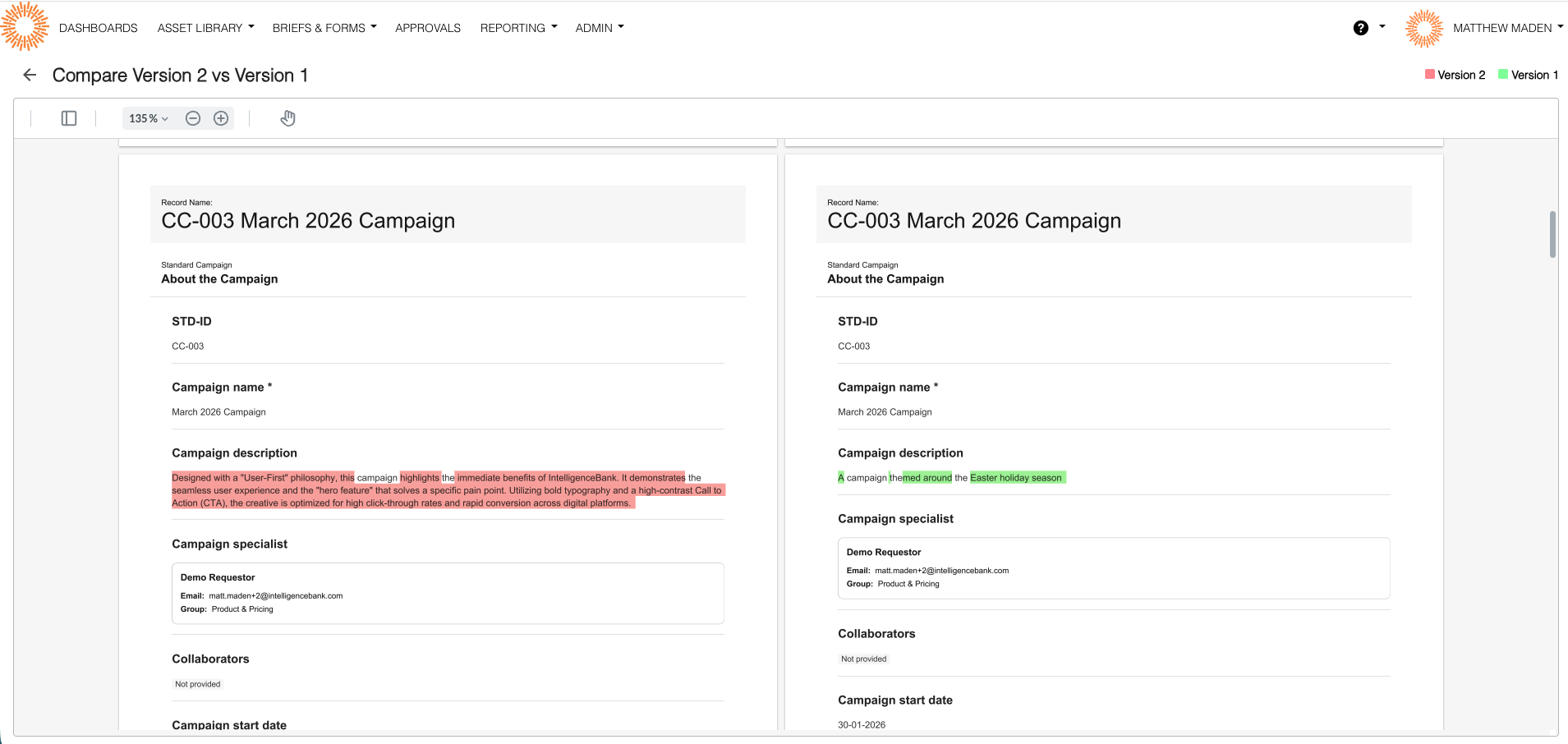
Depending on your setup, you may see side-by-side comparison with versions shown next to each other, or highlight differences with changes highlighted in the text.
Downloading Version PDFs
Step 1: Find the Version
- From Version History, find the version you want
- Look for the download action or button
Step 2: Download
- Click "Download PDF" or the download icon
- The PDF downloads showing the complete record state at that version
- Save or open the PDF as needed
What's included in the PDF: Complete record content at that version, all fields and pages, timestamp information.
Understanding Version Numbers
Versions are numbered sequentially: Version 1, Version 2, Version 3... Numbers continue across the record's entire lifetime and never reset (unlike revision numbers).
Example:
- January: Created record → Version 1
- March: Edited record → Version 2
- June: Edited record → Version 3
- October: Edited record → Version 4
All four versions are visible in Version History, numbered 1 through 4.
When Versions Are Created
Versions are created automatically when you edit a record outside of an approval workflow, the record is saved successfully, and the file changes (for file-based records).
If you edit a record during approval, a Revision is created instead (not a Version).
Troubleshooting
"I Can't See Version History"
Check these:
- Are you on the Record page? Version History is on the Record detail page, NOT on the Approval Request page. Navigate to the Record, not the Approval Request.
- Do versions exist? Versions are only created after edits. If the record was never edited, no versions exist. Make an edit to create the first version.
- Is the Version History tab visible? Check if the tab is visible on the record page. If the tab doesn't appear, the feature may not be enabled. Contact support or your account administrator.
- Do you have permission? Check you have view permission on the record. Without permission, you cannot see Version History. Contact your administrator for permission.
"Version History is Empty"
The record may have never been edited (no versions created yet), versions were created but you don't have permission to view them, or the feature is not enabled for your organization.
Make an edit to create the first version, or contact support if you believe versions should exist.
"I Can't Compare Versions"
Check these:
- Do at least 2 versions exist? You need at least 2 versions to compare. If only 1 version exists, comparison isn't available. Create another version first.
- Are both versions selected? Make sure you've selected exactly 2 versions. Comparison requires exactly 2 versions. Select two versions using the checkboxes.
- Do you have permission? Check you have view permission on the record. Without permission, you cannot compare. Contact your administrator for permission.
Best Practices
When to Use Version History
- Reviewing changes over time: See how a record has evolved
- Comparing versions: See what changed between two points in time
- Recovering previous content: Find content from an earlier version
- Audit purposes: Track all changes to a record
Tips
- Regular reviews: Check Version History periodically to track changes
- Use comparisons: Compare versions to see exactly what changed
- Download important versions: Save PDFs of important versions for records
- Understand numbering: Remember version numbers never reset
Related Articles
- Understanding Versions and Revisions – The difference between versions and revisions
- Comparing Versions – Detailed guide to version comparison
Need Help?
If features aren't working as expected:
- Check the Troubleshooting Guide
- Verify your permissions (see "Who Can Use What" above)
- Contact your administrator
- Or contact support with:
- Your account email address
- URL of the affected record or approval request
- What you were trying to do and what happened instead
- The exact text of any error messages (screenshots and screen recordings are helpful)
Or contact your account administrator for assistance with permissions or feature availability.
Please note that the terminology referenced above may appear differently in your platform as these are customizable terms.
Was this article helpful?
That’s Great!
Thank you for your feedback
Sorry! We couldn't be helpful
Thank you for your feedback
Feedback sent
We appreciate your effort and will try to fix the article