You can compare any two versions of a Record side-by-side to see what changed. This article explains how to compare versions and what you will see.
What is Version Comparison?
Version comparison shows you the differences between two versions of a Record:
- Side-by-side view – See both versions next to each other
- Highlighted differences – Changes are highlighted
- Field-by-field comparison – See what changed in each field
- File changes – See if files changed (if applicable)
Prerequisites
To compare versions, you need:
- At least two versions exist for the Record
- Access to view the Record
- Permission to view versions
How to Compare Versions
Step 1: Navigate to Version History
- Go to the Record detail page
- Open the Version History tab
- You will see a list of all versions
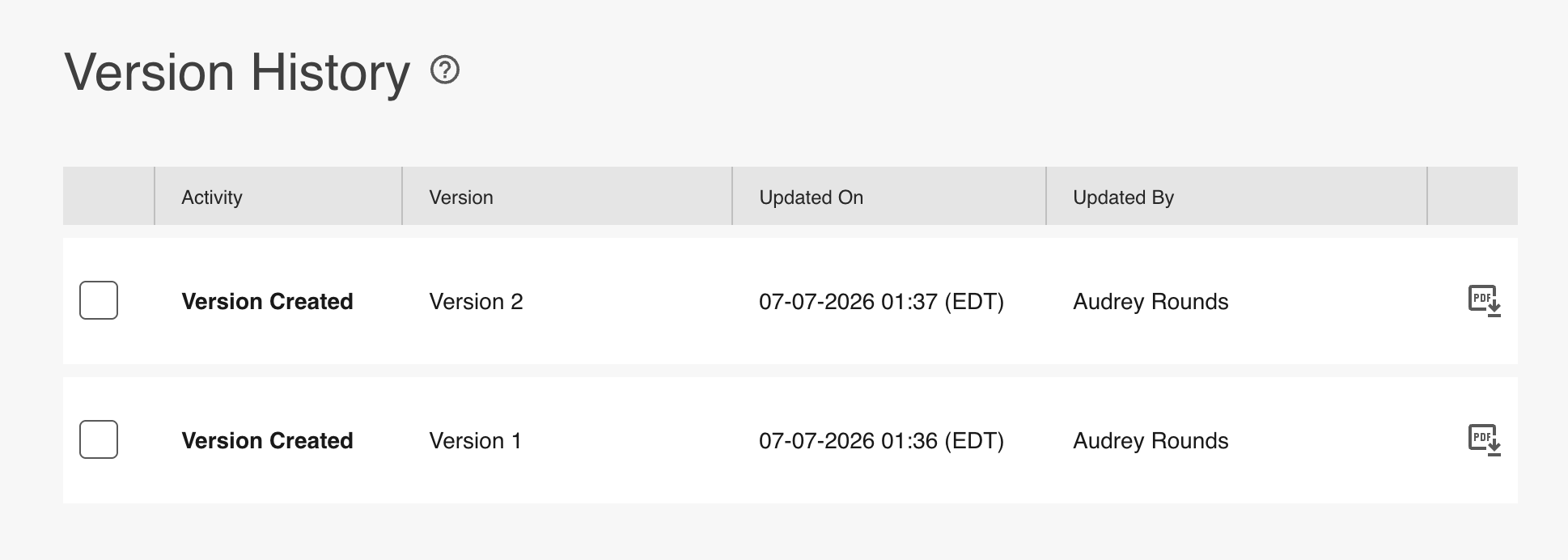
Step 2: Select Two Versions
- From the Version History list, select two versions
- Use the checkboxes or selection method provided
- Both versions should be selected
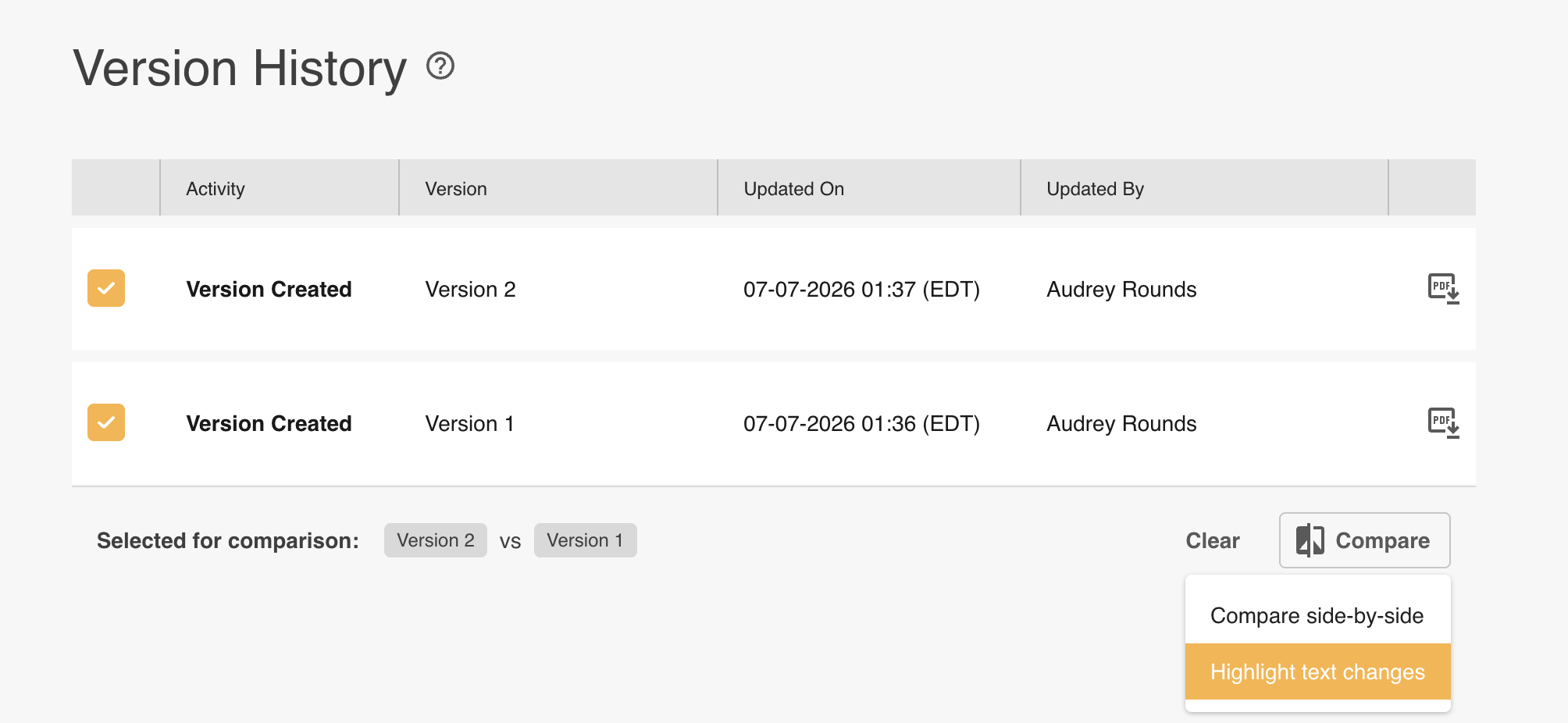
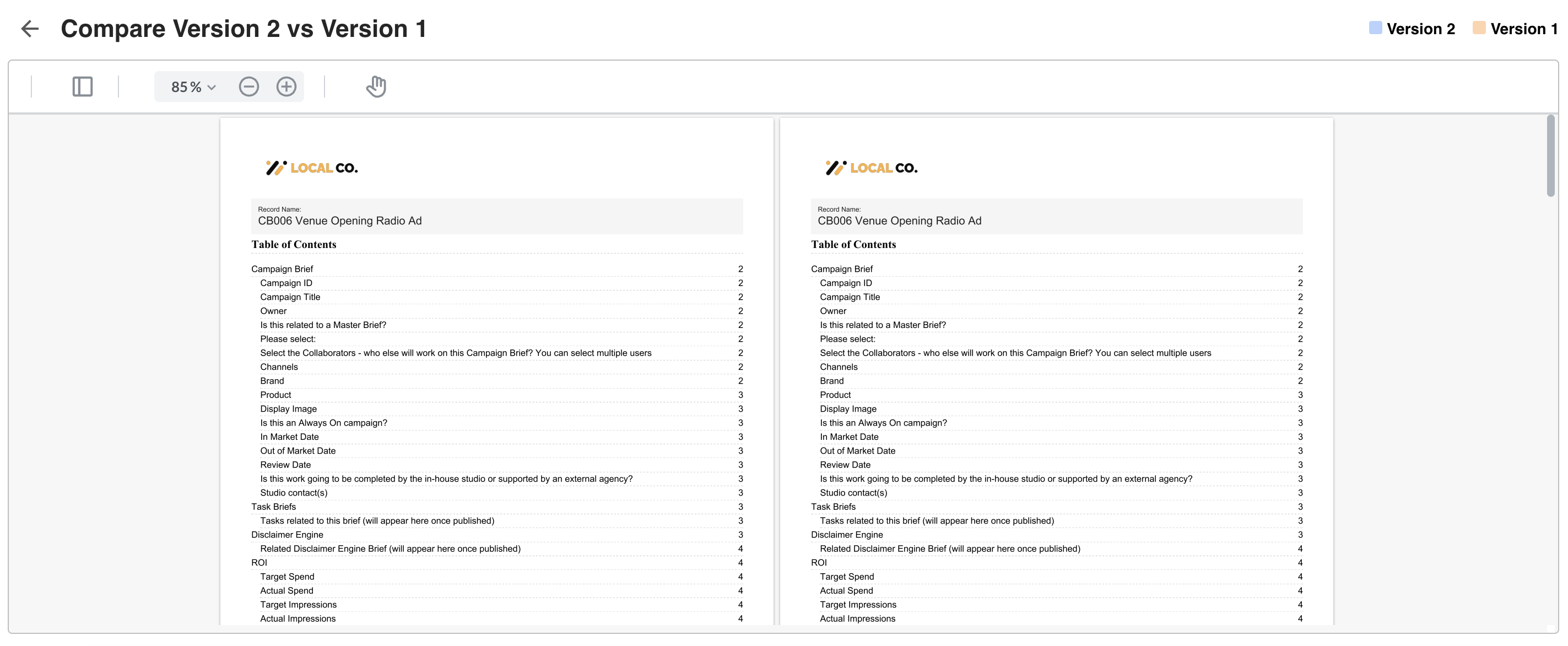
- A comparison view opens
- You will see both versions side-by-side
Step 4: Review Comparison
The comparison view shows:
- Left side – One version
- Right side – The other version
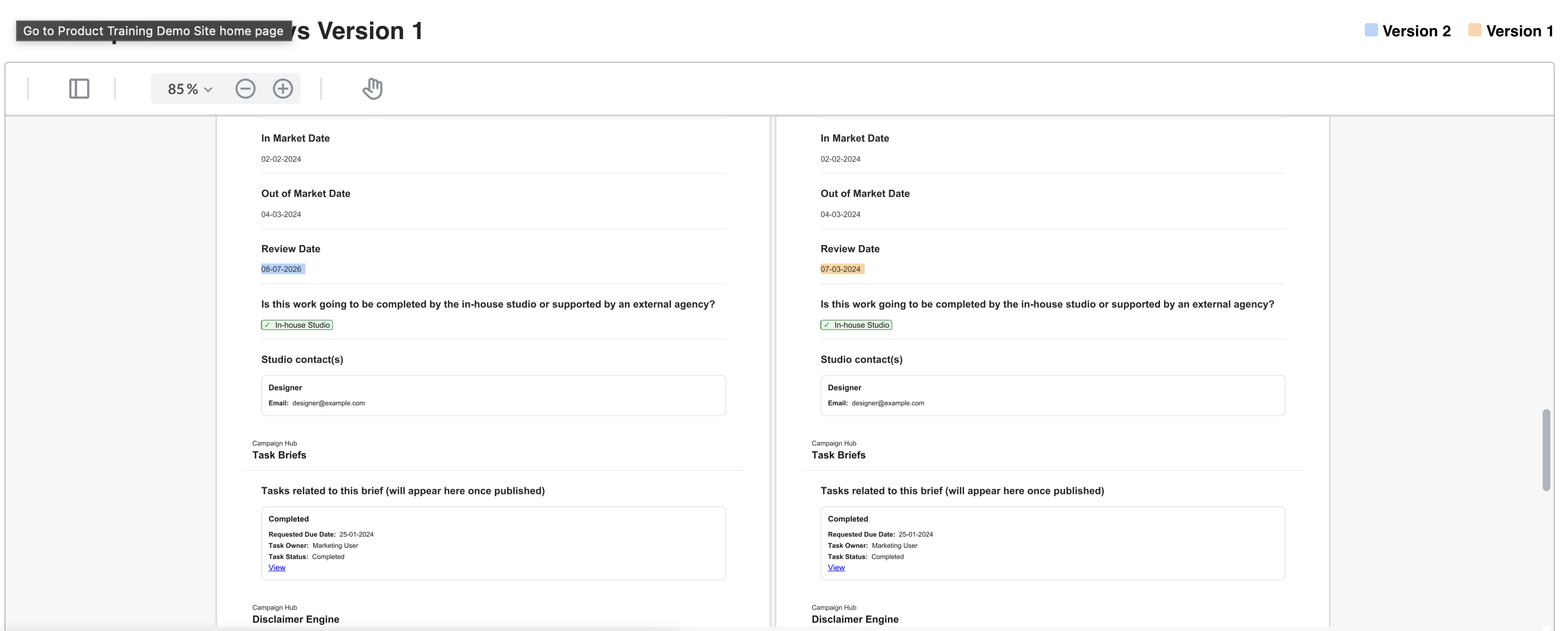
- Differences highlighted – Changes are marked
- Field-by-field view – See what changed in each field
Comparison View Options
Depending on your setup, you may see different comparison options.
Side-by-Side Comparison
Versions are shown next to each other for easy comparison. You can scroll through both versions together to review all content.
Highlight Differences
Changes are highlighted in the text to help you quickly spot what changed. The view may show additions, deletions, and modifications in different colors or styles.
What You'll See in Comparison
Field Changes
- Modified fields – Fields that changed between versions
- Added fields – Fields added in the newer version
- Removed fields – Fields removed in the newer version
- Unchanged fields – Fields that stayed the same
File Changes
- File replaced – If files were changed
- File added – If new files were added
- File removed – If files were removed
- File unchanged – If files stayed the same
Metadata Changes
- Creator – Who made the change
- Creation time – When the version was created
- Other metadata – Any other metadata that changed
Expected Behavior
Comparison Loading
Comparison may take a moment to load. Large Records may take longer. Wait for the comparison to fully load before reviewing.
Navigation
You can scroll through both versions. Navigation is synchronized so both versions scroll together. You can zoom in or out if needed.
Closing Comparison
Click outside the comparison or use the close button to return to Version History. Your selection is cleared when you close the comparison view.
Troubleshooting
"I Can't Compare Versions"
Check these items:
- Do at least two versions exist? You need at least two versions to compare. If only one version exists, comparison is not available. Make an edit to create another version, then compare.
- Are both versions selected? Make sure you have selected exactly two versions. Comparison requires exactly two versions to be selected.
- Is the Compare button visible? Check that the Compare button appears. The button may not appear if requirements are not met. Ensure two versions are selected.
- Do you have permission? Check that you have view permission on the Record. Without permission, you cannot compare. Contact your administrator for permission.
"Comparison View Doesn't Load"
Check these items:
- Wait for loading. Comparison may take time to load, especially for large Records.
- Try refreshing. Sometimes a refresh helps resolve cached content issues. Refresh the page and try again.
- Check browser compatibility. Use a modern, supported browser. Older browsers may not work correctly. Try a different browser if needed.
Still not working? Contact support with your user ID, Record ID, which versions you are trying to compare, and any error messages.
Best Practices
When to Compare Versions
- Reviewing changes – See what changed between versions
- Understanding evolution – See how a Record has evolved over time
- Audit purposes – Verify what changed and when
- Recovering content – Find content from previous versions
Tips
- Compare recent versions to review the latest changes
- Compare specific versions from particular time periods when investigating history
- Use for review to check changes before approving or publishing
- Document changes using comparisons to record what was modified
Related Articles
- Understanding Versions and Revisions
- Understanding Record Version History
- Downloading Records with Comments
Need Help?
If version comparison is not working, contact support with:
- Check the Troubleshooting Guide
- Verify your permissions (see "Who Can Use What" above)
- Contact your administrator
- Or contact support with:
- Your account email address
- URL of the affected record or approval request
- What you were trying to do and what happened instead
- The exact text of any error messages (screenshots and screen recordings are helpful)
You can also contact your account administrator if you believe you should have permission but do not.
Please note that specific terminology referenced above may appear differently in your platform as these are customizable terms.
Was this article helpful?
That’s Great!
Thank you for your feedback
Sorry! We couldn't be helpful
Thank you for your feedback
Feedback sent
We appreciate your effort and will try to fix the article