Conditional Reviewers allow you to dynamically and automatically assign different reviewers based on certain conditions that can be set up within an approval workflow's settings.
The conditions themselves could be dependent on the values the user has filled out in their record, or could be based on the submitter themselves.
Conditional Reviewers can be added to any Database Publish Approval Workflow and can be applied on both single and staged databases.
Table of Contents
Key Benefits
Conditional Reviewers provide a more efficient and automated way for routing approval requests through to the right reviewers, ensuring the right people see the right requests. This cuts down on what otherwise might be manual assigning of reviewers by requesters, who may make mistakes and assign requests to the incorrect reviewers, resulting in more work to re-assign requests.
Some common examples and scenarios that Conditional Reviewers can be used for are below:
- Scenario 1 - if a record doesn't need budget approval (as marked in the form) then it gets routed through Reviewer A, but if it does require budget approval, it goes to Reviewers A, B, and C for extra oversight.
- Scenario 2 - if the user submitting a record is a part of the Sales team/group, it goes to the Sales Manager as the reviewer, but if the user is in Marketing, it routes to the Marketing Manager for approval.
- Scenario 3 - if the record is marked as 'High' priority, it gets routed to a certain reviewer, versus 'Low' which has a different approval route.
How to Set Up Conditional Reviewers
Approval Workflow Settings
The setup is typically done by Main Admins in the Admin > Workflows area, and can be customised directly on a database level as well. The steps you need to create your new workflow are below:
- Open your Admin > Workflows area and select Create Workflow.
- Add a workflow name and select Publish as your Workflow Type, as well as Databases as the Tool.
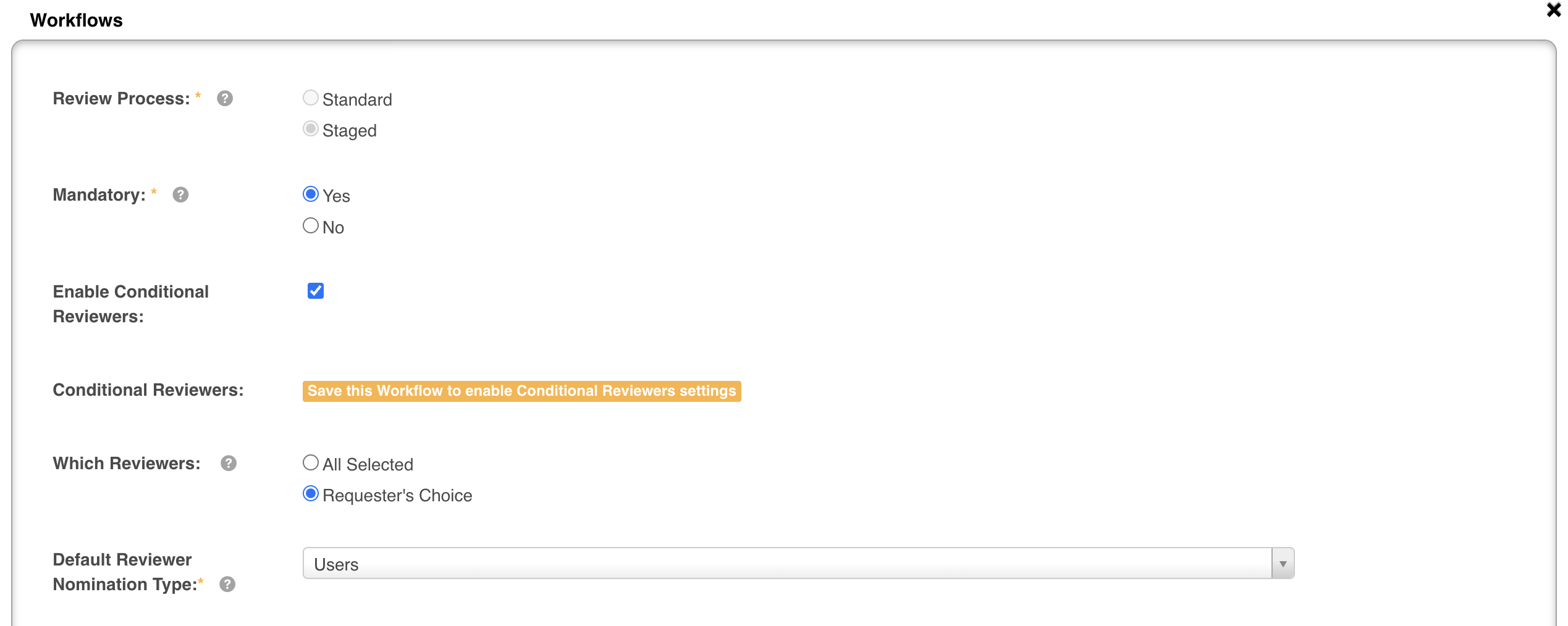
- A new setting called Enable Conditional Reviewers will then appear beneath the Which Reviewers field. Click the corresponding checkbox (as indicated below).
- You'll then need to Save your Workflow settings in order to prompt the next step to appear. Once saved, click the approval workflow's name to open up its settings and click the Configure button next to a new field called Conditional Reviewers.


Adding Conditional Reviewers
The screen that loads after selecting the Configure button outlined in Step 4 above is where you will be able to set up your Conditional Reviewers.
If this is a new workflow, the first dropdown will enable you to select whether the new Condition Sets should be applied Globally to all databases or will be specific to a single database. The numbers next to each option indicate how many Condition Sets already apply to that Global/Database option.

Creating a Condition
Depending on your selection above, you will be presented with a number of customisable settings, which will be slightly different depending on whether you've selected to apply your workflow Globally or to a specific Database.
The notable fields when creating a condition are:
- Name: This is the name of your Condition Set and will automatically update at the top of your page as you type.
- Conditions: This is where you will add the condition/s that will decide which reviewers will review a particular record. If the user submitting the record matches one of the conditions selected, the reviewers will populate accordingly and automatically when the approval request is made. You can select conditions using the dropdown menus.
- For Global Databases you can select options pertaining to the requester (i.e. the user submitting the record). This includes selecting a specific user, an email (a domain name for example), or their group, division or country.
- For Database specific options, you can select the requester options above or one of the fields that appear within that database's form. For instance, there might be a select or text field which asks users if they have budget for a specific project. If required, you can state that if they say no, the record routes to a particular reviewer.
- If you wish to Add Multiple Conditions, simply click Add to continue applying conditions. A maximum of 10 conditions can be added for each condition set.
- Nomination Type: This decides whether your reviewers will be specific users or group/s of users.

- Reviewers: Depending on the option selected as a Nomination Type, here you will select either user(s) or group(s) who will receive the approval request.
- Groups
- If Groups is selected, you will be able to select specific groups that will receive the request. If a group is selected, all users within that group will be able to approve a request.
- If you are on a Database specific workflow and there are group lookup fields within the custom form, you can select these fields as your reviewers. In this scenario, whichever group(s) are selected within the group lookup field will receive the approval request.
- Users
- If Users is selected, as with groups you can select user(s). This will open another dropdown menu allowing you to select specific users that need to receive the approval request.
- If you are on a Database specific workflow and there are user lookup fields within the custom form, you can also select these fields as your reviewers. Whichever user(s) are selected within the user lookup field will receive the approval request. You can select multiple user lookup fields.
- You can also select Leader as an option if that is used on your platform. If Leader is selected, then the Leader of the requester will receive the approval request.
- You can also select a combination of any of the options above.
- Groups
- Required Approvals: Either One or All reviewers will be required to respond to this approval request, depending on the option selected here.


Saving a Condition
At the bottom of each Condition Set is a Save button (pictured above). Click Save to add your Condition Set to the list of existing conditions (on the Conditions List Page), or to start a new list. The conditions will be saved automatically. Once saved, you will be taken to the Conditions List page, containing all Condition Sets that have been applied to that Database or Globally.
You will still need to Save the Workflow again before these conditions will apply to your database. See the Saving your Conditional Workflow section below.
Conditions List Page
This view will contain a list of Condition Sets that have been saved. A Condition Set is a group of conditions. You can switch between Global and Database conditions by clicking the dropdown menu at the top left of the page.
Within each area will be the title of your Condition Set, along with a detailed overview of the conditions that lie within it.
There are a number of actions that can be completed here:
- To Add a New Condition Set, click the +Add button at the top right of the page. A maximum of 10 Condition Sets can be added for each database.
- To Delete or Edit an existing Condition Set, click the Trash or pencil icon highlighted in the box below.
- Re-ordering your Conditions: If there is a Condition Set which is more important than others, it should be placed at the top of the list as the position determines the order the conditions are considered. To re-order, simply drag and drop your condition to the necessary position using the arrow icons highlighted.
- Minimising the view: If you wish to minimise the view of all the conditions so you cannot see the detail, either click the Close all Condition Sets arrow, or collapse individual Condition Sets by clicking the arrow in the area highlighted below.

Saving your Conditional Workflow
Once you have added your conditions, click Close at the bottom of your Conditions List page.

You will then be on the original Edit Workflow page. This is the page where you first created your workflow, or started editing an existing one, for instance by updating the name of your workflow or clicking Configure to add your Condition Sets. Click Save at the bottom of the page to successfully update your Conditional Reviewers.

How Conditional Reviewers are applied if other Condition Sets exist
When Conditional Reviewers apply (i.e. the condition is met), these will take precedence over other instances of the workflow. If Global Conditional Reviewers or general workflow conditions have been added for example, the Database specific Conditional Reviewers options will always take priority over them.
The order these will be applied in (from first to last) is: Database specific Conditional Reviewers > Global Conditional Reviewers > Workflow Template Conditions.
Frequently Asked Questions
Can you create a mix of single/stage reviews using Conditional Reviewers?
Conditional Reviewers supports a mix of single and staged approval processes if the template/main approval workflow was originally created as staged. If this is the case, you'll be able to create condition sets where, for example, if a record doesn't require budget approval, there's just one reviewer (i.e. a single stage), but if it does require budget approval, the request routes through a hierarchy of reviewers.
What happens if you set up Conditional Reviewers on an existing database that already has a publish approval?
Enabling and setting up Conditional Reviewers/Condition Sets in the Admin > Workflows area does not automatically apply Conditional Reviewers on any existing databases/publish approval processes. You will need to set up conditional reviewers and those condition sets on the publish approval workflow applied to your existing database within Database Settings in order for this feature to work there. Please reach out to your dedicated Customer Success Manager if you require assistance in setting this up.
What happens if you adjust or delete conditions on an existing database already using conditional reviewers?
The change to the conditional reviewers will only apply on new approval requests submitted moving forward, after that change was made. Any existing/pending approval requests prior to the update will not be impacted.
What happens if none of the conditions are satisfied?
If none of the conditions set up are met, the reviewers will revert to whoever was originally configured in the Which Reviewers field on the approval workflow template.
* Please note that some of the terms used above such as Databases, Workflows, Records & Approvals are customisable and may appear differently in your platform.
Was this article helpful?
That’s Great!
Thank you for your feedback
Sorry! We couldn't be helpful
Thank you for your feedback
Feedback sent
We appreciate your effort and will try to fix the article