Main Admins can configure approval workflows in IntelligenceBank to add a layer of review and governance over content creation, publishing, and downloads across the platform.
Approval workflows are particularly valuable for marketing teams and regulated industries that need to ensure content is compliant, reviewed before use, and auditable/reportable.
This article outlines how Admins can set up a new approval workflow and the various configurable settings.
Table of Contents
Getting Started
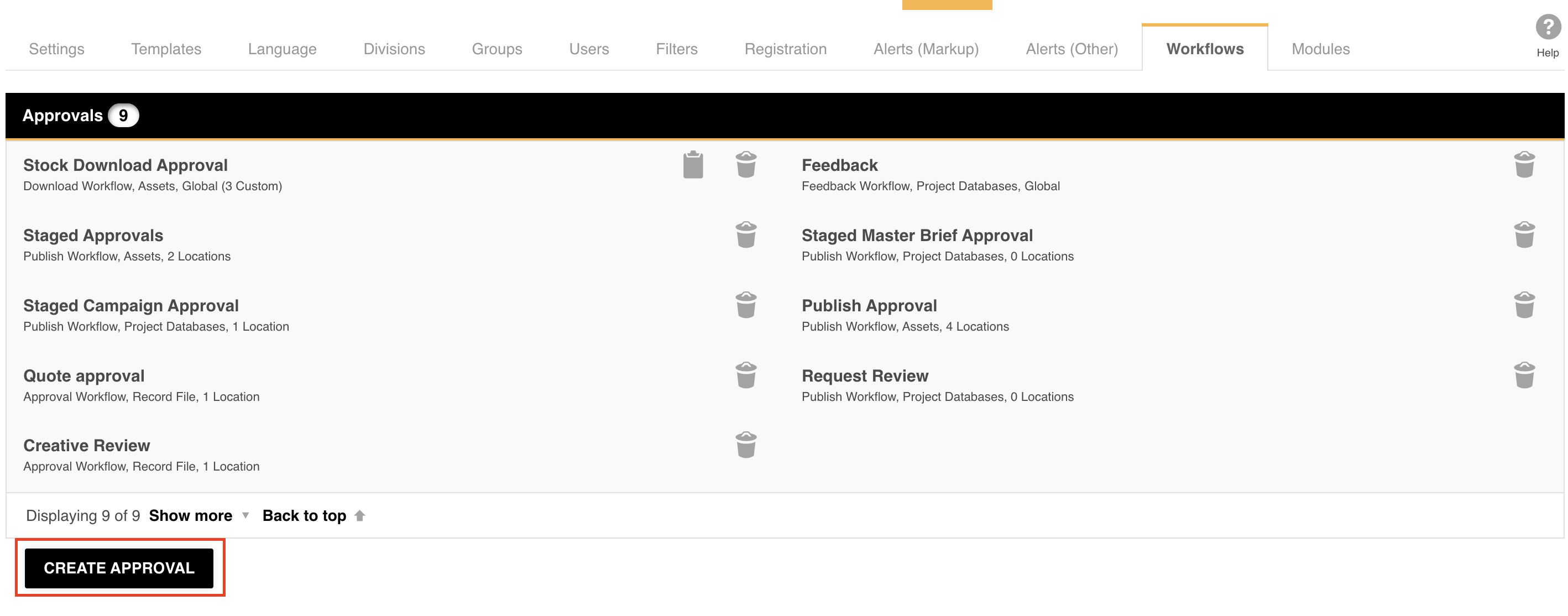
To create an approval workflow, navigate to Admin > Workflows. Any existing approval processes will be listed here. To create a new one, click Create Approval.
The first field to complete is the Workflow Name. This designates what the approval process will be called within the platform, and appears in email alerts sent to requesters/reviewers and in the approvals list, so users can easily identify which workflow a particular item is associated with.
Workflow Types
IntelligenceBank supports four types of approval workflows. Select the type that best suits your use case from the Workflow Type dropdown.
Publish Approval
A publish approval requires review before an asset can be uploaded to a folder in your Asset Library, or a form/record can be published to a database. It typically triggers on both asset/record creation and upon editing.
Common use cases include ensuring assets uploaded to a folder are reviewed before end users can access them, or requiring that request forms and briefs go through a budget or scope check before being worked on. While a publish approval is pending, the asset or form record is held in the approvals area and does not appear in the folder or database.
To learn more about asset Publish Approvals, please review this article here.
To learn more about record/database Publish Approvals, please review this article here.
Download Approval
Download approvals apply specifically to resources/assets. They require users with Preview permission on a folder to request approval before downloading assets, rather than being able to download at will. This is useful when you need to capture why a user is downloading a particular asset - those reasons are tracked and reportable within the platform.
To learn more about Download Approvals, please see the Download Approvals - Process Overview article here.
Feedback Approval
Feedback approvals are an informal process for gathering input on existing content. They apply to both resources/assets and databases/forms, and are triggered manually - there is no automatic trigger. Unlike publish approvals, a pending feedback request does not remove the asset from its folder or the record from its database; other users can still view and interact with them in the meantime.
Use feedback approvals when you want to solicit opinions before deciding whether to revise an asset, or when a near-complete form record needs a soft review before it is finalised.
To learn more about asset Feedback Approvals, please review the article here.
Record File Approval
Record file approvals apply to assets uploaded within a multi-upload field in a database/form. This allows the approval to happen directly on the file within the form context - for example, approving a creative asset that was produced as part of a brief without needing to upload it separately to the Asset Library.
Record file approvals are also suited to compliance reviews for Marketing Compliance/Content Risk Review customers. For example, once risky language has been addressed in content scanned by the platform, legal or compliance teams can use this workflow to provide a final sign-off on the asset.
To learn more about Record File Approvals, please review the article here.
Review Process
The Review Process setting determines whether multiple reviewers assess a request at the same time, or in a defined sequence. The options are:
Standard
All reviewers are notified simultaneously of an approval request and can respond to the request independently. This is the only option available for download approvals.
Staged
Staged approvals follow a sequential hierarchy. Reviewers at each stage are only notified once the previous stage has approved the request. If any stage does not approve, subsequent stages are never notified. You can configure up to 5 stages, with multiple reviewers per stage.
Use staged approvals when a defined chain of approval is required - for example, a line manager must review and approve before the request escalates to a department head.
Scope and Mandatory Settings
Global
Setting a workflow as global means it will apply across all folders (for Asset Library workflows) or all databases (for Database workflows) by default. Select No if the workflow should only apply to specific folders or databases, which you then configure individually on those items.
Mandatory
Setting a workflow as mandatory means users cannot bypass the approval process when performing the relevant action (uploading an asset, submitting a form, etc.). This is recommended when compliance requirements mean nothing should proceed without review.
If set to No, the approval option still appears but users can choose to proceed without going through it.
Reviewer Settings
Which Reviewers
This setting determines who receives the approval request. The available options are:
- All Selected: The request goes to all reviewers nominated in the Reviewers field. Best suited for workflows where the same reviewers are involved most of the time.
- Direct Leader: The request is automatically routed to the leader assigned to the requester's user profile.
- Leaders: The requester's direct leader is pre-selected as the reviewer, but the requester can switch to a higher-level leader if needed. This is useful in hierarchical environments where a leader may occasionally be unavailable.
- Requester's Choice: The requester selects their own reviewers from a dropdown list. Recommended when reviewers vary regularly between requests, or when the person submitting the request is best placed to know who should review it.
Reviewer Nomination Type
Choose whether reviewers are nominated as individual Users or as Groups. Selecting Groups means the request is sent to every user within the nominated group - for example, all members of a Compliance team group would be notified and able to review.
Reviewers
Select which users (or groups) from the dropdown menu should be set up as the nominated reviewers for approval requests.
Pre-Populate Reviewer(s)
This setting applies when Requester's Choice is selected. It controls whether the reviewers entered in the Reviewers field are pre-filled in the approval request form, or whether the field starts blank for the requester to fill out themselves.
Pre-populating (i.e. selecting Yes) is helpful when the reviewers are usually the same across most requests or there are a large number of reviewers - the requester simply removes anyone not needed for their particular case. Consider selecting No if the reviewer list is short and it is quicker for the requester to select from scratch.
Conditional Reviewers
Conditional Reviewers allow you to dynamically assign different reviewers based on values selected within a form. For example, if the appropriate reviewer for a creative brief changes depending on the asset type, channel, or department, you can configure a different reviewer set for each scenario.
Response and Completion Settings
Required Approvals
If you have multiple reviewers, use this field to specify how many must approve before the request is considered fully approved. For example, if you have 3 reviewers and only need 2 to approve, enter 2. To require all reviewers to approve, enter 0.
Require Approval Response
This setting applies to feedback approvals only. When enabled, reviewers must formally approve or decline the request. When disabled, reviewers can respond with a comment only - suitable when the process is genuinely informal and a hard approval decision is not needed.
Hide Decline Response Option
When set to Yes, the decline button is removed from the reviewer's response form - they can only approve. This is particularly useful for iterative, proofing-based workflows where assets go through multiple rounds of revision before final approval.
In these workflows, clicking decline would close the approval request entirely and force a new submission. Hiding the option means reviewers communicate required changes through proofing and markup comments instead. The requester addresses the feedback, uploads a new revision, and the reviewer then approves when satisfied.
Consider selecting No if you need an audit trail of declined requests - for example, to report on assets that were not approved - keep the decline option visible so that outcome is captured.
This setting is currently supported for the following approval types:
- Resources/Assets - Publish
- Resources/Assets - Feedback
- Record File Approvals
Auto-Complete When Declined
When marked Yes, a single decline from any reviewer immediately marks the entire request as declined, without waiting for the remaining reviewers to respond. Use this when one decline is sufficient to stop the approval process. If No is marked, the approval request can still be pending and approved if the remaining reviewer(s) provide their approval and the request has met the sufficient number of required approvals.
Yes with Comments Response Option
When enabled, reviewers see an additional response option: Yes with Comments. This allows a reviewer to signal conditional approval - for example, approving on the understanding that a minor change will be made later without requiring re-submission.
In terms of platform behaviour, a "Yes with Comments" response functions identically to an approval - the asset or form is still published and marked as approved. It is merely tracked as a separate response type for reporting purposes only.
All Responses Required
This option appears when Autocomplete When Declined is set to No. When marked Yes, all reviewers must submit a response before the request is marked as complete - even if the required number of approvals or declines has already been reached. This ensures a complete record of every reviewer's decision is captured.
Required By Field
When marked Yes, an optional Required By field will appear for the requester, where they can indicate a date when they need a reviewer's response. An automatic reminder email is sent to any pending approver 24 hours before this date (weekends and public holidays are excluded). Marking No will not display the Required By field .
This field is recommended as it provides useful data for SLA tracking - you can report on whether required-by dates are being met, identify patterns in review turnaround times, and address any gaps in reviewer responsiveness.
Notifications and Reminders
User Notifications
This setting controls which email alerts requesters and reviewers receive throughout the approval process. There are two options:
- All: Requesters and reviewers are notified for every relevant event, including submission confirmation, reviewer responses, completions, cancellations, reassignments, and grouped request updates.
- Select: Choose only the specific events that should trigger an email alert. Use this to reduce noise for users who receive high volumes of notifications - for example, only alerting when a request has been completed or canceled.
Reminders
You can configure up to 5 custom reminders to be sent to reviewers when a request is still pending. Each reminder can be set a specified number of days before or after the submission date or required-by date, with a customised message. Click Add in the Reminders section to configure each one.
You can also choose to Escalate to Leader on a reminder, which redirects it to the reviewer's leader (as configured in their user profile) rather than the reviewer themselves. This option is only available when Leaders or Direct Leader has been selected as the reviewer type.
For more information on setting up custom reminders, please review the article here.
Workflow Conditions
Workflow conditions allow you to add data conditions on asset or form fields that determine whether the approval process as a whole is triggered, auto-completed, or skipped when an asset or record goes through approval.
Workflow conditions are supported on the following approval types:
- Resources/Assets - Publish
- Resources/Assets - Download
- Databases/Forms - Publish
For more information on workflow conditions, please review the article here.
Collaboration Settings
Allow Collaborators
When enabled, users who are neither the requester nor a nominated reviewer can be added to an approval request as collaborators. Collaborators can add markup comments and contribute input, but cannot formally approve or decline the request (unless they are a Main Admin or Approval Admin).
Collaborators are supported for the following approval types:
- Resources/Assets - Publish
- Resources/Assets - Feedback
- Record File Approvals
If Allow Collaborators is enabled, a Collaborator Restrictions field appears with three options:
- All Users: Any user on the platform can be added as a collaborator.
- Basic: Anyone who can view the request can be added as a collaborator.
- Groups and/or Divisions: Limit collaborator eligibility to users within specific groups or divisions.
For more information around Collaborators, please review the article here.
Allow Empty Comment
This setting controls whether requesters and reviewers must include a comment when submitting their request or response. Select Yes to allow responses without a comment. Select No to require a comment on every response - useful when a written explanation is needed for audit purposes.
Comments Field Type
Choose between Basic (plain text) and Rich Text (reviewers can apply bold, font changes, and other formatting). Select the option that best suits the nature of the feedback your reviewers will typically be providing.
Enable Markup Comments - Comment Threads
When enabled, users can create threaded comments within the proofing and markup area. This is helpful when a specific question or side discussion only needs to involve certain participants - those users can collaborate in their own thread without it appearing in the general comments view.
This setting is supported for the following approval types:
- Resources/Assets - Publish
- Resources/Assets - Feedback
- Databases/Forms - Publish
- Record File Approvals
Other Fields
Allow Local Customisation
Enabling this option allows users to make minor adjustments to workflow settings when applying it to a specific folder or database. This is helpful when you want a centralised approval setup but need slight variations in certain locations - for example, a particular folder may require a different reviewer.
This setting is currently supported on the following approval types:
- Resources/Assets - Publish
- Resources/Assets - Feedback
- Resources/Assets - Download
- Databases/Forms - Publish
- Databases/Forms - Feedback
Lock Fields
Even when local customisation is permitted, you can prevent specific settings from being changed. Use the Lock Fields dropdown to select which fields must remain consistent across all locations where the workflow is applied - for example, locking the required number of approvals to maintain a consistent standard.
For more information on Local Customisation/Locking Fields, please refer to this article here.
Enable Grouped Requests
When enabled, multiple requests submitted simultaneously via a bulk request action are grouped together for the reviewer. For example, if a user submits a bulk download request for several assets, the reviewer sees those requests as a group in a dedicated tab in their Approvals List and can action them together or individually. This improves efficiency when reviewing batch requests that may have similar criteria for approval.
This setting is currently supported for the following approval types:
- Resources/Assets - Publish
- Resources/Assets - Download
- Record File Approvals
For more information on grouped requests, please review the article here.
Enable Bulk Reviewing
When enabled, reviewers can select multiple similar requests from the same workflow and review them together in a single action. This makes reviewing items easier and more efficient for reviewers.
This setting is currently supported for the following approval types:
- Resources/Assets - Publish
- Resources/Assets - Download
- Resources/Assets - Feedback
- Record File Approvals
For more information on Bulk Reviewing, please review the article here.
Was this article helpful?
That’s Great!
Thank you for your feedback
Sorry! We couldn't be helpful
Thank you for your feedback
Feedback sent
We appreciate your effort and will try to fix the article