Grouped Approval Requests provide a way to streamline notifications when multiple requests are made at the same time, and allow reviewers to respond to multiple requests at once, saving time and effort.
Grouped Requests are supported for the following workflow types:
- Resource/Asset Download Approval Workflows
- Resource/Asset Publish Approval Workflows
- Record File Approval Workflows
Table of Contents
Grouped Download Requests
The Grouped Download Approval Request feature allows users with Preview permission to request download approval for multiple assets. It also allows reviewers to respond to multiple requests at once, which makes the approval process more efficient.
Users needing to download multiple assets have the ability to request files in the same form submission instead of requesting each one separately.
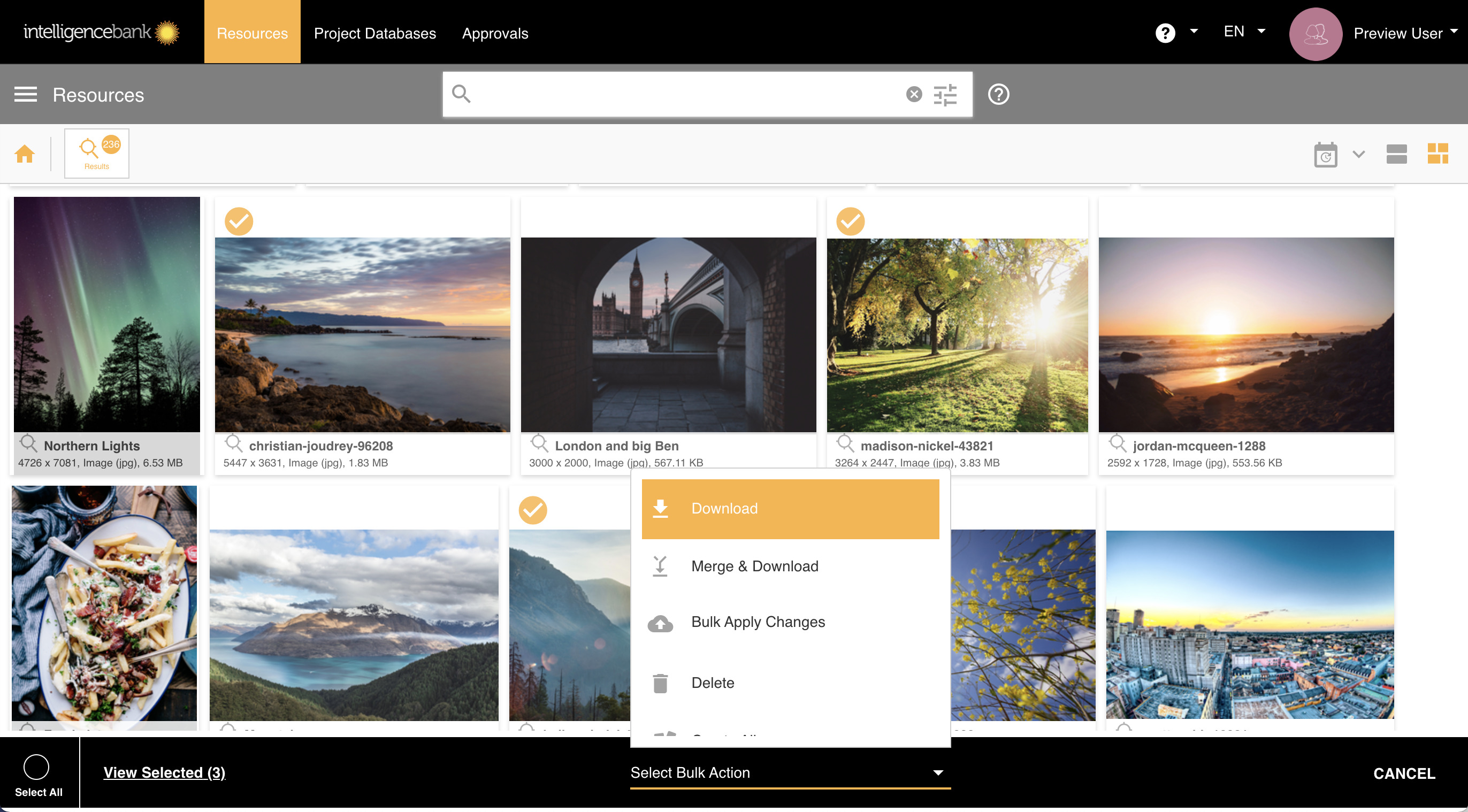
This feature can also be accessed from a user's Collection(s) and from search results within the platform.
Multi-Step Request and Download Process
When a Grouped Download Approval request is submitted, the platform automatically builds a multi-step process to:
- Request approval across different approval workflows a user belongs to (Step 1 below)
- Give a user the ability to download any selected assets that may have been pre-approved or auto-completed as part of this request, all in the same process (Step 2)
Step 1: Download Request for Selected Assets

Step 2: Bulk Download Approved Assets

Steps to Enable Grouped Downloads
Grouped Download requests are currently enabled by default for any Download Request Workflow and cannot be disabled. The feature applies to whatever folder(s) the Download Workflow has been applied to.
Grouped Asset Publish Requests
The Grouped Resource Publish Request feature allows assets that are bulk uploaded or bulk edited together via a Publish Approval process to be grouped together. Requesters can monitor their requests collectively as a group, or still as individual requests. Reviewers can also respond to multiple requests within a group all at once.
This feature applies to assets being added or edited from the same folder, or in some cross-folder bulk editing scenarios.
Steps to Enable Grouped Resource Publish Requests
| 1Navigate to Workflows | Go to Admin > Workflows and select the Asset Publish Approval workflow you want to enable Grouped Requests on. |
| 2Enable the setting | Check the Enable Grouped Requests setting, then save the workflow. |
| 3Confirm scope | The setting will now apply to whatever folder(s) the Publish Workflow has been configured against. |
| 4Configure notifications | Within the workflow's settings, the User Notifications field will display new options when Grouped Requests is enabled. Select which notifications you'd like requesters and reviewers to receive. |
The available notification options are:
- For the Requester:
- Grouped Request submission confirmation - one email will be sent to confirm the items that have been requested and form this group request.
- Grouped Request has been completed - the requester will receive an alert when all items in the group are completed. If 'Also send individual completed emails' is also enabled, the requester will receive both individual alerts as items are completed one by one, as well as a final completion notification.
- For Reviewer(s):
- Grouped Request notification - one email will be sent to confirm the items that require review, at every stage of a staged workflow. This applies whenever 2 or more items in the group are approved together in the same action. If only a single item is actioned on its own, that reviewer gets a normal individual alert instead (if configured to receive those alerts).
Definition of what makes an Asset Publish Group
For Grouped Asset Publish Requests, a group is defined by either bulk upload or bulk edit scenarios when multiple assets are submitted for approval at the same time:
- Bulk Upload - if a user is submitting in batches within the same upload session, each batch may become its own group.
- Bulk Edit - for cross-folder handling, items will be grouped by each workflow template involved, so multiple grouped requests may be created from a single bulk submission.
- For either Bulk Upload or Bulk Edit, if any assets fail submit validation they will be excluded from the group, as they need to be submitted again.
- If only a single asset is sent for approval on either Bulk Upload or Bulk Edit pages, it will be excluded from the group logic.
Grouped Record File Approval Requests
The Grouped Record File Approval Request feature allows assets in a Multi Upload field in a record to be grouped together when they are requested for approval in bulk. Requesters can monitor their requests either collectively as a group, or still as individual requests. Reviewers can also respond to multiple requests within a group all at once.
Steps to Enable Grouped Record File Approval Requests
| 1Navigate to Workflows | Go to Admin > Workflows and select the Record File Approval workflow you want to enable Grouped Requests on. |
| 2Enable the setting | Check the Enable Grouped Requests setting, then save the workflow. |
| 3Confirm scope | This will now apply to whatever Multi Upload Fields the Record File Approval Workflow has been configured against in your databases. |
| 4Configure notifications | In the User Notifications field within the workflow template, new options will appear when this setting is enabled. Select which notifications you'd like requesters and reviewers to receive. |
The available notification options are:
- For the Requester:
- Grouped Request submission confirmation - one email will be sent to confirm the items that have been requested and form this group request.
- Grouped Request has been completed - the requester will receive an alert when all items in the group are completed. If 'Also send individual completed emails' is also enabled, the requester will receive both individual alerts as items are completed one by one, as well as a final completion notification.
- For Reviewer(s):
- Grouped Request notification - one email will be sent to confirm the items that require review, at every stage of a staged workflow. This applies whenever 2 or more items in the group are approved together in the same action. If only a single item is actioned on its own, that reviewer gets a normal individual alert instead (if configured to receive those alerts).
Definition of what makes a Record File Group
For Grouped Record File Requests, the definition of a group is dictated by what has been selected and then submitted via the Bulk Request action in the multi-upload field.
Reviewing Grouped Requests
Assets from any group request will also appear as single requests in the Requests tab of your Approvals List, but can also be reviewed in bulk via the more streamlined process below.
If you bulk-approve items from the Requests tab and they happen to belong to the same group, reviewers at the next stage still receive one grouped email rather than one per item, the same behavior as reviewing from the Grouped tab below.
Review Grouped Requests from email notifications
A single consolidated email will be sent to the requester and reviewer(s) at the start of the process, and to the requester at the end, once all items have been reviewed.
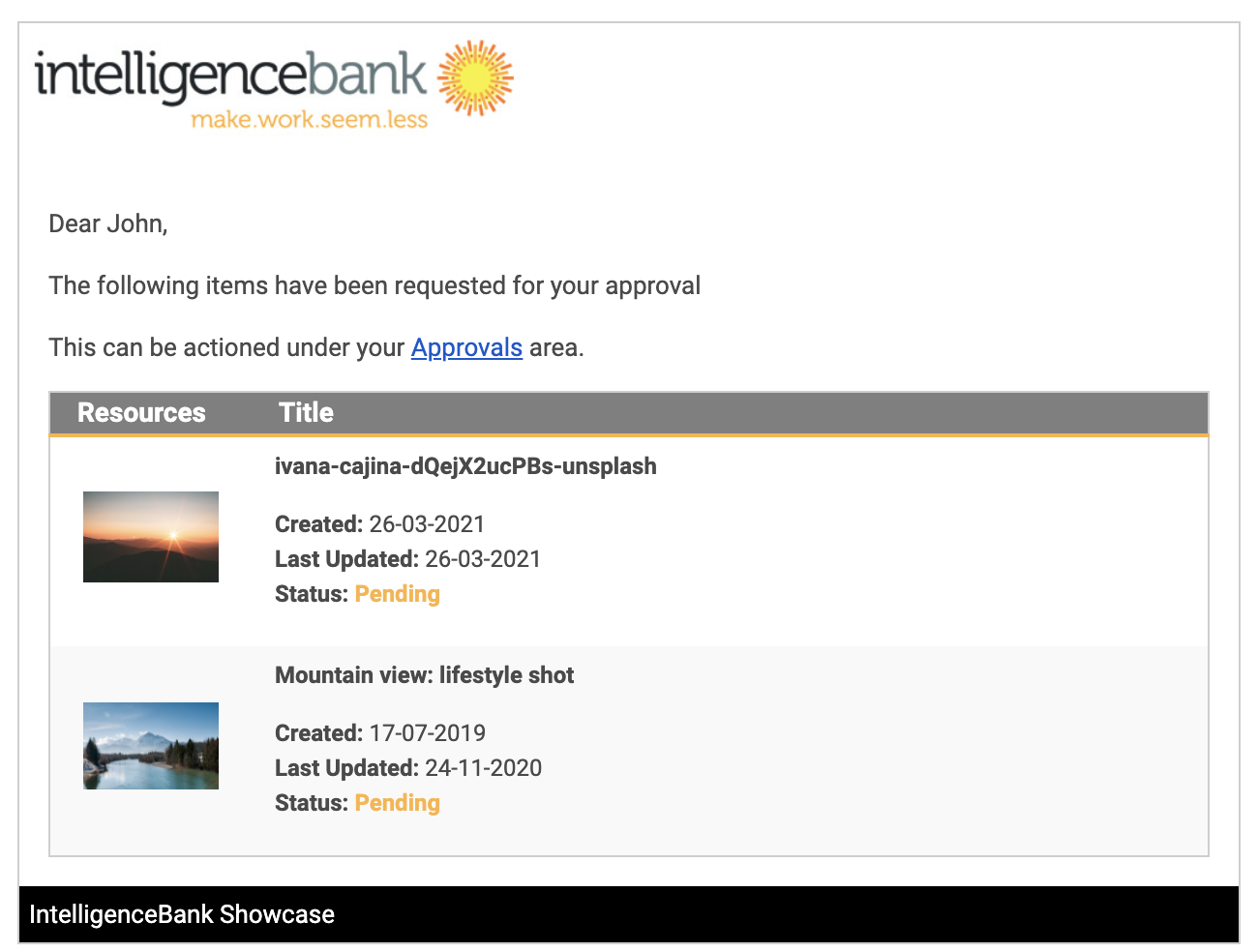
Click the main link in these emails to be taken to the Group Approval Review Page.
Accessing your Grouped Requests in the Approval Request List
Assets can also be approved in bulk via your Approval Request List. Click on the Grouped Request tab and click on the name of the relevant Grouped Request:
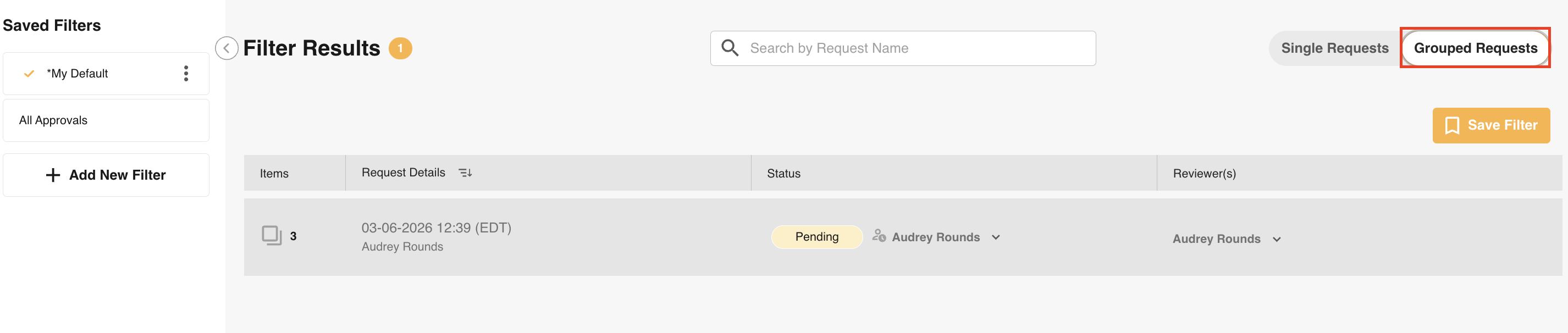
This will open the Grouped Approval Review page and show all items that were requested.
Grouped Approval Review page
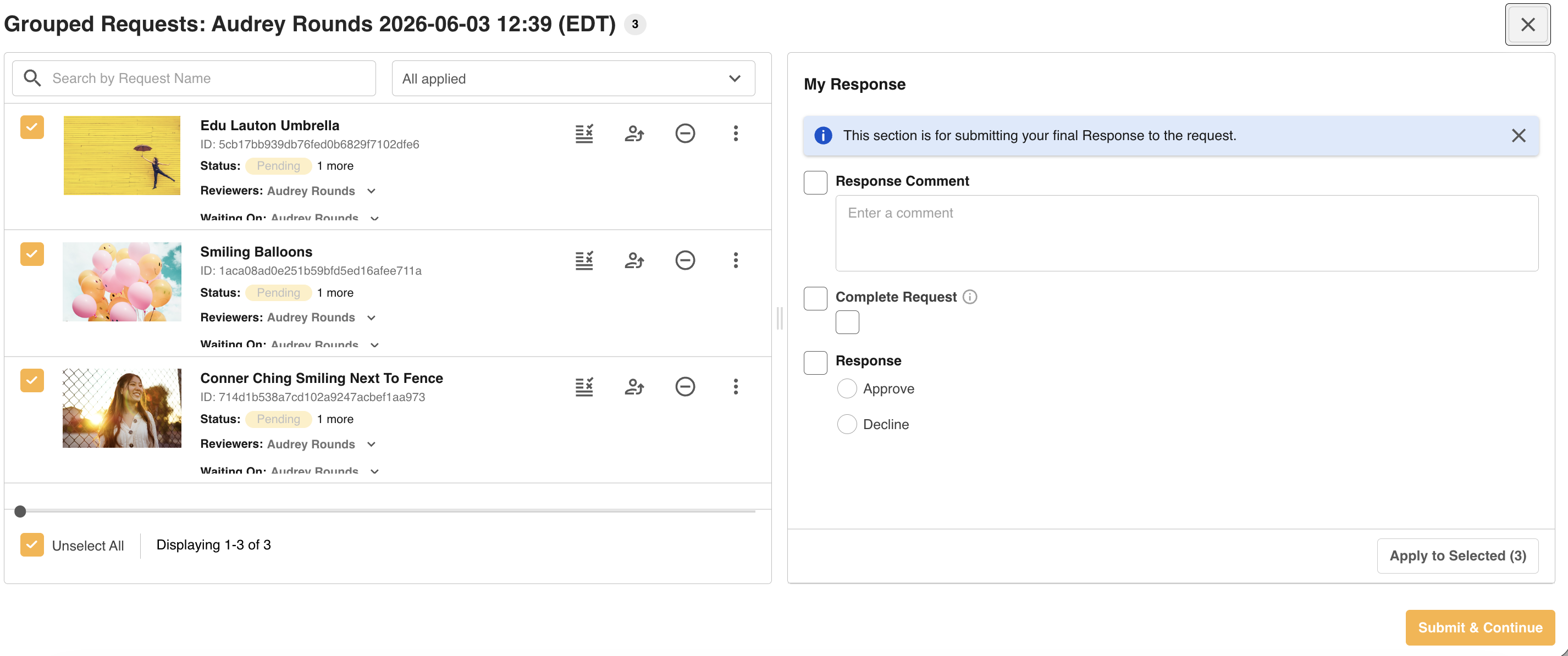
The Grouped Approval Review page is split into two main sections: Requests and Responses.
Requests
On the left of this page you can view all the items listed in the request. Actions available in this space include:
- Filter by request status (e.g. all Pending or Approved requests)
- Search for specific request names
- Select specific requests via checkboxes to apply response information in bulk or in batches
- Open individual requests to check each in more detail and review them individually
- Perform key actions like Download, Re-assign and Cancel
- View key information about each request (such as remaining Reviewers)
Responses
The right side of the page allows reviewers to:
- Input Comments
- Add an Approval decision (Approved or Declined)
- Add an Approved Until date (if applicable)
- Click Apply to Selected to add those details to the selected requests
Submitting your Response
Once you have added the needed responses, either in bulk or individually, click Submit & Continue, or Submit & Next (for individual responses). Your Grouped Approval Review page will automatically update to reflect the changes.
Reporting and Compliance
While bulk reviewing via the Group Review page makes things quicker and easier for reviewers, we understand it may not always be best practice. Concerns may include reviewers paying less attention to each individual asset or being less thorough in their review process.
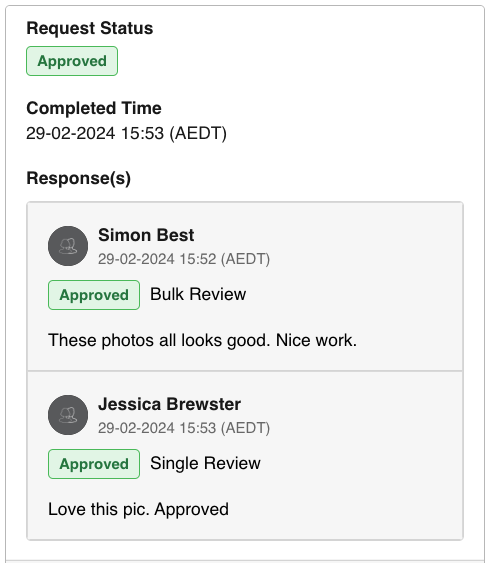
To help monitor how your reviewers are using this feature, tracking is in place to note if users are reviewing one by one (either from the Approvals List, or individually from the Bulk Review page) or in bulk.
This information is available in:
- Workflow History - a Bulk Review column notes which responses were made singly or in bulk.
- Review Request Response section - responses will indicate if they were made via single review or bulk review actions:
- Data Reporting - for Workflow Response reports:
- The Bulk Review column shows how responses were made ('Yes' if in bulk, 'No' if single, 'N/A' for unsupported record requests). Bulk Review can also be used as a filtering condition to see results that have all been made in bulk, or not.
- A Bulk Response UUID column surfaces a unique ID that can be used as a condition to see what other requests were made at the same time by the same user.
* Please note that some terms used above, such as Workflows and Approvals, are customisable and may appear differently in your platform.
Related Articles
Was this article helpful?
That’s Great!
Thank you for your feedback
Sorry! We couldn't be helpful
Thank you for your feedback
Feedback sent
We appreciate your effort and will try to fix the article