The Collaborators feature allows users to be added as "Collaborators" to certain pending approval requests. These Collaborators can leave markup comments and annotations against the asset undergoing review, without having the ability or need to formally approve or decline the request.
Table of Contents
Key Benefits
Collaborators broaden the number of users who can participate in proofing and collaborating on an asset during its review process.
There might be instances where your organisation wants to include other "interested parties" or people who might have important insight into an asset's review, but who shouldn't necessarily have the ability to approve or decline the request. Rather than adding those users as unnecessary reviewers, you can add them as Collaborators so that they can add annotations and comment on the asset.
Collaborators can also be helpful for organisations using Staged Approval workflows. Because reviewers from previous or upcoming stages cannot participate in Markup Comments (only reviewers on an asset's currently pending stage can participate), if you need to solicit feedback from these reviewers, you can add them as Collaborators so they can do so at that point in time.
This provides more flexibility to when a reviewer can provide insight during a staged approval workflow.
What is a Collaborator?
A Collaborator is a user who can be added to supported workflow requests and can then add their feedback via Markup Comments.
A Collaborator should not be a user you need to formally approve or decline the request - those users should remain as reviewers. Consider adding Collaborators if you have any users who would provide helpful insight or feedback on an asset undergoing review.
What Workflow Types are Supported for Collaborators?
Collaborators are supported for the following approval types:
Collaborators can be configured on an approval workflow-by-workflow basis. Once enabled, the feature will apply to all pending requests tied to that workflow.
Configuring Collaborators on an Approval Workflow
Admin users can configure this on a workflow-by-workflow basis in the Admin > Workflows area of the platform.
To add this feature to existing approval workflows, click the workflow's name to edit it and scroll down to the Allow Collaborators setting, then enable the checkbox.
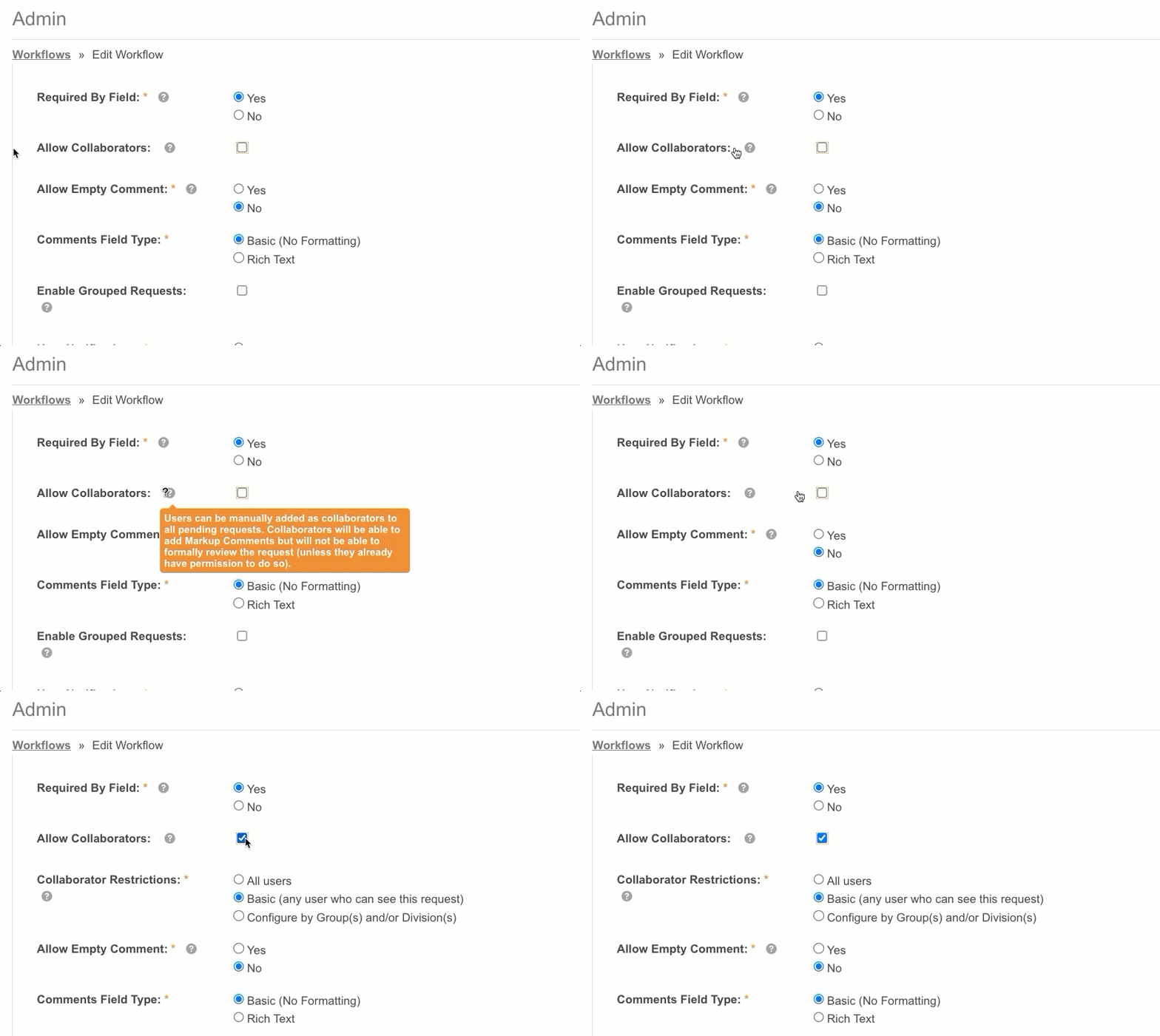
Enabling this setting will open additional options which control what users can be added as Collaborators to requests tied to this approval workflow.
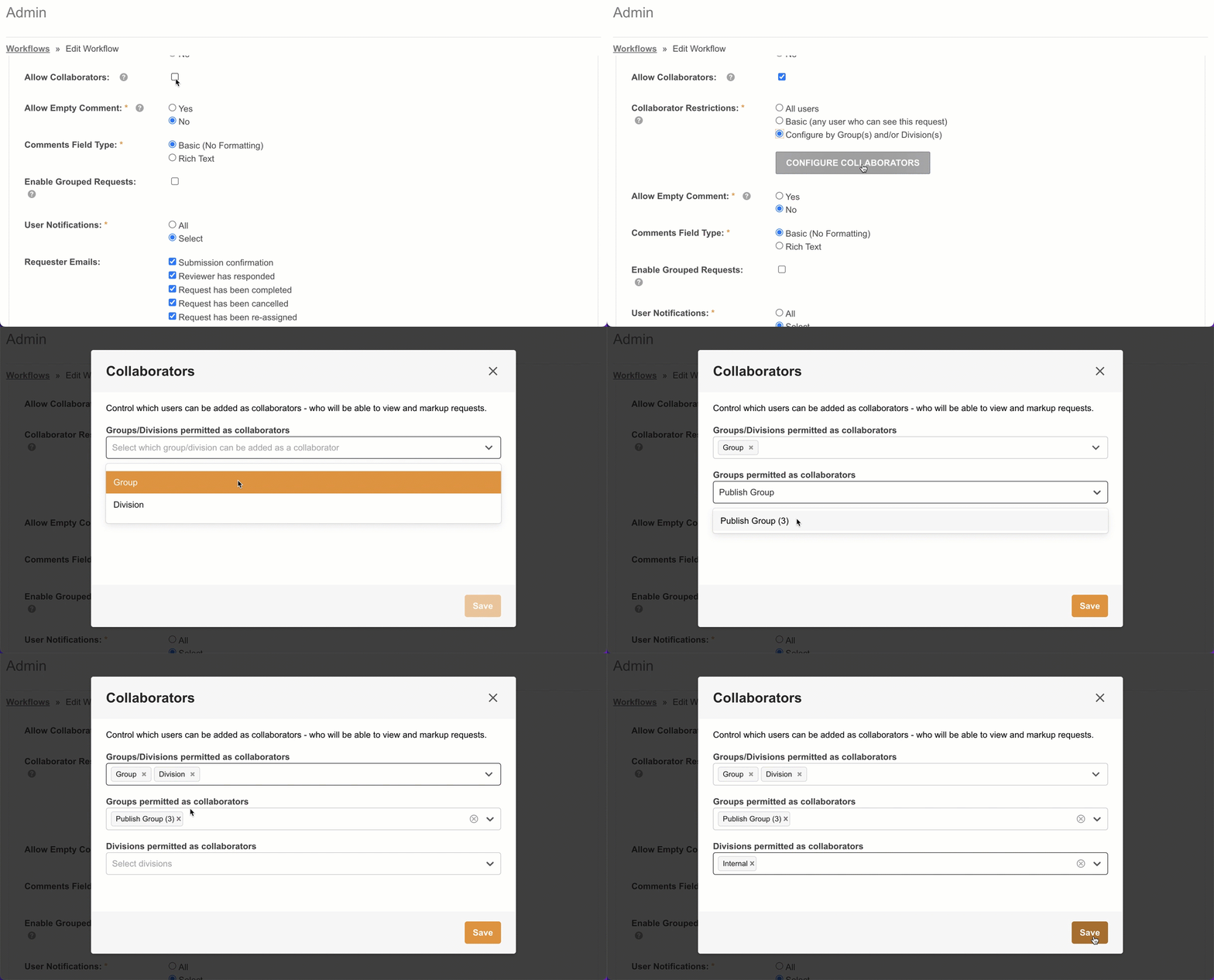
There are three Collaborator types available - these control which users will be available as options:
- All users: Any active user on your platform can be added as a Collaborator.
- Basic (any user who can see this request): The default option - useful for Staged Requests to allow reviewers from previous stages to answer questions about their feedback.
- Configure by Group(s) and/or Division(s): When selected, a Configure Collaborators button and popup appears, allowing you to nominate which Groups or Divisions users can be selected from. Any user from those Groups or Divisions can then be added as a Collaborator. Note that you may need to save the Workflow Settings for this to appear for new workflows.
A Note on Permissions and Collaborators
If a Collaborator user does not have access to the request or item tied to the request (the resource or asset), a temporary Bypass level of permission will be applied. This allows the Collaborator to view the request and the item they're being asked to collaborate on.
If the user is removed as a Collaborator, or the request they are collaborating on is completed, the bypass permission will be revoked and the user will return to the level of permission they held on these items prior to being added.
How to Add & Remove Collaborators to a Request
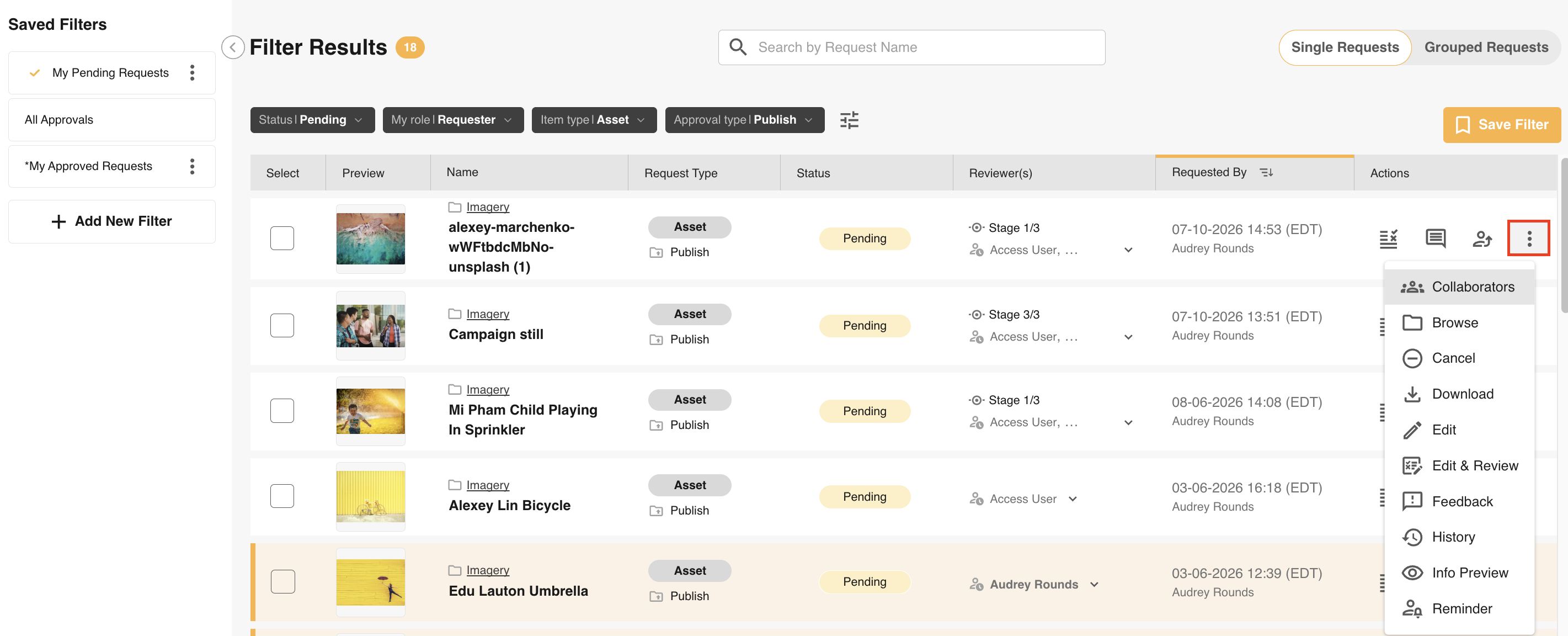
When Collaborators has been enabled on an approval workflow, a new Collaborators action will display for all pending requests tied to that workflow.
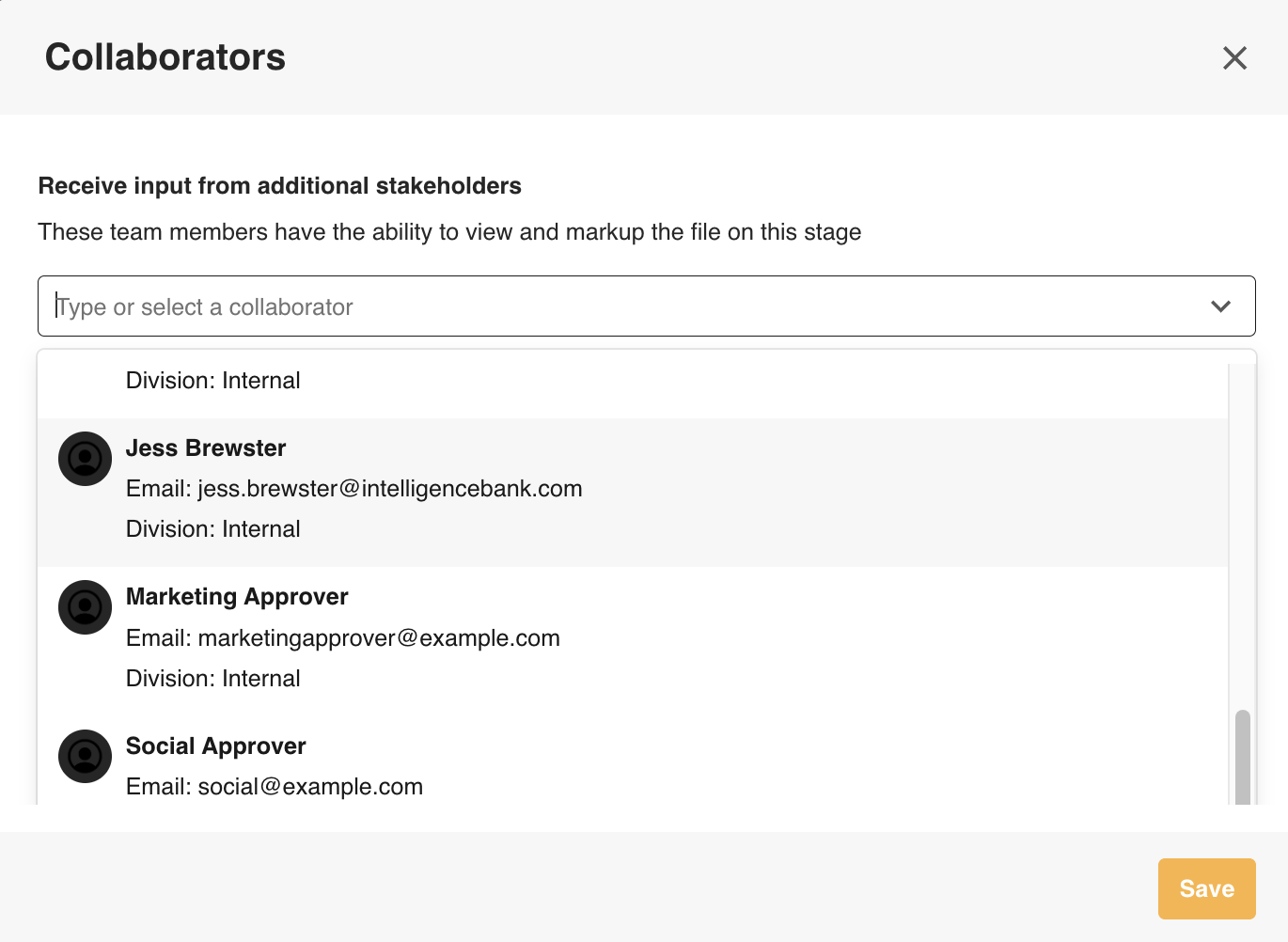
Users can be added or removed via the Collaborators popup. Just search the dropdown of users, select them, and then click Save.
A Collaborator can also remove themselves once they are done adding feedback and no longer want to receive related alerts for that request.
Users will also be auto-removed as Collaborators under the following circumstances:
- The stage or request they are a Collaborator on is completed.
- They are suspended or deleted as a user.
Collaborator Markup Actions & Markup Alerts
Once added as a Collaborator, a user can perform the same actions within the Markup space as a reviewer, including:
- See other users' comments
- Add annotations and comments - including the ability to @mention and be @mentioned by other participants, admins, and collaborators
- Create new threads and be added to existing ones
- Resolve and unresolve comments
- See previous versions and revisions
- Receive instant, digest, and session alerts the same as other participants (based on their personal alert settings)
- See Item Details, Request Details, and Request Status info on the Request Details page
Collaborator Filter
Users can keep track of items they are a current Collaborator on via their Approvals List filters. Configuring a filter as shown below will display only the requests they are a Collaborator on:
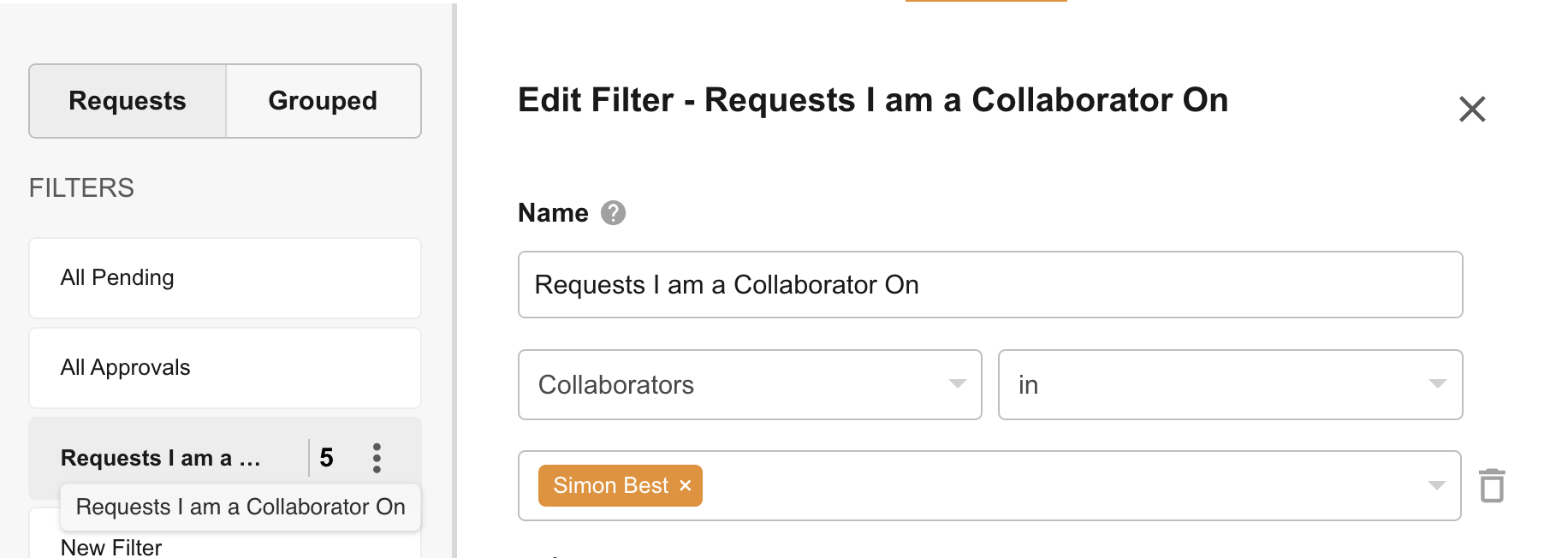
Click here to read more about configuring Approvals List Filters.
Collaborator Usage & Tracking
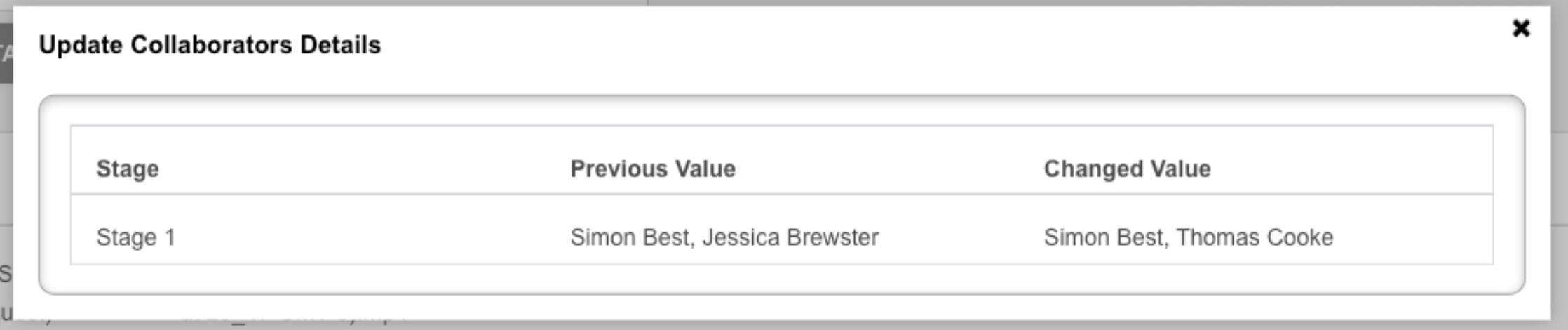
Tracking around when Collaborators were added or removed - and by whom - can be found in the User Usage reports (located in Admin > Users).
A (Show Details) link can be clicked to display which users were added and/or removed:
Frequently Asked Questions
Who can add Collaborators?
- The current participants (the Requester and Reviewer(s) of the current stage), as well as Workflow Admins and Main Admins.
- Existing Collaborators can extend the invitation to other users, depending on the workflow configuration.
Who can be added as a Collaborator?
This depends on how the Workflow Template has been configured. The three options are:
- Only users who can already see the request - ensuring the request stays contained and secure.
- The above users plus additional users from nominated Groups and/or Divisions.
- All active platform users.
What happens if a Collaborator does not have permission to the pending request or request item?
They are granted a temporary bypass permission so they can see the request item in their Approvals List and open the Request Details page. For Record File requests, they can also view the record to provide greater context when giving feedback.
If the user is removed as a Collaborator, or when the request or stage is completed, they will lose this access.
Was this article helpful?
That’s Great!
Thank you for your feedback
Sorry! We couldn't be helpful
Thank you for your feedback
Feedback sent
We appreciate your effort and will try to fix the article