The Bulk Review Request feature allows reviewers to respond to selected approval requests in bulk, providing a more efficient way to review and approve assets and speeding up time to approval.
Table of Contents
Setting Up Bulk Reviewing for an Approval Workflow
Bulk Reviewing is available for the following approval workflow types:
- Resource/Asset Publish Approvals
- Resource/Asset Feedback Approvals
- Resource/Asset Download Approvals
- Record File Approvals
Main Admins can enable Bulk Reviewing by following these steps:
| 1Navigate to Workflows | Go to Admin > Workflows and select your desired workflow. |
| 2Enable the setting | Ensure the Enable Bulk Reviewing field is checked. Note that it will be auto-enabled by default for new workflows, but can be disabled manually on a given workflow's settings if preferred.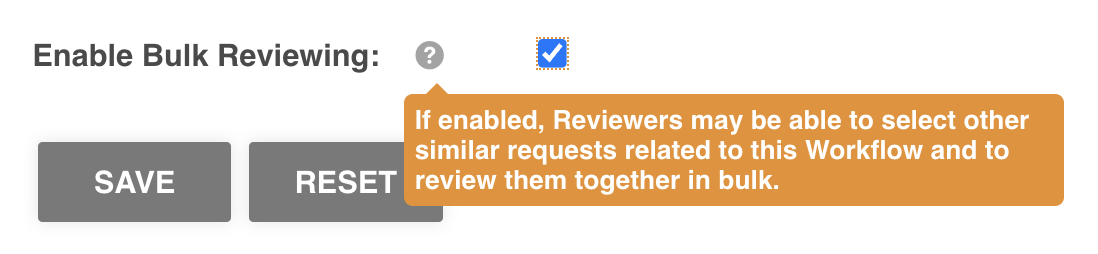 |
| 3Save and confirm scope | Save the workflow. The feature will apply to whatever folder(s) (for Resource/Asset approvals) or Multi Upload Fields (for Record File Approvals) this workflow has been applied to. |
Enable Cross-Workflow Bulk Reviewing
Bulk reviewing can also be extended across different approval workflows. This helps reviewers become even more efficient, allowing them to prioritise any reviews based on criteria like due date, regardless of which approval workflow an asset belongs to.
| 1Navigate to Settings | Go to Admin > Settings. |
| 2Enable the setting | Find the field called Allow Cross-Approvals Bulk Reviewing and click the checkmark to enable it. |
| 3Save | Click Save at the bottom of the page to apply the change. |
When enabled, requests from any approval workflow that also has Enable Bulk Reviewing turned on can be reviewed together in bulk.
If you want to restrict users to only bulk reviewing items from the same approval workflow, ensure Allow Cross-Approvals Bulk Reviewing is disabled, and manage bulk review permissions on a workflow-by-workflow basis within each approval workflow template's settings.
Reviewing Requests in Bulk
When bulk review is enabled, reviewers (or Main/Approval Admins) can select any relevant approval requests in their Approvals List and choose Review Request(s) from the bulk actions menu.
Up to 300 requests can be selected to review together at one time.
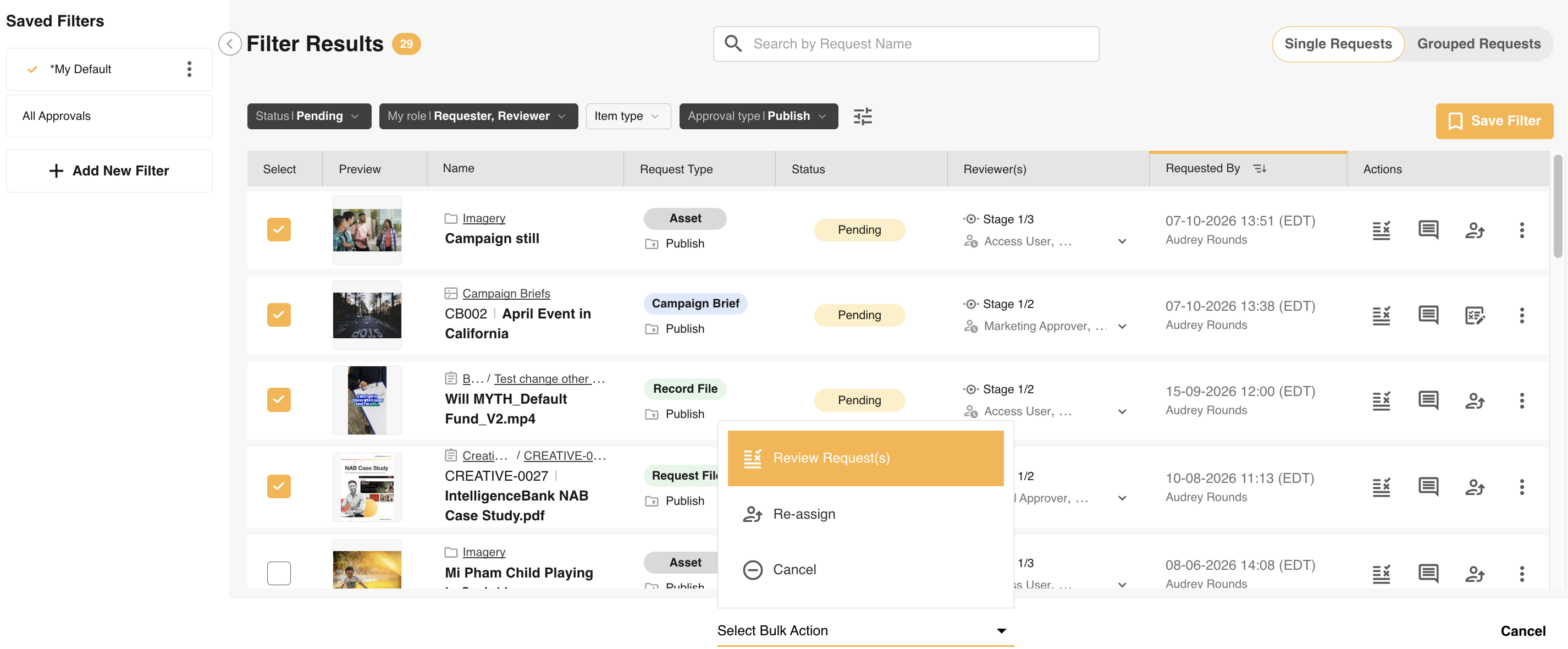
Restrictions on what can be selected together
- Only pending requests can be selected for bulk review.
- Users must be reviewers (or have Admin permission to the Workflow module) to select pending requests for bulk review.
- For staged requests, selections must share the same current pending stage - for example, Stage 2 requests may be selected together, but not a mix of Stage 1 and Stage 2. Note that non-staged requests can be selected alongside Stage 1 requests in Cross-Workflow scenarios.
- If you need to update a response after submitting, you will need to do so individually.
- Record and Survey requests are not supported for bulk reviewing.
Bulk Review Page
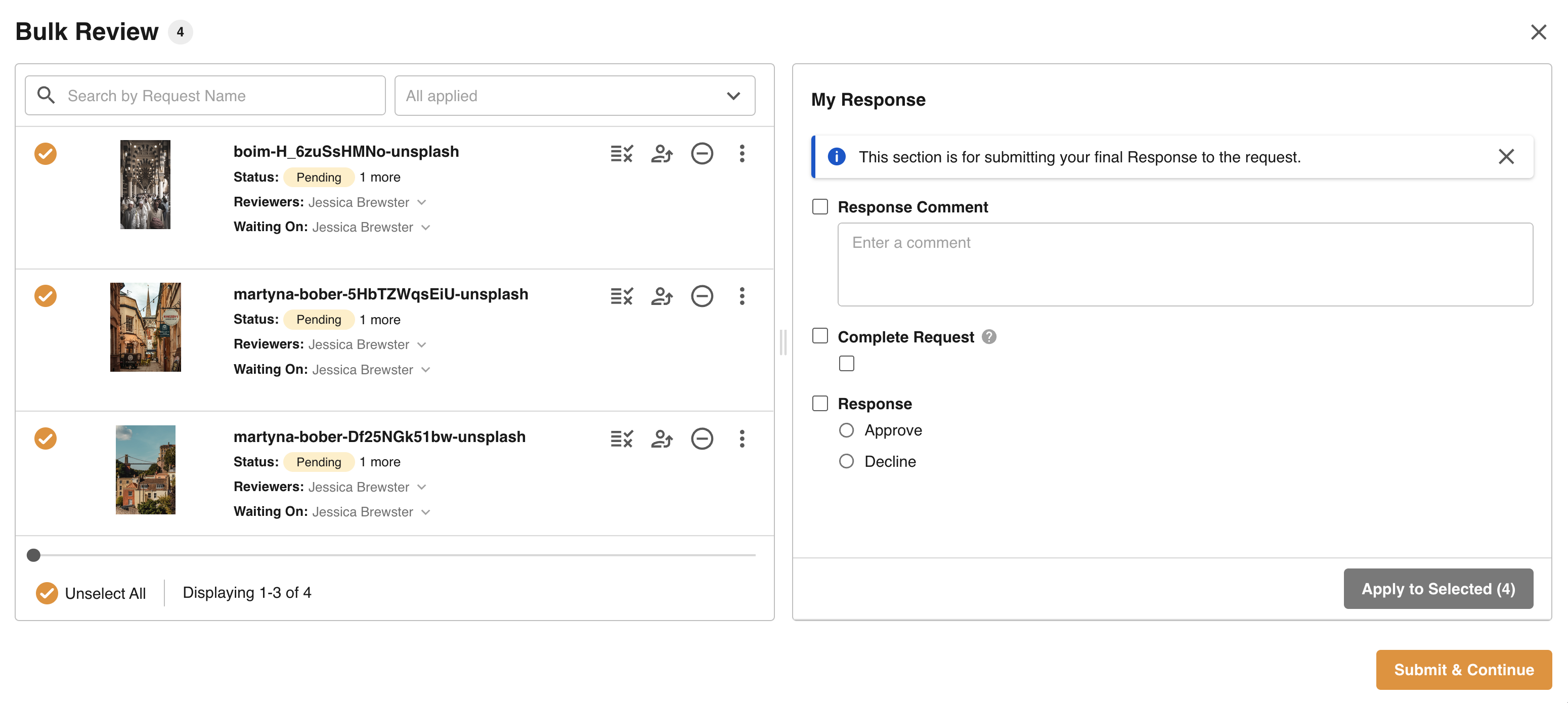
The Bulk Review page is split into two main sections: Requests and Responses.
Requests
On the left of this page you can view all items you have selected to review in bulk. Actions available in this space include:
- Search for specific request names
- Select specific requests via checkboxes to apply response information in bulk or in batches
- Open individual requests to check each in more detail and review them individually
- Perform key actions like Download, Re-assign and Cancel
- View key information about each request (such as remaining Reviewers)
- Filter by request status (for example, to see only remaining pending requests from your original selection)
Responses
The right side of the page allows reviewers to apply the following in bulk to selected items:
- Input Comments
- Add an Approval decision (Approved or Declined, if applicable)
- Add an Approved Until date (if applicable)
- Admin users can also Complete the Stage or the Request
Click Apply to Selected to add those details to the selected requests.
Submitting your Response
Once you have added the needed responses, either in bulk or individually, click Submit & Continue, or Submit & Next (for individual responses). Your Bulk Review page will automatically update to reflect the changes - for example, statuses may change from pending to approved or declined based on your response.
When you are finished adding responses, close the page to return to the Approvals List.
You can view a full walkthrough of those options below:

Reporting and Compliance
While bulk reviewing makes things quicker and easier for reviewers, we understand it may not always be best practice. Concerns may include reviewers paying less attention to each individual asset or being less thorough in their review process.
Tracking is in place to note if users are reviewing one by one (either from the Approvals List, or individually from the Bulk Review page) or in bulk.
This information is available in:
- Workflow History - a Bulk Review column notes which responses were made singly or in bulk.
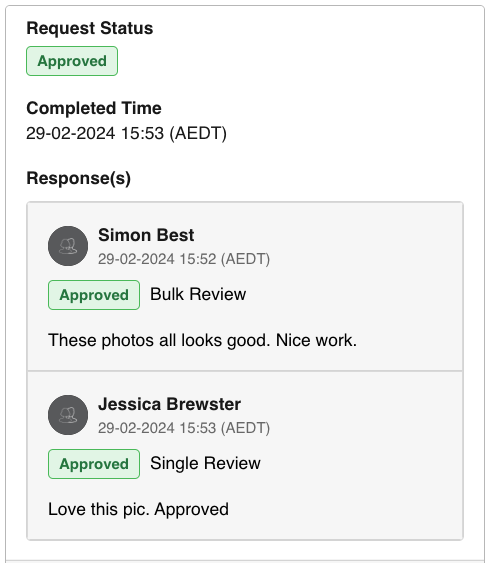
- Review Request Response section - responses will indicate whether they were made via single review or bulk review actions:
- Data Reporting - for Workflow Response reports:
- The Bulk Review column shows how responses were made ('Yes' if in bulk, 'No' if single, 'N/A' for unsupported record or survey requests). Bulk Review can also be used as a filtering condition to view results that have all been made in bulk, or not.
- A Bulk Response UUID column surfaces a unique ID that can be used as a condition to see what other requests were submitted at the same time by the same user.
* Please note that some terms used above, such as Workflows and Approvals, are customisable and may appear differently in your platform.
Was this article helpful?
That’s Great!
Thank you for your feedback
Sorry! We couldn't be helpful
Thank you for your feedback
Feedback sent
We appreciate your effort and will try to fix the article