The Re-assign feature allows users to re-assign approval requests to other reviewers, saving time and streamlining approval workflows. For those going on leave or dealing with team changes, this is an effective way to ensure in-progress requests receive the oversight they need.
The following users can generally re-assign approval requests:
- Reviewers (for staged approvals, only reviewers of the current stage a request is pending on can re-assign)
- Main Admins
- Approval Admins
Note that requesters can also re-assign their own requests if the approval workflow has been created as Requester's Choice (see the Requester Re-assign section below).
Table of Contents
How to Re-assign Reviewers
Users can re-assign approval requests individually or in bulk. Re-assigning a request means that another user will be given the responsibility to review that approval request. Note that only users with permission to at least View the item can be selected as reviewers.
Re-assigning an Individual Approval Request
| 1Locate the request | Navigate to your Approvals List and locate the approval request you'd like to re-assign. |
| 2Select Re-assign | Select the Reassign icon in the Actions column on the right-hand side. Note that the Re-assign action may appear directly, or it may be accessible via the three vertical dots under Actions.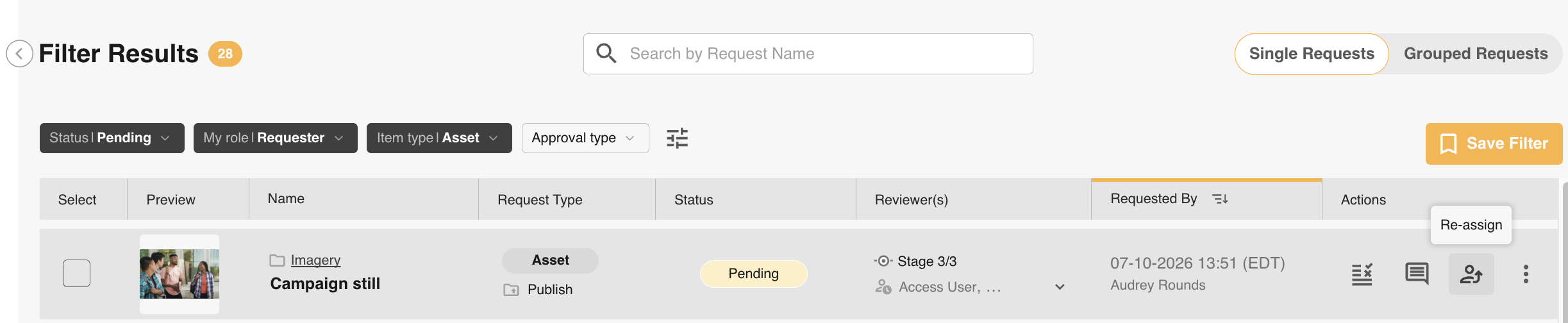 |
| 3Update reviewers | The Re-assign popup will open. From here you can:
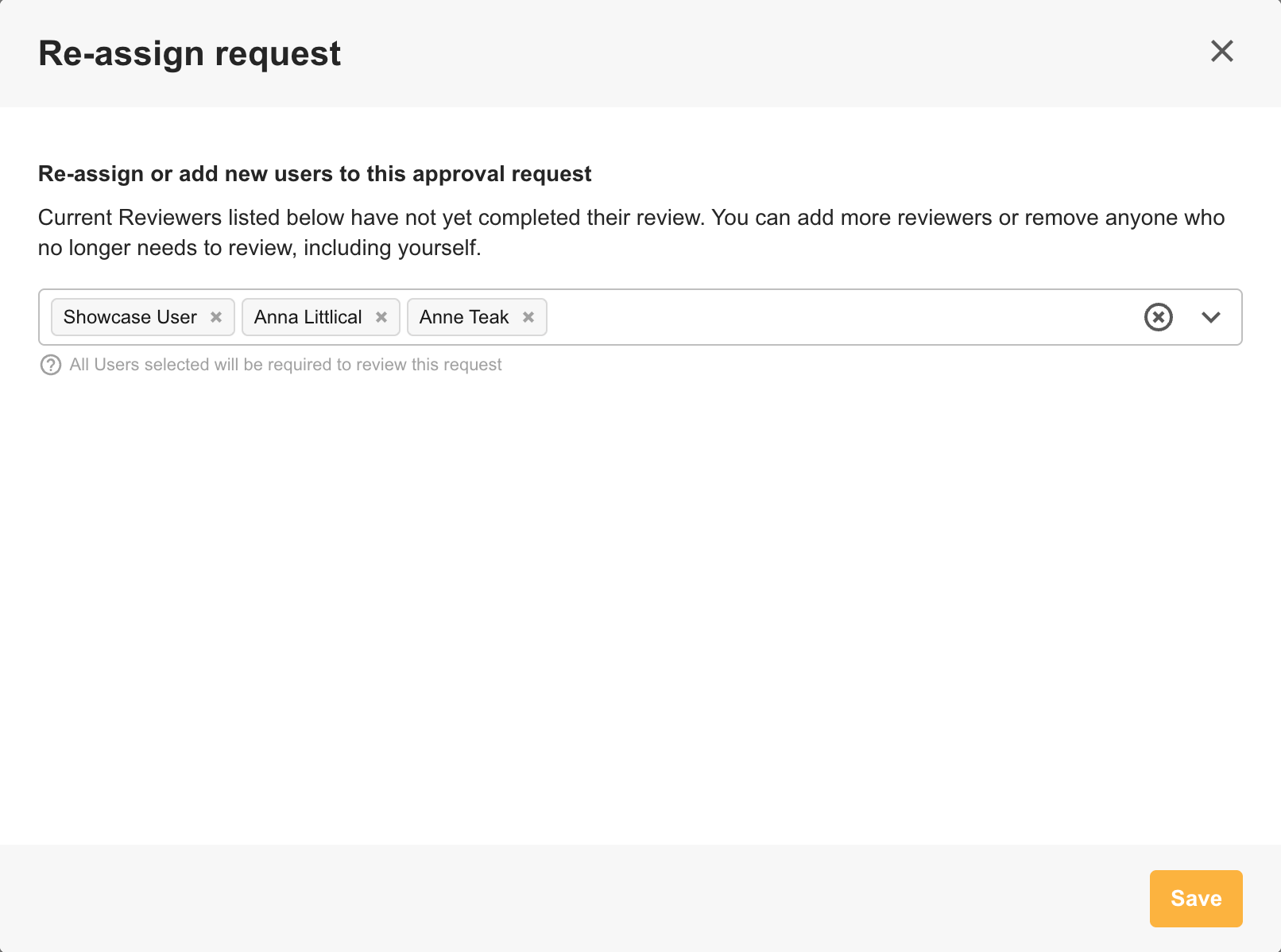 |
| 4Save | Select Save to apply your changes. |
Bulk Re-assign
| 1Locate the requests | Navigate to your Approvals List and locate the approval requests you'd like to re-assign. |
| 2Open Bulk Actions | Select the requests you want to re-assign, then click the Bulk Actions dropdown menu.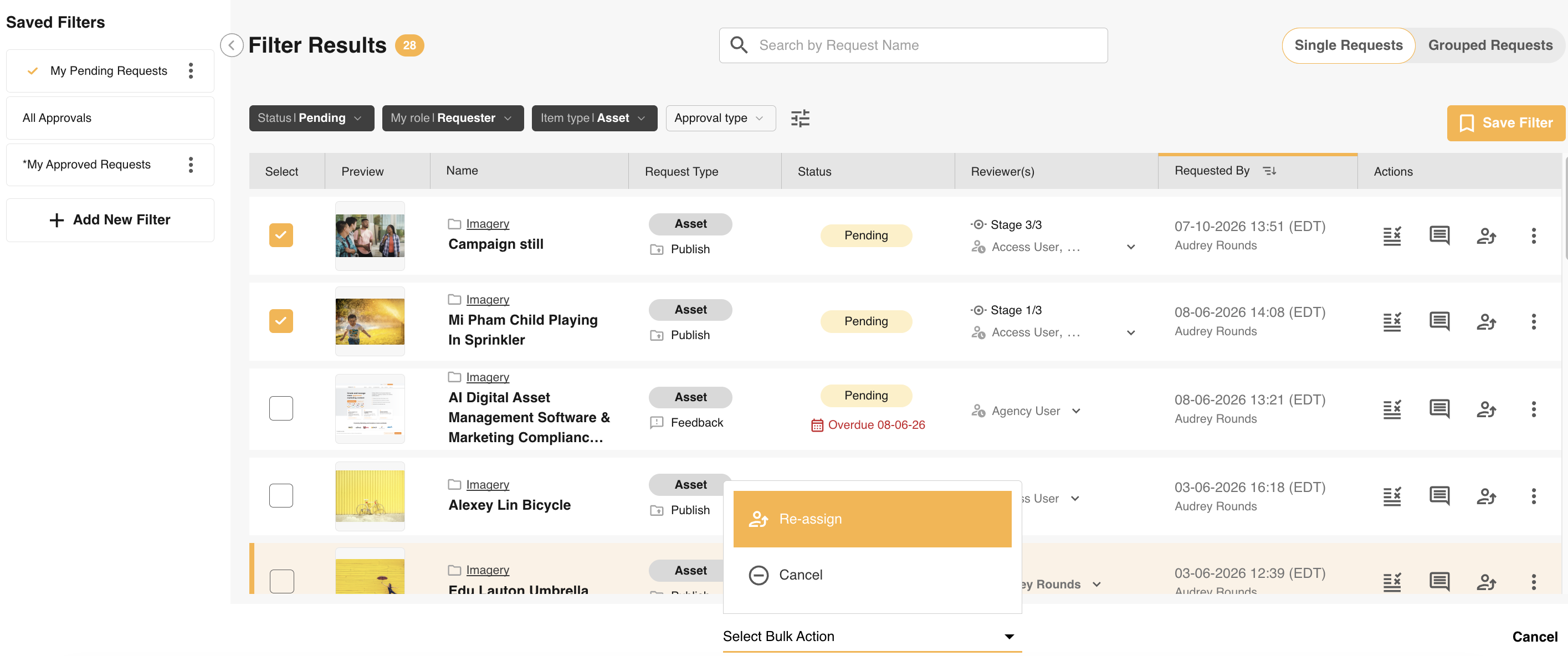 |
| 3Add reviewers | Select Re-assign from the dropdown. In the popup, use the Add Reviewers dropdown to select users to assign to the selected requests. The system will verify whether selected users have permission to access the requests.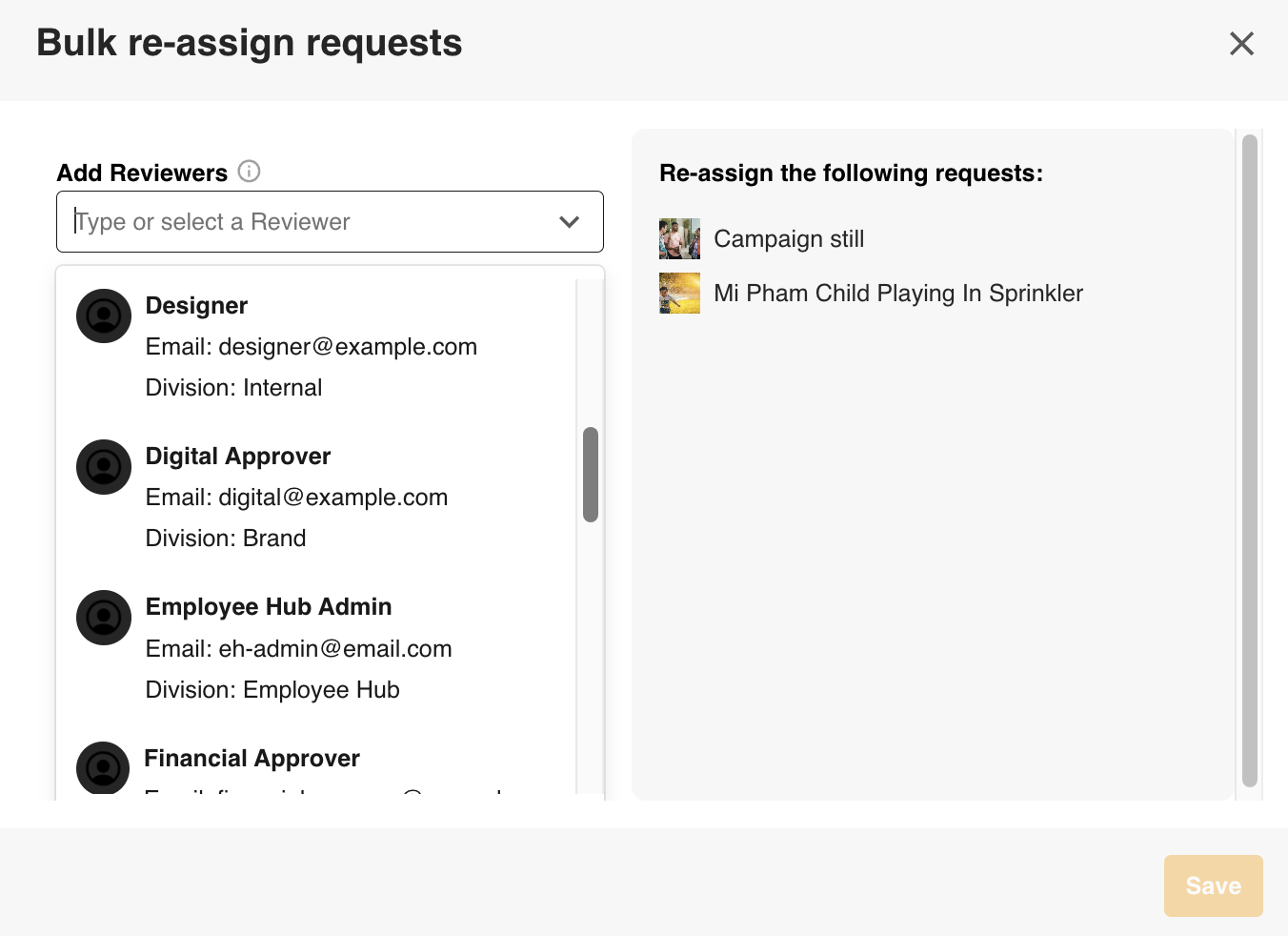 If a selected user doesn't have permission to view some requests, a message will appear to inform you whether they lack permission to all or some requests. If a selected user doesn't have permission to view some requests, a message will appear to inform you whether they lack permission to all or some requests.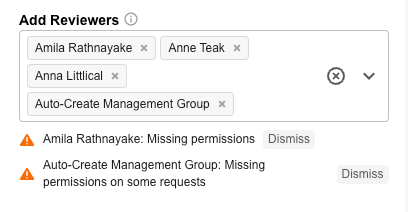 |
| 4Remove reviewers (optional) | If needed, use the Remove Reviewers field to remove reviewers in bulk. This is useful if you need to replace yourself as a reviewer. The dropdown will only show current reviewers on the selected requests who have not yet responded.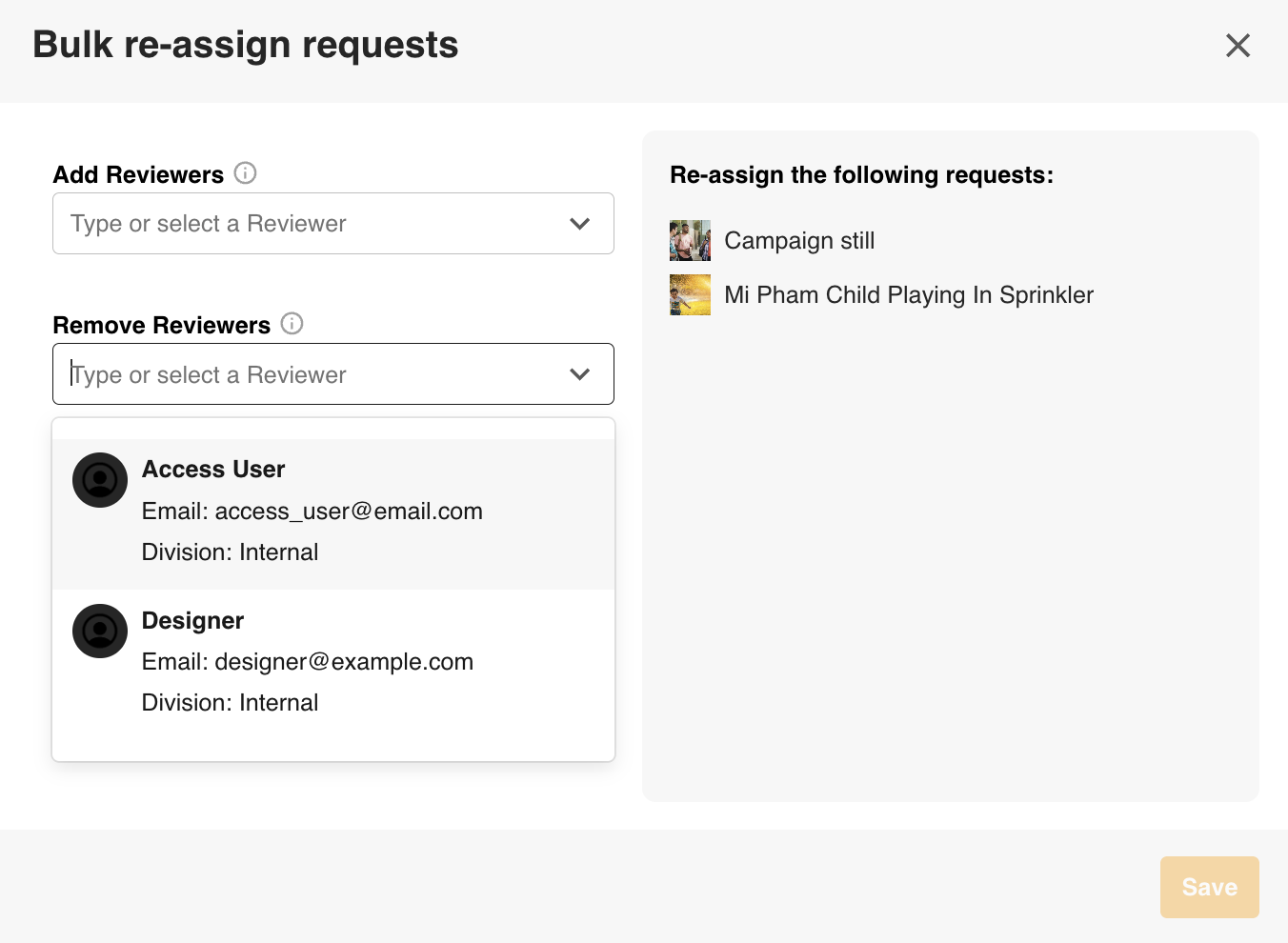 |
| 5Save | Select Save to apply your changes. |
Important Notes for Bulk Re-assign
- You cannot select the same user in both the Remove and Add fields.
- You can remove reviewers without adding new ones, as long as the minimum reviewer requirements are still met.
- If all selected users lack permission for all selected requests, the Save button will be disabled.
- Reviewers will only be removed from requests they haven't yet responded to.
Error Handling
- If errors occur during a bulk re-assign, a banner will appear at the top of the Approvals List page showing the number of affected requests.
- Individual requests with errors will display an alert icon with "Re-assign error" text. This may occur if some users could not be added to specific requests but could be added to others.
- You can remove individual error notifications by clicking the remove/alert option in the affected row. Errors will also be automatically cleared if the request is completed or re-assigned again.
Requester Re-assign
When approvals are set up as Requester's Choice, the user who submitted a request can also re-assign it if needed. This is helpful if, for example, the requester selected the wrong reviewer, or if the correct reviewer has changed after the request was submitted. Rather than waiting for an Admin or the reviewer to act, the requester can handle this themselves, saving time and effort.
There are two main scenarios supported for Requester Re-assign:
- When no reviewers have been pre-configured, and the requester could originally select any platform user to review their request.
- When there is a pre-configured pool or selection of reviewers the requester can select from, but they were not originally required to select them all, and did not.
Workflow Configurations that Support Requester Re-assign
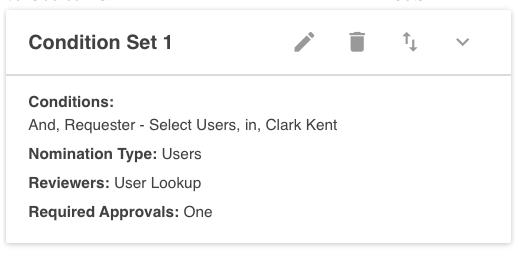
In the approval workflow's settings, Requester's Choice must be configured as follows:
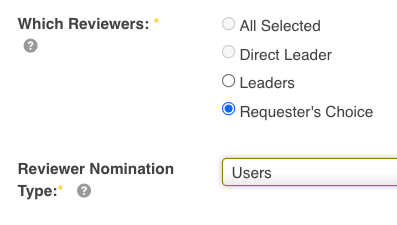
- If Reviewer Nomination Type is Users, then Requester's Choice must be selected in the Which Reviewers field:
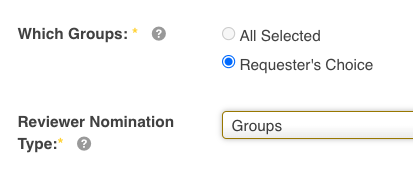
- If Reviewer Nomination Type is Groups, then Requester's Choice must be selected in the Which Groups field:
How Requesters can Re-assign Requests
| 1Locate the request | Navigate to the Approvals List and locate the approval request to re-assign. |
| 2Select Re-assign | Select the Re-assign icon in the Actions column.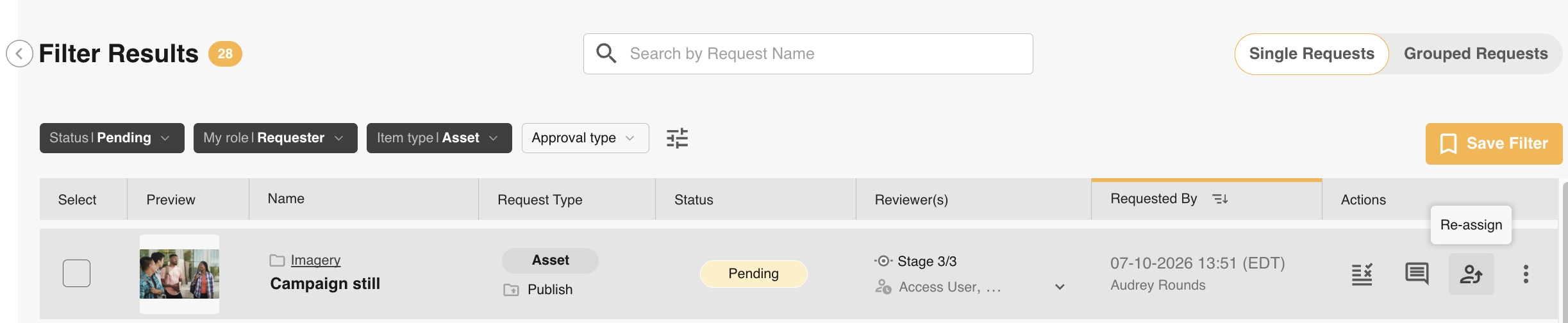 |
| 3Choose reviewers | A popup will open for the requester to select new reviewers.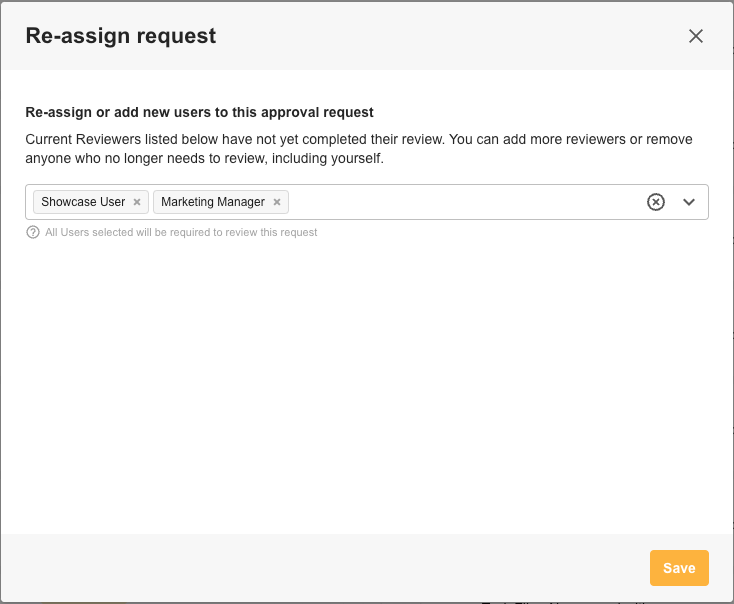 |
| 4Save | Select the desired reviewers in the dropdown field and select Save to apply the changes. Depending on other configuration settings, reviewers who have not yet responded can also be removed at this time, as long as the number of required approvals is still met. |
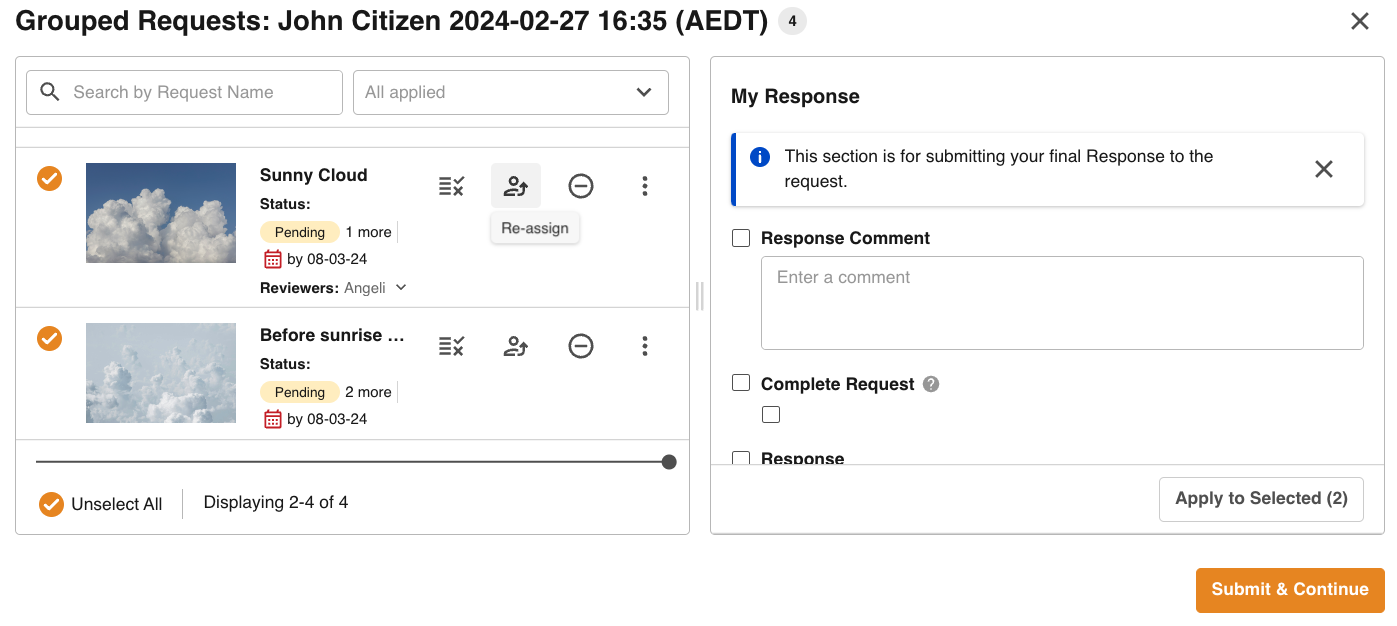
Requester Re-assign can also be accessed via the Grouped Approval Review Page and the Bulk Review Pages.
Who Can a Requester Re-assign a Request to?
If the Reviewer Nomination Type is Users for an approval workflow, the logic for who a requester can re-assign to is as follows:
- When no reviewers have been pre-configured, and the requester could originally select any platform user, they can do so again here.
- When reviewers have been pre-configured, the requester can select from that pool of reviewers. Note that if the pre-configured reviewers in the workflow settings have changed since the original request, only the currently configured reviewers will be available as options.
If the Reviewer Nomination Type is Groups for an approval workflow, the logic is as follows:
- When no groups have been pre-configured, any platform user who belongs to any group can be selected. Note this excludes users who are only set up as 'User-as-Group' and do not otherwise belong to a group.
- When groups have been pre-configured as reviewers, the requester can select from users within that group or groups. If pre-configured reviewer groups have changed since the original request, only users from the currently configured groups will be available.
Note that for Conditional Reviewer scenarios, more complex configurations may result in re-assign behaviour that differs from the above. See the section below for more detail.
Conditional Reviewers and Requester Re-assign
When Conditional Reviewers is enabled and the number of required approvers is set to One, who requesters can re-assign to may change. This could occur when:
- The conditional trigger no longer applies (for example, data in the record may have been edited since the original request was made).
- The Conditional Sets (where multiple exist) have since been re-ordered so that the original set is no longer the highest matching set.
When either of the above has occurred, the default reviewers will be available to re-assign the request to.
Re-assign in Usage Reporting
As of 26 March 2024, re-assign actions are tracked and can be viewed in Usage Reporting, accessible by Main Admin users under Admin > Users. This helps Admin users keep track of who is re-assigning requests, and to whom, in cases where it may appear that the current reviewers have changed.

Within this usage tracking, (Show Details) is clickable and opens a Reassign Details popup with further information about the action:
- Stage - shows the stage of the request on which re-assign occurred, or "N/A" if the request is not staged.
- Previous Value - shows who the reviewers were prior to the re-assign action.
- Changed Value - shows who the reviewers are after the re-assign.
Was this article helpful?
That’s Great!
Thank you for your feedback
Sorry! We couldn't be helpful
Thank you for your feedback
Feedback sent
We appreciate your effort and will try to fix the article