A Feedback Request provides users with the ability to request feedback on an asset. If a folder has a Feedback Approval enabled, anyone with access to that folder can request feedback on any item at any time.
Why Use Feedback Approvals?
Feedback approvals are a more informal process for gathering input, usually on existing assets. They are triggered manually by a requester. Unlike Publish Approvals, a pending feedback request does not remove assets from their folders - other users can still view and interact with them in the meantime.
Use Feedback Approvals when you want to solicit opinions before deciding whether to revise an asset, or for similar informal review scenarios.
Table of Contents
Applying a Feedback Approval to a Folder
Once a Feedback Approval has been created by a Main Admin in the Admin > Workflows area (see this article for more details on how to set one up), it can be applied in one of two ways:
- Global approval - if the approval has been created as a global process, it will automatically apply across all folders in your asset library with no additional configuration needed.
- Folder-specific approval - if the approval is not global, it must be manually applied to each individual folder where it is needed. Follow the steps below.
How to Apply a Workflow to a Folder
| 1Navigate to the Folder | Go to your Asset Library and locate the folder you want to apply the approval to. |
| 2Open Folder Settings | Select the three vertical dots on the folder and choose Folder Settings.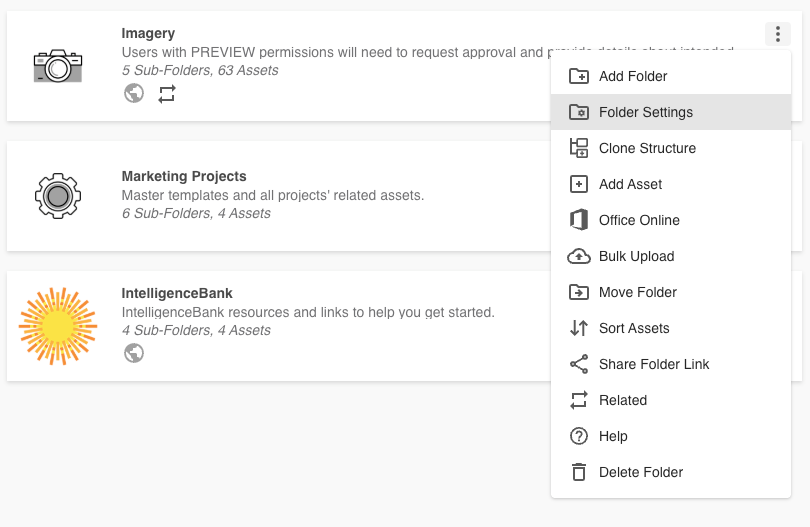 |
| 3Go to Advanced Options | Select the Advanced Options tab within Folder Settings.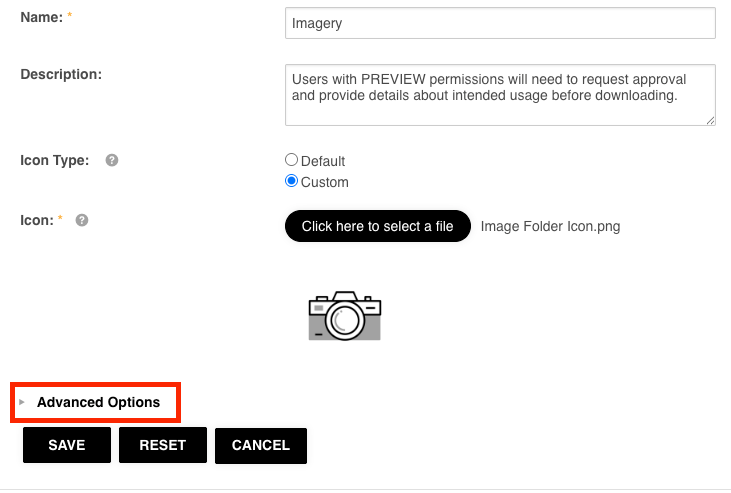 |
| 4Add the Workflow | In the Workflow setting, select Add Workflow and choose the relevant approval workflow from the list. |
| 5Adjust Local Settings (Optional) | If local customization has been enabled, you can adjust folder-level workflow settings here - for example, whether the Required By field is shown or which reviewers are assigned. |
| 6Save | Select Save on the workflow, then Save on the Folder Settings. The feedback approval is now active on this folder. |
Requesting Approval
Once a Feedback Approval is enabled on a folder, any user who can view the folder (preview permission or higher) can submit a feedback request against an asset.
Completing the Approval Request Form
To request feedback on an asset:
| Field | Details |
|---|---|
| Locate the asset | Locate the asset within its folder and select the three vertical dots to the top right of the asset's thumbnail. Select Request Feedback.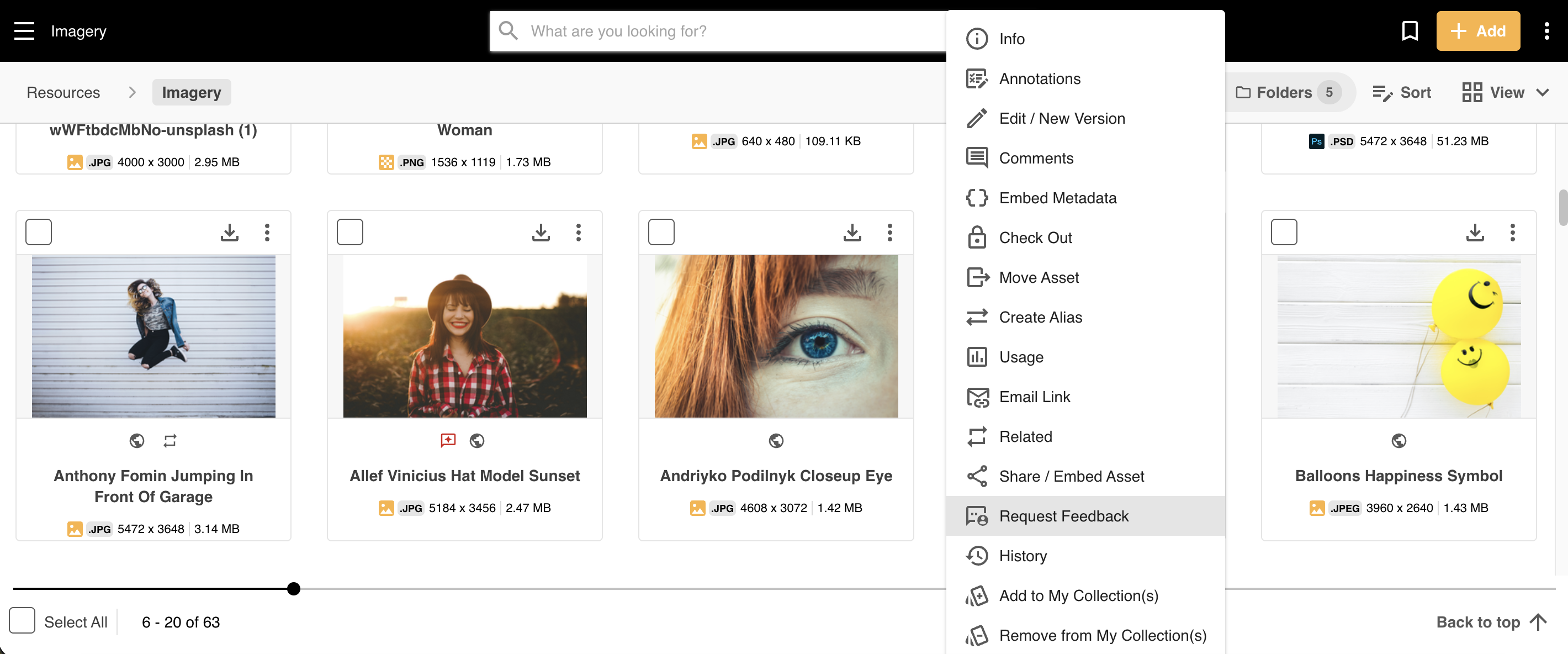 |
| Reviewers | If reviewers are fixed in the workflow settings, the assigned reviewers will be pre-selected and cannot be changed. If Requester's Choice is enabled, the requester can select which users they want to review the asset. |
| Comment | A comment field for the requester to provide context to the reviewers about why feedback is being requested. |
| Required By | If the Required By date field has been enabled in the workflow settings, the requester can select the date by which they need the feedback completed. |
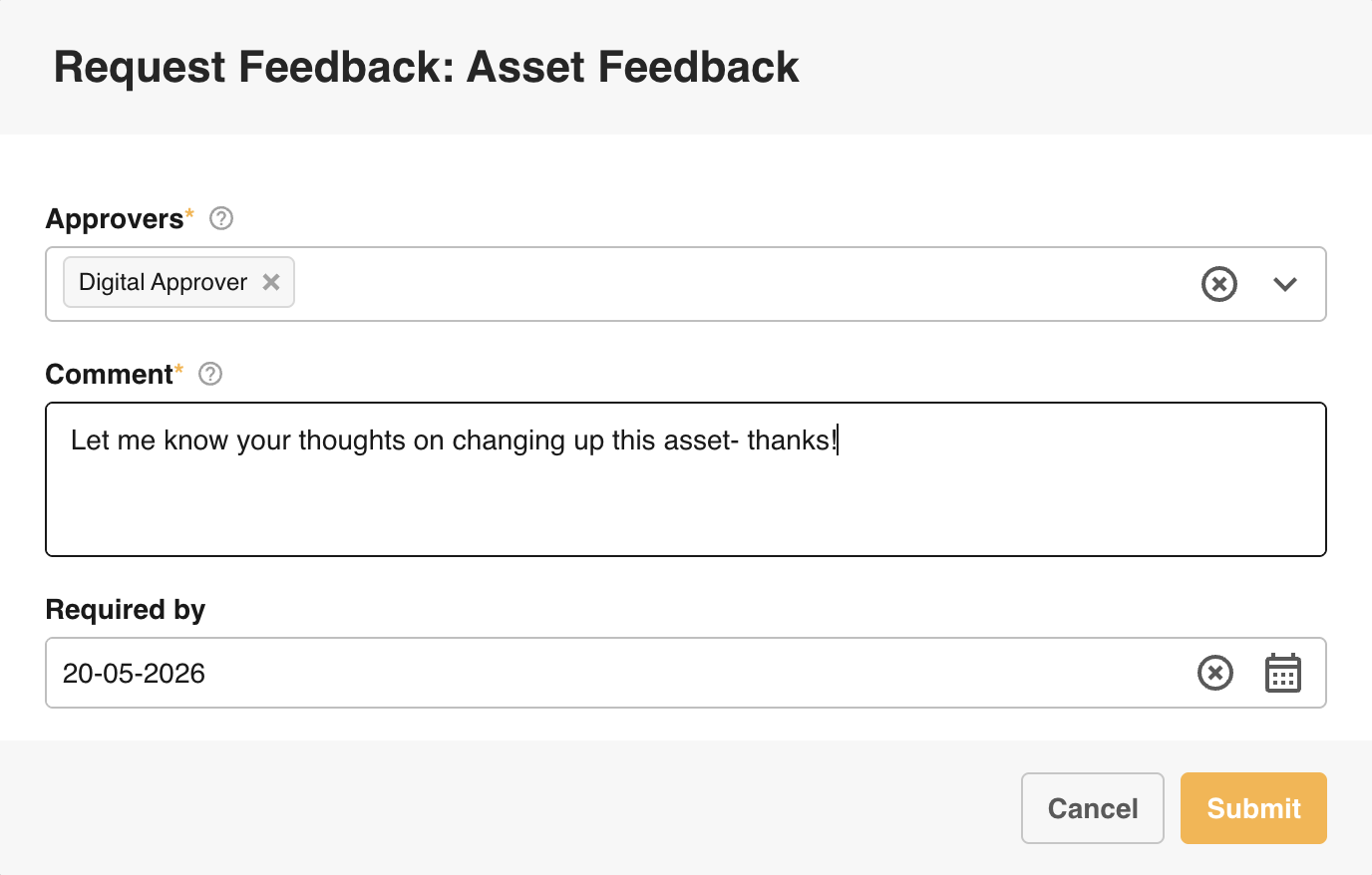
Once the form is complete, select Submit to send the request. Reviewers and/or the requester may receive an email notification depending on the email notification settings configured in the approval workflow.
Reviewing an Approval
Reviewers and requesters can access pending approval requests via the Approvals List in the platform navigation, or through a direct link in their email notification (if email notifications have been enabled for this workflow). The approvals list shows key information about each request, including the file name, status, who the approval is waiting on, required by date, the date/time the request was submitted, and the destination folder.

How to Review and Respond
| 1Open the Request | In the Approvals list, go to the Actions column and select Review Request. This opens the approval response page. |
| 2Review the Asset and Details | The response page shows: the asset itself, item details (metadata applied), request details (requester, comments, required by date), and request status (who it is waiting on, how many approvals are still required). For more details on these sections, please refer to the article here. |
| 3Markup / Proofing (Optional) | If using Feedback Approvals as part of a proofing workflow, navigate to the Markup tab to annotate the asset and leave comments. Refer to the Markup and Proofing section for full details on this functionality.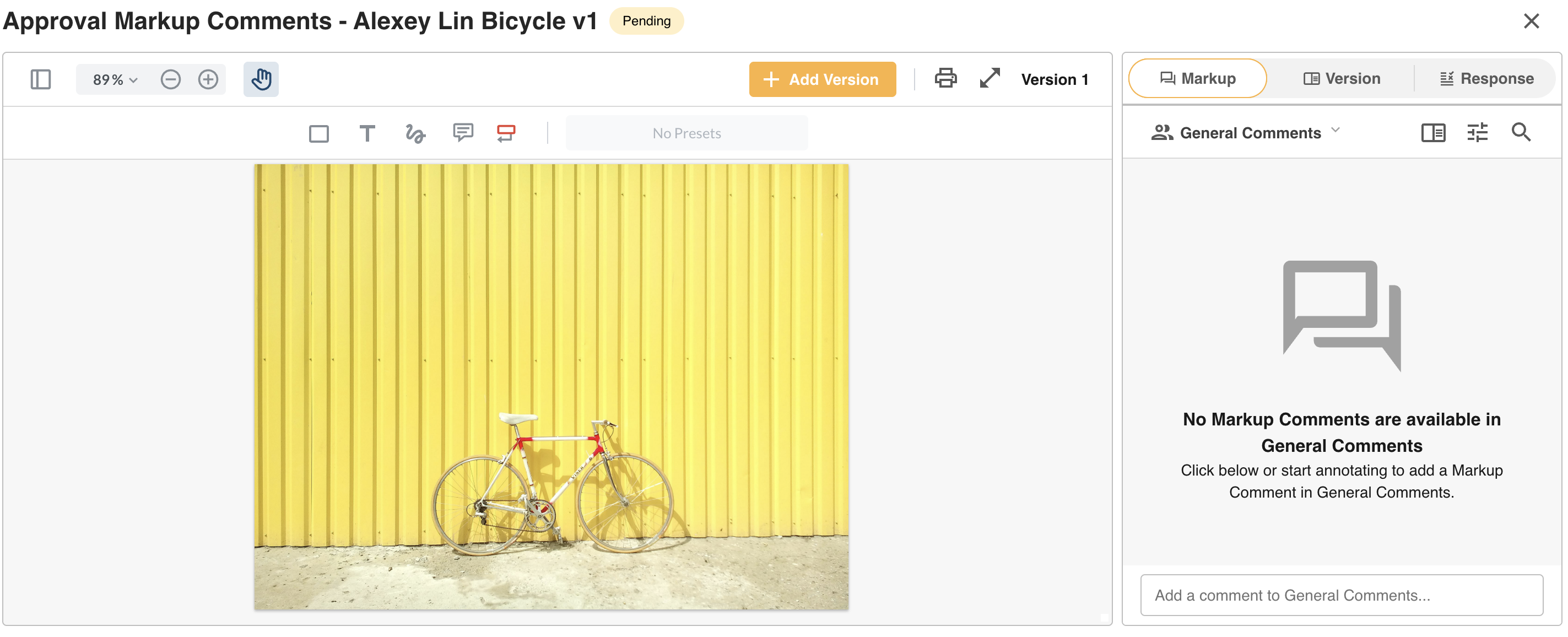 |
| 4Submit Your Response | Go to the My Response section. Enter a response comment (this may be mandatory depending on workflow settings), then select Approve or Decline. Note that Feedback Approvals can be configured to not require an approval response (see below section). In this case, reviewers would just leave a comment and select Submit Response.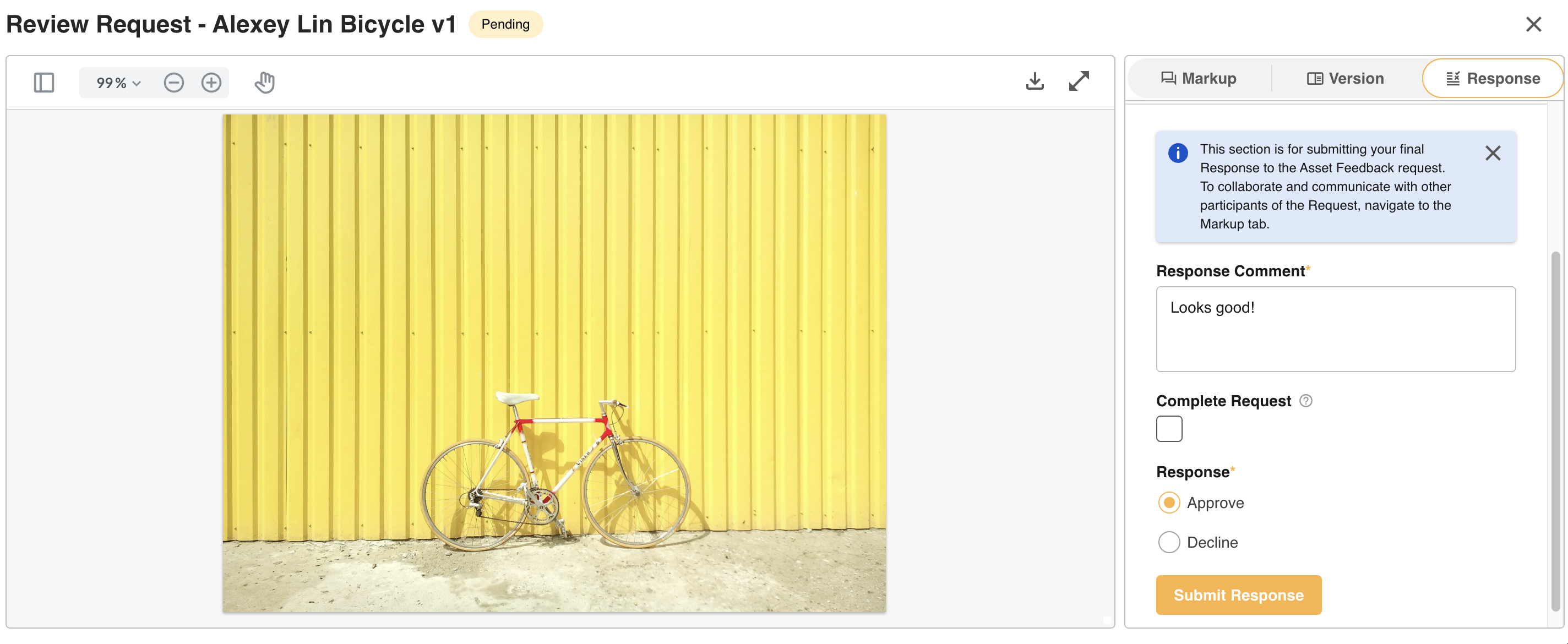 |
Complete Stage (Main Admins and Approval Admins Only)
Main Admins and Approval Admins will also see a Complete Stage option when submitting a response. Selecting this completes the approval request on its current stage immediately, regardless of whether other reviewers have responded. This is useful in situations where reviewers are unavailable - for example, if a reviewer has left the organisation and pending requests would otherwise be delayed indefinitely.
What Happens After Approval
If the workflow has multiple stages, the request is routed to the next stage of reviewers after each response. Once all required approvals have been provided and the asset is approved, the overall request is marked as "Approved" in the Approvals List and the requester is notified.
Feedback Requests with Only Comments Required
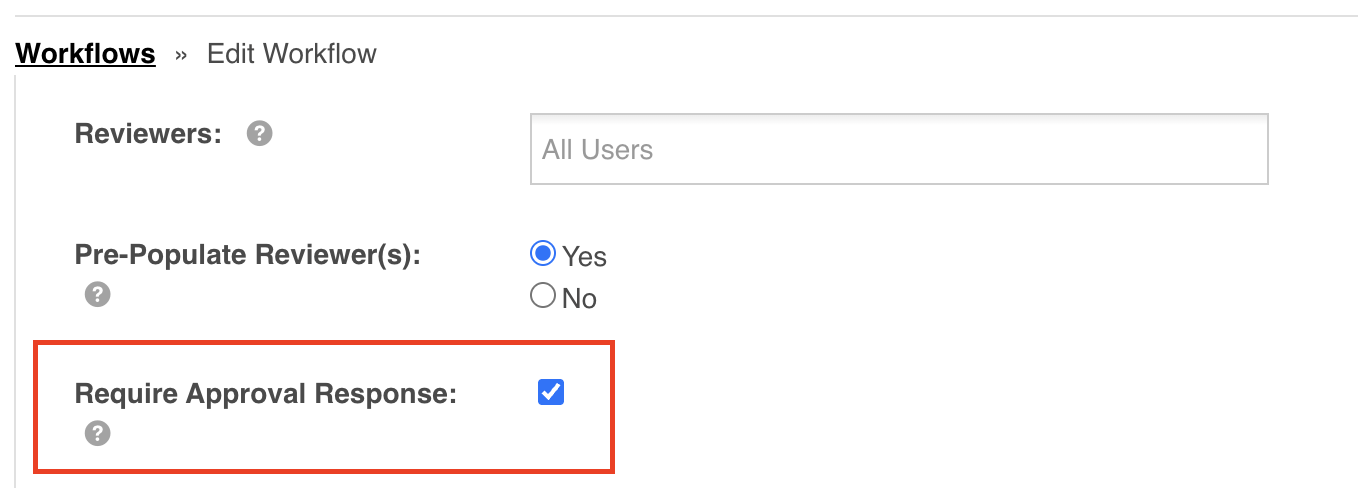
If enabled, reviewers may only be required to submit a comment without needing to respond with an Approve or Decline. This is especially useful if you're using Feedback Approvals strictly for gathering informal input on assets rather than for formal sign-off.
To set this up, navigate to Admin > Workflows and locate the Require Approval Response option. Uncheck this setting to remove the Approve/Decline options from the workflow.
Limitations
There are a few important constraints to keep in mind when working with Feedback Approvals on assets.
One Feedback Approval Per Folder
Only one Feedback Approval can be applied to a single folder at a time. Conditional approval logic - for example, routing to different reviewers based on asset metadata or who uploaded the file - is not currently supported for Feedback Approvals.
Having Both Publish and Feedback Approvals on the Same Folder
It is possible to have both a Publish and a Feedback Approval on the same folder. However, if you are using IntelligenceBank for asset proofing and both approval processes are applied, you will only be able to add revisions against Publish Approval requests. Adding versions as part of the Feedback Approval markup/proofing feature is only supported when there is no Publish Approval applied to the folder.
Bulk Request Limitations
Requesting feedback on assets in bulk is currently not supported.
New Version Visibility While Pending Approval
If your organisation is using Feedback Approvals for proofing/markup and you add new versions as part of that workflow, those new versions will be visible to other users in the folder as soon as they are added within the Markup/Revisions area, even if approval has not yet been given. If this is a concern, consider using Publish Approvals instead, which keep assets hidden from end users while pending approval.
If you have questions about the best approach for your specific workflow, please reach out to your dedicated Customer Success Manager.
Declined Requests Cannot Be Reopened
Decline Response on Staged Approvals
Was this article helpful?
That’s Great!
Thank you for your feedback
Sorry! We couldn't be helpful
Thank you for your feedback
Feedback sent
We appreciate your effort and will try to fix the article