Record Publish Approvals are workflows that require review and sign-off for database/form records (also commonly known as briefs, tasks, or projects) before they are published or made visible to other users.
This ensures that records meet your organisation's quality standards and approval requirements before being finalised or worked on.
Table of Contents
Applying a Publish Approval to a Database
Once a Publish Approval has been created by a Main Admin in the Admin > Workflows area (see this article for more details on how to set one up), it can be applied in one of two ways:
- Global approval - if the approval has been created as a global process, it will automatically apply across all databases with no additional configuration needed.
- Database-specific approval - if the approval is not global, it must be manually applied to each individual database where it is needed. Follow the steps below.
How to Apply a Workflow to a Database
| 1Navigate to the Database | Go to your Databases/Forms area and locate the database you want to apply the approval to. |
| 2Open Database Settings | Select the three vertical dots on the database and choose Database Settings.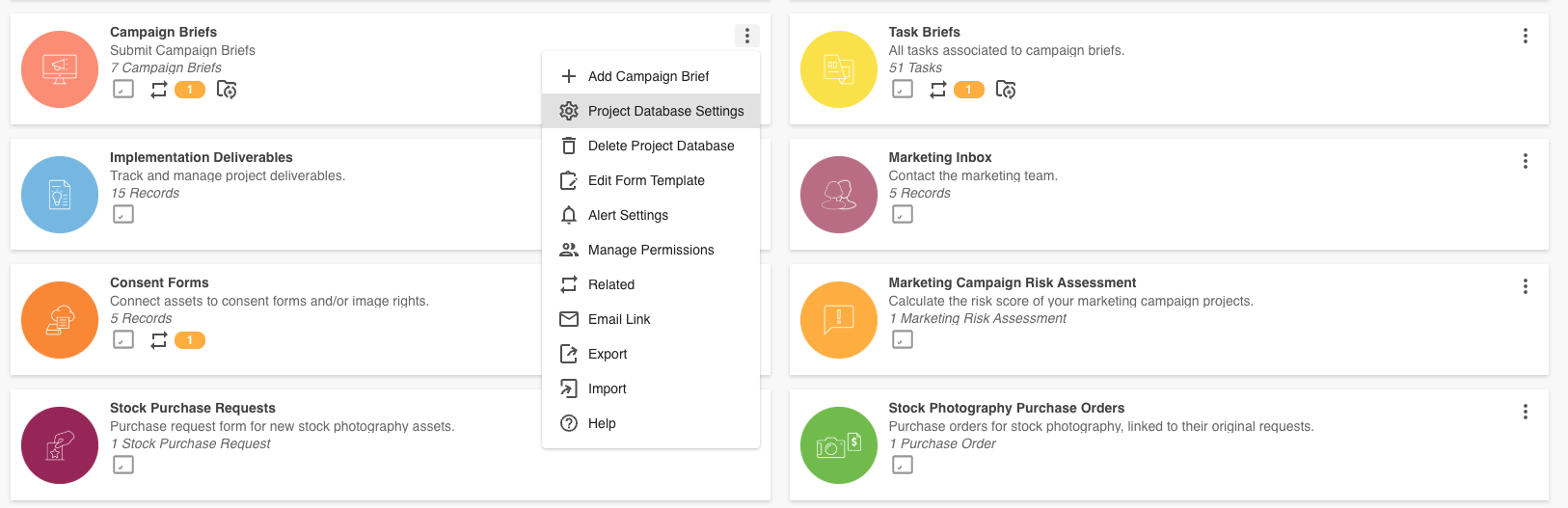 |
| 3Add the Workflow | In the Workflow setting, select Add Workflow and choose the relevant approval workflow from the list. |
| 4Adjust Local Settings (Optional) | If local customization has been enabled, you can adjust database-level workflow settings here - for example, whether the Required By field is shown or which reviewers are assigned. |
| 5Save | Select Save on the workflow, then Save on the Database Settings. The publish approval is now active on this database. |
Submitting Records for Approval
- Navigate to your database and create a new record or locate the record you want to make updates to.
- Complete all required fields and ensure the record is ready for review.
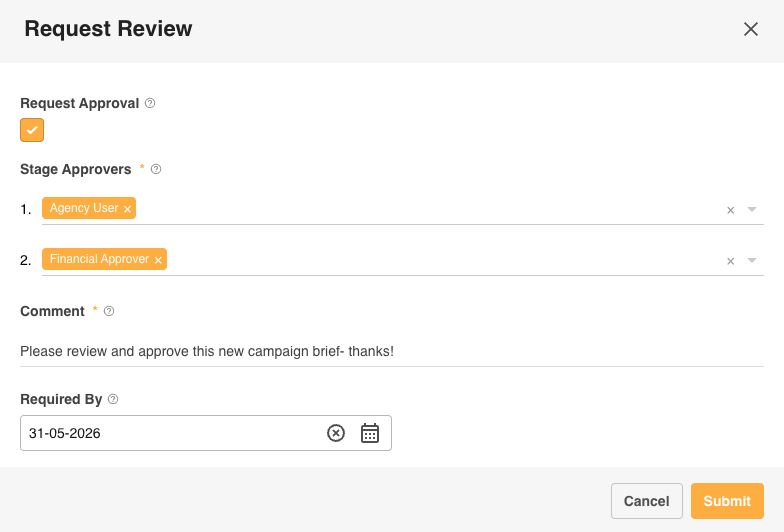
- Click the Submit button and fill out the remaining Request Approval fields. Note that if the approval process was set up as mandatory, Main Admins or Approval Admins will be able to override the approval request and publish records by unselecting the Request Approval checkbox.
- Click Submit to alert reviewers and start the approval process.
Reviewing an Approval
Reviewers and requesters can access pending approval requests via the Approvals List in the platform navigation, or through a direct link in their email notification (if email notifications have been enabled for this workflow). The approvals list shows key information about each request, including the record name, status, who the approval is waiting on, required by date, the date/time the request was submitted, and the destination database.

How to Review and Respond
| 1Open the Request | In the Approvals List, go to the Actions column and select Review Request. This opens the approval response page. |
| 2Review the Record and Details | The response page shows: a PDF version of the record, item details (record title/database), request details (requester, comments, required by date), and request status (who it is waiting on, how many approvals are still required). |
| 3Markup / Proofing (Optional) | If you need to collaborate on updates prior to granting approval, navigate to the Markup tab to annotate the PDF record and leave comments. Refer to this article for full details on record proofing functionality.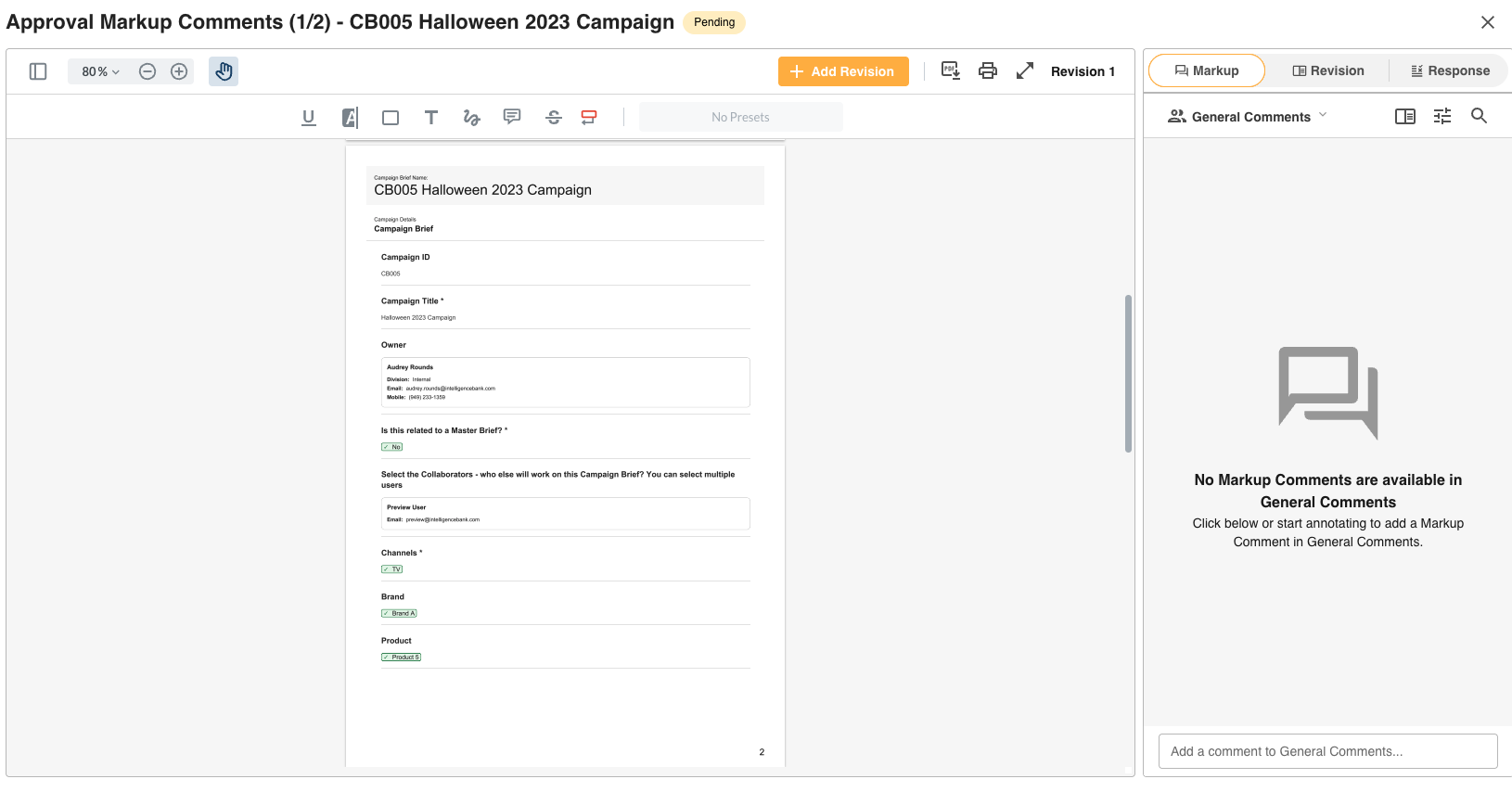 |
| 4Submit Your Response | Go to the My Response section. Enter a response comment (this may be mandatory depending on workflow settings), then select Approve or Decline. Select Submit Response when done.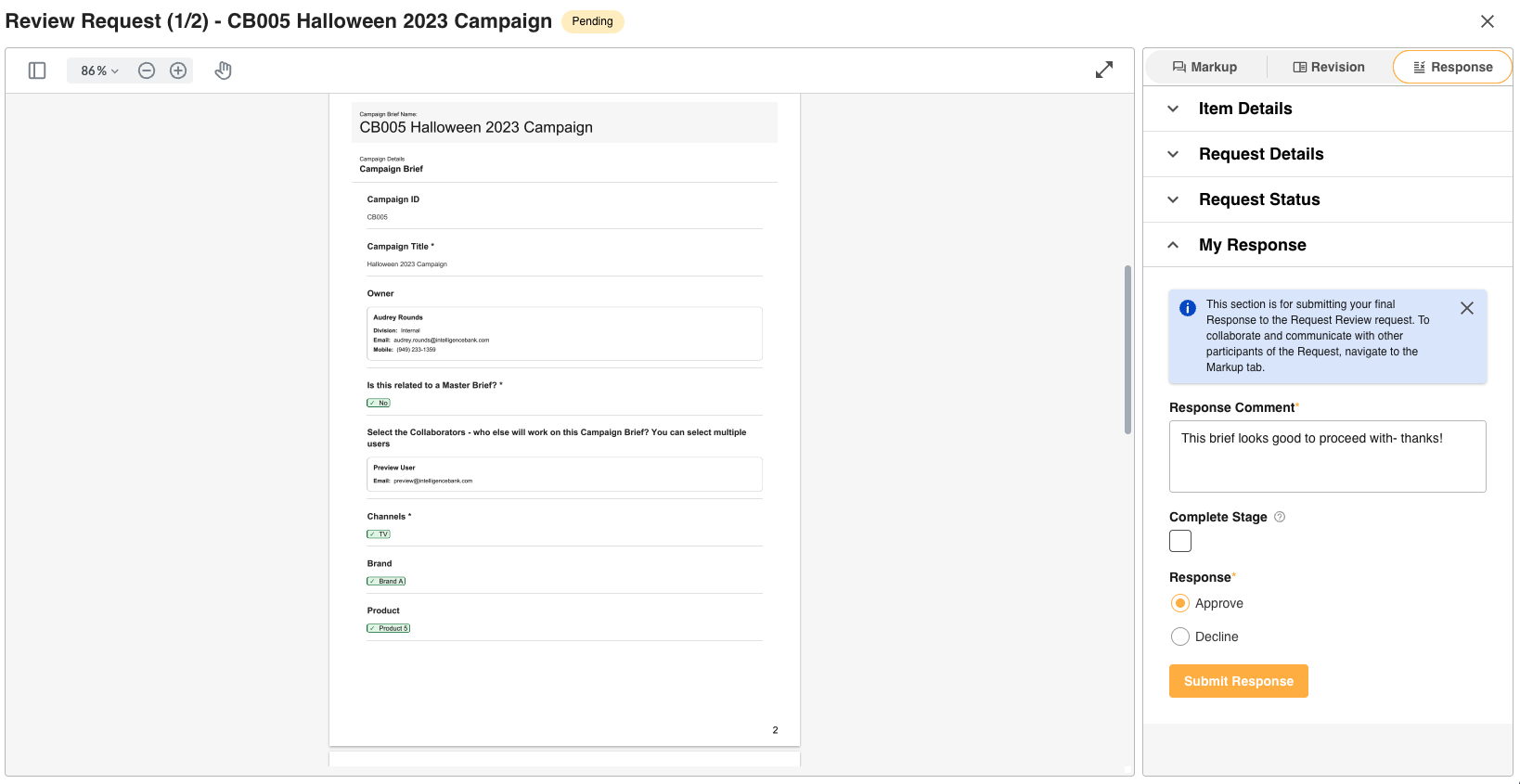 |
Complete Stage (Main Admins and Approval Admins Only)
Main Admins and Approval Admins will also see a Complete Stage option when submitting a response. Selecting this completes the approval request on its current stage immediately, regardless of whether other reviewers have responded. This is useful in situations where reviewers are unavailable - for example, if a reviewer has left the organisation and pending requests would otherwise be delayed indefinitely.
What Happens After Approval
If the workflow has multiple stages, the request is routed to the next stage of reviewers after each approval. Once all required approvals have been provided and the record is approved, the overall request is marked as "Approved" in the Approvals List, the requester is notified, and the record is published to the database.
Staged Records and Approvals
For databases that are Staged, offering a multi-step record creation process, the options are a little different.
- Stage 1: When reviewing Stage 1 requests, you'll see the first stage content only.
- Later Stages: When reviewing Stage 2 or beyond, you'll automatically see the relevant stage being approved, plus any previously completed stages.
- Completed Staged Requests: Once approved, you can view all stages for reference.
Limitations
There are a few important constraints to keep in mind when working with Publish Approvals on records.
Declined Requests Cannot Be Reopened
Decline Response on Staged Approvals
Was this article helpful?
That’s Great!
Thank you for your feedback
Sorry! We couldn't be helpful
Thank you for your feedback
Feedback sent
We appreciate your effort and will try to fix the article