Custom pages allow you to design and create custom web pages within your platform to showcase your information in a visual and interactive manner. Custom pages can integrate images, hyperlinks, flash videos or embed YouTube videos. Think of it as a website within your platform, useful for creating homepages in line with your company website, branding pages, and more.
Users can format text using a WYSIWYG editor (which means the text you create looks as close as possible to the end result, with bold, italic etc formatting options available) and use the HTML editor and/or the CSS editor options to help construct vibrant custom pages.
If unfamiliar with CSS and HTML languages, we recommend utilising a designer to assist you construct these pages.
Alternatively, for help designing and implementing your design you can contact us at IntelligenceBank to discuss pricing options. Note that for design implementation we will require designs in three width formats: Desktop (1024px +), Tablet (768-1012px), and Mobile (767px).
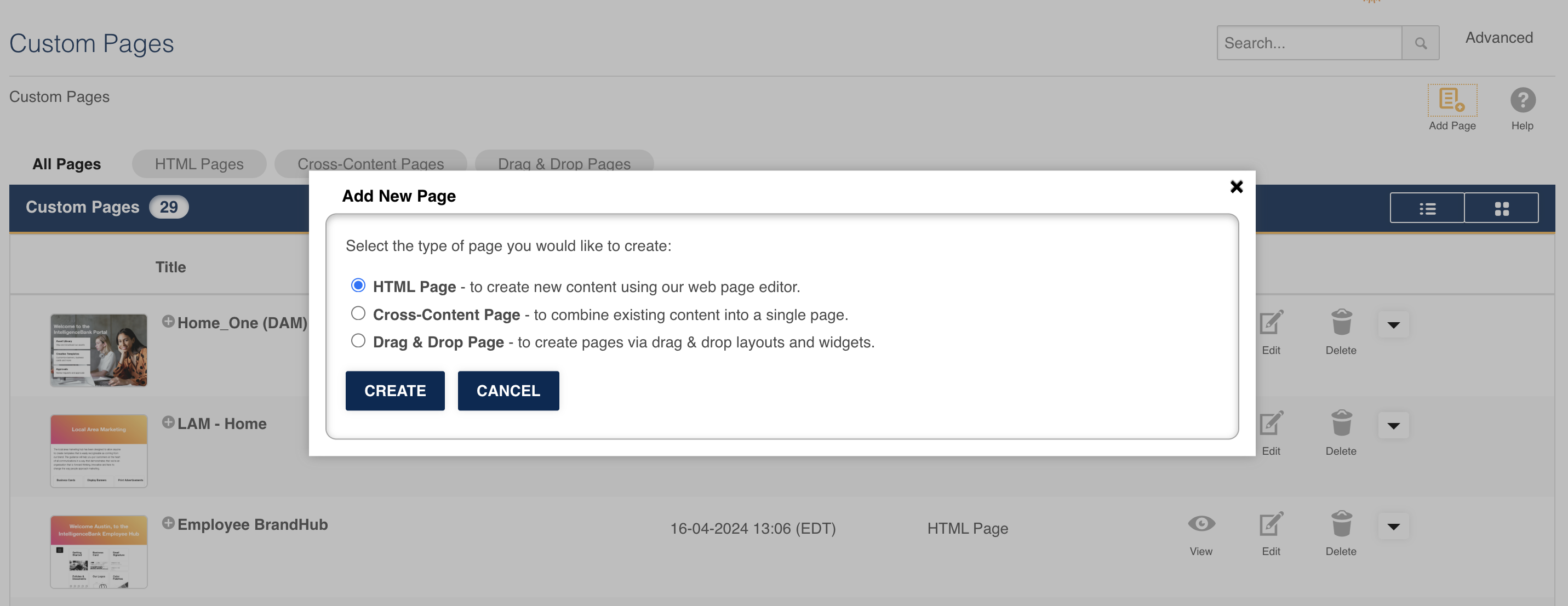
How to Create a Custom Page
If you have Custom Pages enabled, click into Admin>Custom Pages and select Add Page.
You'll then see a window where you can choose to create one of the following options:
- HTML page - choose to create a page using the web page editor
- Cross-Content Page - choose to combine existing content into a single page (this is most commonly used if you need a search bar on your welcome page)
- Drag & Drop page - choose to create pages via drap & drop layouts and widgets (most commonly used if you don't want to use HTML/CSS coding to build BrandHub pages)
Then, select Create.
If creating HTML pages, add your page name for the page in the Heading field.
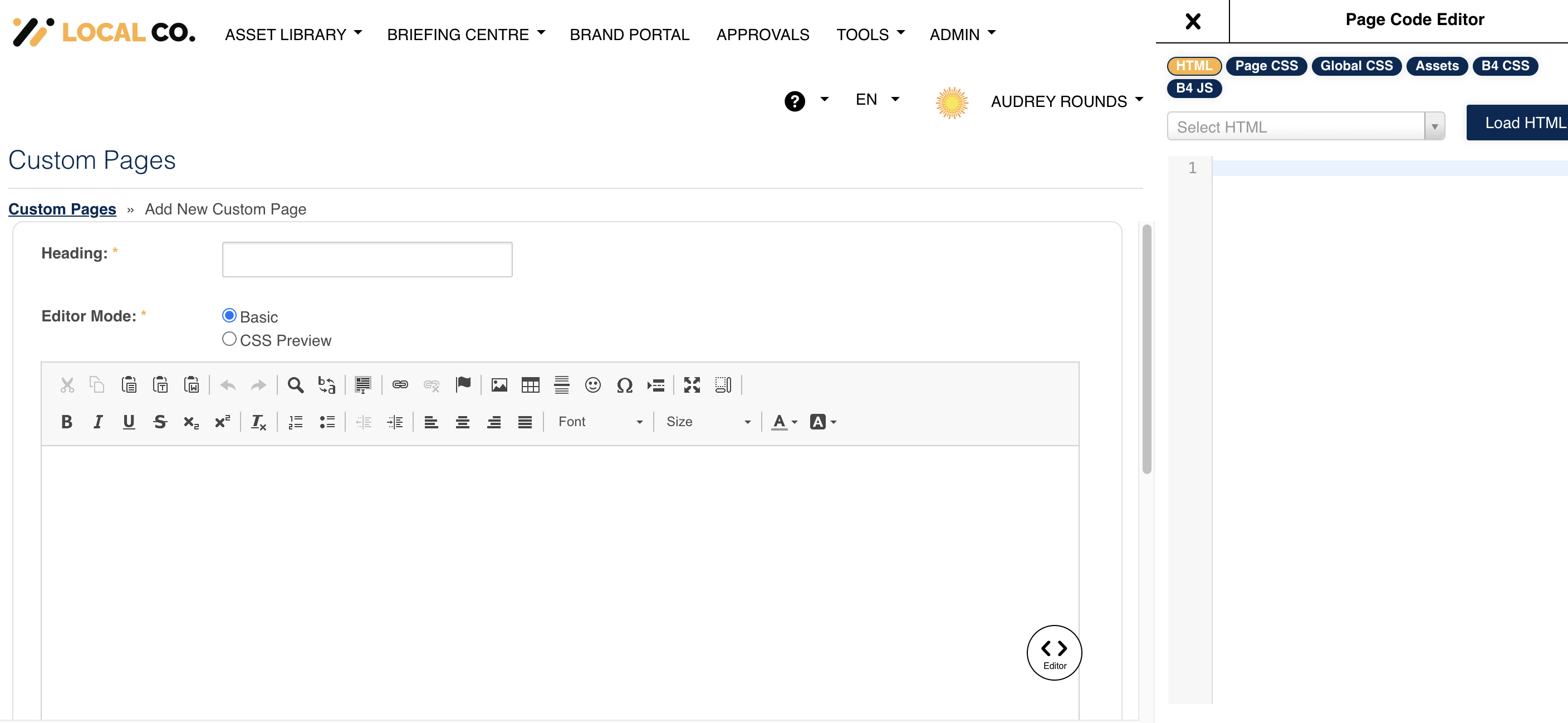
From here you can create and design your page using the CK Editor, HTML and CSS editor tool:
CK Editor - This refers to the general formatting editor at the top of the text field that allows you to use bold, italics, change font sizes, add images, and more. This is part of the 'WYSIWYG' framework, which stands for 'What You See Is What You Get' and refers to the fact that the text you create in the editor looks as close as possible to the end result you will get.

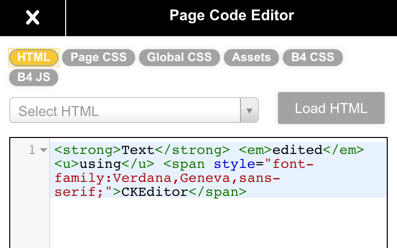
HTML - The HTML editor option lets you edit the HTML mark-up language 'on the fly' in the side-bar that will appear when you create or edit a custom page, with the text or images in the main editing box updated in real time as you edit. 'HTML' stands for 'Hyper Text Markup Language'.
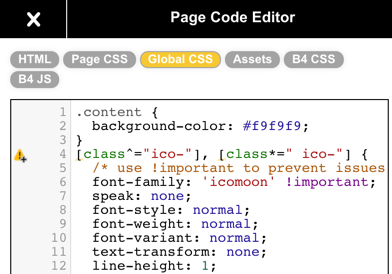
CSS - The CSS editor option also allows you to edit 'on the fly' in the right-hand side-bar. 'CSS' stands for 'Cascading Style Sheets' and is a web-page style-sheet language that dictates how HTML elements are to be displayed on single or multiple custom pages. Note that certain HTML rules are thus sometimes overridden by such CSS style information.
You also have the option to select either Page or Global CSS. Page CSS will automatically override Global CSS, allowing you to add specific code for a single custom page.
Note, If unfamiliar with CSS and HTML languages, we recommend utilising a designer and/or developer to assist you construct these pages. Alternatively, for help designing and implementing your design you can contact us at IntelligenceBank to discuss pricing options.
At the bottom of the page you have the option of adding Keywords and Permissions before you Save. Please reference the article on groups and permissions to learn more about the permission options for custom pages.
Editing a Custom Page
To edit an HTML custom page:
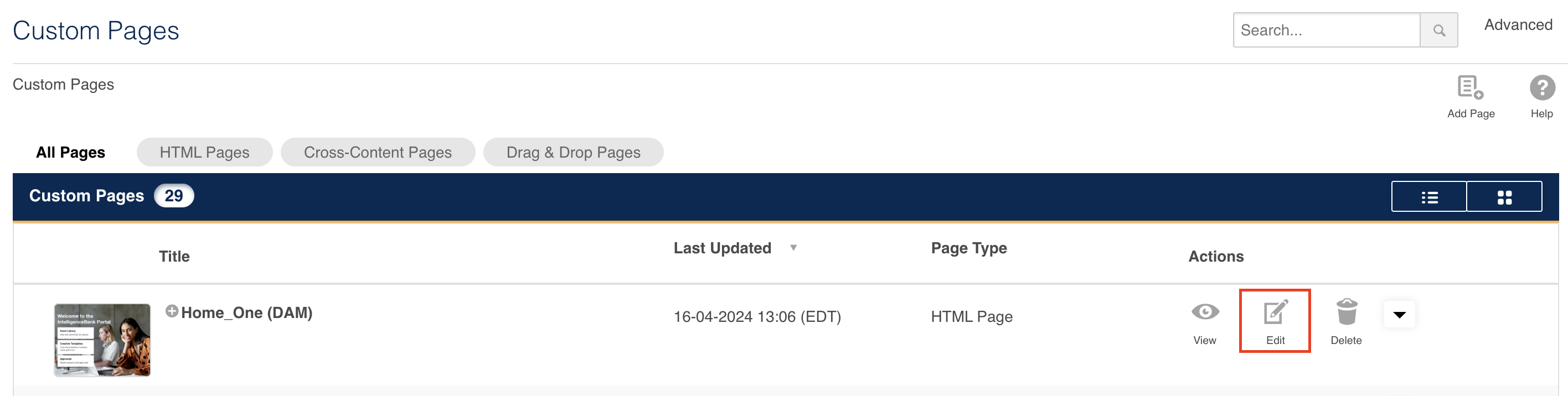
1. Navigate to Admin>Custom Pages, locate the page you want to edit, then select the Edit icon.
2. You can then edit your page via the WYSIWYG, HTML and CSS editor tools:
- WYSIWYG - This refers to the general formatting editor at the top of the text field that allows you to use bold, italics, change font sizes, add images, and more.'WYSIWYG' stands for 'What You See Is What You Get' and refers to the fact that the text you create in the editor looks as close as possible to the end result you will get.
- HTML - The HTML editor option lets you edit the HTML mark-up language 'on the fly' in the side-bar that will appear when you create or edit a custom page, with the text or images in the main editing box updated in real time as you edit. 'HTML' stands for 'Hyper Text Markup Language'.
- CSS - The CSS editor option also allows you to edit 'on the fly' in the right-hand side-bar. 'CSS' stands for 'Cascading Style Sheets' and is a web-page style-sheet language that dictates how HTML elements are to be displayed on single or multiple custom pages. Note that certain HTML rules are thus sometimes overridden by such CSS style information.
Note, If unfamiliar with CSS and HTML languages, we recommend utilising a designer to assist you construct these pages. Alternatively, for help designing and implementing your design you can contact us at IntelligenceBank to discuss pricing options.
At the bottom of the page you will have the option of adding Keywords and setting Permissions before you Save your changes.
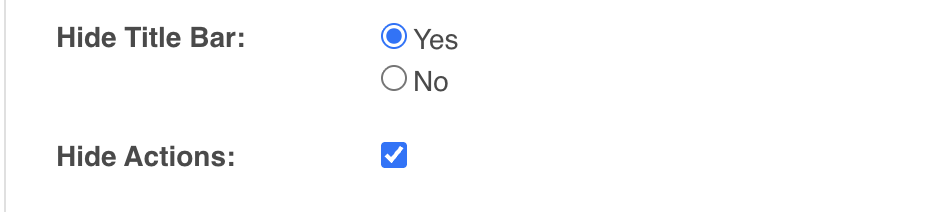
You can also choose to Hide Title Bar (which hides both the main Title and the search bar) or Hide Actions for when viewing the page.
Deleting Custom Pages
You can remove a Custom Page by following the below steps:
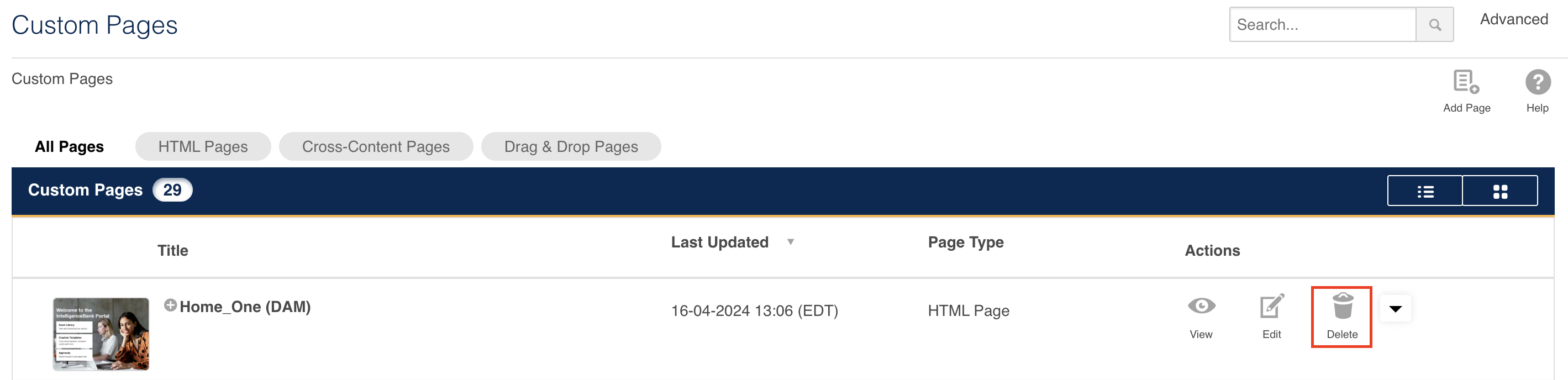
1. Navigate to Admin>Custom Pages. Then locate the page you'd like to delete
2. Select the Delete icon and confirm when prompted.
To remove a custom page from the navigation menu, go to Admin>Templates, and click on the item. Then select Delete.
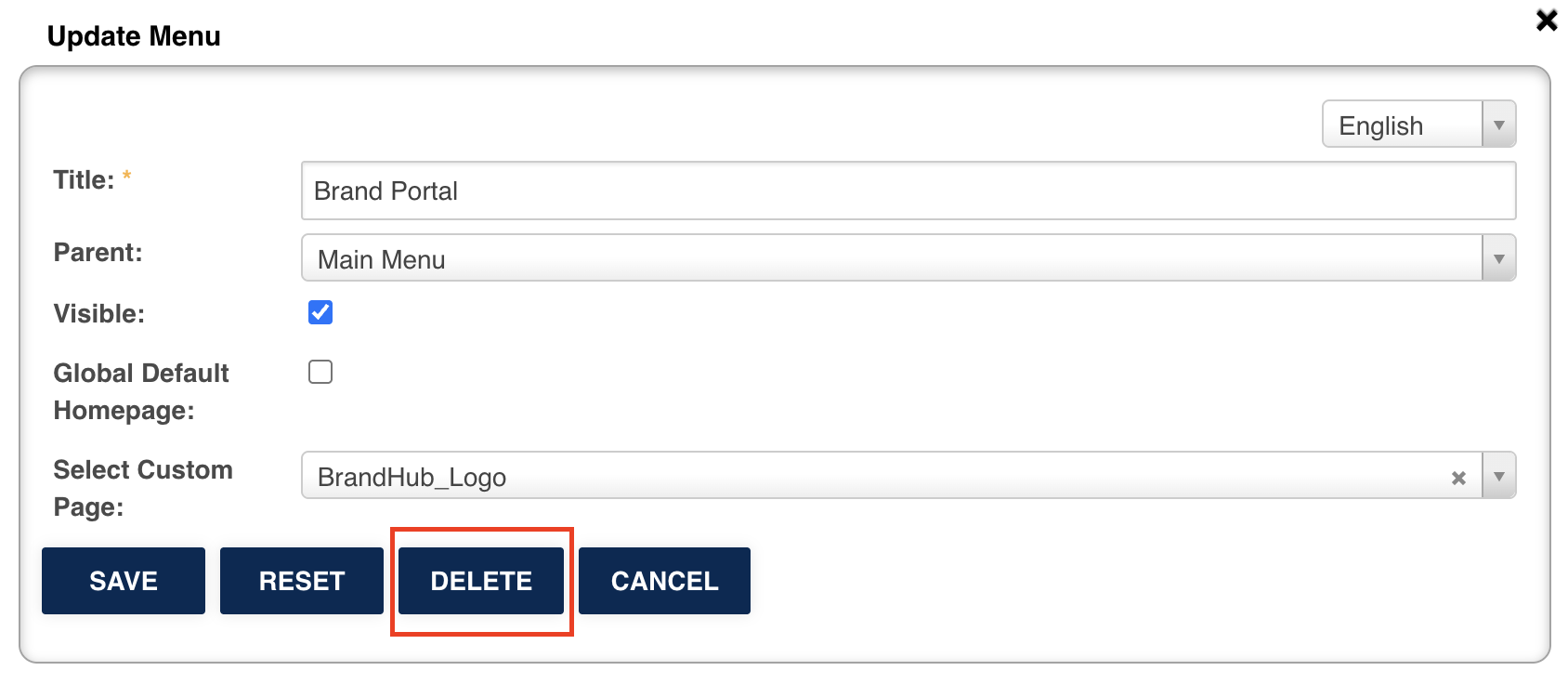
Note that this doesn't delete the actual page. You must follow the steps above separately to do so.
Was this article helpful?
That’s Great!
Thank you for your feedback
Sorry! We couldn't be helpful
Thank you for your feedback
Feedback sent
We appreciate your effort and will try to fix the article