This guide covers how to convert content from Google Sheets into PDFs that can be effectively scanned by Marketing Compliance. This process allows you to convert specific samples or sections from a Google Sheets document into a properly formatted PDF.
Table of Contents
When to Use This Method
This conversion process is ideal when you need to:
- Create a PDF from a specific section of a Google Sheets document
- Submit spreadsheet data for compliance review
- Convert financial or tabular data into a format compatible with Marketing Compliance
Step-by-Step Conversion Process
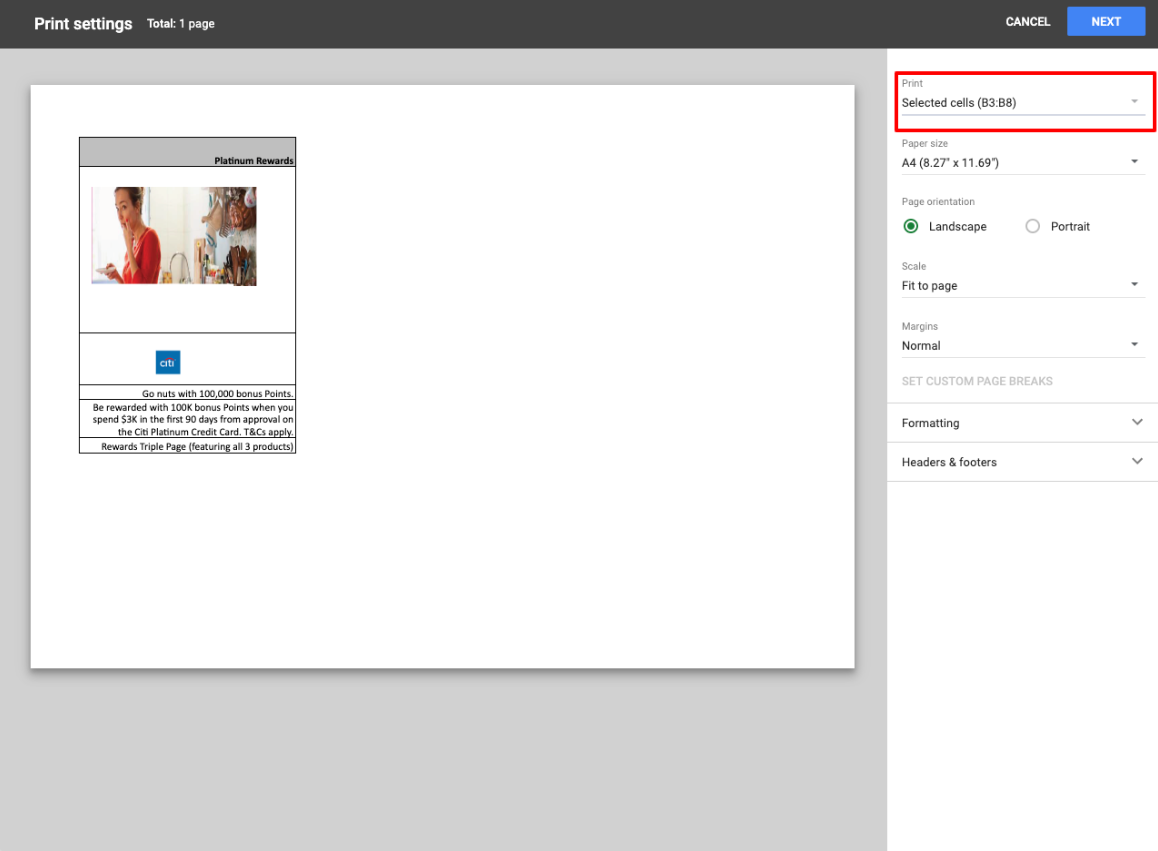
| 1Select Your Content | Select the cells containing content for the single sample you want to export
|
| 2Open Print Dialog | Click File > Print, or use the keyboard shortcut:
|
| 3Configure Print Settings |
|
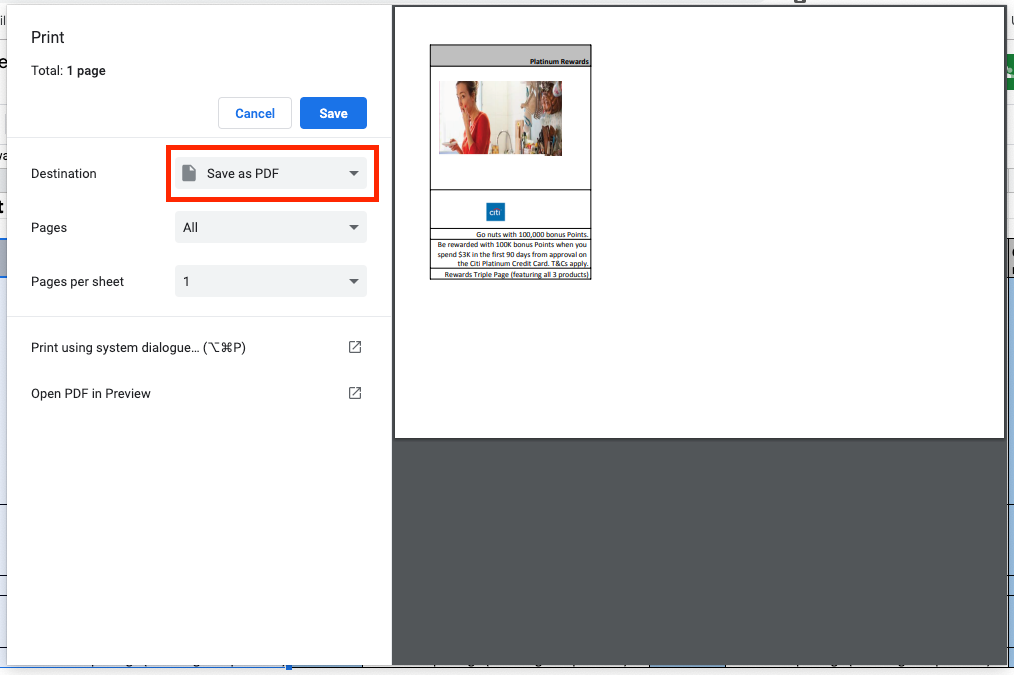
| 4Create PDF |
|
Converting Multiple Samples
This next process shows you how to turn multiple samples in a Google Sheets file into a combined PDF with each sample on a different page. This process is good for creating a single PDF file with multiple samples that need the same filters applied when uploaded (e.g., same company, same product, same channel, etc).
| 1Open Print Dialog | Click File > Print, or use the keyboard shortcut:
|
| 2Configure Print Settings |
|
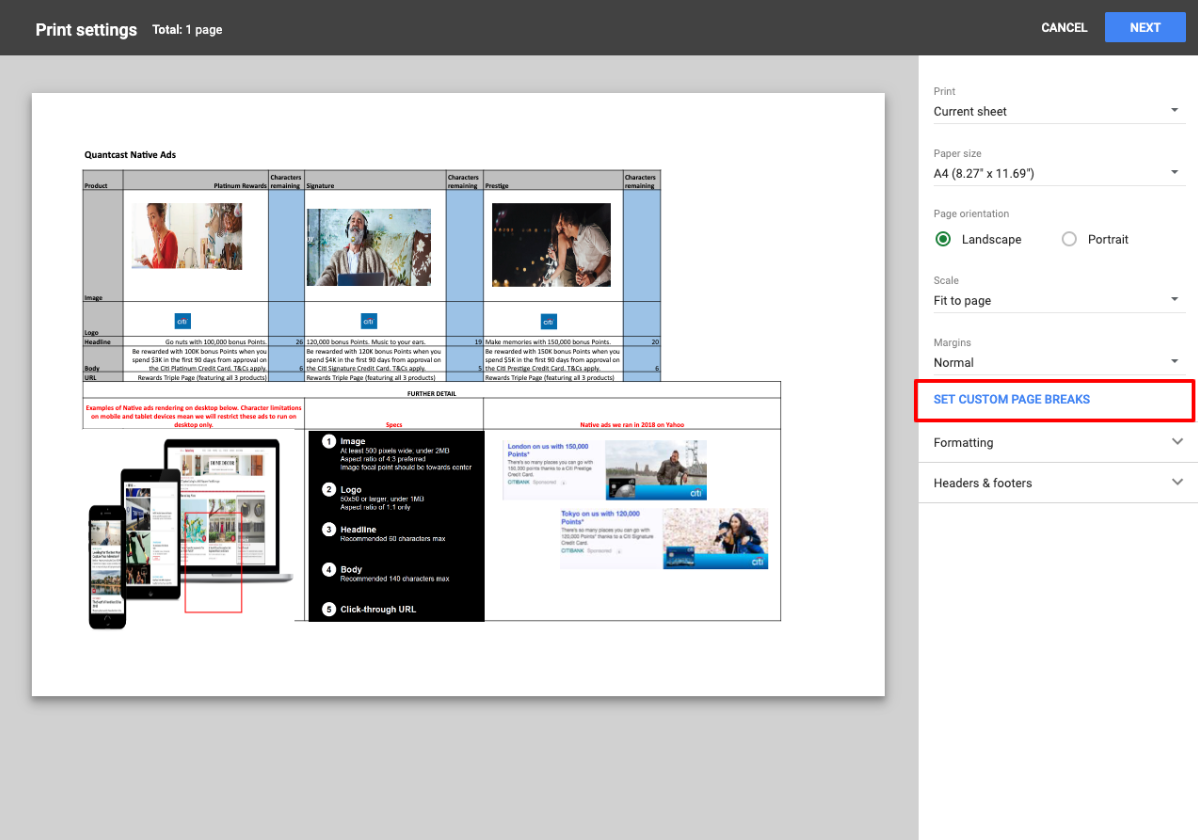
| 3Set Page Breaks |
|
| 4Create PDF |
|
After Creating Your PDF
Once you've created your PDF, verify that:
- All relevant content is included and properly formatted
- The file size is under the 50MB limit for upload
- Text is clear and readable
- Any important visual elements appear as intended
Your PDF is now ready to be uploaded to Marketing Compliance for review.
Tips for Best Results
- Preview Before Saving: Use the preview pane in the print dialog to ensure your content appears as expected
- Include Headers: Always include column headers in your selection for better context
- Set Print Area: For repeated exports, consider setting named print areas in Google Sheets
- Check Formatting: Ensure all cells are properly formatted before converting to PDF
- Page Layout: Use the Page Setup options to adjust margins, orientation, and scaling if needed
Optimizing Your PDF for Review
- Keep File Size Small: Avoid unnecessary graphics or complex formatting that may increase file size
- High Contrast: Ensure text has high contrast against its background
- Appropriate Font Size: Use font sizes that will remain readable when converted to PDF
- Avoid Merged Cells When Possible: Merged cells can sometimes cause formatting issues
- Clear Labeling: Include clear labels and titles to provide context for the data
Troubleshooting Common Issues
| Missing Content | If some content is missing, check your selection before printing |
| Formatting Problems | If formatting looks different in the PDF, adjust cell formatting in Google Sheets |
| Page Breaks | Use Print Settings > Page breaks to control where pages split for multi-page exports |
| Text Too Small | Increase font size in Google Sheets before exporting |
Was this article helpful?
That’s Great!
Thank you for your feedback
Sorry! We couldn't be helpful
Thank you for your feedback
Feedback sent
We appreciate your effort and will try to fix the article