User Lookup fields let users pick people from a dropdown on a record. Use them to send alerts, assign permissions, and make sure the right people know about a new task.
Table of Contents
Setting Up a User Lookup Field
To see the User Lookup options in the Form Builder:
| 1Add the element | Select Lookup as the Element. |
| 2Check the type | Make sure Lookup Type is set to Lookup Select. |
| 3Choose Users | Select Users in the Lookup Table. |
These options then appear (pictured below):
| Setting | Description |
|---|---|
| Multiple | Lets users select more than one user in the dropdown on the record. |
| Integrated Fields | Extra details shown on the record and when selecting users. They come from each user's My Account page, and from the Admin area for Group and Division. Options are Email, Group, Title, Division, Company, Address 1, Address 2, Suburb/City, State, Postcode, Country, Mobile, Phone, Status and Timezone. The user's Full Name always appears by default. |
| Use Parent Thumbnail | Uses the selected user's thumbnail as the record's thumbnail. Only available for single selection, when Multiple is not enabled. |

Selection Options
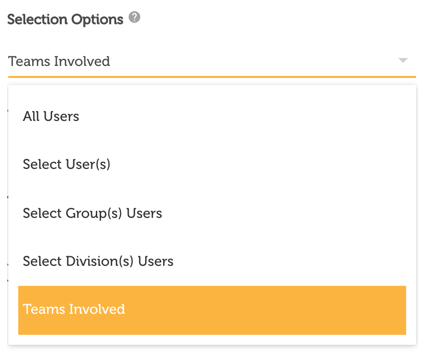
Selection Options decide which users appear in the dropdown.
All Users
The default. Users can select anyone on the platform.
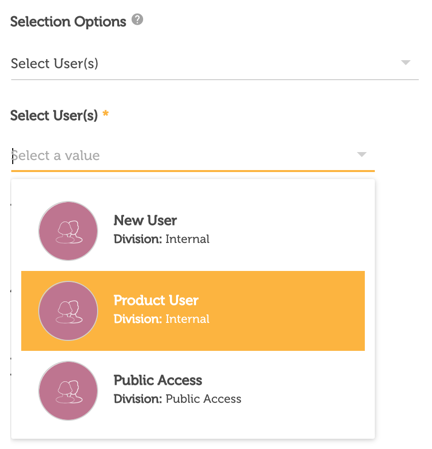
Select User(s)
Choose the specific users shown in the dropdown. This is useful when, for example, only certain managers can approve a request.
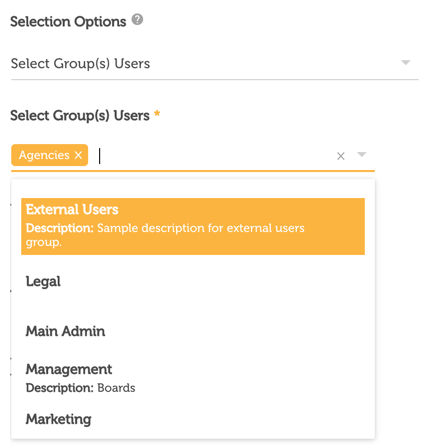
Select Group(s) Users
Only shows users from the groups you select.
Select Division(s) Users
Only shows users from the divisions you select.

Groups Lookup Fields
If the form already has a Groups Lookup field, you can use it as the source. The group(s) selected in that field on the record decide which users appear in this User Lookup field.
Additional Options
Once you've chosen which users appear, these extra options are available.
Default to Logged In User
When enabled, the logged-in user is selected by default.
When the Selection Option is All Users and Default to Logged In User is enabled, a Lock Selection option also appears. When it's selected, non-Admin users can't change the field to another user.
Include Deleted and Suspended Users
Lets users select Deleted users, Suspended users, or both. They show in the dropdown with (Deleted) or (Suspended) after their name, and they stay on records when those records are edited.
Auto-Assign User as Group Permission
Gives the selected permission to the user(s) chosen in the field, as long as those users are set up as 'User as Group' in their user profile (Admin > Users). Once enabled, these options appear:
| Option | Description |
|---|---|
| Only Auto-assign on Creation | The permission is only assigned when the record is created, not when it is updated. |
| Permission | Gives the user(s) View or Edit permission on the record. They still need permission to access records in the database. |
| Remove Record Custom Permission Rules if User is Unselected | Removes the permission this field gave a user if that user is later removed from the field. |
On the Record
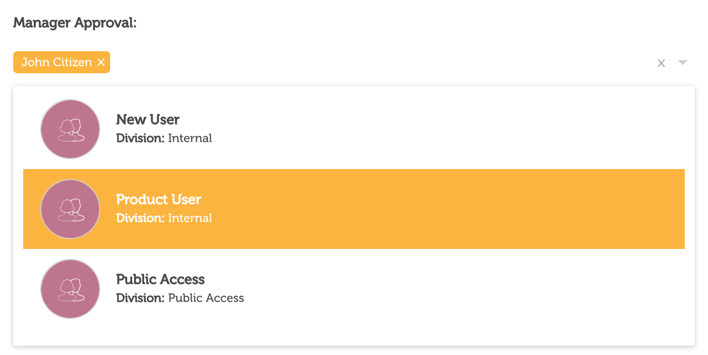
On the record, the User Lookup field shows a list of users to choose from, based on the options above.
The User Lookup is one of four Lookup field types. Read more about the other Lookup field options.
Was this article helpful?
That’s Great!
Thank you for your feedback
Sorry! We couldn't be helpful
Thank you for your feedback
Feedback sent
We appreciate your effort and will try to fix the article