This article will explain how to create custom alerts on a database. Alerts are helpful if you want to notify a user or users that a new request or task has come in, or a task has been assigned to them, for example. This helps keep people informed of updates or next steps they may need to action on their end.
Alerts can also be triggered off of date fields within a database form. These are helpful to set up if, for example, you want reminders sent out to people if a date within the form (such as due date or launch date) are approaching or have lapsed.
This article will use setting up alerts for an Actions Register as the example, but this feature can be used for a variety of use cases (e.g. managing tasks for a marketing campaign).
Table of Contents
When in a database, click on the Alert Settings icon located in the database's action menu. This option is only available to users with at least Manage permission on the database.

You'll be taken into the alert settings page. Custom alerts can be created based on:
- The Published Date of the record
- Any Date fields within the form
- Any User or Group Lookup fields (fields that allows you to select one or multiple users or groups from the system)
In the Field dropdown, all supported fields in your database will be listed for selection.

Adding a Date Field Alert
Published Date Alert
All databases can have alerts set up based on the published date of the record.
Here 'published' is defined by when a record is either successfully first created and saved, or if it is sent for approval then it will be classified as 'published' once approved.
Date Field Alerts
Other date alerts can be configured based on date fields that have been added to the form for a database (for example a 'Due Date' field).
Date Alerts Configuration
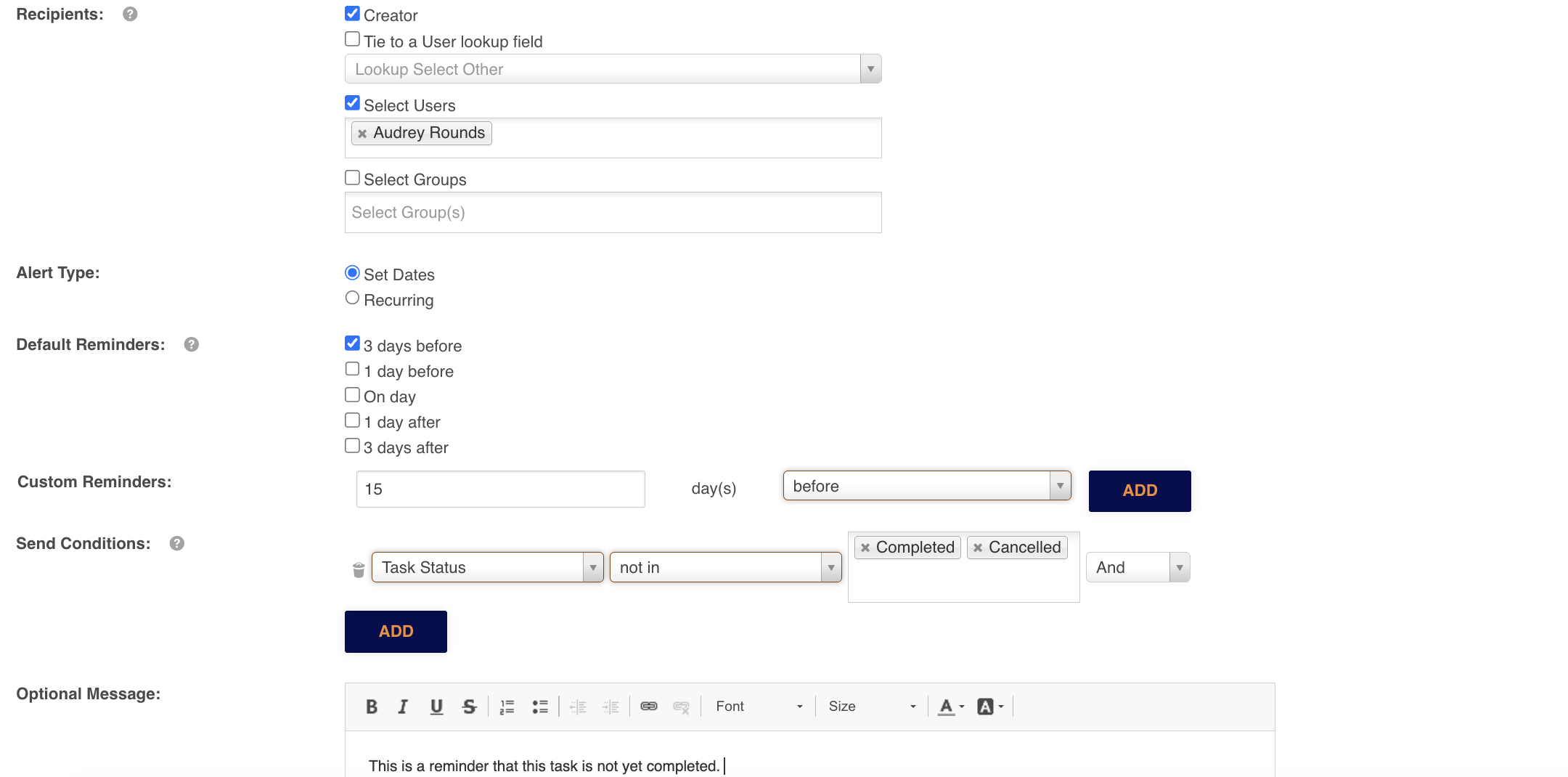
For both date alert types, there are various options you can choose from in terms of who should receive the date alert (Recipients field).
- The Creator of the record. This is useful both as a 'receipt' of the record creation, as well as additional confirmation when a record may have been approved and published after a delay undergoing approval process
- User(s) who have been added into the User Lookup field, for example an 'Assignee' for that record/task. This is particularly helpful to alert users to items they need to action.
- You can also select specific users or groups of users to receive the alert, in case some users need to be alerted for each record
You can then select when the alert should be sent. Select Set Dates to send the alert: 3 days before, 1 day before, on the day, 1 day after, 3 days after, and/or a custom number of days before or after (up to 30 days). Select Recurring to send the alert on a recurring basis (click here for more on this specific feature).
Note that the title of the reminder email will display the name of the record, as well as whether the date is Approaching, Reached or Elapsed.
You can set custom conditions, so that for example, the alert only gets sent if the record status is 'Not Started' or 'In Progress' but not if 'Completed'.
You can also include a custom message in the email that gets sent to elaborate on why a user has received the alert and a call to action about what they are expected to do next.
Adding a User or Group Lookup Field Alert
User Lookup Alert
This type of alert can be used, for example, to notify a user that they have been assigned to a task. It draws the recipient(s) from the User Lookup field within the record.
Group Lookup Alert
Likewise, recipients can be drawn from a Group Lookup field within the record. Multiple groups are supported - if more than one group is selected then users from both/all groups can receive the alert - but noting there is a limit of 100 maximum possible recipients for this alert type.
- This applies in an alpha-sort within or across groups, for example:
- If a Group has 150 users in it, then the first 100 users based on alpha sort of their first name will apply as those who may receive the alert
- If two Groups are selected, and both have 75 users each, then the users are combined and the first 100 users based on alpha sort of their first names across either group may receive the alert (noting that if the same users are in both groups, they will only receive the alert once.)
User / Group Lookup Alert Configuration
For either User or Group Lookup Alerts, you can customise the prefix and suffix of the email title. The name of the record will be displayed in the middle automatically. You can also include a custom, optional message to help point out to recipients if follow up actions are required from them.
Like with date alerts, you can also set custom conditions, for example that the alert will only be sent if the entered email field ends with a specific domain name, or a specific department was selected as stakeholders.
For staged databases, you can also nominate for which stages the alert should be sent. The alert will be sent once the selected stage is submitted, or approved if a workflow is enabled.
For both User and Group Lookup alerts - for single databases only - you can also elect to include any changes made to the record within the alert email. Select the Include Change Details checkbox to include a list of all changes made to the updated record. This setting will only be applied when the record has been updated (not when it is first submitted) and the alert will be sent immediately after a record has been updated and saved.
- For this to occur, the Email Frequency must be set to either On Submission and Updates or On Updates only

This does not apply to the generic date alerts as the settings and all the records are checked daily.
If you have any further questions please contact your Customer Success Manager.
Related:
Was this article helpful?
That’s Great!
Thank you for your feedback
Sorry! We couldn't be helpful
Thank you for your feedback
Feedback sent
We appreciate your effort and will try to fix the article