General Markup Comments let users comment on and annotate files or URLs in a database Multi-Upload field, making it easy to give and receive feedback. Users can be tagged with @ mentions, and new revisions can be uploaded based on the feedback.
This feature helps your team move a file from first draft to ready for approval, all in one, centralised place. Once any general feedback has been gathered and actioned, use File Approval or Publish to Folder to get the file approved or shared with the right stakeholders.
Table of Contents
Configuring General Markup Comments
To turn on General Markup Comments:
| 1Check the platform setting | In Admin > Settings, make sure Enable Markup Comments is on in the General section. It is on by default. |
| 2Enable it on the field | On a Multi-Upload field in the Form Builder, enable the General Markup Comment setting (pictured below). Its options also let you turn Add Revisions on or off. |
| 3Save | Save the Upload field. |

The General Markup Comment icon is now available for every file saved in this field.
Adding General Markup Comments
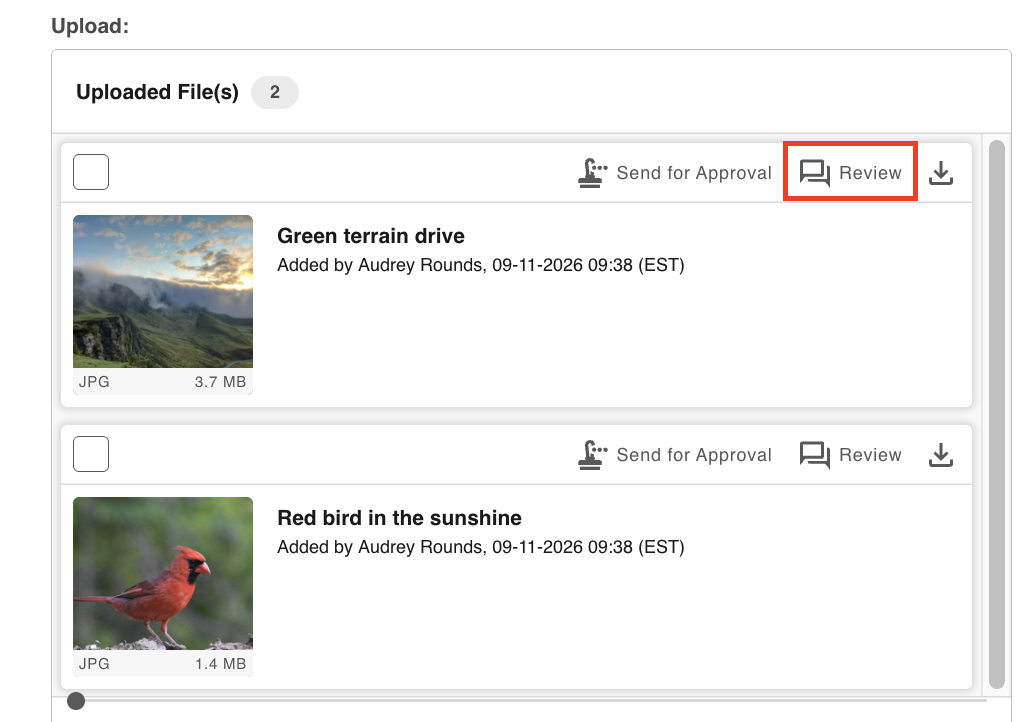
To start commenting on a saved file, click the Review icon indicated below. Users with the right permissions can do this while viewing or editing the record.
The General Markup Comments page opens, where users can add annotations and comments to the file in a comment thread. Read more about comment threads.
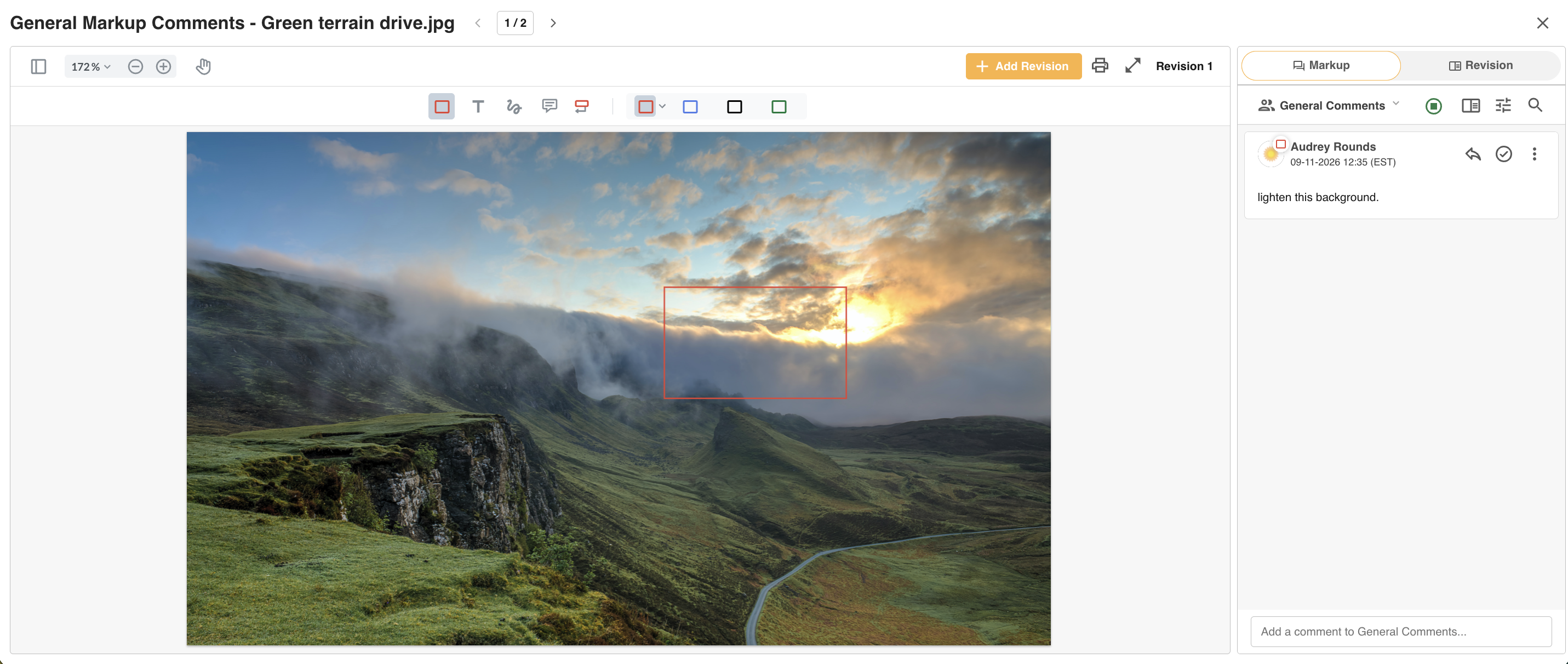
Who Gets Notified
These users in the same comment thread are notified of new comments:
- The user who uploaded the original file, or any revision, in General Markup Comments.
- Anyone who has already commented in that file's General Markup Comments.
- Anyone tagged with an @ mention in a comment.
Links in the alert email take users straight to the file's General Markup Comments page, where they can reply, or add annotations or revisions.
URL Markup Comments and Annotations
A URL opened in General Markup Comments always shows the live page, exactly as if you visited it directly.
Some URLs can't be displayed or annotated. A URL must:
- Allow being shown in an iFrame. This may need to be enabled when the page is created.
- Be publicly accessible. Content behind a login, for example, can't be viewed.
- Be a secure link, starting with https rather than http.
There are some known issues with websites that use Viewports. If you run into problems, contact your Customer Success Manager.
Adding Revisions
When Revisions are enabled, users with permission to edit the record can upload an updated file with changes made outside the platform, based on the feedback.
- The newest revision shows in the record's file list.
- Once the final revision is ready, it can be sent for approval.
- Previous revisions keep their annotations and comments, so they can still be resolved.
Revisions for URLs
When a new revision of a URL is saved, a PDF snapshot of the previous revision is created. This lets you keep updating the same URL while keeping an accurate history of its changes.
Previous revisions can be downloaded as PDFs. The current revision also has an option to open the URL directly in the browser.
Using with Record File Approval Workflows
If enabled, a Record File Approval Request can be made whenever a user decides the file is ready, based on the comments and revisions in General Markup.
When File Approval Workflows are enabled on the same field, keep these points in mind:
| Comments stay separate | Annotations and comments in General Markup Comments don't carry over to the Workflow Request markup area, and comments in the Workflow Request don't appear in General Markup Comments. |
| Permissions can differ | Not everyone who can see General Markup Comments can see the File Approval Request and its comments for the same file. See File Approval permissions. |
| Revisions while pending | New revisions can't be added in General Markup Comments while the approval request is Pending. |
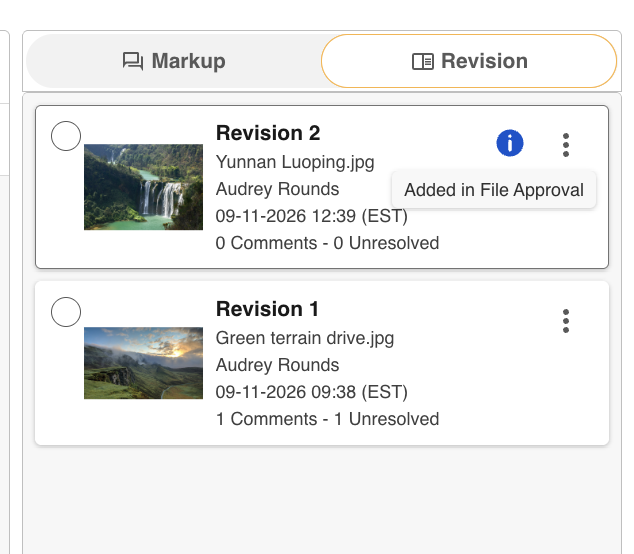
| Revisions sync back | A new revision made in an approval request does sync back to General Markup Comments, with an icon (pictured below) to show this has happened. |
Was this article helpful?
That’s Great!
Thank you for your feedback
Sorry! We couldn't be helpful
Thank you for your feedback
Feedback sent
We appreciate your effort and will try to fix the article