Table of Contents
Getting Started
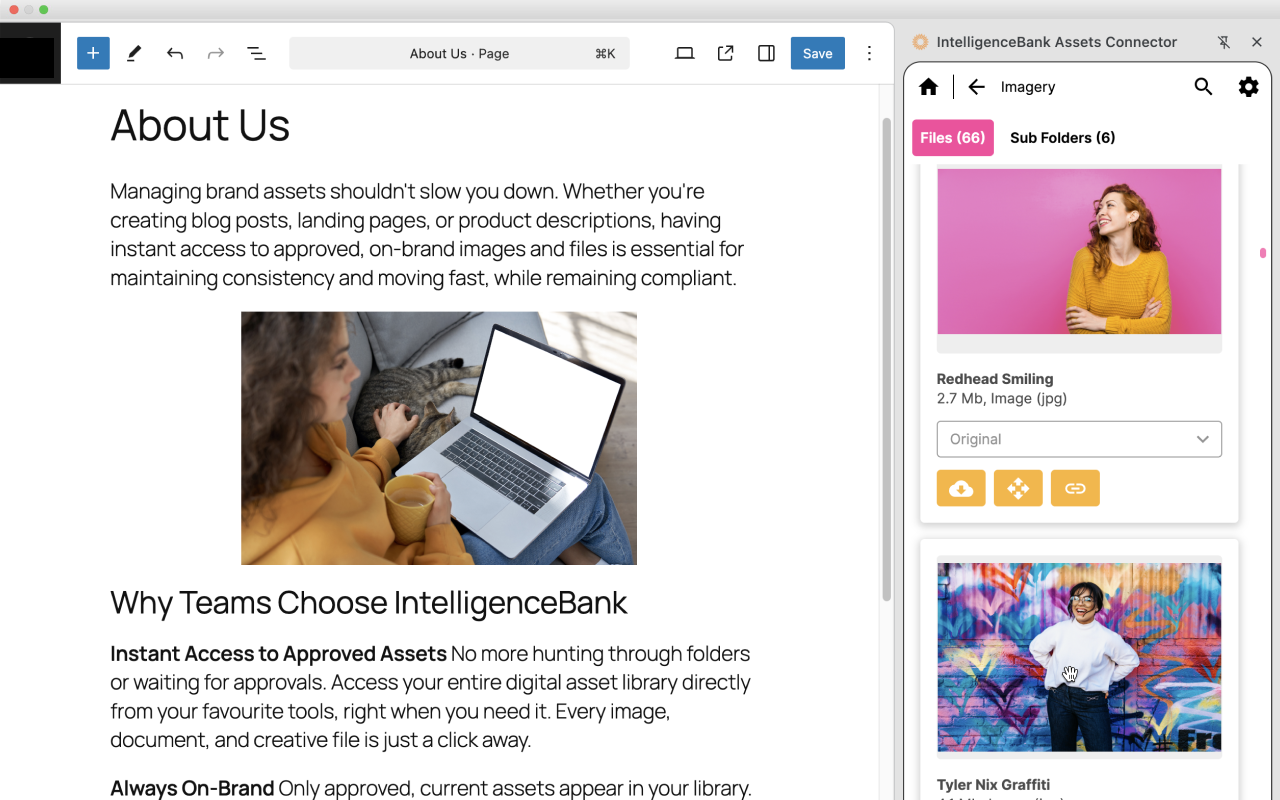
The IntelligenceBank Universal Assets Connector is a browser extension available in the Chrome Web Store which can be installed on both Google Chrome and Microsoft Edge browsers (Chromium-based versions). It lets you quickly and easily insert your approved IntelligenceBank assets into any third-party web application, either by drag & drop upload (if supported) or by inserting a dynamic Public CDN Link. Click here to install it.
Authenticating
To log in and start using the connector, enter your credentials:
- Platform URL (without https://): enter the URL of your IntelligenceBank platform. To enter a Custom URL, select the option at the bottom of the page.
- Username: the email address associated with your IntelligenceBank user account.
- Password: the password you set up for accessing your IntelligenceBank user account. If you cannot remember your password, go to your login page to reset it and create a new one.
Single Sign On Users
If you are using SSO credentials to log in to IntelligenceBank, follow these steps instead:
- Enter the URL of your IntelligenceBank platform. To enter a Custom URL, enable the corresponding option.
- Click Browser Login (for SSO) at the bottom of the page.
- You will be redirected to your IntelligenceBank platform URL. Log in via the SSO option on the web login page as normal.
- Once successfully authenticated, click Continue on the extension to complete the login process.
Settings
There are several settings available in the top right panel to customize your experience:
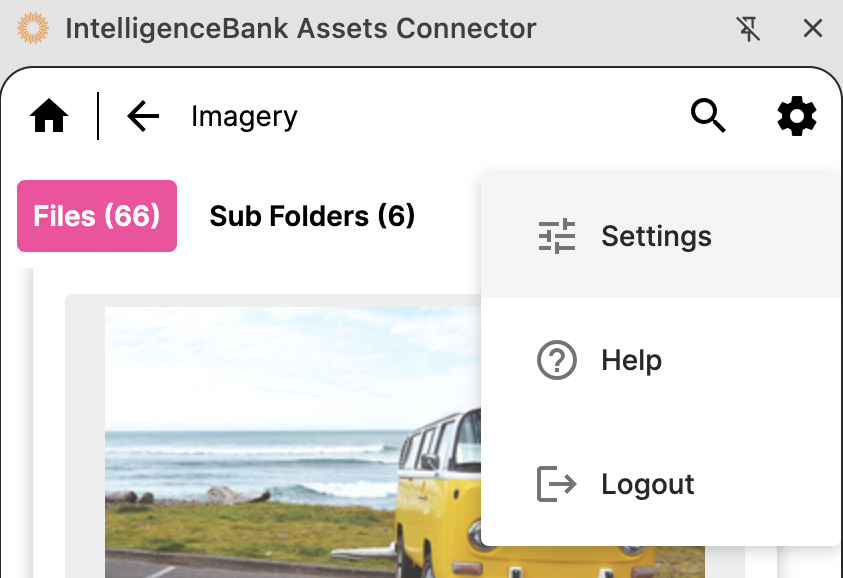
Display Mode
Choose how the extension interface appears in your browser.
- Side Panel: Opens the extension in a persistent side panel alongside your browser content. Ideal for browsing assets while viewing your current page without switching windows.
- Popup: Opens the extension in a compact popup window when you click the extension icon. Best for quick access and minimal screen usage.
Assets Layout
Control how assets are displayed within the extension.
- Cards: Displays assets as visual cards with thumbnails and key details. Great for visually browsing and quickly identifying assets at a glance.
- List: Displays assets in a compact list format with essential information. Efficient for scanning through many assets quickly.
Drag to Embed
How To Use
Once logged in, you will be able to browse through your IntelligenceBank folders and content.
To insert a file into a third-party website, click DOWNLOAD on the file. It will download locally and your desktop file explorer will automatically appear with the file selected, at which point you can drag and drop it straight into supported applications and content areas.
The IntelligenceBank Universal Assets Connector drag & drop feature only works with websites and applications that also support drag & drop upload.
If Public Sharing is enabled on the folder, you can also copy the Public Link to an image or video asset and insert it into your third-party application (e.g. the WordPress Insert URL field in the Media Library). If the original asset is updated, the Public CDN Link will instantly reflect the latest version in all locations where it is in use. Similarly, if the original asset is archived or moved to a different folder, the Public CDN Link will be terminated and disabled automatically.
If the Drag to Embed option is enabled under Settings, and the file is enabled for Public Sharing and in a supported image format (jpg, jpeg, png, gif, webp, svg, avif, apng, bmp, ico), you will also see an option to embed that image directly into supported applications (see the Setting description above for details).
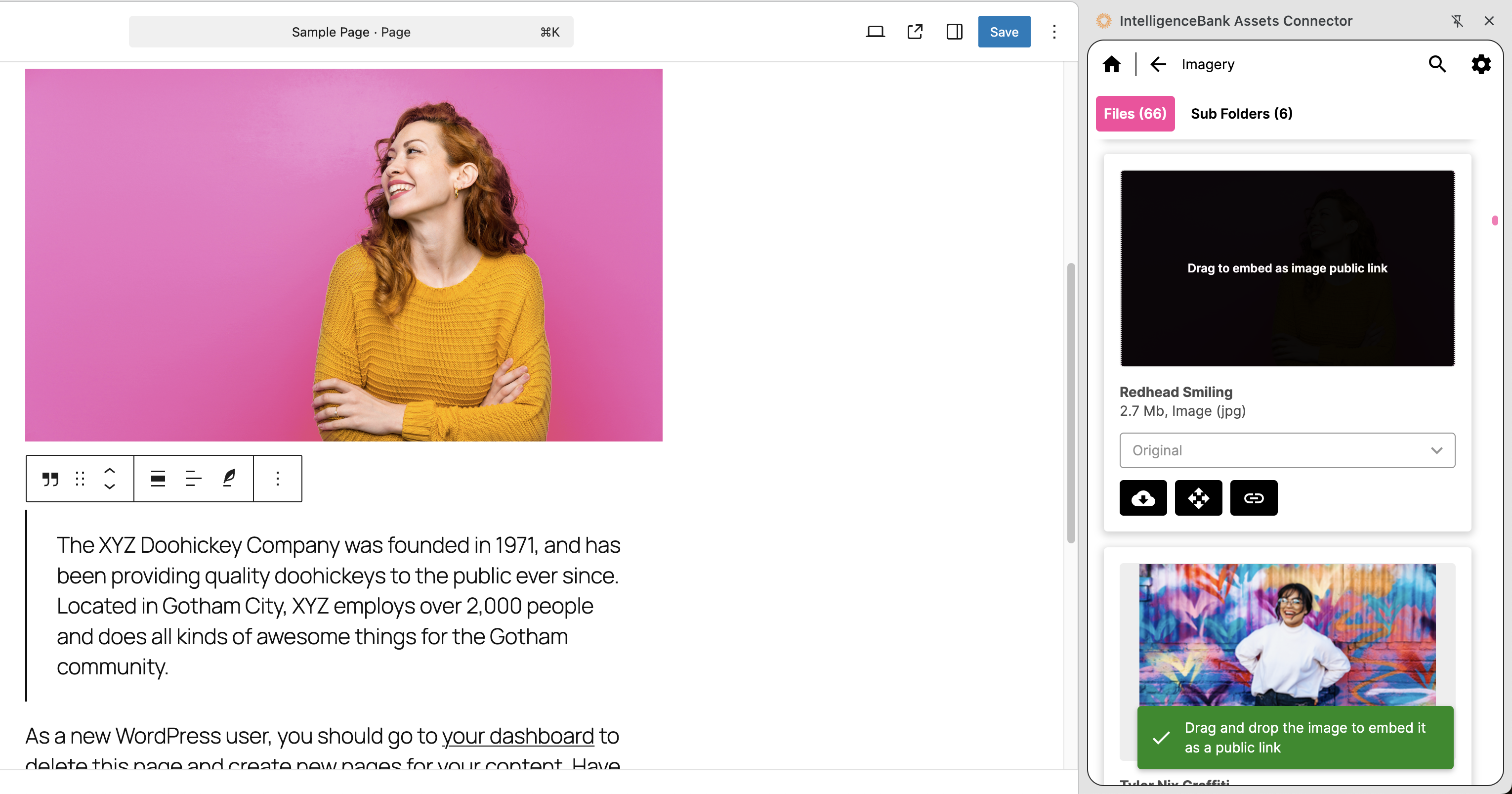
For either option, you can select a Global or Single Preset when available for supported image types.
Was this article helpful?
That’s Great!
Thank you for your feedback
Sorry! We couldn't be helpful
Thank you for your feedback
Feedback sent
We appreciate your effort and will try to fix the article