The Web-to-Print tool is an optional extra that is only available to clients who have purchased it as part of, or an add-on to, their IntelligenceBank platform.
The below steps refer to setting up this tool after purchase:
1Download Print UI Plug-in
The first step is to download the Print UI plug-in to your computer. Your account manager can add this into your platform for you to easily access.
If you cannot see this file, please contact us here and let us know if you are using a Mac or Windows and we will add in the relevant file for you.
Once you have accessed the file, Download it and open / execute the file on your system.
2Accessing the Print UI Plug-in via InDesign
Once installed, you are now ready to access this Plug-in via InDesign.
Open InDesign and the required file.
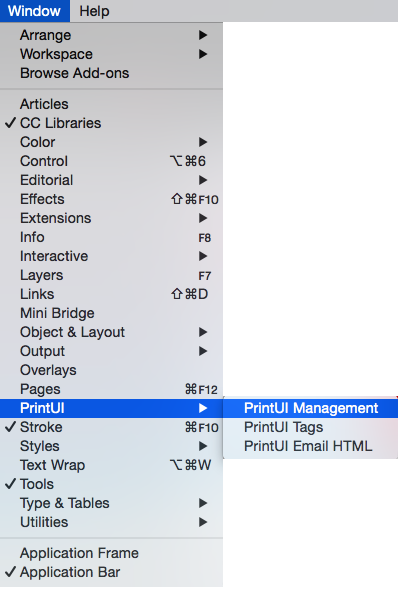
The Print UI option can be found Window > Print UI > PrintUI Management
3Enter your Print UI Credentials
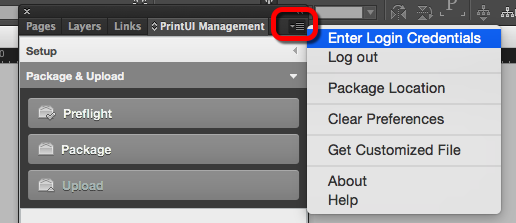
Select the small menu box at top right of the Print UI Management window.
Select Enter Login Credentials.
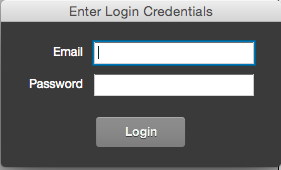
You will see a new pop-up window asking for Email and a Password.
Note that this is not your own email address, but rather a unique code that your Account Manager will provide you.
For example:
Email: client@intelligencebank.com
Password: IBclient@pui
If you have not received these, or have forgotten or misplaced these details, please contact us here.
4Setting up your Template in InDesign
You can now set up your template to lock in certain elements you do not wish for end users to be able to change.
Note that the Background Layer is where the designer puts all the objects they do not want the end user to edit. You can also Lock down elements through this function.
This YouTube video provides a handy guide on how to do this.
5Go through the Print UI Management steps
As the above video details, after locking in your editable and non-editable fields, you then go through the below steps within the PrintUI Management window in InDesign:
- Preflight: This step examines the template prior to uploading to ensure it's okay.
- Package: This step pulls in all linked files from your computer for the upload.
- Upload: This step moves the template to the Print UI Cloud Service which connects to your IntelligenceBank platform.
Note if there are issues identified during your Preflight you will be directed to the problem areas to correct before continuing and uploading.
6Adding your new template in your IntelligenceBank platform
Once successfully uploaded you can now access this new template within your IntelligenceBank platform.
To do so, access the Resources module in your platform and choose or create a folder to add the template into. We recommend having a folder just for your templates, just for ease of access, however they can be uploaded wherever you need.
- Select to Add New Resource, as you normally would.
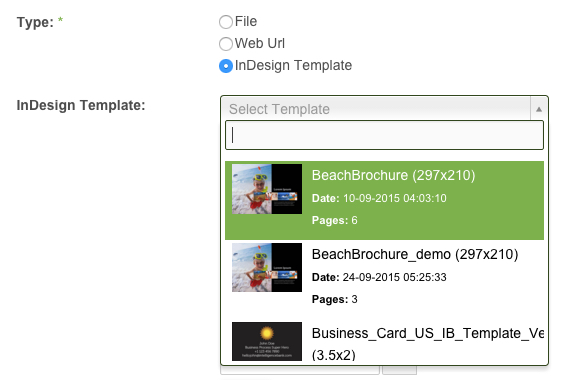
- Select InDesign Template from the Type options.
- Select the template you successfully uploaded from your InDesign account via the Print UI plug-in:
(Note: Template names need to be 45 characters or under when being added to the IntelligenceBank platform.)
Add other information as required, such as description, keywords, filters etc, and Save.
7Create New Web-to-Print Jobs from your new template
You or your end users can now create a new job from this template, being able to edit the designated fields only.
Click below for more information on how to do this:
Was this article helpful?
That’s Great!
Thank you for your feedback
Sorry! We couldn't be helpful
Thank you for your feedback
Feedback sent
We appreciate your effort and will try to fix the article