There are 3 primary ways to migrate files into your IntelligenceBank platform. Your Implementation or Customer Success Manager will work with you to select the best option depending on the number and size of the files you need to upload.
These options include:
| 1Platform Upload | Upload files using the platform's simple upload options. You can choose to upload files individually or upload up to 1,000 files at a time using the Bulk Upload feature. |
| 2Transfer from other systems | If you have data in other systems such as Dropbox, Google Drive, Box, or others (see below for examples), your Implementation/Customer Success Manager can set up a direct link for you to easily transfer files and folders.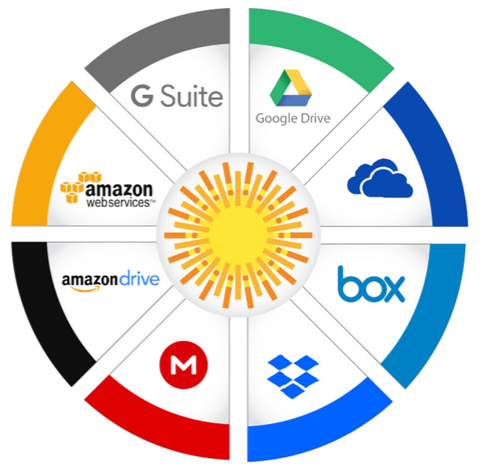 |
| 3Via an SFTP or S3 Bucket | Your Implementation/Customer Success Manager can set up an SFTP or S3 bucket, which you can connect directly to and transfer your assets directly onto the IntelligenceBank servers. |
Best Practice for Data Migration
While you can import any file type (except .exe files), as well as large files over 10GB, we recommend the following best practice guidelines when performing a data migration. These guidelines are not mandatory but will assist you with a speedy implementation.
| 1Organise folder structures | Organise your files in the folder structures you would like to see on IntelligenceBank before you transfer them over. You can move files after the import, but it's easier to do it before. |
| 2Create naming conventions | If you have time, create consistent naming conventions for files and folders. |
During Data Migration
When files are uploaded into IntelligenceBank, we automatically extract key metadata embedded in the file. From within the platform, you can also run keyword auto-tagging on valid file types.
As part of your implementation package we are able to complete the keyword auto-tagging process for you, if you've indicated that you'd like your assets auto tagged during the import/migration process.
Note, running keyword auto-tagging through will count against your contracted limit.
We can also provide a spreadsheet of all files and folders imported, allowing you to add other details, including other metadata filters, descriptions, file dates, review dates, and keywords.
This information will then be uploaded in bulk, with the details assigned directly to your files.
You can see an example of this below:

To find out more about the data migration options above, please contact your Customer Success Manager.
Please note that some of the terminology referenced above may appear differently in your platform as these are customisable terms.
Was this article helpful?
That’s Great!
Thank you for your feedback
Sorry! We couldn't be helpful
Thank you for your feedback
Feedback sent
We appreciate your effort and will try to fix the article