Our support team may occasionally need additional information about the network requests that are generated in your browser. A member of the team may ask you to record a HAR file, or a log of network requests, while that issue occurs. It's also helpful to include any browser console logs in addition to a HAR file.
Click the tabs below to read the instructions to generate a HAR file and console logs in the browser that you use.
Generating a HAR File in Chrome
| 1Open Chrome | Open Chrome and go to the page where the issue is occurring. |
| 2Open Developer Tools | Look for the ⋮ button and select More Tools > Developer Tools. |
| 3Select the Network tab |
From the panel that appears, select the Network tab. You must keep the menu open while you reproduce the issue.
Optional: If Customer Support requests a HAR file with WebSockets, select the Socket option in the Network tab. Reload your browser to start seeing the traffic over the WebSocket. 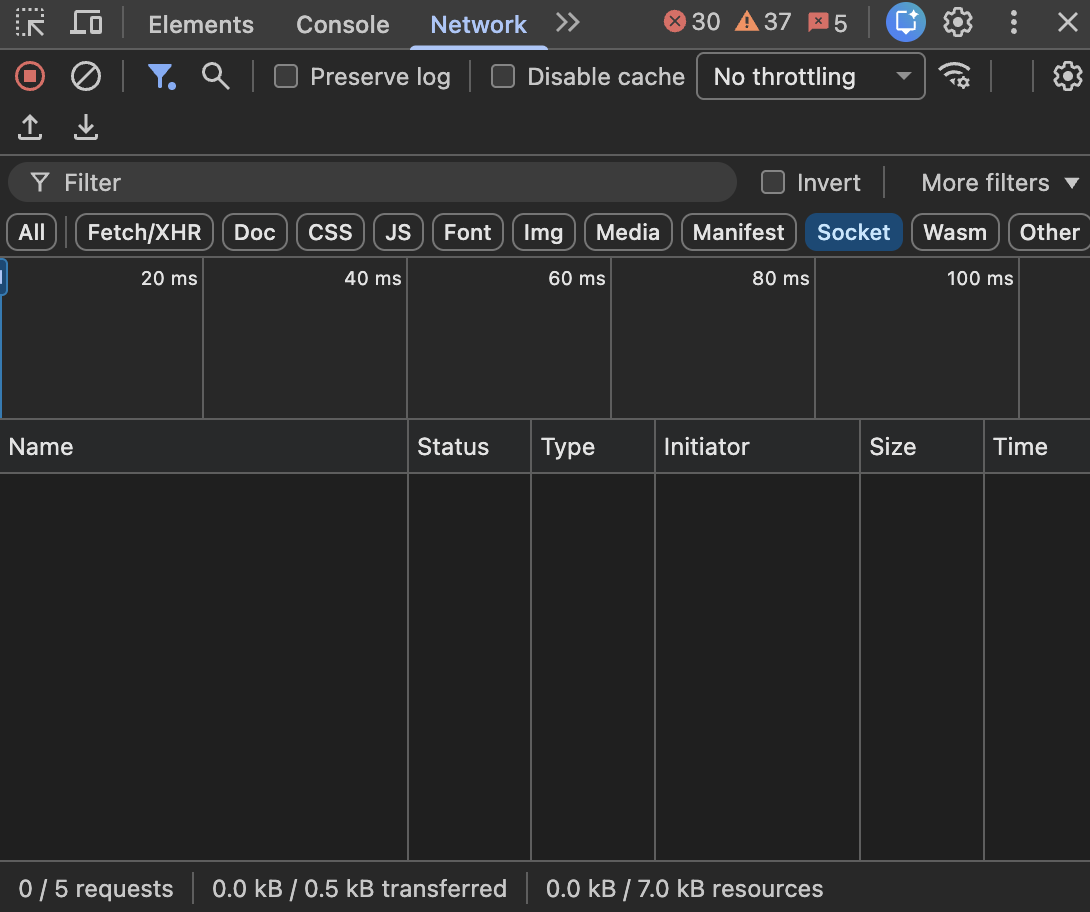
|
| 4Start recording | Look for a round record button in the upper left corner of the tab, and make sure it is red. If it is grey, click the button once to start recording. |
| 5Enable Preserve log | If it isn't, check the Preserve log box. |
| 6Clear existing logs | Click the crossed circle button to clear any existing logs from the network tab. |
| 7Reproduce the issue | Reproduce the issue while the network requests are recorded. |
| 8Export the HAR file |
Click the download button, Export HAR, to download, and save the file to your computer: Save as HAR with Content.
|
| 9Upload to your ticket | Upload the HAR file to your ticket with Customer Support for further investigation. |
The instructions are the same for a MAC computer or a Windows computer. Find below a brief animation with the steps to retrieve a HAR file in Chrome.
For any issues generating this file, see this article from Google's Help Center: Capture web session traffic.
Retrieving Console Logs in Chrome
| 1Open Main Menu | Open Main Menu for Chrome. |
| 2Open Developer Tools | Navigate to More Tools > Developer Tools. |
| 3Screenshot errors | Open the Console tab and screenshot any errors that appear. |
Was this article helpful?
That’s Great!
Thank you for your feedback
Sorry! We couldn't be helpful
Thank you for your feedback
Feedback sent
We appreciate your effort and will try to fix the article