Generate auto-tags for your video/audio content to improve efficiency and enhance discoverability of these assets in your Asset Library.
IntelligenceBank customers can now use AI-powered auto-tagging functionality for their video/audio assets with a 20-minute free trial.
Quick Links
Auto-Tagging Options
Video and Audio auto-tagging allows you to automatically tag:
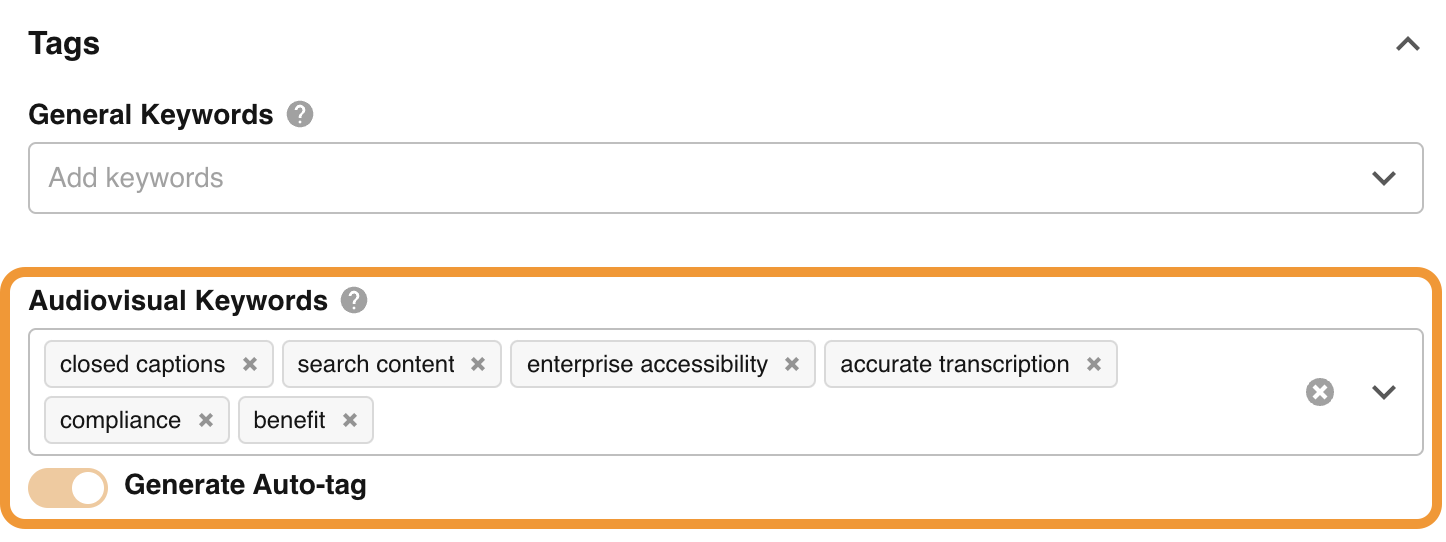
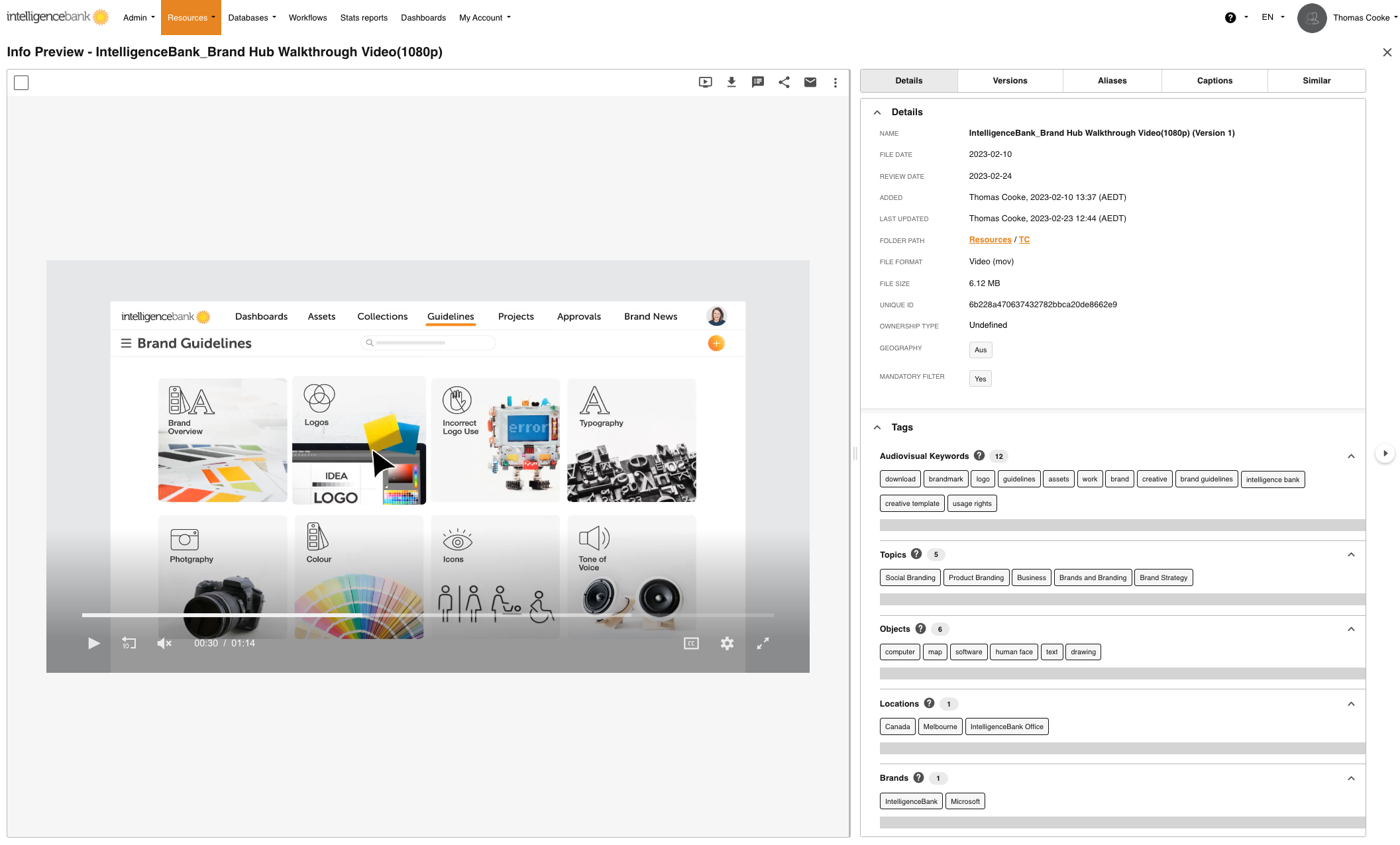
- Audiovisual Keywords: Auto-tags for Audiovisual Keywords are detected from insights on the different keywords discussed in media files. These keywords are detected from the speech and visual text and automatically tagged against the asset.
- Topics: Auto-tags for Topics are automatically inferred, based on various keywords from the speech and visual text.
- Objects: Auto-tags for Objects are automatically detected from visual objects and actions displayed.
- Locations: Auto-tags for Locations are automatically detected from the speech and visual text.
- Brands: Auto-tags for Brands are automatically detected from the speech and visual text.
How to Enable Video/Audio Auto-Tagging
Main Admins can get started with a 20-minute free trial by enabling Audio/Video Auto-Tagging in the Admin>Settings area of the platform. To do so:
- Navigate to Admin>Settings
- Click the Enable Asset Intelligence checkbox
- Accept the T & Cs
- Ensure the Video/Audio Auto-Tagging and additional auto-tagging settings for video/audio files (ie: topic, object, audiovisual keywords, etc) checkboxes are enabled (they are by default). You can unselect any that you may not want run against your video/audio files (ie: if you don't want Brand detection, but want the others) if needed.
- Scroll to the bottom of the page and select Save.

How to use Video/Audio Auto-Tagging within IntelligenceBank
Users with Publish permission or higher can apply auto-tags to assets. You can generate auto-tagging for the Audio and Video assets:
- While uploading (either via single or bulk upload)
- While editing
Generating Auto-Tags
- Navigate to the Tags section when on the Upload or Edit page
- Turn the "Generate Auto-tag" toggle on for all or the required tags
- Click on "Save" or "Submit"
Auto-tags will be processed in the background after saving and displayed on the Info Preview screen when processing is completed.

Removing Auto-Tags
- To remove auto-tags for already uploaded audio or video assets, open the "Edit/New Version" screen.
- Navigate to the Tags section
- Click on the cross icon to delete the auto-tags
- Save changes
Searching for Assets with Audiovisual Keywords
- Users can enter keywords in the search bar to search for assets with Audiovisual Keywords.
- For more granular search results, users can use the filters and select Keywords from the Search Scope

Viewing Auto-Tags
- Navigate to an asset and click on it to view the Info Preview page.
- In the Main Details section, you will see the Tags section where auto-tags will display
- You can click on a tag to jump to that point in time within your Audio or Video preview
FAQs
- How can I activate the 20-minute Free Trial? Refer to the How to Enable Video/Audio Auto-Tagging on this page to activate the 20-minute free trial. You can contact us here if you have any questions or issues in activating the trial.
- Your Asset Intelligence usage also includes Closed Captions.
- Which file formats are supported for auto-tagging? All the formats supported for audio and video preview will be supported Refer to this page for the complete list.
- How long does it take for auto-tags to be processed? The processing time of auto-tagging depends on the size and duration of your audio/video file. For a 30-second video, it can take 5 minutes to process. Typically we ask people to expect between up to 10-20 minutes.
- Working with Large Video files? File Size Upload limit optimised to 10GB, speak to your account manager about increasing. File Preview/Playback maximum 10GB. File Length maximum 4hr.
Was this article helpful?
That’s Great!
Thank you for your feedback
Sorry! We couldn't be helpful
Thank you for your feedback
Feedback sent
We appreciate your effort and will try to fix the article