The Image auto-tagging feature attributes keywords to images, scanning for relevant tags that match the image.
Using Auto-tagging can help organisations tag their images in a quick and efficient manner, offering suggested keywords which users can review and modify as needed against their images before saving them to the Asset Library. This can help streamline the metadata assigning process and ensure that images are searchable by a wide variety of relevant terms.
Image auto-tagging can be applied to images upon uploading them to a folder, or while editing (if auto-tagging was not run on images during their initial upload process).
How to Enable Image Auto-Tagging
Main Admins can enable Image Auto-Tagging by following the below steps:
| 1Navigate to Admin Settings | Navigate to the Admin>Settings area of the platform. |
| 2Enable Asset Intelligence | Under the Asset Intelligence section, you'll see a field called Enable Asset Intelligence. Select the checkbox to enable (if not already turned on). |
| 3Enable Image Auto-Tagging | Then, select the checkbox called Enable Image Auto-Tagging. |
| 4Select auto-tagging options | Select the checkbox next to whichever auto-tagging options you'd like enabled on your images. The options are: General Keywords, Objects, Brands, Landmarks, AI Generated Description, and Facial Recognition. Please see the below section for more details on each type. |
| 5Set auto-tagging defaults | Determine whether you want auto-tagging to run by default/automatically when users upload images to folders. If you do, select the checkbox for the Auto-tagging by default on Single Upload and/or Auto-tagging by default on Bulk Upload fields. If you don't want auto-tagging applied by default, leave these fields unchecked. Note that If not selected, these options will still allow your users to be able to manually select an Auto Tag toggle in the upload area that will apply auto-tags on an upload-by-upload basis.* |
| 6Set minimum confidence | You can also set the confidence level in the Minimum Confidence (1-99%) field. The confidence score can be set between 1% and 99%, and indicates the system's certainty that a specific tag is within the content of an asset. For example, if you had the confidence score set at 90% and the auto-tagger identifies a 'cat' in the image, but is only 89% confident, it will not add 'cat' as a tag to that asset. Generally, higher the confidence levels, will result in more relevant/accurate tags. |
| 7Add banned keywords | If there are particular terms you don't want the auto-tagger to apply to images, enter those terms in the Banned Keywords field. To learn more about Banned Keywords, refer to this article. |
| 8Save your settings | Once you're done making your selections, scroll to the bottom of the page and select Save. |
Auto-Tagging Options
- General Keywords
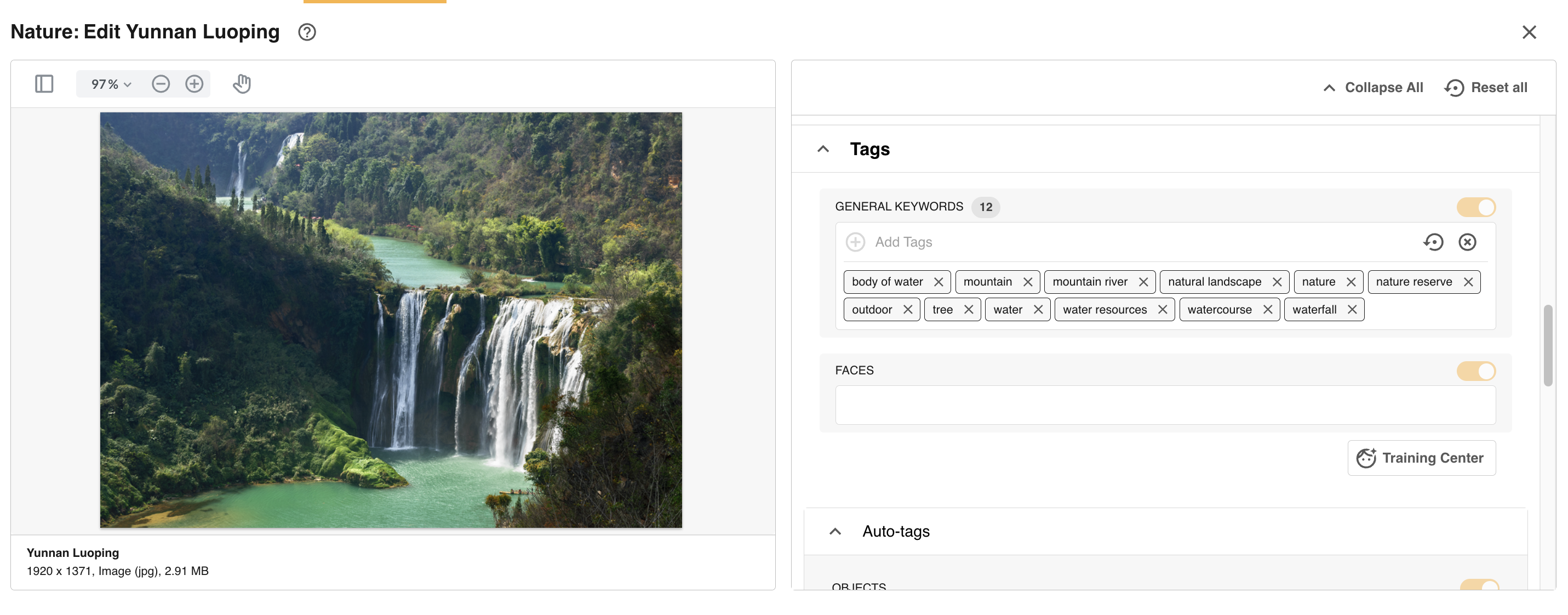
- Auto-tags for General Keywords are automatically detected from recognizable objects, living beings, scenery, and actions that appear in images.
- Objects
- Auto-tags for Objects are automatically detected from objects or living things identified in the image.
- Brands
- Auto-tags for Brands are automatically detected from commercial brands in the image.
- Landmarks
- Auto-tags for Landmarks are automatically detected from identified landmarks in the image.
- AI Generated Description
- A description is automatically generated based on the image. To learn more, refer to this article.
- Facial Recognition
- Auto-tags for Facial Recognition are automatically detected from identified faces in the image. To learn more, refer to this article.
Applying Auto-Tags to an Image
When uploading an image, General Keyword auto-tags are added in the General Keywords field on the metadata form. You can add any additional manual tags within this field, and/or click on the cross to remove any tags if not required.
There is also an Auto-tags section within the metadata form that will display Object, Brand, Landmarks, and AI Generated Description tags (if enabled and if detected).
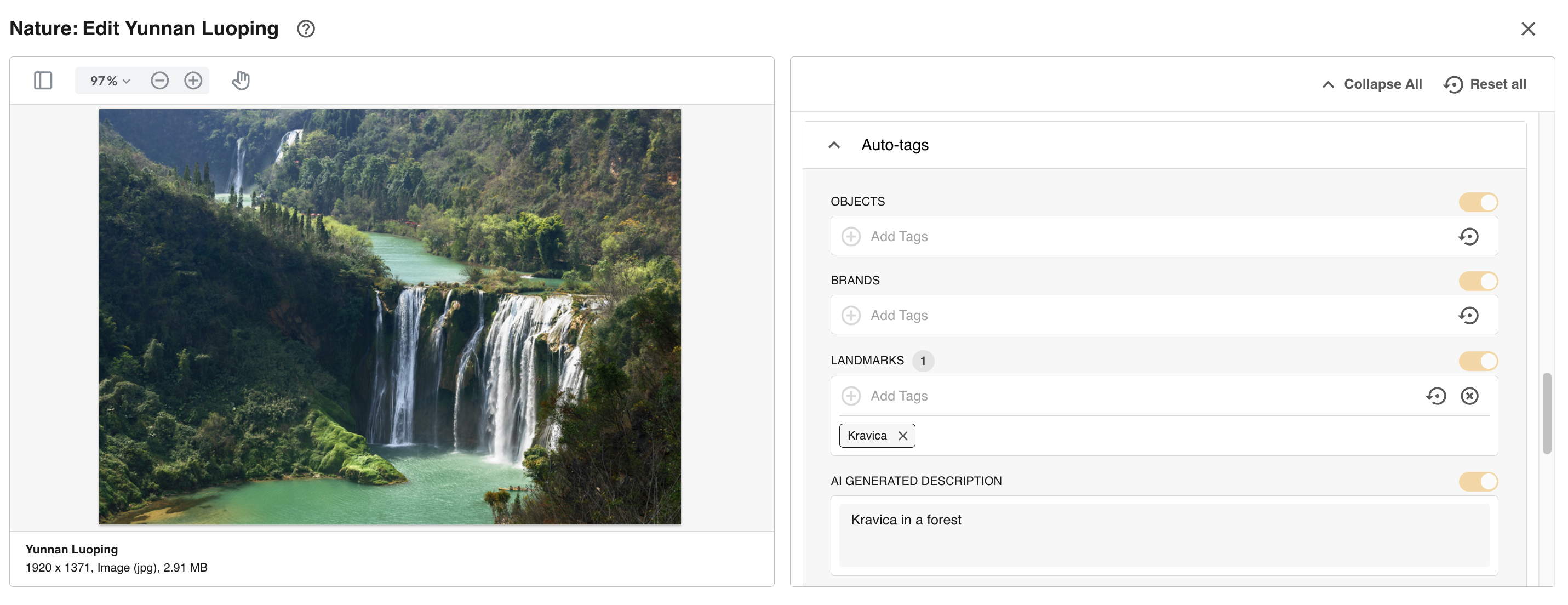
You can click on the cross to remove any tags if not required for Object, Brand, and Landmark tags. Please note that AI Generated Descriptions cannot be removed or modified at this time.
Was this article helpful?
That’s Great!
Thank you for your feedback
Sorry! We couldn't be helpful
Thank you for your feedback
Feedback sent
We appreciate your effort and will try to fix the article