If you wish to review or print multiple images within a single PDF document, you can use the Merge & Download action to enable this.
Users who have Access permission or higher will be able to Merge & Download images.
Select a group of images and use the Bulk Actions bar to select Merge & Download amongst the options. A popup (pictured below) will then appear.
On the Merge & Download popup, you can add in a custom export file name that will apply to your Downloaded PDF. You can also reorder the images by clicking and dragging them into the correct spot. When you've finished updating your order, click Merge to begin the download.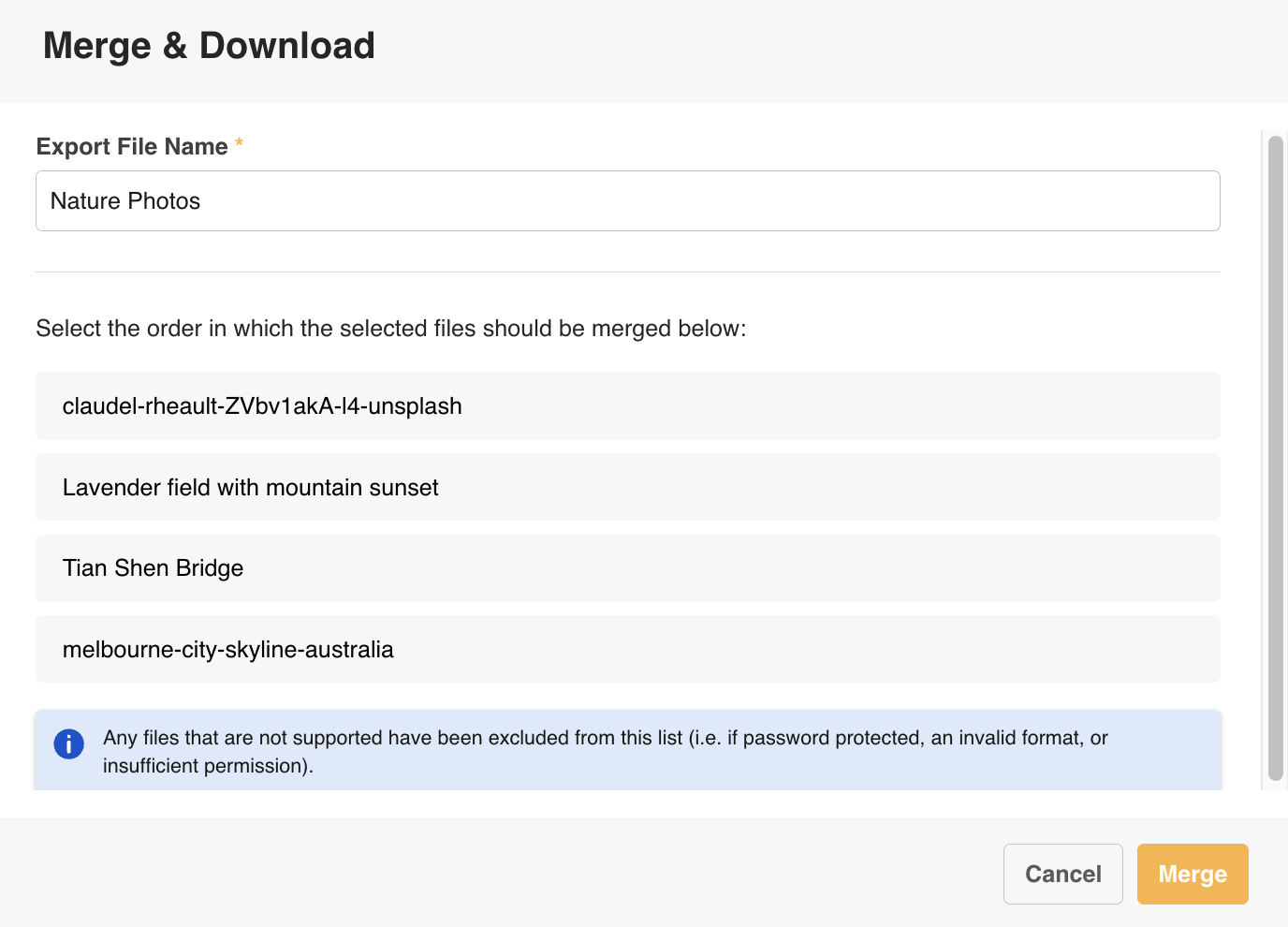
PDF Download format
Each image will appear on its own page within the download, according to the order set within the popup. Smaller images will not be stretched, but appear according to their width/height. Larger images will be scaled accordingly so they can render on the page.
To see how you can Merge & Download documents click here. You can browse other articles about the Assets module here.
Was this article helpful?
That’s Great!
Thank you for your feedback
Sorry! We couldn't be helpful
Thank you for your feedback
Feedback sent
We appreciate your effort and will try to fix the article