The Merge & Download feature lets you merge and download multiple assets into one single PDF file, making it easy to quickly view all your information in one compact file or consolidate assets.
Users who have Access permission or higher will be able to Merge & Download assets.
How to Merge & Download Assets
To merge and download:
| 1Select assets | Select the assets you'd like to merge and download within your Asset Library. |
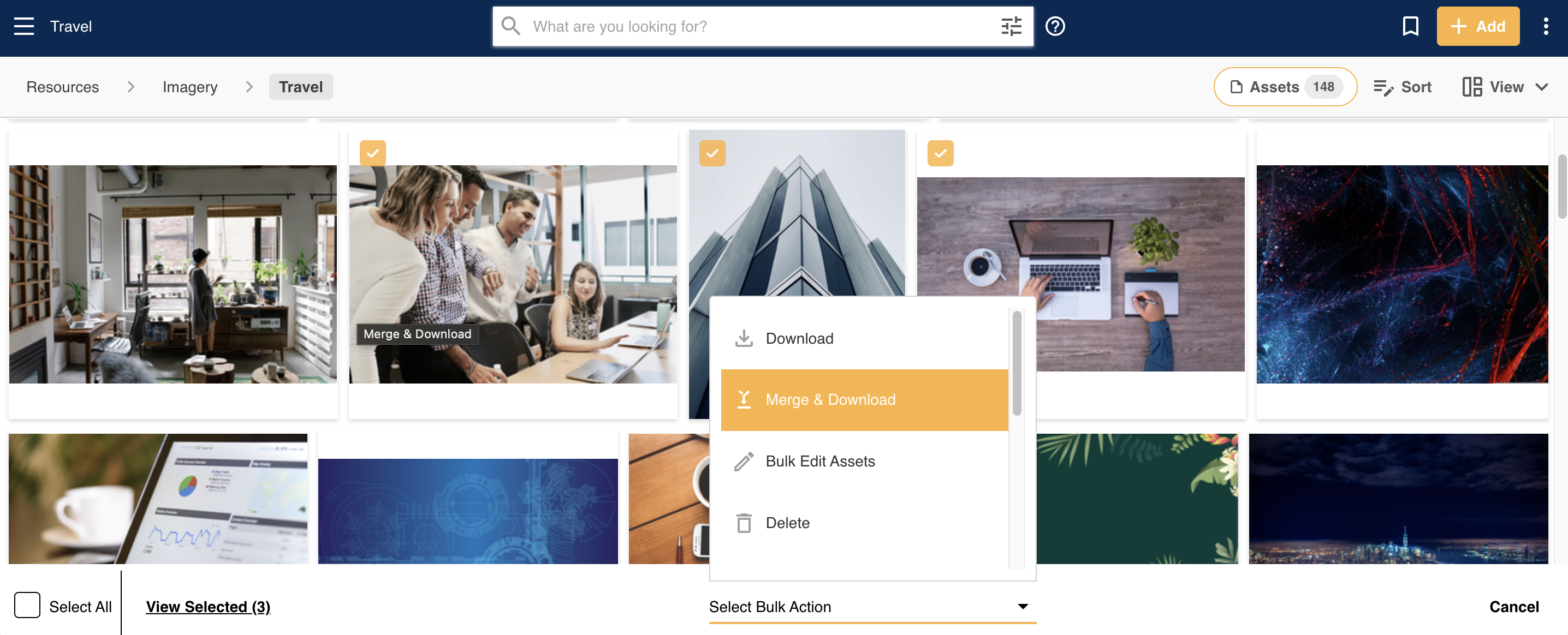
| 2Open Bulk Actions |
In the Bulk Actions menu, select Merge & Download.
|
| 3Review supported files |
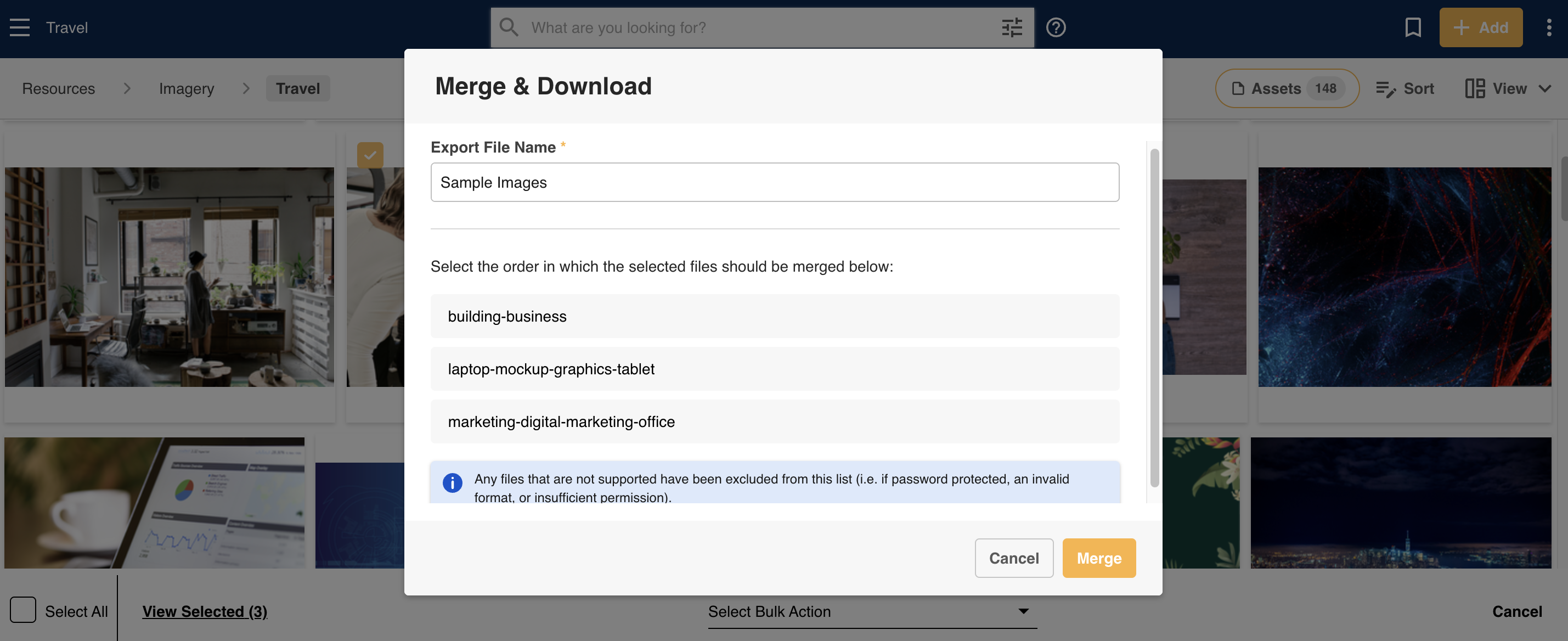
You will see a popup listing out all supported files. Any assets that aren't supported for merge & download (for example, a video file or a file that you don't have an Access permission on) will be excluded from the list.
|
| 4Name and reorder | You can input the name of the Export File Name and also drag and drop the assets to reorder them, if desired. |
| 5Merge and download | Click Merge to download your PDF document. The download process will begin immediately. |
Note: If you've selected non-PDF assets to merge and download (ie: image files), these assets will be converted into PDF format and merged into the one PDF file that gets downloaded.
Note: You can Merge & Download assets within a folder, Collections, and off of a search.
Was this article helpful?
That’s Great!
Thank you for your feedback
Sorry! We couldn't be helpful
Thank you for your feedback
Feedback sent
We appreciate your effort and will try to fix the article