This article outlines some helpful information about how to navigate your Asset Library within IntelligenceBank.
Table of Contents
Basic Navigation through Folders
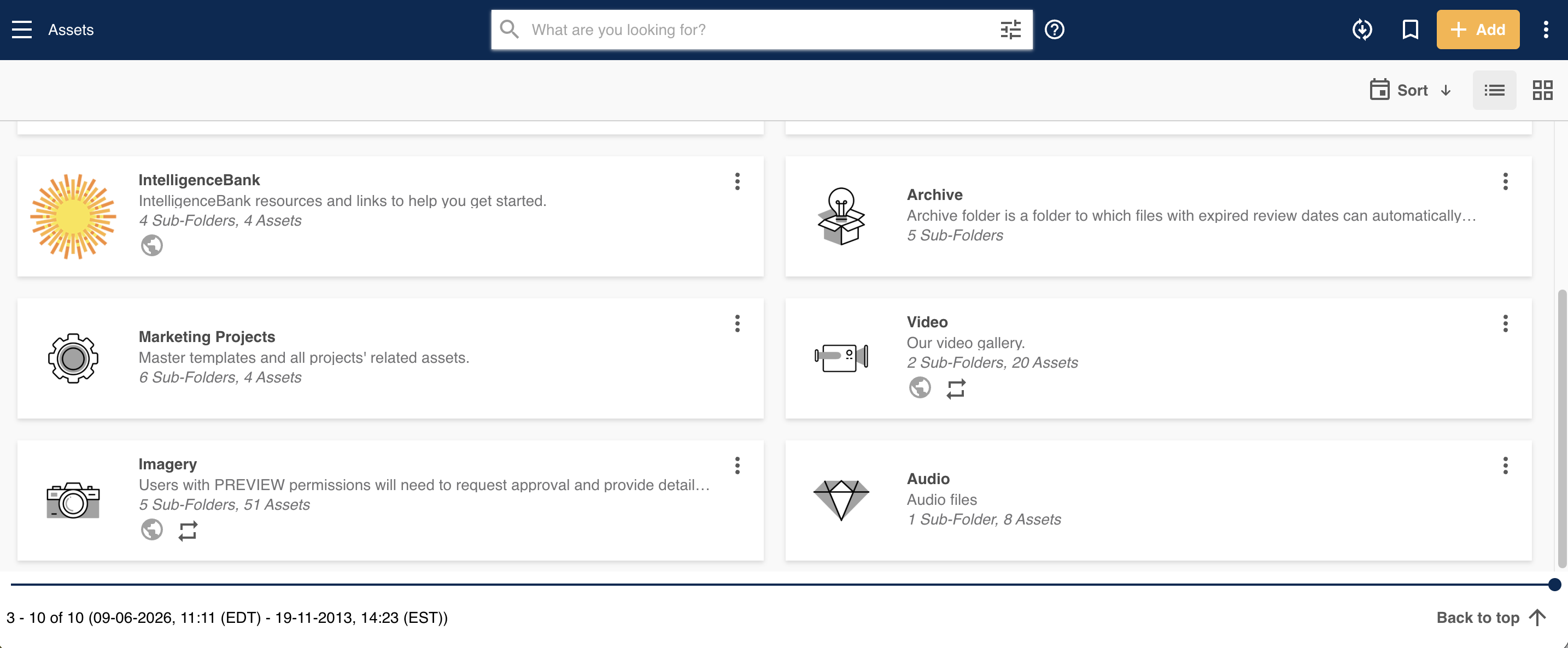
When you first enter your Asset Library, you'll see all your top level/parent folders in the main view.
The folders will display a count of the number of assets saved within them, or, if there are subfolders, the count of the number of subfolders. If the folder has both assets and subfolders saved, it will display a count of both.
Click into a parent folder to display the assets, or subfolders. You can navigate within folder structures by clicking into each folder to display its contents.
Accessing your Folder Side Panel
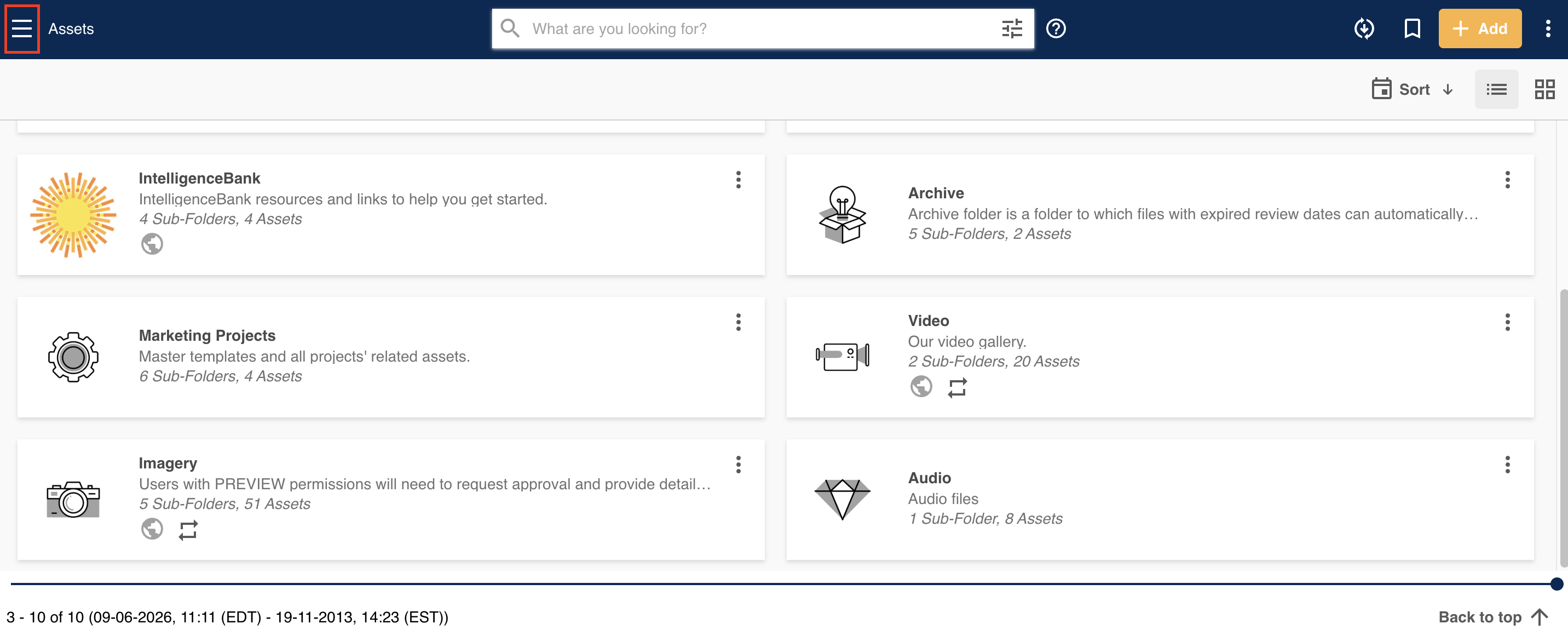
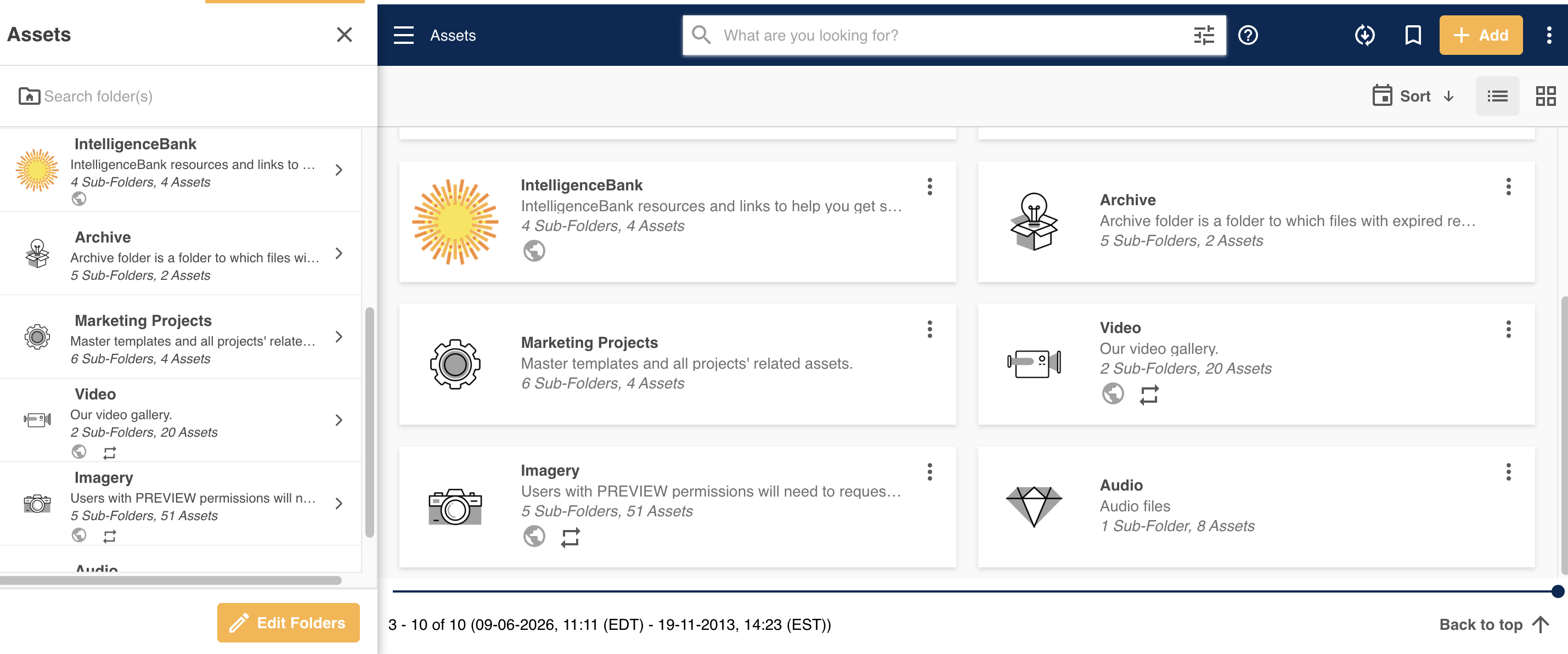
You can access the Folder Side Panel by selecting the icon in the top left side of the page, illustrated below. Use this side panel to navigate through your folders and subfolders quickly.
You can also search folders/subfolders within the search bar at the top of the panel.
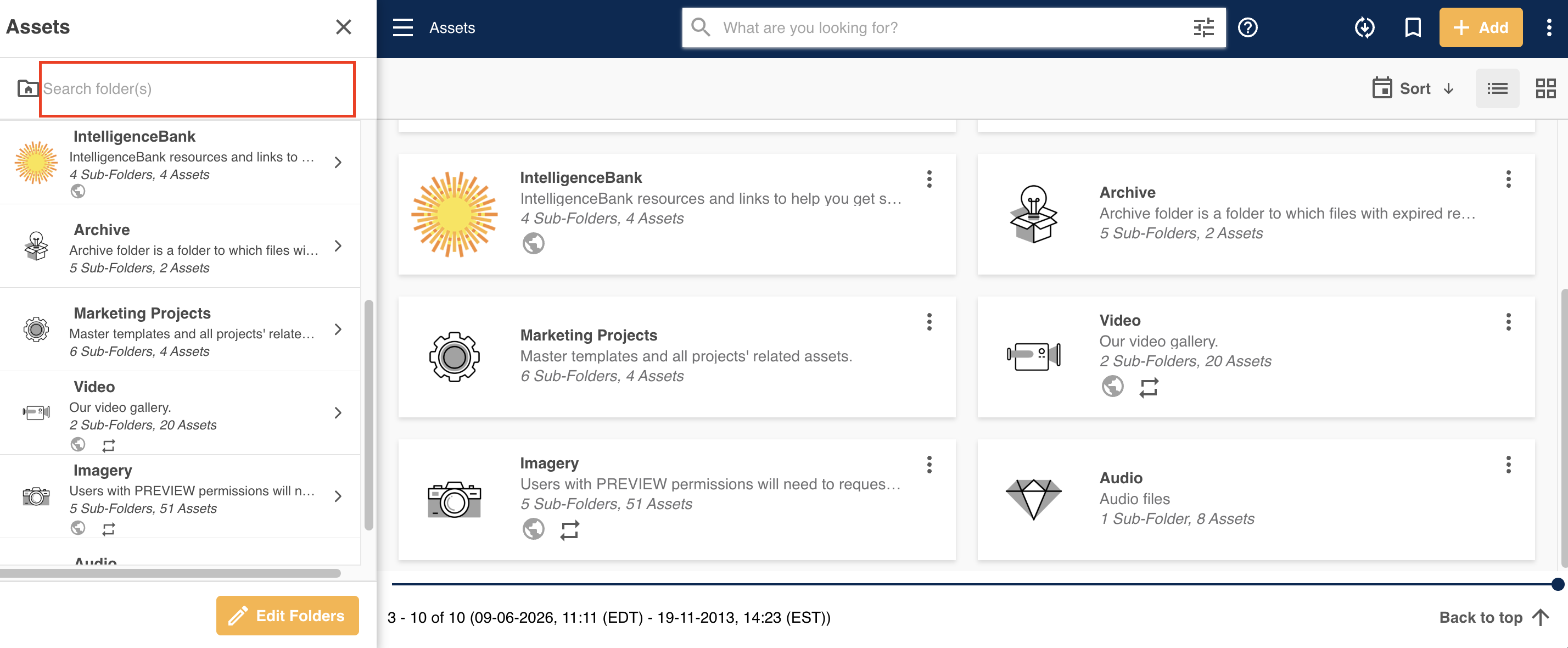
Note, searching in this area will only pull folders, not assets. Searching in the main search bar in your Asset Library will not retrieve folders, only assets.
To learn more about using the Folder Side Panel, please reference the article here.
Asset/Folder Switch
If any of your folders contain both subfolders and assets saved directly to the folder, opening this folder will display the assets first, by default. Assets and subfolders do not display on the same page/view.
To view subfolders in this scenario, you'll see an Asset/Folder switch at the top left of your page, which will allow you to switch between assets and sub-folders. Click the Folders tab to view any sub folders.
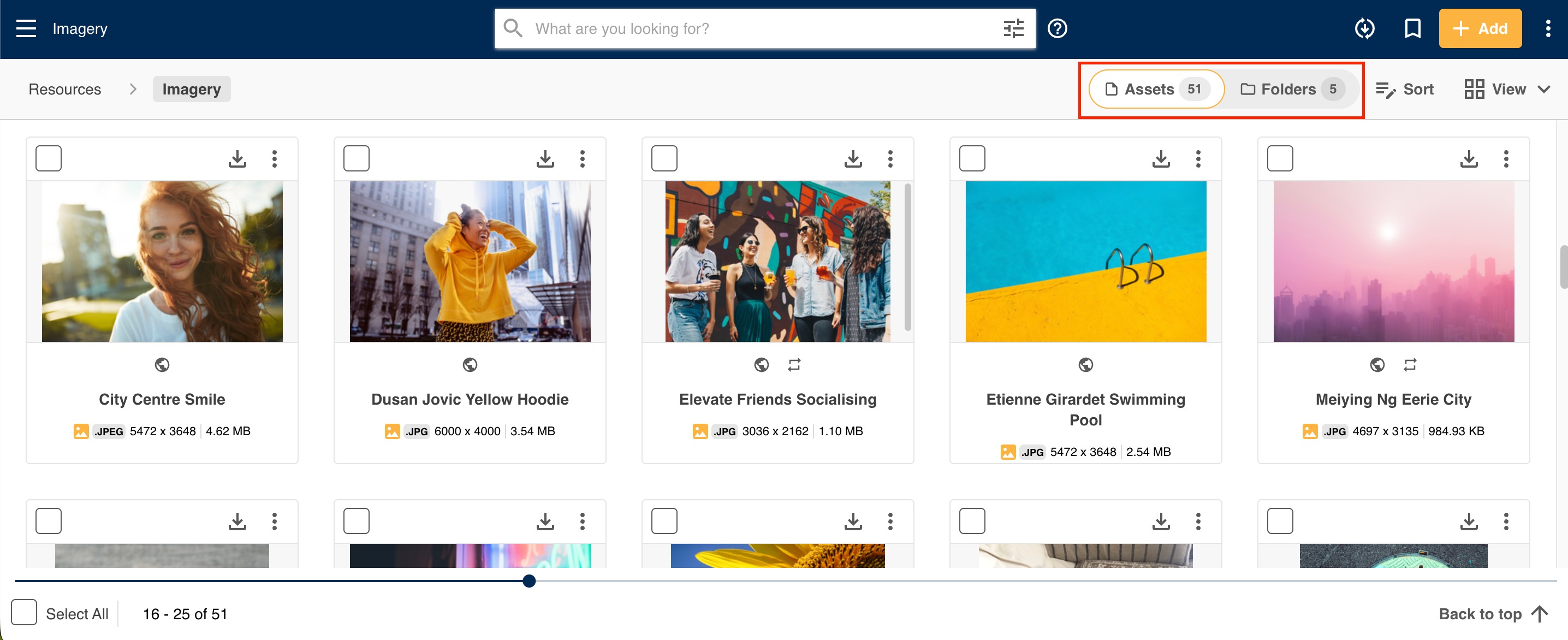
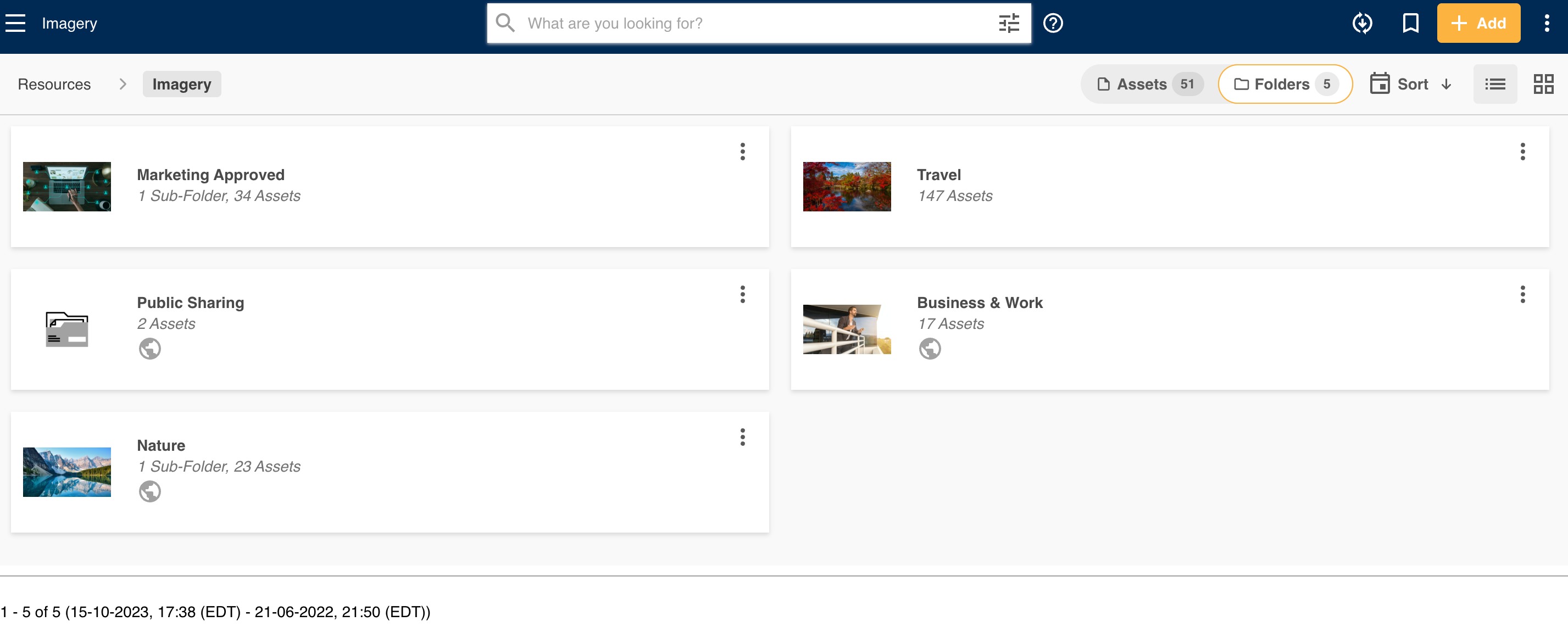
If you're in the Folders tab and need to switch back to viewing the assets, select the Assets tab.
Please note that if you have Agendas within your folder, these will be the default view.
Breadcrumb Navigation
If you are within any folders or subfolders, you'll see a navigation toward the top of the page, displaying the folder path, as illustrated below.
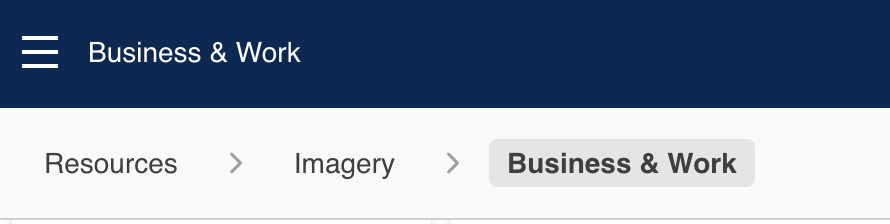
This enables you to easily see where you are within a folder and to navigate back folder levels, or to the main parent folder level of the Asset Library, as needed.
If you're a few folders within your structure, the breadcrumb format will update to include an ellipses (...) Click this to view your entire breadcrumb.

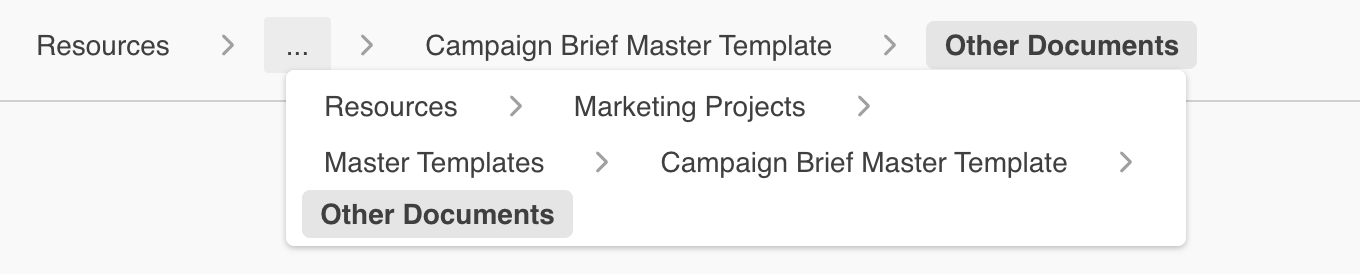
No matter how many folder levels you have navigated through, you will always see Resources, which you can click to take you back to the main/top parent folder level.
Was this article helpful?
That’s Great!
Thank you for your feedback
Sorry! We couldn't be helpful
Thank you for your feedback
Feedback sent
We appreciate your effort and will try to fix the article