IntelligenceBank's Closed Captions feature can be applied to audio and video assets uploaded to your Asset Library.
This feature helps make your video and audio files more accessible, searchable, and ensures compliance for organisations who are required to have video/audio files feature closed captions from a regulatory perspective.
IntelligenceBank customers can try Closed Captions with a 20-minute free trial.
Table of Contents
- What are Closed Captions?
- Key Benefits to Using Closed Captions
- Enabling Closed Captions
- Applying Closed Captions
- Applying Closed Captions for Already Uploaded Audio or Video Assets
- Applying Closed Captions during Bulk Upload
- Applying Closed Captions during Single Upload
- Viewing and Editing Closed Captions
- Searching within Closed Captions
- Downloading the Closed Captions SRT File
- Share or Embed Videos with Closed Captions
- Making Closed Captions Visible or Invisible within a Video File
- Searching and Filtering Options for Closed Captions in the Asset Library
- Frequently Asked Questions
What are Closed Captions?
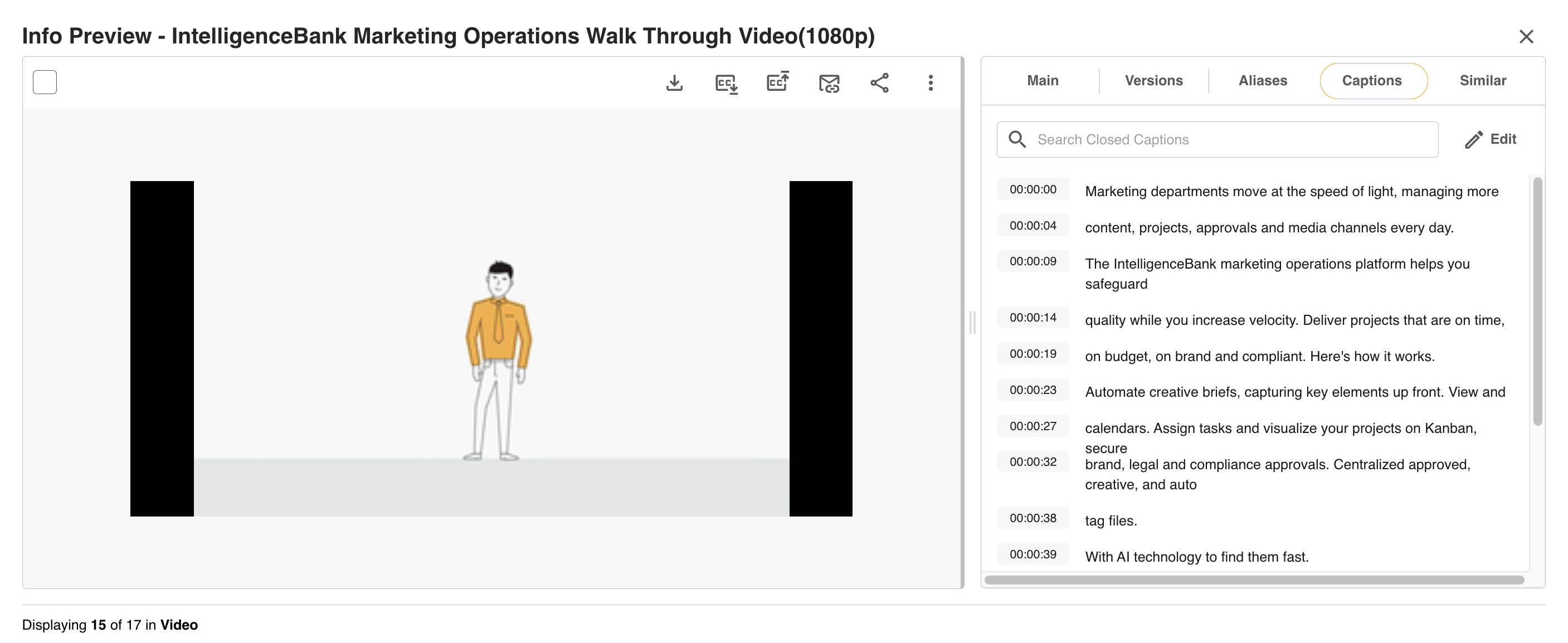
Closed Captions are a written record of an audio or video file with a timestamp and are generally displayed in conjunction with a video file.
Key Benefits to Using Closed Captions
- Fast & Accurate Transcription
AI-Powered Closed Captions that turn raw video and audio files into meaningful time-coded content, fast. - Enterprise Accessibility
Reach a larger audience by ensuring everyone, including people with hearing impairments, non-native speakers, or just people in the office without headphones, can understand the rich media content you spent hours producing. 80% of people are more likely to watch an entire video when closed captions are available. - Better Compliance
Make sure your entire audio and video catalogue adheres to the Web Content Accessibility Guidelines (WCAG2 1.2.2). - Save Time
Save hours of time manually typing out audio. Closed Captions are AI-generated and can easily be edited after. - Search Content
Search keywords within transcribed media to quickly find the content you are looking for. - One Platform
Create, store, and distribute rich media with Closed Captions - with proofing and approval workflows - all within IntelligenceBank's single, secure platform.
Enabling Closed Captions
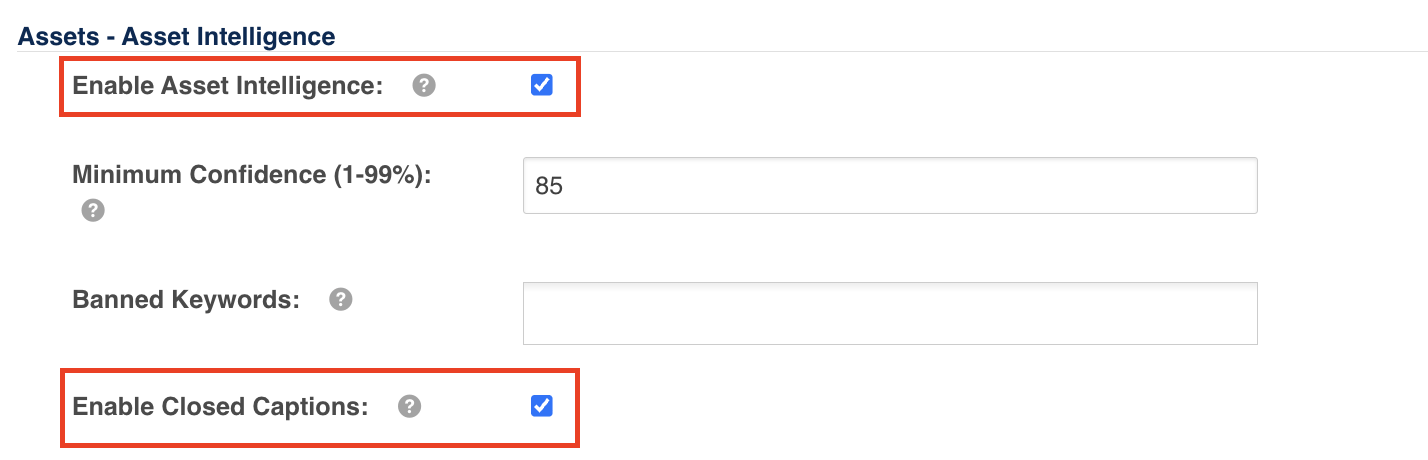
Main Admins can enable the Closed Captions feature by following the below steps.
1. Navigate to the Admin>Settings area of the platform
2. Ensure the Enable Asset Intelligence checkbox is checked
3. Accept the T & Cs (if they haven't already been accepted by using any of IntelligenceBank's other Asset Intelligence capabilities)
4. Select the checkbox for Enable Closed Captions
5. Scroll to the bottom of the page and click Save to save your settings
Applying Closed Captions
Users with at least Publish permission will be able to apply Closed Captions. They can be applied:
1. On existing video/audio files after they've been uploaded
2. As a part of uploading video or audio files
See the below sections for more details.
Applying Closed Captions for Already Uploaded Audio or Video Assets
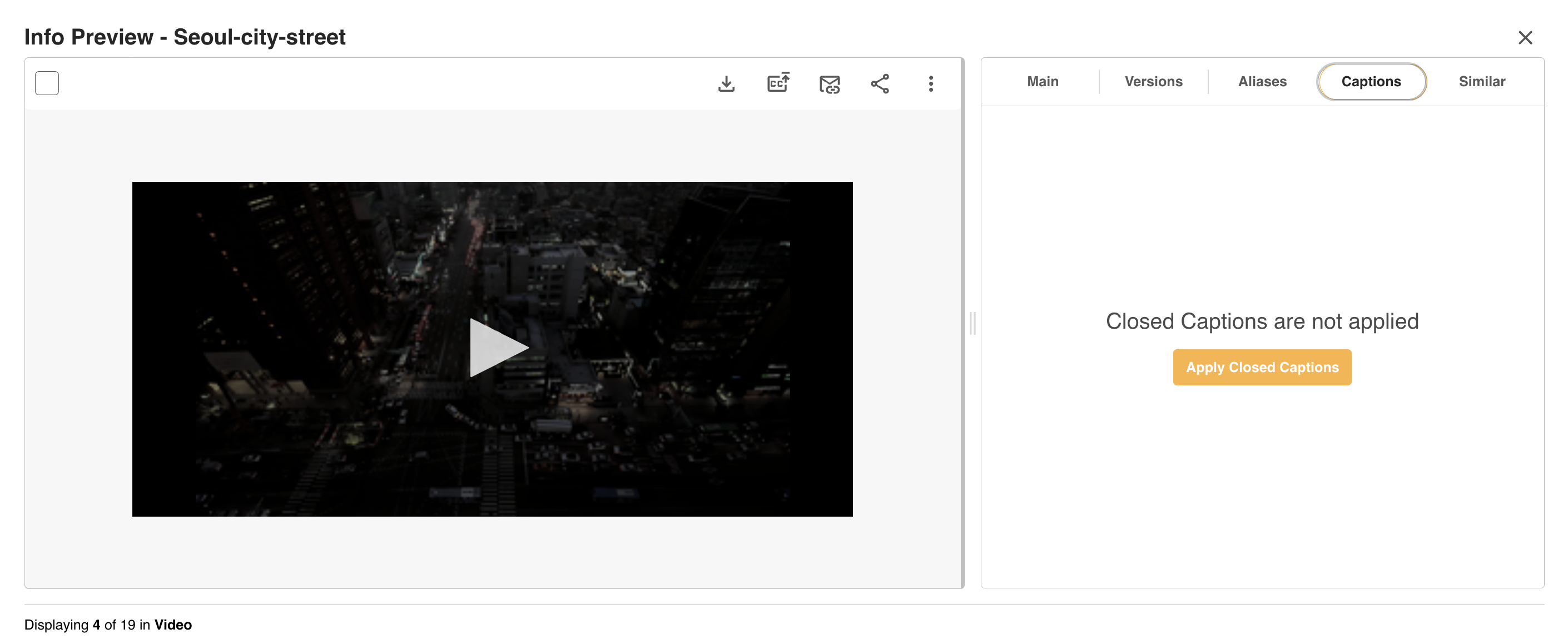
To apply Closed Captions for already uploaded audio or video assets, by following one of the two options outlined below:
1. Open an asset's Info Preview page and navigate to the Captions tab. Click on the Apply Closed Captions button to process Closed Captions.
2. Alternatively, you can upload an SRT file to an existing video or audio file on the platform. This is helpful if you already have closed captions generated for your video/audio files from another tool, but you need to apply them to your assets within the platform.
To upload an SRT file, open the Info Preview page for a video/audio file and click the Upload SRT icon, as shown below:

Then click Select File and select the relevant SRT file from your desktop.
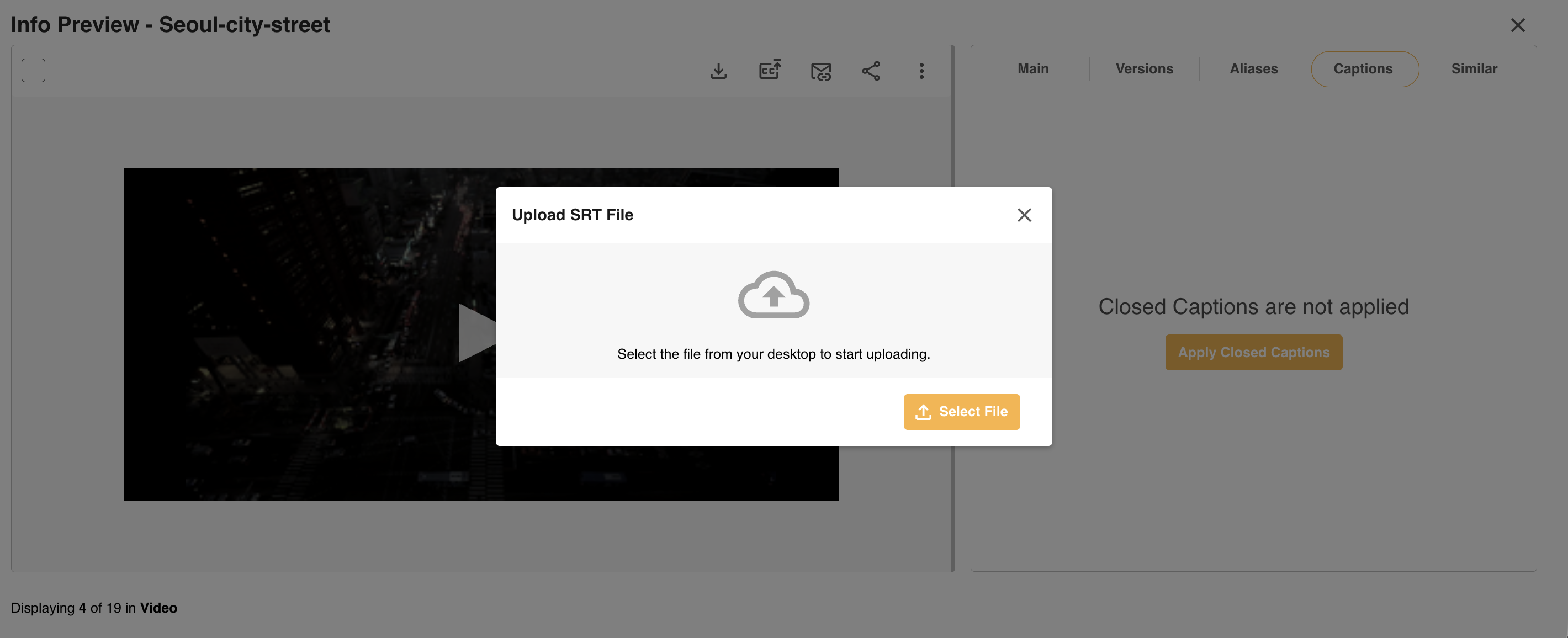
When the selected file has finished uploading, click Save to confirm.
The uploaded closed captions will then be available in the Captions tab for review and any manual edits that may need to be made.
Applying Closed Captions during Bulk Upload
To apply Closed Captions to video/audio files while bulk uploading:
1. Begin the process of bulk uploading these assets.
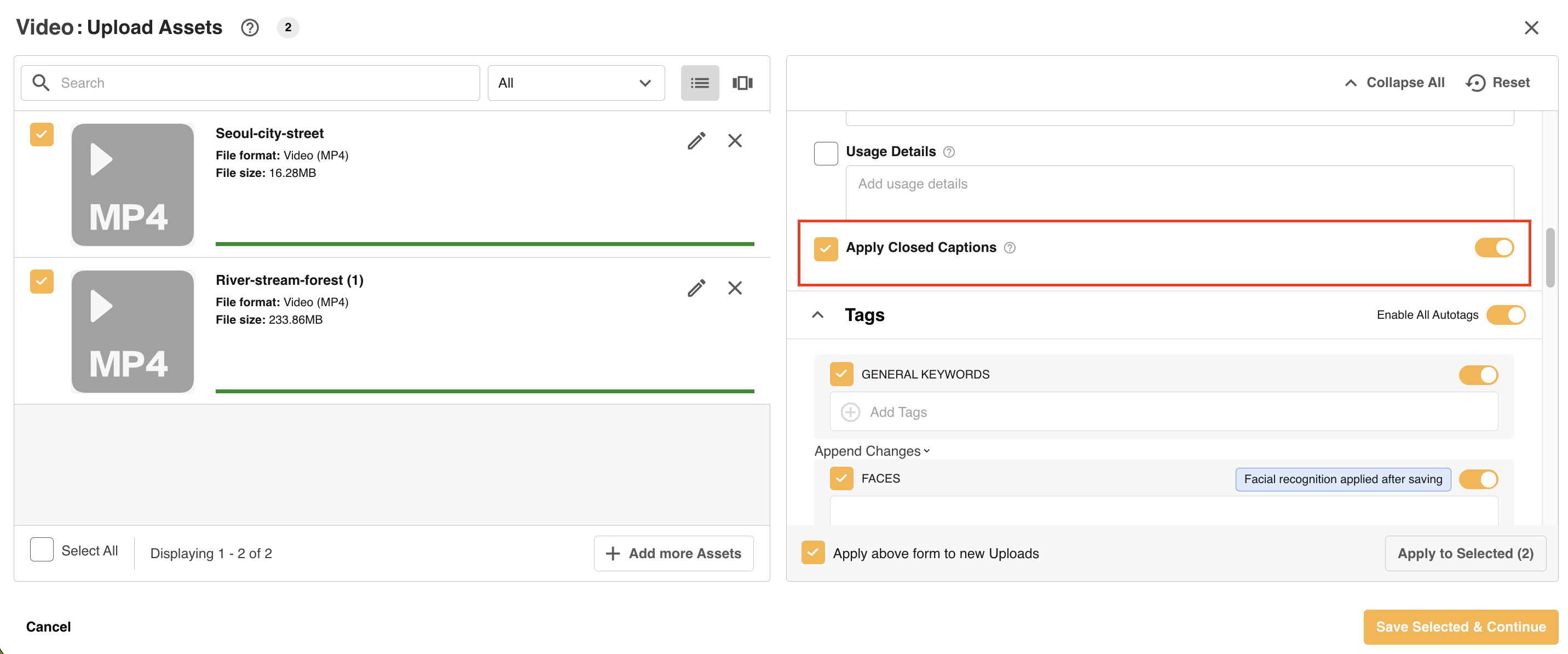
2. Select the Apply Closed Captions toggle, then Apply to Selected. Closed Captions will only be applied for audio and video assets, so don't worry if your upload also includes images or documents, as they won't be affected. Or, you can select Apply Closed Captions to selected audio and video assets from the bulk upload list.
3. Click Save Selected & Continue. Closed Captions processing will commence in the background and will appear in the assets' Info Preview pages once available.
Applying Closed Captions during Single Upload
To apply Closed Captions to video/audio files while uploading them individually:
1. Add an Asset
2. Enable the Apply Closed Captions toggle (this will only appear if the asset being uploaded is an audio or video file).
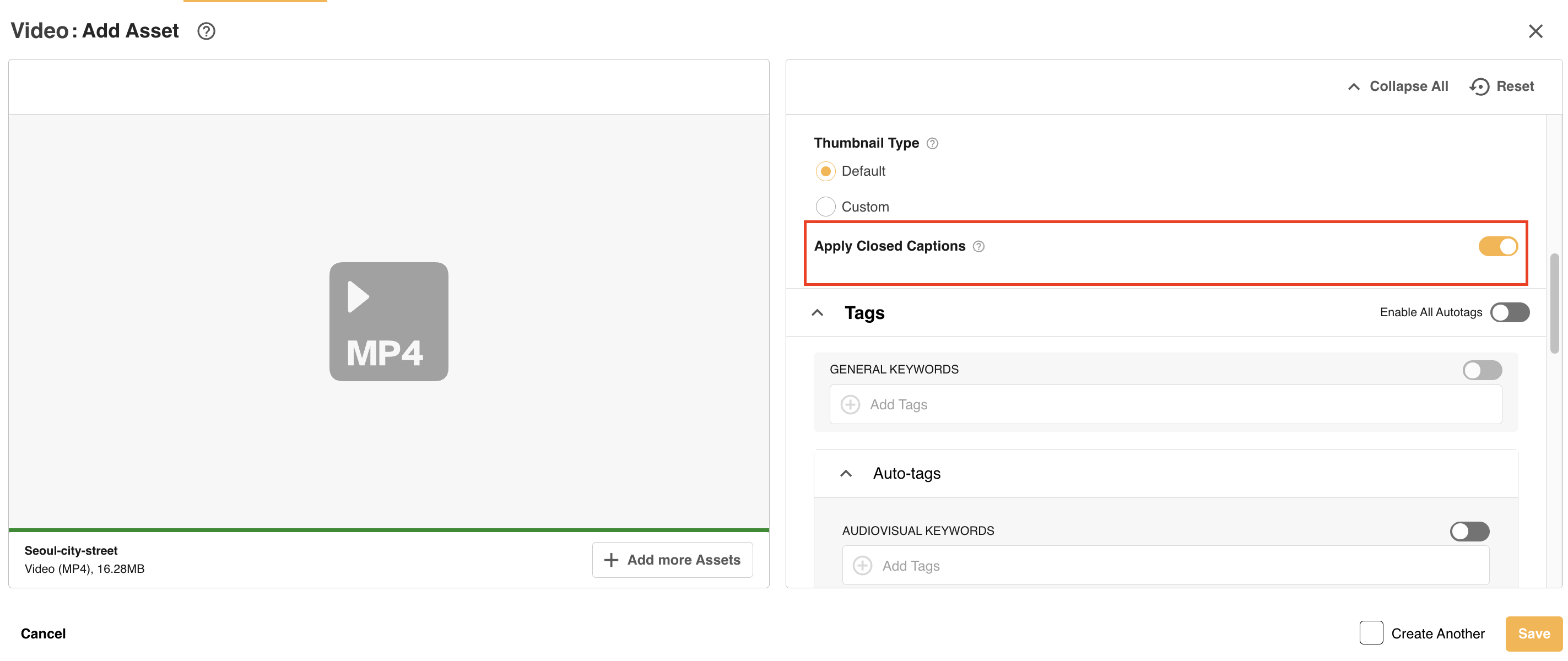
3. Click Save. Closed Captions processing will commence in the background and will appear in the asset's Info Preview page once available.
Viewing and Editing Closed Captions
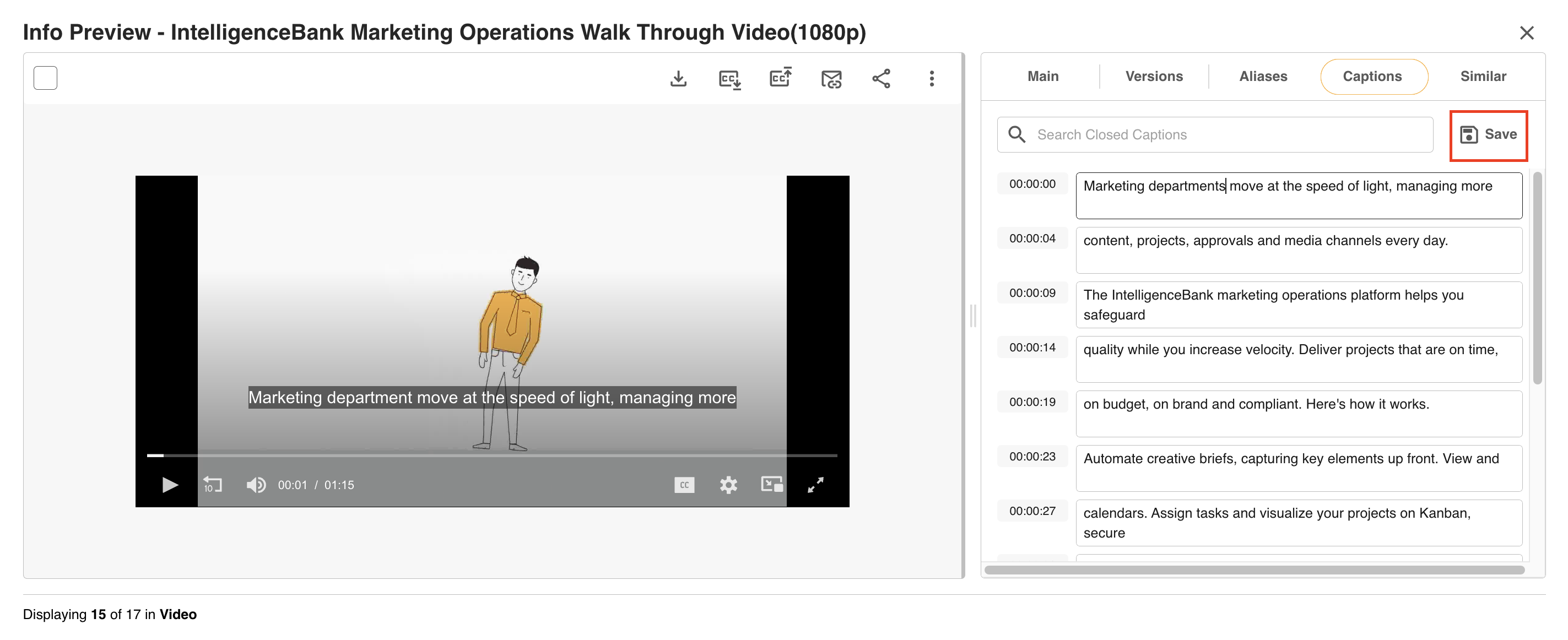
Once an asset's Closed Captions have been generated, you can view them by opening the asset's Info Preview page, then clicking on the Captions tab. The Closed Captions will appear there as a transcription, with timestamps for when the captions appear in the asset. Closed Captions will also appear within the video/audio file, which you can play within the platform to review.
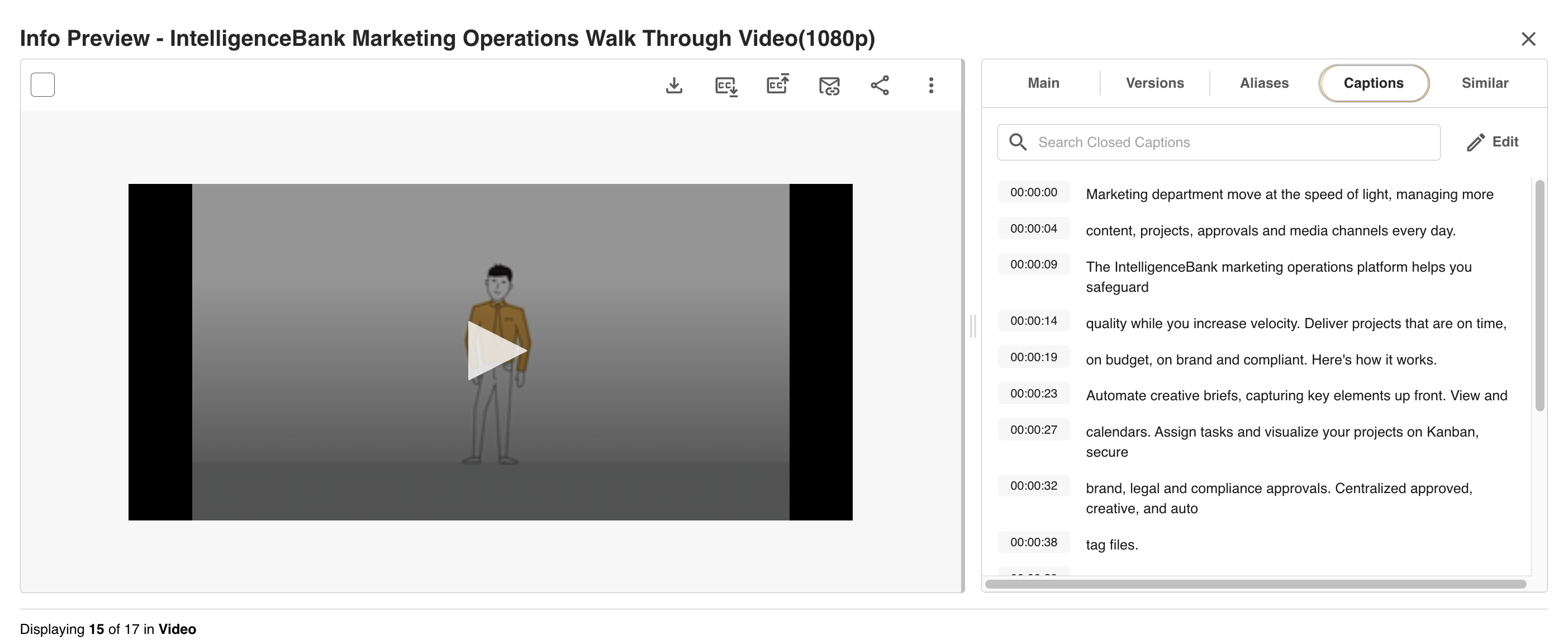
Users with at least Publish permission will be able to edit the Closed Captions, if for example, the spoken words are misspelled or perhaps were picked up incorrectly during the process. Click the Edit button, which will open the transcription in an editable format. Then, just click on the text and make the appropriate edits.
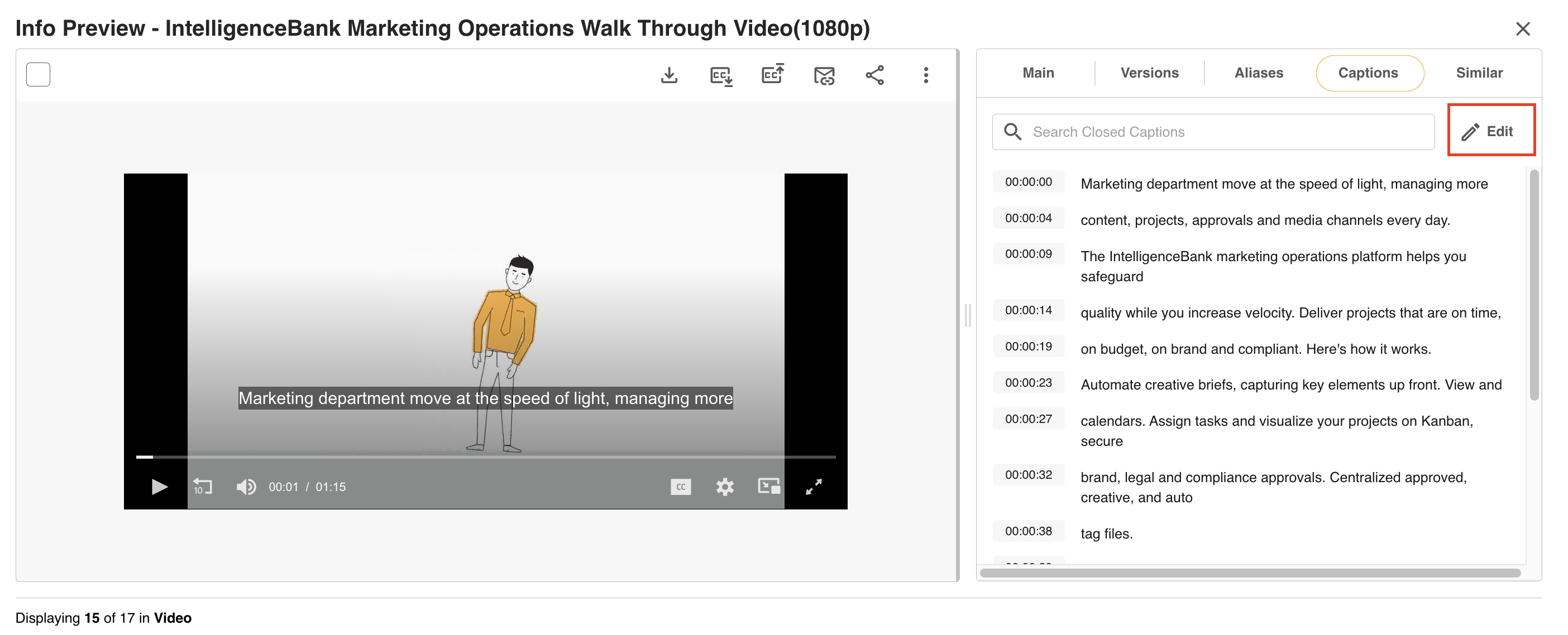
Finally, select Save to save your edits.
Searching within Closed Captions
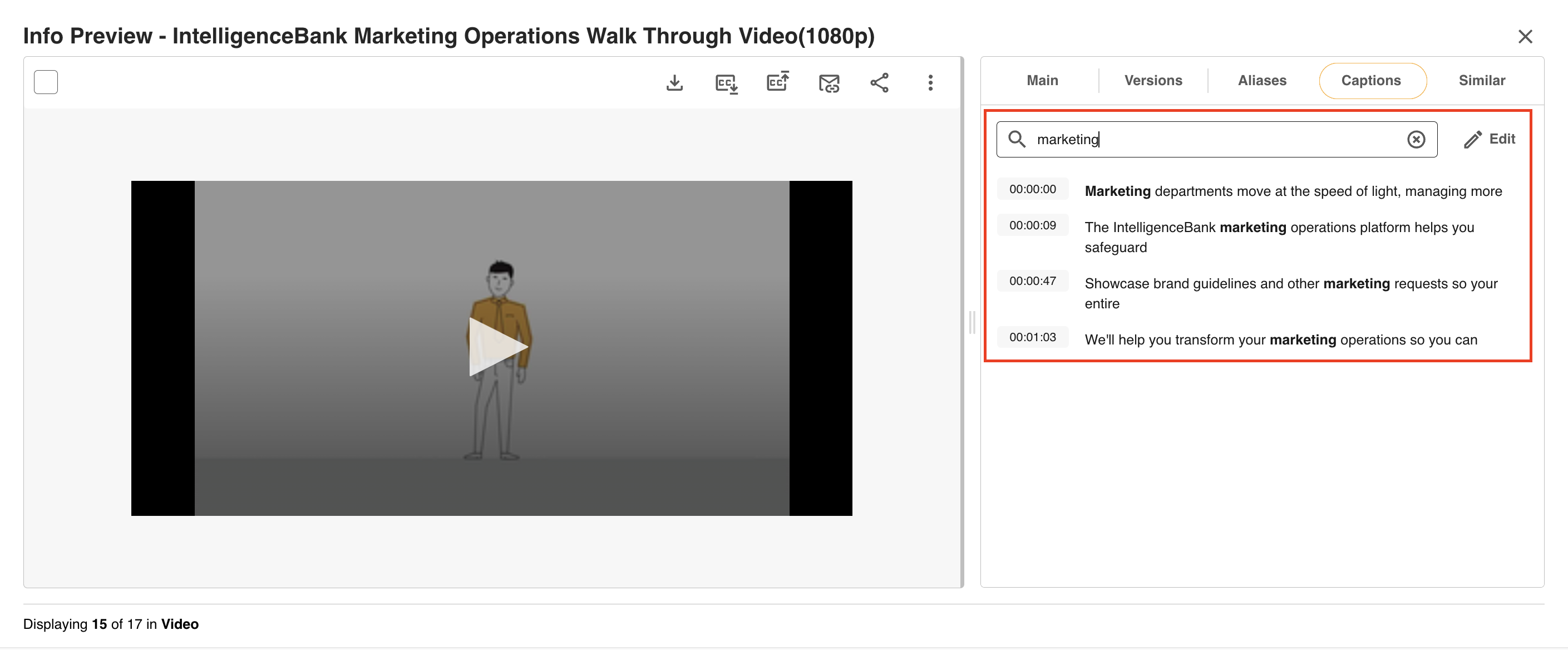
Closed Captions can be searched within the Captions tab, which is helpful if you need to edit/correct a term that appears in multiple places in the video/audio file, or if you just want an easy way of finding a particular term to correct.
To search within Closed Captions:
1. Navigate to the Captions tab of the asset's Info Preview page.
2. Enter the search term within the search box to search within Closed Captions.
3. Search results will display the Closed Captions segment where the search term appears. Note that search is not case sensitive.
Downloading the Closed Captions SRT File
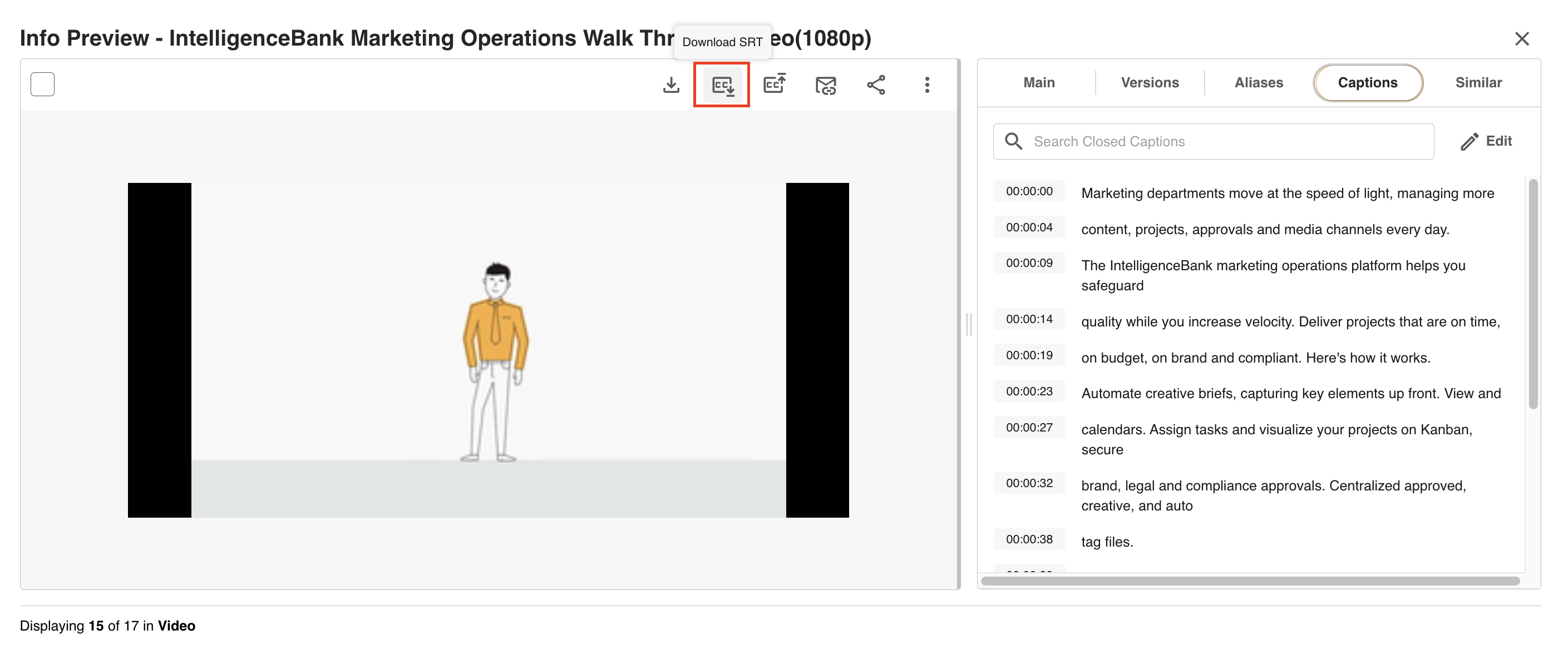
There may be instances with you need to get access to a video/audio file's SRT file from the platform (for example, if edits to closed captions need to take place in another tool outside the platform).
To download the SRT file, click on the Download SRT button. SRT files can be viewed and edited in any text editor.
Share or Embed Videos with Closed Captions
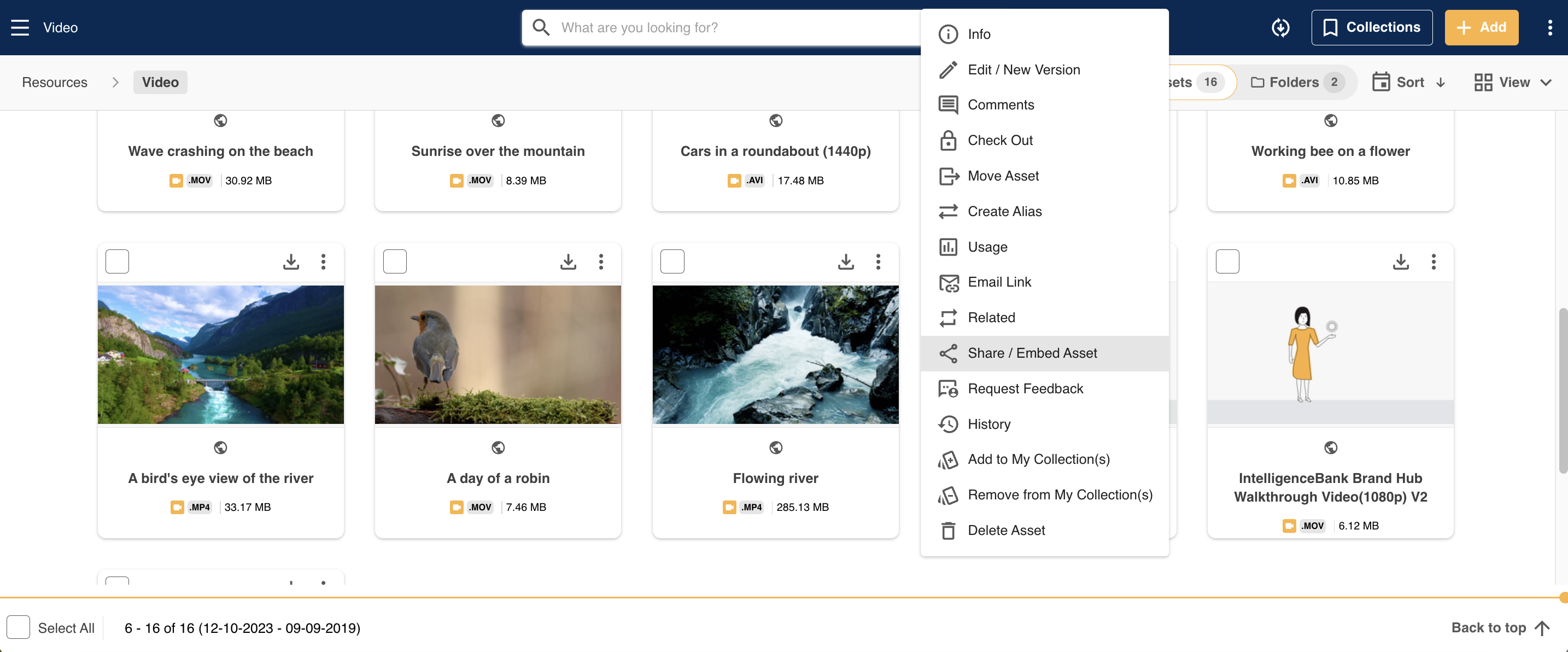
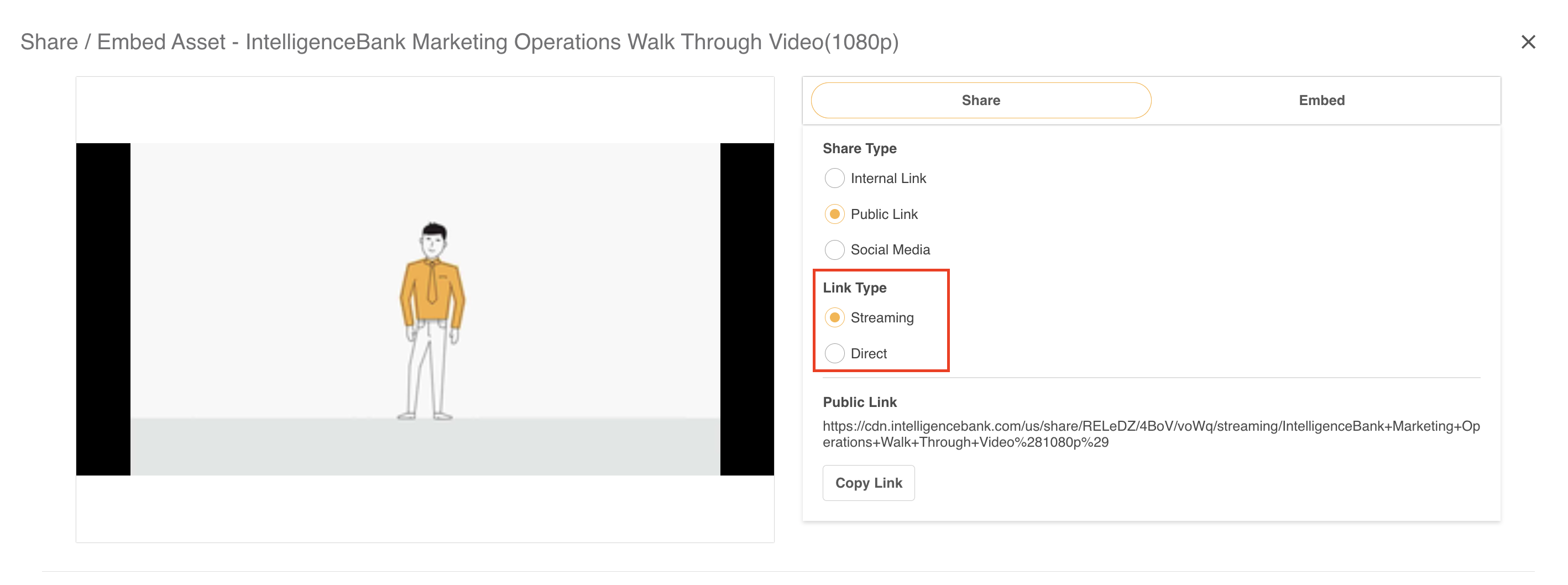
To share a video with its closed captions:
1. Select Share/Embed Asset from its action menu.
3. Make sure the Link Type field has the Streaming option selected to share the video asset with its Closed Captions.
Making Closed Captions Visible or Invisible within a Video File
Recipients will be able to turn the Closed Captions on and off by selecting the "CC" option from the media player (bottom right on image below).

Searching and Filtering Options for Closed Captions in the Asset Library
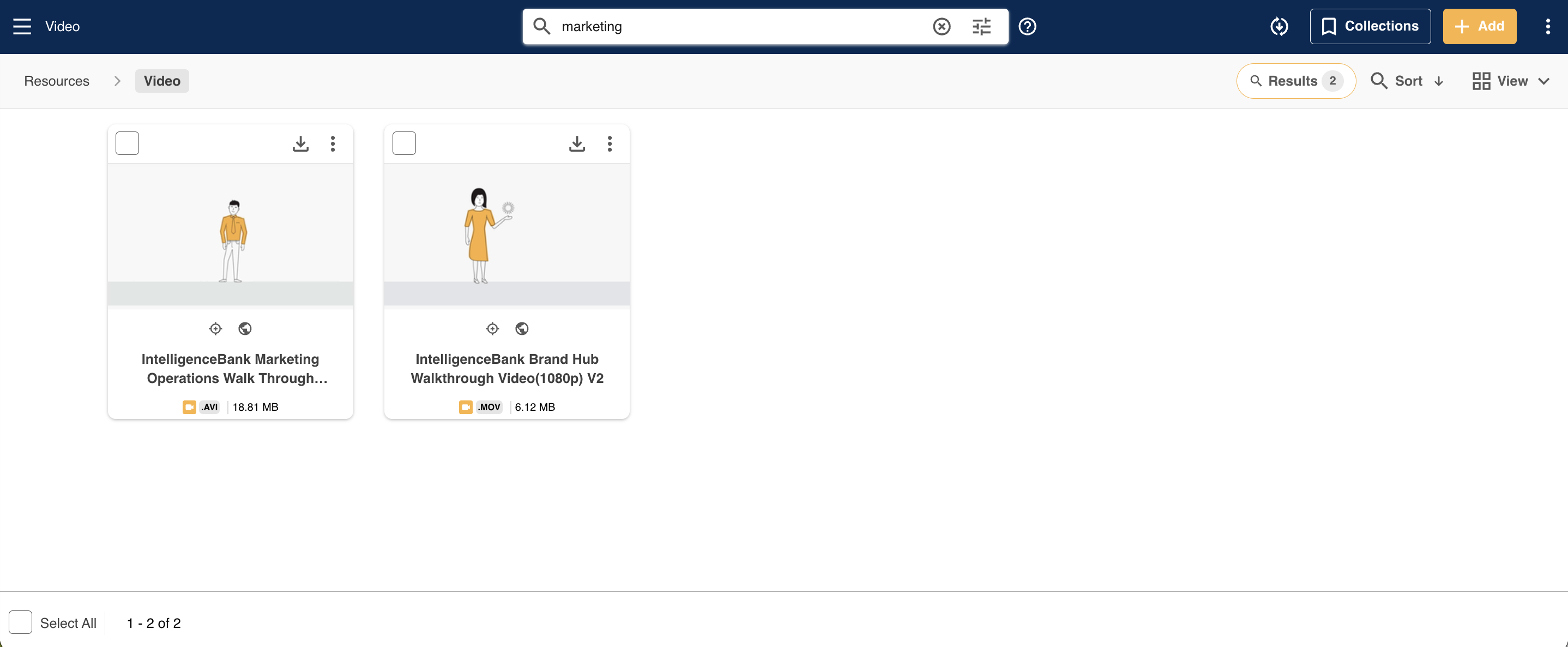
Users can find audio or video files with Closed Captions by typing in a Closed Caption term within the main search bar. Any video or audio file which contains that search term within its Closed Captions will appear in the search results.
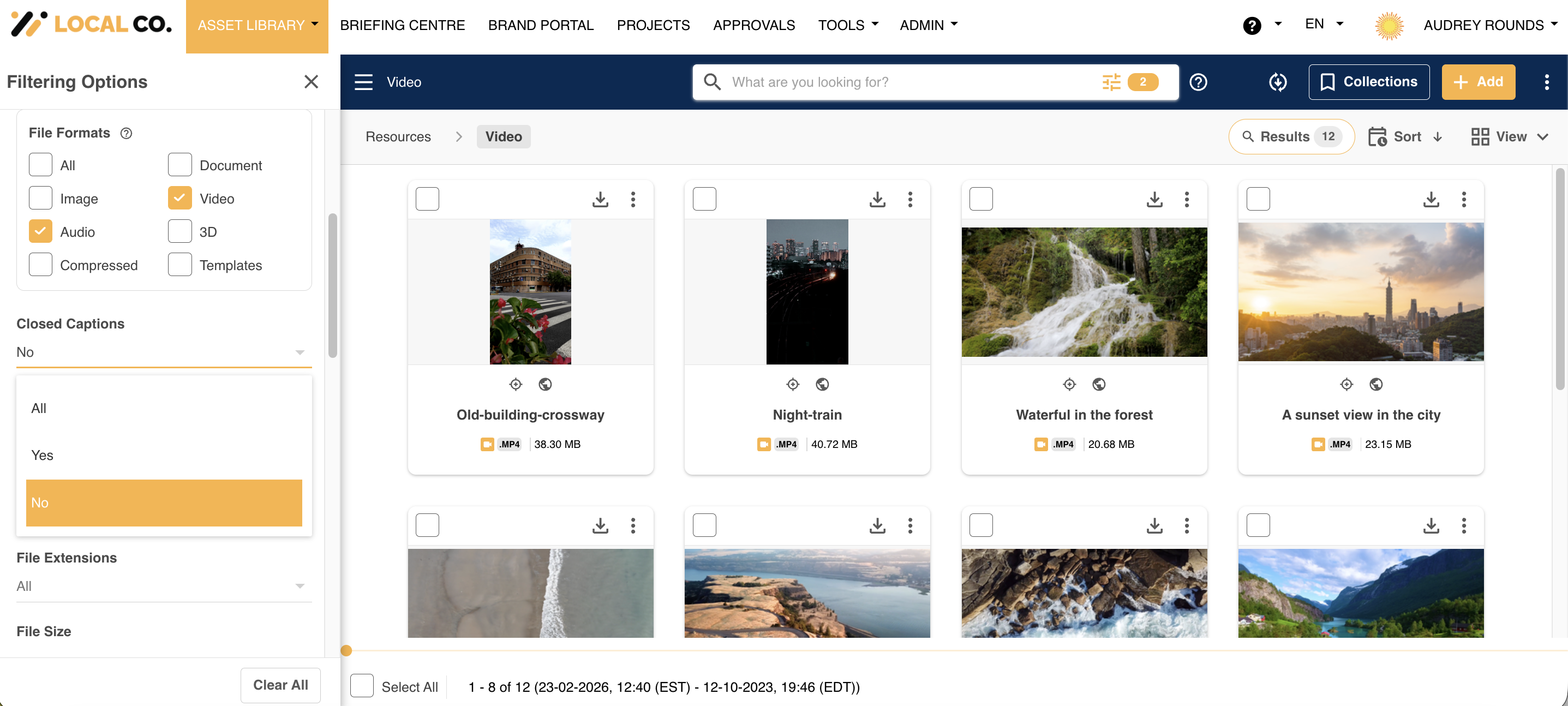
Users can also filter to display video/audio files that either have or haven't had Closed Captions applied.
This is helpful if you need to apply Closed Captions to existing assets but need to easily identify which ones haven't yet had them applied.
To filter by Closed Captions:
1. Access the filters panel
2. In the File Formats section, select either Audio or Video (or both).
3. A Closed Captions filter will then appear. All will display as the default, but click the dropdown menu and select Yes to show you all video/audio files that have had Closed Captions applied. Select No to display only those video/audio files that have not had Closed Captions applied.
Frequently Asked Questions
What is the difference between transcription and closed captions?
Transcription refers to the process by which audio is converted into written text. Closed Captions divide that transcript text into time-coded chunks, known as “caption frames”.
How to activate the 20-minute Free Trial?
Refer to the Enabling Closed Captions section in this article to activate the 20-minute free trial. You can contact your dedicated Customer Success Manager if you have any questions or issues in activating the trial.
What is included in Asset Intelligence allocation?
Both Closed Captions and Video/Audio tagging count towards your Asset Intelligence limit
How can I add more minutes for the Closed Captions processing?
Contact your Customer Success Manager to purchase more minutes or upgrade your package.
Are my audio and video files now WCAG compliant?
Please read the latest instructions on the WCAG website. IntelligenceBank Closed captions will transcribe audio files into text. However, to ensure WCAG compliance, you will need to check that Closed Captions on each of your files include any descriptive sound effects (e.g. music playing, birds singing).
Which file formats are supported for the Closed Captions?
All the formats supported for audio and video preview will be supported for the Closed Captions. Refer to this page for the complete list.
How long does it take for Closed Captions to complete on a file?
Closed Captions processing time depends on the size and duration of your audio/video file. For a 30-second video, it can take 5-10 minutes to process. Typically we ask people to expect between up to 10-20 minutes.
Which languages are supported for the Closed Captions?
When you apply Closed Captions, the system will automatically detect the dominant language spoken in the video/audio and generate Closed Captions for that language. IntelligenceBank supports Closed Captions for 40 languages.
Note: This feature doesn't do the translation into different languages. It identifies the dominant language spoken in the video/audio to provide closed captions in that language.

Was this article helpful?
That’s Great!
Thank you for your feedback
Sorry! We couldn't be helpful
Thank you for your feedback
Feedback sent
We appreciate your effort and will try to fix the article