Select Field Value Filtering is a feature that enables platform Admins to control which values appear in one select field based on the value selected in another when users are filling out forms.
This feature is useful if you have a select/dropdown field whose values/options might be dependent on the values selected in a previous select field. For example, perhaps your organization offers various Product options, but these options are related to specific regions or brands. With this feature, you can control which product options appear in the dropdown field based on what region/brand was selected in the form. This helps keep your forms clean and your Risk Rules consistent.
Table of Contents
Key Benefits
- Helps maintain a cleaner, simpler experience for users filling out forms: Users will only see and be able to select values that are relevant based on a previous selection in your forms. This helps guide users to select options that are truly applicable, thus reducing confusion or error.
- Reduces Risk Review errors due to incorrect field selections: For Marketing Compliance/Content Risk Review customers, users will only see those values relevant to their selection made in another, related select field. This helps ensure that the correct rules fire and the correct risk feedback gets relayed to your users.
Feature Capabilities
- Parent and child cascades: a parent select field drives which values appear on a child select field on the same page or stage of the form.
- Up to 5 levels deep: chains of cascades across multiple select fields are supported, and multiple independent chains can run on the same page.
- Multi-select parent support: when the parent allows multiple selections, the child shows the combination of values mapped across those selections.
- Works with all select field type options: you can set this up on single/multi dropdowns, radio buttons, or checklist types.
- Added to existing fields: Value Filtering is a property added to existing select fields; it is not a new field type. Existing forms keep working exactly as they do until filtering is explicitly configured.
- Safe configuration: per-link save and confirmation prompts before removing a parent mapping protect administrators from accidental loss of configuration.
What End Users Experience
When Select Field Value Filtering is configured on a form, end users do not need to do anything differently to use it. The form guides them automatically.
- The user selects a value in the parent field (for example, a Region or Brand).
- The child field (for example, Products) immediately updates to show only the values relevant to that parent selection. Values that do not apply to the chosen region or brand are hidden.
- If the user changes the parent selection, the child field resets and shows the values for the new selection.
- If the parent is cleared, the child returns to showing no filtered values until a parent is selected again.
- If a child field is marked required, the user must select a parent value first before the child will have options to choose from.
Tip for end users
Always fill in the parent field (such as Region or Brand) before selecting from the child field (such as Product). The child dropdown will be empty or limited until a parent value is chosen. It's therefore recommended that Admins ensure that the parent field is ordered before the child within the form builder.
How to Configure
Note that these steps are for enabling Select Field Value Filters on new databases and forms that do not yet have live records. If you are working with an existing form, refer to the When to contact Support section first.
Select Field Value Filtering is set up across several steps in IntelligenceBank. The order matters; each step must be in place before the next can be configured.
Prerequisites
Database Custom Forms must be enabled on your site and the step up should be handled by Main Admins.
Step 1: Create your Filters
Navigate to the Admin > Filters area of the platform and create a filter for each select field you are adding to the form. For a Region/Product setup, you would create a Region filter (listing all regions) and a Products filter (listing every possible product across all regions, the full combined list). Do not create separate filters per region; the mapping step in Custom Form Editor handles the narrowing.
Step 2: Enable the Filters for Custom Forms
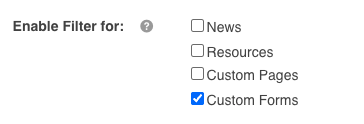
Enable both the parent filter (for example, Region) and the child filter (for example, Products) for Custom Forms in the Filters area. Then, save your Filters.
Step 3: Add the parent and child Select Fields in Custom Form Editor
Navigate to the relevant database and select Edit Form Template from the database's actions. This will open up the form editor. Add the parent select field (for example, Region) and set its source to the Region filter. Then add the child select field (for example, Products) and set its source to the Products filter.
Both fields must be on the same page or stage. Value Filtering does not work across pages or stages in this release, but you can have select fields in different sections.
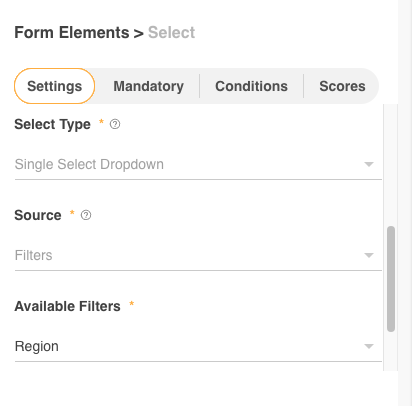
Note that your select fields must use Filters as the Source. Select Field Value Filtering is not supported when using Custom List values. If you're interested in leveraging this feature on existing forms and your select field types are using Custom List values, please reach out to your dedicated Customer Success Manager who can help determine the best way to enable this feature.
Step 4: Open the Cascading Filter Settings
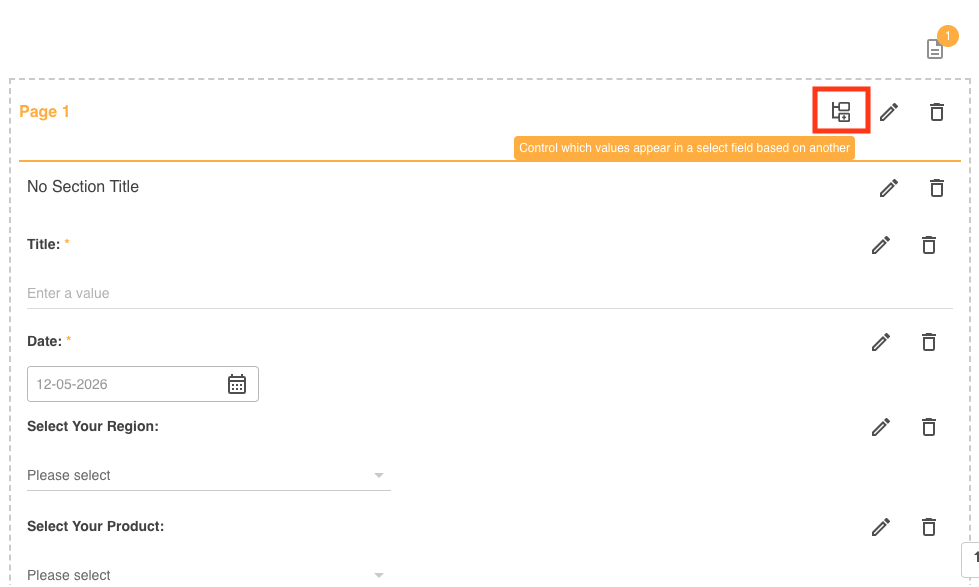
On the page or stage header of the form, click Configure Value Filtering. The Cascading Filter Settings modal opens.
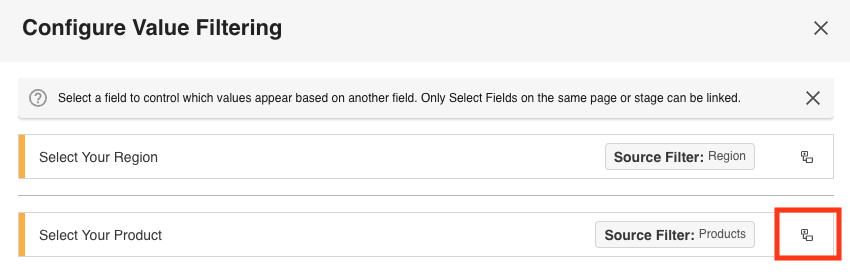
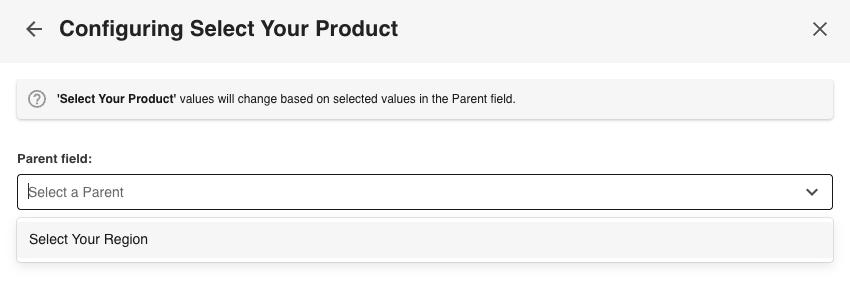
Select the icon indicated next to the child field and select its parent field. Only select fields on the same page or stage that use a filter source will appear in this list.
Step 5: Map parent values to child values
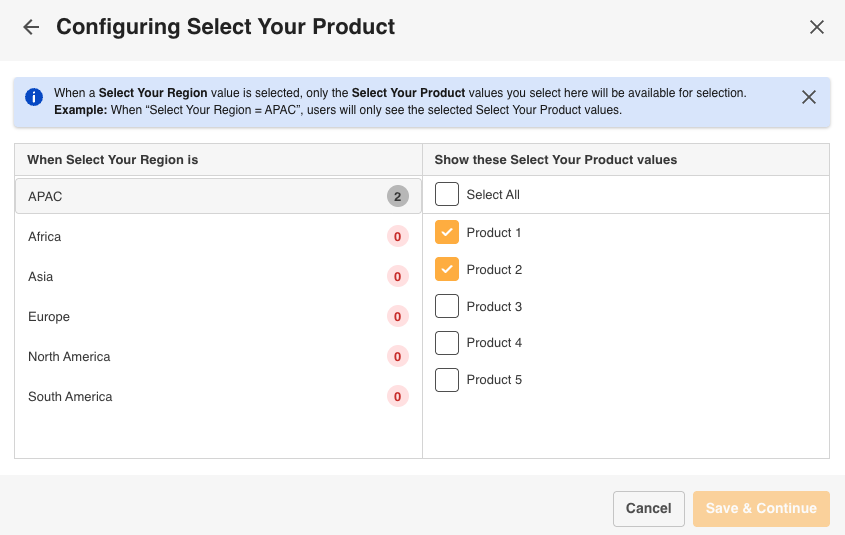
For each parent value, select the child values that should be available when that parent is chosen. For example, if the parent is Region and the value is APAC, tick the products available in APAC.
Once you've selected the relevant child values against a parent value, click on the next parent value in the list and select that value's relevant child values.
Step 6: Close the modal and publish the form
Once all parent values are mapped, select Save & Continue to close the Cascading Filter Settings modal. Continue adding other fields to the form (if needed) and exit the form builder.
Step 7: Test in a Record
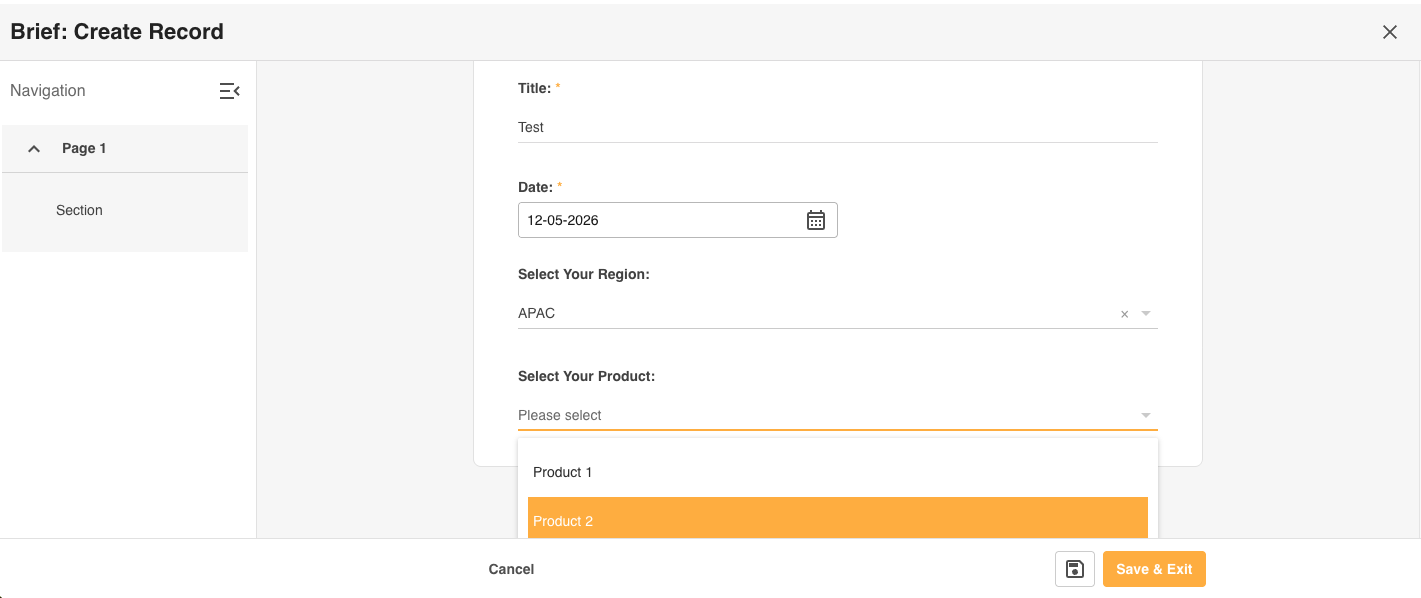
Create a test record. Select each parent value in turn and confirm the child field updates to show only the mapped values. Clear the parent and confirm the child resets. If your site uses division-based access restrictions on filter values, also test by emulating a user in a restricted division; their child dropdown may show fewer values than the admin mapping, which is expected behaviour.
Important Constraints
- Parent and child select fields must be on the same page or stage of the form.
- Each child field can have one parent. A child can itself be a parent to another field, allowing chains of up to 5 levels. Multiple independent chains are supported on the same page.
- Both the parent and child fields must use a filter (from Main Admin) as their source, not a custom list.
- Value Filtering applies to Database Custom Forms only. It does not apply to Assets/Resources, or non-Select fields currently.
When to Contact Support
Configuring Select Field Value Filtering on a new form with no existing data can be done by a suitably trained Form Builder administrator following the steps above.
However, if you are working with an existing database or form, especially one that currently has separate Select fields per region or brand (for example, "Products - APAC," "Products - US") that already contain live record data, the process is significantly more involved. It requires:
- Creating new consolidated filters in the Main Admin > Filters area.
- Adding new child fields to the form without removing the old ones (to preserve existing data).
- Exporting all records and remapping field values in Excel to populate the new consolidated field.
- Importing the remapped data and verifying correctness before the old fields are removed.
- Identifying and rebuilding any conditional logic that depended on the old separate fields.
Important: Mistakes during this process can result in loss of historical field values with no recovery path. We therefore strongly recommend that existing form migrations are handled by IntelligenceBank Support.
Frequently Asked Questions
Is Select Field Value Filtering a new paid module or field type?
No. Select Field Value Filtering is an enhancement to existing Database Custom Forms and is included with your platform. It adds a new property to your existing Select fields. There is no new field type to create, no separate licence, and nothing new to purchase.
What does an end user actually see and do differently?
Very little; the form guides them. When a user selects a value in a parent field (such as Region or Brand), the child field (such as Products) automatically updates to show only the values relevant to that selection. The user simply picks the parent first, then chooses from the narrowed child list. If the parent is cleared, the child resets. There is nothing new to learn beyond the natural order of filling in the form: parent first, then child.
Will turning it on change my existing forms?
No. Value Filtering is opt-in per field. Existing Select fields continue to show all their values until a parent is explicitly configured on them. Turning on Value Filtering for one field has no effect on other fields or forms. When you do configure filtering, actions that could remove a mapping (such as detaching a parent or deleting a linked field) are protected by a confirmation prompt so configuration is not lost by accident.
How does this work with filters in IntelligenceBank Main Admin>Filters area?
All filter values (the lists that populate Select fields) are created and maintained in IntelligenceBank Main Admin>Filters area. This is the single source of truth. To use a filter on a form, it must first be enabled in the Custom Form configuration for that database, and then added as the source for a Select field in Custom Form Editor. Value Filtering is then configured on top of that field. Because everything traces back to Main Admin>Filters area, any update to a filter value is reflected on the form and in the Rules Engine automatically. There is no need to maintain duplicate lists.
How does this interact with our Risk Rules?
The Rules Engine reads the same filter values that the form does. Both trace back to the filter defined in IntelligenceBank Main Admin>Filters. Previously, organisations with separate fields per region or brand often had to maintain matching (but separate) value lists in the Rules Engine alongside their form filters, and any drift between the two caused rules to fire incorrectly or miss cases. With Value Filtering, a single filter drives both the form and the Rules Engine, so they always reflect the same values without manual synchronisation.
Can a child field depend on more than one parent, or on a parent on a different page?
Not currently. The parent and child must both be Select fields on the same page or stage of the form, and each child can have one parent. A child field can itself be a parent to another child, allowing chains of up to five levels deep. Multiple independent chains are supported on the same page or stage. Multi-parent conditions and cross-page cascades are being considered for a future release.
Does it work with DAM, Resources, or non-Select fields?
Not currently. Value Filtering applies to Select fields in Database Custom Forms only. Extending it to DAM, Resources, and other field types is being considered for a future release.
What happens when the parent field allows multiple selections?
The child field shows the union of all values mapped to the selected parent values. For example, if the parent is a Brand multi-select and the user picks two brands, the child will show every value mapped to either brand, with duplicates removed.
My user sees fewer values than expected in the child field. Is something wrong?
Usually no. There are two common reasons for this. First, check that the parent field has been selected. If no parent value is chosen, the child field will be empty or limited. Second, if your site uses division-based access controls on filter values, users in a restricted division will only see the intersection of the mapped values and the values their division is permitted to see. An administrator will see the full mapped set; a division-restricted user may see fewer. To confirm, test as a full-access administrator and compare. If the admin view is also missing expected values, check the mapping in the Cascading Filter Settings modal or contact Support.
What happens in Kanban view when a record is dragged into a column that conflicts with its filter mapping?
If you drag a record into a Kanban column whose value is not permitted by the cascade configuration for that record's current parent value, the record opens in edit view with the child field empty and an explanation of the conflict. You can update the parent or choose a different child value and save, or cancel. The record will return to its original column.
We currently have separate Select fields per region (for example, "Products - APAC," "Products - US"). Can we consolidate these using Value Filtering?
Yes. This is one of the key use cases for the feature. However, if those fields already contain data from live records, consolidation requires a careful migration process to avoid losing historical values. The steps involve creating a new consolidated filter in the Main Admin>Filters area, adding new fields to the form, exporting and remapping existing record data, importing the remapped data, verifying everything, and then removing the old separate fields once the client has confirmed the migration is correct. This process should be handled by IntelligenceBank Support, not done independently, as mistakes can result in permanent data loss. Please contact us through the Support Portal to discuss your setup.
Can I configure this myself on an existing form, or do I need IntelligenceBank Support?
For a new form with no existing data, a trained Form Builder administrator can configure Value Filtering following the steps in the Configuring Select Field Value Filtering article.
For an existing form or database with live records, particularly if you currently have separate fields per region or brand. We strongly recommend involving IntelligenceBank Support. The migration involves exporting records, remapping data, and carefully removing old fields in the right order. Doing this incorrectly can result in permanent loss of field values. Our team will review your setup and manage the process. Contact us through the Support Portal.
How do I get help or request a migration?
Contact IntelligenceBank Support through the Support Portal. When you reach out, please include the name of the database(s) and form(s) you want to update, a description of your current setup, whether there are live records in those fields, any relevant Risk Rules that reference those filters, and your preferred timing for any changes.
Was this article helpful?
That’s Great!
Thank you for your feedback
Sorry! We couldn't be helpful
Thank you for your feedback
Feedback sent
We appreciate your effort and will try to fix the article