IntelligenceBank's self-registration feature allows users to request access to the platform themselves, reducing the need for Main Admins to add each user manually.
Table of Contents
Overview
Self-registration is particularly useful when onboarding a large number of users, as it removes the need for Main Admins to add each person individually. Users can fill out a self-registration form to gain access to the platform. Admins can also choose whether to require approval before users can self-register, based on self-registration settings.
Self-registration is an optional feature and can be turned off if it is not required for your platform.
Configuring Registration Settings
Navigate to Admin > Registration to access the self-registration configuration options. The following settings are available:
| Setting | Description |
|---|---|
| Default Group(s) | The group(s) that self-registering users will be added to automatically. Select from any groups created in the platform. Multiple groups can be assigned. |
| Enable User As Group | Enable this option to automatically enable the User As Group setting for users as soon as they self-register and are created in the platform. |
| Default Division | The division that self-registering users will be assigned to by default. |
| Require Approval | Check this box to require an approval before a self-registration request is granted access. When enabled, you can list the approvers who will be notified of each request in the Approver(s) dropwdown field. Approvers must be Main Admins. Approvers will need to review and approve or deny each request within the platform. |
| Notify of Registration | If Require Approval is selected, enable this field to ensure your nominated Approver(s) receive notifications of users attempting to self-register, so they can approve or decline. Separate from requiring approval, you can also enable this field so that nominated users will receive an email notification when someone self-registers, but no action is required on their part. Useful for keeping admins informed without requiring a formal approval step. |
| Registration Fields | Gives you the ability to display additional registration fields for users to fill out in the self-registration form. These fields can be useful for tracking/identifying users who've self-registered to the platform. Please refer to the Registration Fields section below for more details. |
| Request Contact Name | If enabled, this requires users to select an internal contact as part of their registration request. This provides an additional level of certainty that the person registering is known within your organisation. |
| Request Purpose | If enabled, this requires self-registering users to provide a reason for their registration request. This is particularly useful when an approval workflow is in place, as it gives approvers the context they need to make an informed decision. Please refer to the Request Purpose section below for more details. |
Registration Fields
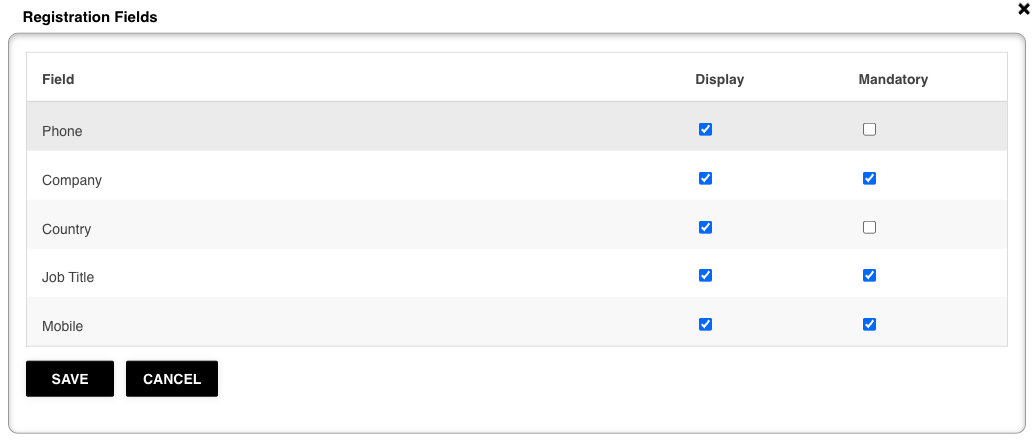
In the Registration Fields section, select Configure to set up the form that users will see when attempting to self-register.
The following fields are always included and cannot be removed:
- First Name
- Last Name
- Email Address
The following optional fields can be enabled and, if displayed, can be marked as mandatory:
- Phone Number
- Company
- Country
- Job Title
- Mobile
Request Purpose
Enabling Request Purpose requires self-registering users to provide a reason for their registration request. This is particularly useful when an approval workflow is in place, as it gives approvers the context they need to make an informed decision.
Three purpose field types are available:
| Field Type | Description |
|---|---|
| Text | An open text field where users can type their reason for registering in their own words. |
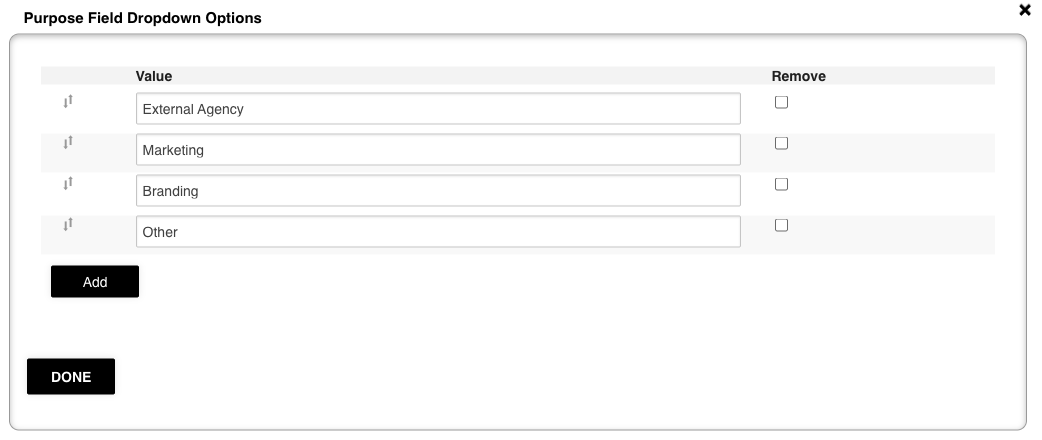
| Dropdown | A dropdown with predetermined options for users to select a single reason (e.g., Freelancer, Agency Partner, Employee). Options are configured via the Purpose Field Dropdown Options setting. |
| Multi-Select | Similar to Dropdown, but allows users to select multiple reasons. Options are also configured via the Purpose Field Dropdown Options setting. |
Two additional purpose-related settings are available:
- Purpose Field Placeholder: enter placeholder text that will appear in the purpose field on the registration form, giving users an example or prompt to guide their response.
- Purpose Field Dropdown Options: available when Dropdown or Multi-Select is selected as the field type. Select Configure to build the list of values that users will choose from when completing the form.
Custom Registration Rules
Custom Registration Rules is an advanced setting that applies conditional logic to self-registration workflows. Select Configure to open the rules editor.
Custom rules allow you to automate how self-registering users are handled based on conditions such as their selected purpose or email domain. Common use cases include:
- Auto-assign to groups or divisions: automatically map users to specific groups or divisions based on the information they provide during registration.
- Skip or require approval based on conditions: for example, users with your company's email domain can bypass approval, while anyone with an external domain is routed through an approval workflow.
- Assign permissions based on purpose: if a user selects a particular registration purpose (e.g., Freelancer), they can be automatically added to a group with the relevant permission set.
Saving Your Settings
Once you have configured all required settings, select Save. Your registration settings will update immediately.
If you have questions about the best way to configure self-registration for your organisation's specific requirements, contact your dedicated Customer Success Manager for tailored guidance.
Was this article helpful?
That’s Great!
Thank you for your feedback
Sorry! We couldn't be helpful
Thank you for your feedback
Feedback sent
We appreciate your effort and will try to fix the article