By using IntelligenceBank's Copy Records feature, users can easily and efficiently create multiple records with similar information off an existing record. This scenario may come up if, for example, you have several campaigns or projects running that are similar to a pre-existing one, and you don't want to have to create each brief or project one by one and enter in the same information over and over.
This article outlines how Main Admins can configure which stages or pages of a Brief/Form/Record can be copied by users when creating multiple and/or similar records (compared to starting new ones from scratch).
Key Benefits
This feature is helpful if the information in only certain pages or stages in your records should be copied. This way, the user can just focus on entering the information that would differ on the new record.
How to Enable
Follow the steps below:
- Navigate to the Brief/Form and click the "three dots menu (⋮)"
- Select the "Database Settings" option
- Navigate down to the “Copy Options” configuration setting
- Click the “Configure” button
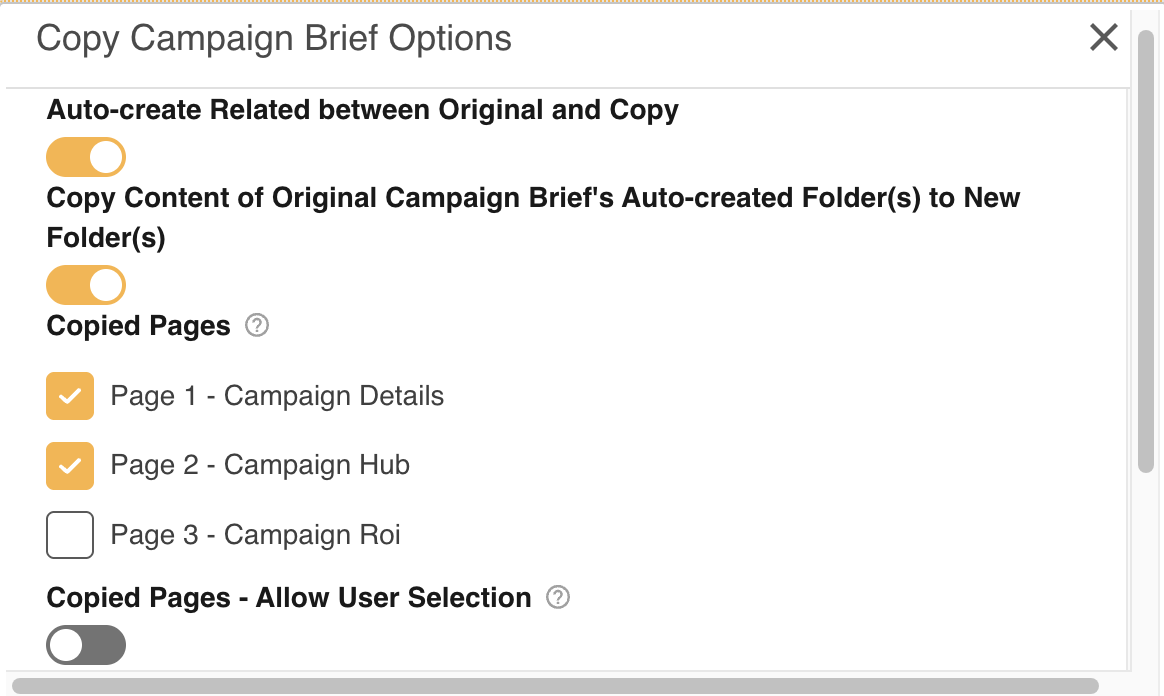
- Select your preferred configuration options. Note that the options you see may vary depending on other database settings and how your form is configured. Some commons options are below:
- Auto-create Related between Original and Copy - if enabled, this will automatically relate the new/copied record with the original record it's copied from. Consider using this feature if it's important that copied records remain linked to the original and you can reference the original off the copy or vice-versa
- Copy Content of Original Record's Auto-Created Folder(s) to New Folder(s) - if enabled, this feature will copy any items that have been added to the original record's auto-created folders into the copied record's auto-created folders.
- Copied Page(s) - if your record has multiple pages, this setting will display a checklist of all pages and you can select which pages should get copied
- Copied Pages - Allow User Selection - this setting allows users to choose which pages get copied from among the pages selected in the setting above. You might consider enabling this setting if you want to give users more flexibility on whether pages get copied or not, if scenarios where it would be valuable to do so are variable
- Excluded Fields - with this setting, you can choose which specific fields won't get copied, even if they are in a page/stage that has been enabled to be copied. Consider using this feature if all fields but a few within a page should be copied, making it easier for your users to focus on just the fields they need to fill out
- Click the “Confirm” button to save
- Navigate to the bottom and click the “Save” button to apply the changes to your database settings
Please review the Copy Record Options article to learn more about this feature.
Was this article helpful?
That’s Great!
Thank you for your feedback
Sorry! We couldn't be helpful
Thank you for your feedback
Feedback sent
We appreciate your effort and will try to fix the article