With the Draft Records feature, users can save a Draft Record and can also restrict who can view that Draft Record. Draft Records do not need to be submitted for approval and no alerts will be sent out when a Draft Record is saved.
Similarly, most of the otherwise-mandatory fields will be skipped, so users don't have to fill out all of the information usually required.
This may be useful if you have a lot of information to gather prior to submission, but haven't received all of it yet, or if you get interrupted and need to come back later to complete your record.
Table of Contents
Enabling Draft Records
The Draft Records feature can be enabled on each individual database. Once enabled, any user who has permission to create records will be able to save a record as a draft.
Users with the below permissions will be able to set up this feature:
- Main Admins
- Database Admins
- Users with Manage permission on the relevant Database(s)
To enable draft records on a database, follow the steps below.
- Open the database and click Database Settings option highlighted below
- Scroll down to the setting called Enable Draft Records. Note that this setting may have a different name based on the Custom Name set on the Database. To activate this setting for all users, click the Enable Draft Records checkbox.
- Save the Database settings to apply the feature.


View Draft Record Restrictions
When you enable the Draft Records setting, another field called View Draft Record Restriction(s) will appear beneath the setting. The options selected in this field will determine which users will be able to view draft records.
This applies to all draft records in the records list view and in other areas of the site like Dashboards and Data Reports. These restrictions will be applied on top of a user's regular permissions.
If a user is not selected via the options in this setting, they will not be able to access draft records or stages.
The options available for the View Draft Records Restriction include:
| Creator | This option is permanent and cannot be unselected. This ensures that the Creator of the record can always view and edit their draft. |
| Creator Groups | If enabled, users within the same group as the creator can view and edit draft records (if they have permission to do so). |
| User Lookup Fields | All User Lookup fields from within the Form Builder for the database will be displayed as an additional option. If a User Lookup field is enabled in the Database Settings, any users selected within it will be able to view and edit draft records (if they have permission to do so). |
| Group Lookup Fields | All Group Lookup fields from within the Form Builder for the database will be displayed as an additional option. If a Group Lookup field is selected, any groups selected (and consequently all users within those groups), will be able to view and edit draft records (if they have permission to do so). |

Permission Scenarios
A user with View record permission requires a View Draft Record Restriction in order to view a draft record. If the user does not have permission to view a record, but has the draft restrictions enabled, they will still not be able to view the draft record as they do not have the minimum permission required. The same applies for users with Edit record permission. Reversely, if a user has View record permission, but does not have Draft Restrictions, they will not be able to view the draft records.
What's Restricted on a Single Database
For single databases, users can see the draft records if they have a minimum of View record permission AND have a view draft restriction option applicable to them.
For single databases, the draft status applies to the whole record, not specific pages or sections.
What's Restricted on a Staged Database
If you have a staged database, then the settings will be applied for stages rather than the whole record (as it does in single database). Users can therefore submit a draft for each new stage.
When a new staged record is being created, ie stage 1 is being filled out; the logic will copy what exists for single databases above. So if stage 1 is saved as a draft, only users with the correct permission + the draft restriction will be able to see the draft in the records list pages.
For stage 2 and beyond, this differs slightly as there will be previous stages which have been published. Here the view draft restrictions setting will be applied to which users can view the current draft stage, rather than the record disappearing from the list entirely. For example, if a user has View permission on the record, but not the draft restriction and stage 3 has been submitted as a draft, the user will be able to view stages 1 and 2 (as they would currently), but will not be able to view the draft information entered in stage 3. Users with the draft restriction will be able to view the draft in stage 3.
Note that for the stage 2 and beyond scenario mentioned above, users with Edit permission will be able to edit draft records, regardless of the restriction setting. Consequently, the draft indicators will always be seen by these users.
Saving a Draft Record
If a user has permission to create records and the Create Draft Records setting is enabled, users will be able to save draft records. When the user adds a new record or begins a new stage, there will be an additional saving option at the bottom of the page called Save As Draft (pictured below). When clicked, the record will be saved as a draft (and the View Draft Restrictions settings will apply).

Validation Rules
Only a record's Title Field needs to be filled out in order to successfully save a draft record. No other mandatory validations will apply, however other types of validation, like accepted inputs for specific fields, will still apply. For example, if a user were to enter the wrong format for an email field, they will still receive a validation error, whereas if they were to skip a field entirely, they could still save the draft.
Other Actions Once a Draft is Saved
Below are a few important points that should be noted about what actions will or will not occur when a draft record is saved. The actions that are skipped for draft records will still apply as normal when the record is officially submitted / published.
- Sequence ID's will be generated
- No Alerts will be sent out
- Workflows / Approvals will not be submitted
- Auto-Created Folders will not be created
- Users can still use the following features with Draft Records: Related, Comments, Request Feedback, Email Link
Draft Indicators
Once a draft record has been saved, users who have been included in the View Draft Restriction settings will be able to view or edit the draft record (according to their standard permissions) and will also see a draft indicator.
This appears on all of the record layout options: List, Cards, Kanban, and Calendar views.
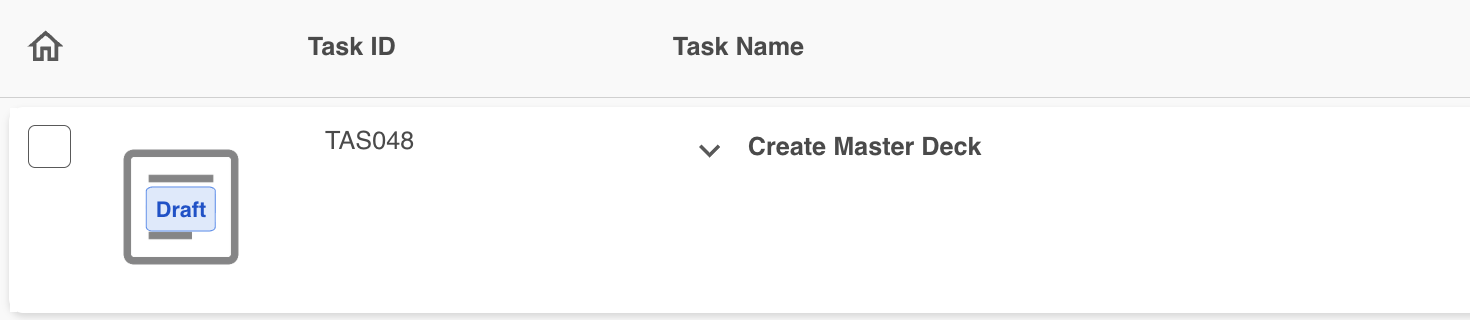
As well as the indicators on the records list pages, they will also appear on view / edit record, as well as in emails, Download PDF etc, that the record involved is in draft status.
Filtering by Draft Records
Once draft records are enabled on your database, you can also choose to filter by the Submission Status of a record, ie whether it's in draft status or not. These options are only available on a database level and will not appear if you are searching the entire databases area.
Filtering on Single Databases
On single databases, open your Filtering Options Side Panel. The first field available will be Record Submission Status. This refers to whether your record is published or a draft. You can use these checkbox options to filter in / out by those options. The results will be automatically reflected on the page.

Filtering on Staged Databases
On a staged database, open your Filtering Options Side Panel. The first field available will be Record Current Stage Submission Status. This refers to the submission status of your current stage, ie where the record is up to (stage 1, stage 2, etc). The filtering options included here allow you to filter your records by:
| Not Started / Completed | This refers to stages which have not been started (ie the continue action is available but the records are not in draft) or records which have been completed (so all stages have been published). |
| Pending Approval | This option allows you to filter out those records which currently have a stage pending approval. This is only available as an option when a publish approval has been enabled on the database. |
| Draft | This will filter your records to either display or hide those records where the current stage is in draft status. |

Tracking your Drafts in Other Modules
In addition to filtering within your databases, you can also use the same filtering options in Dashboards and Data Reports, allowing you to include or exclude draft records in your reporting.
When creating your widget or data report, select Record Submission Status or Record Current Stage Submission Status as the filtering condition, as demonstrated below.

When you've saved your widget or run your report, draft records (if you have included them), will be displayed, with the draft indicator visible to highlight they are in draft status. In Data Reports, there will also be a column indicating whether the record is in draft or not.

You can read more about your Databases module here.
If you have any further questions about Save Draft, please contact your Customer Success Manager.
Was this article helpful?
That’s Great!
Thank you for your feedback
Sorry! We couldn't be helpful
Thank you for your feedback
Feedback sent
We appreciate your effort and will try to fix the article