IntelligenceBank offers two layout options for viewing databases:
- Card: Displays databases in a card or box view with a larger icon.
- List: Displays databases in a list view in two columns with a smaller icon.
Setting the Database Layout
By default, the layout across all databases is set by Main Admins in the Admin > Settings area of the platform in the Default Databases Layout field.
Individual users can choose to view databases in a different layout by following the below steps:
| 1 | Navigate to the Databases area of the platform. |
| 2 |
In the upper right-hand side of the page, locate the two layout icons- List or Card
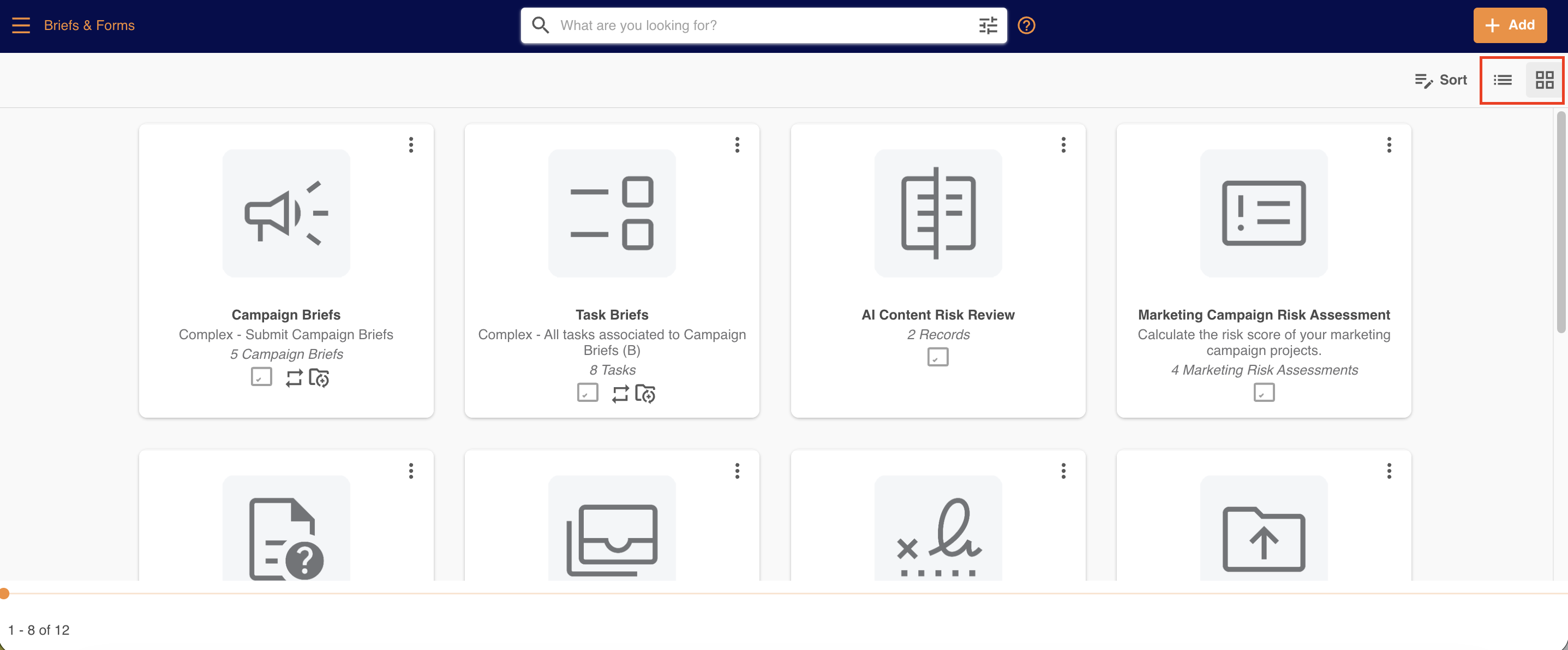
|
| 3 |
Select either the Card or List icon to view the databases in that layout.
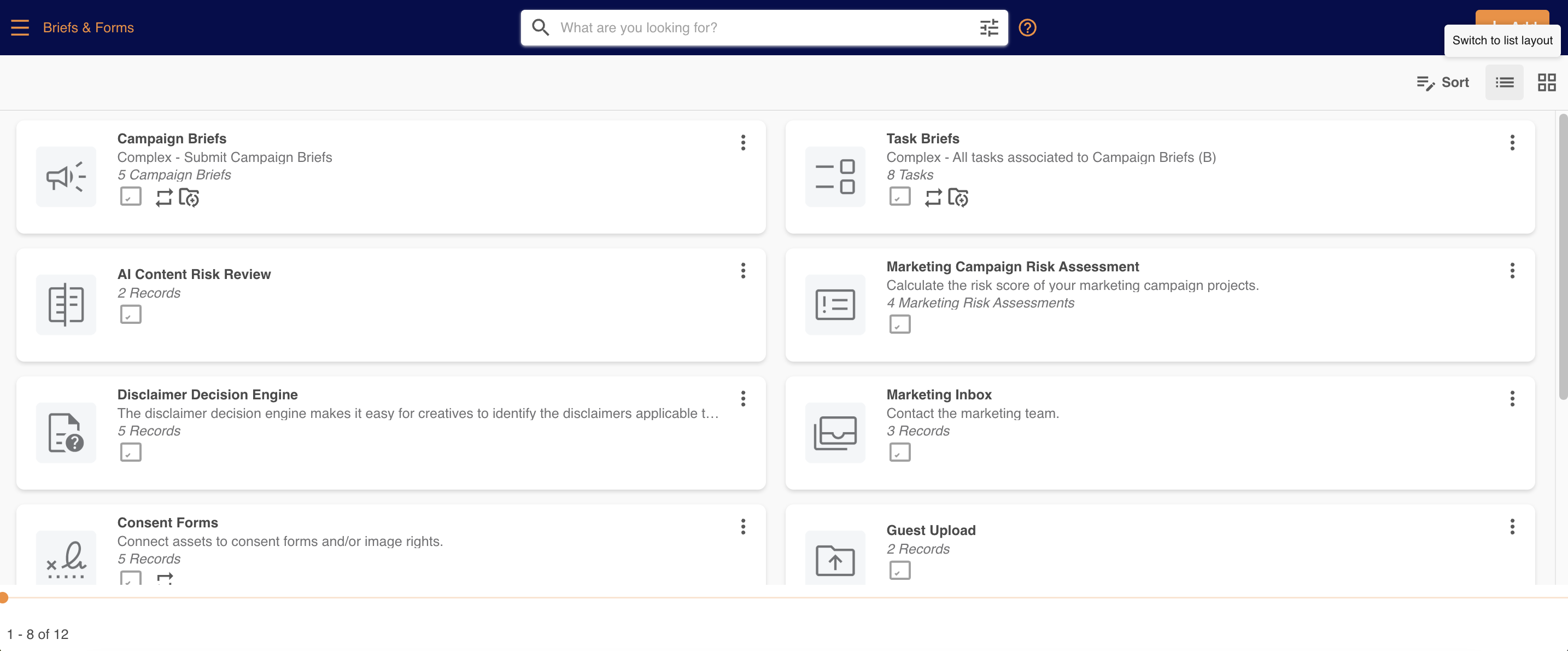
|
Database Display
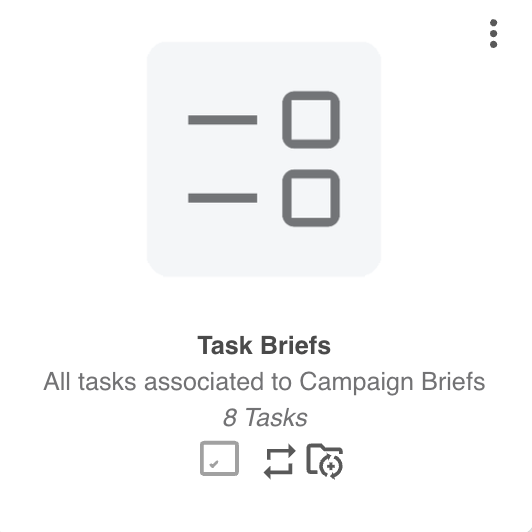
Each Database is displayed within its own card. This provides a snapshot of information about the database, including:
- Database Name
- Database Description (if added)
- Database Icon
- A count of Records within the Database
- Icons linking to Related items and Auto-Folder shortcuts (if applicable)
- An icon indicator of whether the Database is Single or Staged
- Link to More actions (top right corner)
Please note that the Database module terminology referenced above may appear as another name in your platform as these are customisable. You can see comparable terms here.
Was this article helpful?
That’s Great!
Thank you for your feedback
Sorry! We couldn't be helpful
Thank you for your feedback
Feedback sent
We appreciate your effort and will try to fix the article