IntelligenceBank offers different sorting options for records within databases. The default options available are:
- Date Created - by most recent to oldest
- Last Updated - by most recent to oldest
- Alphabetical - by record title name 0-Z
- Special Characters, i.e. '*!?$#' etc.
- Numbers
- Letters
Setting the Default Record Sort Order in a Database
The default record sort order can be set on a database level by:
- Main Admins
- Database Admins
- Users with Manage permission on Databases
To set this up:
| 1Open Database Settings | Navigate to the relevant database. Select the three vertical dots in the top right-hand corner and select Database Settings. This can also be set when creating a new database.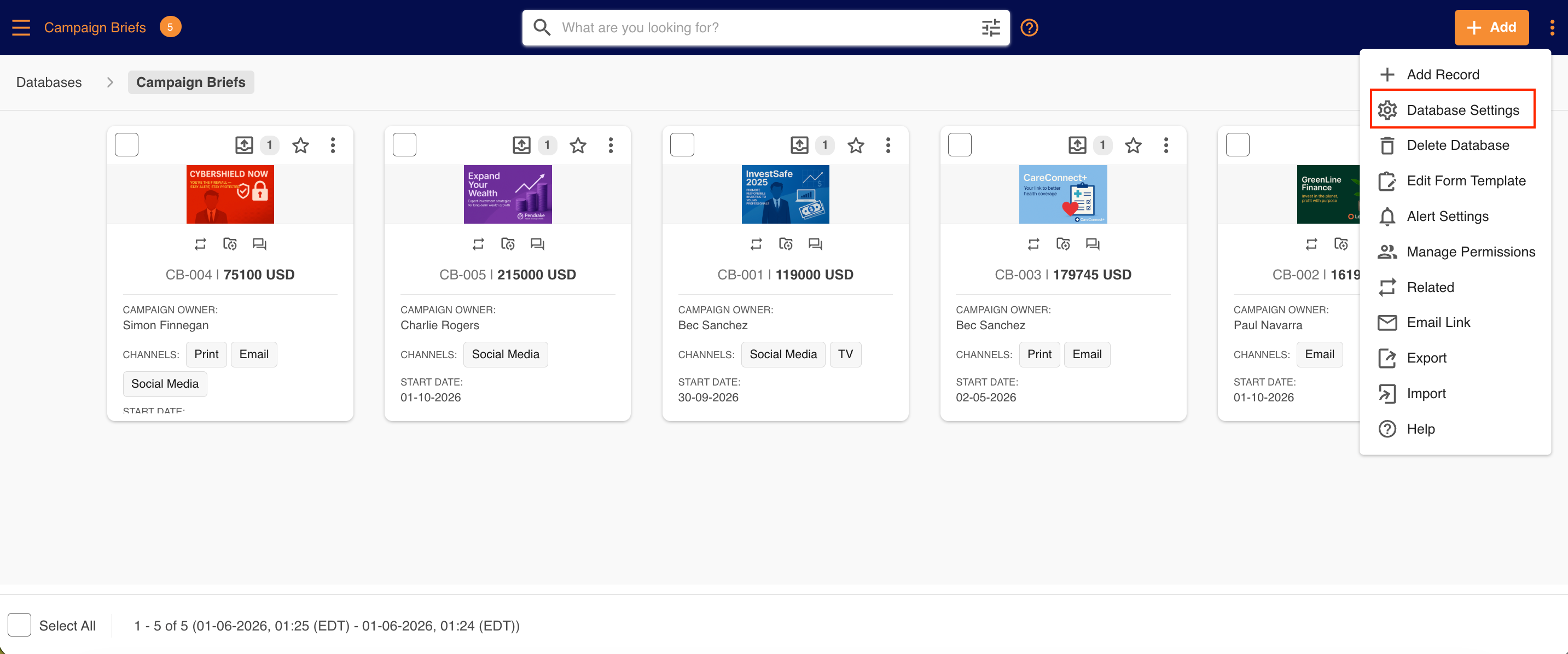 |
| 2Choose the default order | Locate the Default Order field. Click into the dropdown to select which default order you'd like. Note that if your default layout is Calendar view, you won't be able to select a default order. |
| 3Save your changes | Once you've made your selections, scroll to the bottom of the page and select Save. The default order of records in that database will display for users moving forward. |
Additional Record Sorting Options
Users may be able to sort records by options other than the default ones outlined above.
If the database form includes a sequence ID field, users can also sort records by sequence ID (ascending or descending). Note, however, that this cannot be set as a default sort option.
If the records are displayed in a Kanban layout, Admin users will be able to manually/custom sort or re-order records within swim lanes by priority as well. To learn more about how to do this, please reference this article.
Viewing Records in a Different Sort Order
Individual users can choose to view records in a different sort order within databases or from a search by following the below steps:
| 1Navigate to the database | Navigate to and click into the database you'd like to view records in. |
| 2Select the Sort icon | Select the Sort icon illustrated below. A green check mark will appear next to whichever is the current/default sort order the records are displayed in.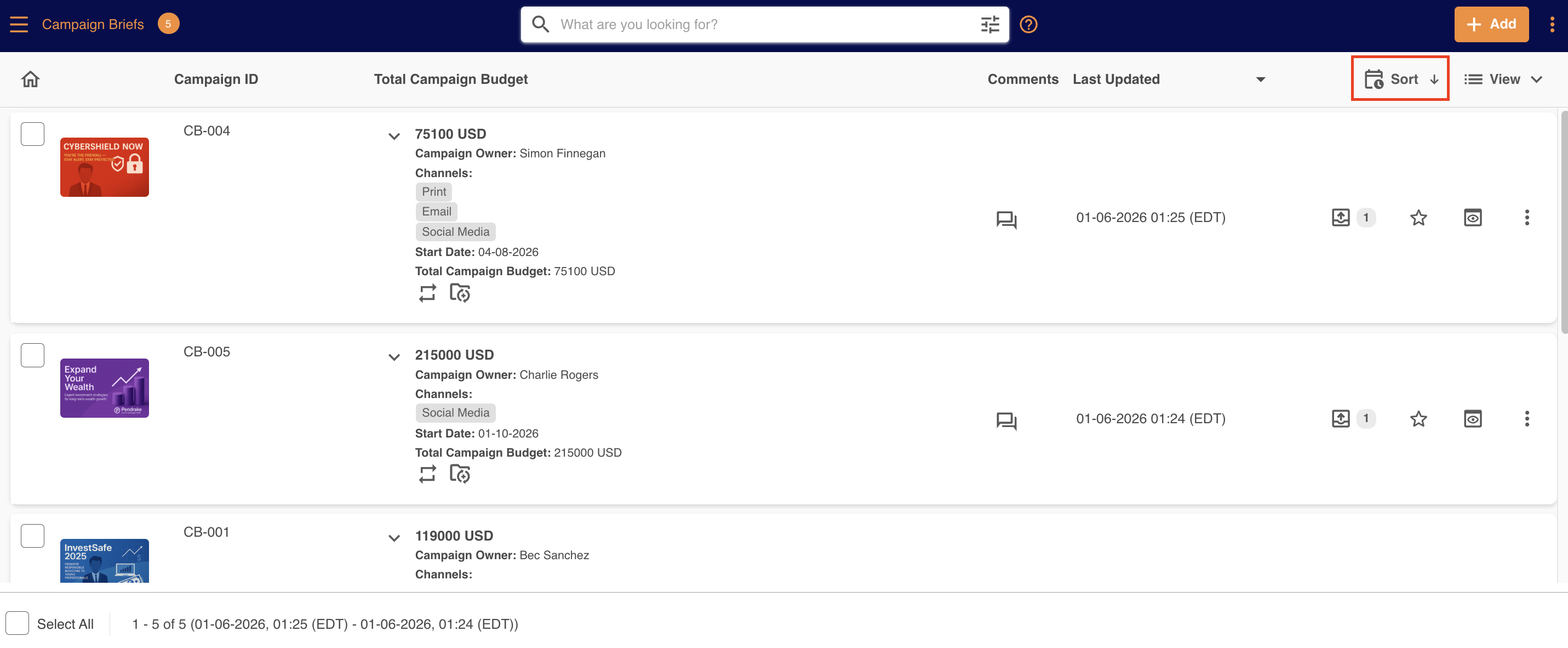 |
| 3Choose a new sort order | To update the sort order, select one of the other options. The records will update their sort order immediately.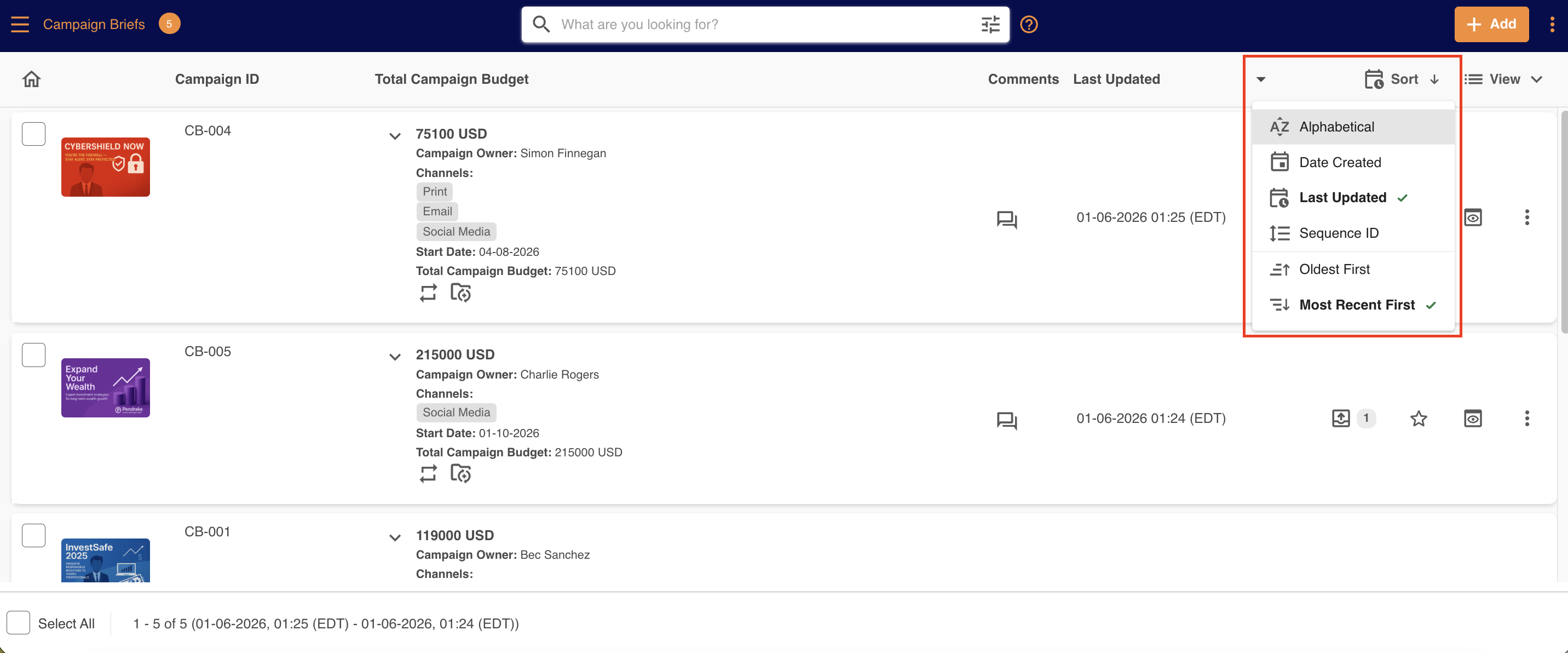 |
Was this article helpful?
That’s Great!
Thank you for your feedback
Sorry! We couldn't be helpful
Thank you for your feedback
Feedback sent
We appreciate your effort and will try to fix the article