Kanban view allows users to see and re-order records in columns as well as drag and drop records between them, making it easy to visualise and update data.
What is Kanban View?
Kanban view is a board-based card display that can visually indicate what status a record is in.
It allows you to view the current capacity of a team, prioritise work, or move the card through a process, indicating its progress as work is completed.
Any team that, for example, has a set process for their work (and defined stages), or that uses a form of Agile Methodology, can find a Kanban view useful.
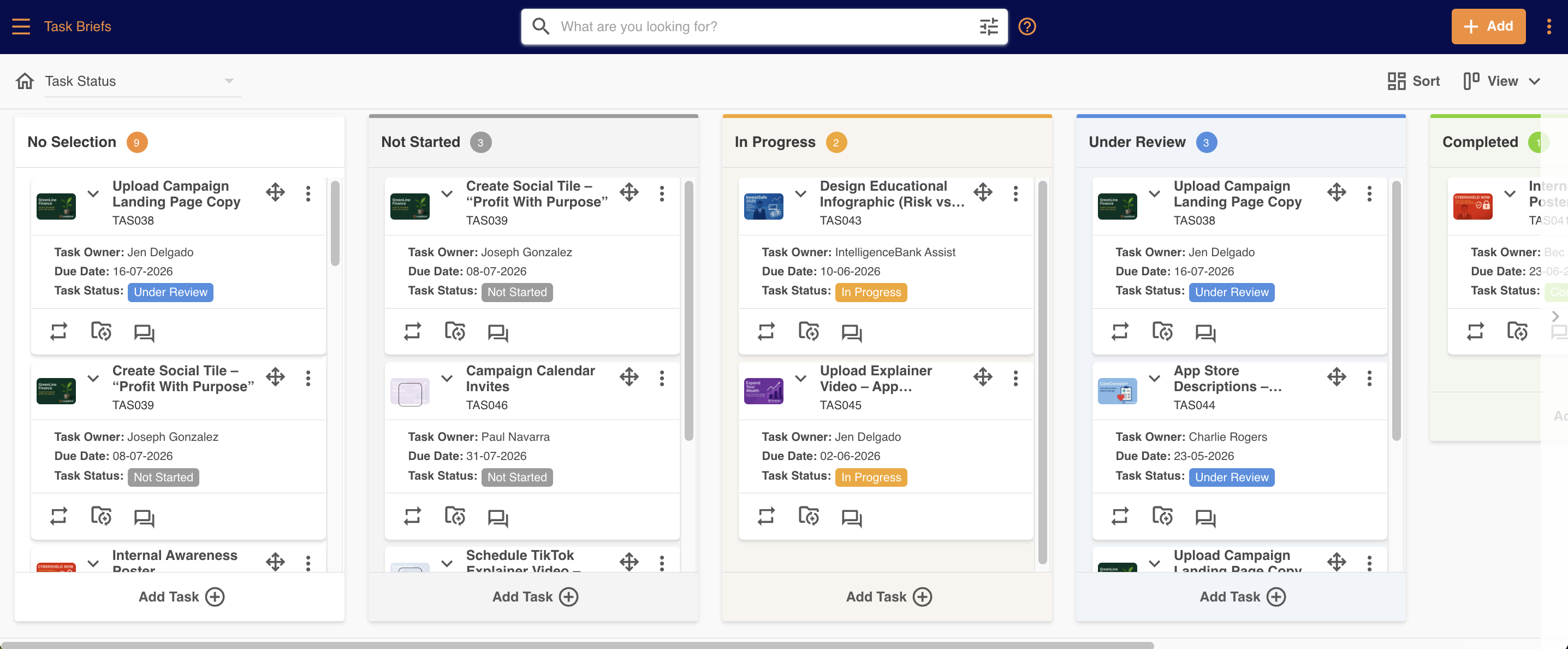
Unlike the other layout options, Kanban also provides a way to update fields within a record via drag and drop and order items by priority.
Some of the main ways Kanban view can be used are outlined below:
- Track the progress of each record as it goes through a workflow by creating a status field in your form to use it as a Kanban column. Values could include In Progress, Completed, etc
- Update progress without having to open and edit the record by using drag and drop between columns
- Add records with the Kanban value pre-selected by clicking Add Record at the bottom of the relevant column
- Filter your records using our standard filter panel, allowing you to see for example which team member has the capacity for more tasks
- Utilise other functionality, such as auto-created folders, highlight colour feature, or lookup field functionality in order to break larger projects into smaller tasks and track the overall progress of a project
Updating the Kanban Field
When viewing records in Kanban view, you will see a dropdown menu at the top left of the page (indicated below). This will allow you to select and then switch the Kanban field. The fields within the dropdown will be all Single Select or Radio Button fields from within the Form Template for the database.
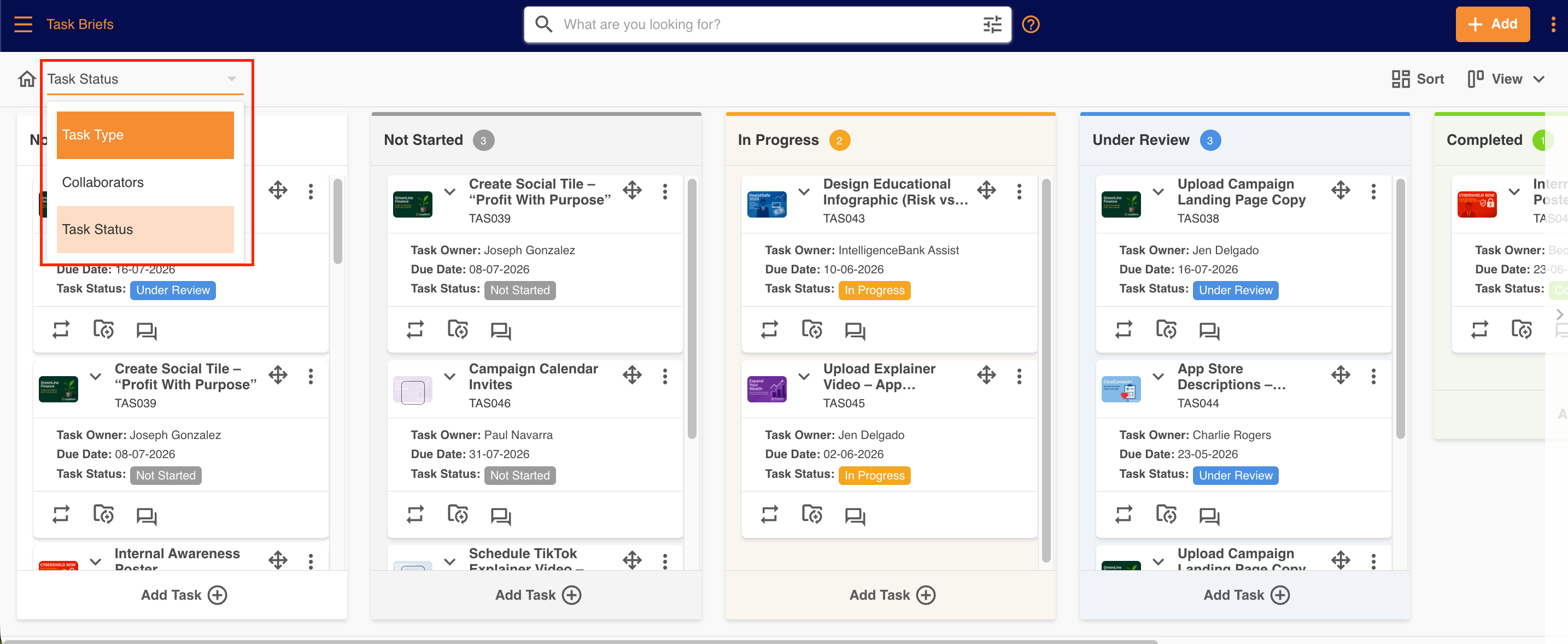
Once a field has been selected, Kanban columns will appear.
Each column represents a value from within the field chosen as the Kanban field. For example, if in the form you ask users to select the status of their project, the values would be the options they had to choose from, i.e., In Progress, Completed, etc.
Users can switch the Kanban field option to another select field from within your form at any time. If you wish to set up a Default Kanban field, click here to find out how.
If a record does not have a value for the Kanban field, then it will appear in a column called No Selection.
Updating Records within the Kanban View
If you have Edit permission on a record, you will be able to drag records from one column to another.
Depending on the setup of the database, workflows or conditional logic may then apply. In these scenarios, prompts will appear on the screen or the record will open so the user can continue.
Was this article helpful?
That’s Great!
Thank you for your feedback
Sorry! We couldn't be helpful
Thank you for your feedback
Feedback sent
We appreciate your effort and will try to fix the article