IntelligenceBank offers four layout options for viewing records within a database:
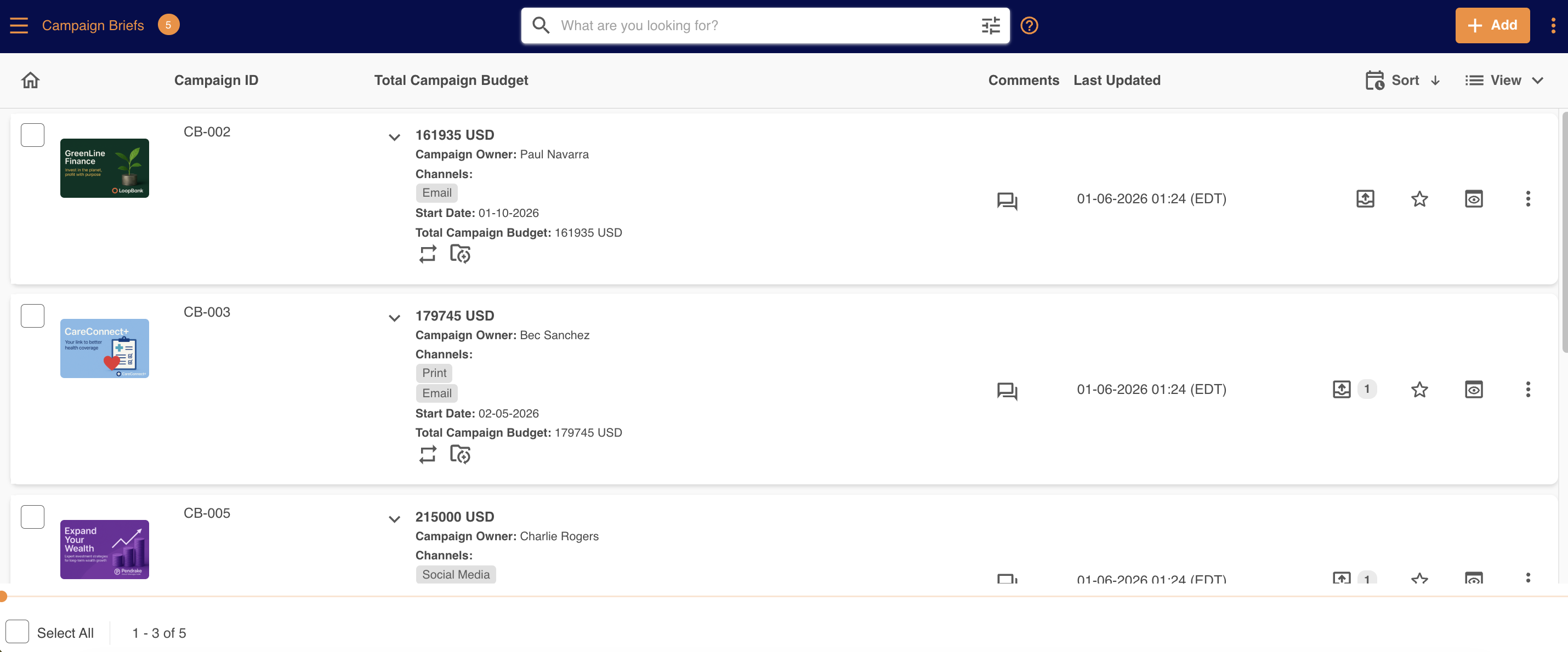
- List: allows you to view all of the published records in a single page list, with the records appearing one by one.
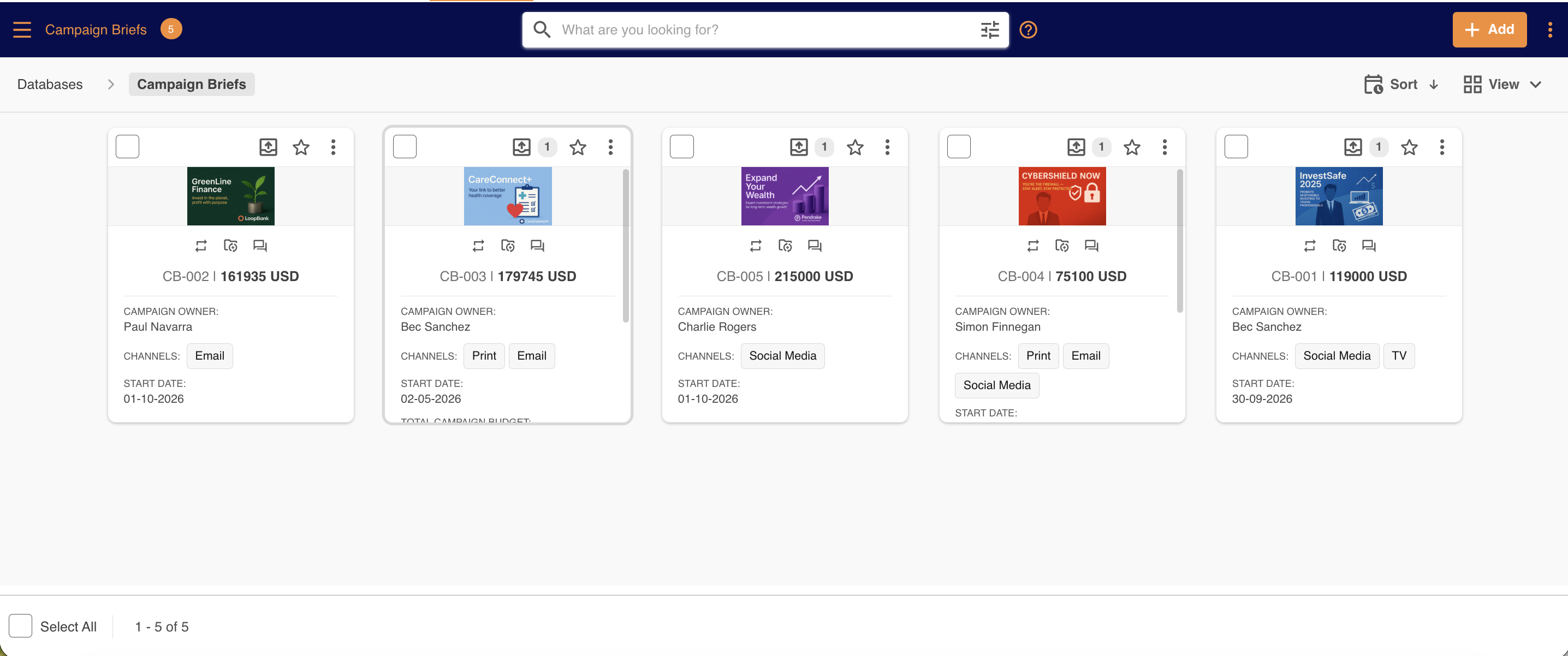
- Card: allows a more visual representation of published records, highlighting the thumbnails assigned to each record.
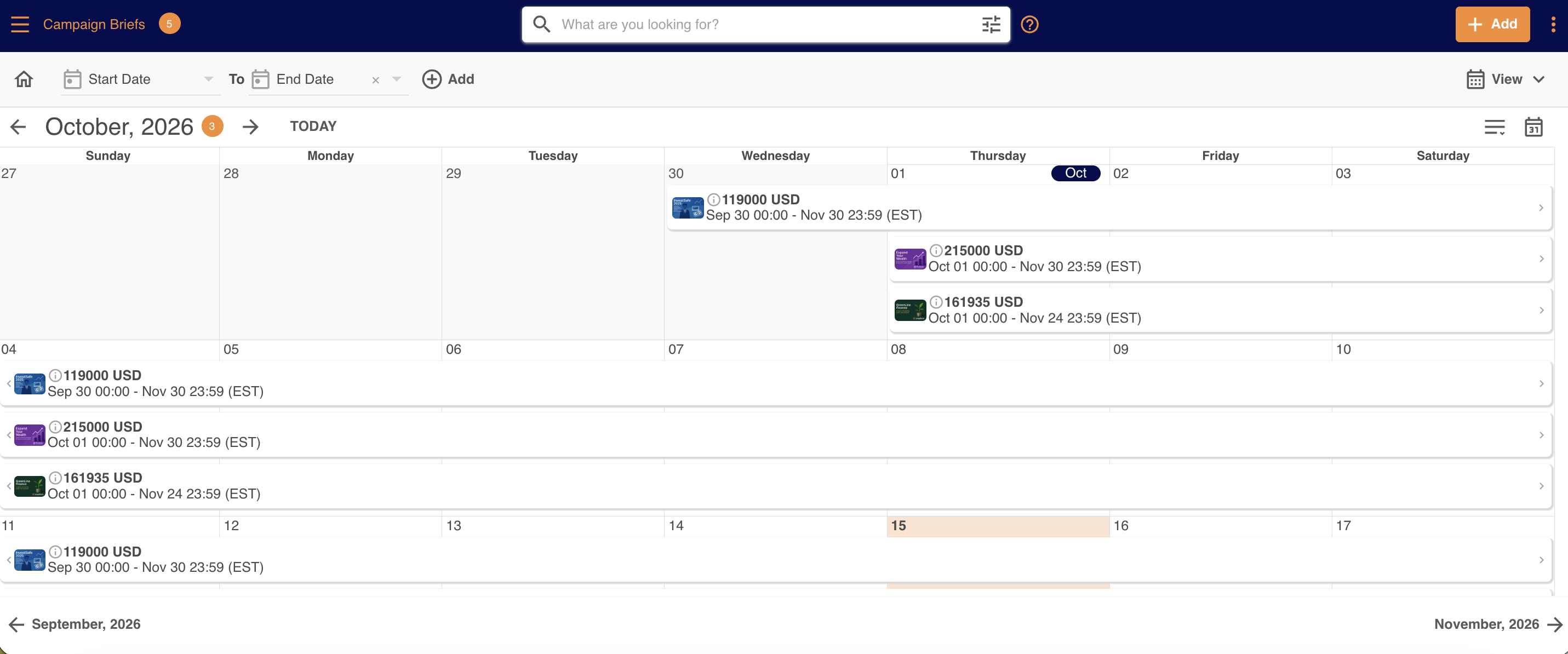
- Calendar: allows you to view records based on selected Date fields from within the form. This means that for whichever date field is selected, records will appear based on that field's inputted date.
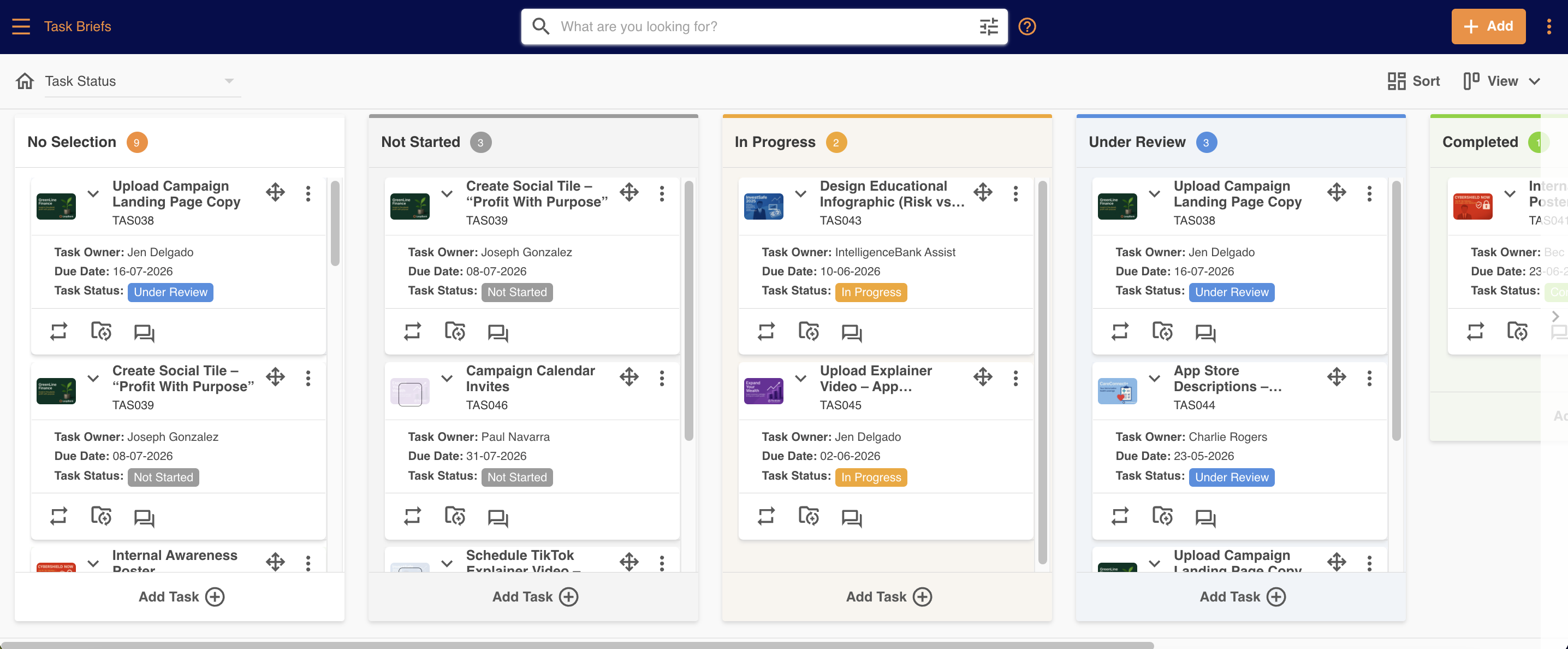
- Kanban: allows you to see (and re-order, with appropriate permissions) records in columns as well as Drag & Drop records between them, making it easy to visualise and update data.
See the below sections for more details on these different layout options.
Table of Contents
List View
When applicable, shortcuts to Related items, Auto-Folder Create links and Comments icons will all be displayed against the records.
In addition to the actions displayed on the right side of the screen, you can view more actions by clicking on the three vertical dots icon. To open/view a record, simply click the View icon, name of the record or the thumbnail.
Card View
Card view allows for a more visual representation of published records, highlighting the thumbnails assigned to each record. Secondary Fields can also be displayed, meaning you can see more relevant information attributed to each record, as well as the thumbnail.
Calendar View
The Calendar view allows you to view records based on selected date fields from within the form. This means that for whichever date field is selected, records will appear based on that field's inputted date.
This view also allows you to see records as a range, based on two date fields, i.e., a Start and End Date. This will extend the display of each record, based on what is selected within those date fields.
You can see more information about each record by hovering over the Info icon attributed to each record. Currently the view options for Calendar include Daily, Weekly, Monthly and Quarterly options.
To find out more about the Calendar view, click here.
Kanban View
A Kanban view is a board-based card display that can visually indicate what status a record is in. It allows you to view the current capacity of a team, prioritise work, or move the card through a process, indicating its progress as work is completed.
Any team that, for example, has a set process for their work (and defined stages) can find a Kanban view useful. For more information on Kanban view, click here.
Setting the Default Record Layout in a Database
The default record layout can be set on a database level by:
- Main Admins
- Database Admins
- Users with Manage permission on Databases
To set this up:
| 1Open Database Settings | Navigate to the relevant database. Select the three vertical dots in the top right-hand corner and select Database Settings. This can also be set when creating a new database.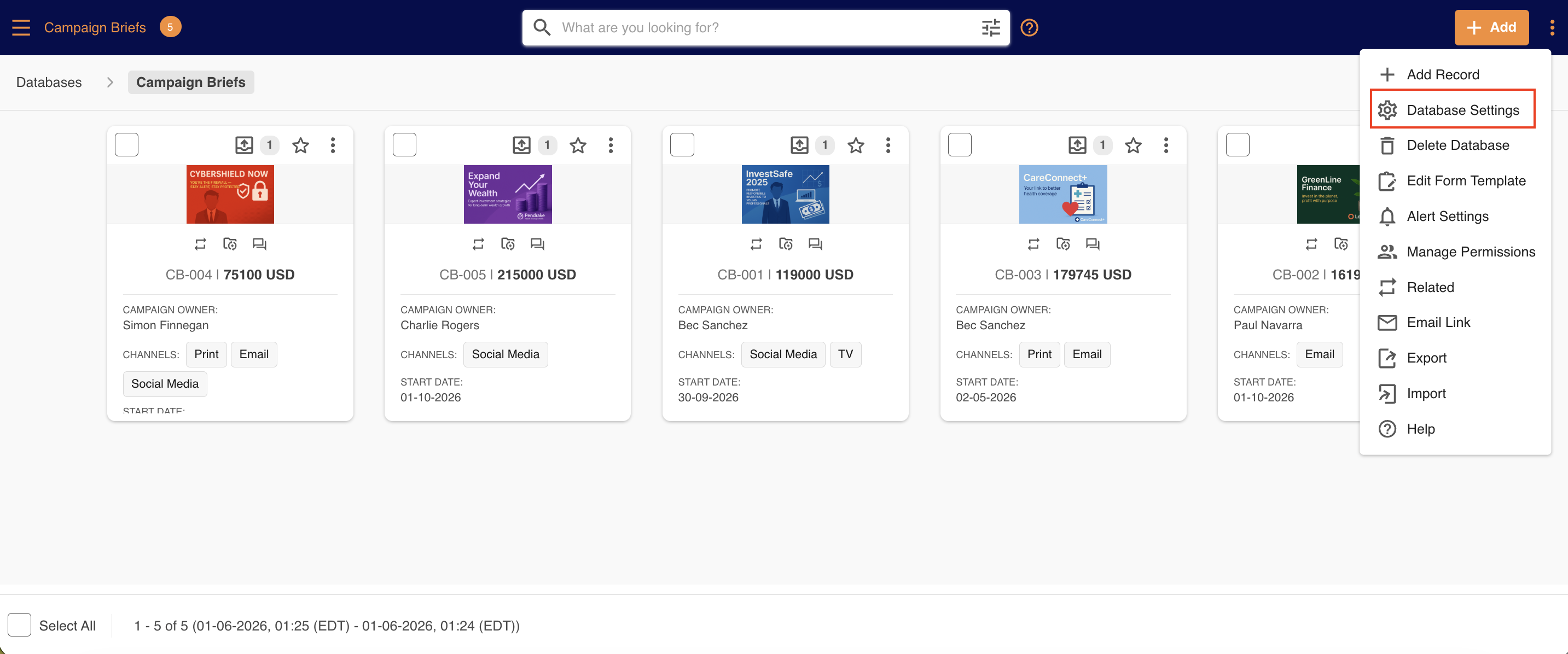 |
| 2Choose the default layout | Locate the Default Layout field. Click into the dropdown to select which default layout you'd like. Note that if you select Kanban, the Default Kanban Field becomes mandatory, since you will need to select which single select field in the form displays as Kanban swim lanes by default as well. |
| 3Save your changes | Once you've made your selections, scroll to the bottom of the page and select Save. The default layout of records in that database will display for users moving forward. |
Viewing Records in Different Layouts
Individual users can also choose to view records in different layouts by following the below steps:
| 1Open the database | Navigate and click into the relevant database. |
| 2Select the View icon | In the upper right-hand side of the page, select the View icon to reveal the four layout options.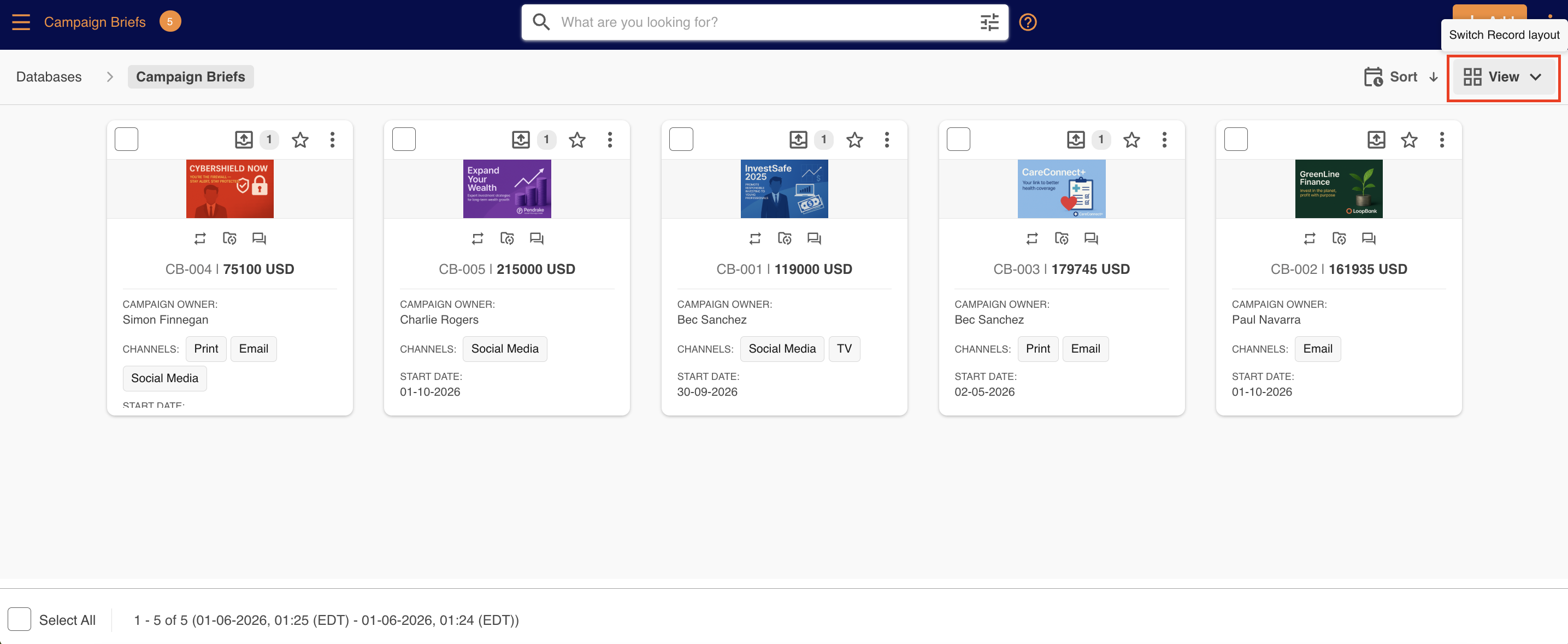 |
| 3Choose a layout | Select List, Card, Calendar, or Kanban. Whichever option is selected will update the records and display them accordingly.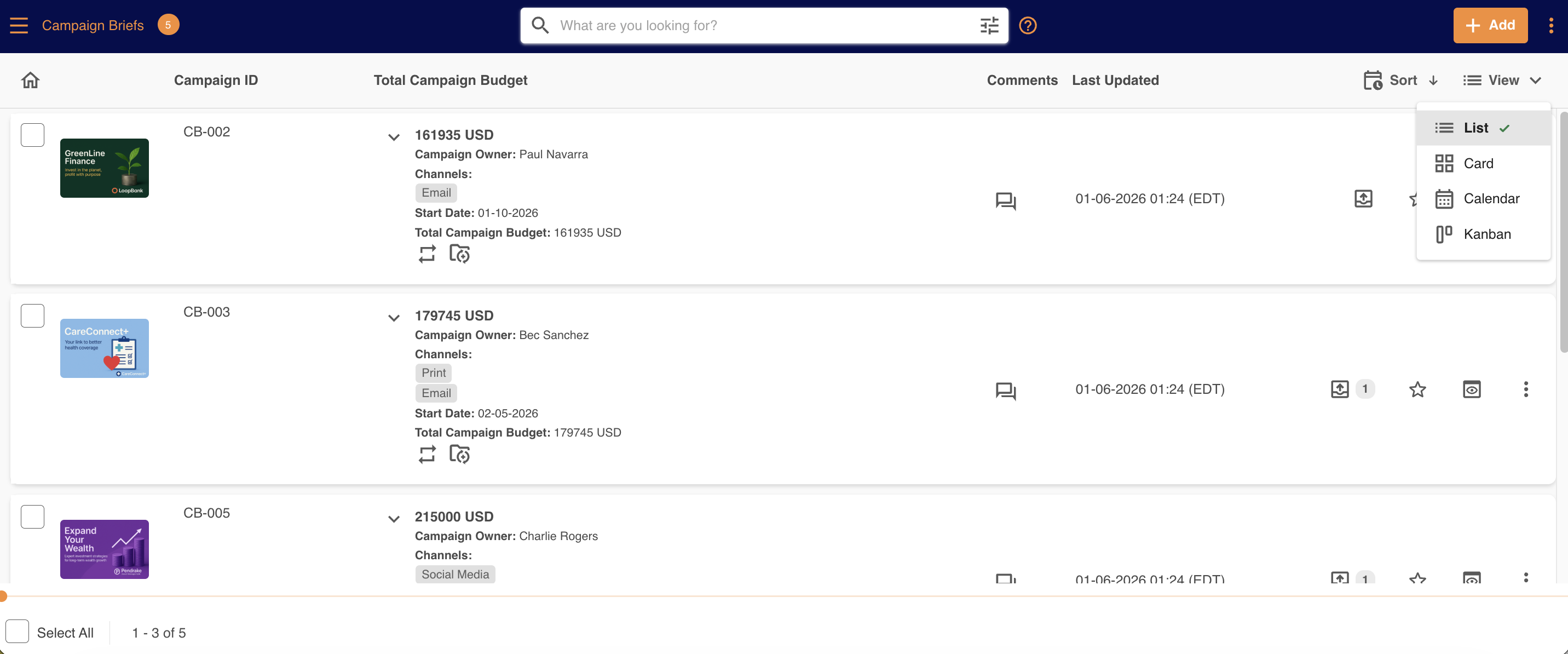 |
Was this article helpful?
That’s Great!
Thank you for your feedback
Sorry! We couldn't be helpful
Thank you for your feedback
Feedback sent
We appreciate your effort and will try to fix the article